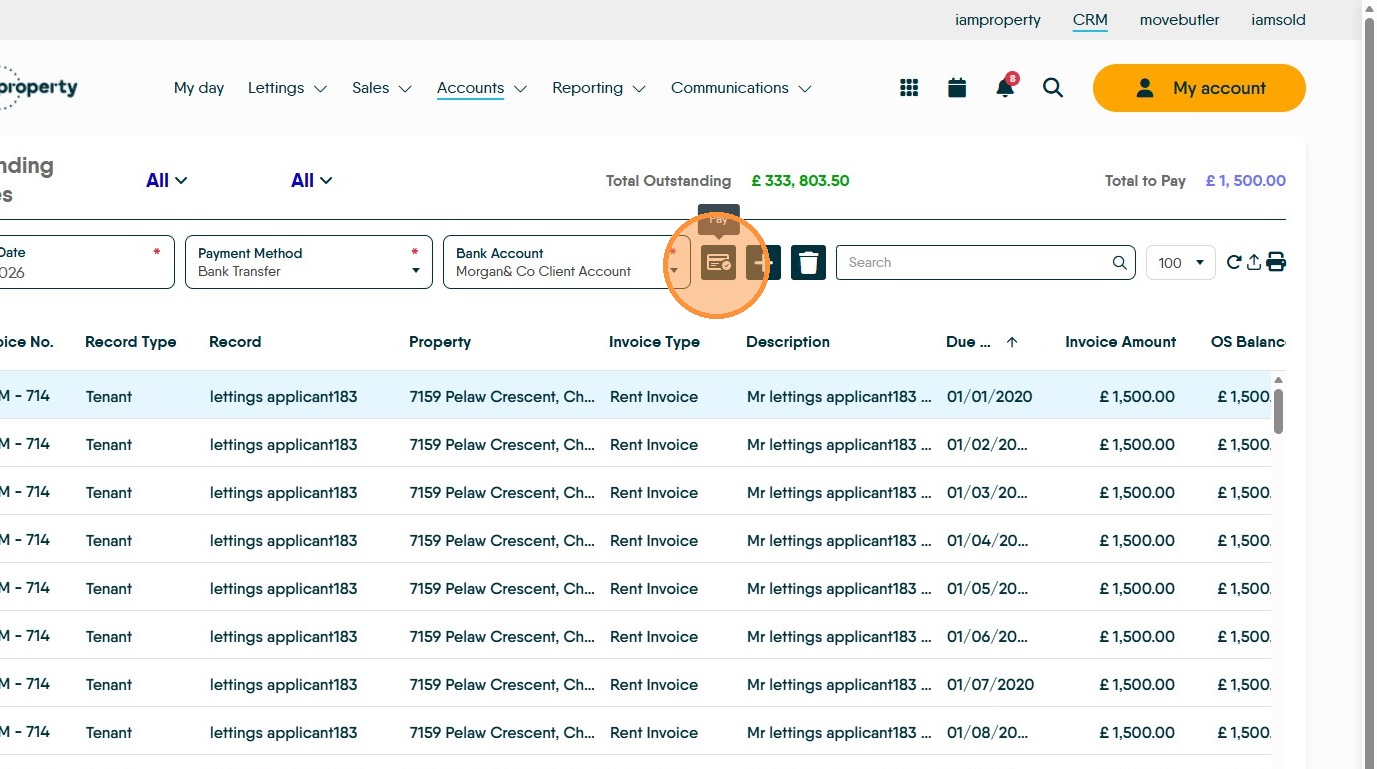
This guide provides a straightforward process for viewing and paying outstanding invoices through the IAM Property CRM platform. By following the steps outlined, users can efficiently manage their financial obligations, ensuring timely payments and better organization of their accounts. It simplifies the process of chasing unpaid invoices, making it accessible even for those who may not be tech-savvy. Viewing this guide can save time and reduce the risk of late payments.
1. Navigate to https://crm.iamproperty.com/Dashboards/Accounts
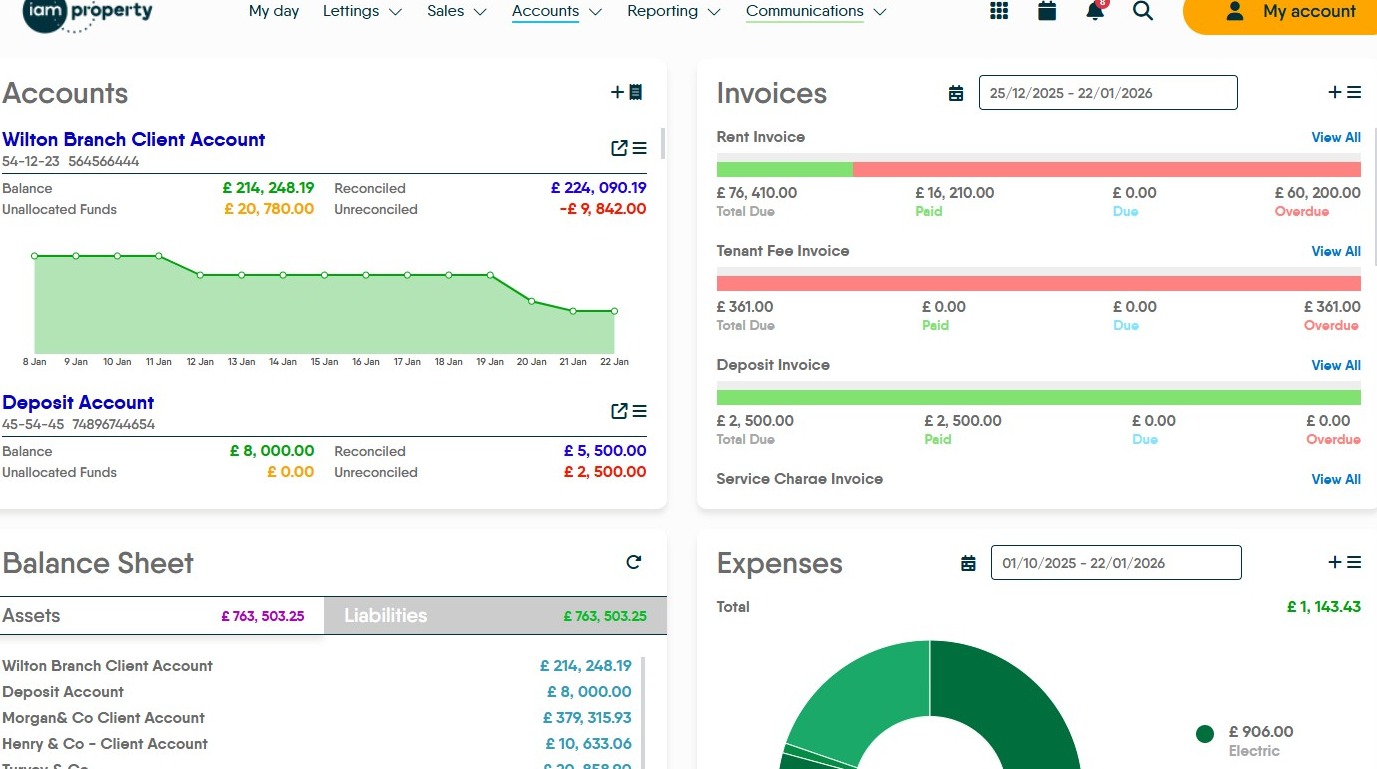
2. On the "Invoices" tile. Click here.
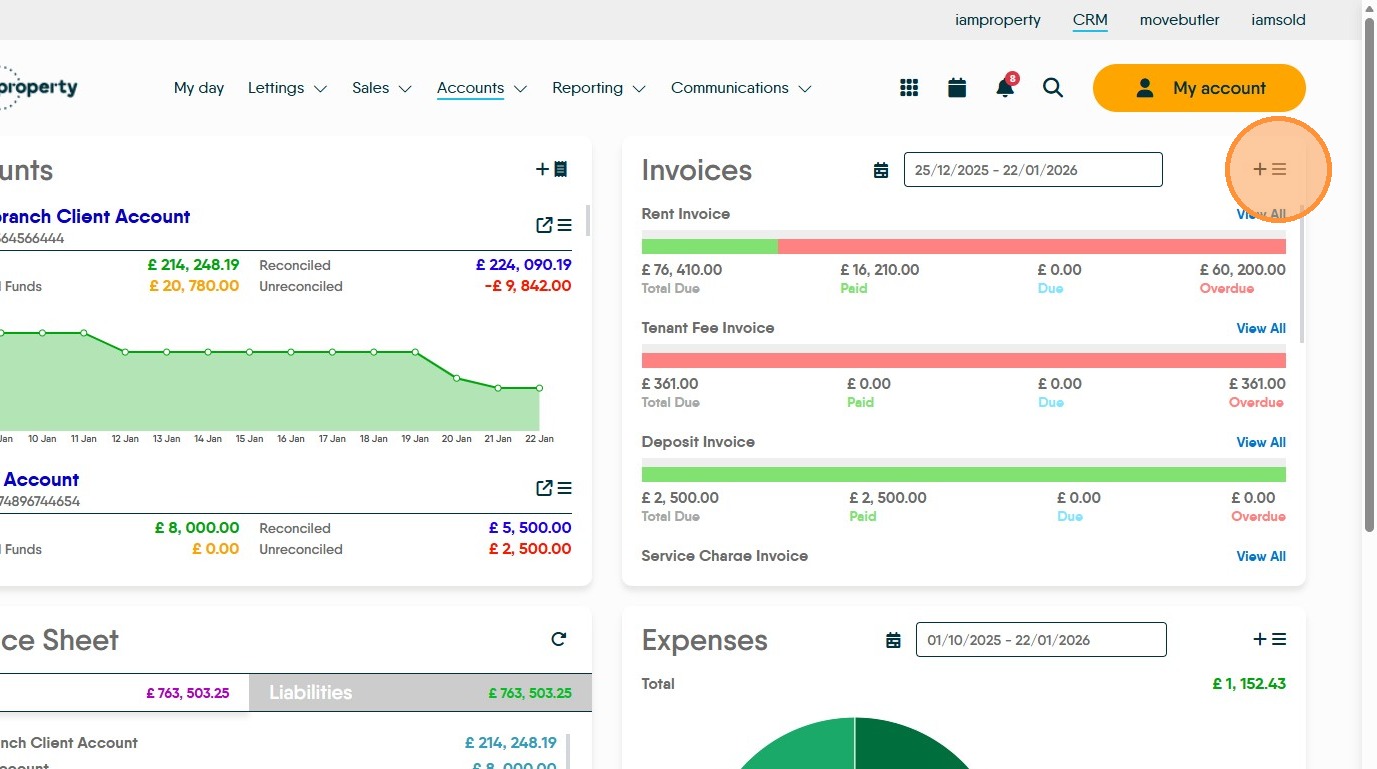
3. Click "View All Invoices" This will allow you to view all outstanding invoices, both those that are for you to collect e.g. Rent Invoices and others such as Expenses invoices to landlords. The invoices shown are those between the dates shown (highlighted) on screen, the date bar can be edited to change the options
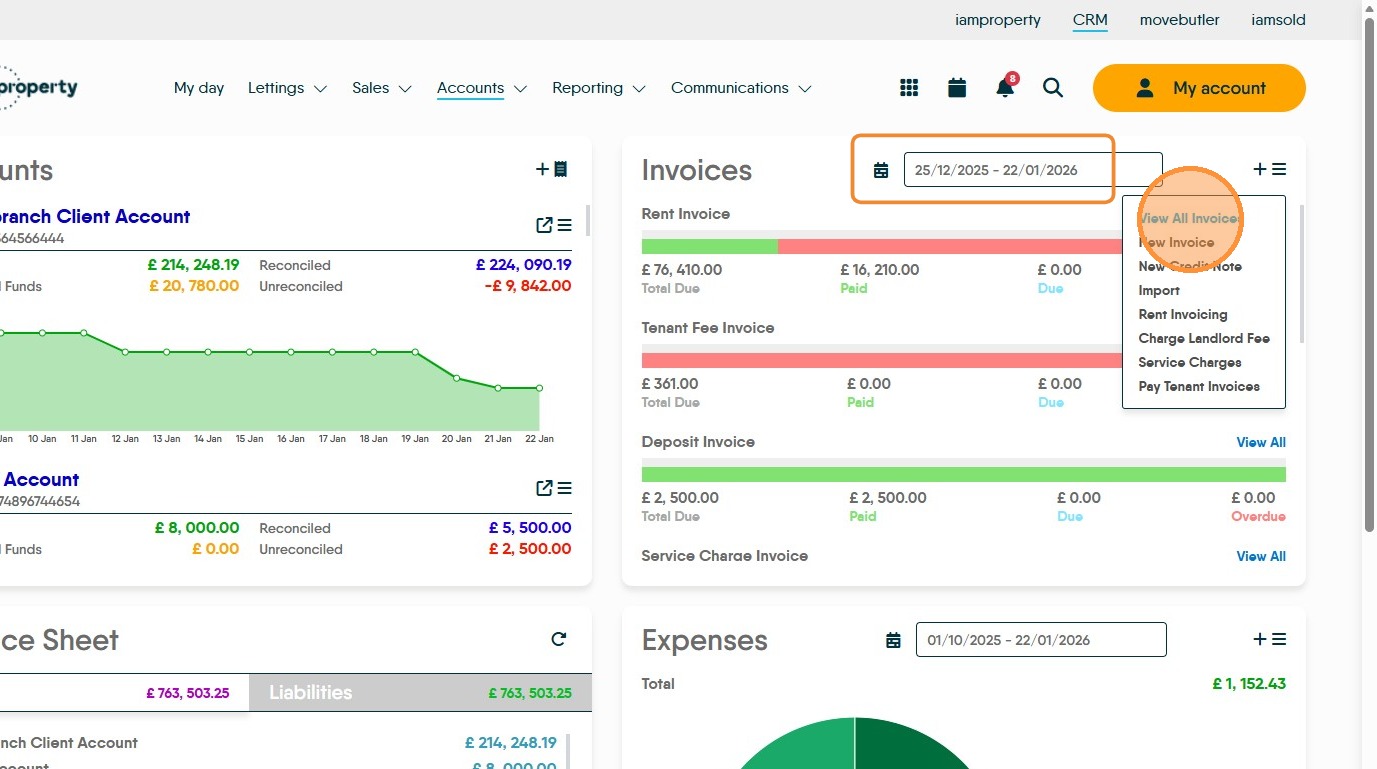

4. Click here to increase the number of rows that can be viewed onscreen.
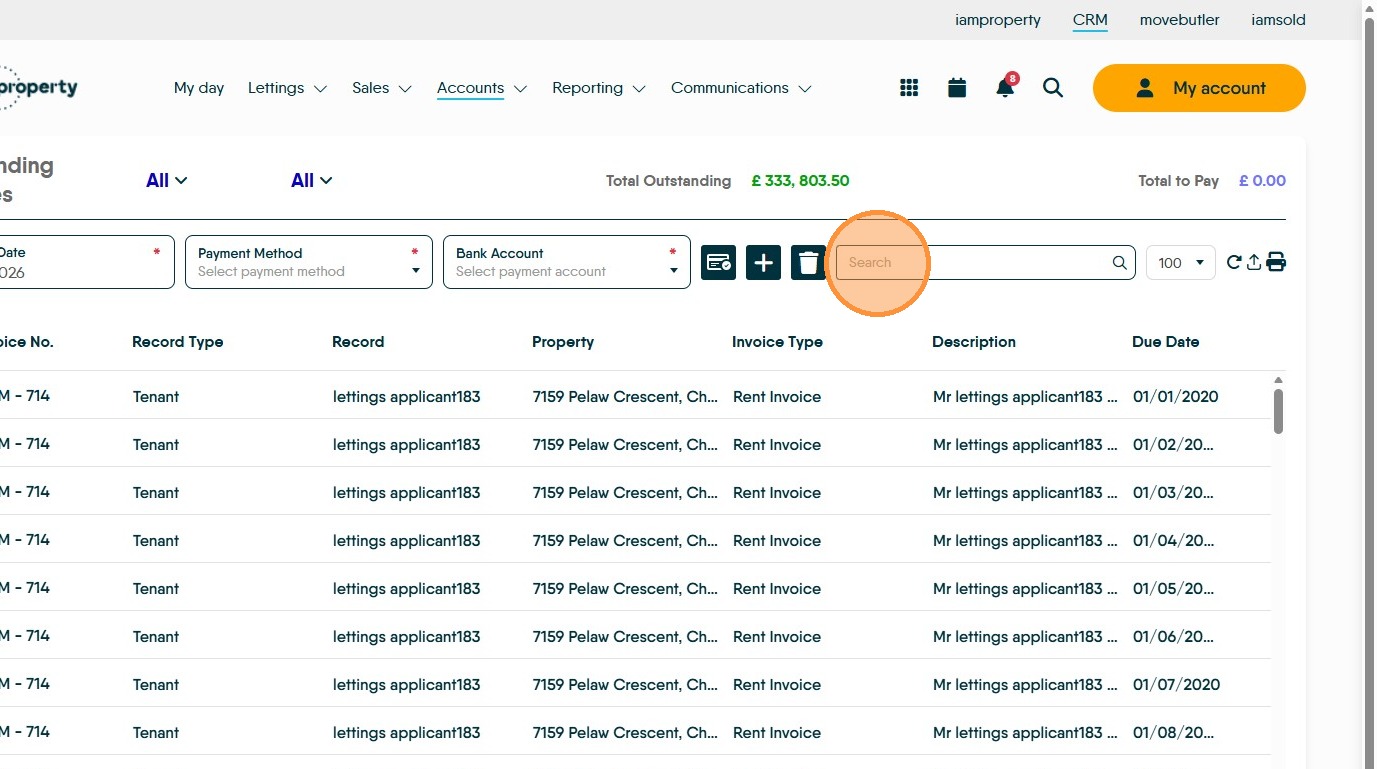
5. If you are looking for specific results, click the "Search" field.
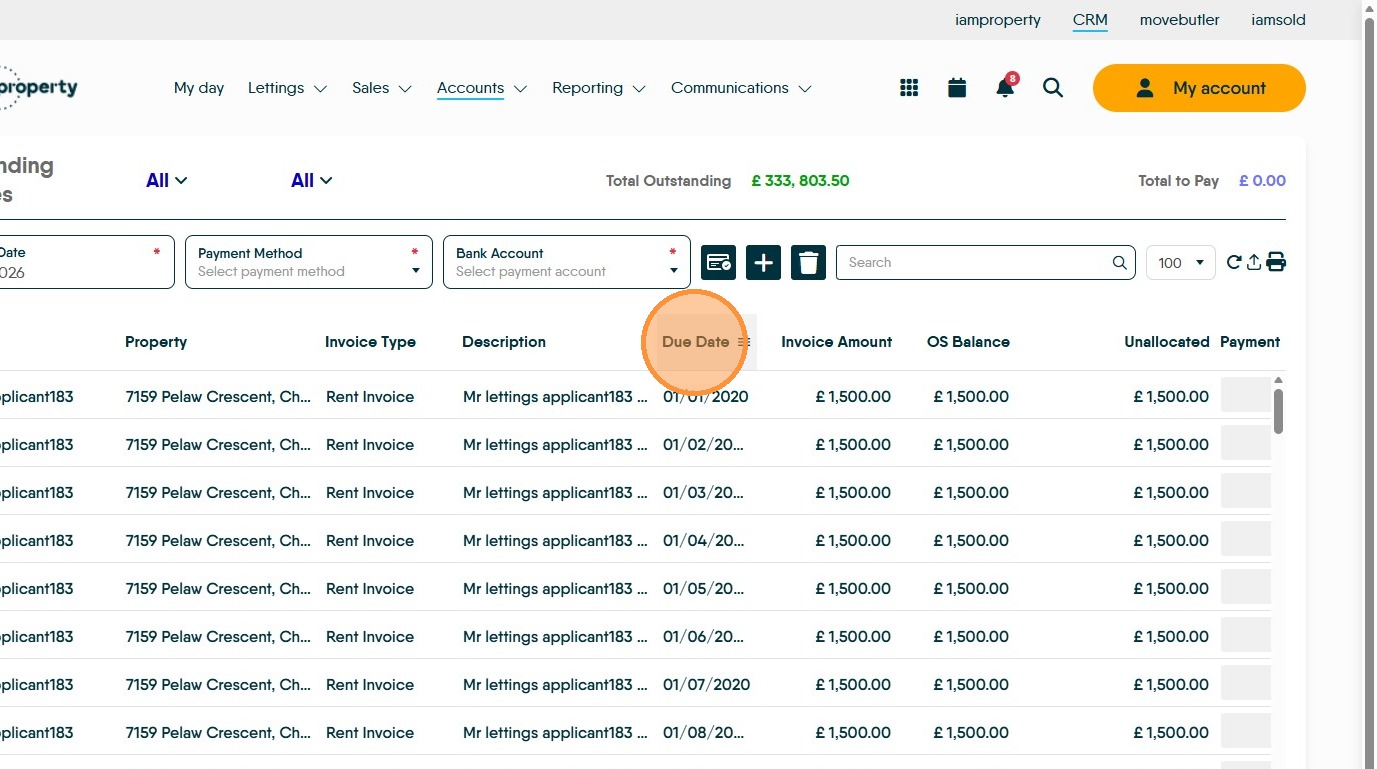
6. Click "Due Date" to sort the records by the date they are due.
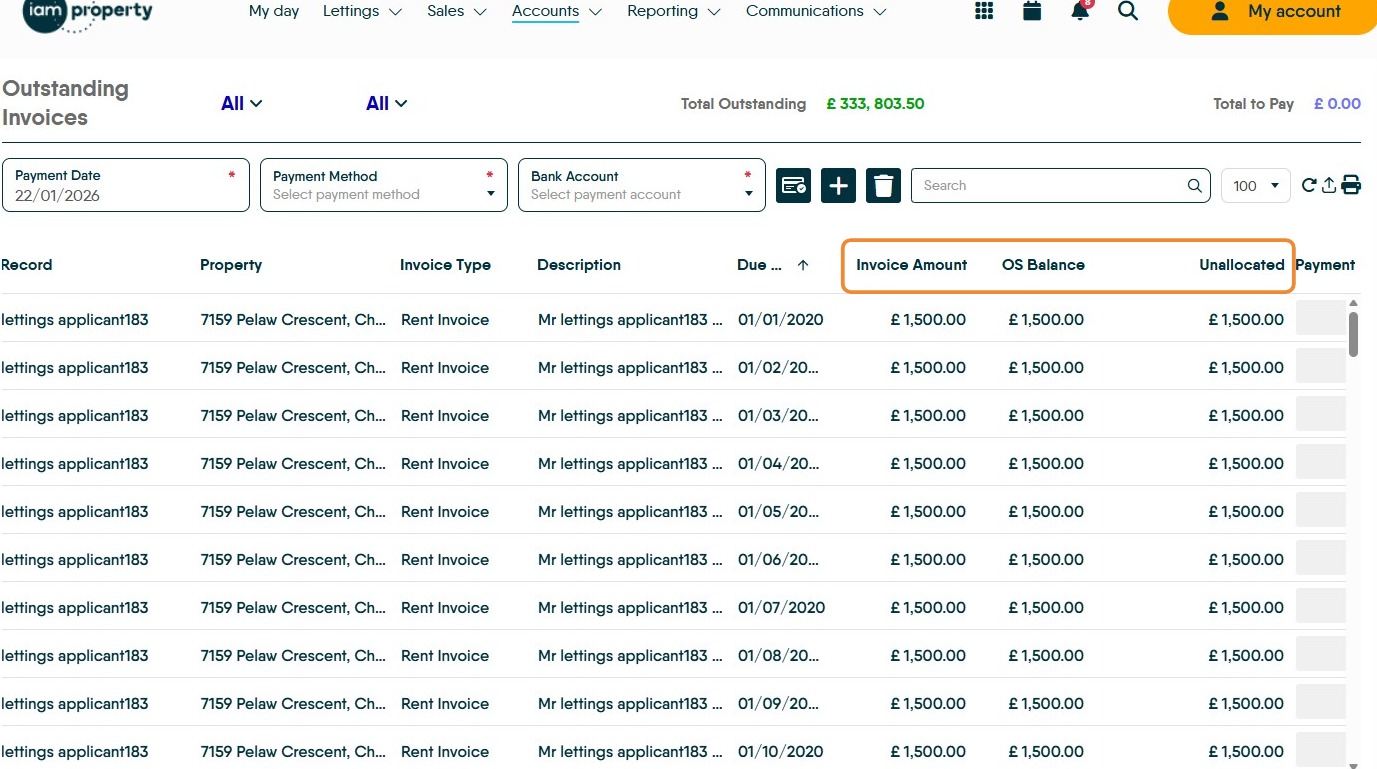
7. The screen shows all the required detail for an invoice. Details of the Record the invoice is created against, address, invoice type, when due as well as the value of the original invoice and the outstanding balance.
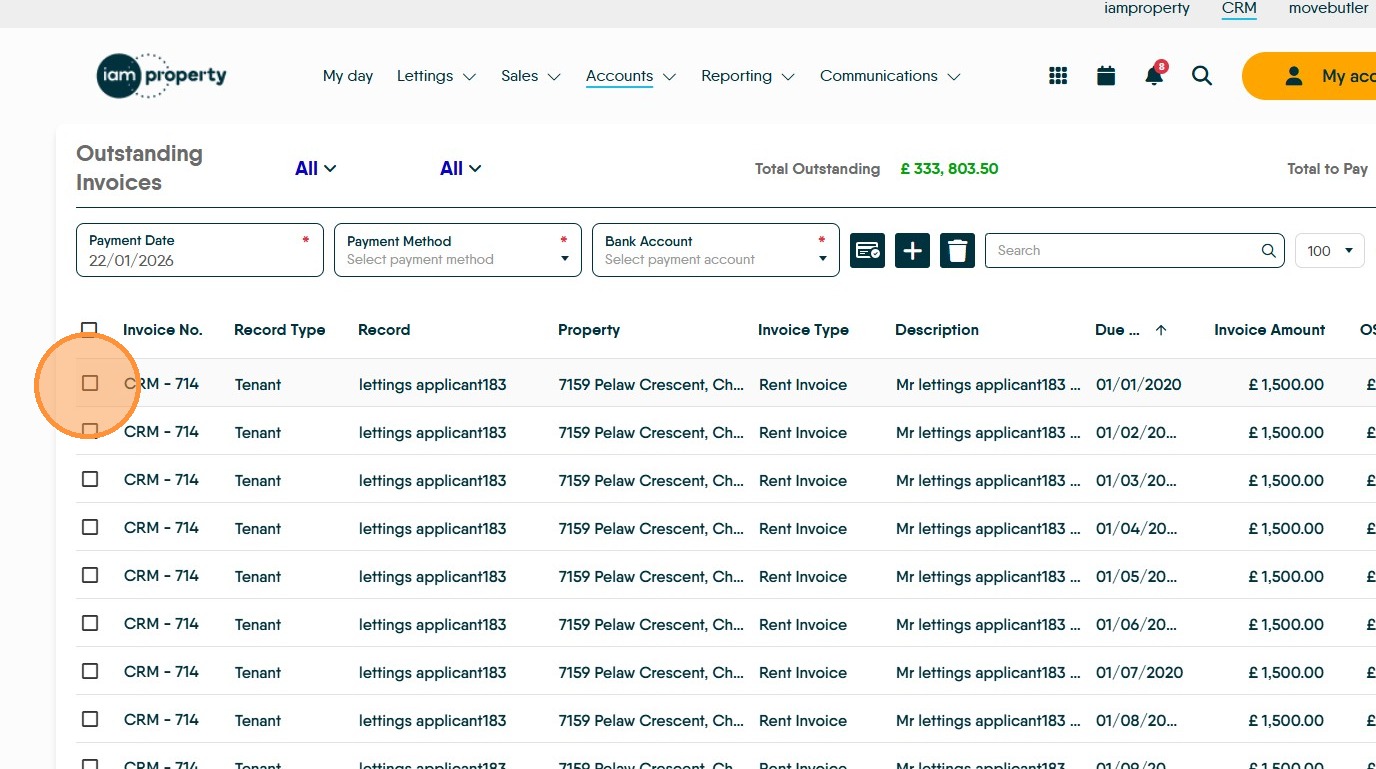
8. To collect a payment for invoices from this screen. Click this checkbox and any other invoices you are paying..
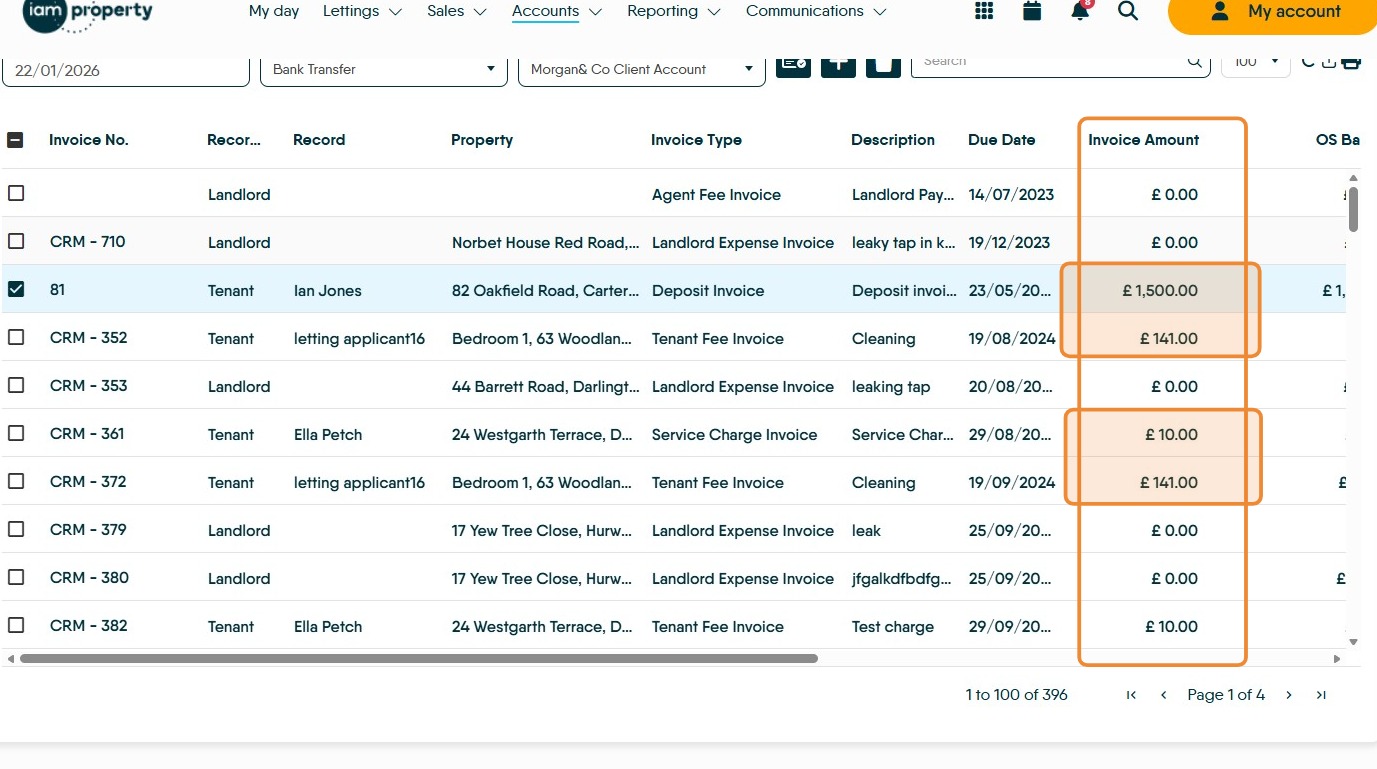
9. Only Invoices with an Invoice Amount can be collected e.g those highlighted below
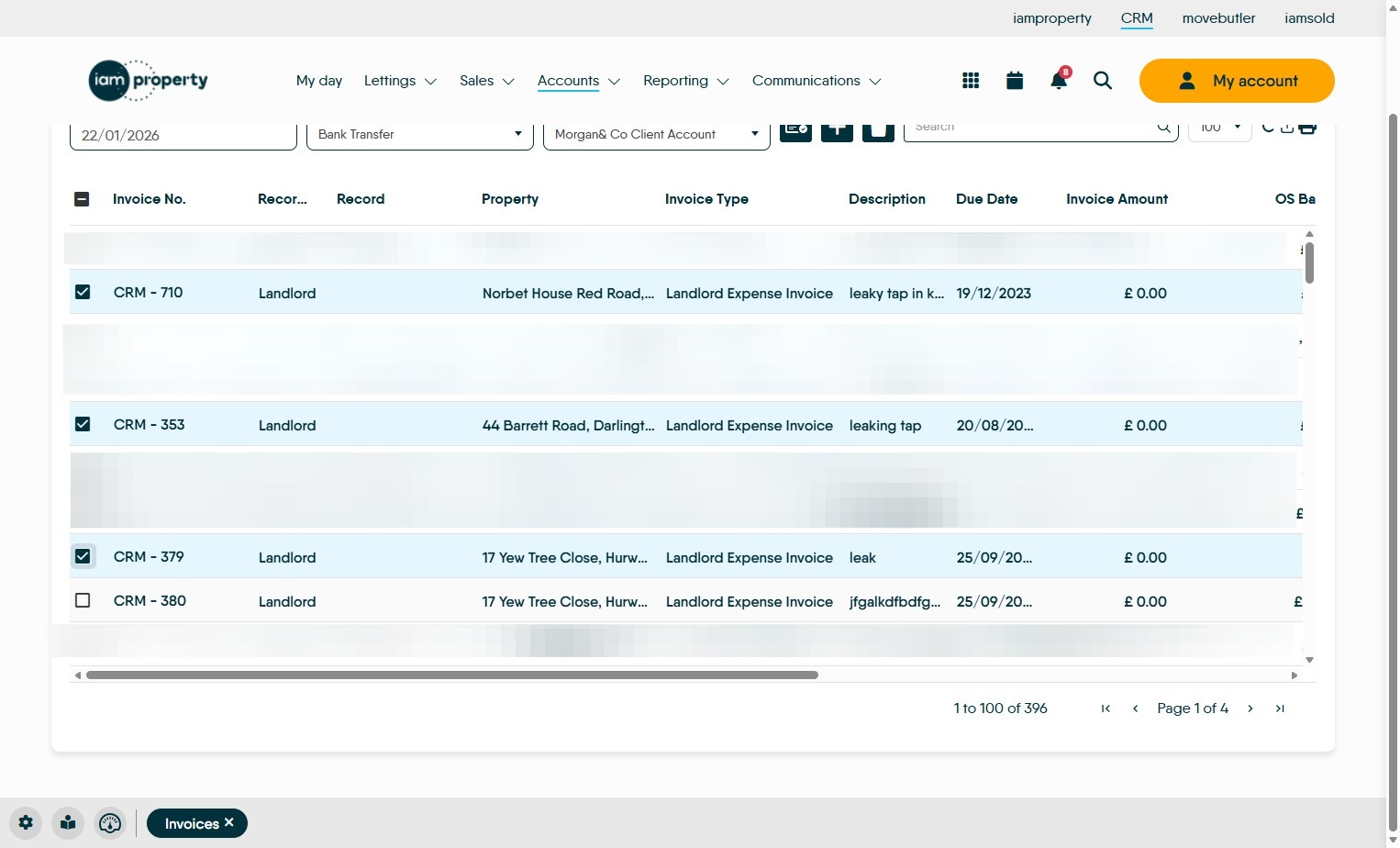
10. These invoice types cannot be collected here.
11. Click "Select payment method" from the drop down list select how the payment was made.
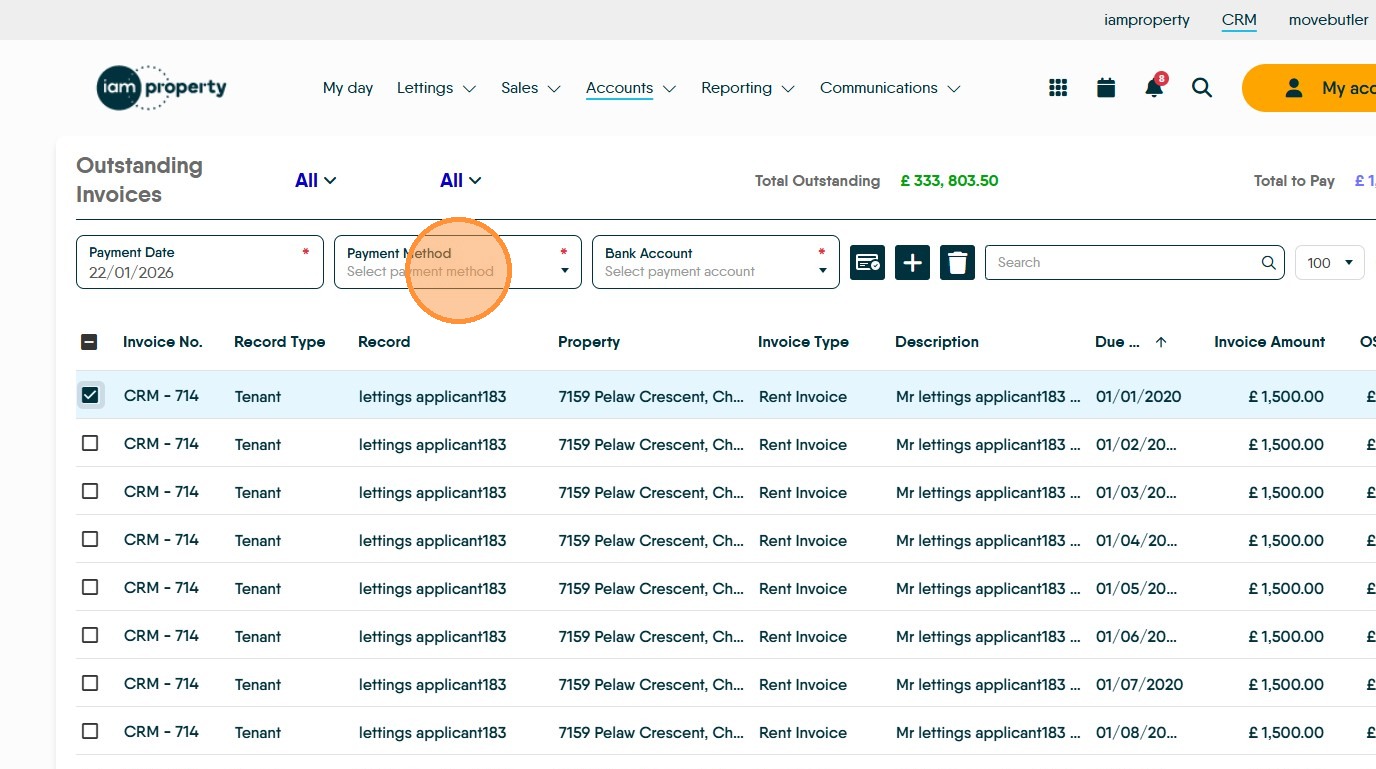
12. Click "Select payment account" select the account the funds where paid into from the list.
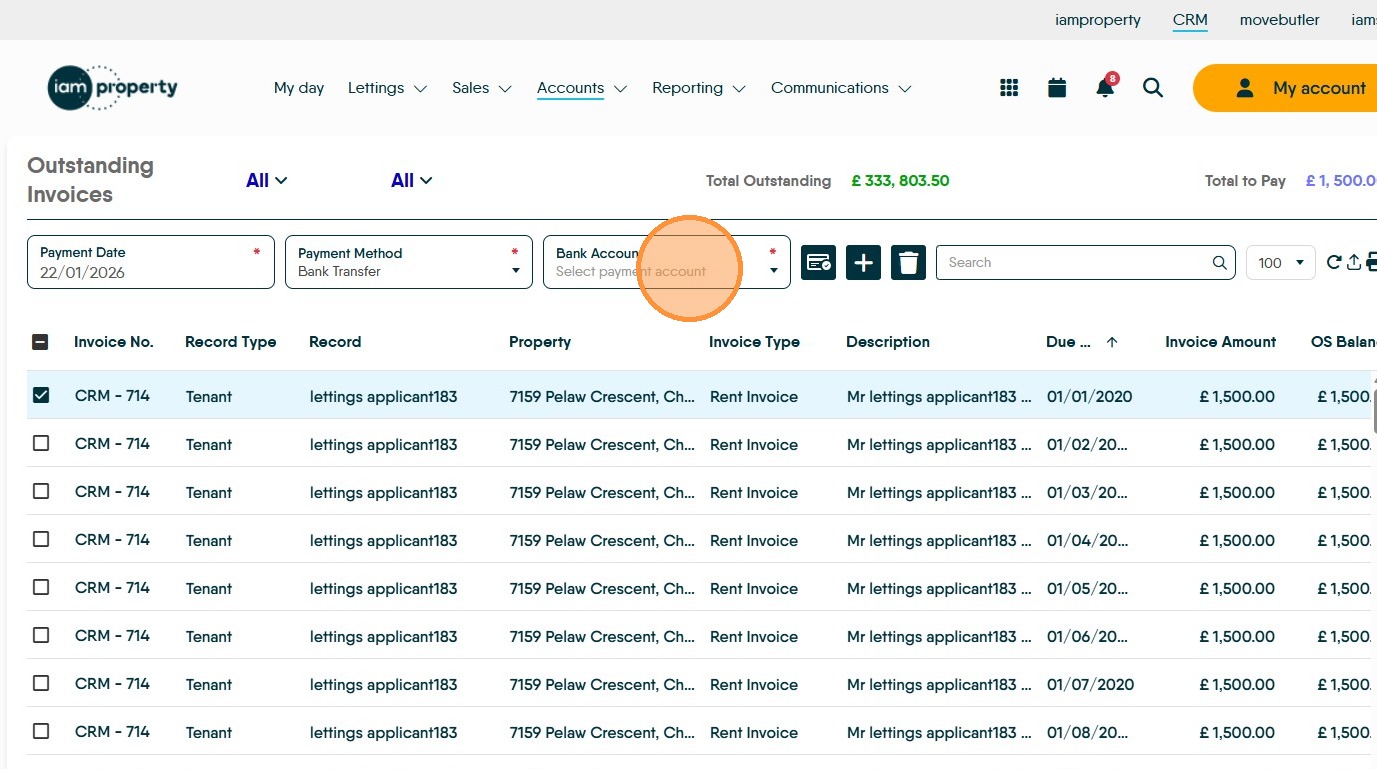
13. Click the "Pay" icon to collect in the payments for all the selected Invoices.