This guide provides essential steps for effectively managing contractor financial details and commission rates within your CRM system. By following the outlined process, users can ensure accurate financial/payment records are kept for Contractors, allowing for payment via BACS and setting of any commission payments that are received from the Contractor. This is crucial for enhancing operational efficiency and maintaining strong relationships with contractors.
1. Navigate to https://crm.iamproperty.com/MyDay
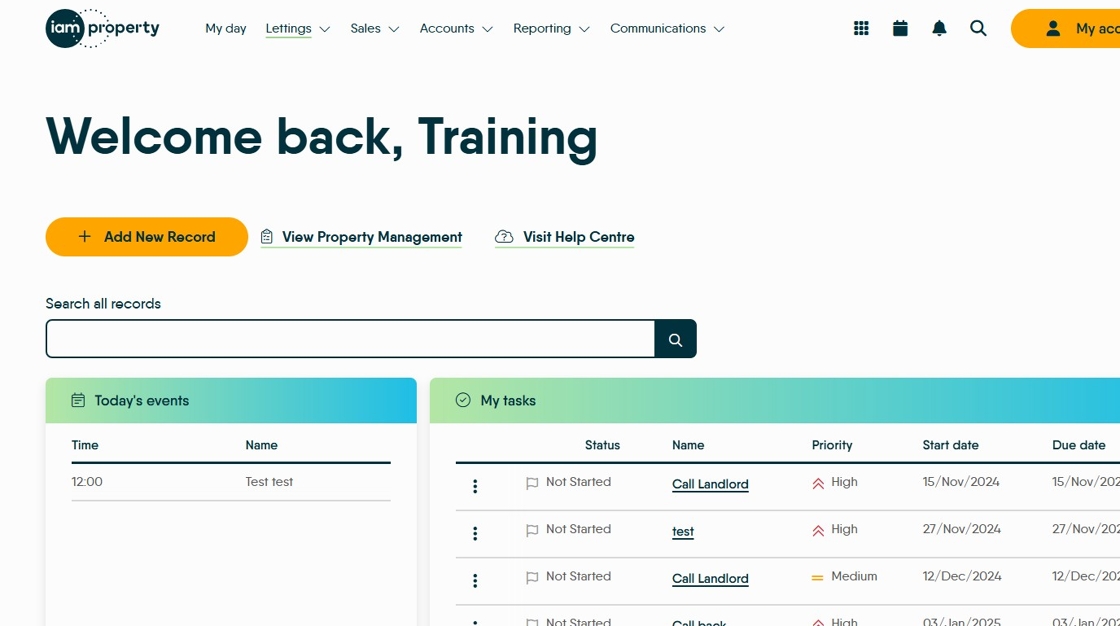
2. Click "Lettings"

3. Click "General"

4. Click "Contractors"
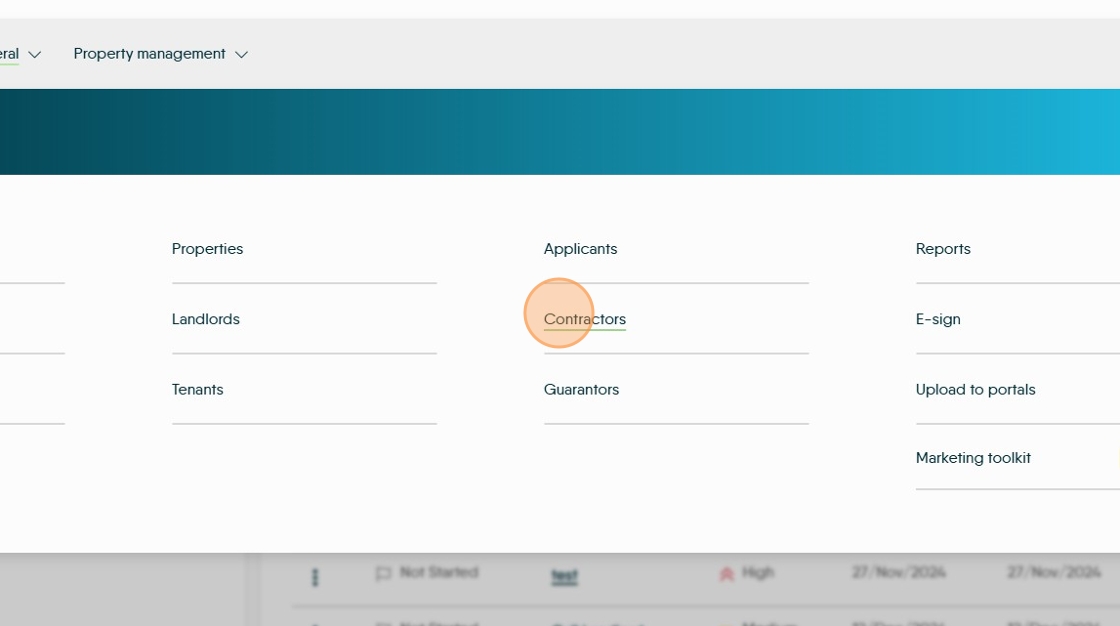
5. Click "View Contractor" to open the contractor record.

6. Click "Financial"

7. Set all the key payment details in the Bank Information section of the financial screen.
Setting the bank reference as <INV> will show the invoice number in the BACS payment description.

8. If you receive commission, i.e. a payment from the contractor for you giving them the work, then click this toggle.

Alert: Alert! A commission payment is different to a landlord uplift. Commission is charged to the Contractor and is deducted from the amount they receive for performing the task.
Uplift is an additional charge to the Landlord on top of the Contractor Invoice. This is charged in Expenses in the Accounts module.
9. Click "Primary/Secondary" to set the VAT rate for the contractor (Primary/Secondary rates of VAT are set in the Accounts Configuration settings)

10. Click here to set the commission rate paid. This can be a percentage of the invoice value or a fixed £ value e.g. 20% of the invoice or £10.

11. Click here to set the default expense type, if any. This could be to set a particular VAT type for that contractor.

12. Click here to Save.
