This guide offers a step-by-step approach to efficiently create and manage regular Service charges within your CRM system. By following these instructions, you can streamline your property management processes, ensuring accurate billing and record-keeping for tenants. The clear navigation and detailed actions help eliminate confusion, making it easier to handle expenses and invoicing.
Service Charges
Tip: Service Charges are charged to a tenant for providing services e.g. cleaning common areas. There are Tenant and Landlord Service charges. Landlord Service Charges are charged to the tenant and paid to the Landlord.
1. Click "Accounts"

2. Click "Tenant"

3. Click "Service Charges"

4. To add a new "Service Charge" click here.
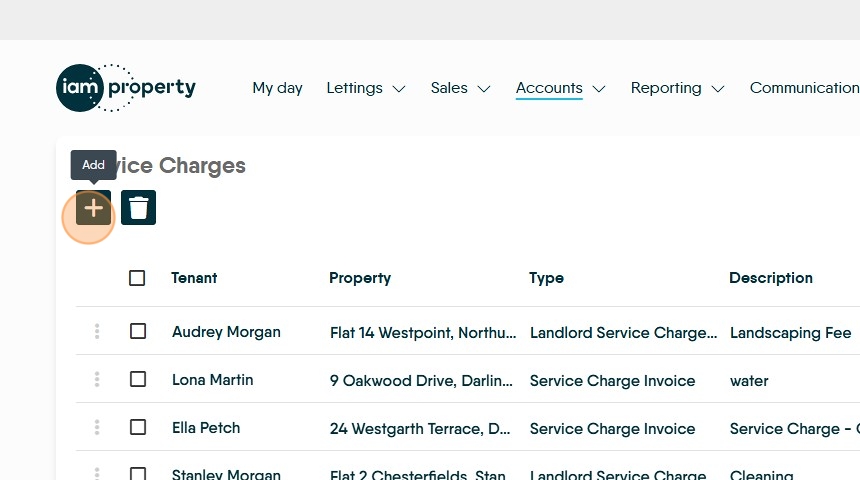
5. Click "Select tenant" and add search for and select the tenant.

6. If you want to create the service charge to ALL tenants click here.

7. Click the "Description" field and clearly describe the charge.
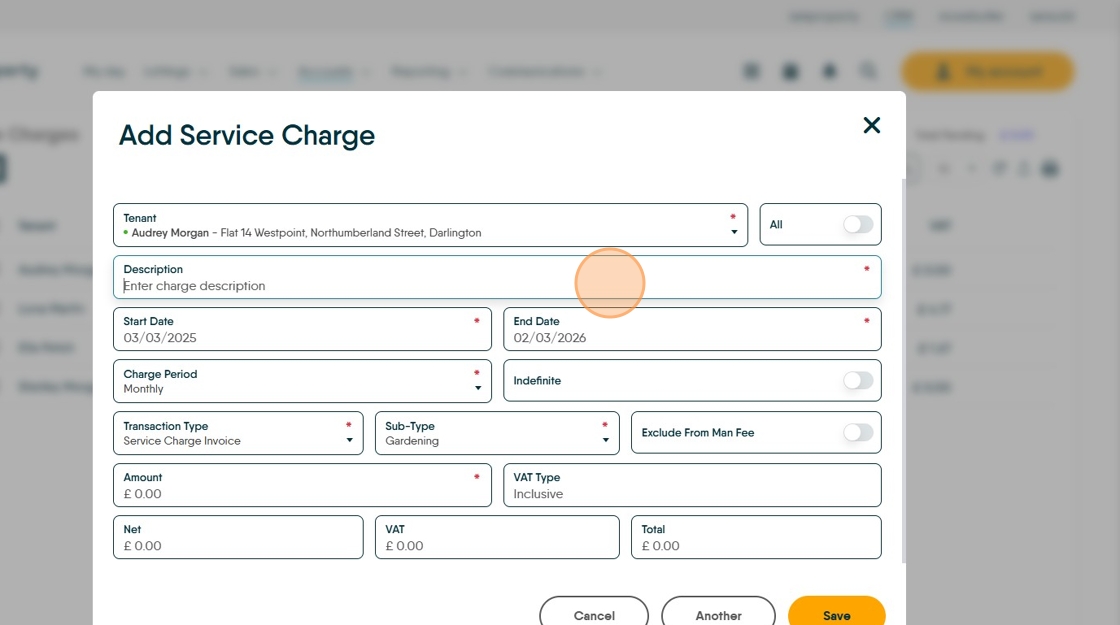

8. Click the "Start Date" field.

9. Click the "End Date" field or select the Indefinite option
Click "Indefinite" if required
10. Click "Charge Period" to set the frequency of the charge from the drop down list.

11. Click "Service Charge Invoice"
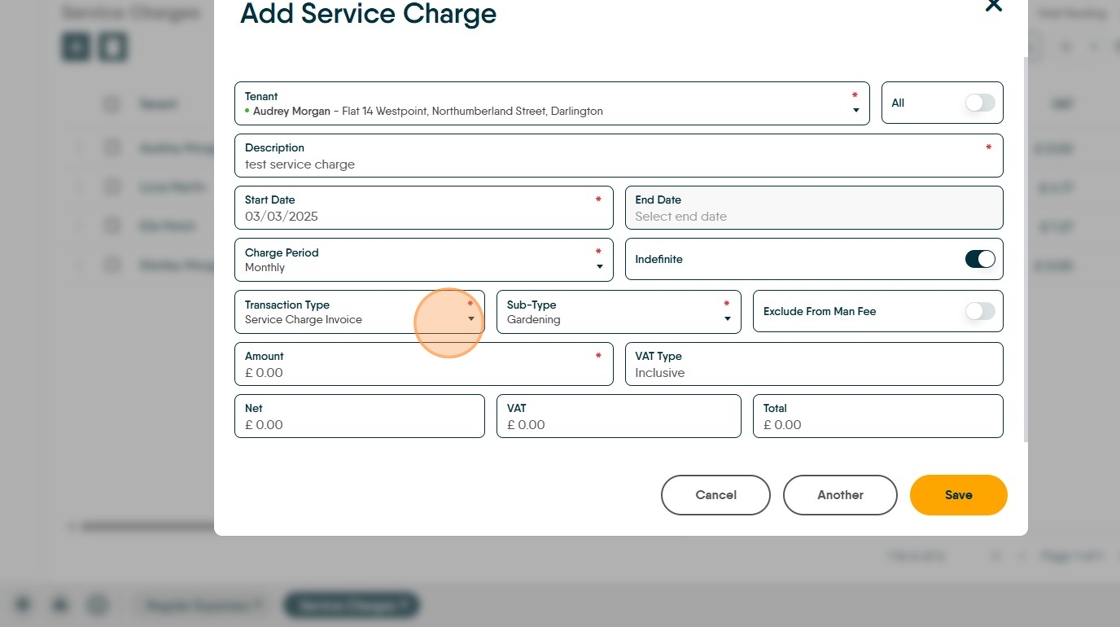
12. There are 2 options "Service Charge Invoice" and "Landlord Service Charge Invoice"

13. Click "Sub Type" and note what type of charge this is e.g. gardening, general maintenance. This list is editable in the Accounts configuration menu, Transaction Sub Types - Service Charges.

14. Click here to exclude this fee from being charged a Management Fee

15. Click the "Amount" field and add the value for the Service Charge you are charging.
The Sub-Type chosen controls the VAT Type, this can be edited in the Accounts Lookups menu.

16. The VAT is broken out based on the VAT rate charged. This is controlled in Accounts Configuration.
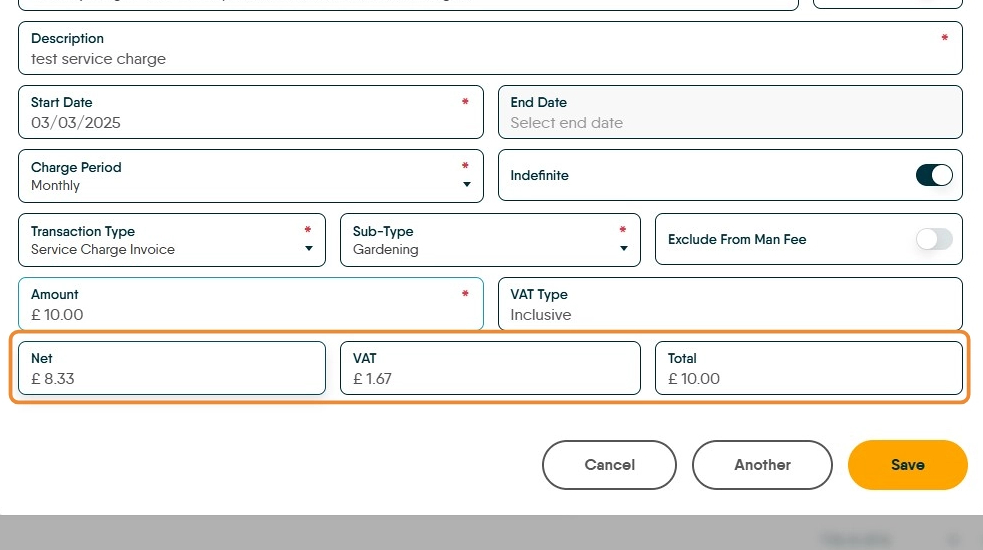
17. Click here to "Save". This will create a charge to the Tenant.

18. Click "Service Charge Invoice"

Landlord Service Charge
19. To create a service charge to the Landlord. Click "Landlord Service Charge Invoice"

20. Click "Select tenant" and add/search the tenant name.

21. To select "All Tenants" Click here.

22. Click the "Description" field. Add a description of the service charge being applied

23. Click the "Start Date" field, set the start date for the charge (can be backdated)

24. Click the "End Date" field.

25. Select the charge period. For example click "Monthly"

26. To set "Indefinite" length charge click here.

27. Click "Landlord Service Charge"

28. Click here to set the "Sub Type" this can control the VAT charge for the transaction.
To exclude the transaction from being charged a "Management Fee" click here.
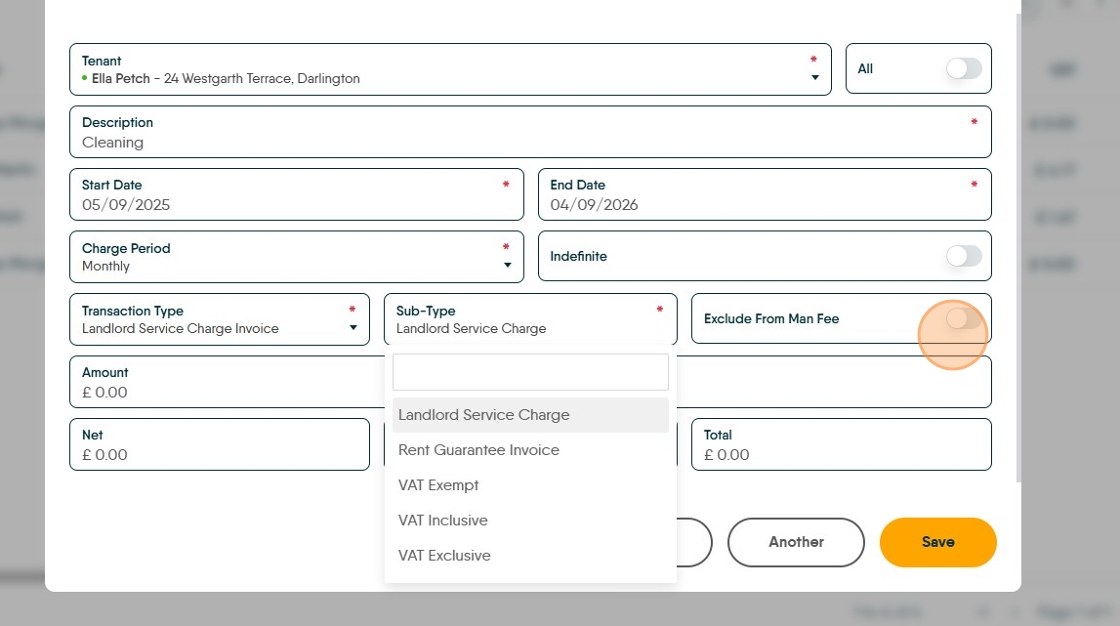
29. Click the "Amount" field to add the actual cost of the service charge.

30. Click the "VAT Type" field.
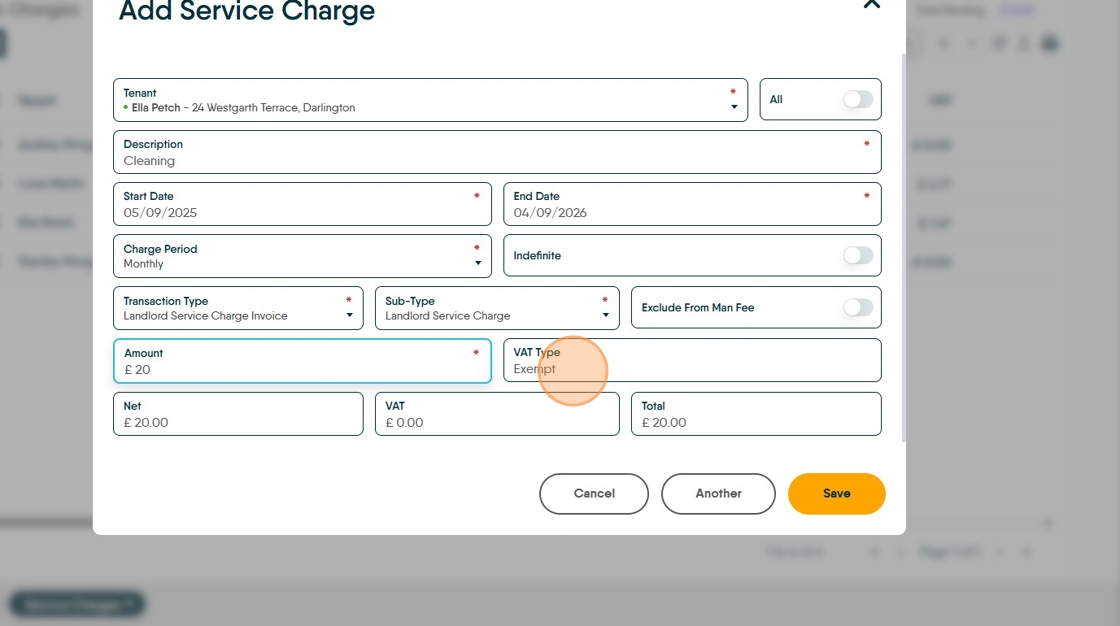
31. The VAT breakdown will show here.
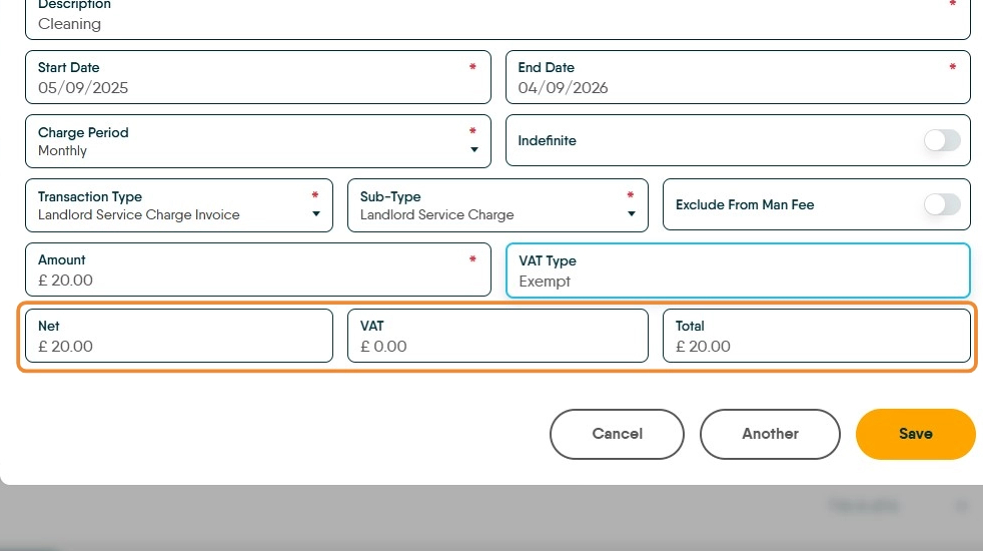
32. Click "Save"

33. The charge will then be charged to the tenant in the periods set.