In this case we are creating an adjustment to fix an error in the tenant ledger. An adjustment can add or remove (credit or debit) funds from CRM records.
1. Navigate to https://crm.iamproperty.com/Dashboards/Accounts

2. Click "Accounts"

3. Click "General"

4. Click "Adjustment"

5. Click "Select account type"

6. Click "Tenant", in this case we are creating an adjustment in the Tenant account

7. Click "Select record" type either the tenant or property name.
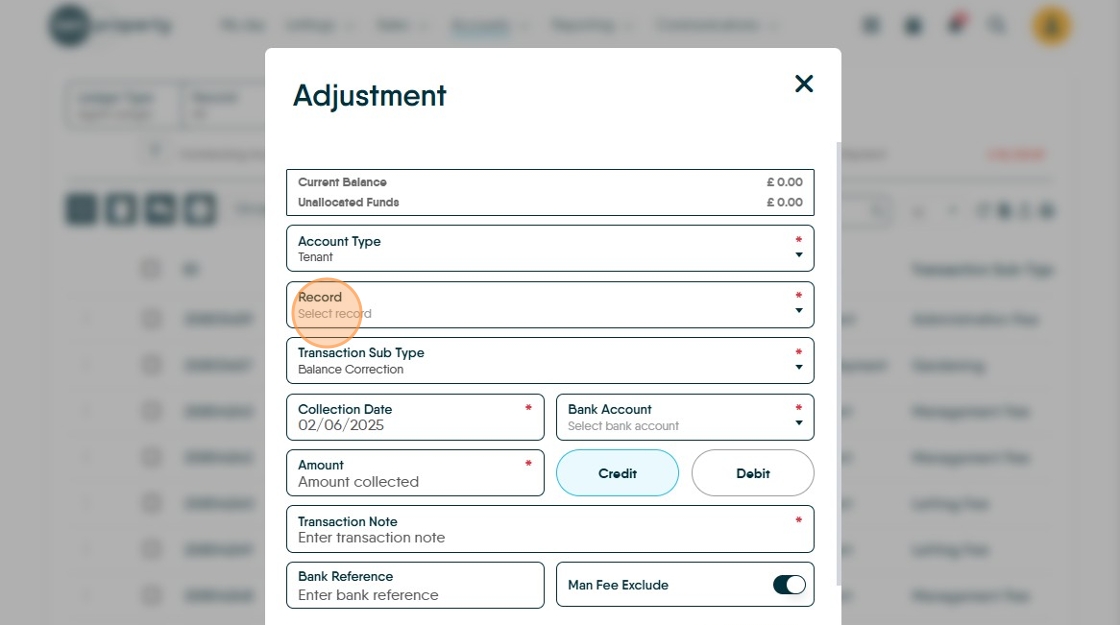
8. Click the appropriate record from the options.

9. Click "Balance Correction"

10. Click "Select bank account" the adjustment is to be credited to or debited from.

11. Click the "Amount" field and add the amount

12. Then select whether this is a credit or (in this case) a "Debit"

13. Click the "Transaction Note" field. Create a descriptive transaction note so you are aware of what the transaction is.

14. Click "Collect"

15. Click here to open the ledger.
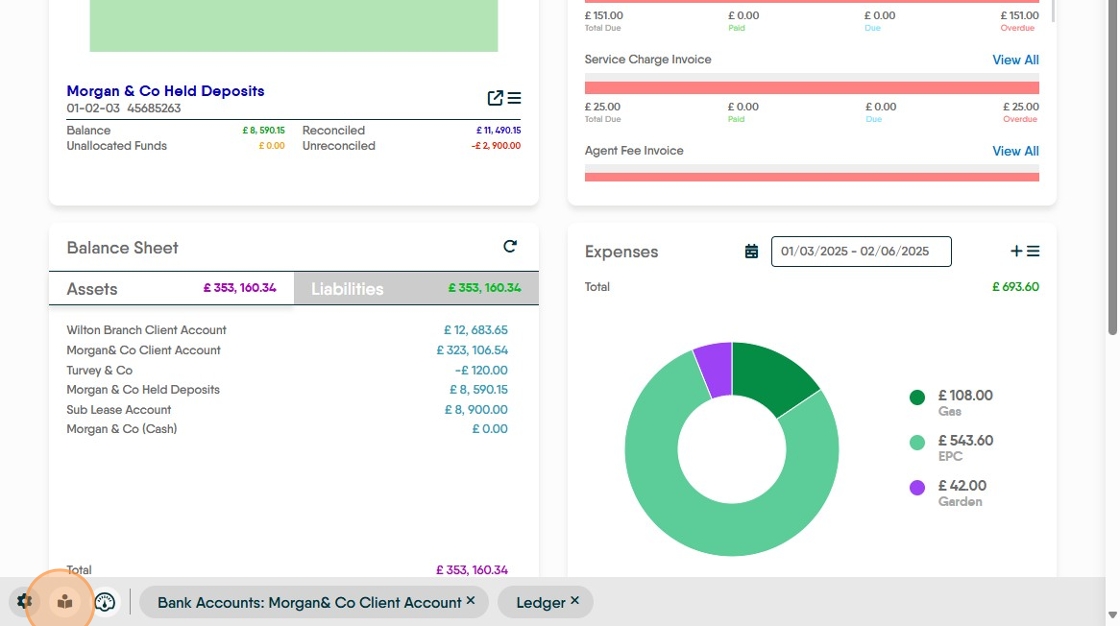
16. Click "Select ledger type"

17. In this case click "Tenant Ledger".

18. Click "Search for Record" in this case we are searching for the record we created the debit from.

19. Find the Adjustment line and check the transaction is as you want it to show. Click here.

20. Then navigate to your client account.

21. Once in the client account, if the Adjustment transaction isn't obvious (it should be)

22. Search for the record, either click the "Search" field.

23. or one of the other options, for example Date.

24. Click the 3 lines.

25. enter the date and the system will search by date.
