This guide offers a step-by-step process for generating a BACS list in the CRM Accounts Module, making it essential for users who need to efficiently manage payments to landlords, tenants, and contractors. By following the instructions, users can easily create and filter payment lists, ensuring that only relevant transactions are processed. Additionally, the guide provides options for viewing historical BACS files and accessing replacement versions, making it a comprehensive resource for maintaining accurate financial records. Overall, this guide streamlines the payment process, saving time and enhancing productivity.
1. Navigate to https://crm.iamproperty.com/MyDay
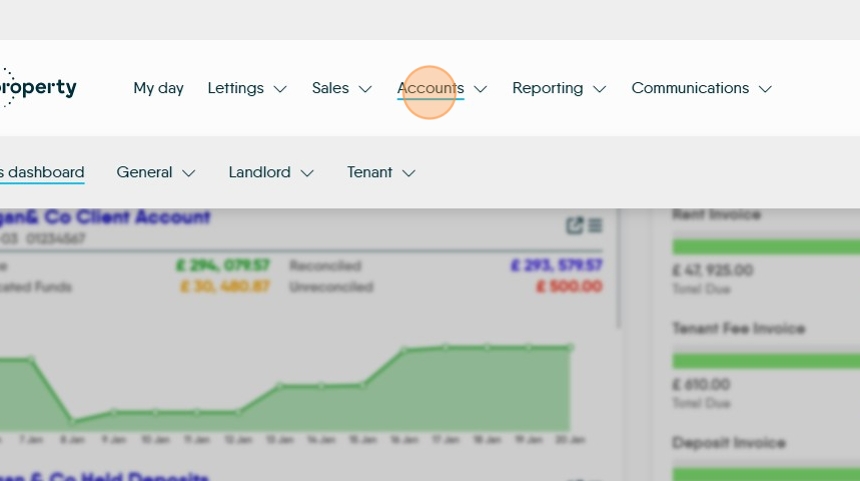
2. To create a BACS file to upload to your bank. Click "Accounts"
3. Click "General"

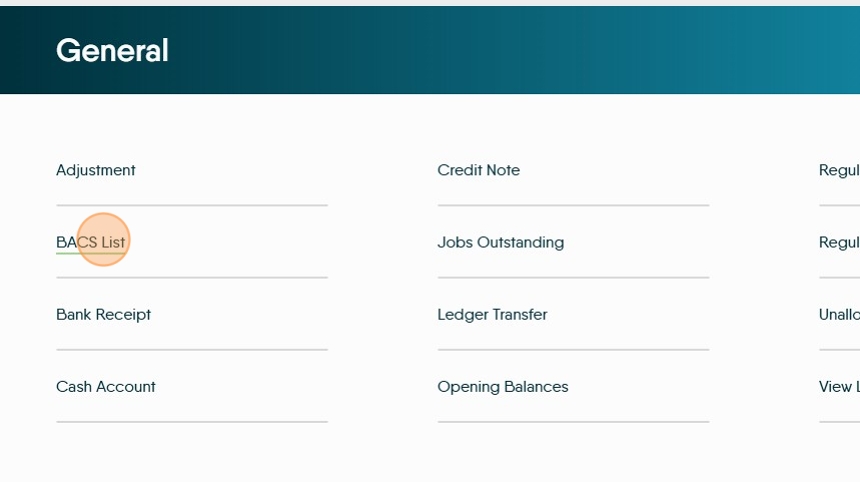
4. Click "BACS List"
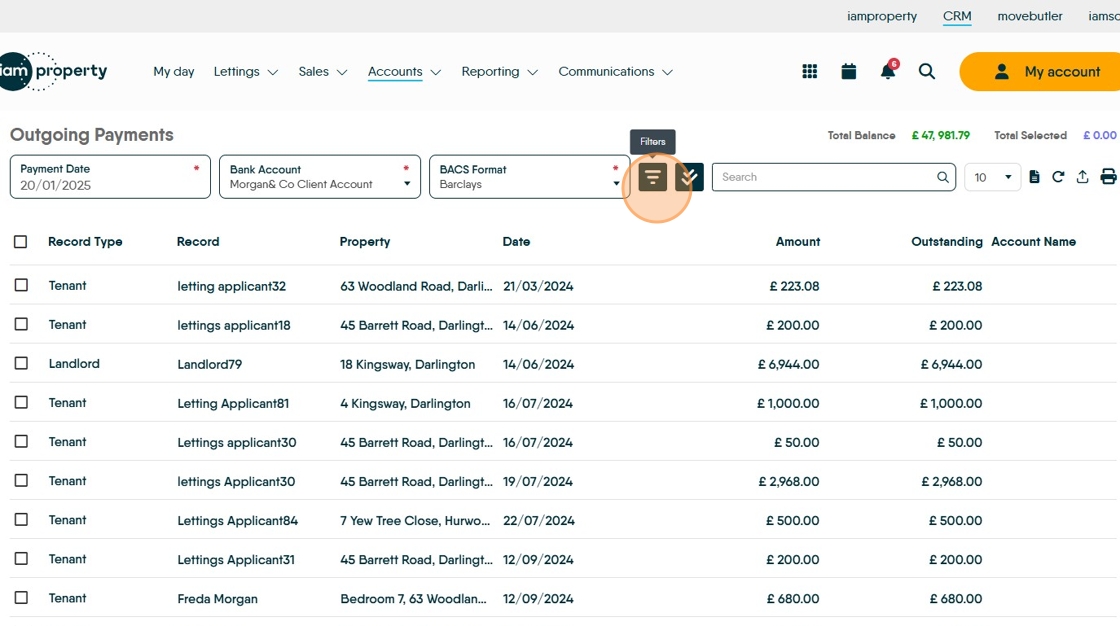
5. This will take you to the BACS list. This will show you all the payments you have created that have been created as BACS payments. Landlord, Tenant and Contractor payments can be made.
N.B. you can only pay out via BACS where the record has the Account Name, Account Sort Code and Number.
You can create a filter so only a specific category of payment is made e.g. Landlord. To create the filter click here.
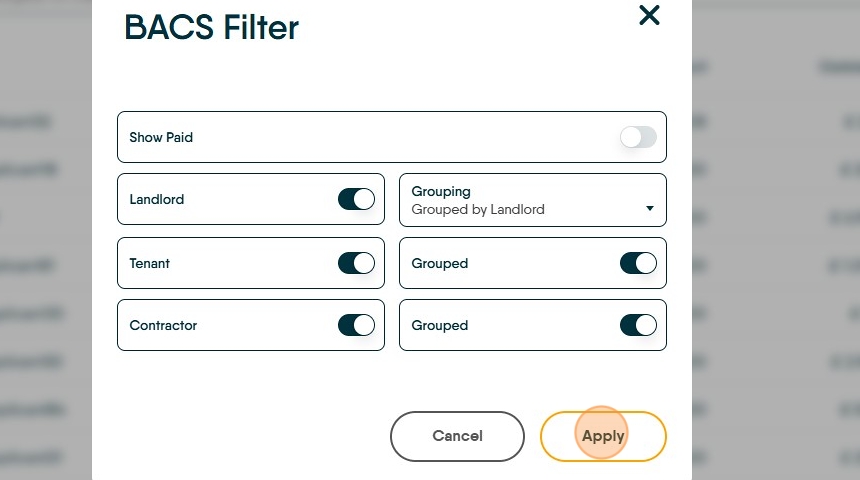
6. Once you have selected the filter options you want. Click "Apply"
7. Click this checkbox to select the payments you want to make in this BACS run. You do not need to pay all payments. To select all records, click the checkbox above (next to Record Type)
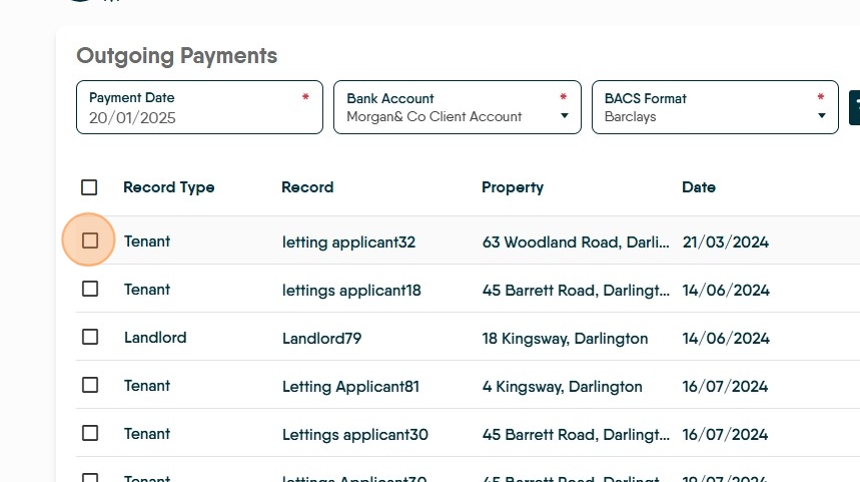
8. To create the BACS list click here. This will create the file you upload to the bank, this file is saved in the 'Downloads' folder of your computer.

To View Historical BACS files
9. To view a Log of all the BACS files created click here.

10. Click the "Date From" field and change the date if you want to view more historical data.

11. If required a replacement version of the original BACS file can be downloaded from here. Click the down arrow to view the contents of that specific BACS file.

12. Click "Close"
