Learn how to locate and modify existing rent invoices within the iamproperty CRM platform. This is something you might need to do if a rent has changed and the rent amount on the tenant record hasn't been changed before the rent invoice is created automatically by CRM Accounts. This guide provides step-by-step instructions for editing transaction amounts to ensure your ledger data remains accurate and up to date.
Alert: Alert! Please be aware this can only be done before the rent/invoice is collected.
1. Navigate to https://crm.iamproperty.com/Dashboards/Accounts
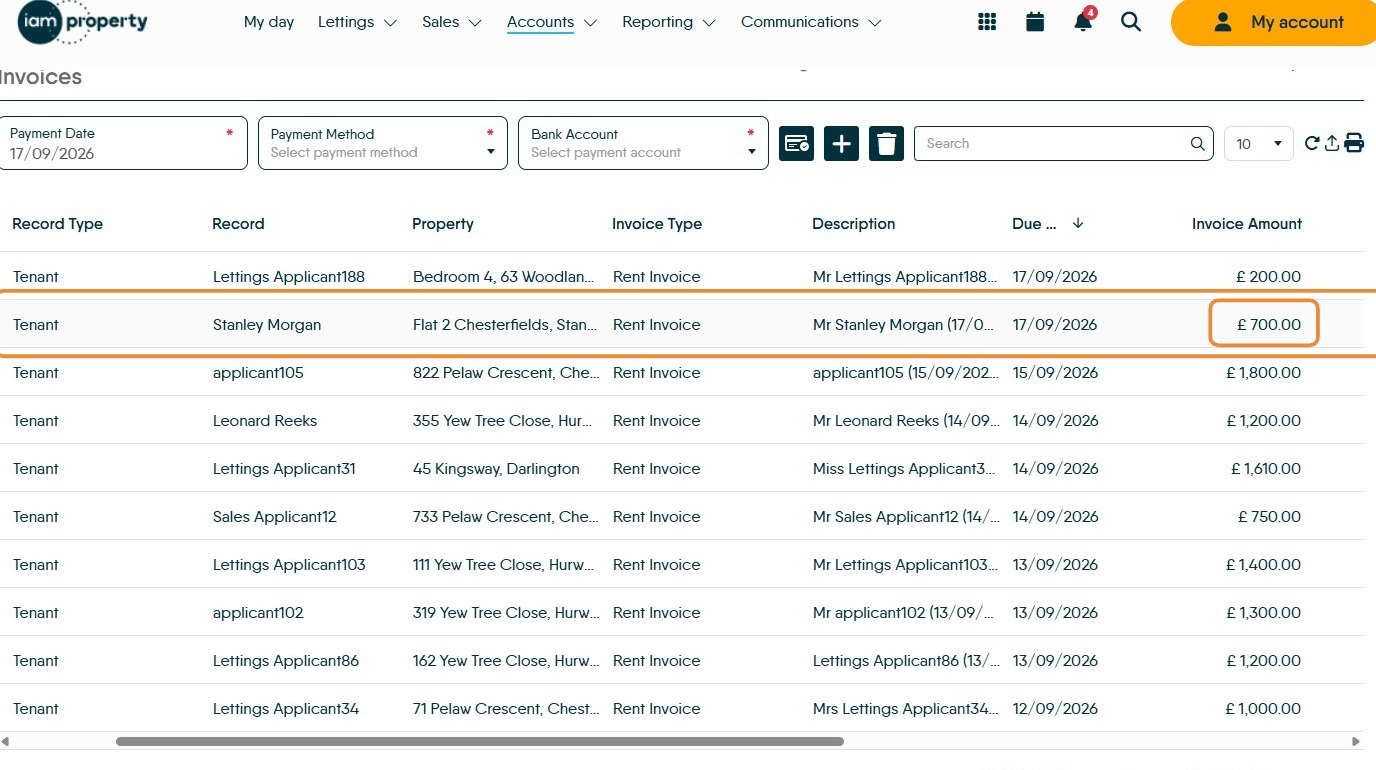
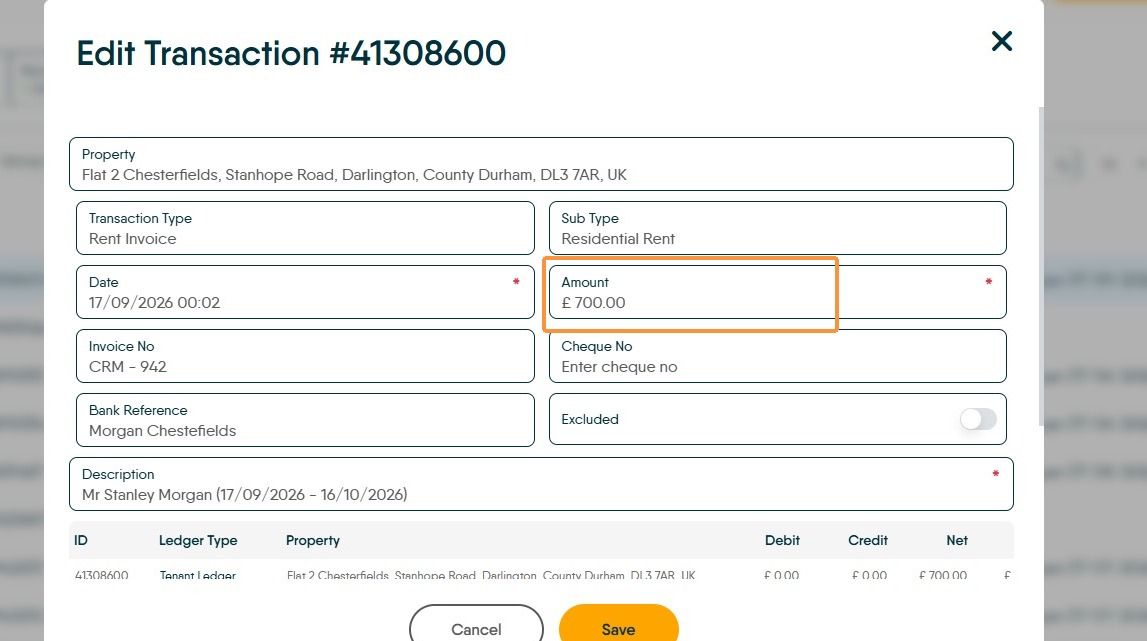
In this example we are going to edit the value of the highlighted invoice and change it from £700 to £800
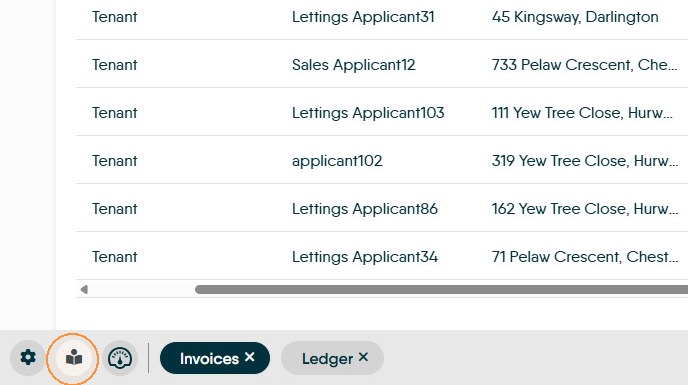
2. Open the Ledger tab.
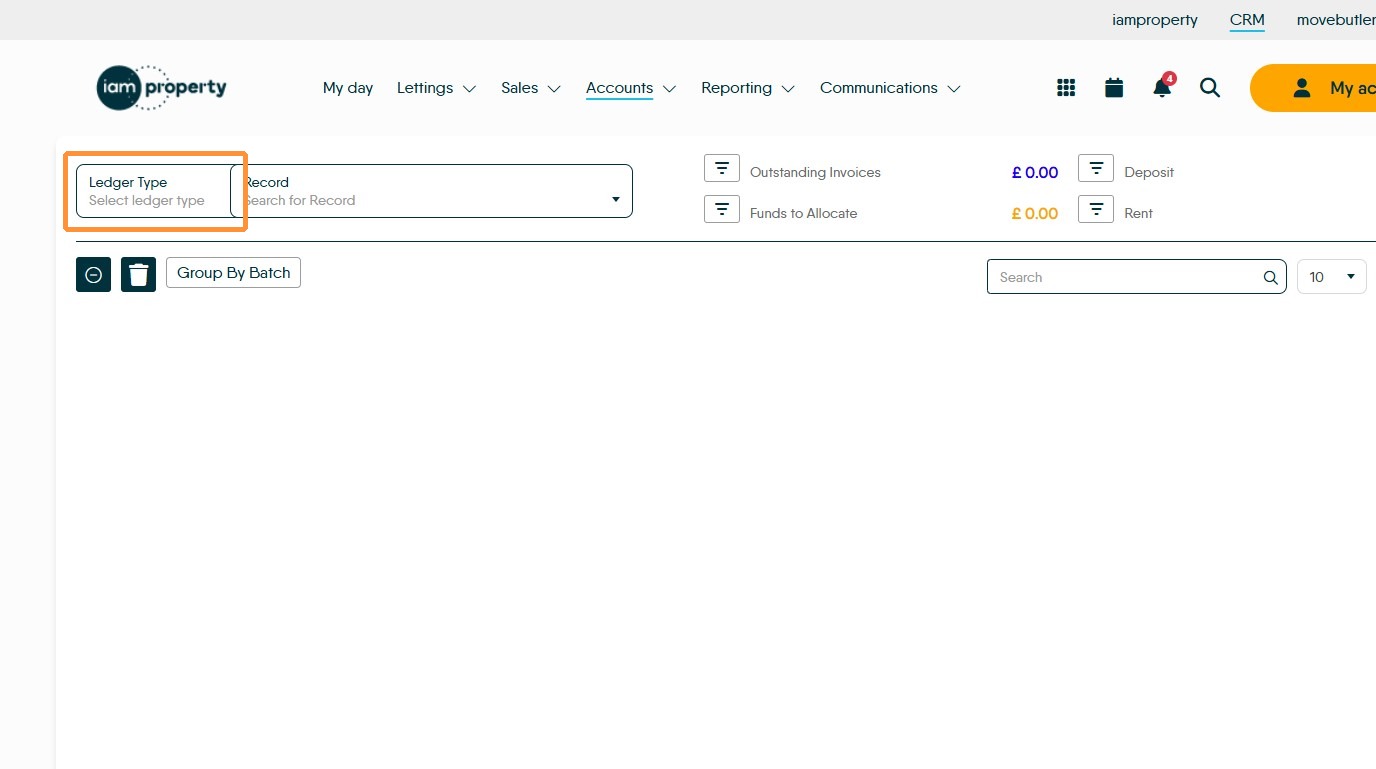
Ledger Selection
3. Select Tenant Ledger from the Ledger Type menu.
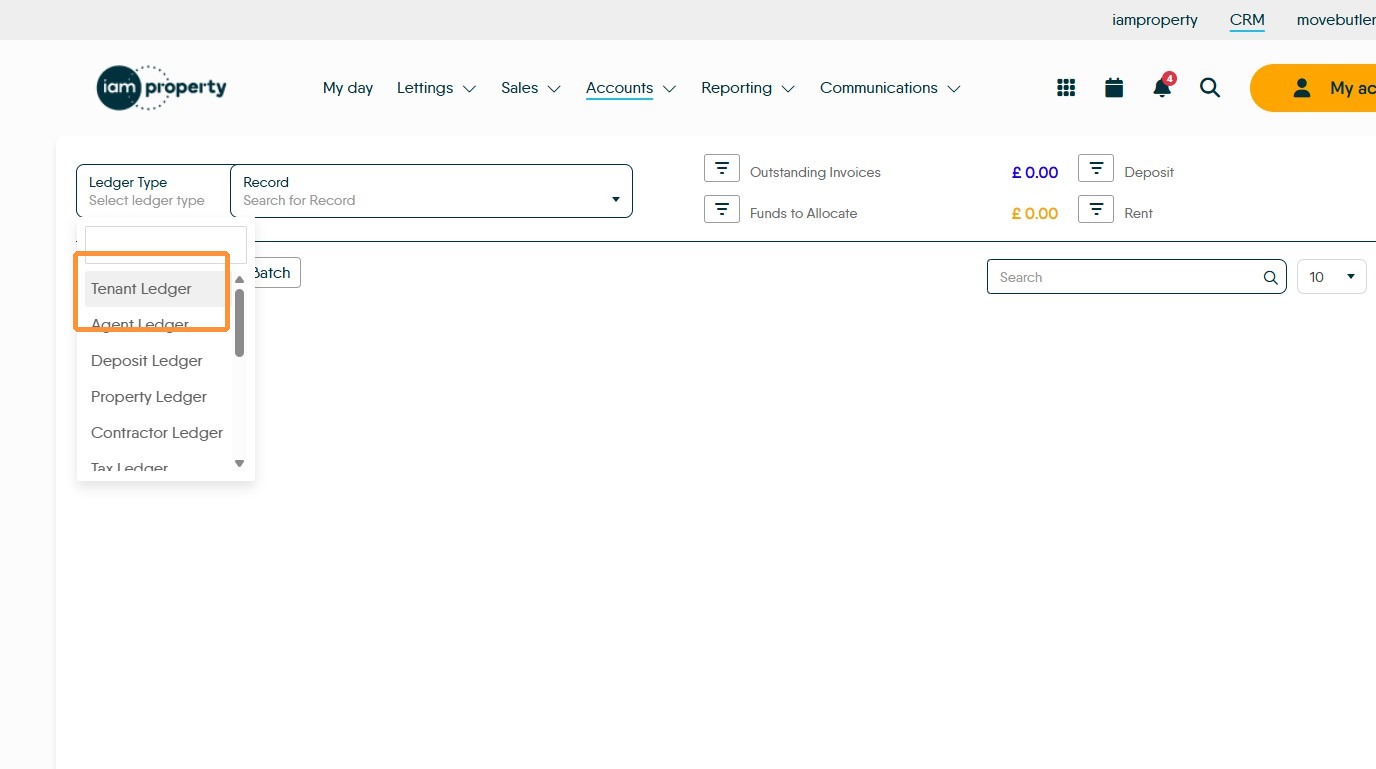
4. Click "Search for Record" type the name of the person or property you are looking for.
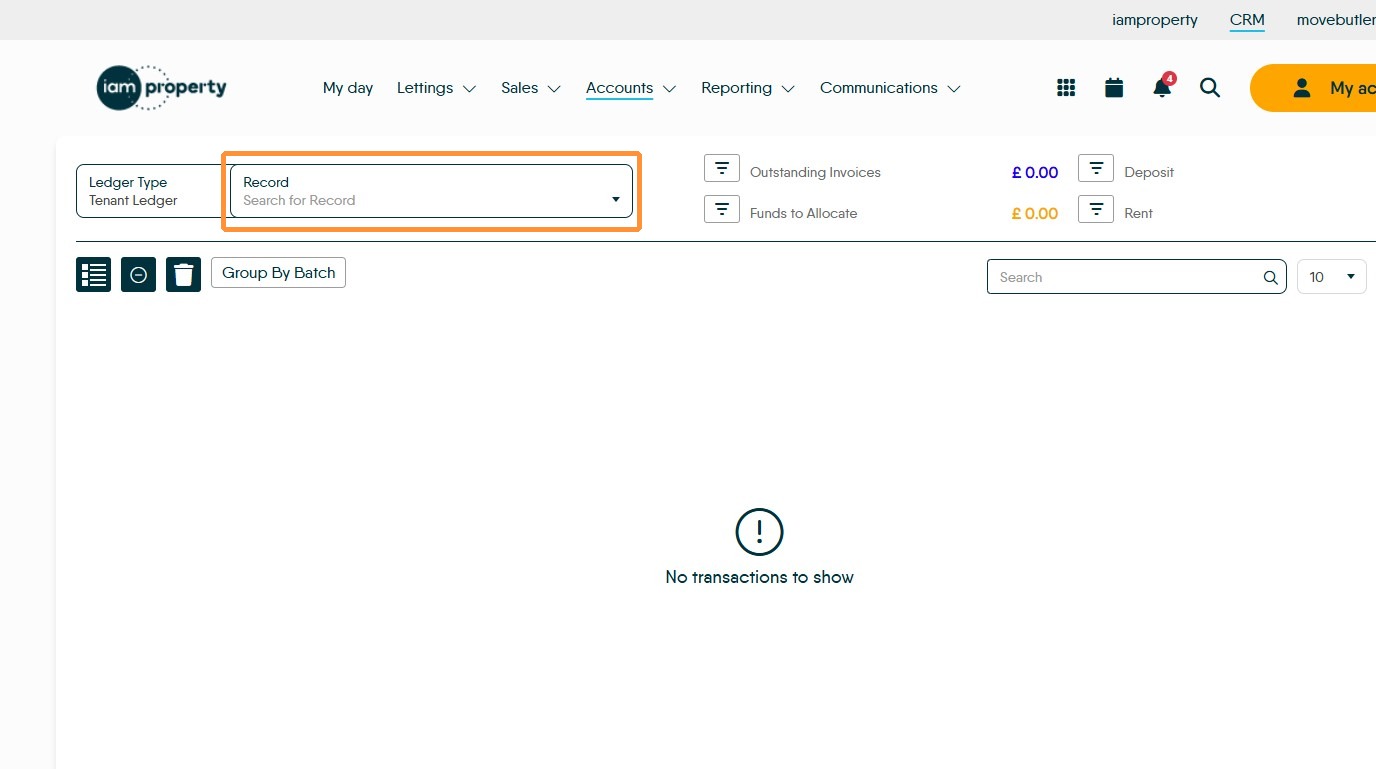
Transaction Selection
5. In this example case we search for and select "Stanley Morgan"
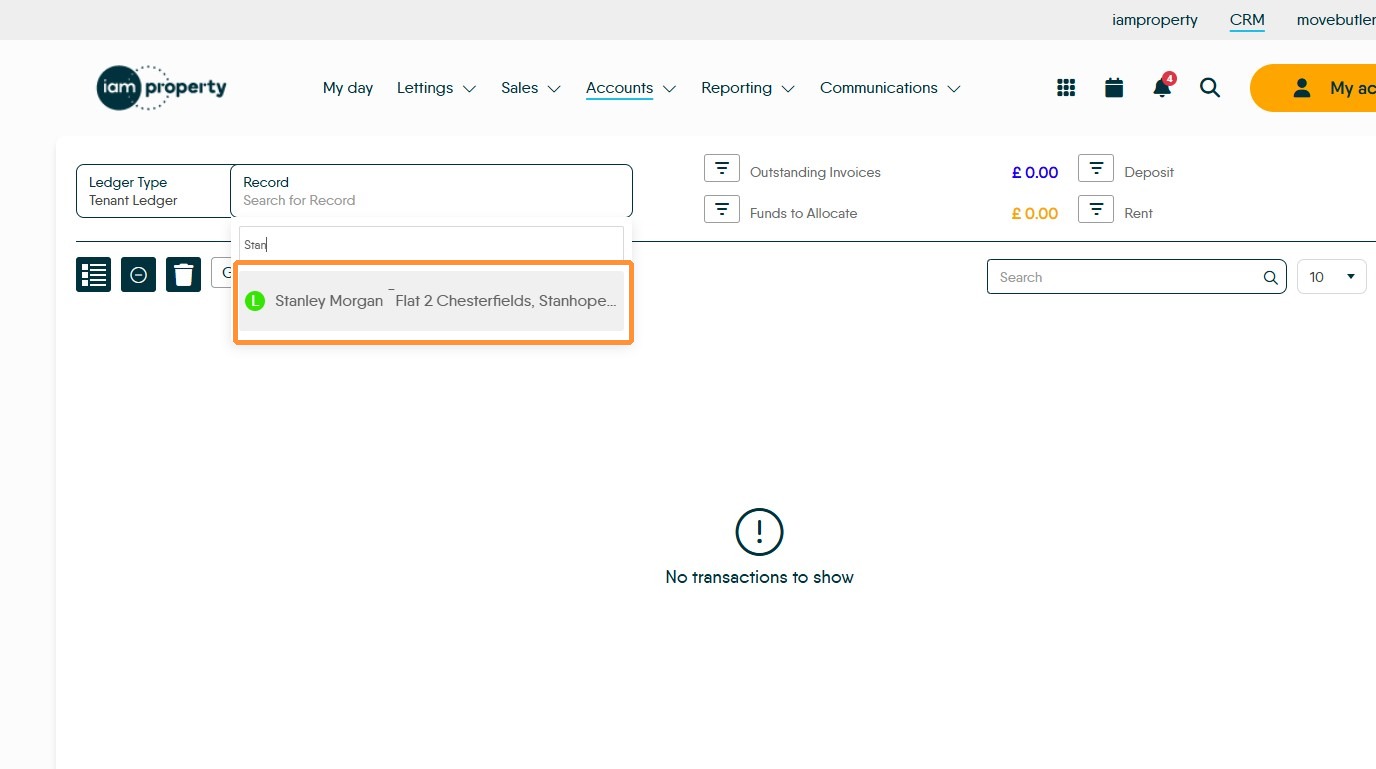
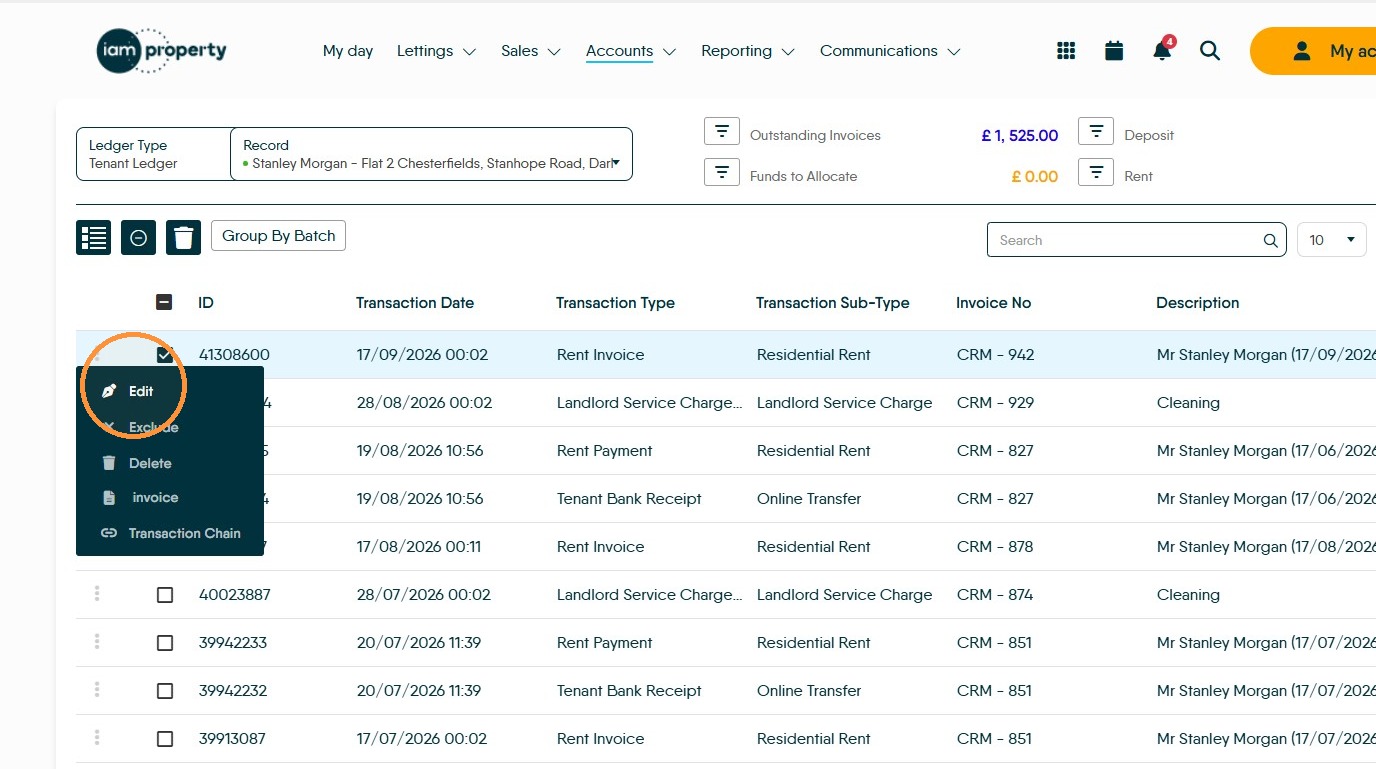
6. The tenant ledger will show on the screen. Find the 'Rent Invoice' you want to edit, this will usually be the most recent record e.g. the one at the top of the list!. Click the 3-dot menu
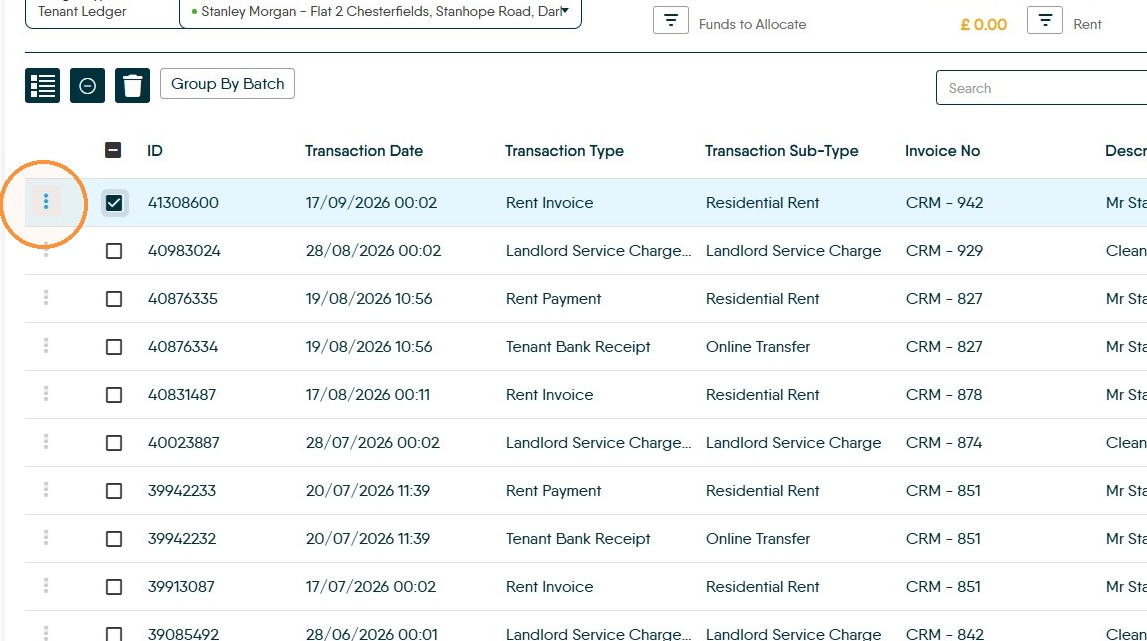
Amount Update
7. From the menu click "Edit"
8. Edit the number in the Amount field. In this case from 700 -800
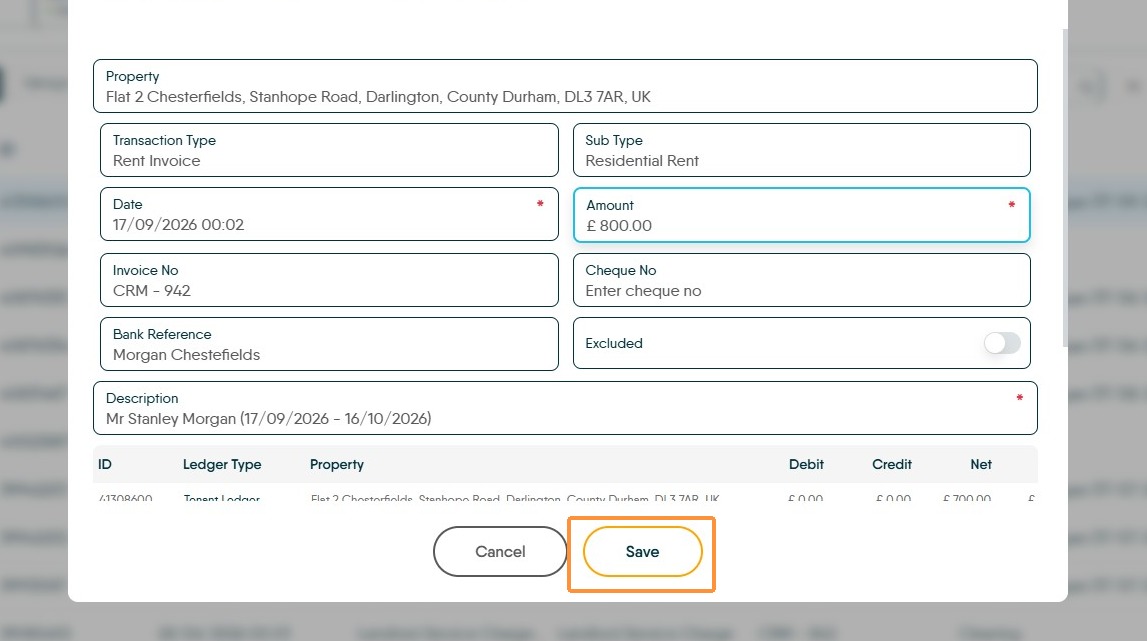
9. Click "Save"
Verify Updated Amount
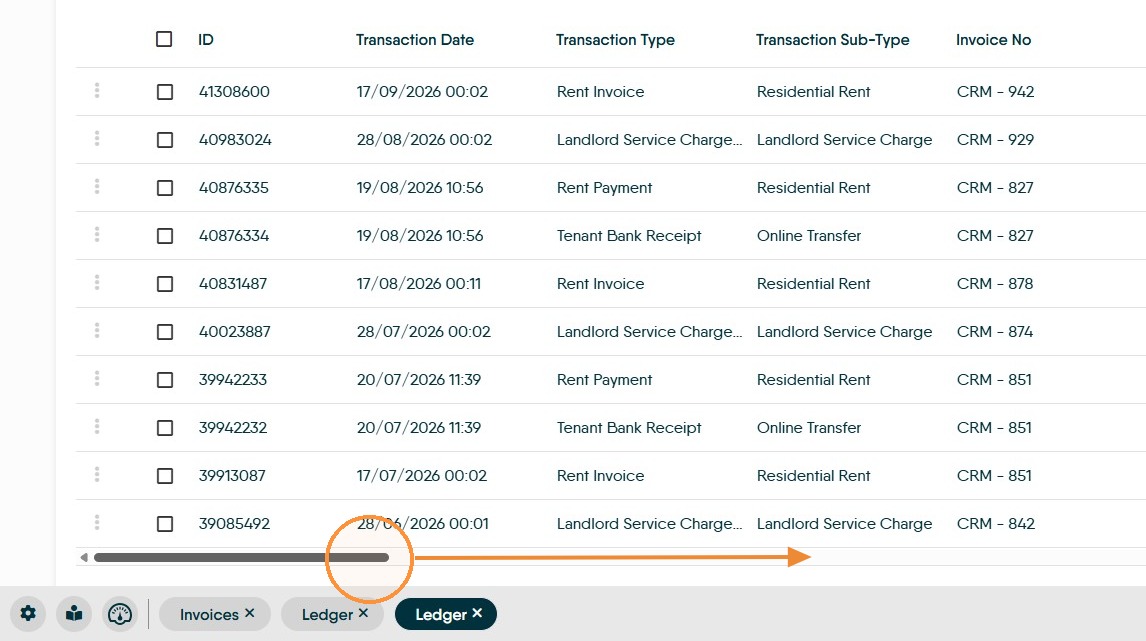
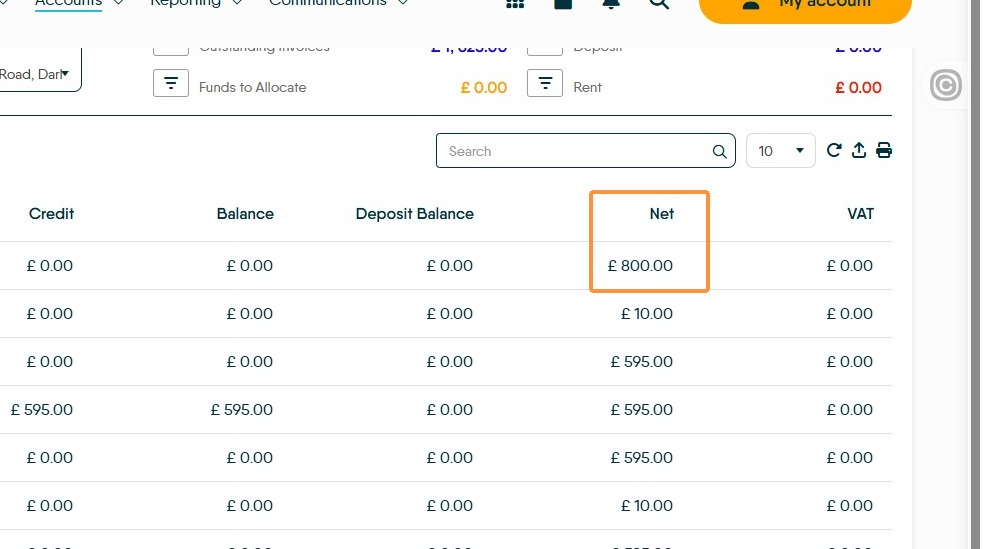
10. Return to the Tenant Ledger, you may need to refresh the screen. Scroll across to the 'Net' column which will now show £800.
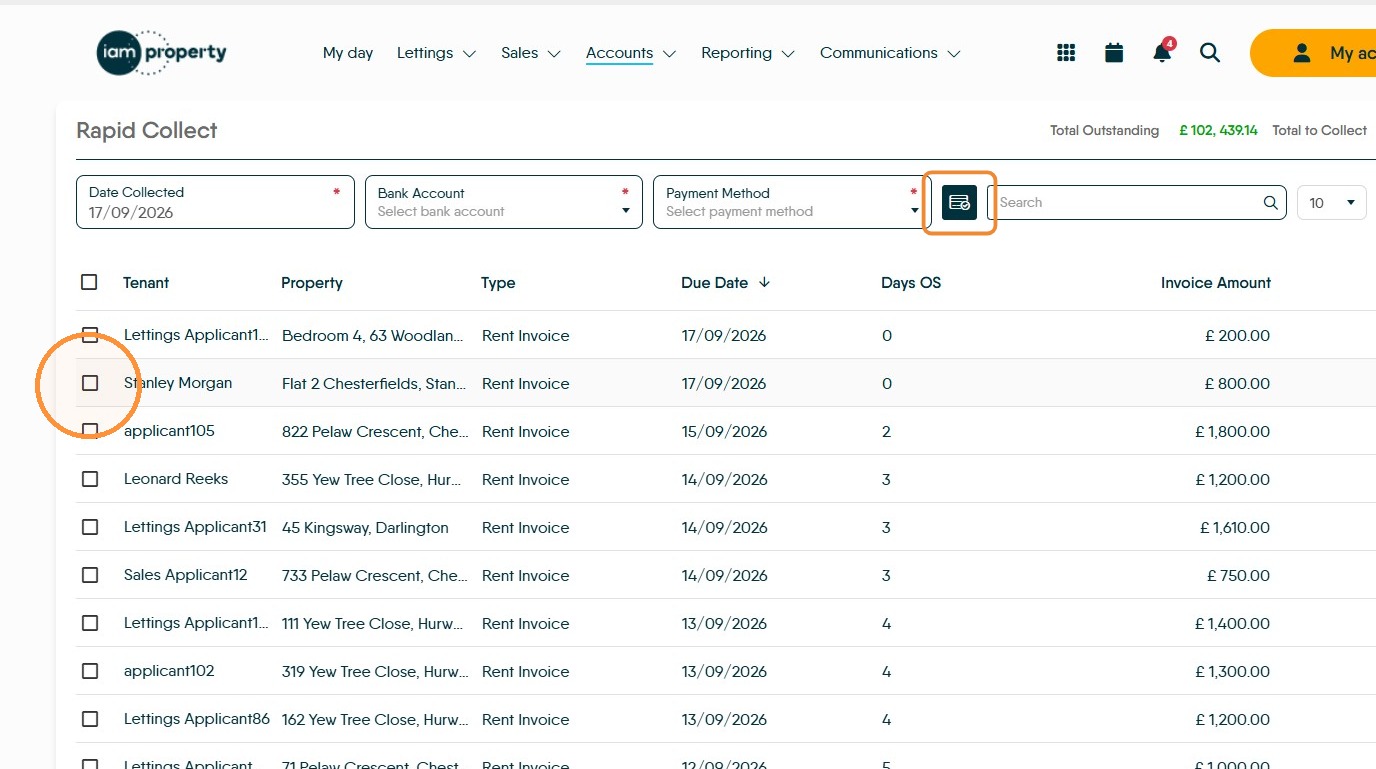
11. Return to the Rapid Collect screen to collect the updated rent amount.
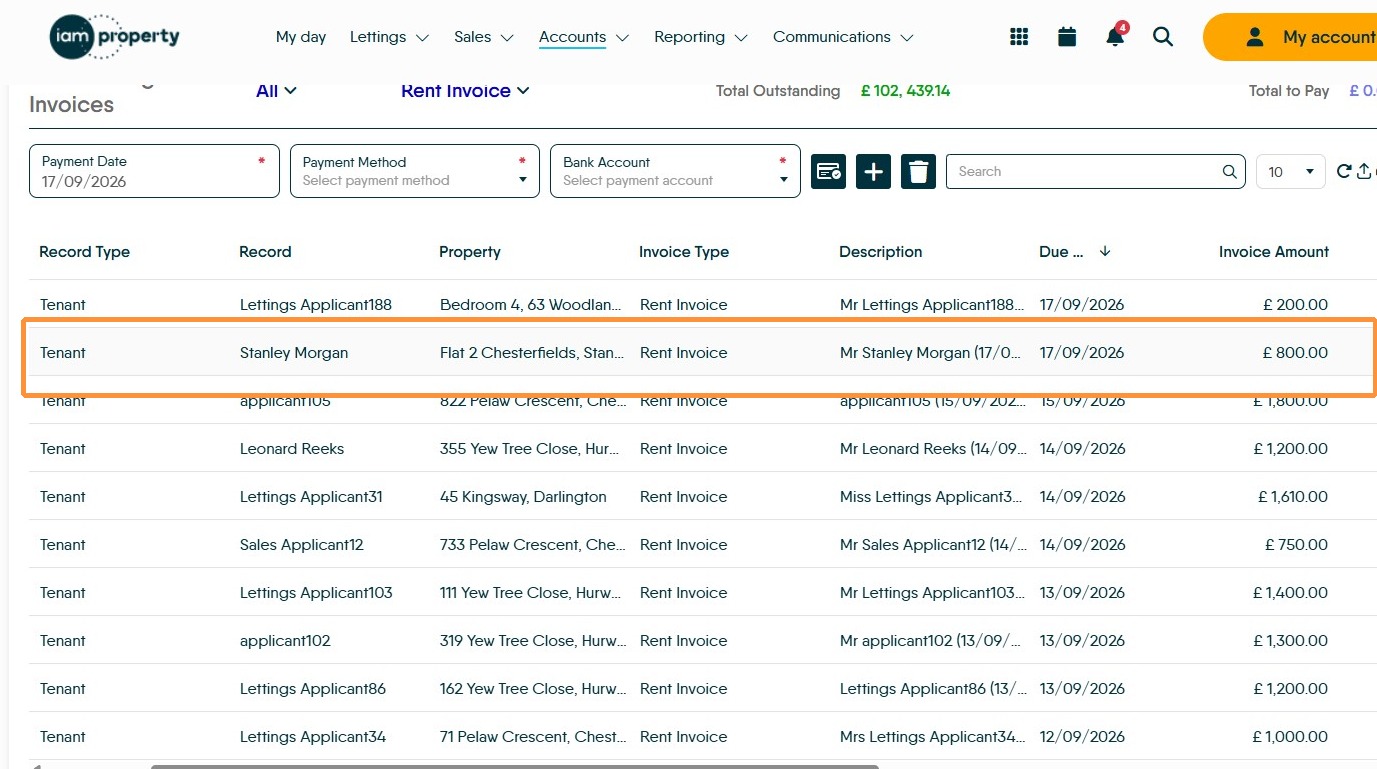
12. Click the checkboxes next to the rents you are collecting. Select the rent to collect, set the Bank and payment method details and click the collect icon.