This guide provides a straightforward, step-by-step approach to processing tenant payments using Rapid Collect, making it essential for property managers and accountants. By following these instructions, users can streamline their payment processing workflow, ensuring accuracy and efficiency. The guide also emphasizes patience during transaction completion, which can enhance user experience. Overall, it is a valuable resource for anyone looking to simplify their tenant payment procedures.
1. Navigate to https://crm.iamproperty.com/Dashboards/Accounts

2. Click "Accounts"

3. Click "Tenant"

4. Click "Rapid Collect"

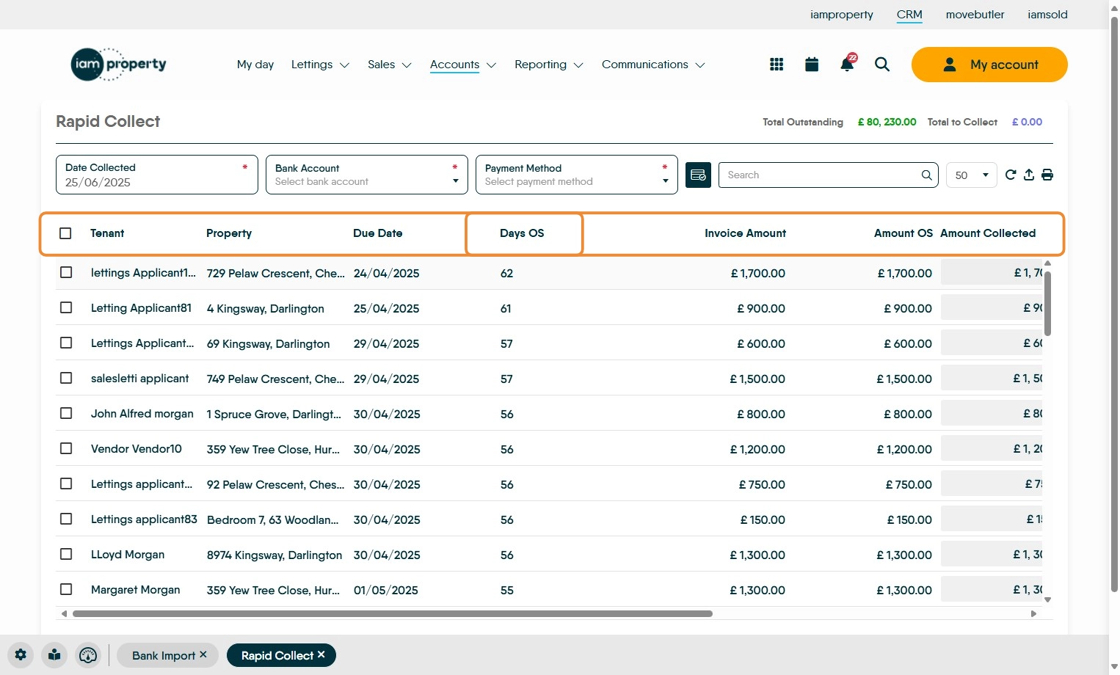
5. The Rapid Collect screen shows with the most overdue rents showing first. Clicking on the 'Days OS' column header (highlighted) will sort the column by ascending or descending order. Clicking any of the column headers will sort the data by ascending or descending order.
There is also the option to use the search box to search for a specific tenant.
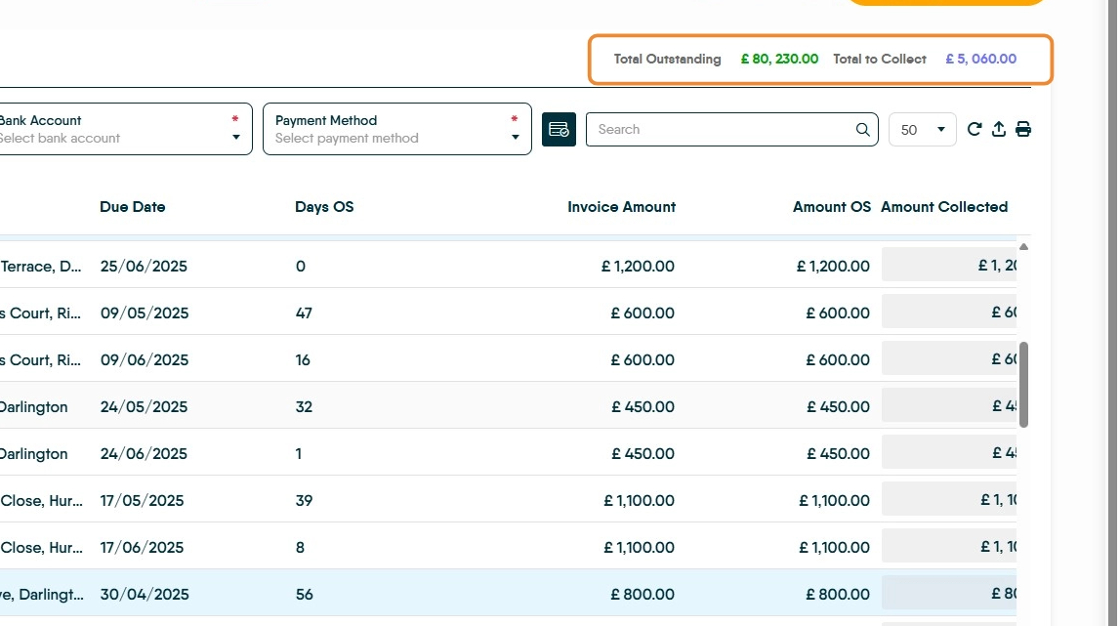
6. At the the top right you can see the total outstanding rents and the total you have marked as collected.
7. Click the "Search" field, to search for a specific Tenant.

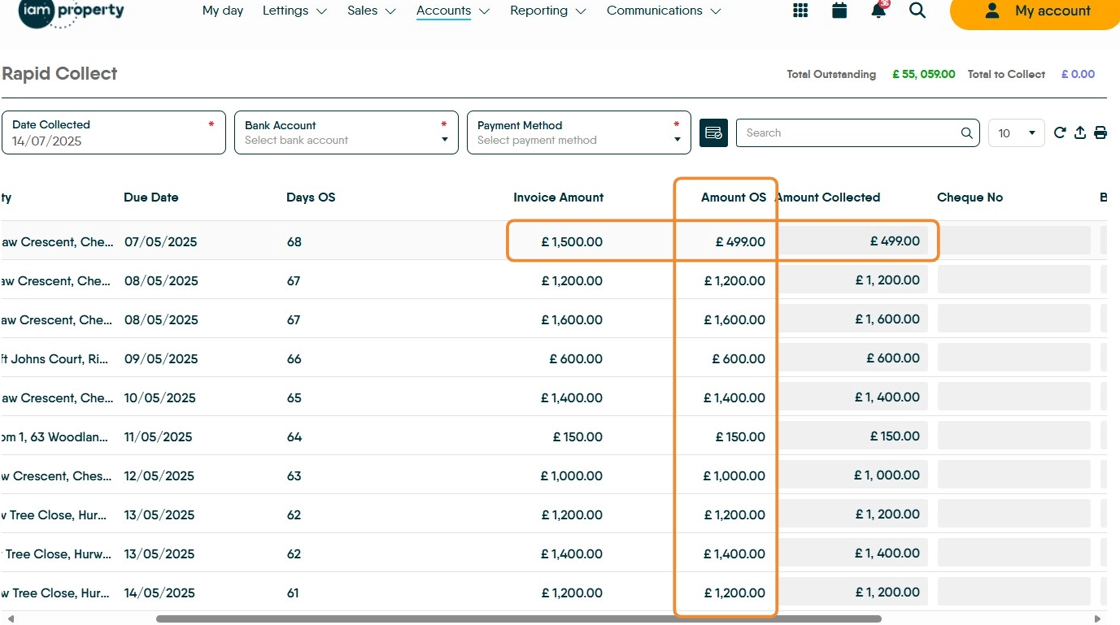
8. The Amount Outstanding column shows the currently due rent for that specific period. In the case shown this is less than the Invoice Amount which shows that the tenant had part paid this (overdue) rent and £499 is outstanding to pay.
9. The Tenants Bank Reference (as set in CRM) is shown here.

Alert: ONLY collect rents that you know have been paid. These would usually be where you can see the transaction in your actual Client Account (not CRM version of your Client Account). If you have been paid cash it is best practice to show this rent as paid using the Cash Account option in CRM.
10. To select a Tenant and show that their rent has been collected. Click this checkbox.
Rapid Collect always expects the full rent to be collected, so if this is the case move on to the next rent to collect.

11. To collect a lesser amount than what is due, enter this amount into the 'Amount Collected' field. The calculation will be made automatically, once the rent collect is completed.
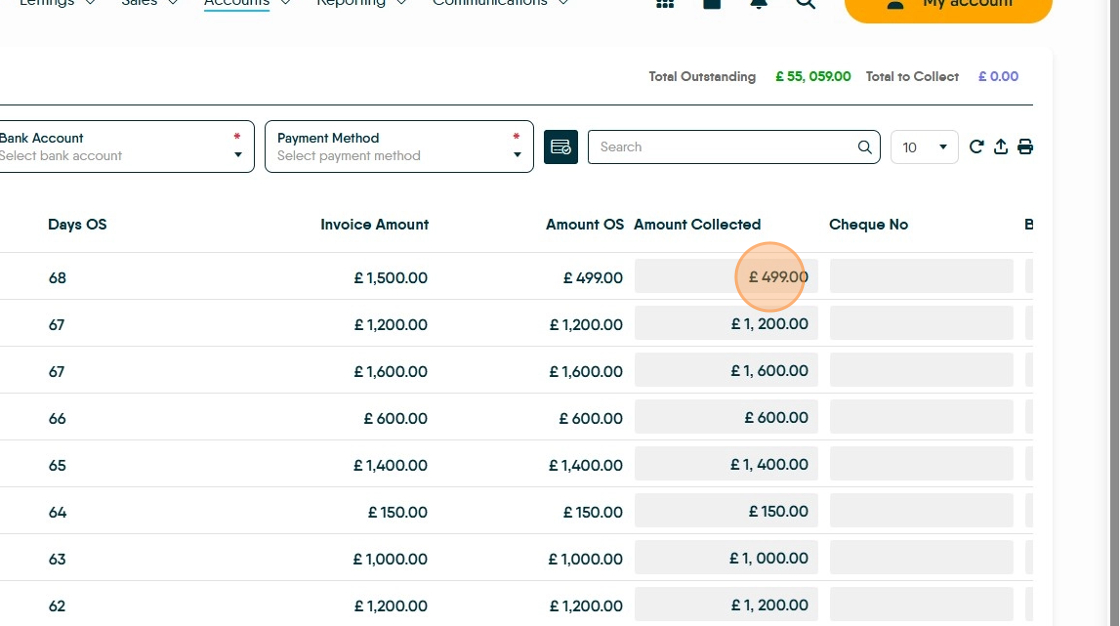
12. Continue this for every rent that has been paid into your Client Account. Click this checkbox to mark collected, even if the rent is part collected.

13. Once all the rents (that are available to collect) have been marked as collected. Click "Select bank account"
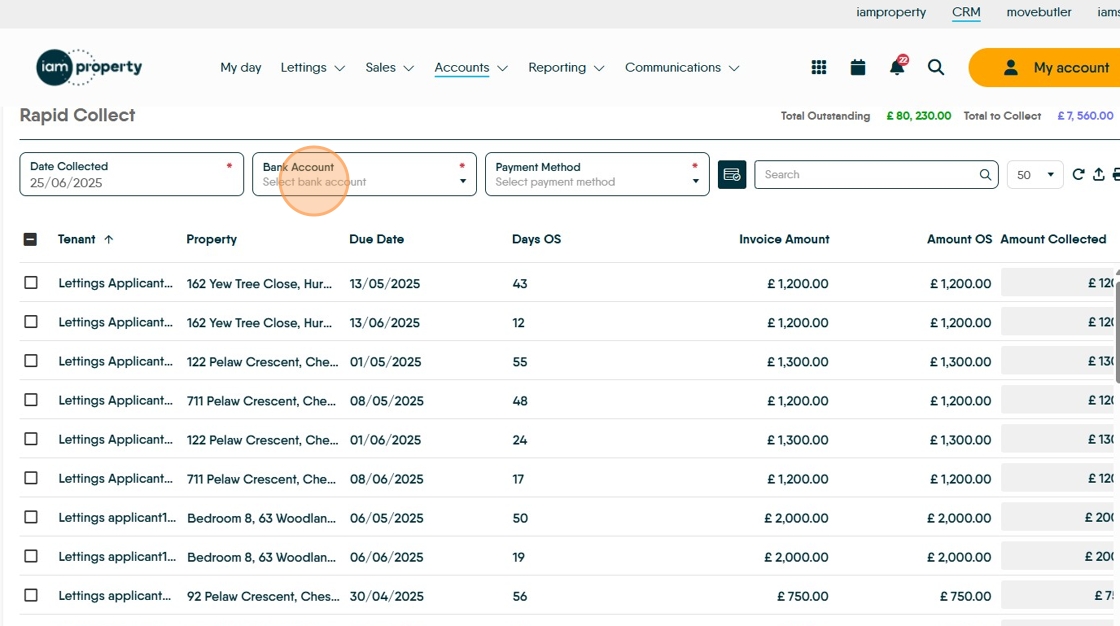
14. Click and select your client account.

15. Click "Select payment method" select the option that best describes all the incoming payments.

16. Click here to mark the rents as collected.

17. Click "Completing Transactions...
6 out of 9 completed
Please be patient, this can take a while to process."

18. The payments will all be collected and shown in the Client Account and the CRM Ledgers