This guide offers a comprehensive approach to managing overdue rents efficiently, providing step-by-step instructions on accessing and sorting rent data, contacting tenants, and utilising templates for communication. It simplifies the process of tracking overdue payments and enhances your ability to follow up with tenants through personalised emails and detailed reports. By leveraging these tools, you can streamline your rent management process and improve your collection efforts.
1. Navigate to https://crm.iamproperty.com/Dashboards/Accounts

2. Click "Rent" this tile shows you the detail of your rents, sowing Invoiced, Received, Refunded, Outstanding.

3. Click here to view the complete details of the currently due rents.
Due is a rent where the rent invoice has been raised from the current date out to the past.

4. This screen shows the individual data as shown below, for all rents that are currently due. The data is displayed oldest/most overdue rent first.
The column headers also include Management type and Primary Landlord name.
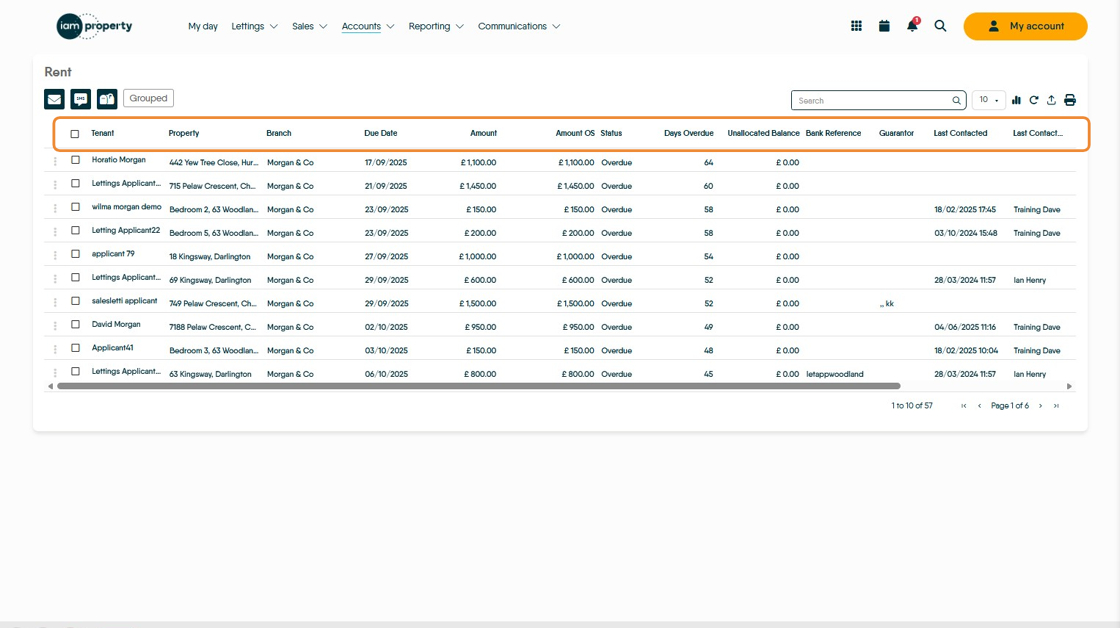

5. Clicking the column headers will sort the column by 'Ascending' or 'Descending' order. Clicking the 3 lines gives access to more specific search options.
6. Clicking "Grouped" groups together all the overdue rents for a specific property/Tenant into 1 line. Making it easier to chase a specific debt total.


7. Clicking the 3-dot menu will give you a range of options to select from helping you contact the tenant, make notes on the journals, see more details etc..
8. If you have selected one or more record, click here to send emails, text or letters. These can be sent from here, using templates if required, to chase rents. Emails from here are sent out as an 'Email Merge' and are individual personalised emails to each recipient, e.g. if you have 10 people to email each will get an email specific to them and they will NOT see the details for the other
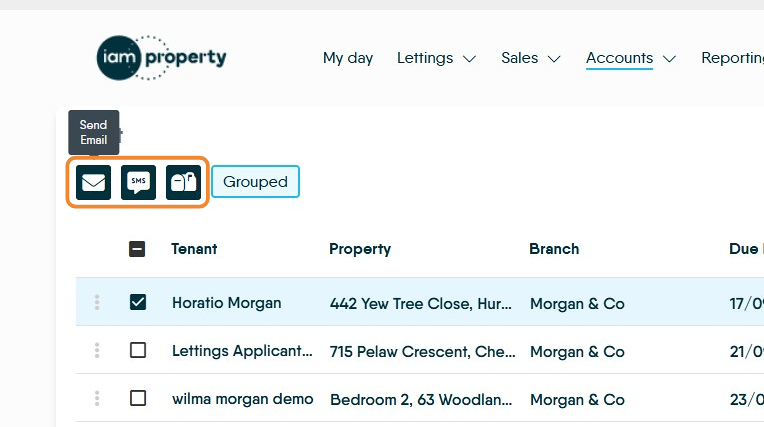
9. To create an email
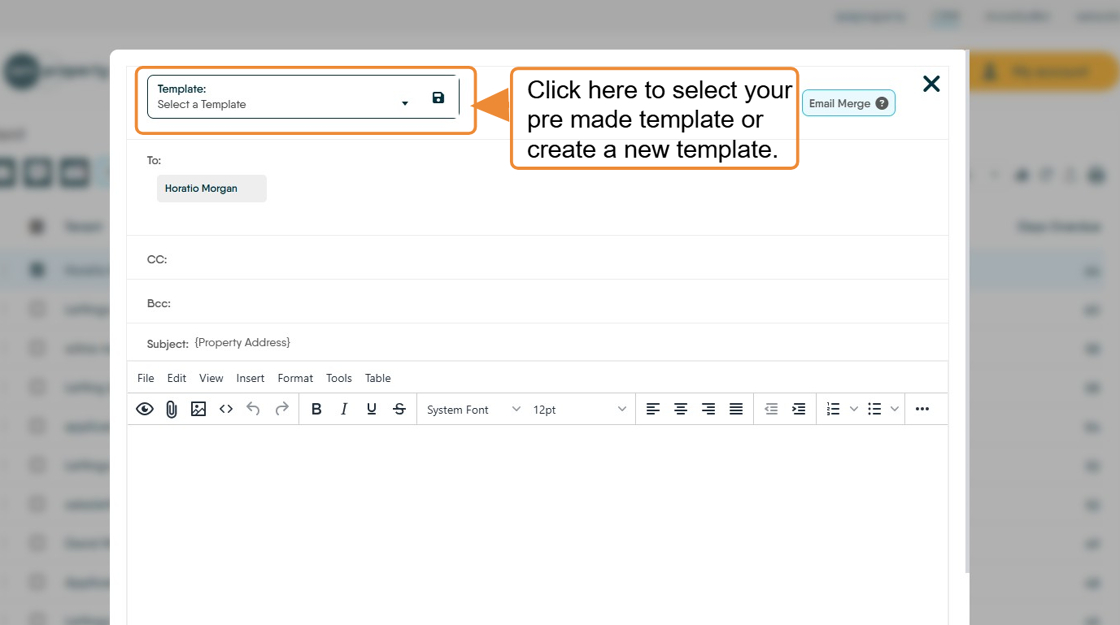

10. Click "Select a Template"
Select appropriate "Template" from the drop down list
Click "Please remedy this situation in the next 14 days of the date of this email or we will pursue this matter further."
11. Click here to show a graph detailing the rent status over the past 12 months.

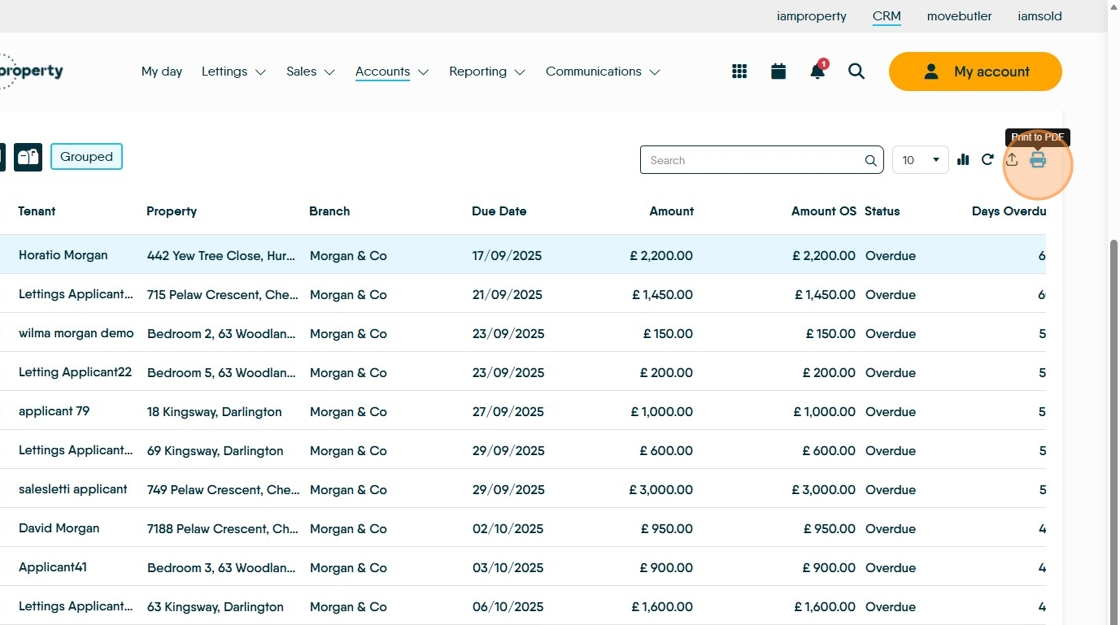
12. Click here to export the document to .csv (excel).

13. Click here to print the file to .pdf .