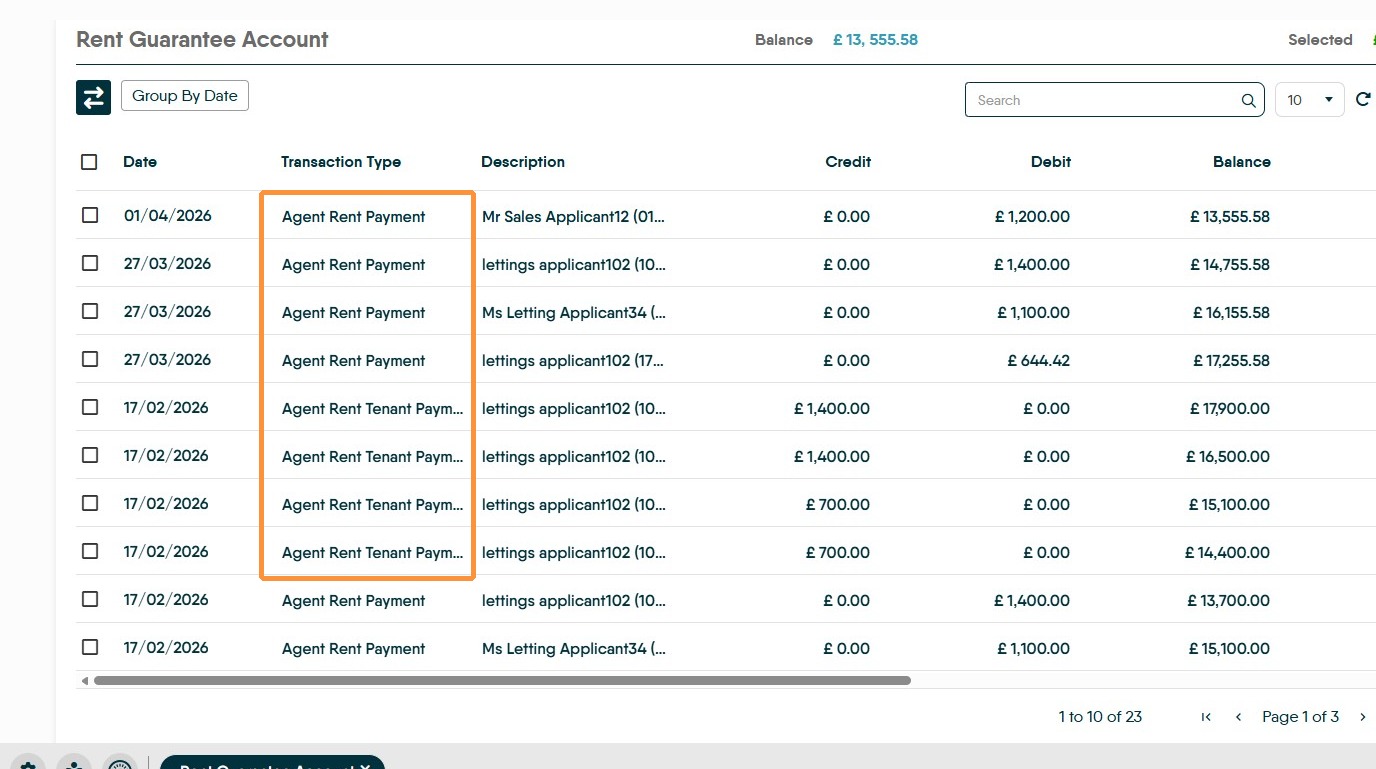
This guide explains how to enable and use the Rent Guarantee feature on iampropertyCRM. How to activate it per property and set end dates, plus fund and manage the dedicated Rent Guarantee account so you never use client funds. It also shows viewing/paying guarantee invoices and how those payments flow into normal landlord payouts, ensuring correct accounting, compliance and a smooth overdue-rent process.
Enable 'Rent Guarantee' Feature
Enabling the 'Rent Guarantee' feature allows the feature to be enabled for all branches at the same time, named as 'Rent Guarantee'.
Once enabled for the Branch the 'Rent Guarantee' feature can be enabled in each property record individually.
2. Navigate to https://crm.iamproperty.com/MyDay
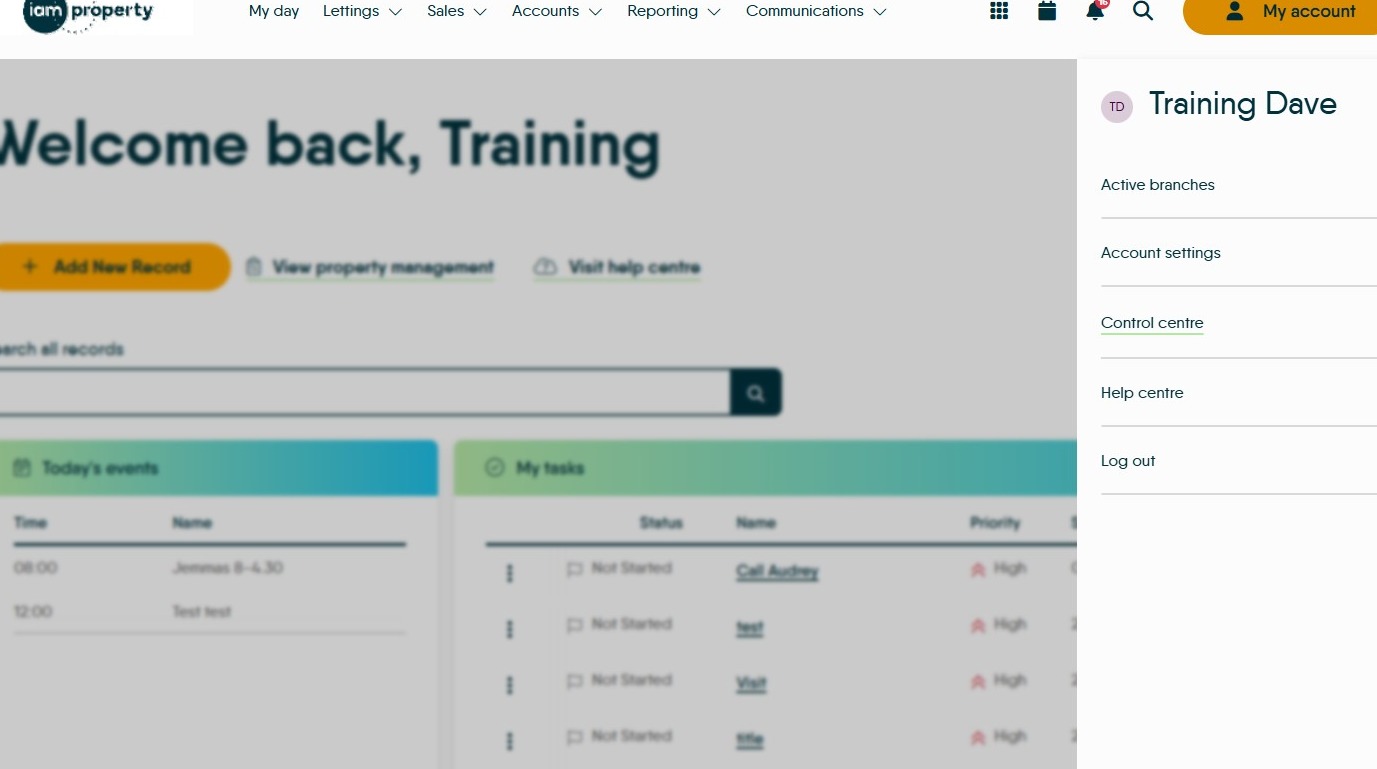
3. Click "Control centre"
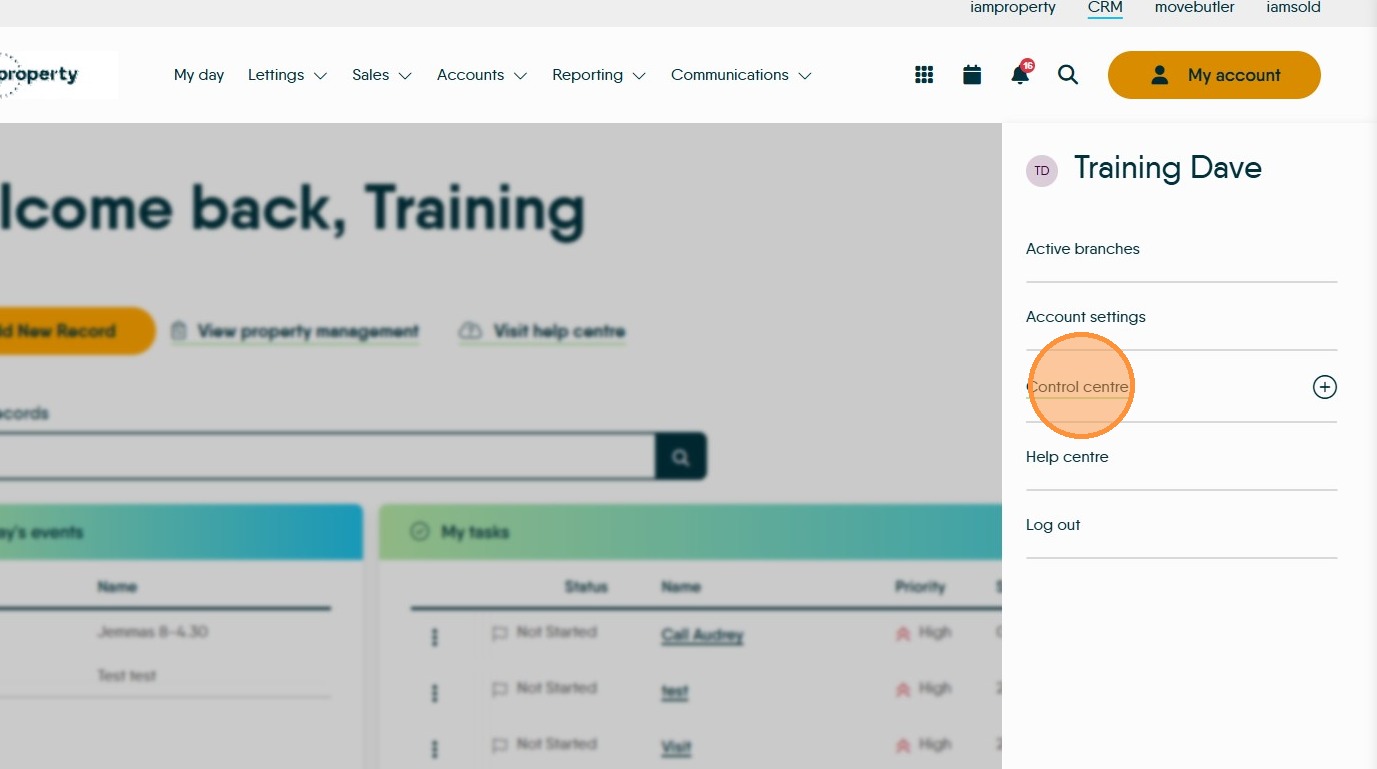
4. Click "Configuration"
5. Click "Accounts"
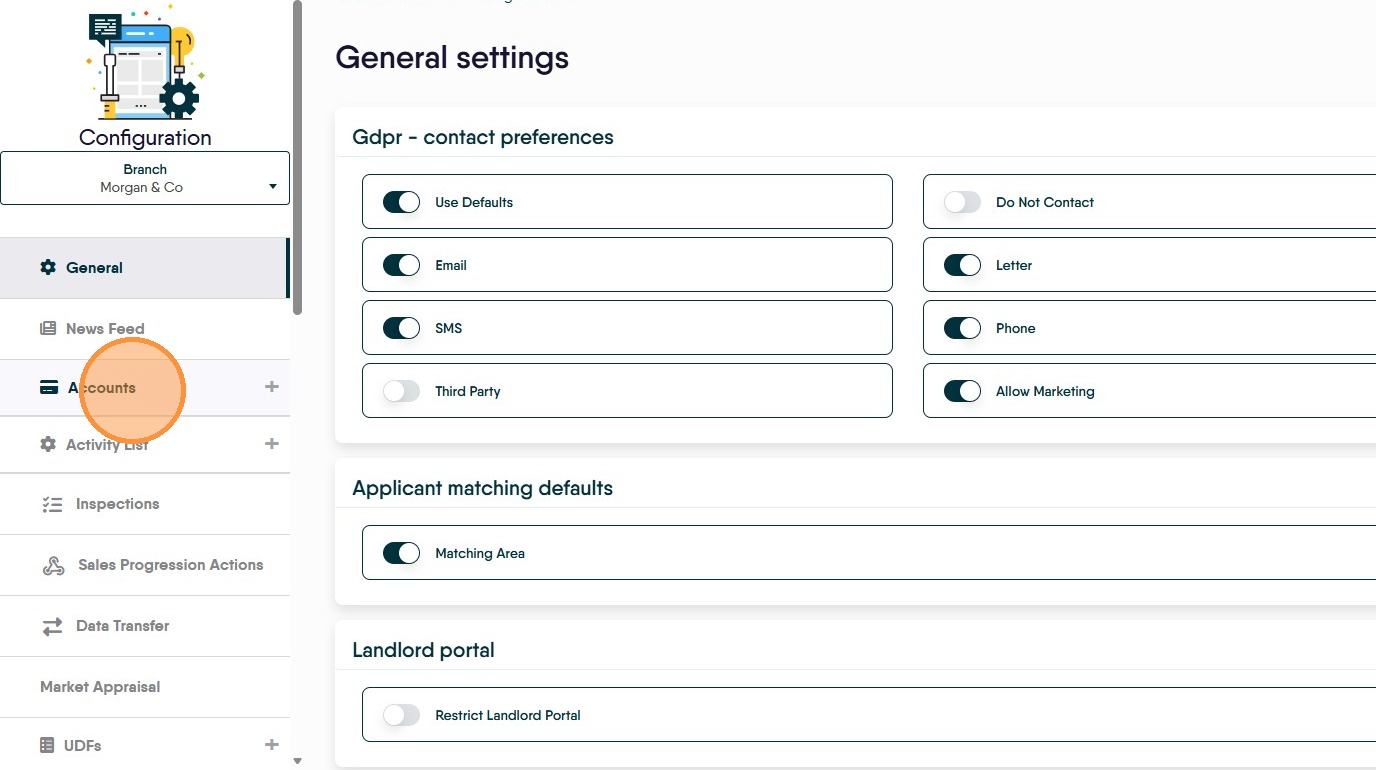
6. Click "Module settings"
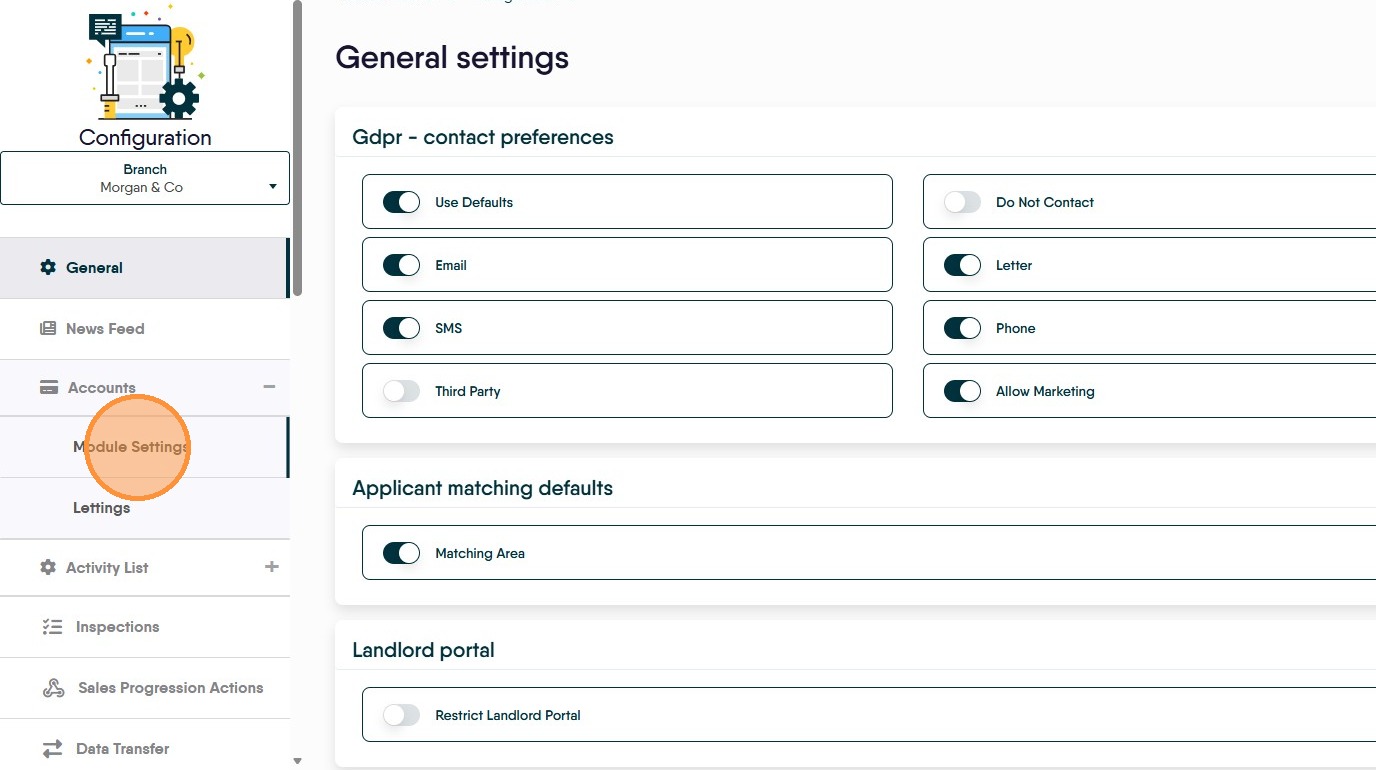
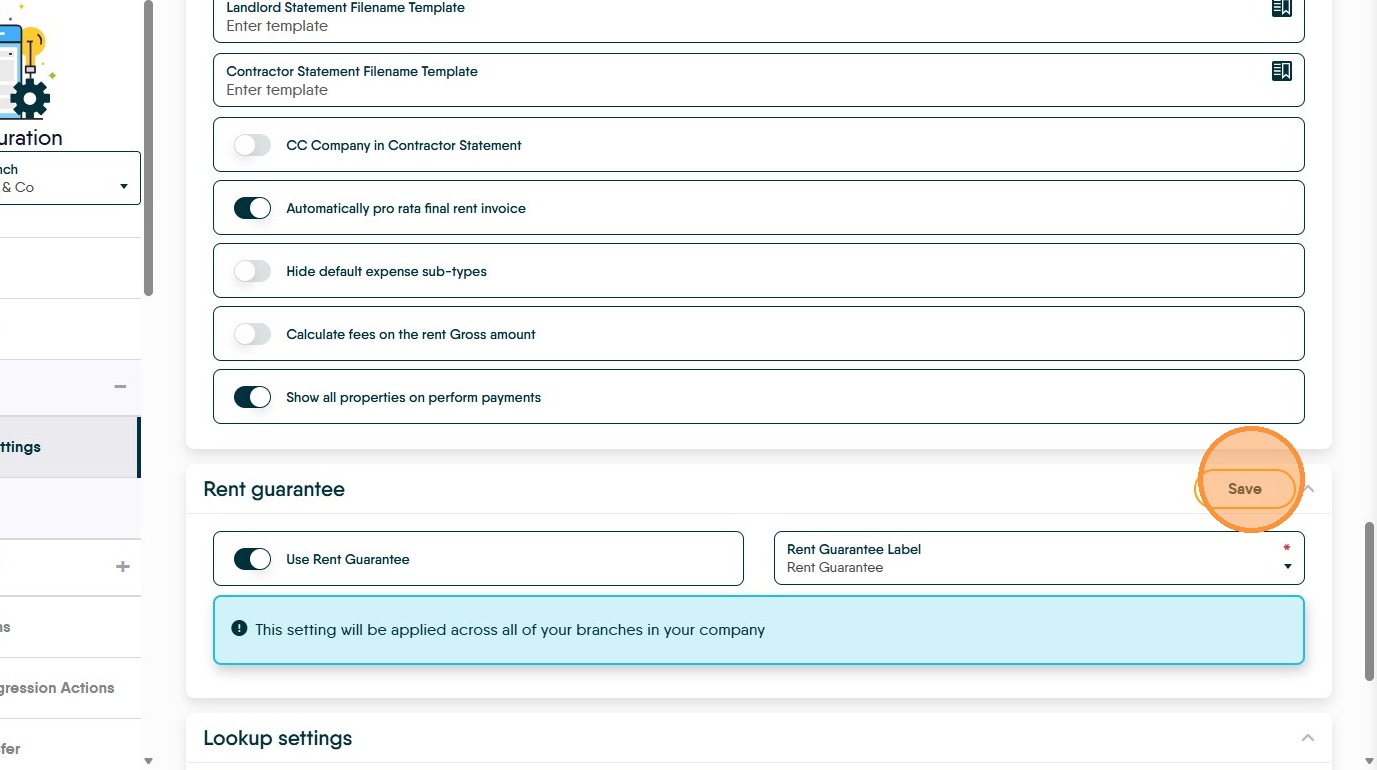
7. Click here to enable the 'Rent Guarantee' feature across all your branches.
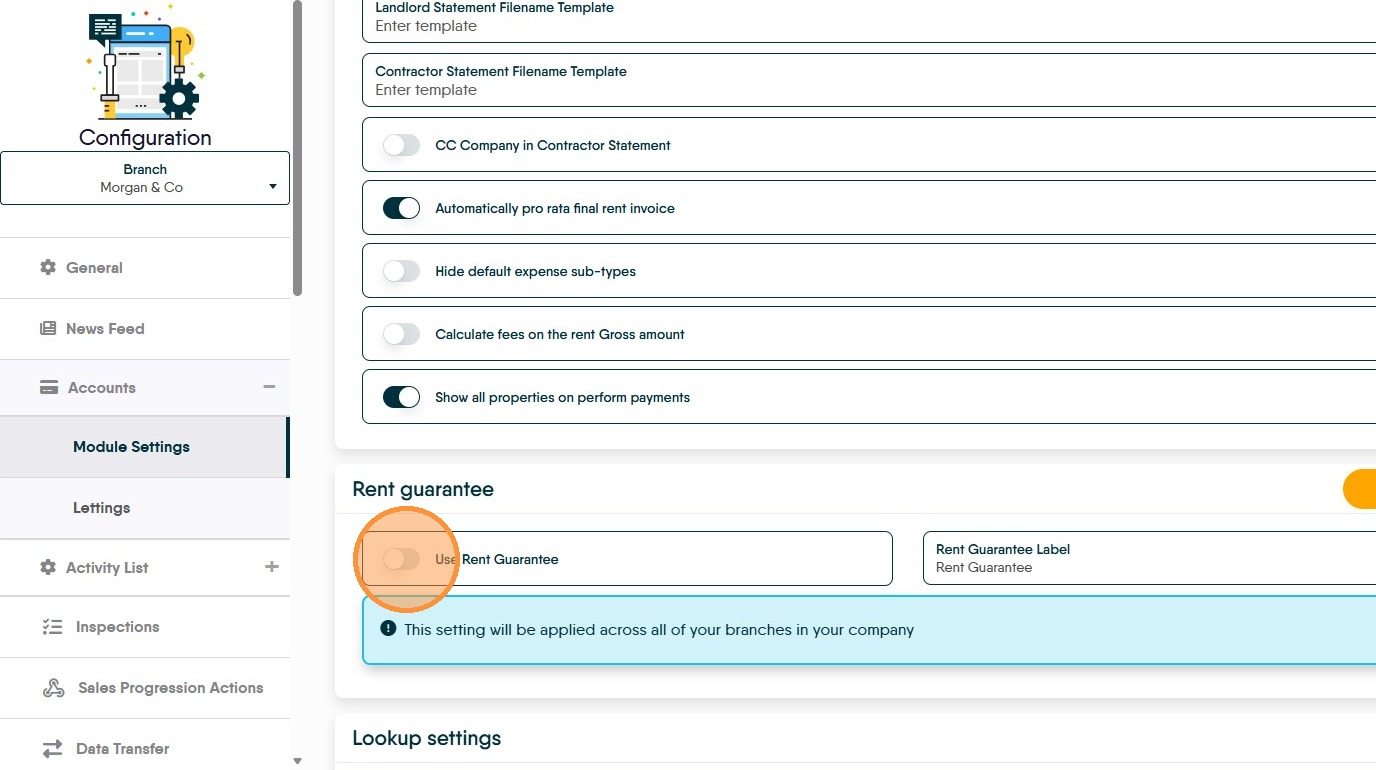
8. Leave "Rent Guarantee Label" set to "Rent Guarantee"
Please leave Rent Guarantee as the selected option.
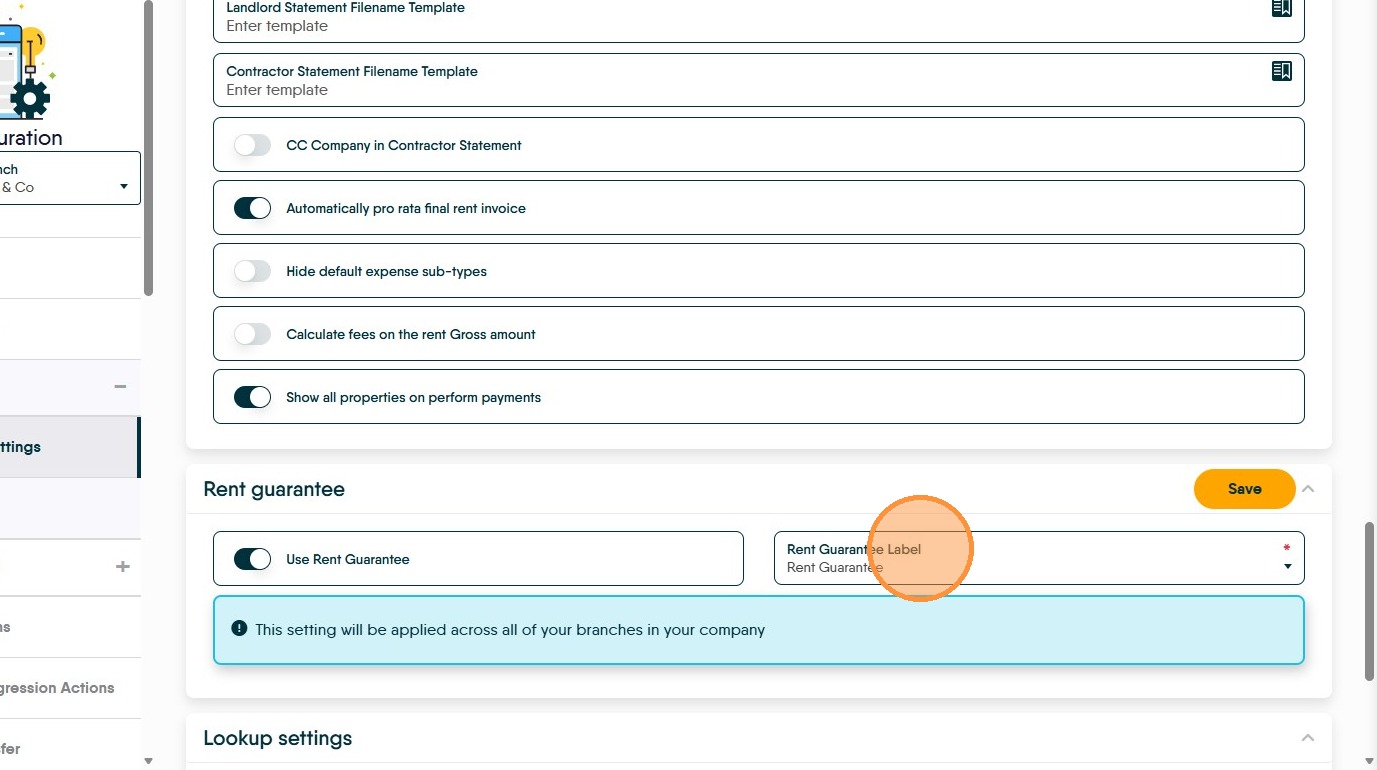
9. Click "Save"
Enabling a Property For Rent Guarantee

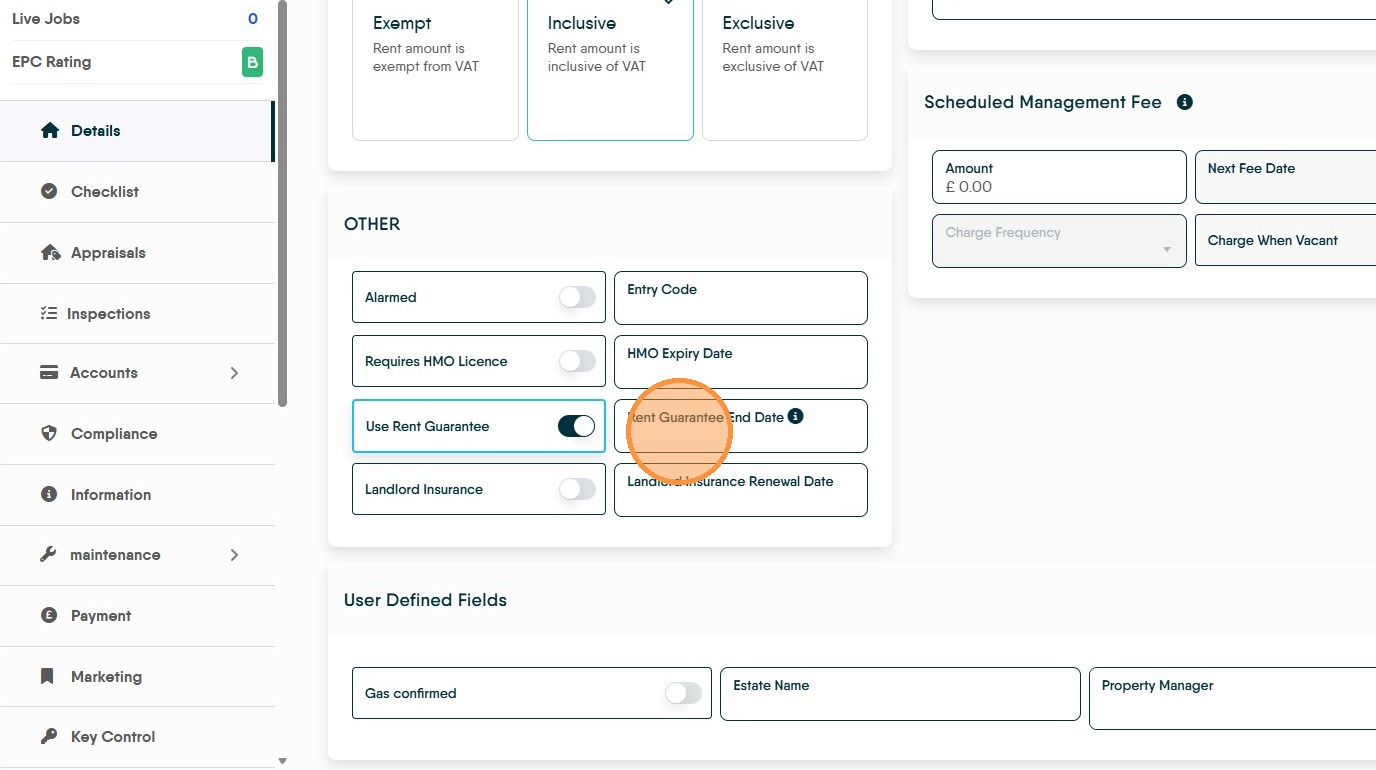
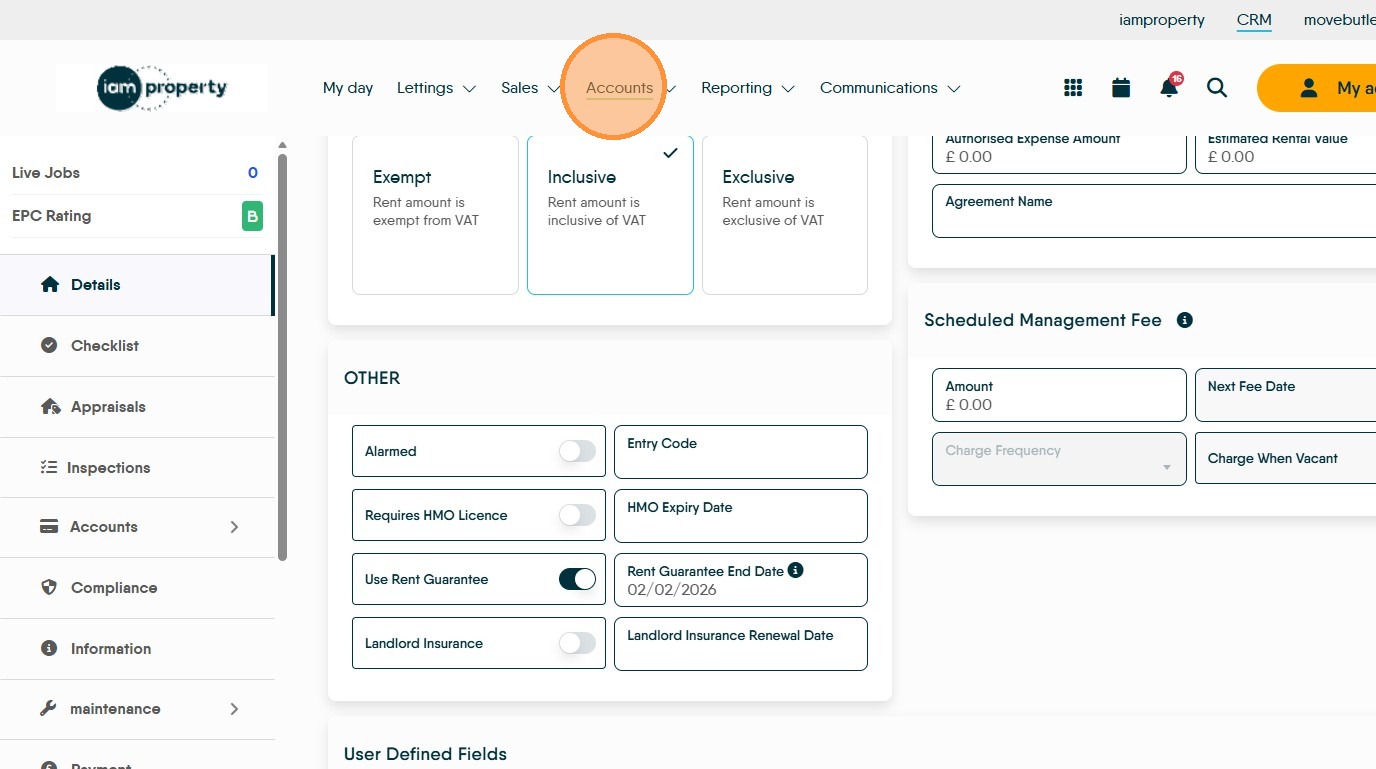
10. Navigate to the Property Record that has 'Rent Guarantee' and scroll down to the 'Other' section and enable the 'Rent Guarantee' toggle for that property. Rent Guarantee does not need to be enabled for every property, just for for any property covered by a Rent Guarantee insurance.
11. Click the "Rent Guarantee End Date" field.
12. Use the 'date picker' to select the date that the rent guarantee ends.
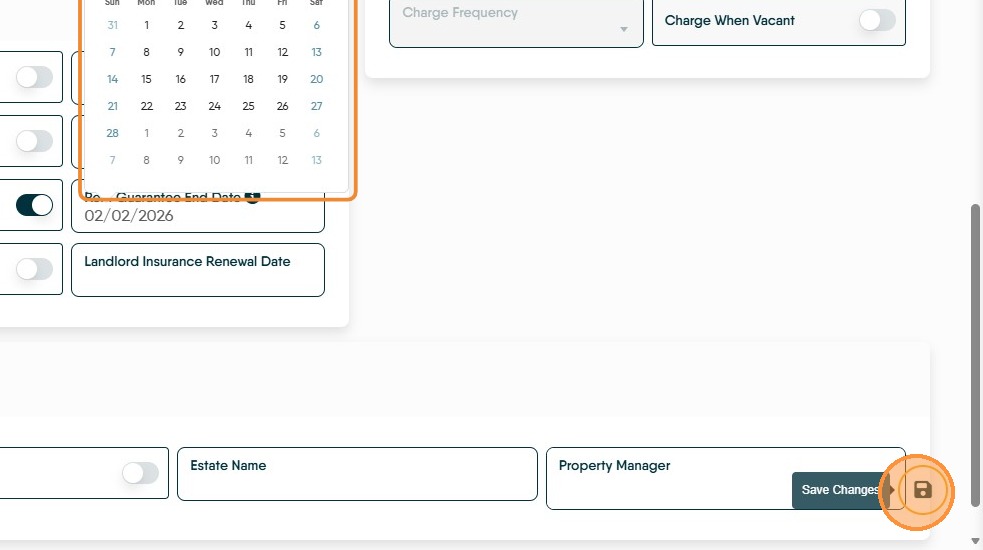
Tip: An end date does not need to be set for Rent Guarantee, if no end date is set then the process will run until ended by yourselves, if an end date is set then the rent guarantee invoices will stop being created on the specified date and normal rent invoices will be created from then onwards.
Managing Rent Guarantee Payments via CRM Accounts

13. Click "Accounts"
14. In the Accounts tile there will be a new section named 'Rent Guarantee Account' if you cant see it straight away scroll down the tile.
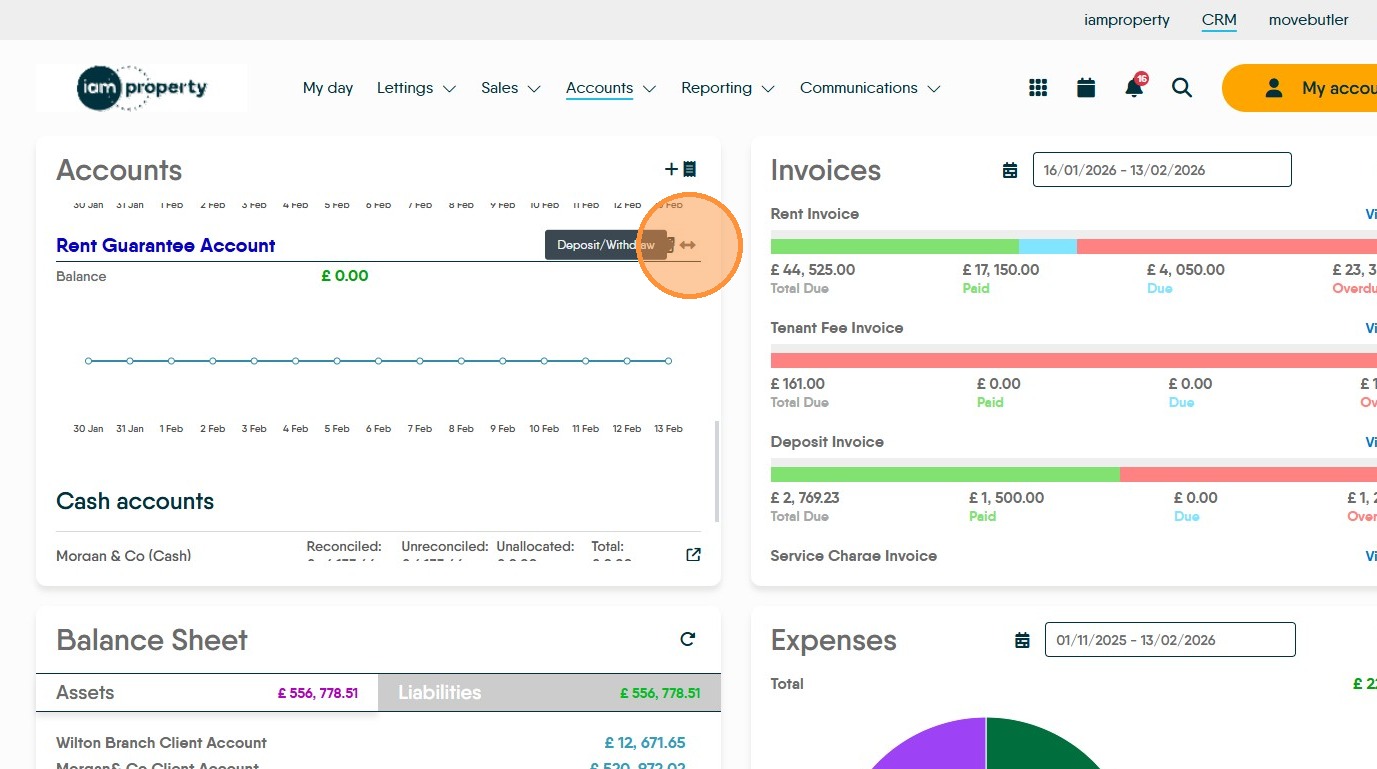
15. With Rent Guarantee, runs in its own account named - Rent Guarantee.
You can't run Rent Guarantee from your client account because you can't use client funds to pay the rent money to the landlord. So you have to have a separate account.
When you first turn Rent Guarantee on, obviously the balance there is going to be £0, so you're going to need an initial deposit of money in there to be used to pay the guaranteed rents to your Landlords . That money will come from your business account and will, effectively, finance the (rent guarantee) rent payments that they use to cover their rent payments.
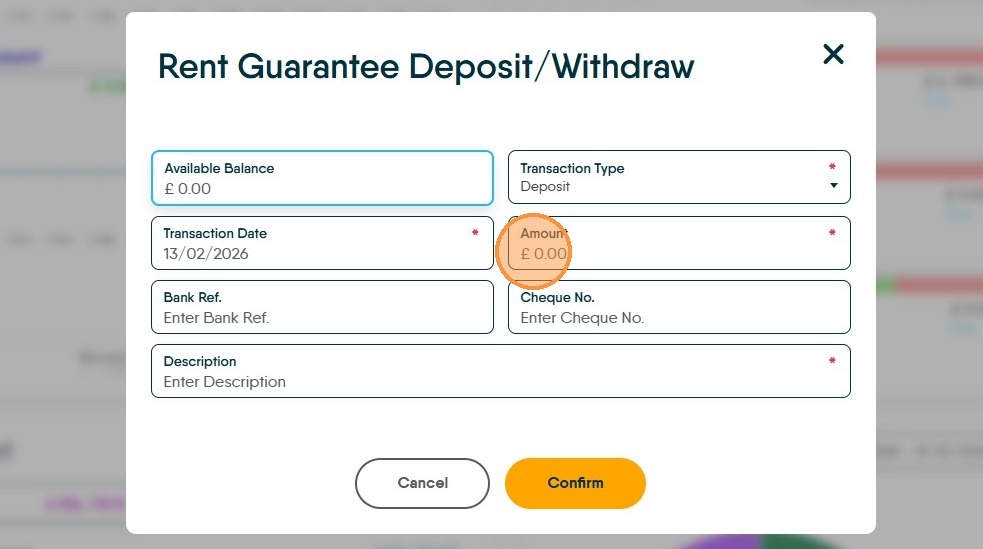
16. Click here this will open the 'Rent Guarantee Deposit/Withdraw' screen.
17. Click the "Available Balance" field. This is the amount of money you have set aside from your business account, for the payment of guaranteed rents.
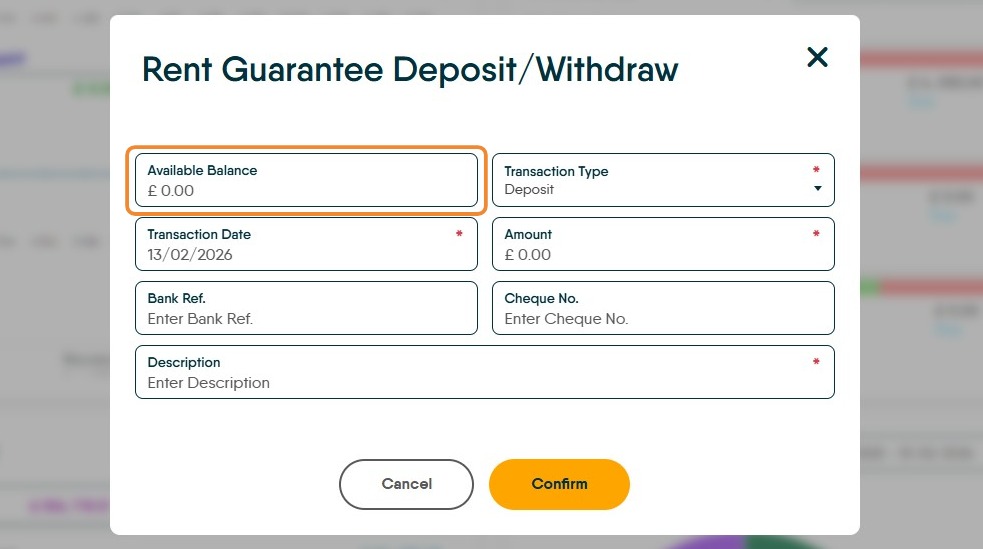
18. To add money to the account, decide the sum you are transferring to the Rent Guarantee account. Click the "Amount" field and type the amount e.g. 5000.
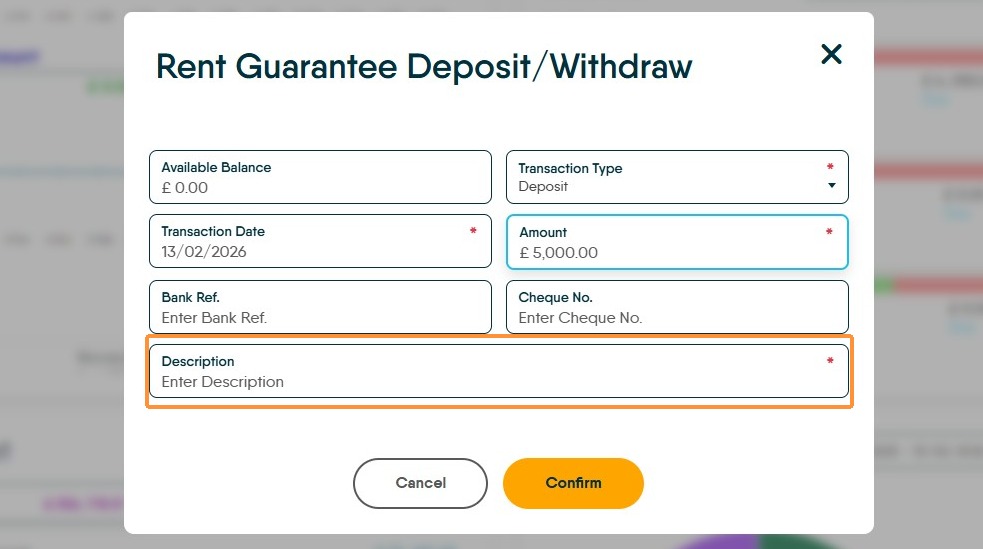
19. Click the "Description" field. For example type "Initial Deposit for Rent on Time Account"
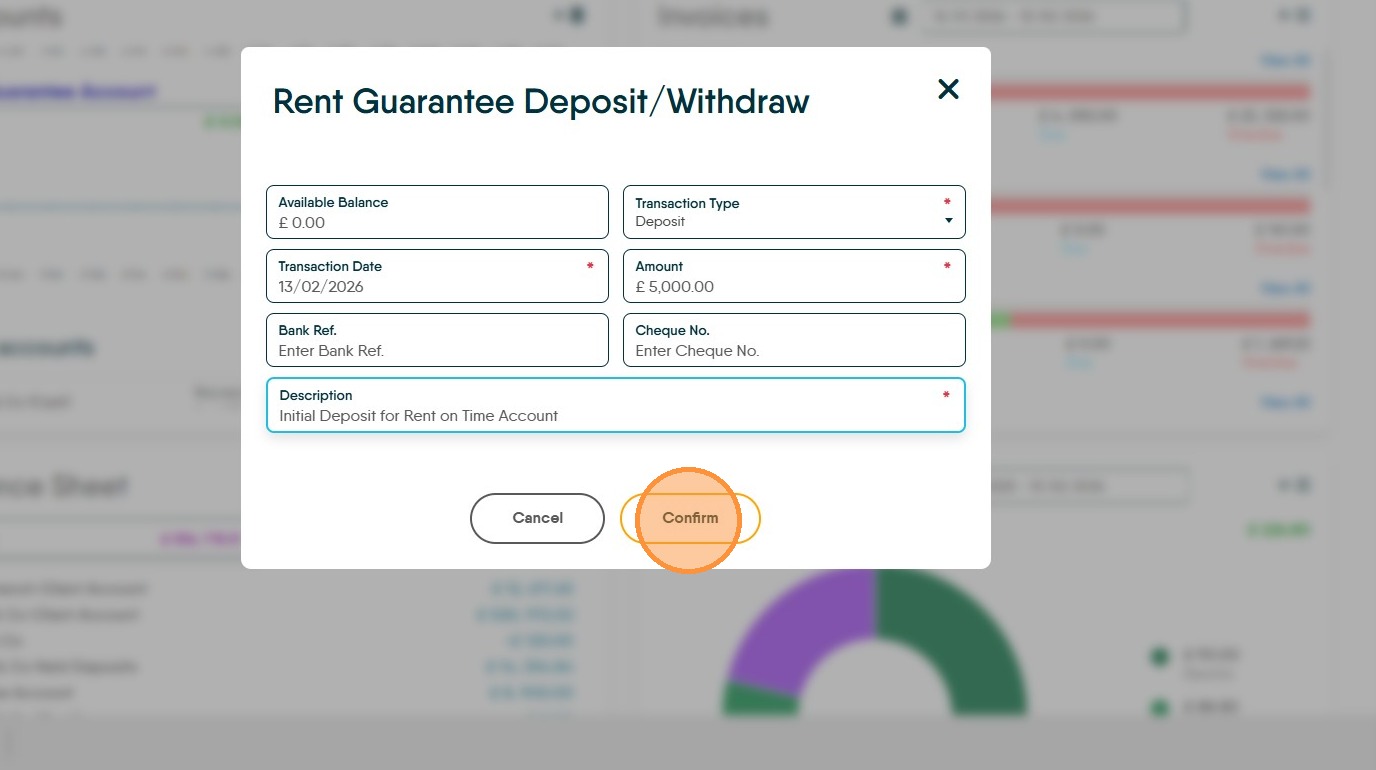
20. Click "Confirm"
Viewing and Paying Rent Guarantee Invoices
21. You can access the Rent Guarantee invoices in two places the best place is from the Accounts - Tenants menu
22. Click "Accounts"
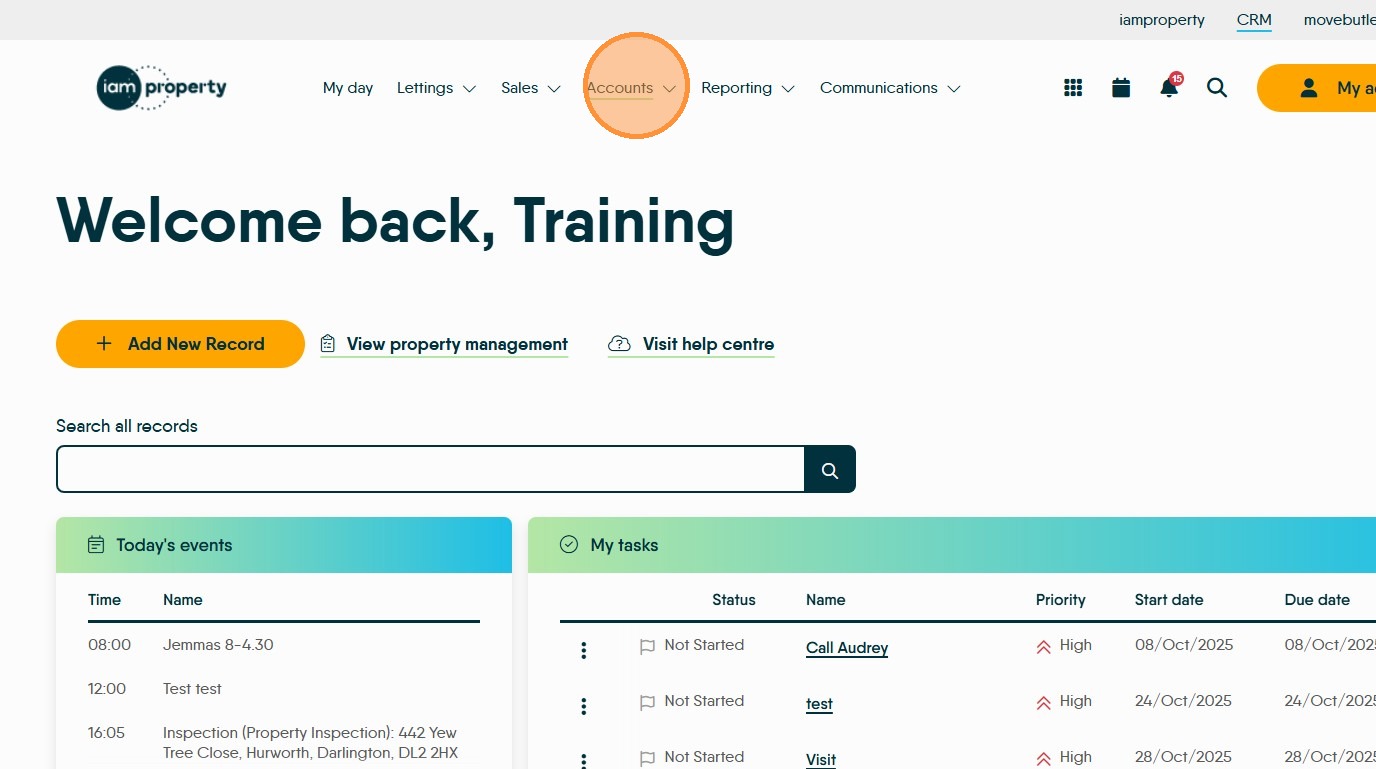
23. Click "Tenant"
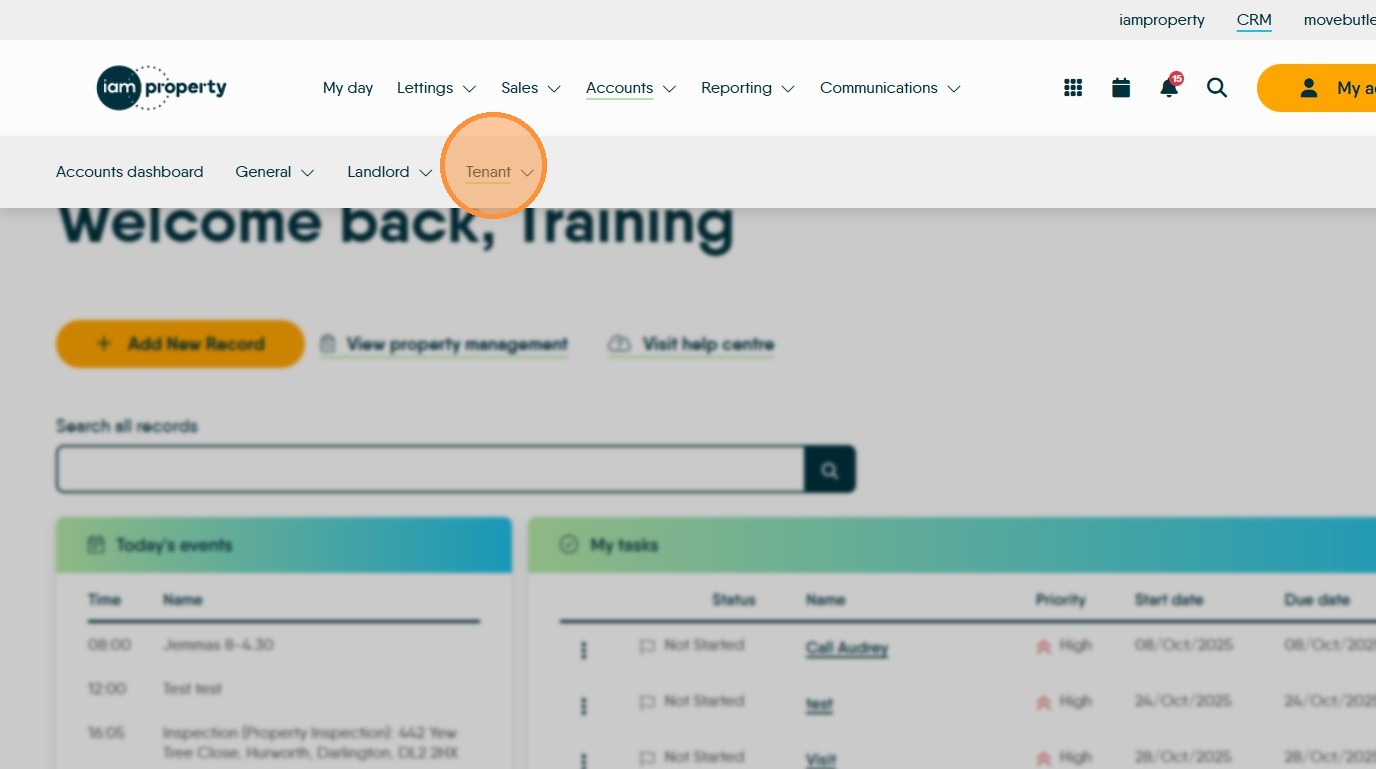
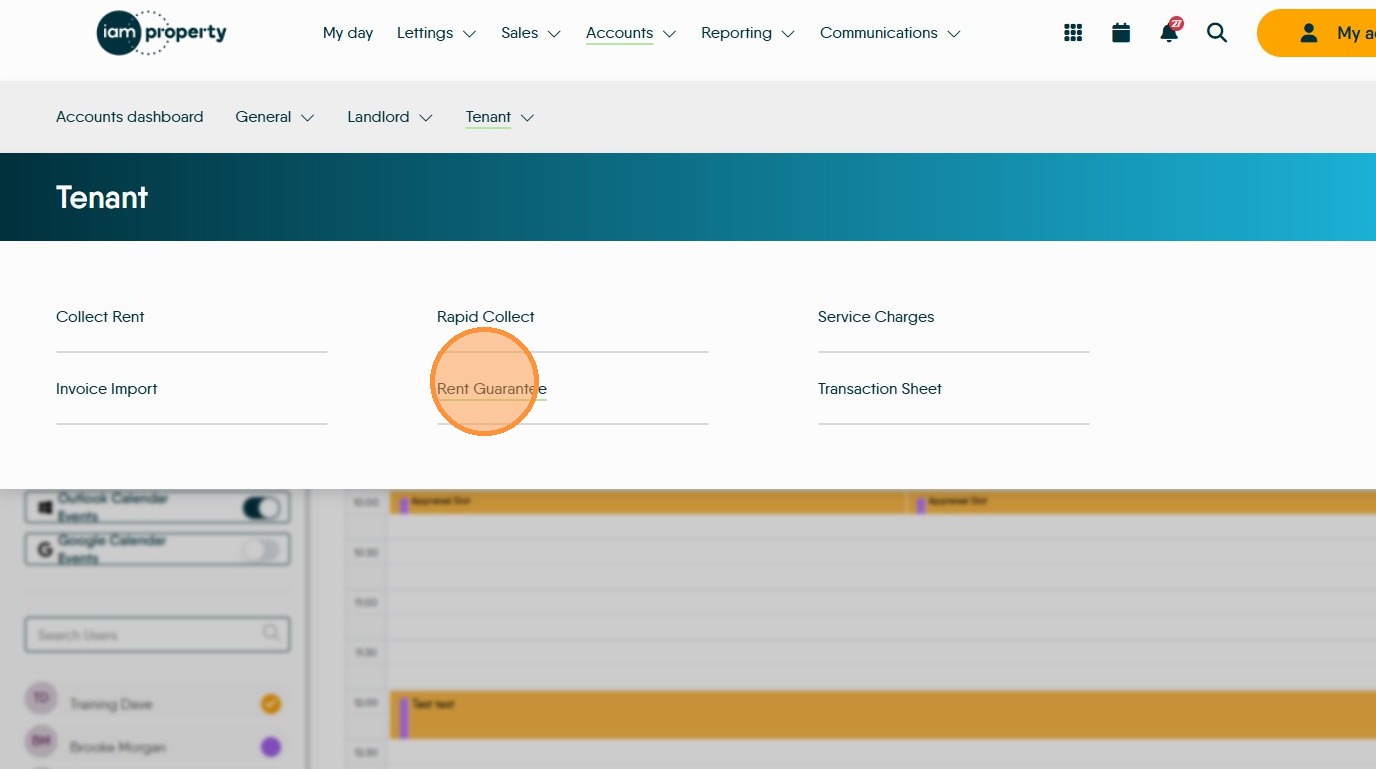
24. Click "Rent Guarantee" depending on how your settings are set.
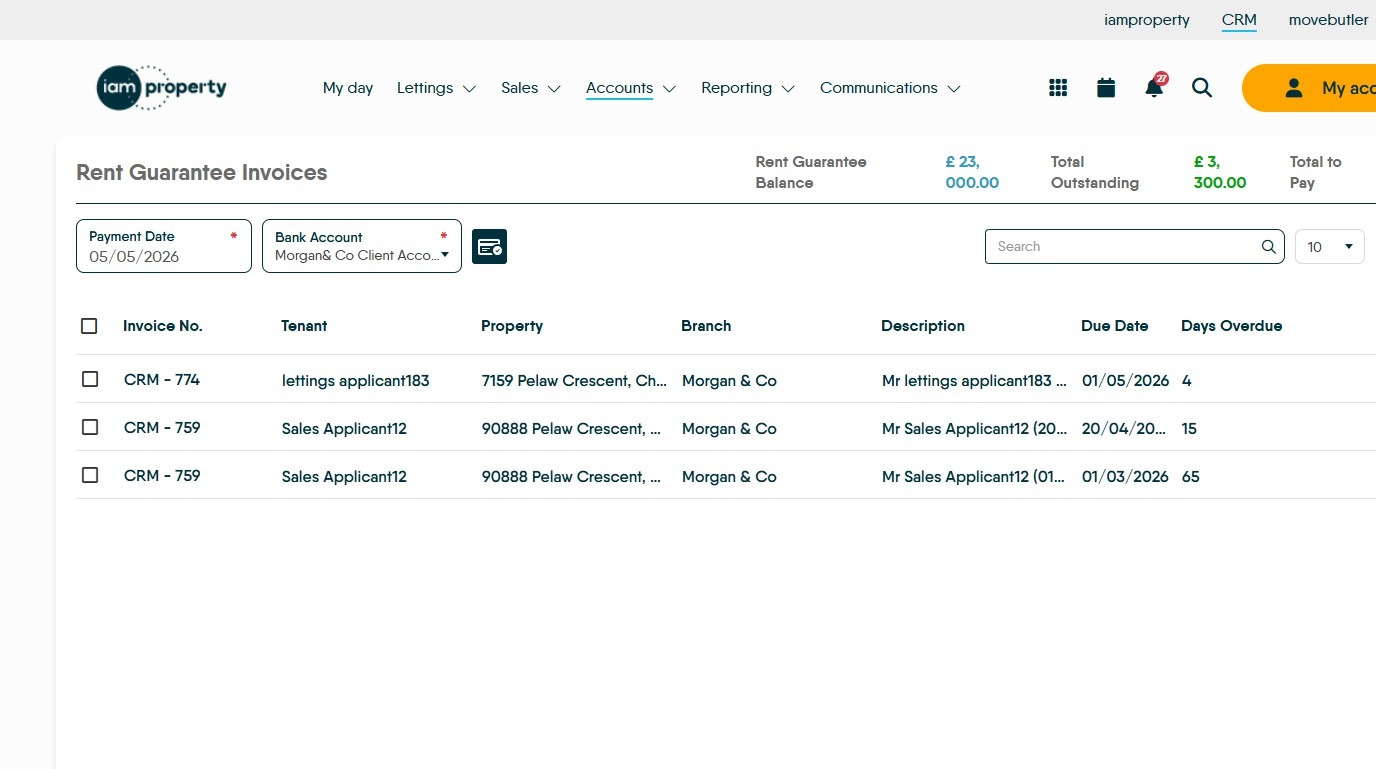
25. If there are any 'Rent Guarantee' invoices to collect, then these will show here.
26. The alternate way to view your 'Rent Guarantee' rent invoices.
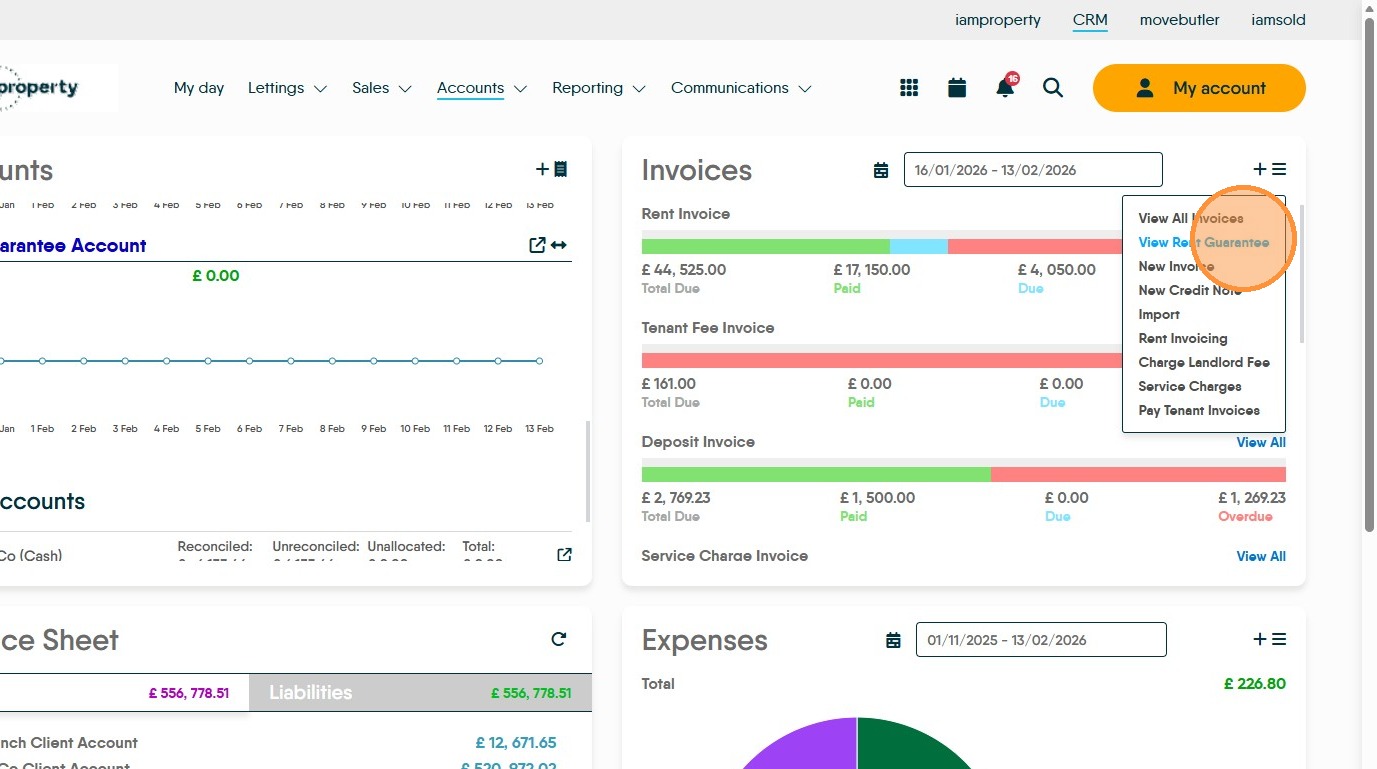
In the 'Invoices' tile click here.
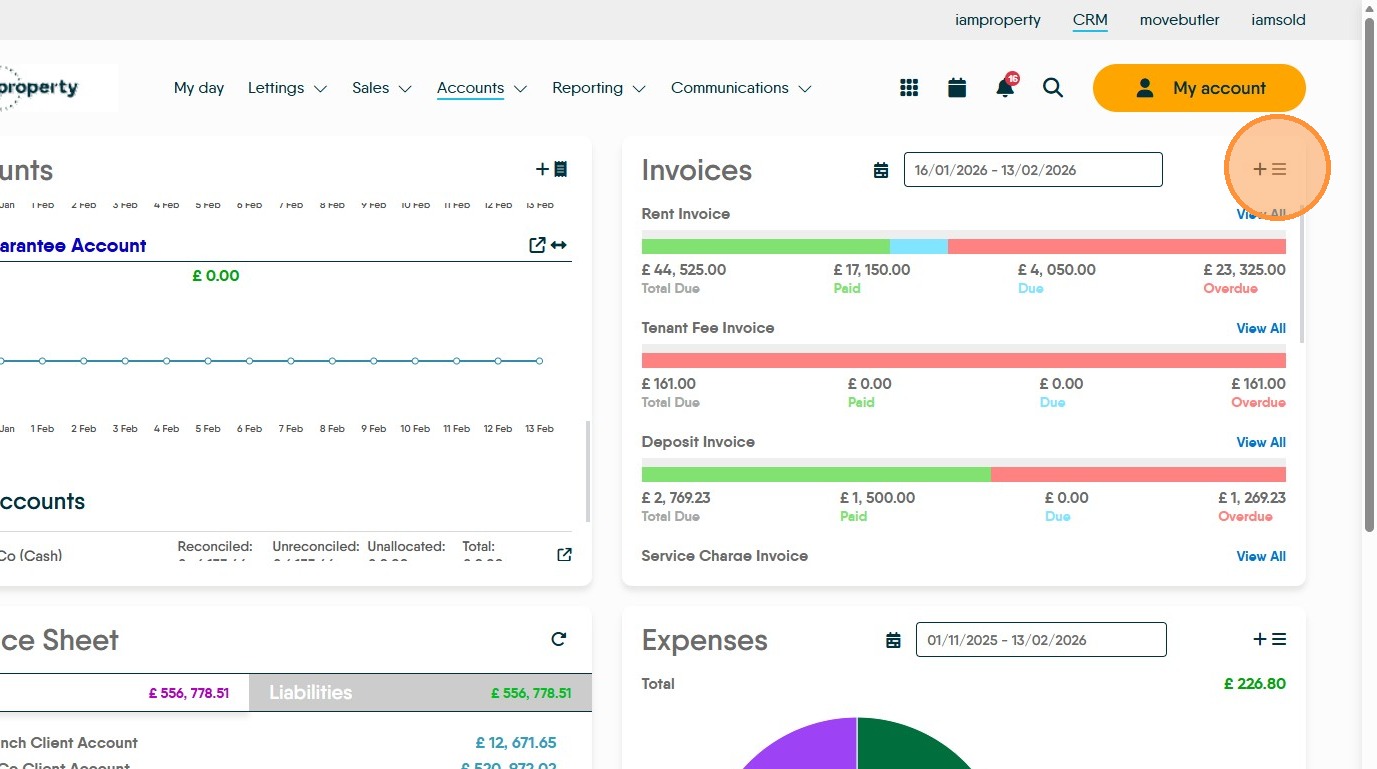
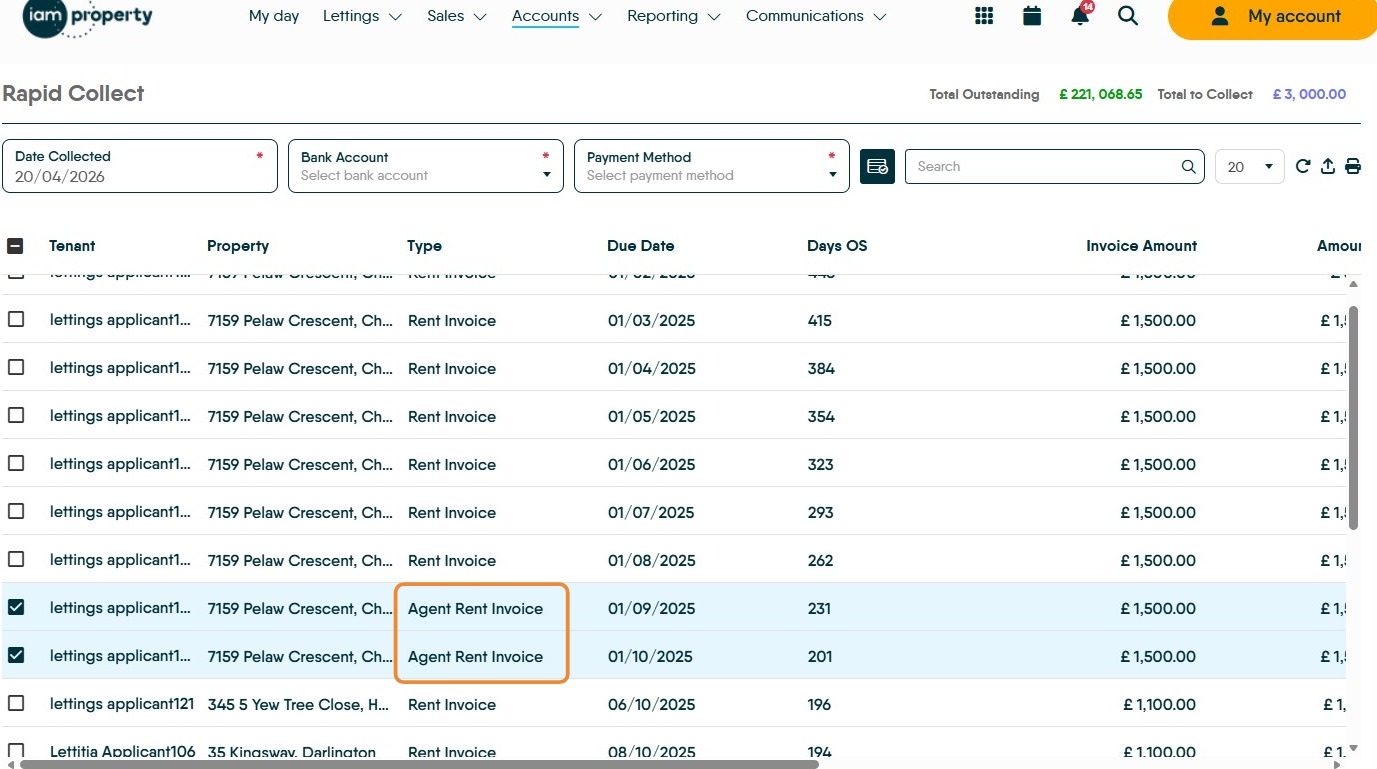
27. Click "View Rent Guarantee"
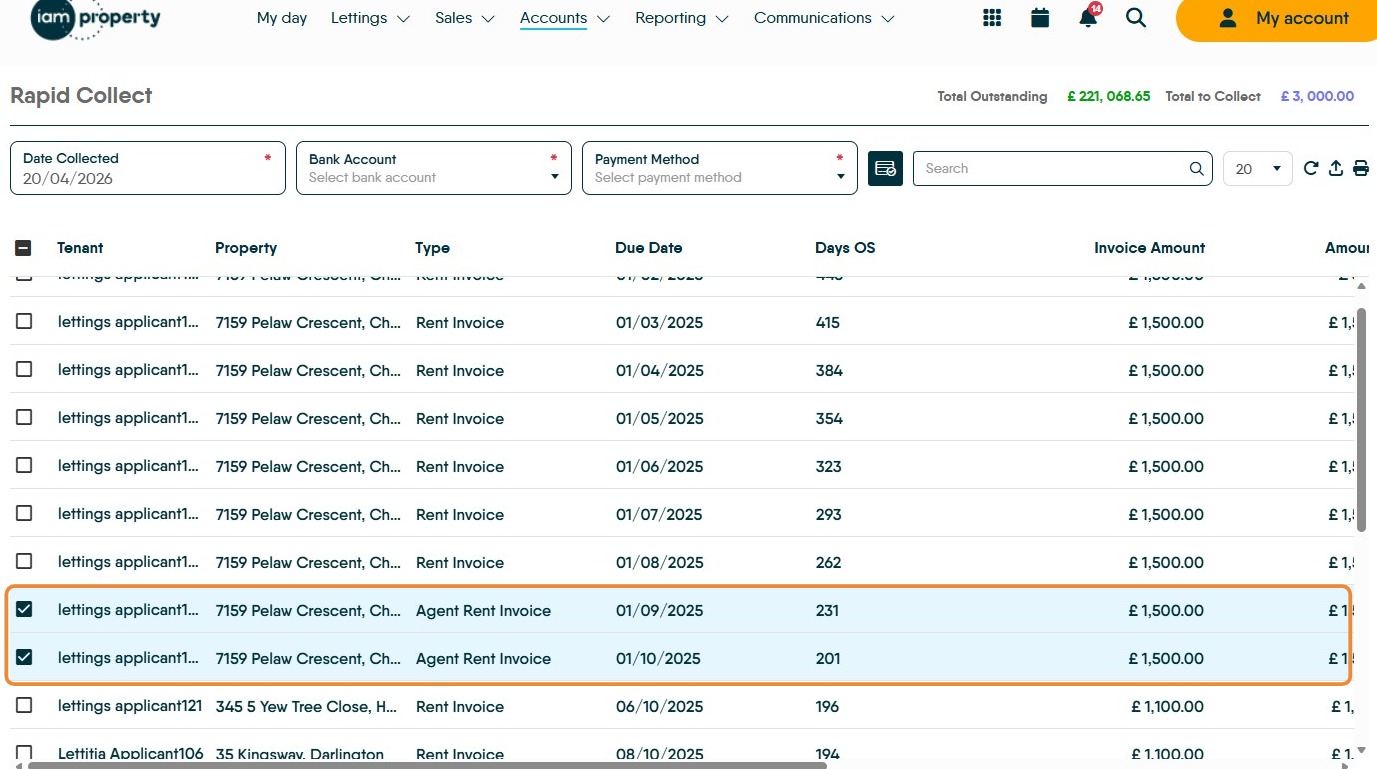
Alert: Please Note. It is your responsibility to set Your Company policy on when a rent becomes overdue. You could opt to pay all rents for properties covered by a Rent Guarantee as soon as they are due, after 1 day or 7 days it is your choice.
Tip: From here onward the process of managing the rent collection is exactly the same. The screens you see and the process are the same.
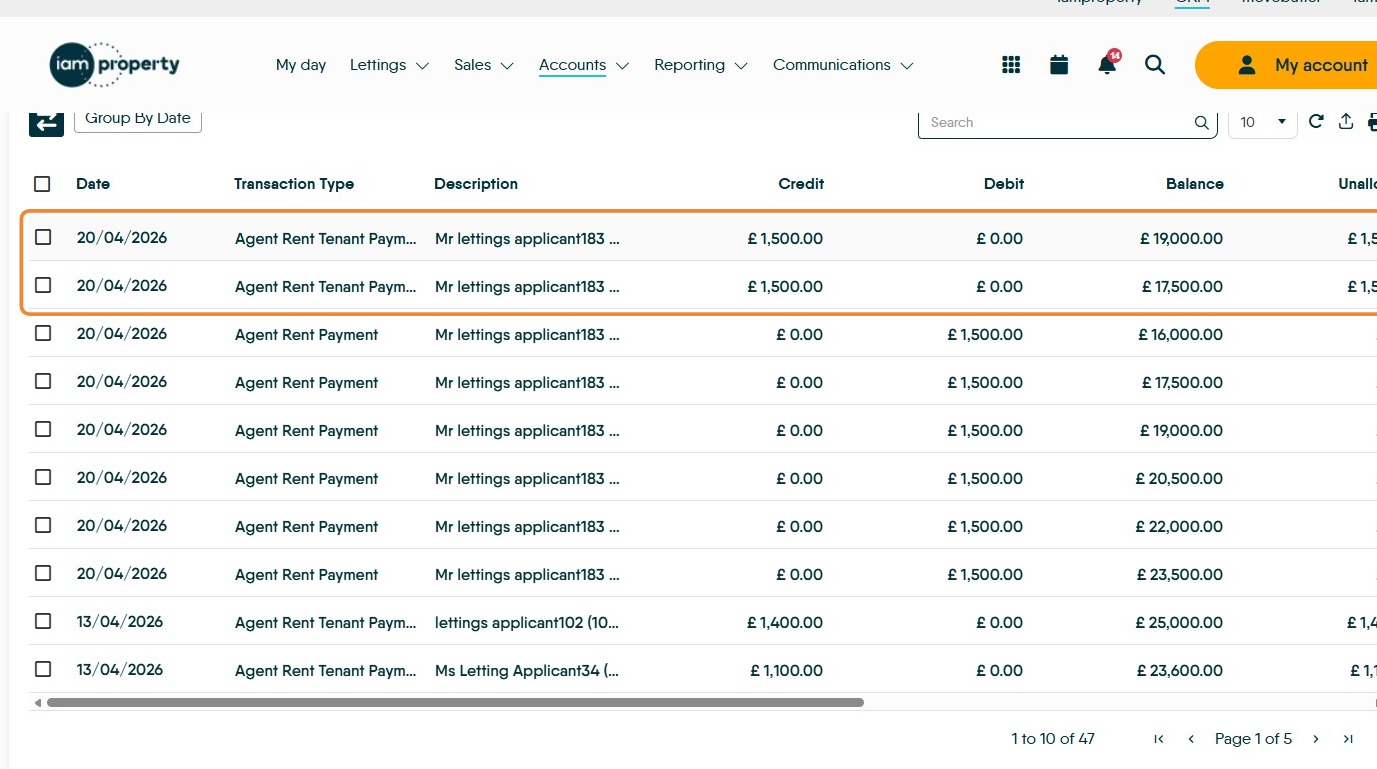
28. The 'Rent Guarantee Invoices' screen will show you all the CURRENTLY DUE rent invoices that are for properties with the rent guarantee option enabled.
If a Tenant has paid their rent and the rent has been collected by Bank Import or Rapid Collect then that rent invoice will not show in here, only unpaid invoices.
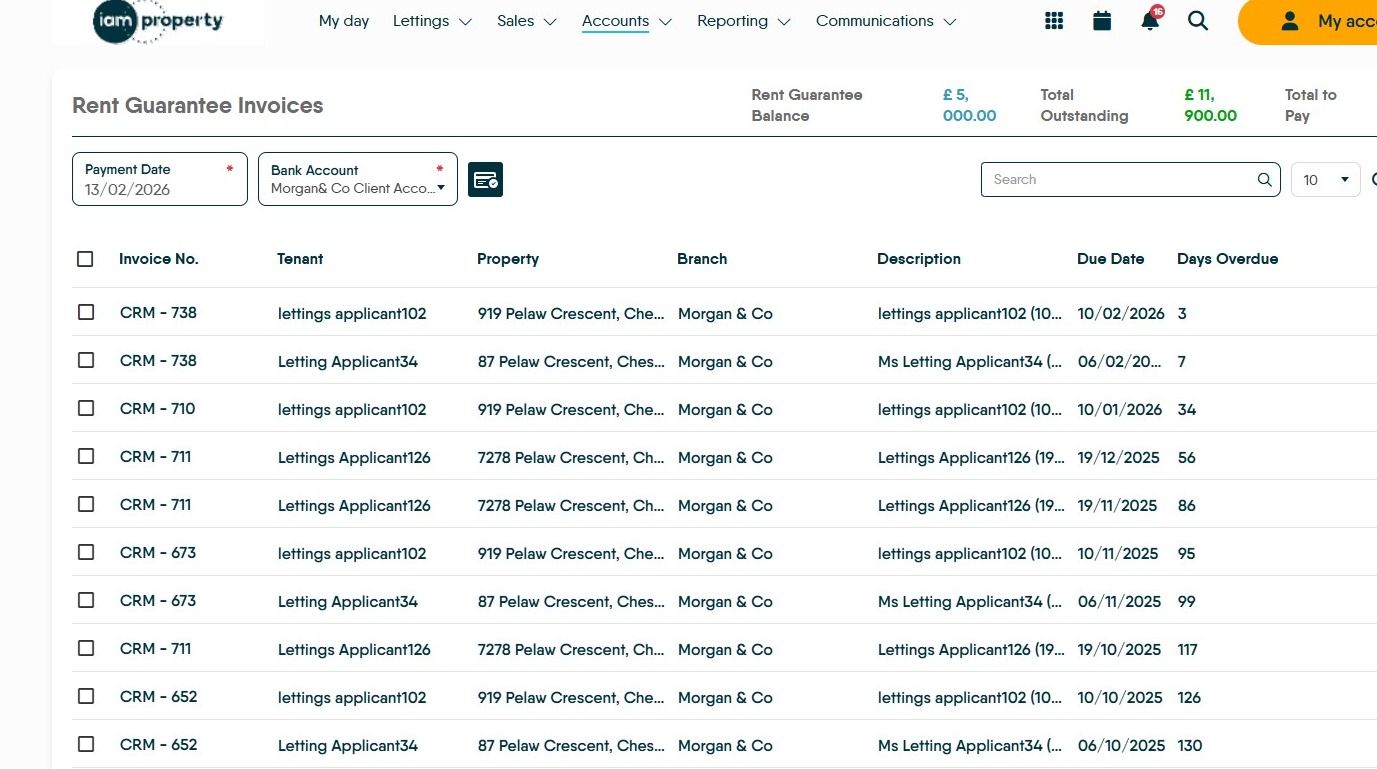
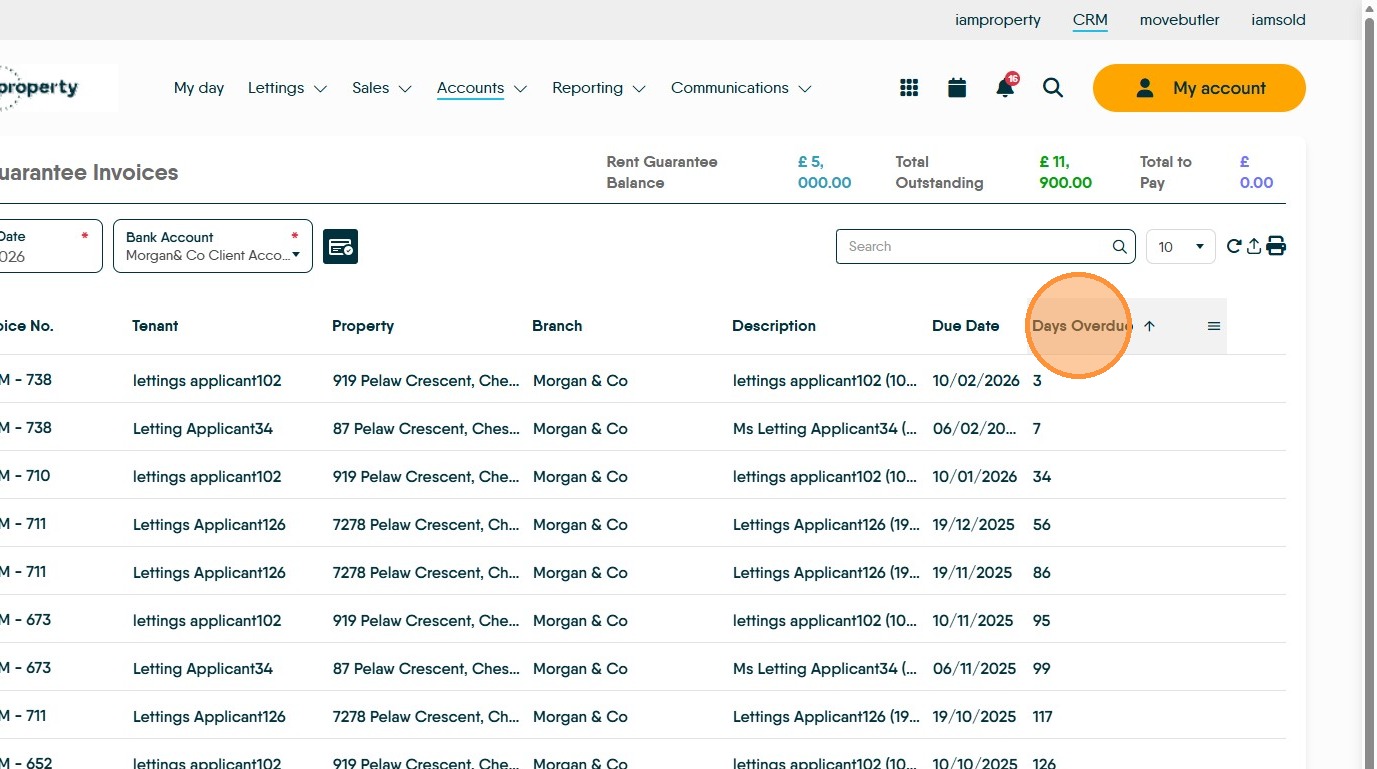
29. Click "Days Overdue" the column will sort by ascending or descending order. Clicking on any of the column headers will sort the table data based on the data in the column.
30. Click the checkbox next to the invoice(s) you are paying from the Rent Guarantee account. You can select multiple rents from this screen and pay them all at the same time
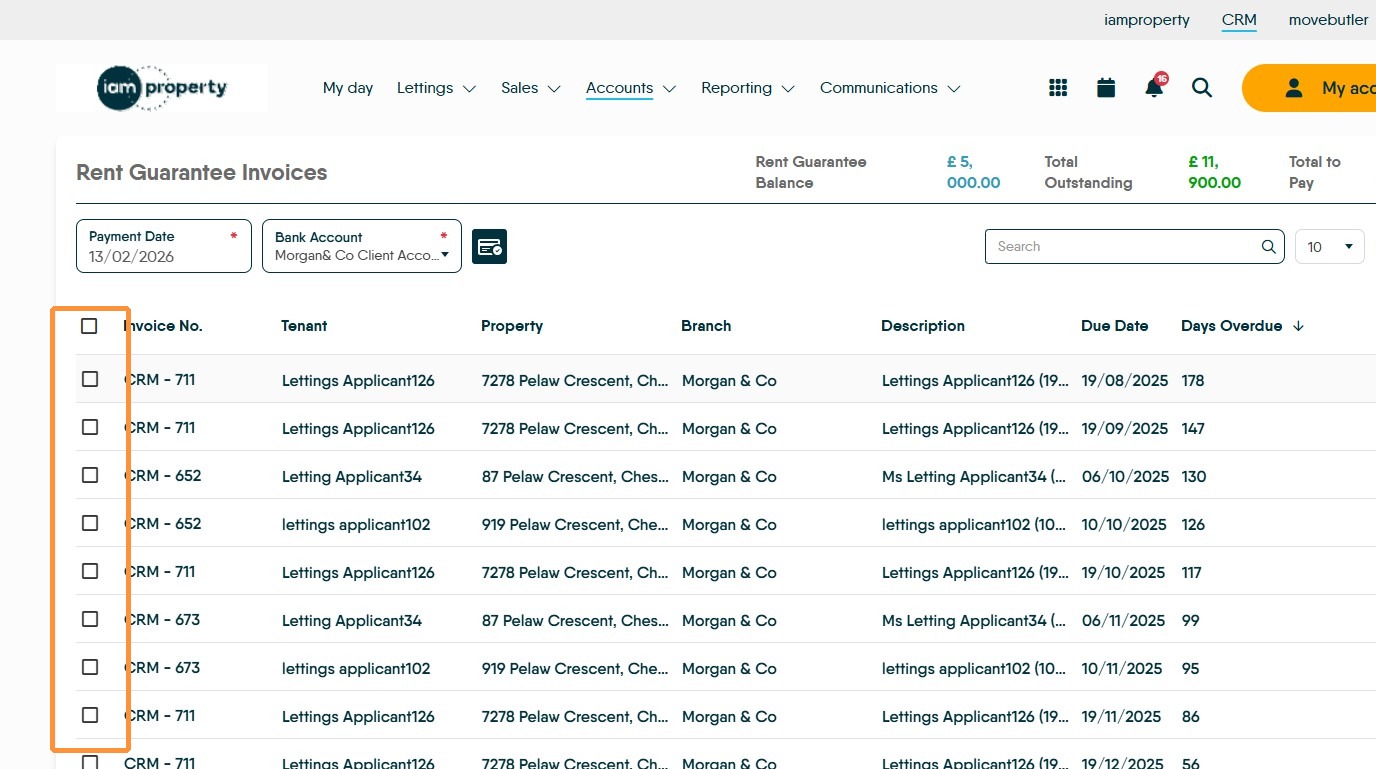
31. Once payments are selected then click the 'Pay' icon
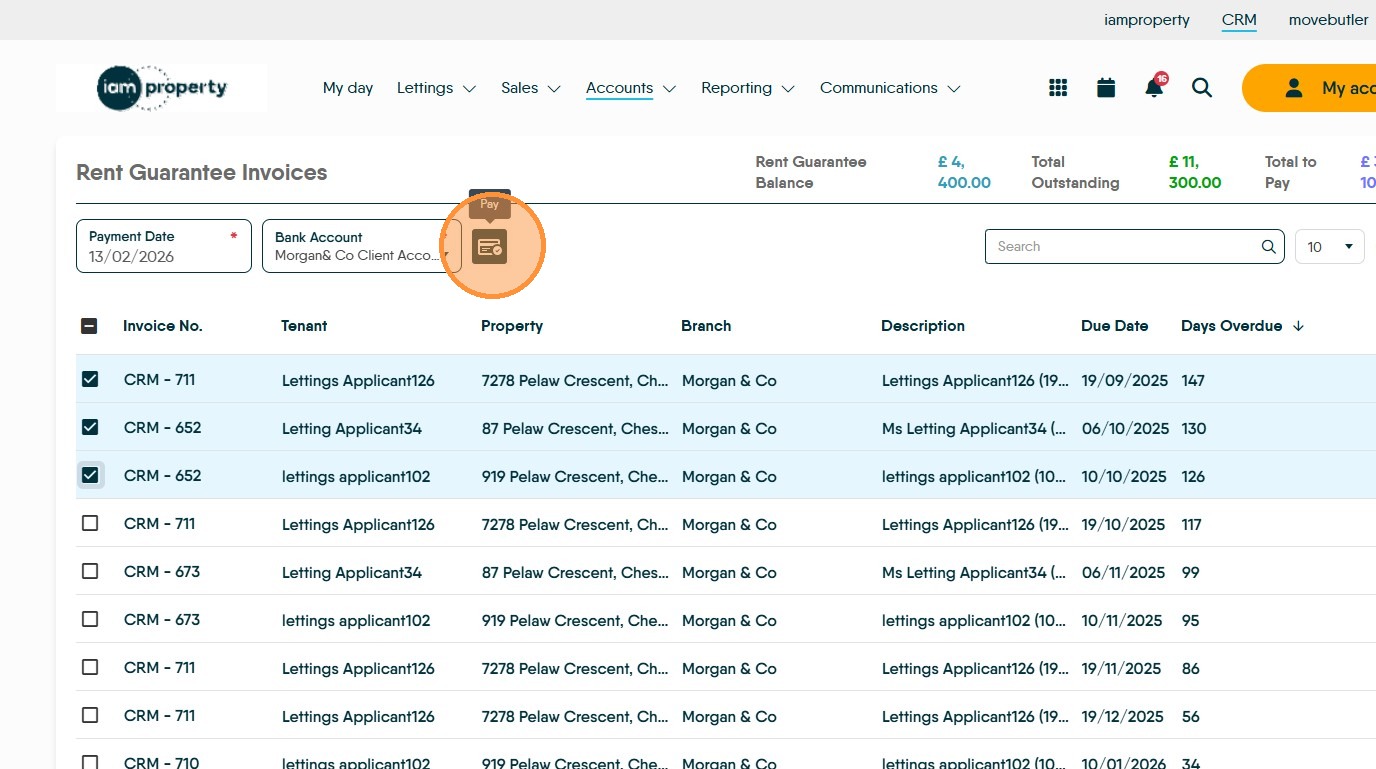

32. You will see this screen confirming the payment.
Click "Confirm Payment"
The confirmation screen will show the total amount to be paid Click "Confirm Payment"
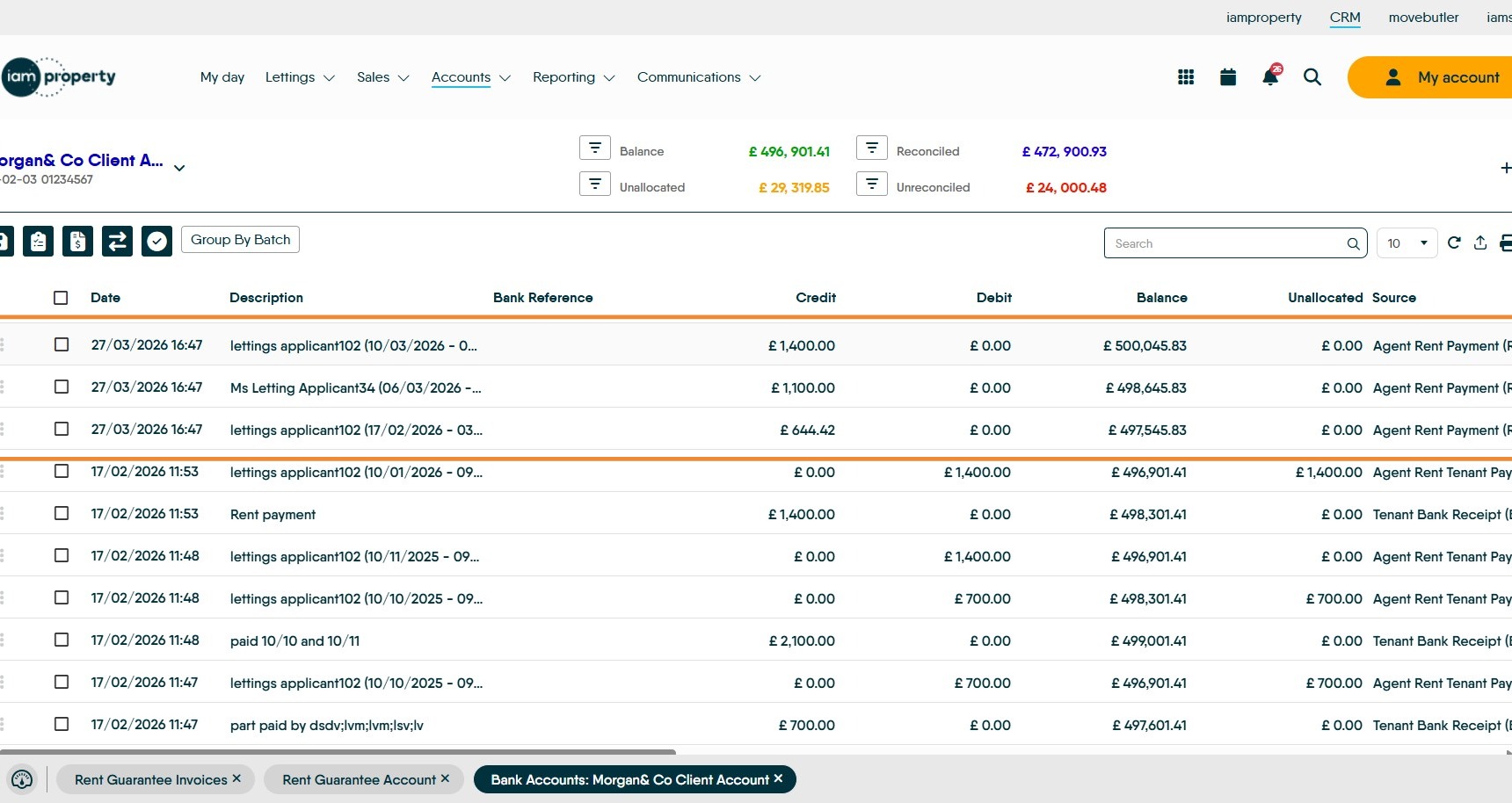
33. Once the 'Rent Guarantee' payment has been confirmed, the related rent payments will show in the client account as an 'Agent Rent Payment (Rent Payment)' and will also show in the Rent Guarantee account.
You also need to ensure that the money for the rent guarantee payment is transferred from your agencies Business/Rent Guarantee account into the Client Account so the money is available to be paid out to the Landlord and expenses to Contractors can be paid.
34. These are the Rent payments out from the Rent Guarantee process. From here on the process to pay out to your landlords is as it normally would be.
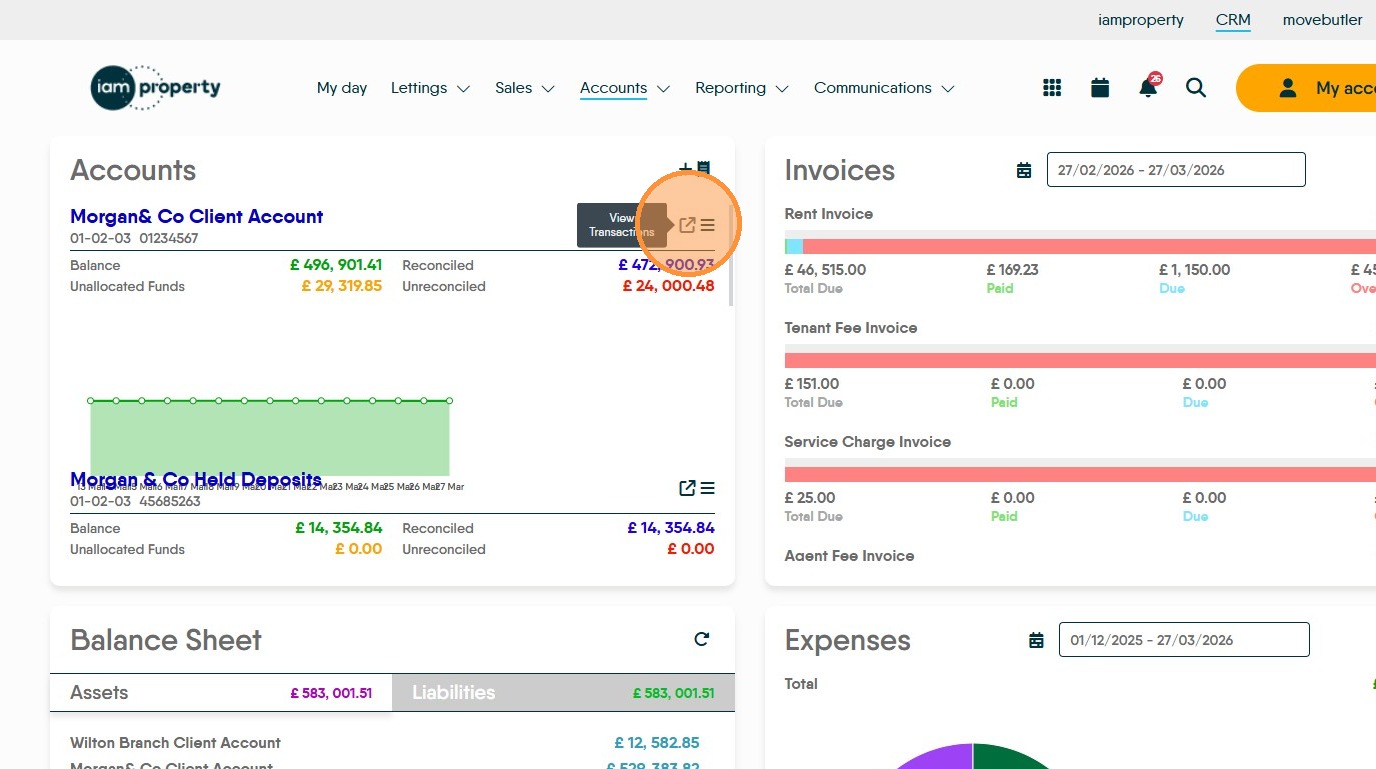
35. If you would like to view the generated transactions. On the Accounts tile, click the 'view transactions' icon in the Client Account section.
36. From here on the process is the same as you would do to process a non 'Rent Guarantee' rent payment, Landlord fees, property expenses payments, management fees etc are all processed as you would a normal rent payment out to the Landlord. Statements will look the same.
Collecting Guaranteed Rent Arrears from Tenants
Alert: Alert! After the rent is paid out to the landlord it is still owed to the Agent from the Tenant. The following instructions cover what happens to the outstanding rent owed by the Tenant to the Agent.
37. When a guaranteed rent is paid out to a landlord, the tenant’s rent invoice will become an ‘Agent Rent Invoice’ in their ledger.
38. Anywhere in CRM that the Tenant Rent Arrears will show, the Agent Rent Invoice will also show. This allows the guaranteed rent to be (repaid) collected if paid by the tenant.
39. When paid by the Tenant the rent can be collected from any where you currently pay overdue rent invoices e.g Rapid Collect.
40. Once the Agent Rent Invoice is paid, the funds reimburse the Rent Guarantee Account
Alert: Alert! The Tenant will have paid their rent into the Client Account, so you need to ensure you transfer the the correct amount to the Rent Guarantee/Business account to refund the initial rent guarantee payment.
Managing the Rent Guarantee Account
41. To add or withdraw funds from the Rent Guarantee Account, click here.
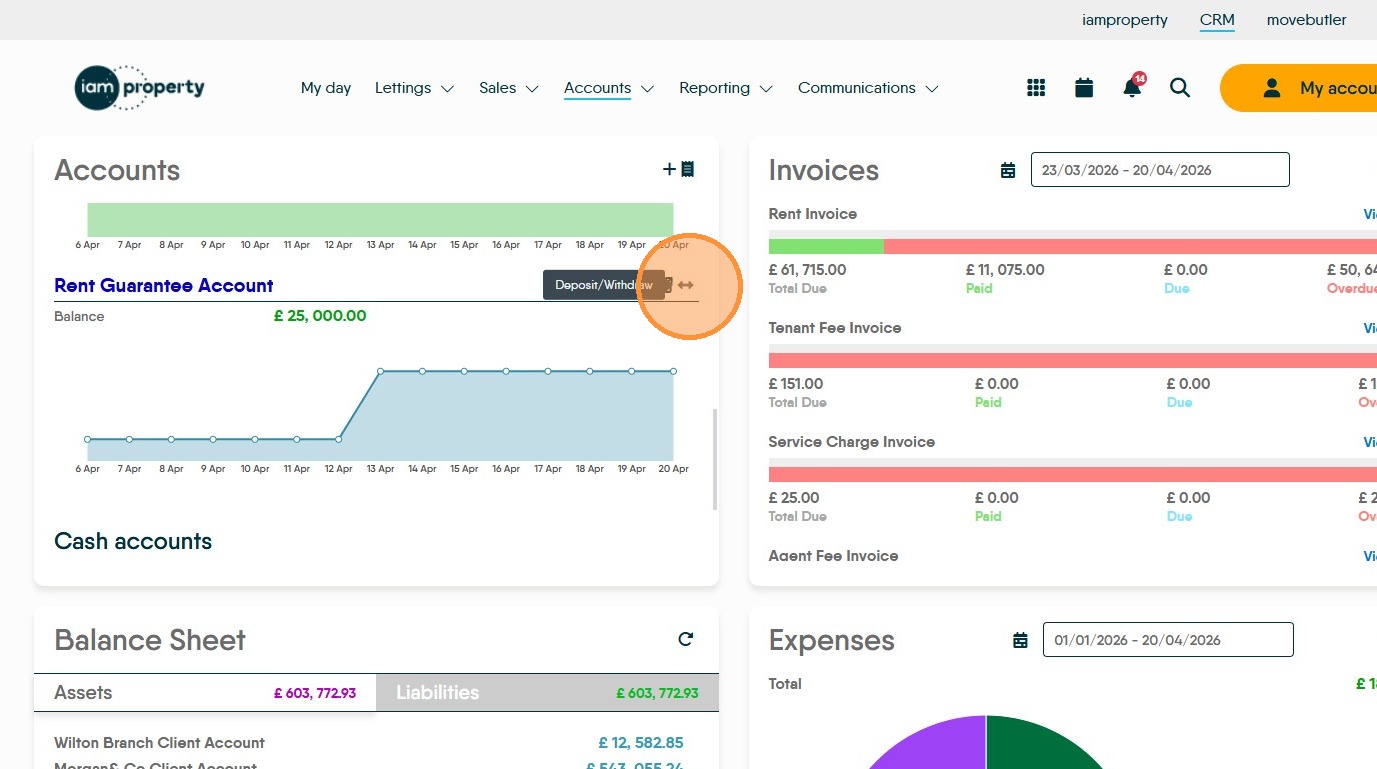

42. Click here to select the "Transaction Type" either deposit or withdraw
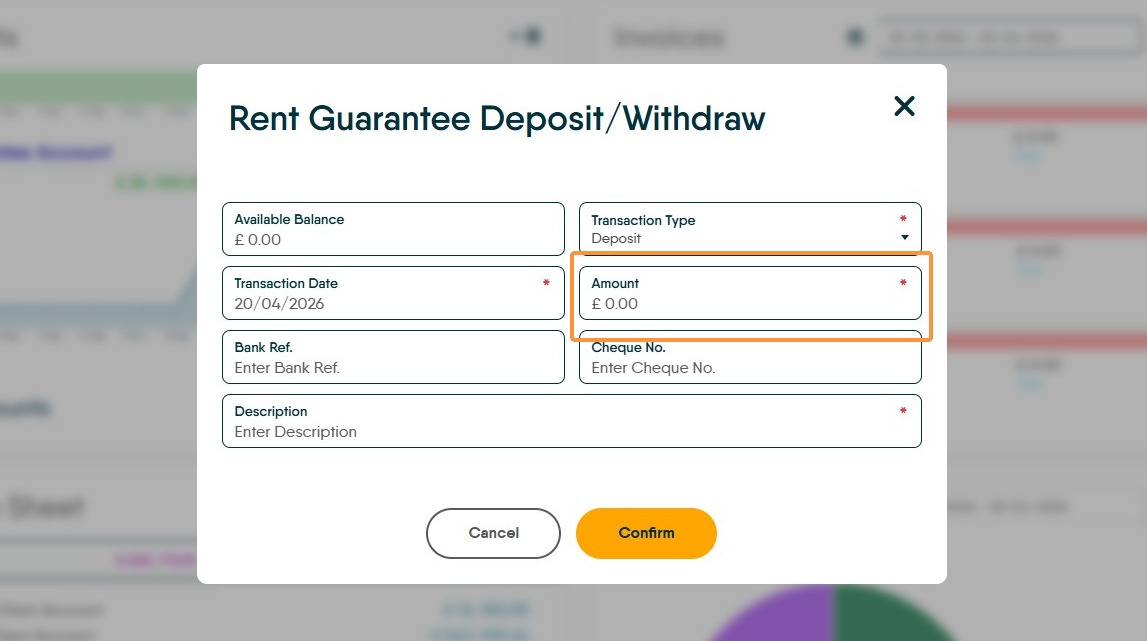
43. Click the "Amount" field and add in the amount you are adding or withdrawing from the account.
Withdrawing funds re credits the Business Account (or where the money was transferred from) N.B. This money needs to be physically transferred from the Rent Guarantee Account to your Business Account it is not added to the Client Account visible in CRM.
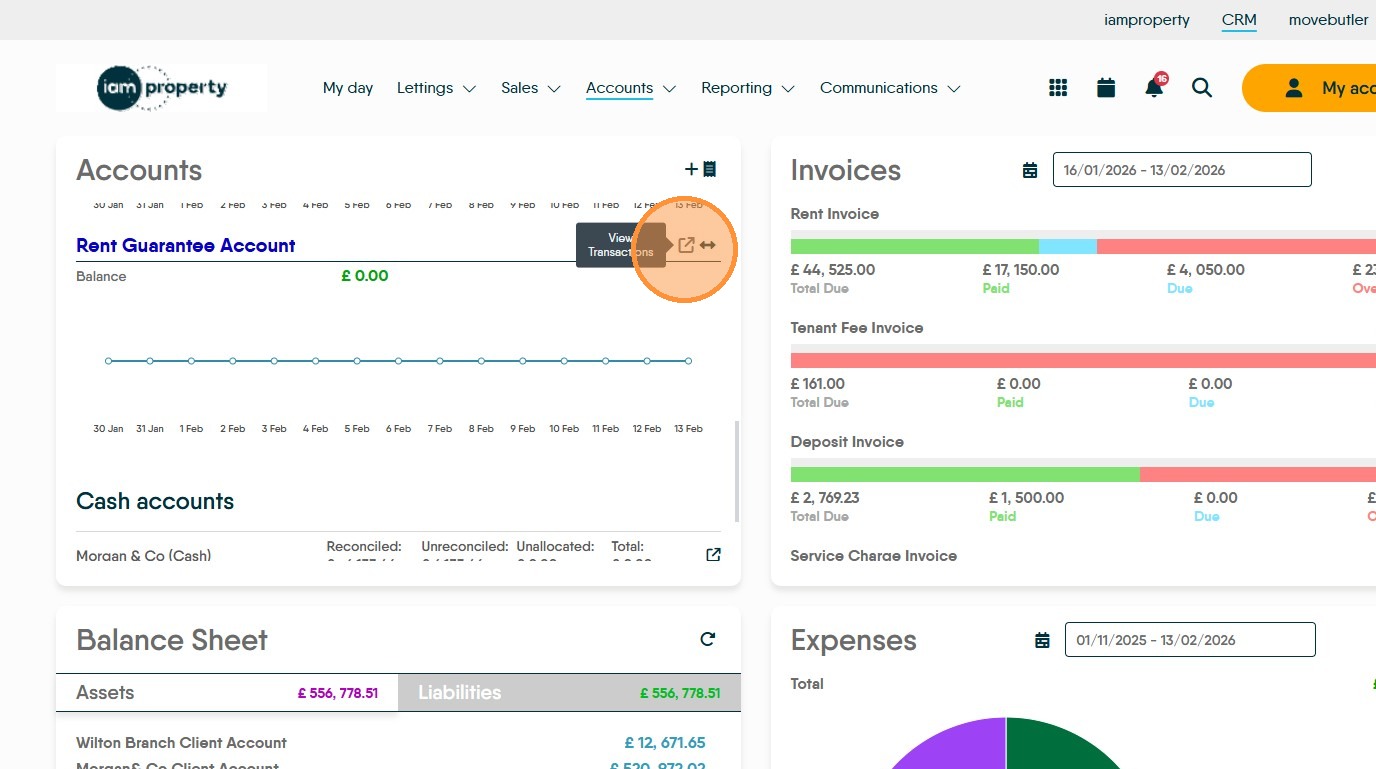
44. Click "View Transactions" to view the details in the Rent Guarantee Account.
45. This will show all the transactions in the Rent Guarantee Account. The 'Group By Date' option will allow you to see all transactions made that day and deposit/withdraw funds as required.
We would advise doing this once per day to keep the process simple.
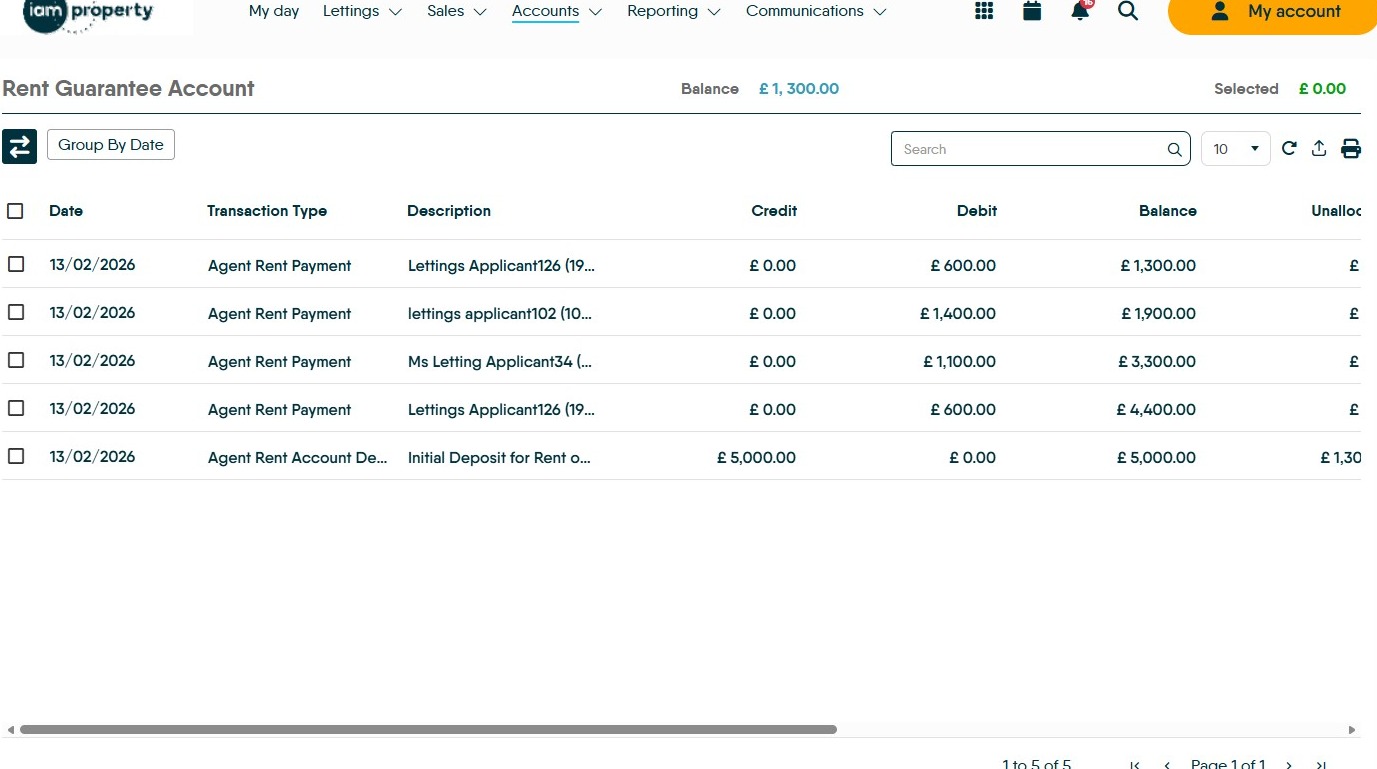
46. Balance is the amount left in your deposited and received funds to pay Rent Guarantees from.
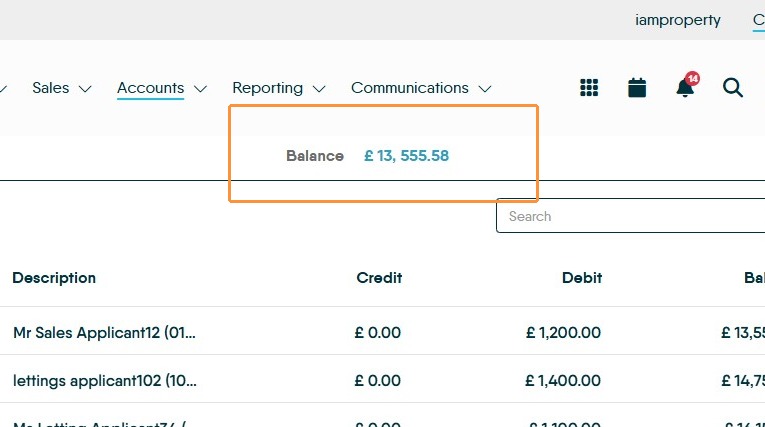
47. Agent Rent Payment is payment out to the Landlords from your Rent Guarantee account. 'Agent Rent Tenant Payment' is the repayment from the the Tenant of the guaranteed rent payment.