This guide provides a step-by-step process for managing part payments of rent through CRM, ensuring accurate tracking and efficient handling of transactions. It highlights essential features like selecting properties and tenants, entering payment details, and managing invoices, making it a valuable resource for property managers. By following this guide, users can streamline their payment processes and maintain clear financial records, ultimately enhancing their operational efficiency.
1. Navigate to https://crm.iamproperty.com/Dashboards/Accounts

2. Click here. "Add Bank Receipt"

3. Click "Select property"

4. Type the details of the property you are searching for and click on it.

5. Click "Select tenant"

6. From the drop down menu select the tenant you are looking for.

Tip: Tip! You can also search by Tenant rather than Property. To do this click the magnifying glass icon to the right of the Tenant field so it turns blue.

7. Click the "Amount" field and enter the amount that is being paid towards the rent.
If you select the invoice in the 'Outstanding Invoices' field the full invoice amount will be added to here.

8. Click "Select payment account"

9. Click the name of the account that the money was paid into, usually your main client account. In this example it is shown as "Morgan& Co Client Account"

10. Click "Select payment method" this is an information field and can have new options added in 'configuration' as a 'lookup' Select the option from the menu.

12. Click the "Description" field. Add a description of the transaction
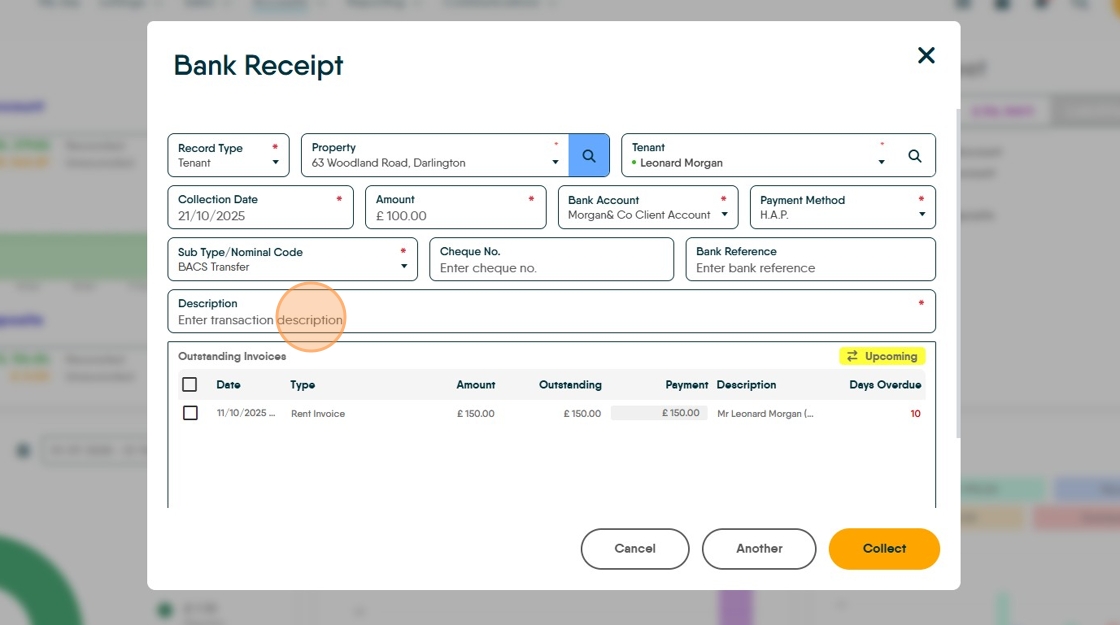
13. Click the checkbox next to the Invoice you are paying.

14. If you need to edit the amount paid click here and enter the amount being paid.

15. As an example, if you are paying £100 against this £150 invoice. Type £100 in the 'Payment' field. Then click "Collect"

To Collect Rent Early - Before the Rent Invoice has been created by the CRM.
Alert: This option can be disabled in the CRM 'Accounts Configuration'. If the 'Upcoming' option is not visible then check the accounts configuration.
This option will not be available if there are currently due invoices to pay.
Follow the previous instructions to find your Tenant.
17. Click "Upcoming"

18. Click this checkbox to select the invoice to pay.

19. Click the "Amount" field and edit to the amount you want to pay against that invoice. You can select multiple invoices.

20. Click the "Outstanding" field and enter the amount that is outstanding to pay. In this example you are paying £100 off a £150 invoice, £50 needs to be entered in the outstanding field.

21. Click "Select payment account" this will be the account the money was paid to.

22. Click "Select payment method"

23. Click the "Description" field. Add a detailed description for this transaction, the more detailed the description, the easier it is to track payments.

24. Click "Pre-pay"

25. There is an option to create a receipt. Click "Yes" or "No" as required.
