This guide provides a step-by-step approach to efficiently process prepayments for rent in the CRM system, ensuring accuracy and compliance. By following these instructions, users can streamline their payment handling process, reduce errors, and maintain better financial records. It is essential for property managers or financial administrators who need to manage tenant accounts effectively.
Alert: Alert! Please be aware upcoming legislation may make this illegal or restrict what payments can be taken upfront.
Please reference and be guided by new legislation.
1. Navigate to https://crm.iamproperty.com/Dashboards/Accounts
2. Click here. This will open the Bank Receipt function.

3. Click "Tenant"

4. Click "Select property" and type the name of the property you are collecting the rent for. You can select the Tenant field rather than the Property and search for a Tenant record

5. From the 'Tenant' field select the name of the tenant you are collecting the pre paid rent for. If you searched for a Tenant record, then select the property from the property field.
You will now see all the currently due invoices, in the top right of the 'Outstanding Invoices' screen you will see 'Upcoming'.

6. Click "UPCOMING" this will show you all the upcoming invoices and the on screen option will change to show 'Outstanding'
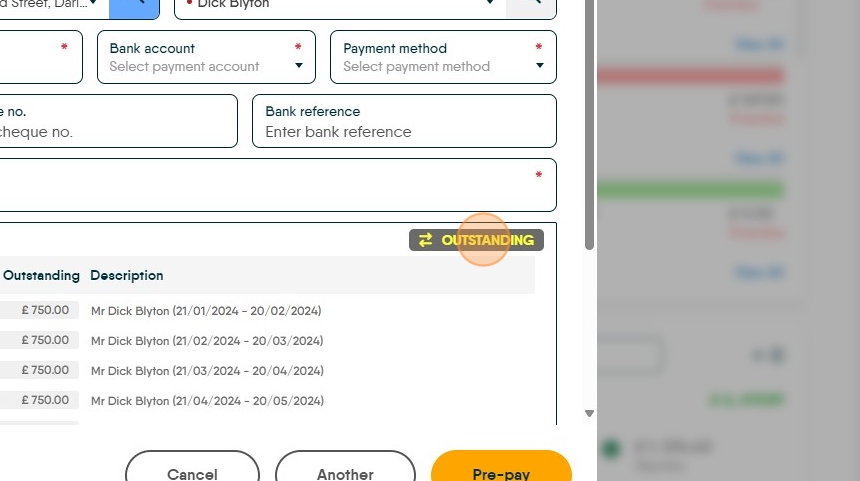
7. Click the checkbox next to the rent (or other invoice) you are prepaying. You can pre pay multiple invoices (months rent) if required.

8. Click "Select payment account" this is the bank account the money was paid into
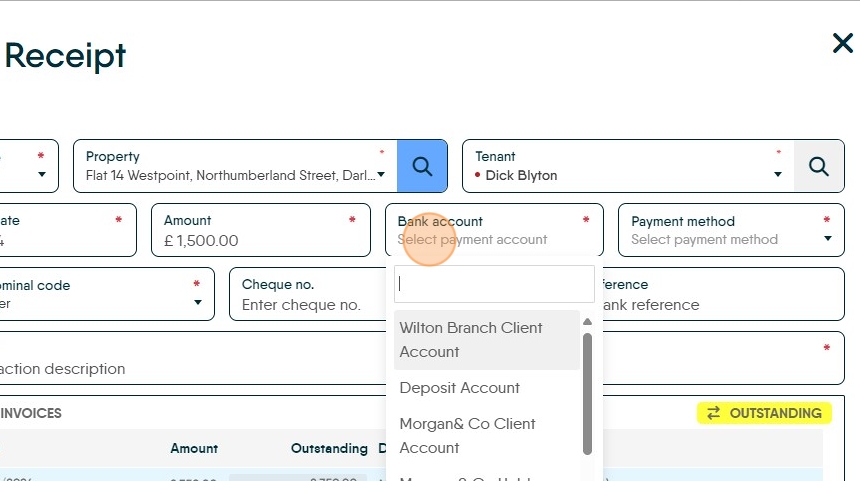
9. Click "Select payment method" i.e. how the money was paid to you.

10. Click the "Description" field. Create a very clear description for the transaction, e.g. Pre Payment of rent for the months of January and February 24' this will help when looking at the transactions in the Ledger at a later date or by someone else.

11. Click "Pre-pay"

12. Click "No"

Alert: Alert! This will then make the payment available to pay out to the Landlord on the next payment run.