Learn the necessary steps to successfully complete the 'Details'; screen for your property and start the process of adding it to the sales property stock. This guide will help you manage vendor details, instructed dates, and conveyancing information efficiently.
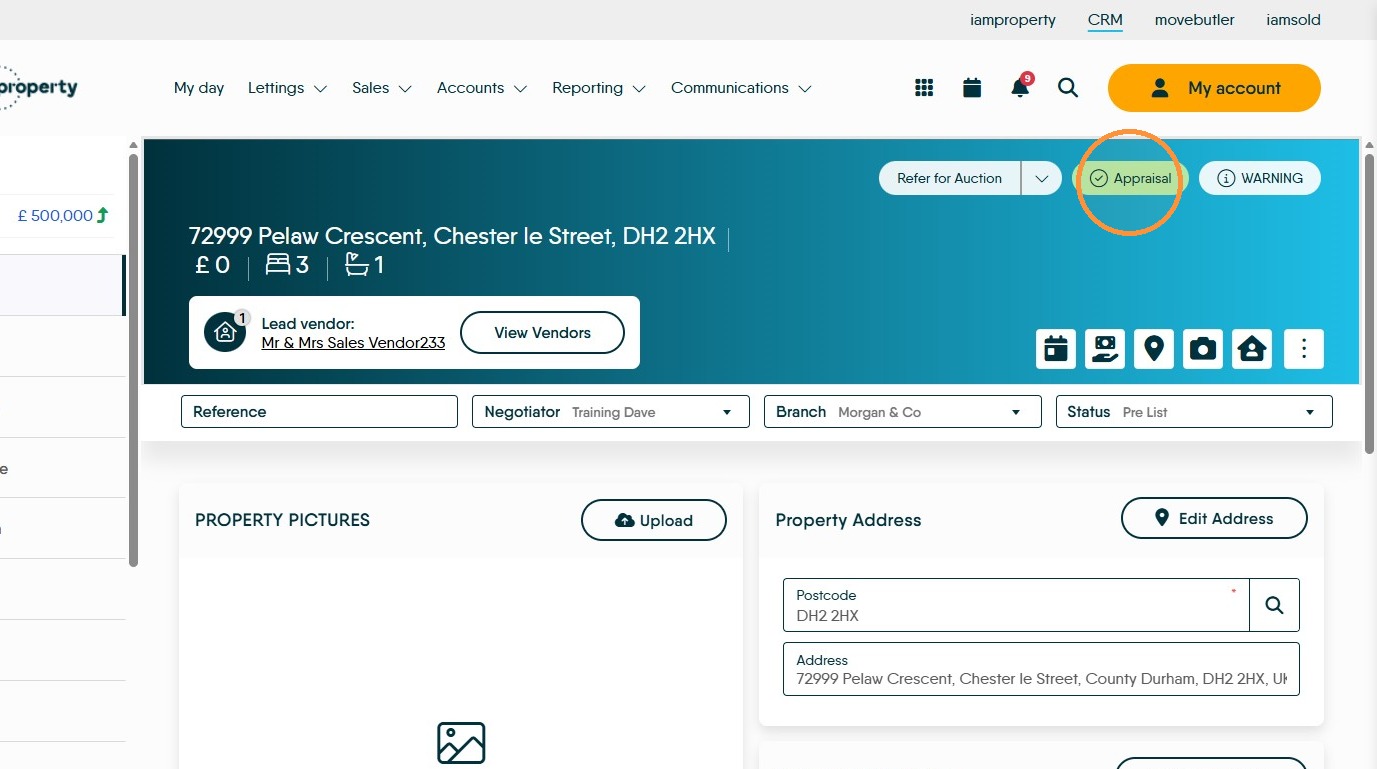
1. If the 'Appraisal' tag is on (green) click "Appraisal" to turn it off to show the property has been appraised.
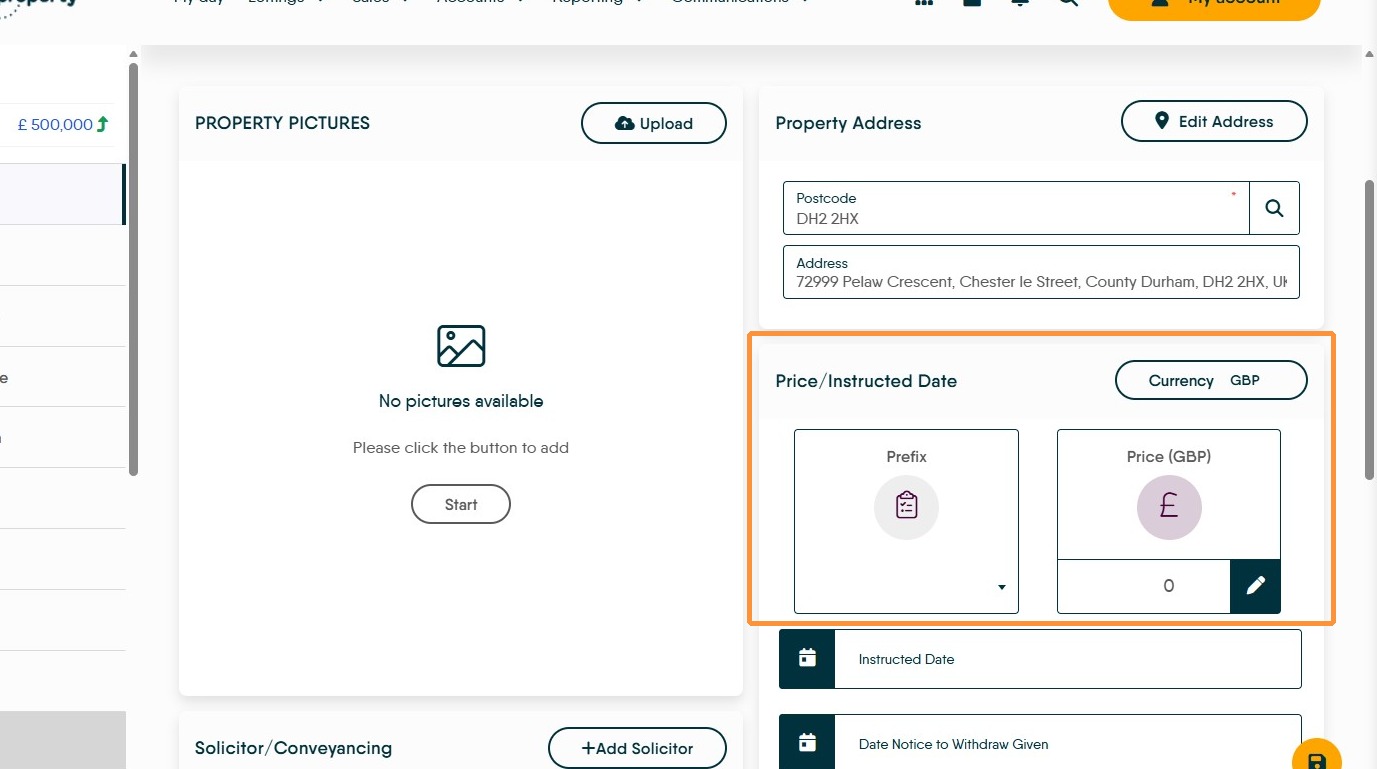
2. Select "Price/Instructed Date" section and set the prefix and the property price.
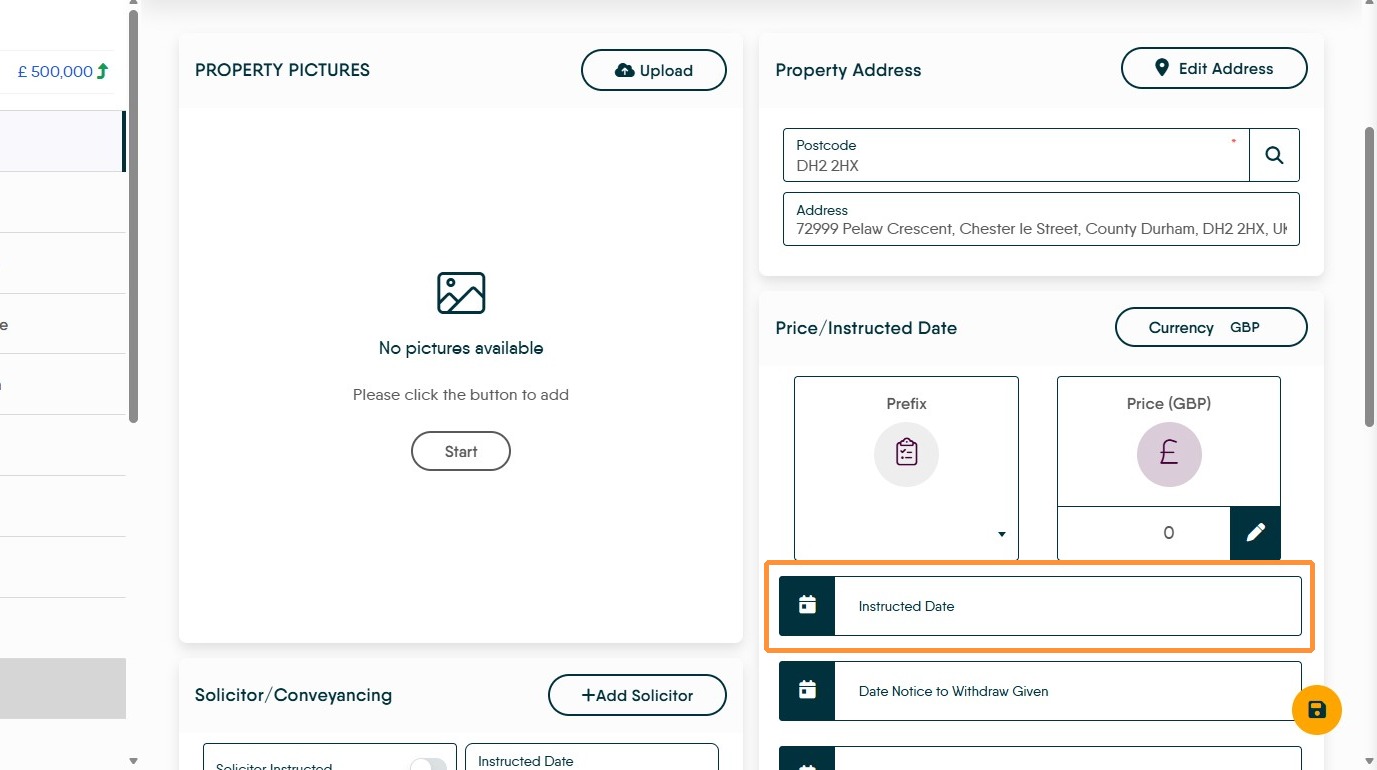
3. Click "Instructed Date" to add the date the property was instructed.
4. Click "Fees/Contract" and add in all the details for the selling fees and contract type. If you add an expiry date for the sales contract a reminder will show in the sales activity list.
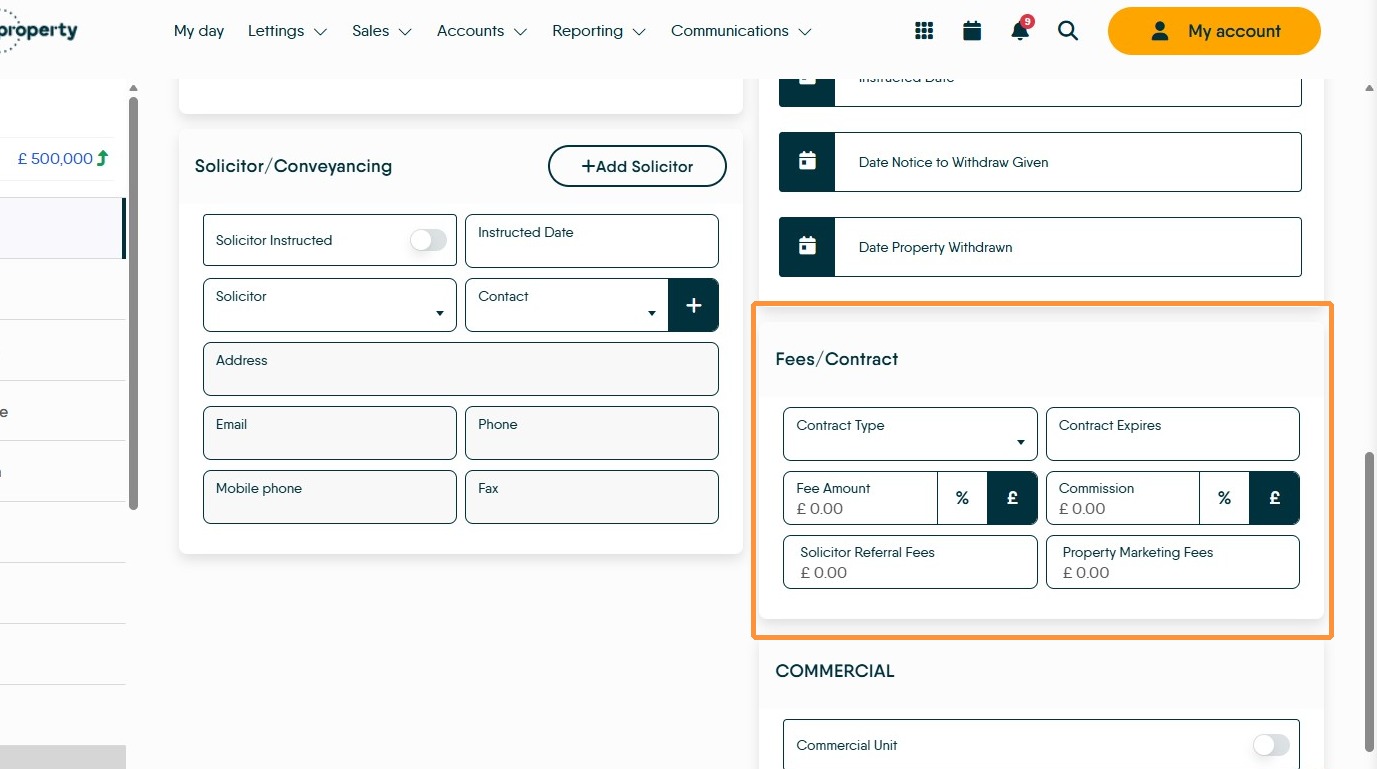
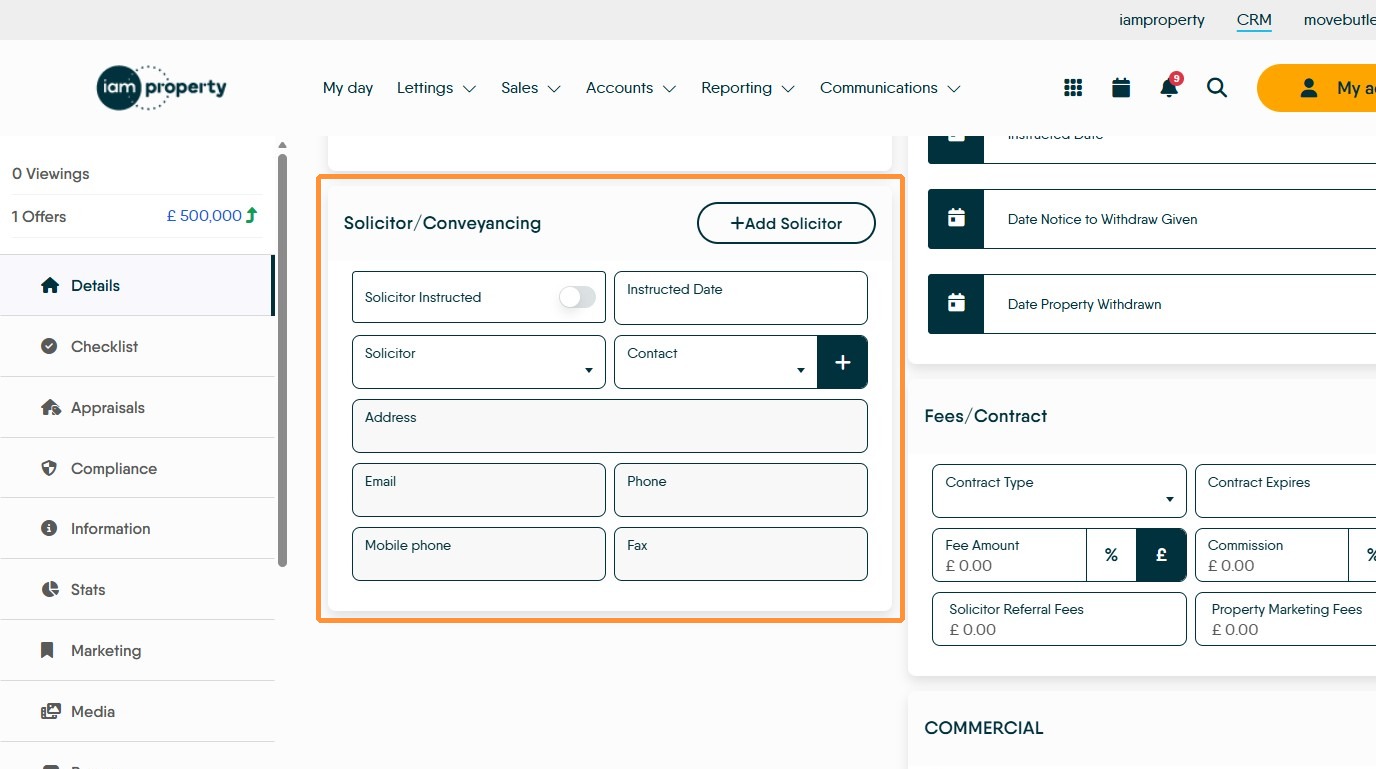
5. If you have the information for the Vendors Solicitor. Click "+Add Solicitor" button and add the details here. This will be copied into the Progression when required.
Remember to click the Save button before you leave the screen.