Using the NEW Core Process Simplification screens. This guide provides a straightforward, step-by-step approach to adding a new Vendor in the CRM system. It simplifies what can be a complex task into manageable actions, ensuring users can efficiently navigate the CRM platform. By following these steps, users can save time, reduce errors, and enhance their productivity in managing vendors.
1. Navigate to https://crm.iamproperty.com/MyDay

2. Click the "Bento" button.

3. From the menu click "Add new record"

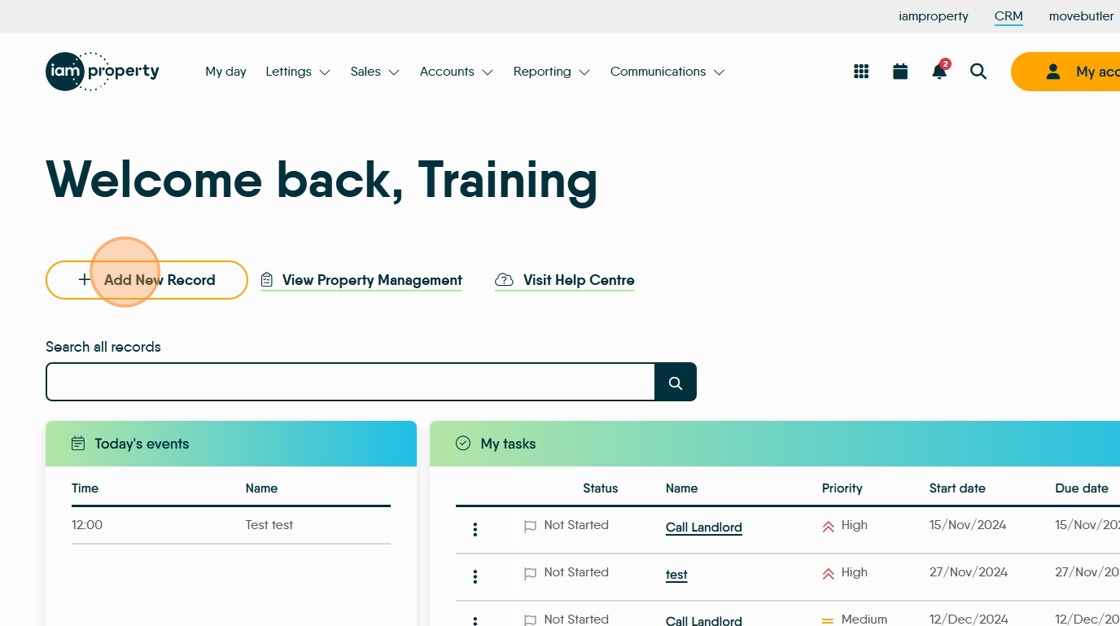
4. OR Click "Add New Record" on the 'My Day' screen

5. Click "Vendor"

6. Select the "Title" "Forename" and " Surname " options.
Add the email address in the "Email" field.
If the email address has been used previously in CRM you will see a screen showing the original records and giving you the option to merge or use the data from the other record to save you duplicating work.
Click "Create new record" if you want to manually create a new client record with the duplicate email address

7. Add in the Mobile Phone, Phone Number and if required Work Phone numbers for the Vendor.
If the main contact number is a Mobile Number copy this number into the Phone Number field. This allows phone calls to be logged and SMS to be sent correctly from CRM.
8. Select the "Address Type" option from the drop down menu.
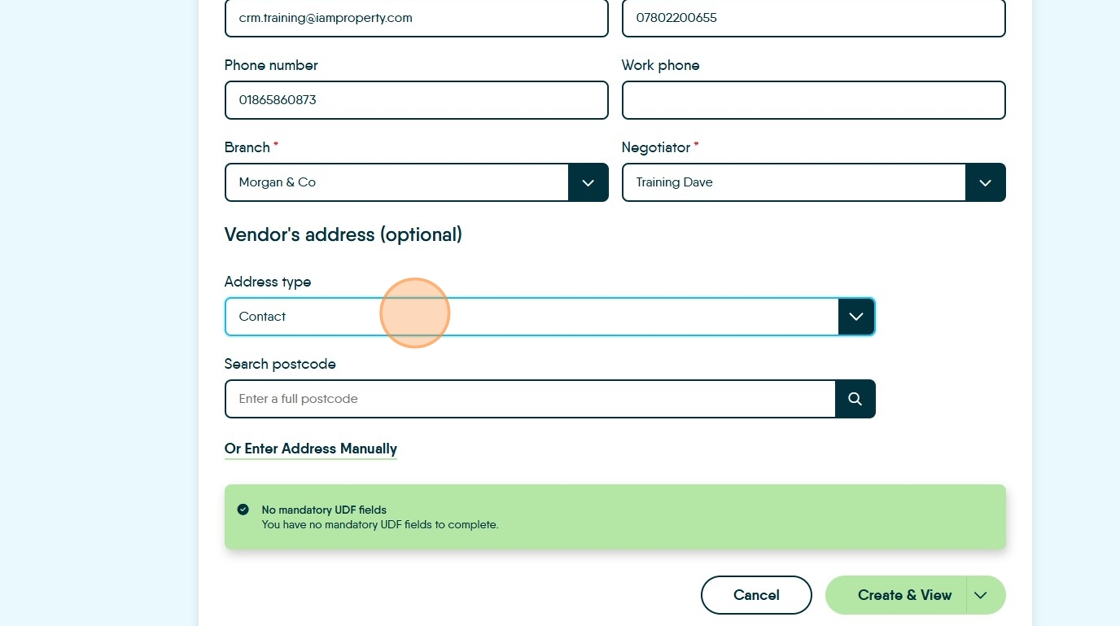
9. Click the "Search postcode" field. Select the address from the drop down menu, or manually add the address using the option on screen.

10. Click here to "Create and Close" or "Create and View" the record.

Tip: Tip! If there is a second (or more) Vendor then it is good practice to add the second as a new record. EVEN WHEN the client is a married couple.
Any additional vendors can also be added later in the Property Record via the Vendors tab at the top of the Property Record Screen.
Tip: Tip! Although this has created a new record it is still a basic record. There are still fields that need to be completed within the CRM Vendor record, for example you may have a Checklist enabled or UDF that need completion.