This guide provides a straightforward process for adding a key record to a property and logging that key In and Out of your offices. Ensuring that you can efficiently manage access and maintenance issues. By following the steps outlined, you can easily document key details and any relevant notes, enhancing property management practices. It's an essential resource for anyone involved in property management, helping to streamline operations and improve communication regarding property access.
Adding a Key Record to a Property

2. Click "Key Control"

3. Click "Add Key"

4. Click this text field and add a "Key Number"

5. Click this text field add an 'Alias' (description) for the key.

6. Click this field and add any 'Notes' regarding the Keys, property etc.

7. Click "Drag and drop files here or click to upload media" to add a picture of the keys.

8. Click "Save" There can be more than one key logged per property. Repeat the process to add more keys.

Logging a Key Out of CRM
Tip: There are a number of places that a key can be signed out of and back into CRM.
Property Record
Key Control (in Activity List)
Property Management
The process for logging keys Out/In is the same in each section of CRM.
Overdue keys will show in the "Keys Due Back" section of the Activity List.
For this guide we will log keys in/out from a Property record.
10. In a Property record. Click "Key Control"

11. Click "Sign Out"

12. Click "Select Key" and select the key from the drop down list, there can be more than 1 key logged per property.

13. Click "Collected By Record Type" and select the type of person who collected the key e.g. "Negotiator"

14. Click "Collected By" and select the name of the person collecting the key e.g. "Training Dave"

15. The "Date Collected" will default to the current date and time, edit this if required.

16. The "Date Due" back will also default to the current date and time, so this will need to be updated to the date/time you expect the keys returned.

17. In the "Signed Out/In Notes" field add any notes about the sign out for future reference.

18. Click "Sign Out"

19. The key will then show on the screen as signed out, clicking the (highlighted) filters on the left side of the screen will allow vision of different key states.
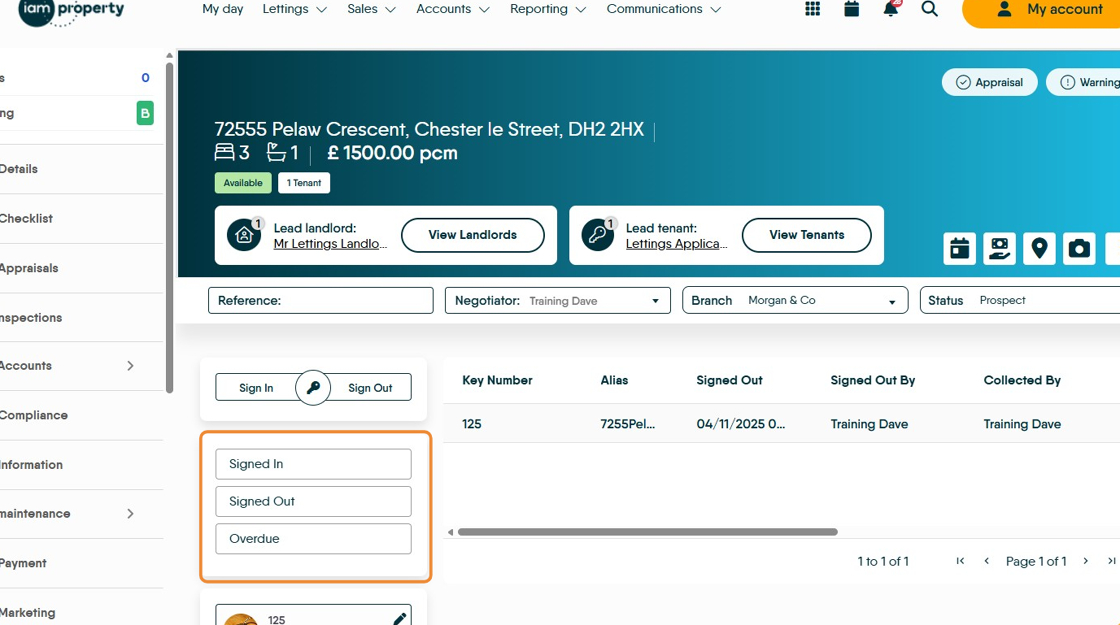
Tip: Tip! If you are signing a key out for the final time e.g. property is sold, the key record can be deleted from the CRM. If it is being signed out to a Tenant, there are many options. The best advice is to sign the key out for the term of the Tenancy and sign back out/extend when the tenancy is reconfirmed.
Managing Keys from Key Control
20. In the Activity List. Click the "Key Control" tile.

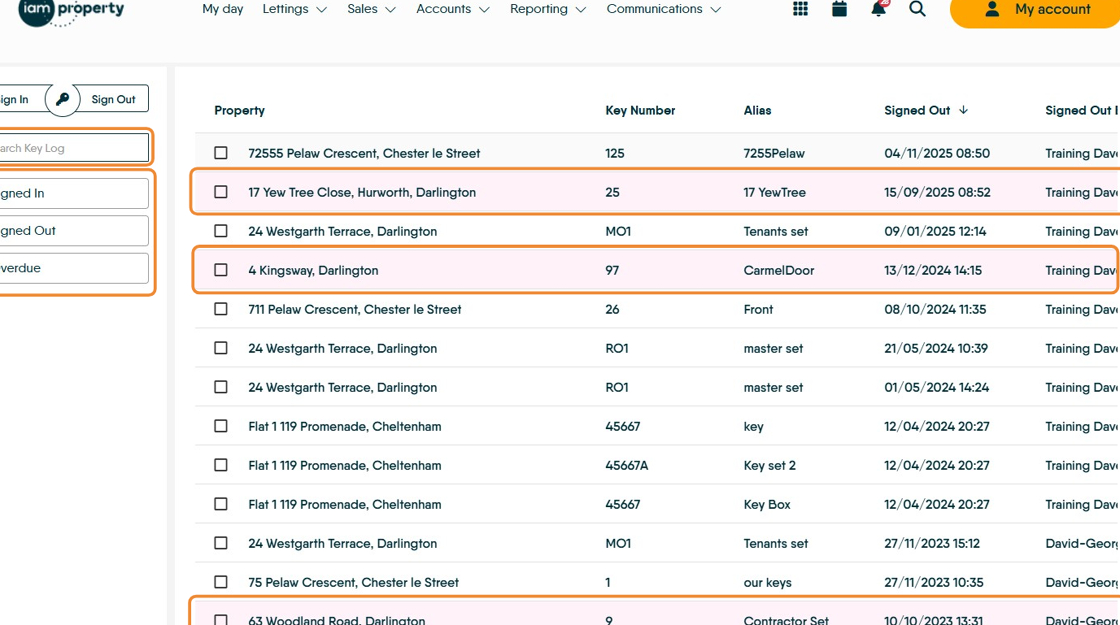
21. This will show a complete list of all keys that have been signed in or out in the CRM. Any highlighted in 'Red' are over due. Keys can be searched for using "Search Key Log" and filtered using the options on the left side.
Keys can be selected and signed In or Out from here.
In the "Keys Due Back" menu
23. In the Activity List. Click "Keys Due Back"

24. This screen will show all the currently signed out keys that are due back within the timescales set in the Activity List configuration (default is 30 days) Clicking the checkbox will select a specific line.

25. Click "3-dot menu" will give you some options. Clicking the icons (highlighted) will enable SMS or email to be sent to chase the overdue key.

Logging a Key Back Into CRM
26. From "Key Control" Click here.

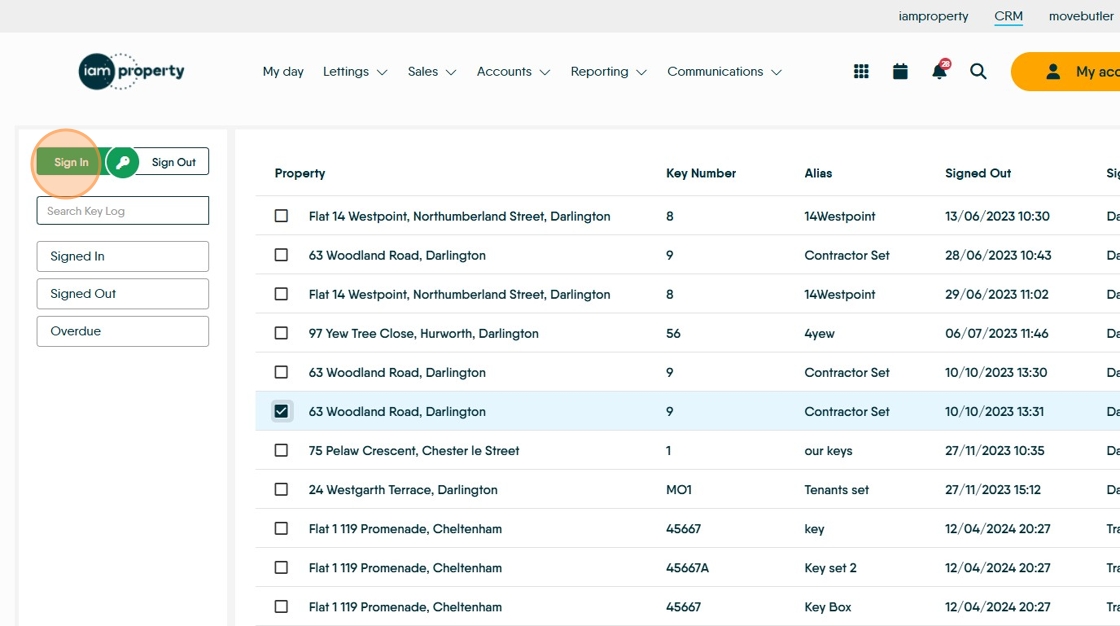
27. In the Key Control sections, select the key

28. Click "Sign In"
29. This "Sign In" screen will show.

30. In the "Sign In/Out Notes" add any notes to support the sign in.

31. Click "Sign In" and the key is signed in.

Sign in via Property Record.
33. Click "Key Control"

34. Click "Sign In"

35. Click here to select the key you are signing back in as there can be multiple keys.
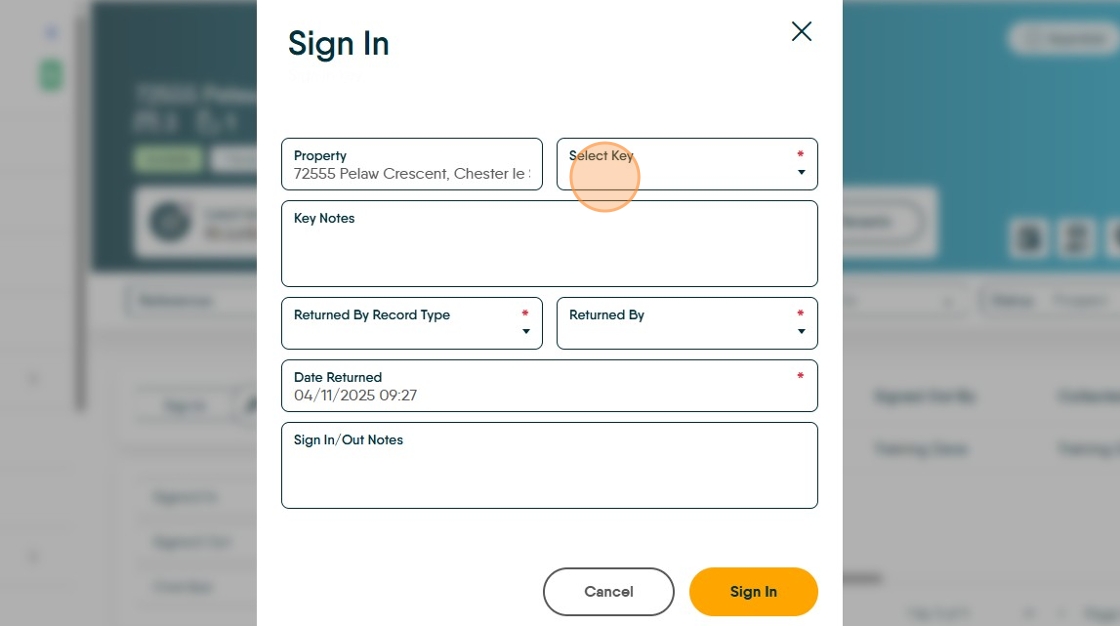
36. Click the key you are signing back in e.g. "125 - 7255Pelaw"

37. In "Sign in/Out Notes" add some detail to why, who etc the key is signed in.

38. In "Sign In/Out Notes" Update the notes e.g. Type " - Returned"
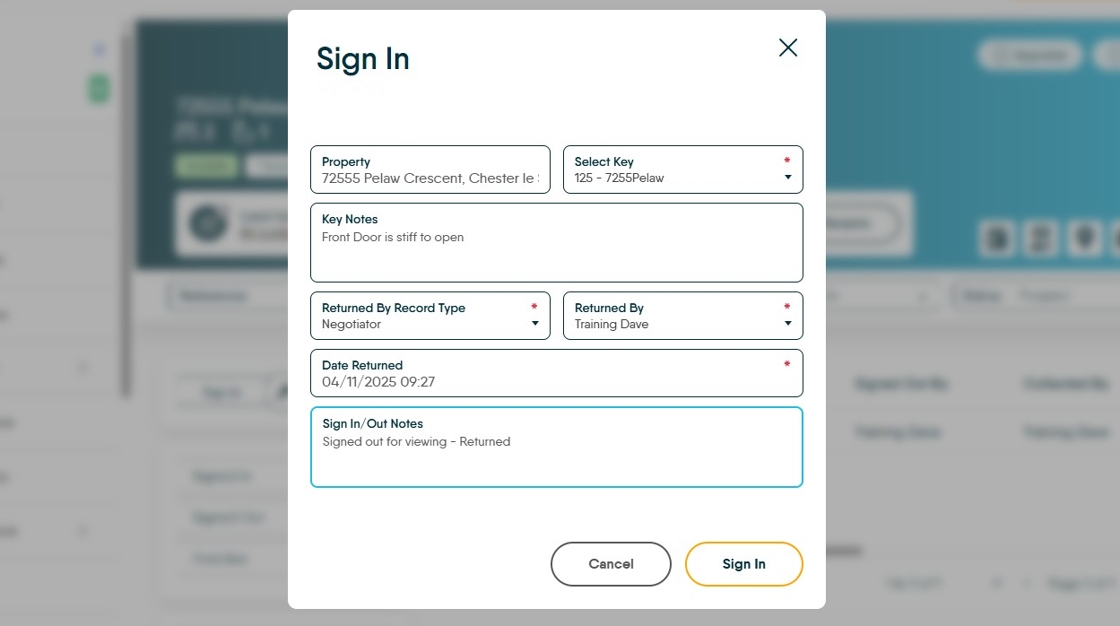
39. Click "Sign In"

40. The Key will now show in the screen as Signed In, with the date and people signing in, returning the key.
