Learn the process of creating a sales invoice for a specific property record within the CRM. This guide ensures accurate billing by walking you through selecting the correct template, merging client data, and sending the document via email.
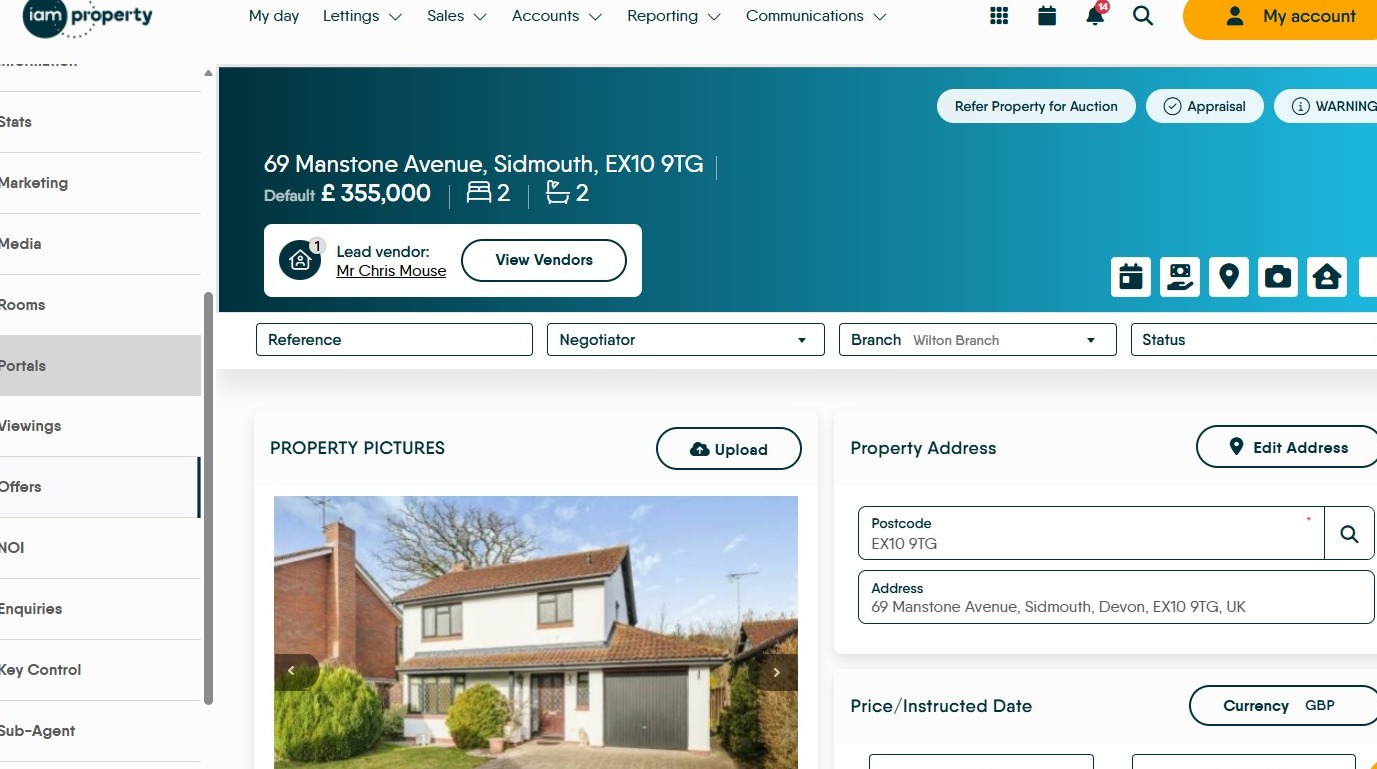
1. Navigate to the property record
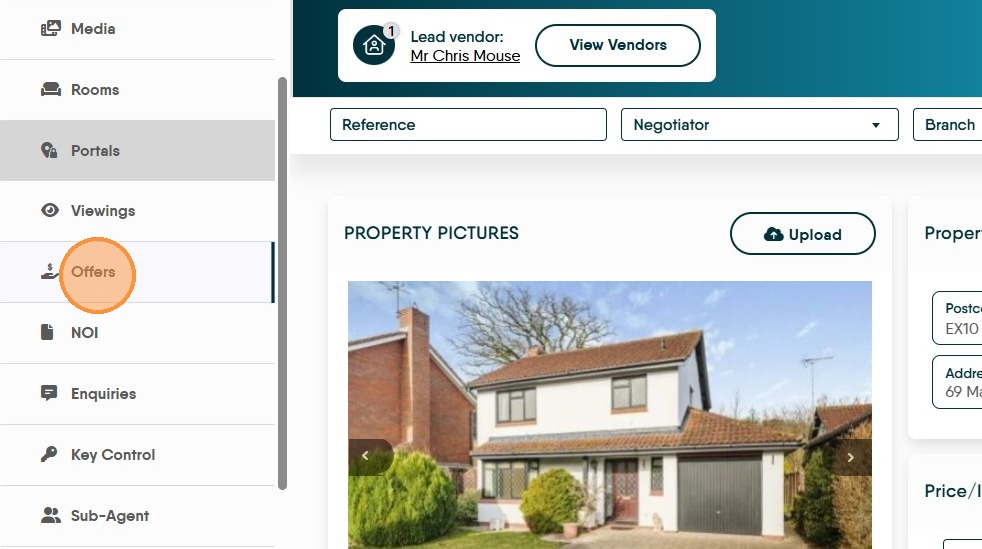
2. Click "Offers"
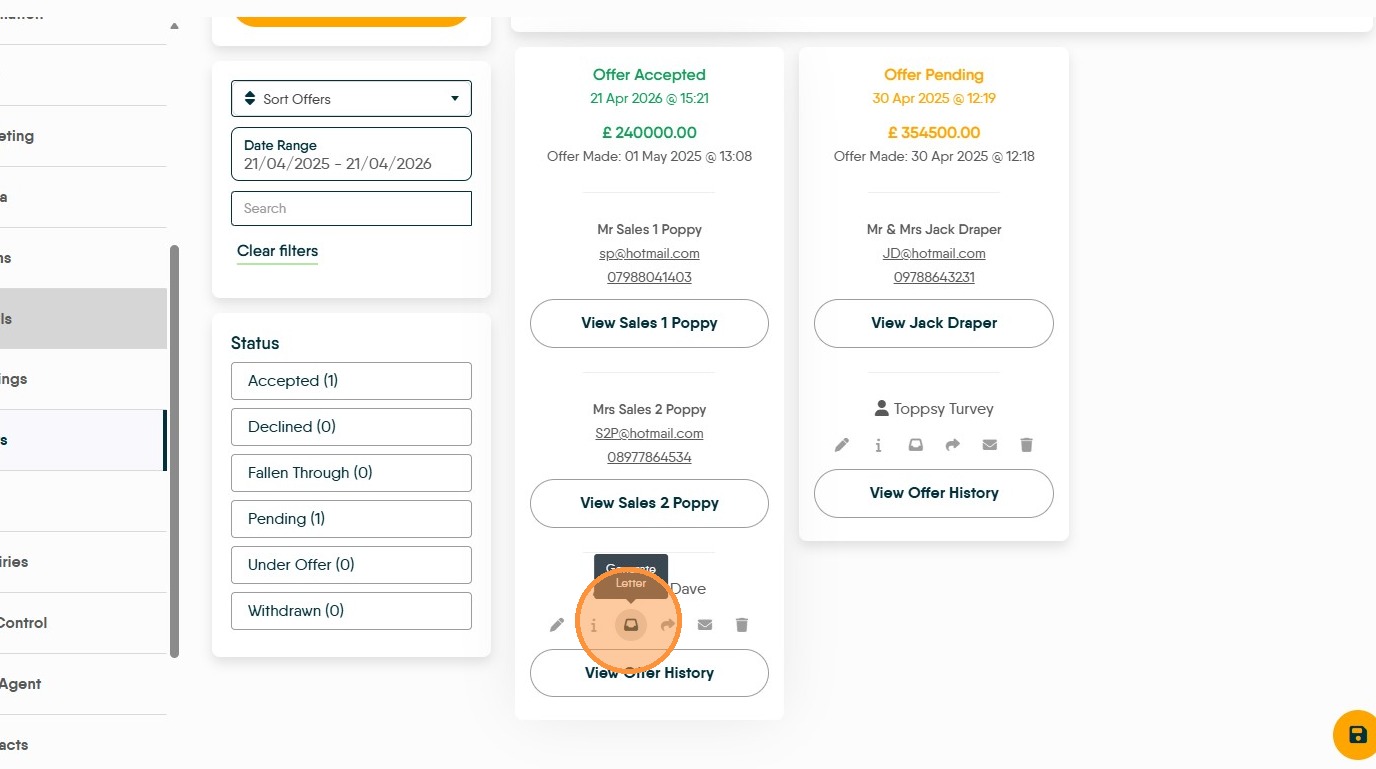
3. On the Accepted Offer click the Generate Letter option
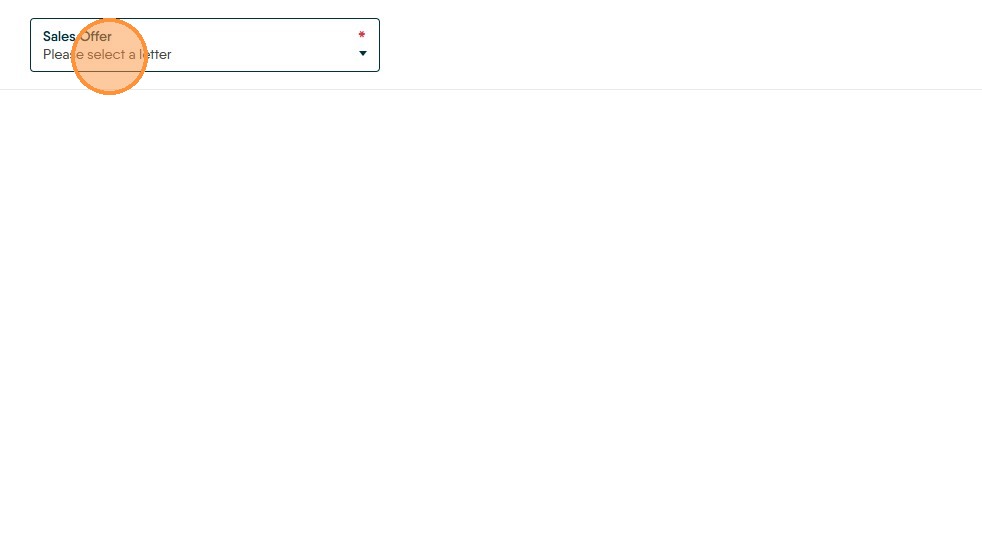
4. The drop down menu will show 'Sales Offer' Click "Please select a letter"
If you have just updated the offer status and Sales Offer doesn't show, return to the property screen and repeat the previous steps for the sales offer option to show.
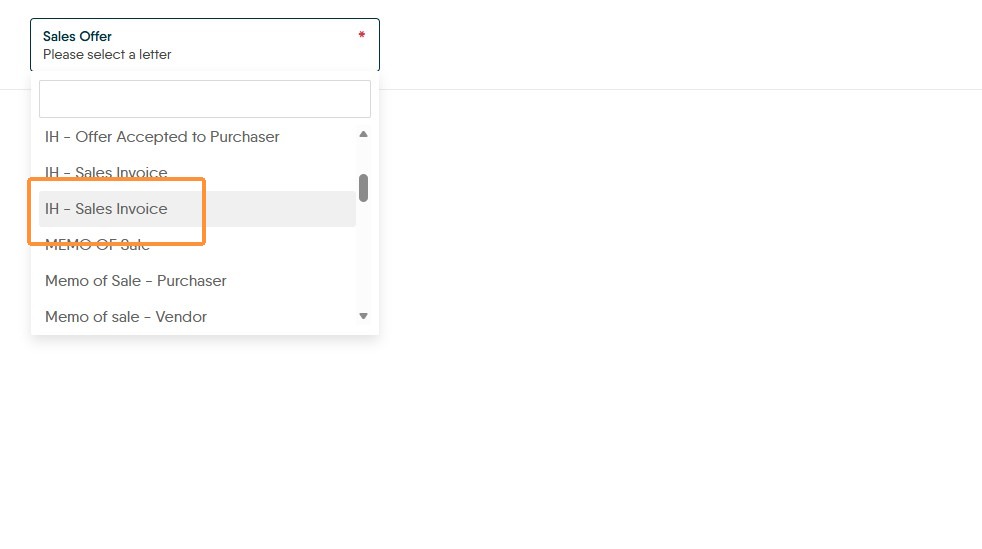
5. From the drop down menu search for and select the Sales Invoice.
Your sales invoice will have your naming and will not be IH - Sales Invoice
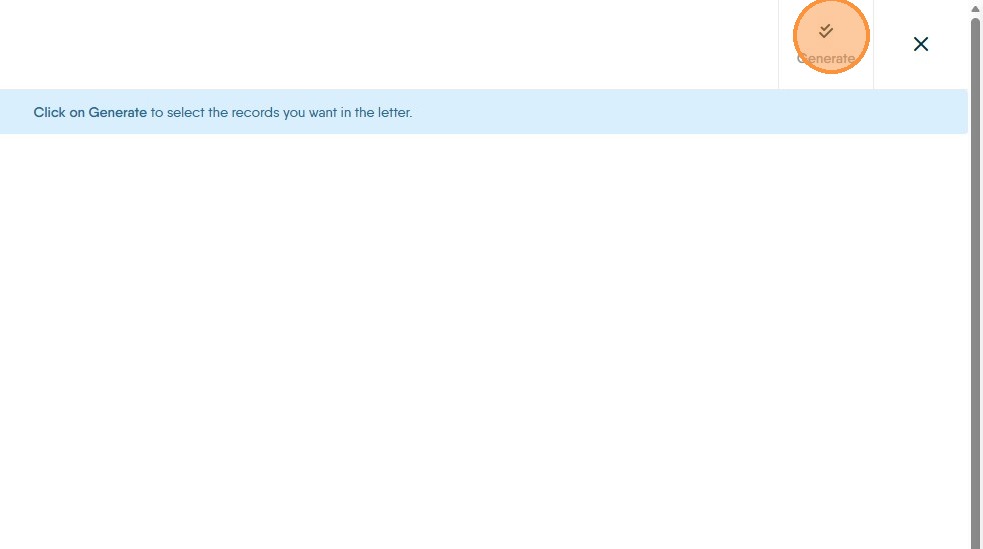
6. Click Generate.
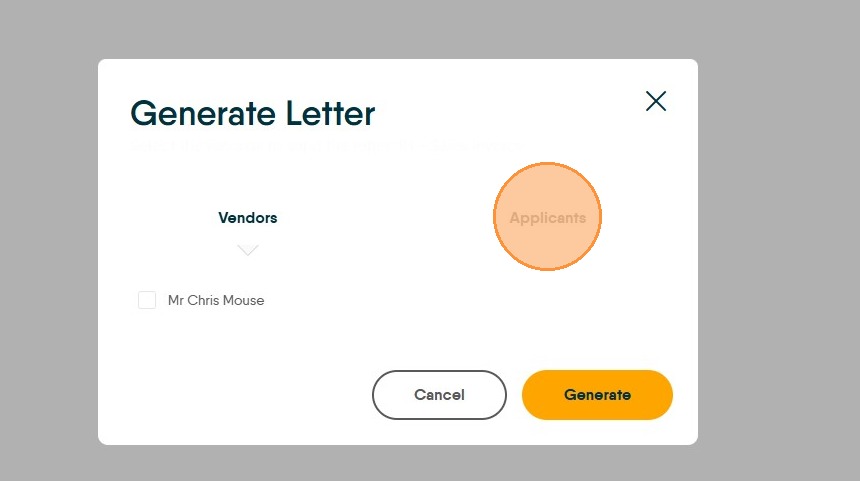
7. You will see the Vendors details.
If there are multiple they will be listed on the screen.
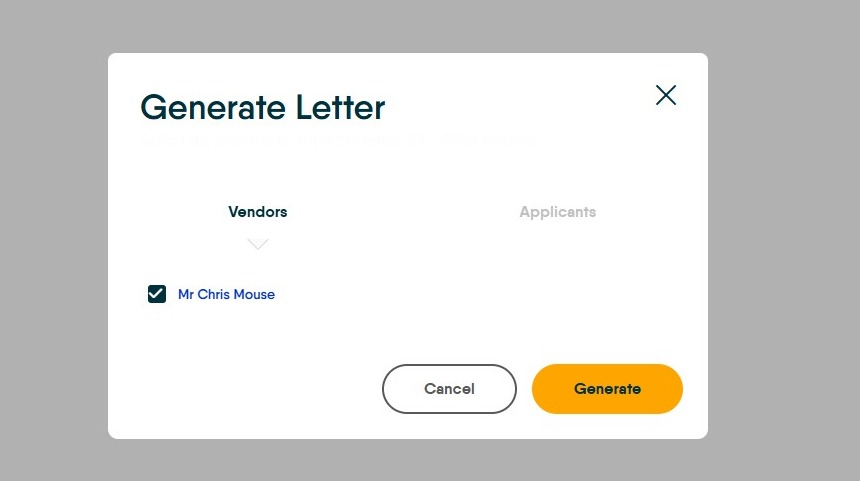
8. Click on Applicants to review the Purchasers details.
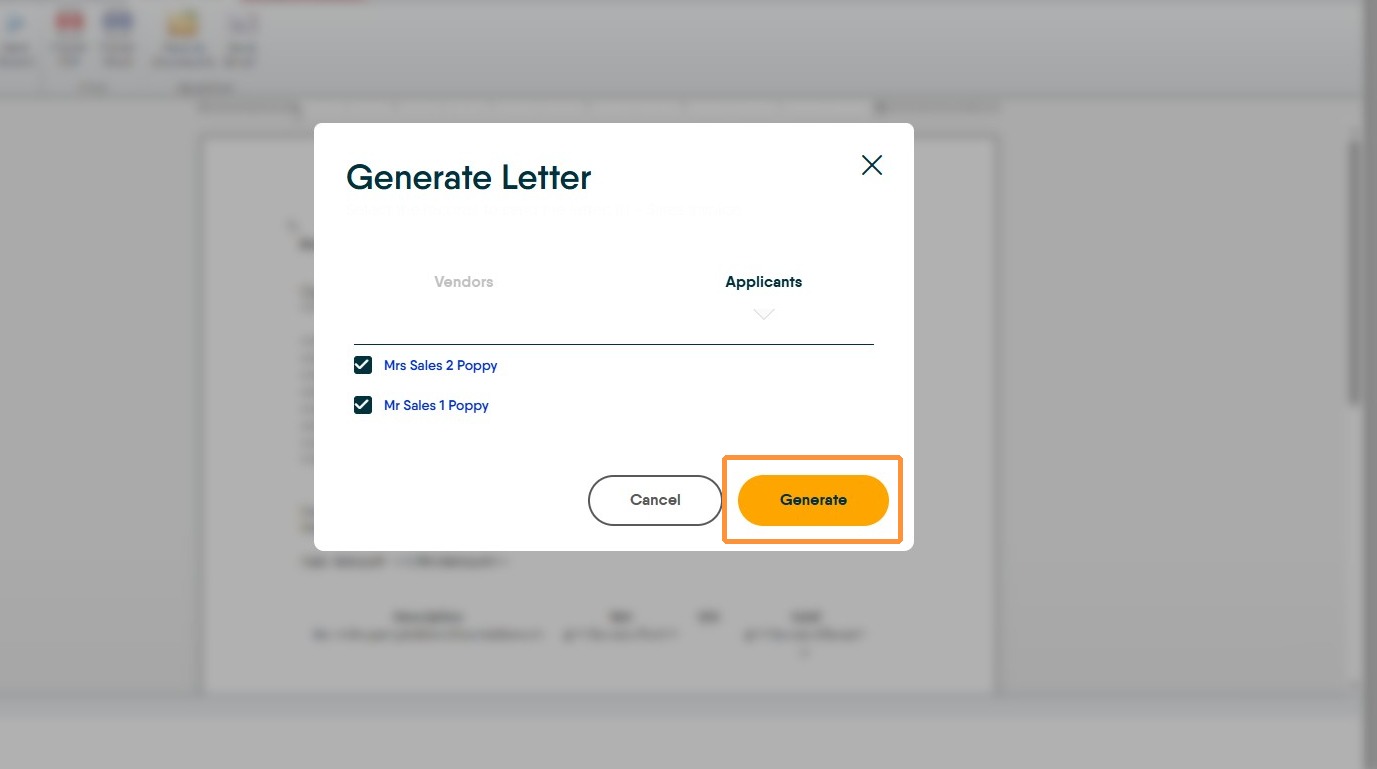
9. If these are correct, click Generate
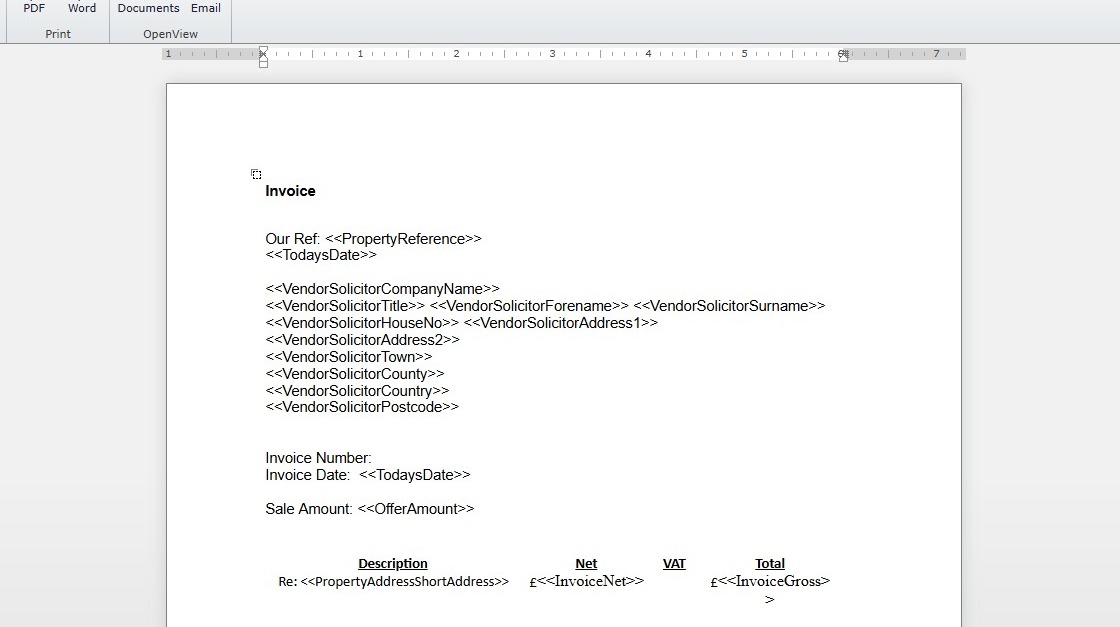
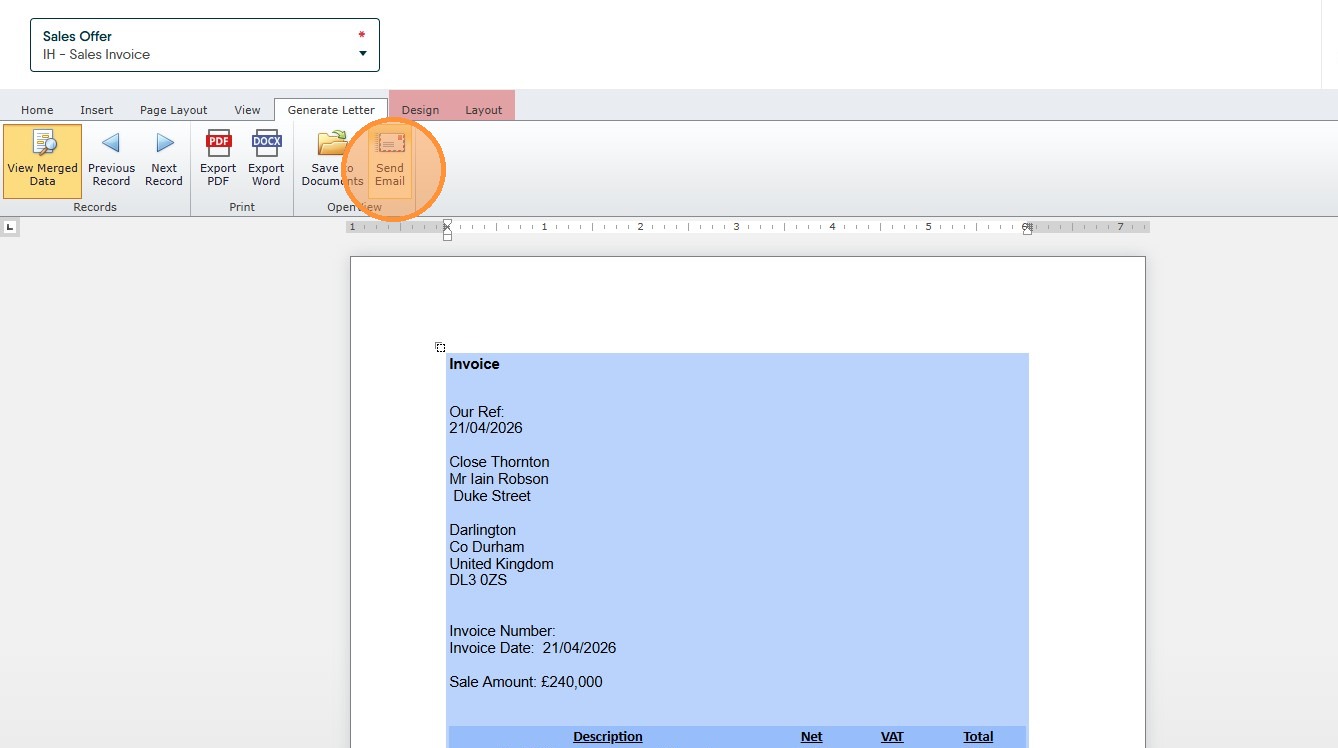
10. The Sales Invoice will show. The text on screen are 'merge fields'

11. Click "View Merged Data" to view the text as it will be sent.
12. Click "Send Email"
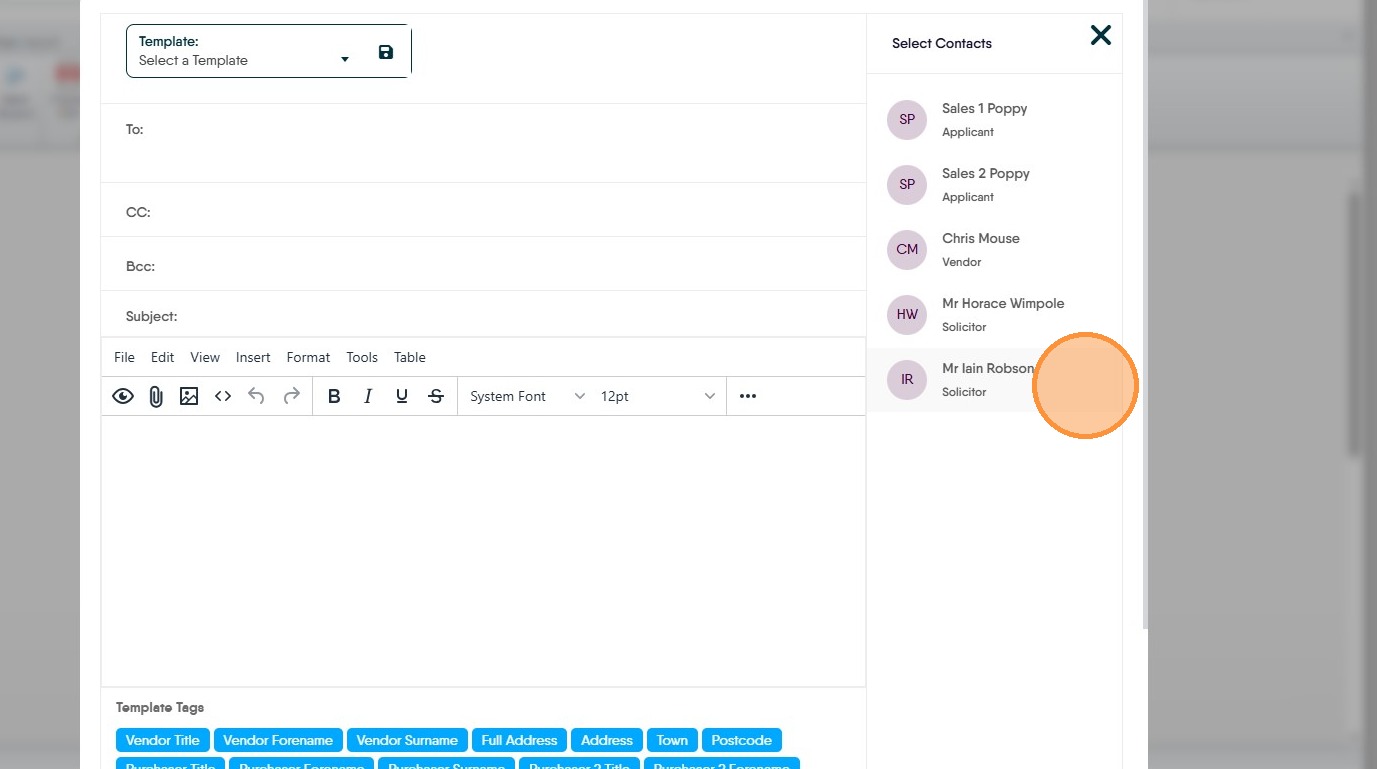
13. On the email screen select the email addresses you are to send the letter to by clicking on them.

14. Click "Select a Template" If you have a template created you can select that, or type your text into the email.
15. The text will show in the email field
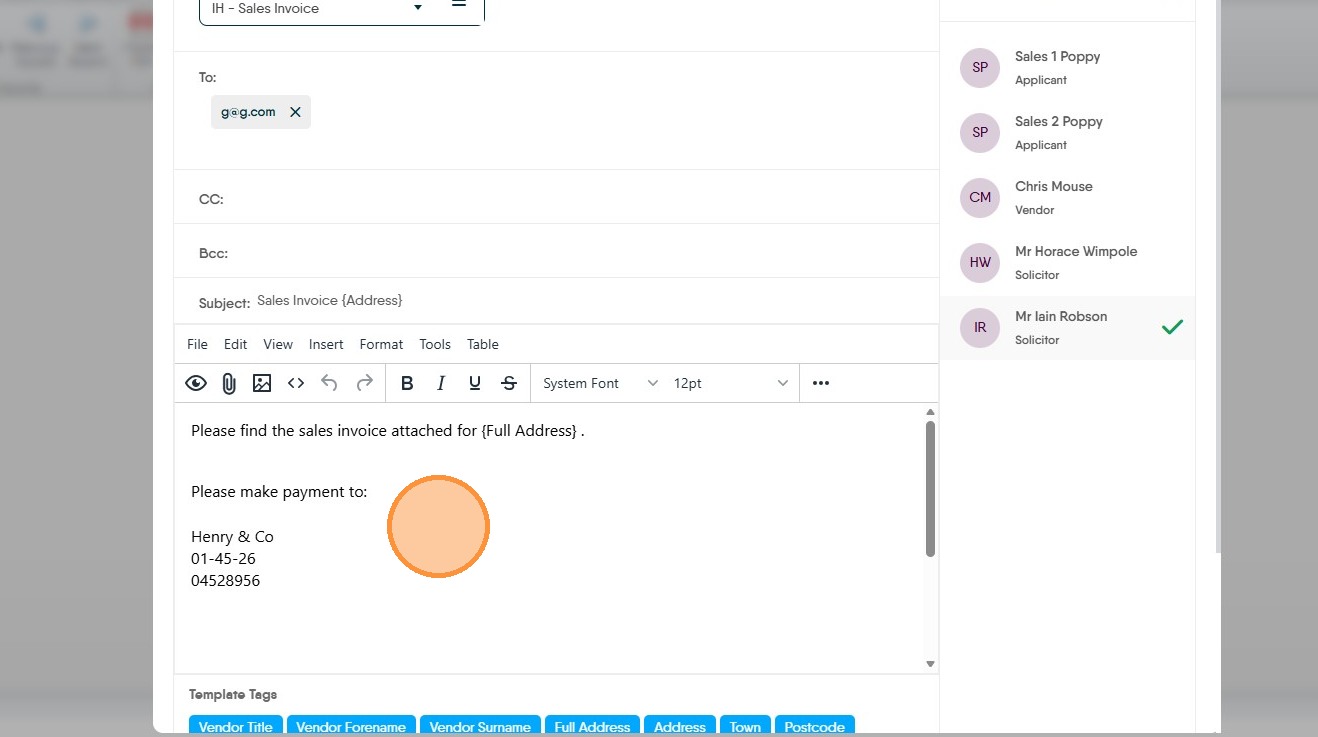
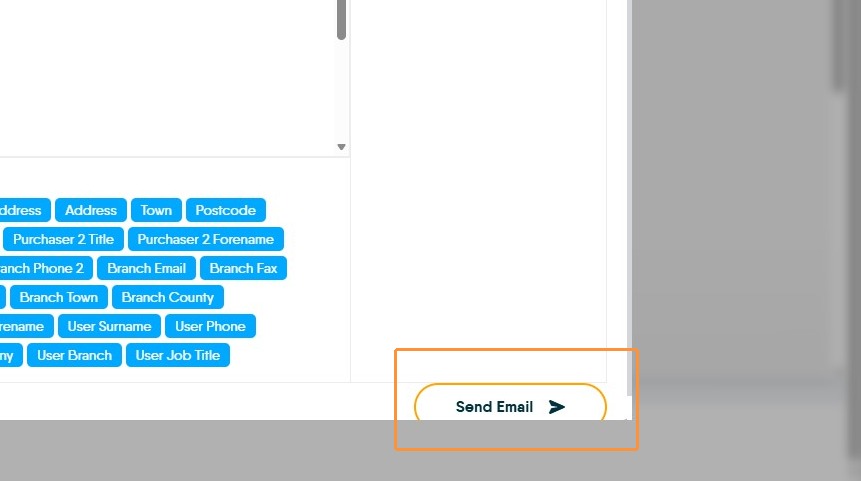
16. Click "Send Email"