This guide is designed for a User with a basic user login. Allowing them to review performance, check commissions, check and upload mileage and expenses.
Dashboard Overview
1. Navigate to https://dynamicagent.iamproperty.com/ and login using your Username and Password that you will be supplied with.
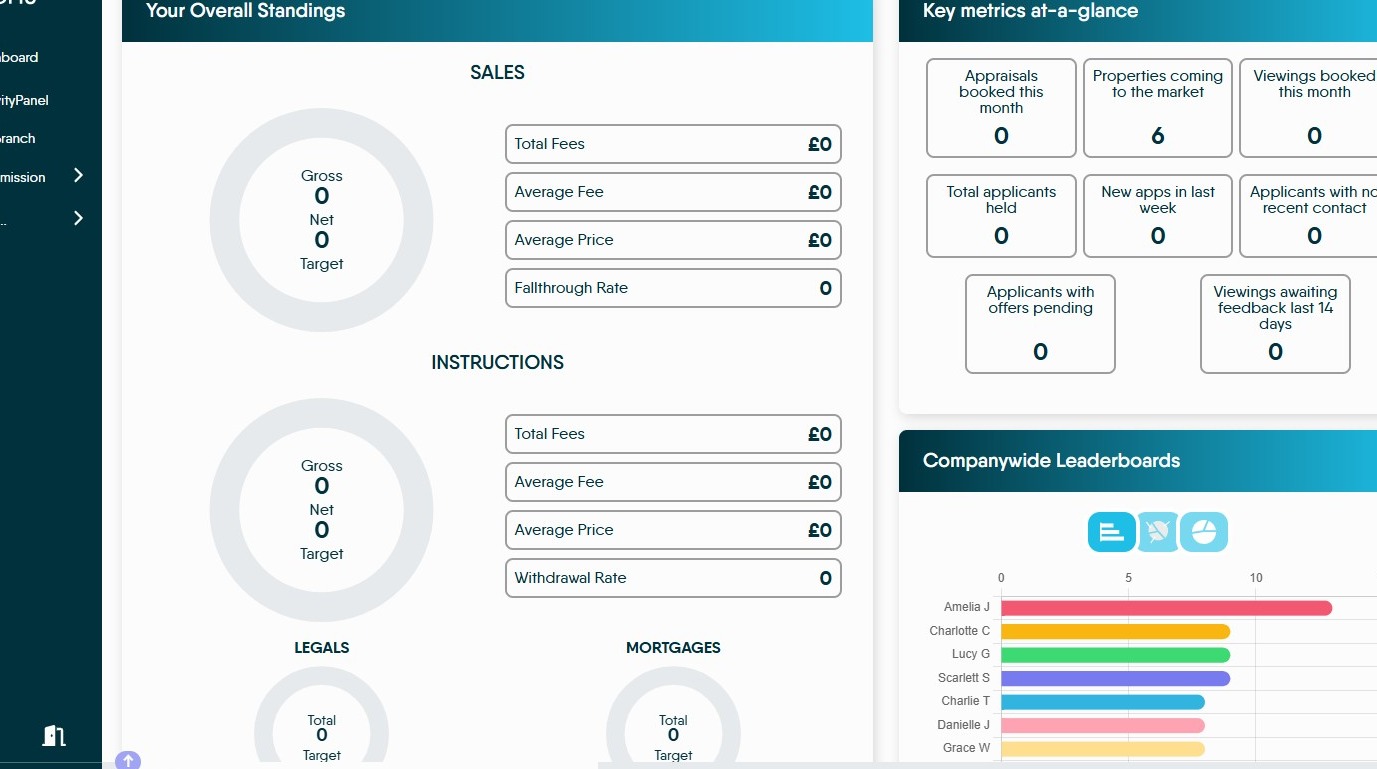
Tip: Tip! The following screens are the ones you will see if you have a limited login such as one given to a Negotiator.
Your Overall Standings

2. "Your Overall Standings" This screen will show the data on 4 key metrics.
- "SALES"
- "INSTRUCTIONS"
- "LEGALS"
- "MORTGAGES"
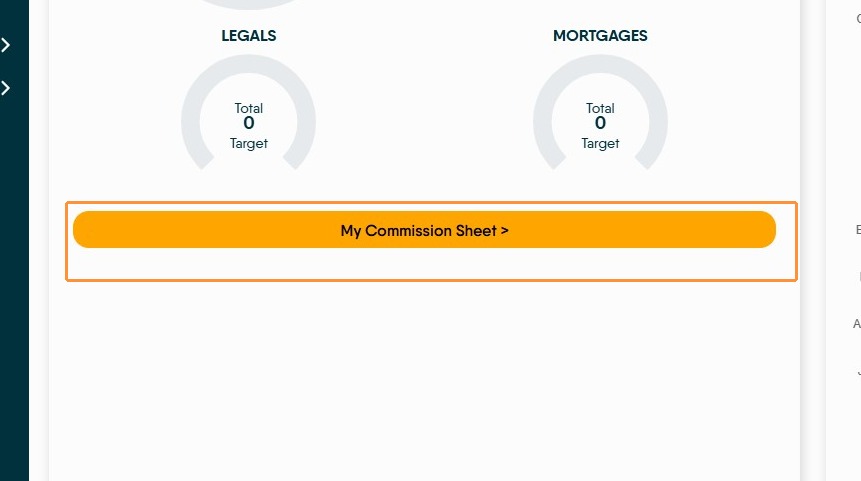
3. The 'My Commission Sheet' option when clicked takes you to your commission sheet this is the same as when you use the Commissions menu and select 'My Commission Sheet'.
Key metrics at-a-glance
4. "Key metrics at-a-glance" gives quick access to 8 metrics. These metrics can also be accessed from the 'Activity Panel' option in the left side menu.
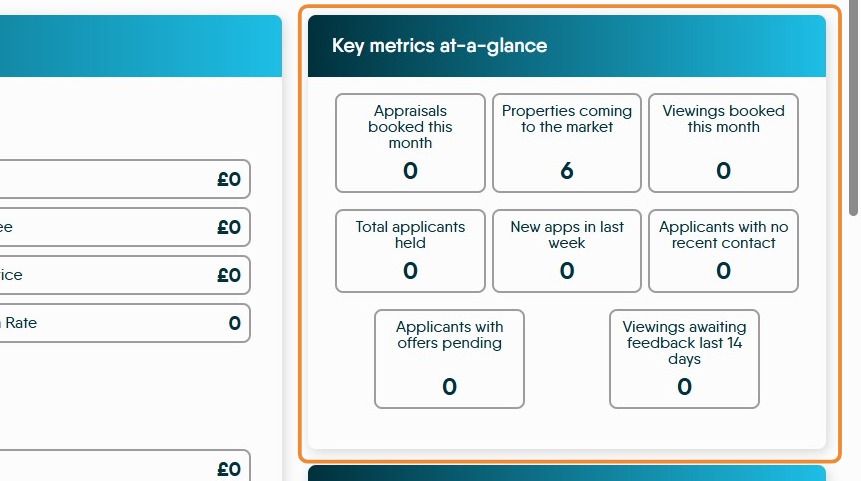

5. For example click 'Properties coming to the market' to view branch data in a quick overview format.

This will take you to the "Coming to Market" screen in your branches Activity Panel. This screen shows all the properties that are marked on CRM as 'Coming to market'
Companywide Leaderboards


6. "Companywide Leaderboards" will give an overview of the current performance of you and your colleagues via the 'Staff' option.

Also there is a view of your branch against others in the company via the 'Branch' option.

7. There are also three different graphical views. Bar and two types of Pie chart.
Click here.
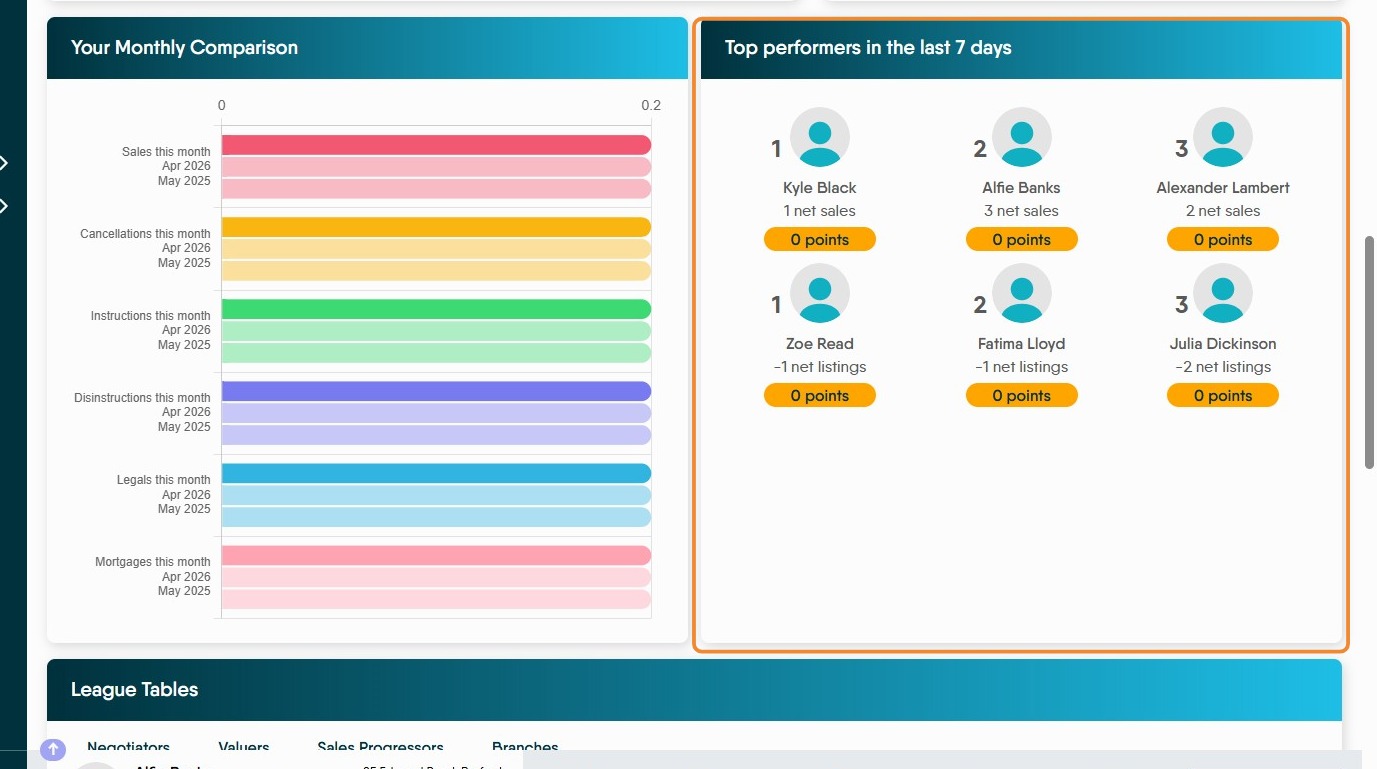
Top performers in the last 7 days

8. "Top performers in the last 7 days" shows the recent top performers in your Branch
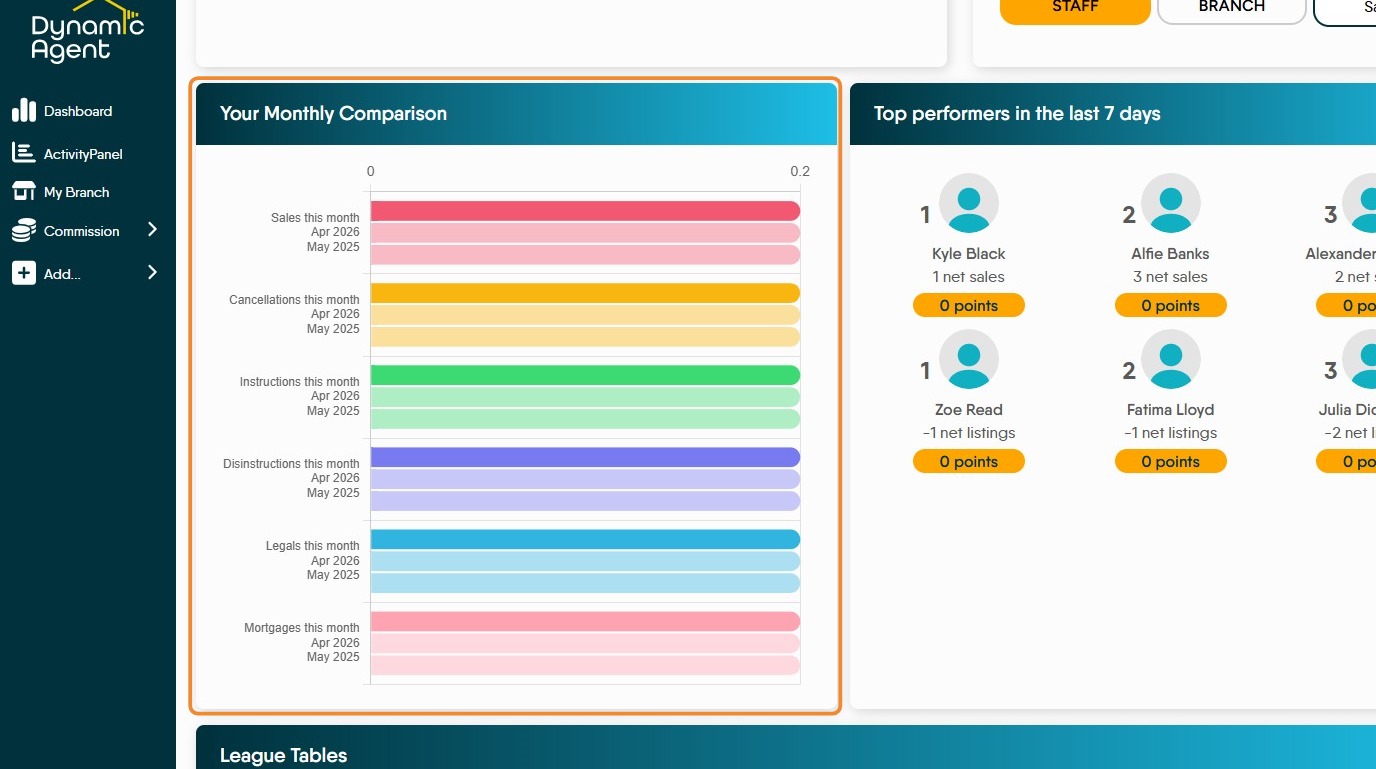
Your Monthly Comparison
9. "Your Monthly Comparison" this screen shows a comparison of your performance for the previous month vs this month last year e.g. (assume this is May) April 2026 vs May 2026.

League Tables
10. League Tables this screen show 4 different league table across the company.
- Negotiators
- Valuers
- Sales Progressors
- Branches

Activity Panel
11. "Activity Panel" this screen gives access to a list of 19 sets of figures that give a detailed view of the performance of you and your branch.
Tip: As each of these screens looks very similar we will look at the 'Listings' screen as an example rather than showing all the screens in detail.
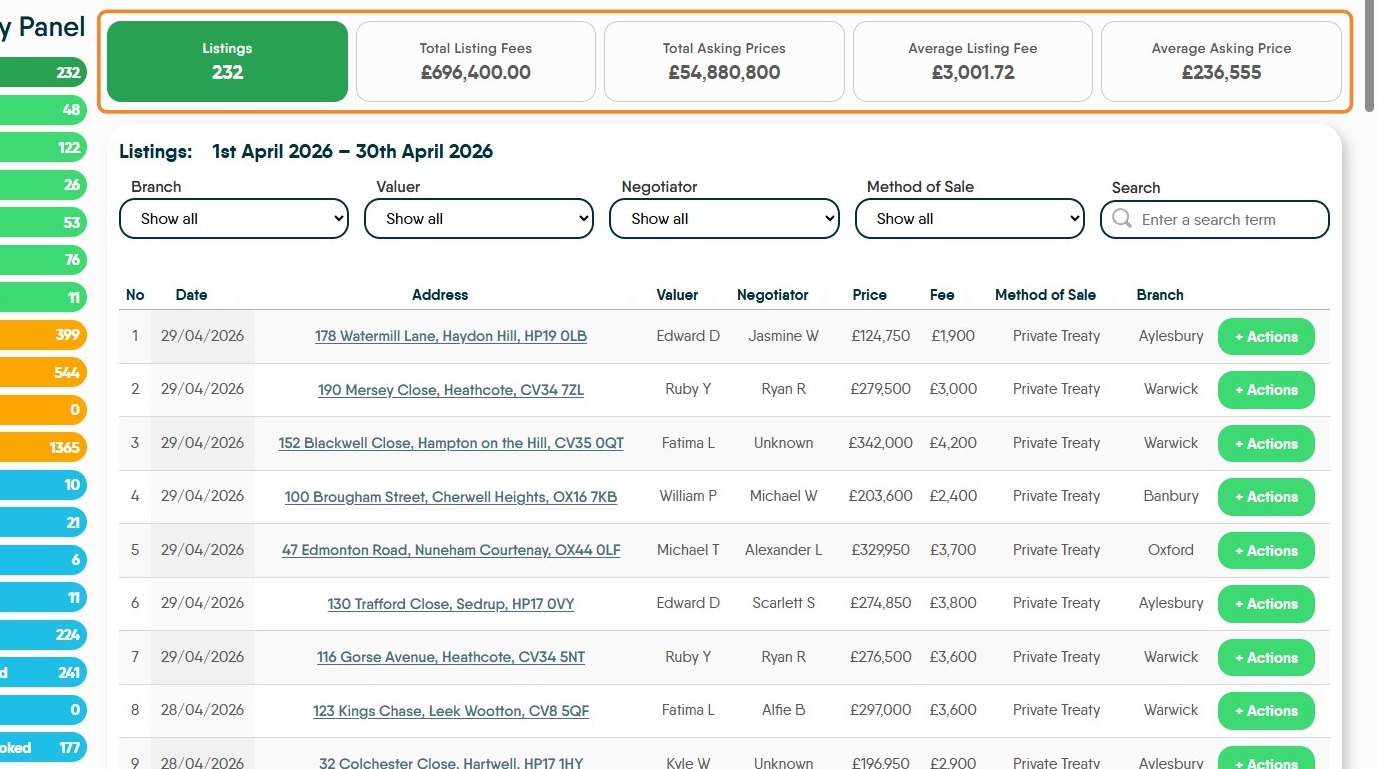
12. The first screen shown is Listings. This screen will show the total listings for the month selected. The on screen data can filtered be using the on screen filters to give a wide range of possible data outputs.
Across the top of the screen are the totals for the 'Listings' data you have access to.

13. The data can also be sorted using the column headers e.g Data, Valuer, Negotiator etc. The highlighted options are clickable.
Clicking on the header sorts the list by ascending or descending order.

14. Click "+ Actions" next to a listing to see management options. The 'CRM...' options will take you to iamproperty CRM for further details.
15. The Green options. "CTM" "Sales" "Offers" "Exchanges" "Legals" "Mortgages"
16. The Amber options. "Sold STC" "For Sale" "Auction" "Applicants"
17. The 'Blue' options "Canx" "W'drawals" "On Notice" "New Prices" "Val Appts" "Vals Booked" "Viewings" "V'wings Booked"

Commission
18. Navigate to My Commission Sheet.
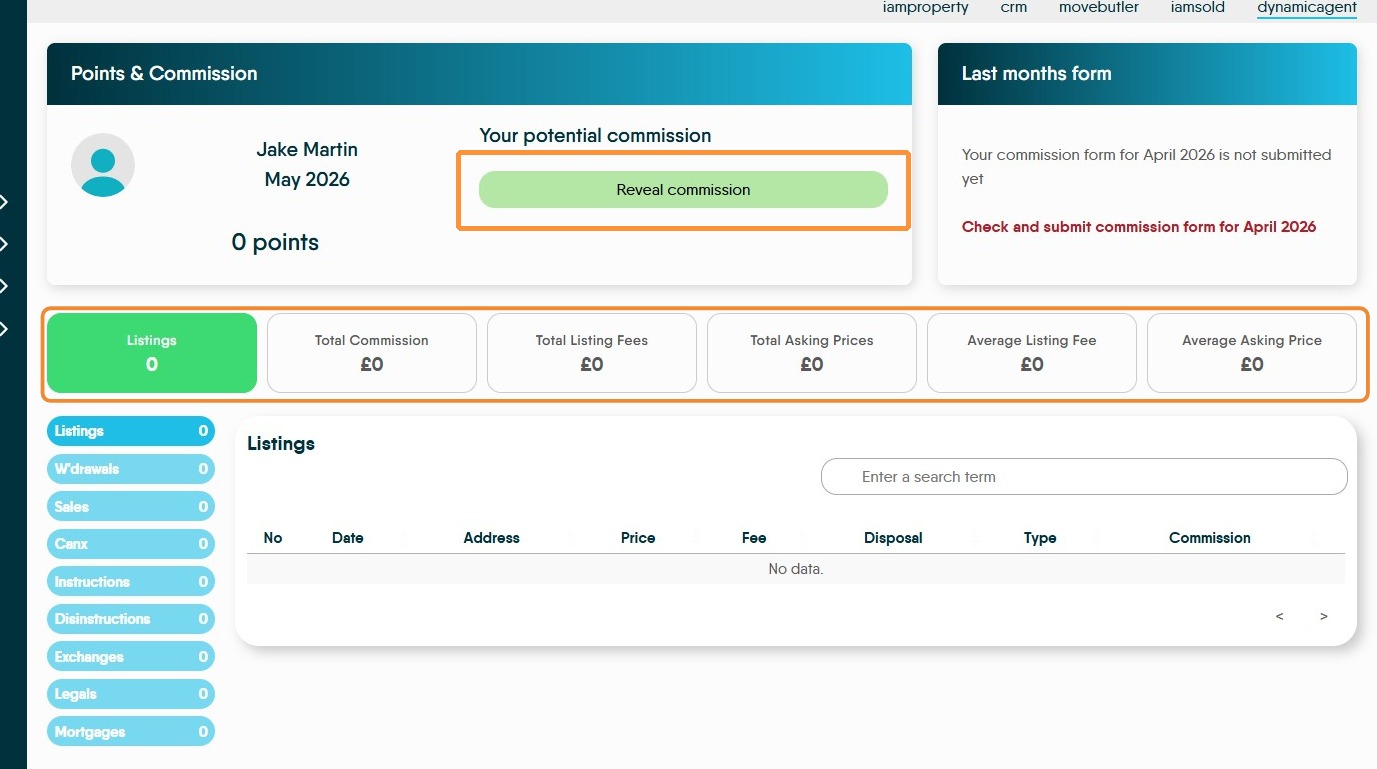
19. Points & Commission. Clicking "Reveal commission" this will show your potential commission.
Across the top of the screen will show the commission due based on the selection in the left side (blue) menu.
The 'Points' option is if your company includes a points scheme as an alternate way of earning or qualifying for rewards.
20. Last Months Form. If the previous months commission has not been submitted a notification will show. Click "Check and submit commission form for ....."
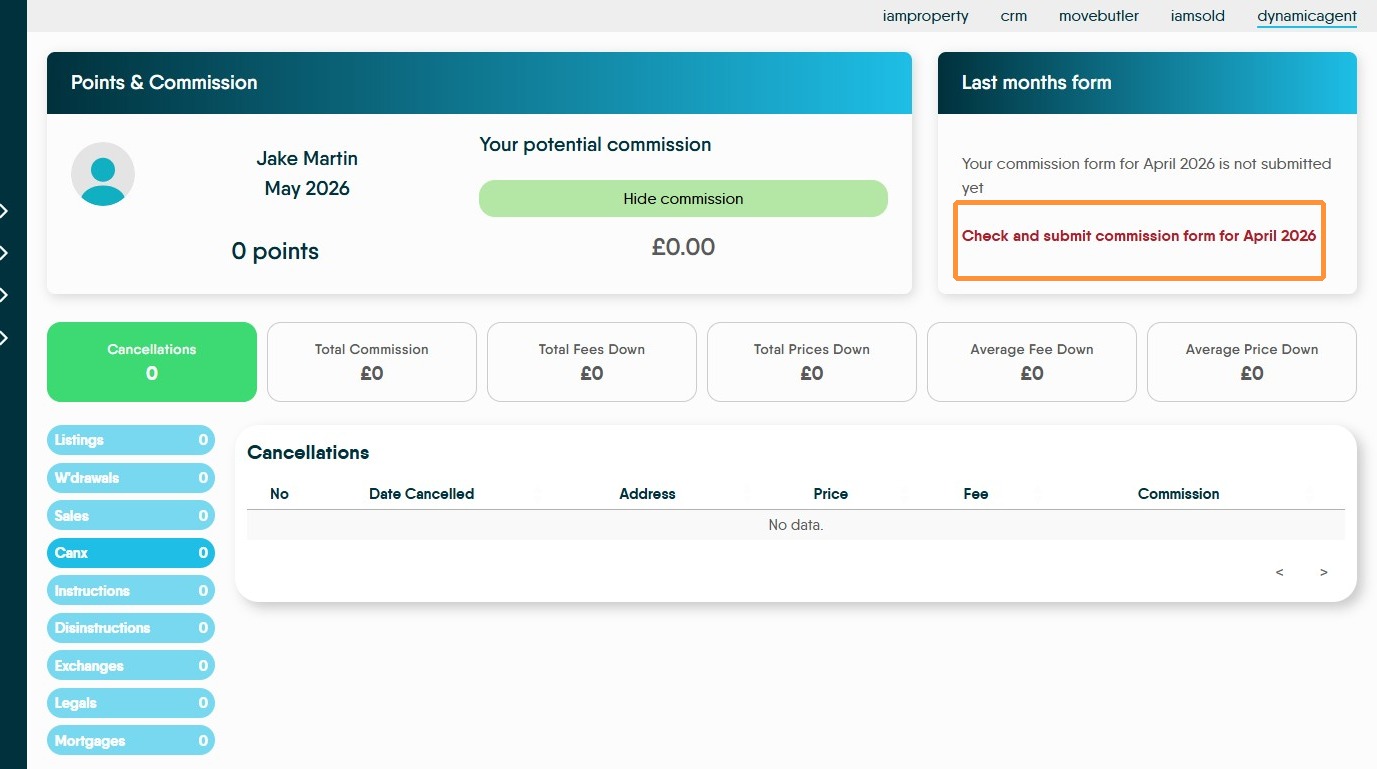
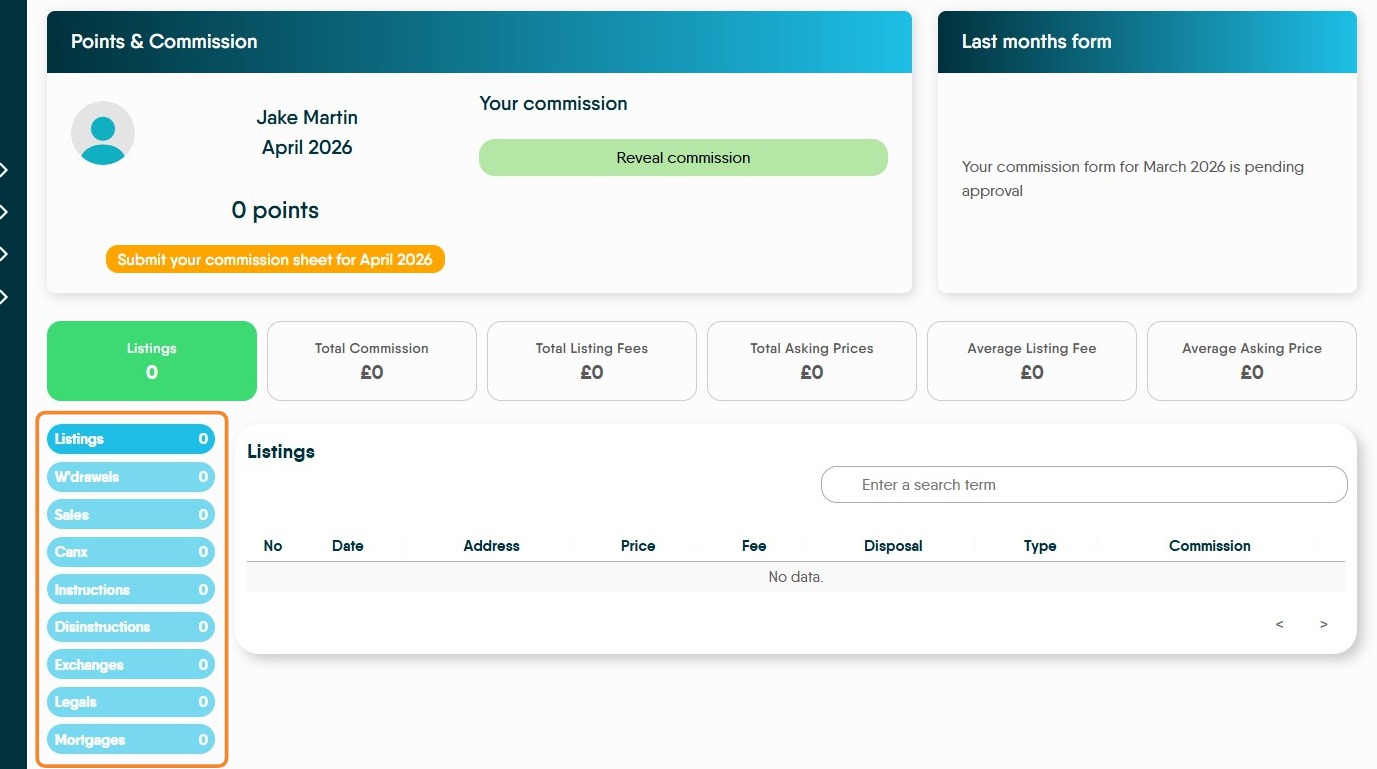
21. This screen will show you the commission owed for the month you are submitting, in this example April 2026.
Down the left side of the screen (highlighted) you can select individual sections to see where the commission has been earned e.g. Listings or Sales and where any deductions e.g. W'drawels or Disinstructions have come form.
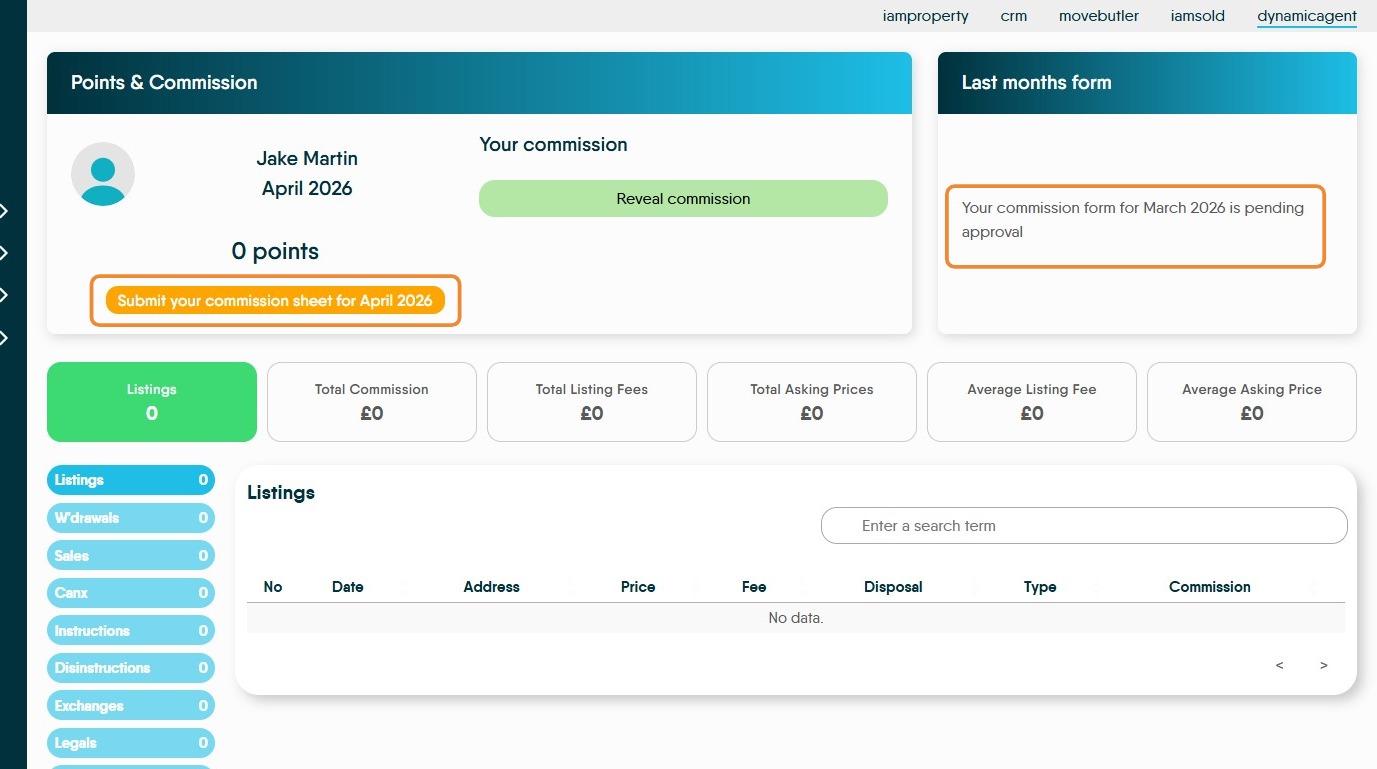
22. Once your last months commission form has been submitted you will see "Your commission form for ......... is pending approval" in the 'Last months form field'.
To submit your current commission payment. Click "Submit your commission sheet for........"
23. Once the form has been submitted this message will show, "This commission sheet is being reviewed"
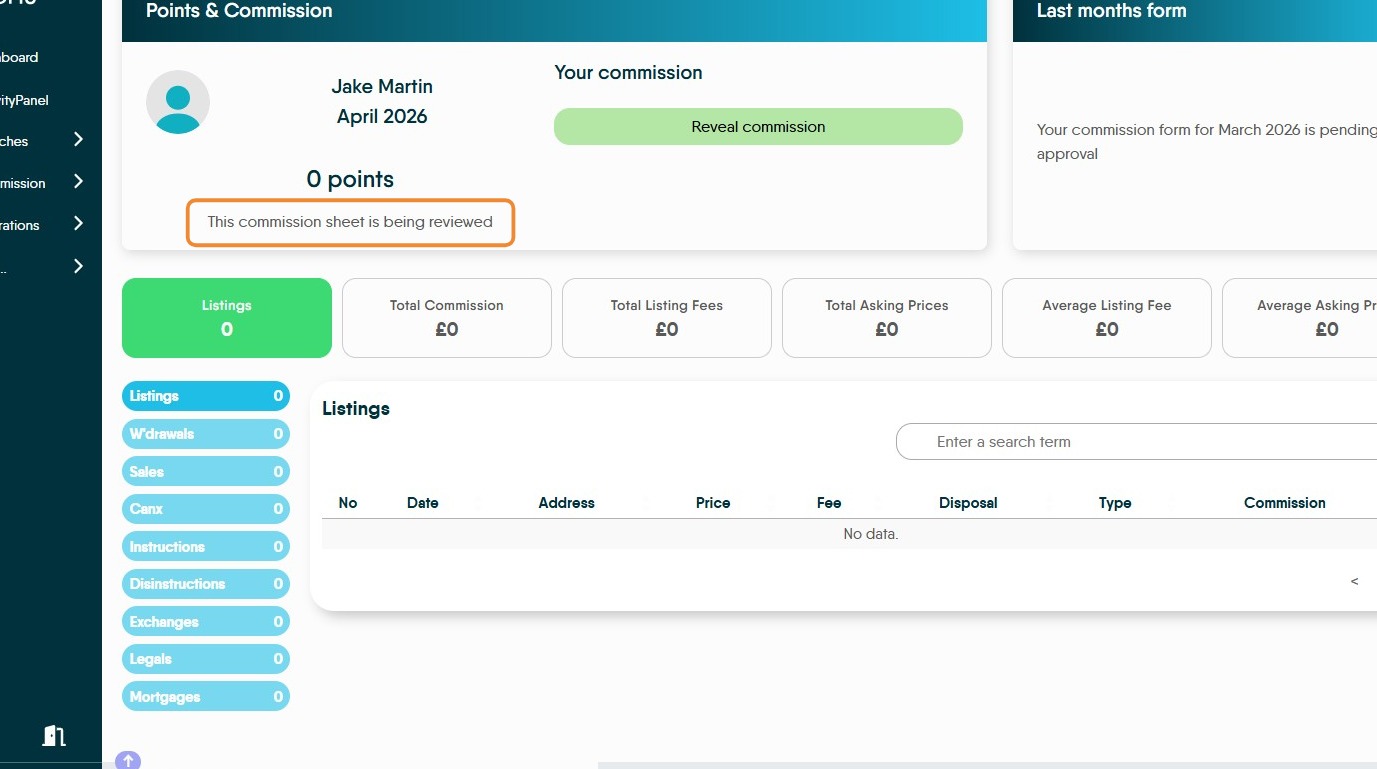
24. Selecting the options in the (blue) menu will show the different commission amounts that are being earned.
W'drawels, Canx, Disinstruction are (depending on company settings) reductions to commission paid.
Mileage Form
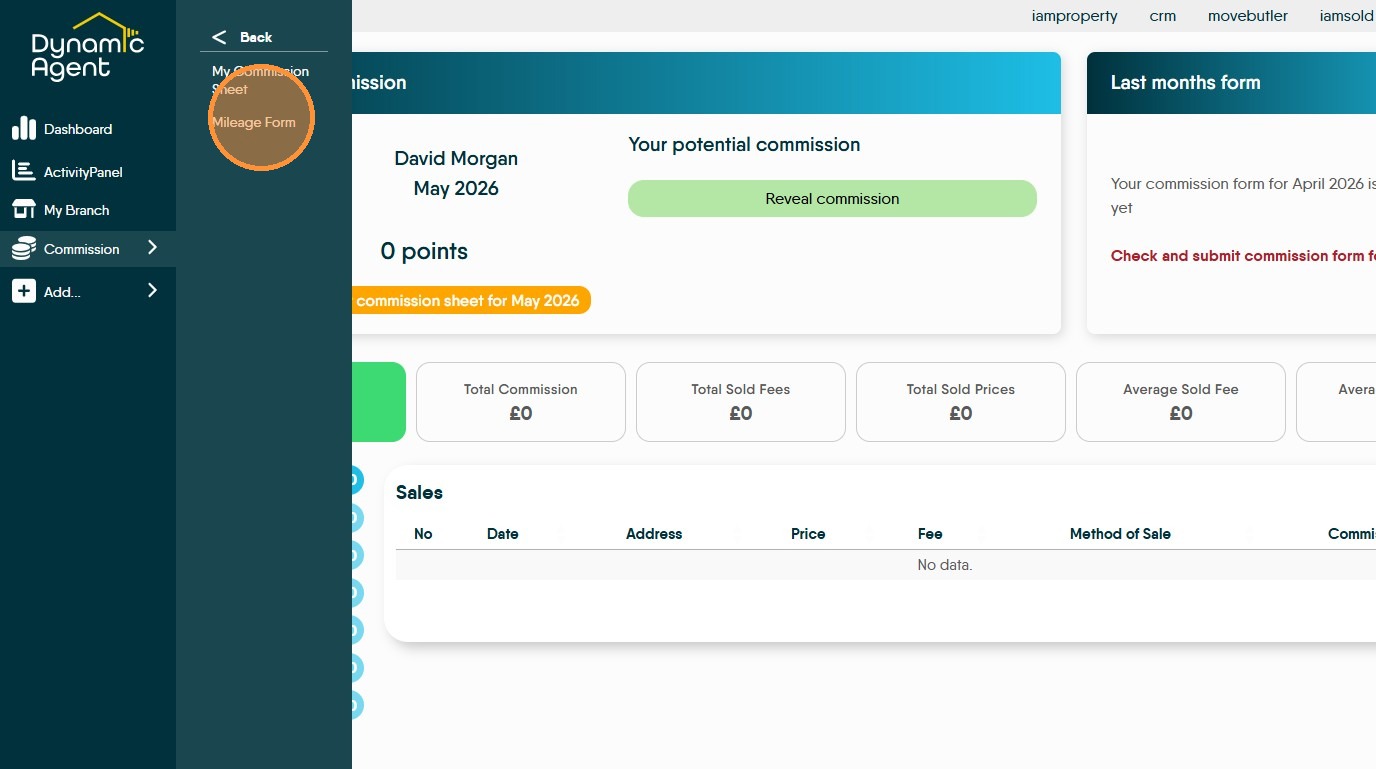
25. Click "Mileage Form"
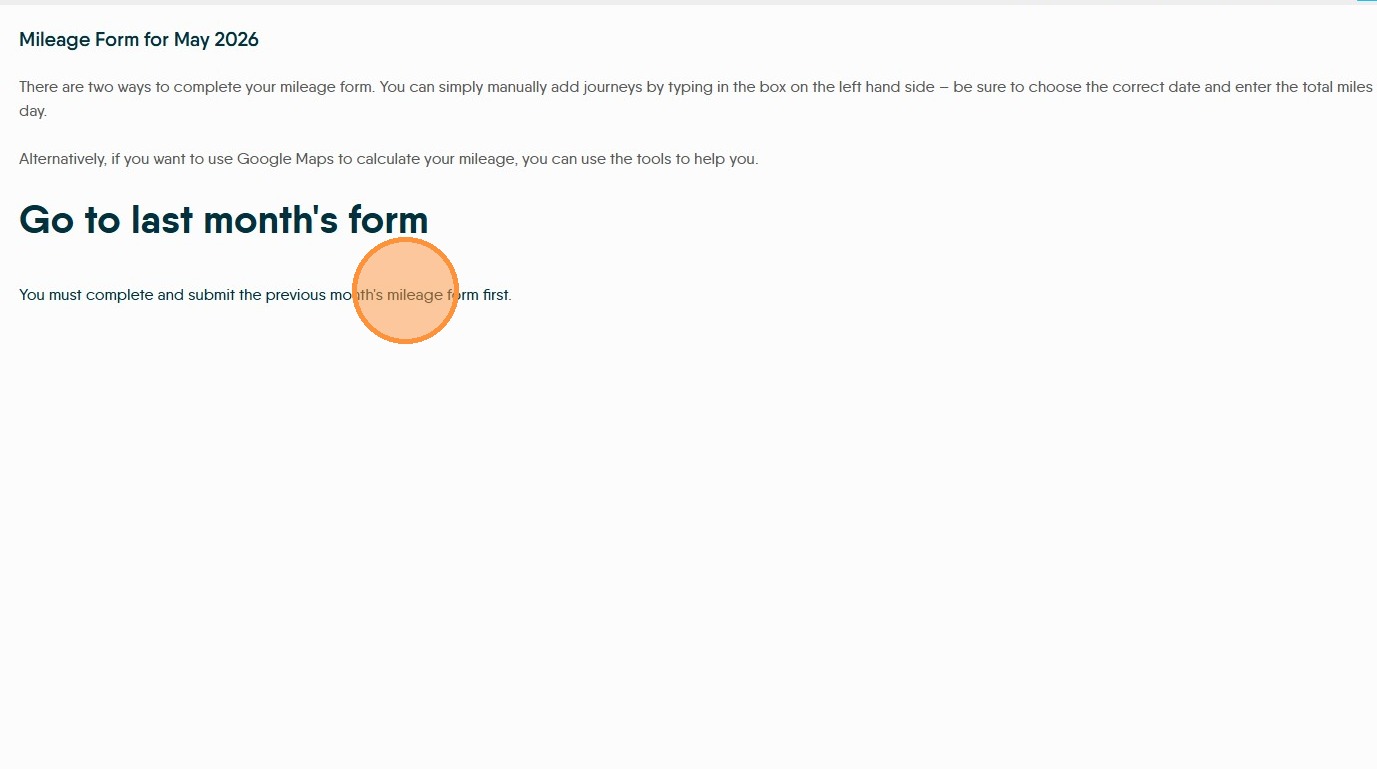
26. Click the link to navigate to the previous month's mileage form
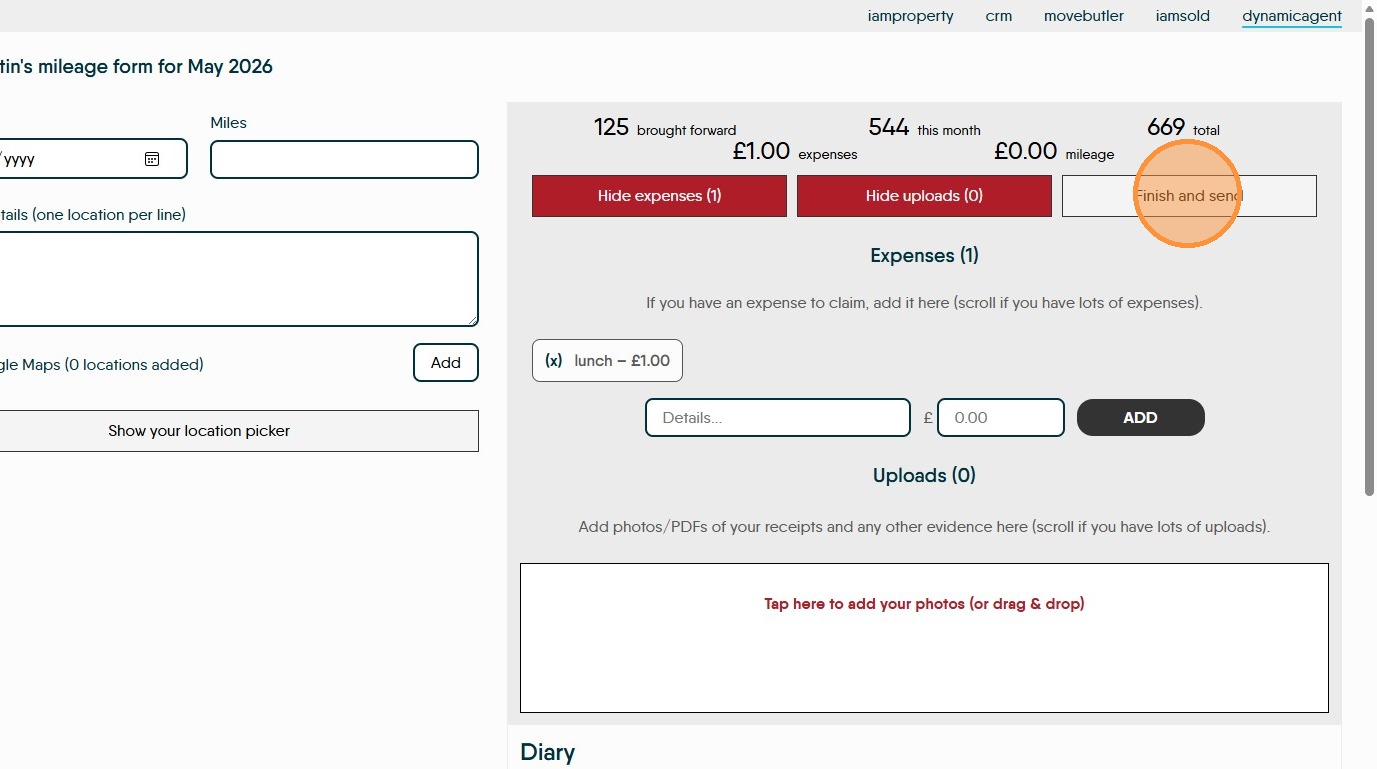

27. The form shows any mileage brought forward, total this month so far and total.
To add a mileage claim, click into the journey details and add your journey, add the mileage to the 'Miles' field. Add 1 leg of the trip per line.
Click the "Journey Details (one location per line)" field, enter the details. Start Address, 1st Address, 2nd Address.....End Address.
To the right side of the screen, in the 'Diary' field any diary entries for Viewings and Appraisal appointments will show. This allow you to select the job and add it straight to the mileage calculator.

28. At this point if you know the distance traveled, click into the 'Miles' field and add the distance.
If not, or you want to check, click "Open Google Maps...." This will take you to a screen showing the trip on google maps, where you can get the mileage.
The 'Location Picker Option' allows you to set locations e.g. office or home for quick access when adding your mileage.
Expenses
29. To claim 'Expenses' click 'Show Expenses' this will show any expense currently claimed, this could be parking, coffee, milk etc it is not mileage.
To add an expense record
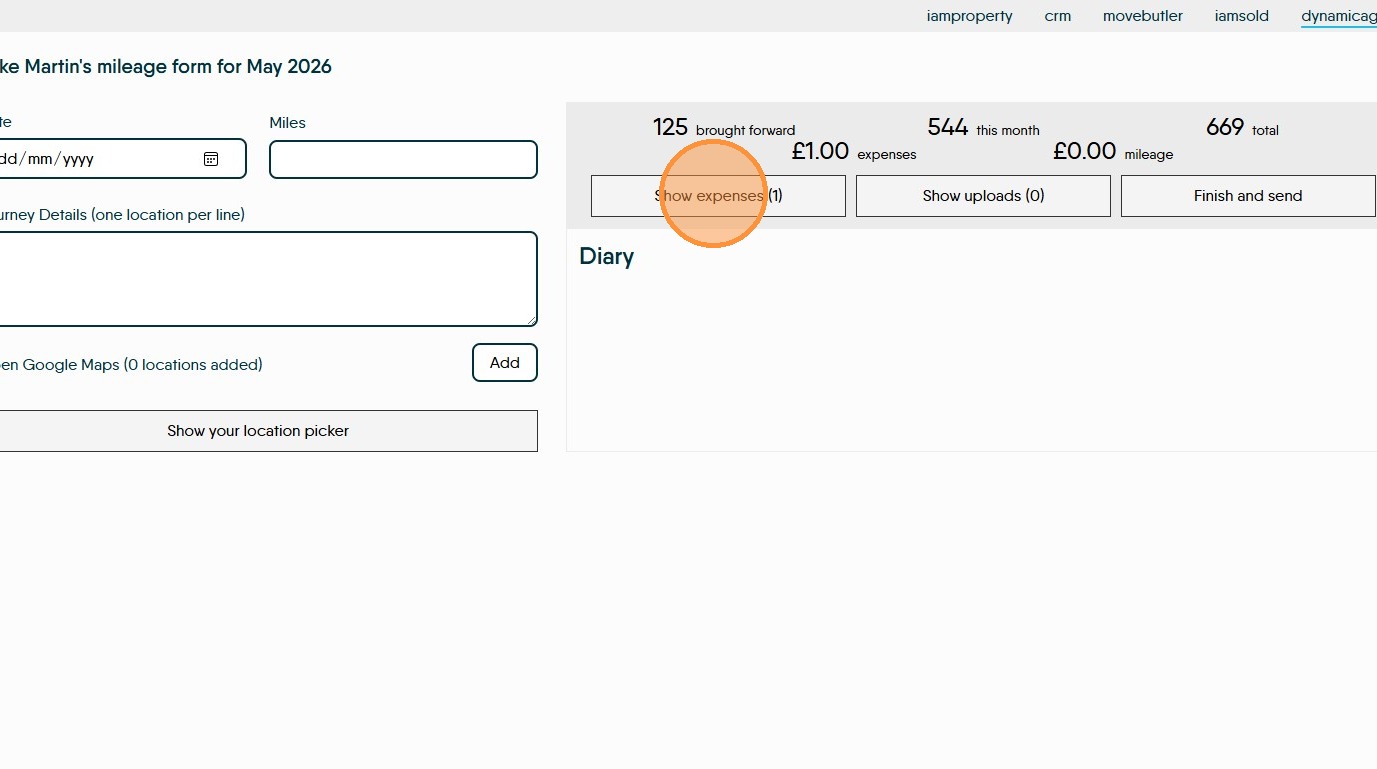
30. Add the details of the expense into the 'Details' field and the amount into the '£' field then click 'Add'
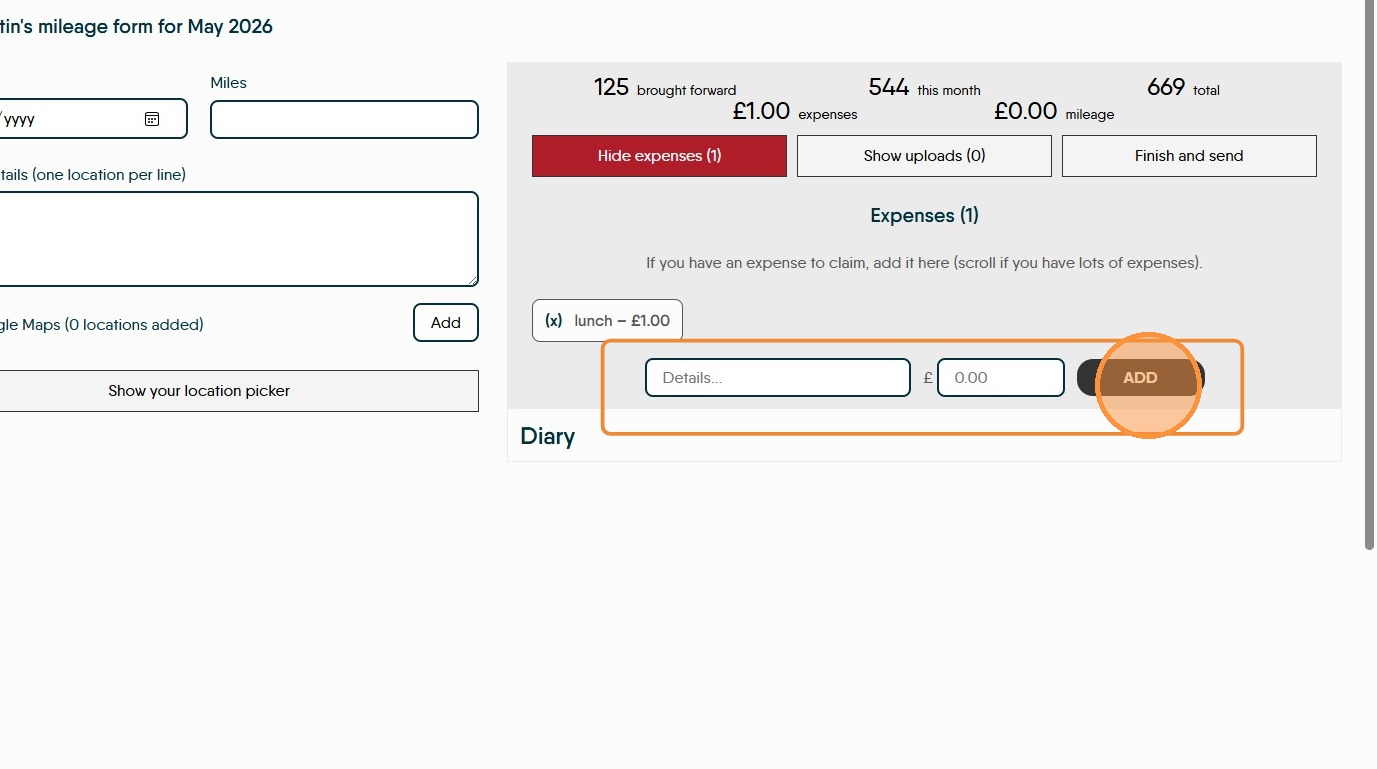
31. To add receipts for expenses or mileage. Click "Show uploads" click into the field that shows and either drag and drop or search your device for the images. If you are using a mobile device, an option to use the camera will show.
Click "Tap here to add your photos (or drag & drop)" to upload your images.
Keep doing this till all is completed.

32. Click "Hide expenses" or "Hide Uploads" to close this screen.
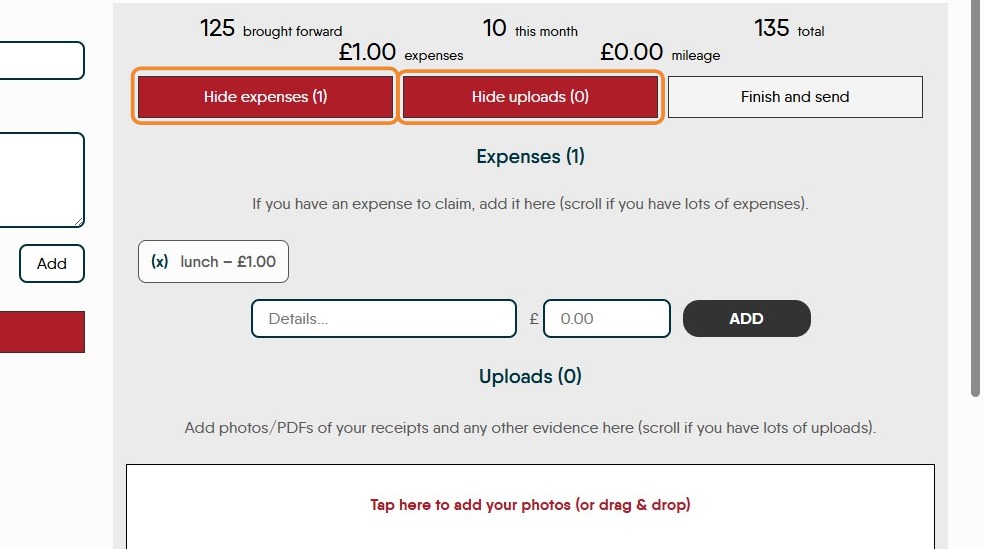
33. If you need to complete and submit the expenses on behalf of your user. Click "Finish and send"
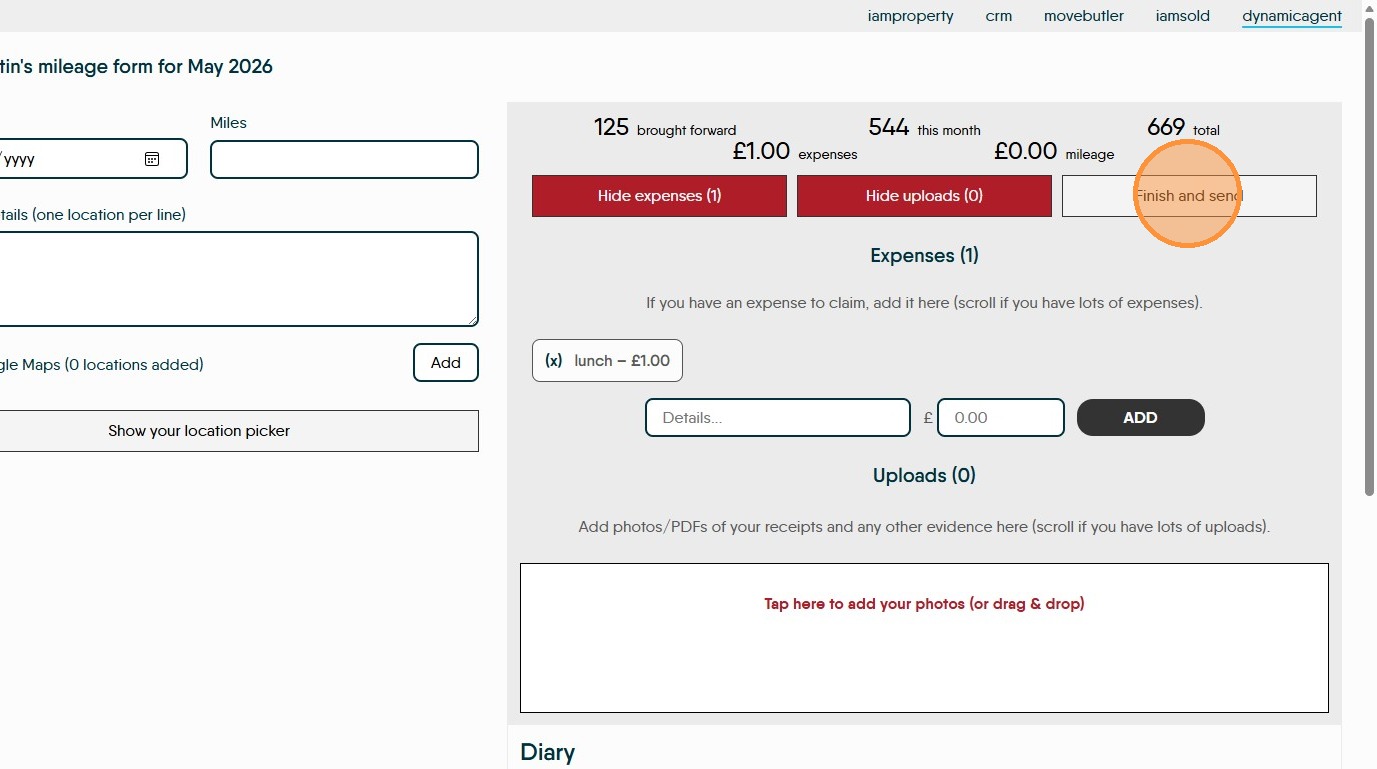
34. If you need to complete and submit the expenses on behalf of your user. Click "Finish and send"