This guide will look at the Commission section of Dynamic Agent and covers the full process for claiming and managing staff commissions. Both the End Users view, being able to monitor and claim their commission payments and the Business side, setting and managing commission.
Alert: Alert! The data that is visible in the Dynamic Agent screen is dependent on the access permissions that you, as a user, have been granted. If you believe you have the incorrect settings, please refer to your Manager/internal Dynamic Agent support.
Commission
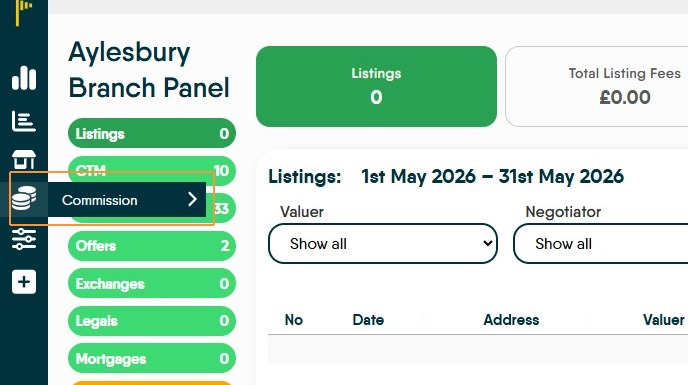
1. Click this icon 'Commission'
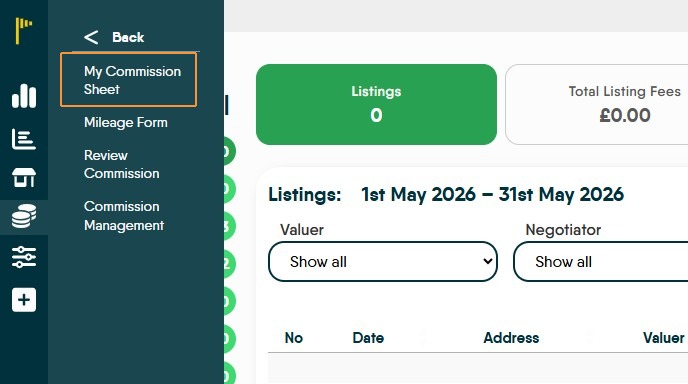
2. Click "My Commission Sheet"
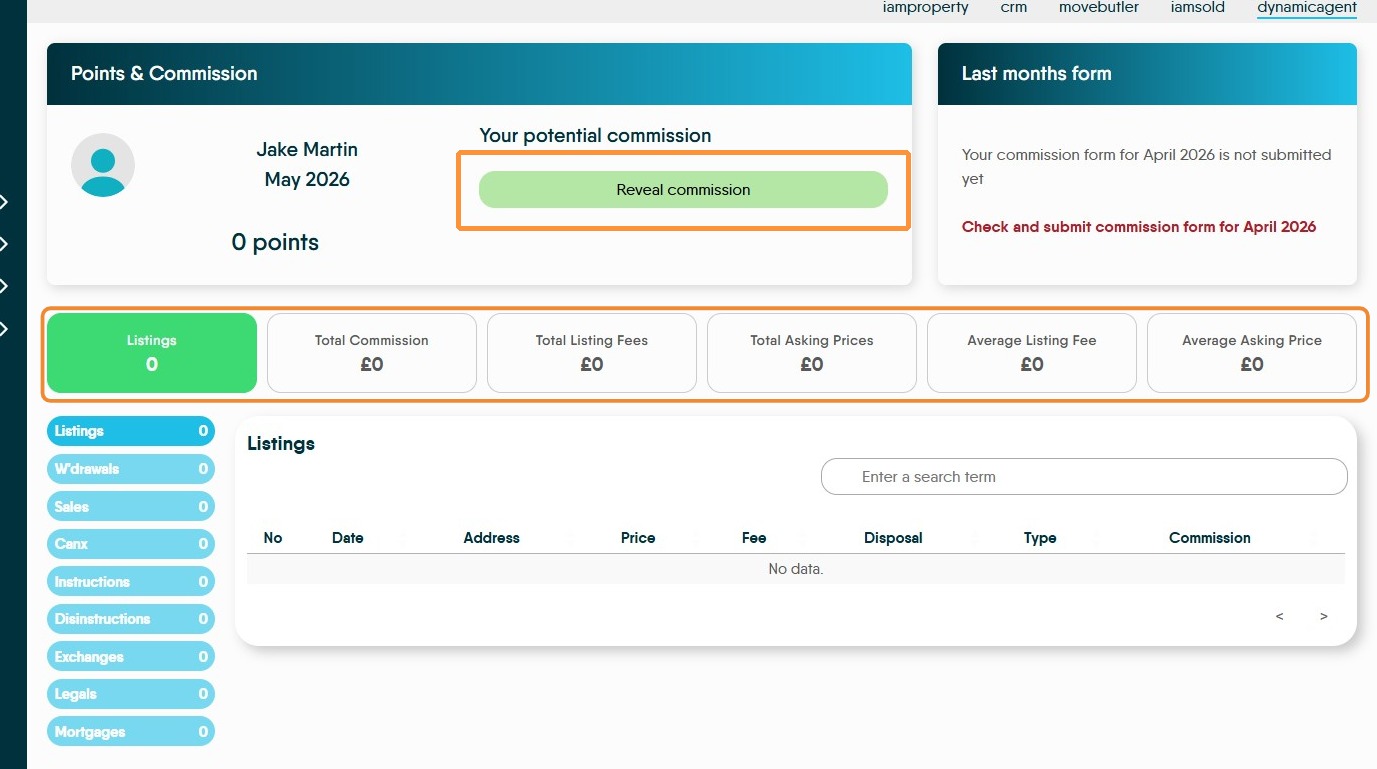
3. Points & Commission. Clicking "Reveal commission" this will show your potential commission.
Across the top of the screen will show the commission due based on the selection in the (blue) menu. The 'Points' option is if your company includes a points scheme as an alternate way of qualifying for rewards.
4. Last Months Form. If the previous months commission has not been submitted a notification will show. Click "Check and submit commission form for ....." you need to submit the previous months commission before this months.
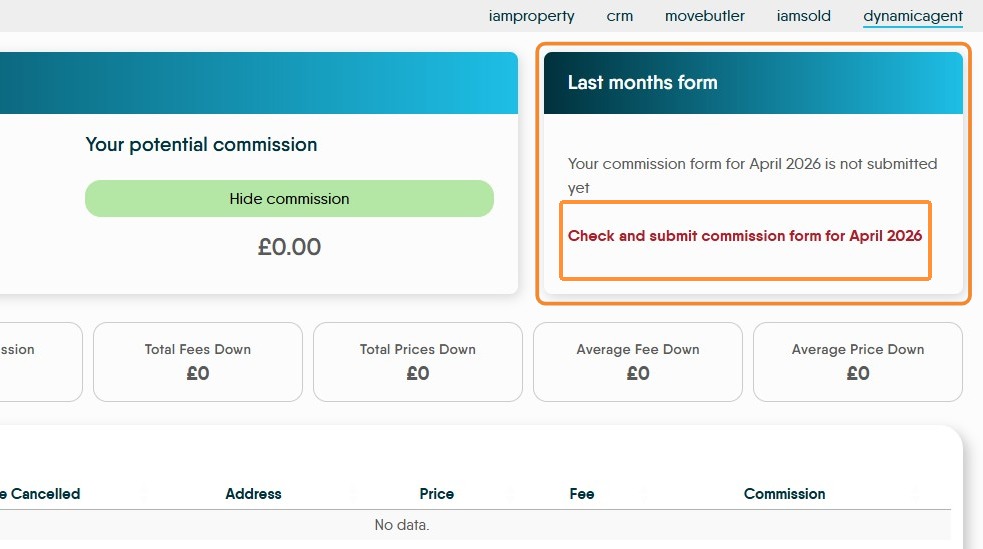

5. This screen will show you the commission owed for the month you are submitting, in this example April 2026.
Down the left side of the screen (highlighted) you can select individual sections to see where the commission has been earned e.g. Listings or Sales and where any deductions e.g. W'drawels or Disinstructions have come form.
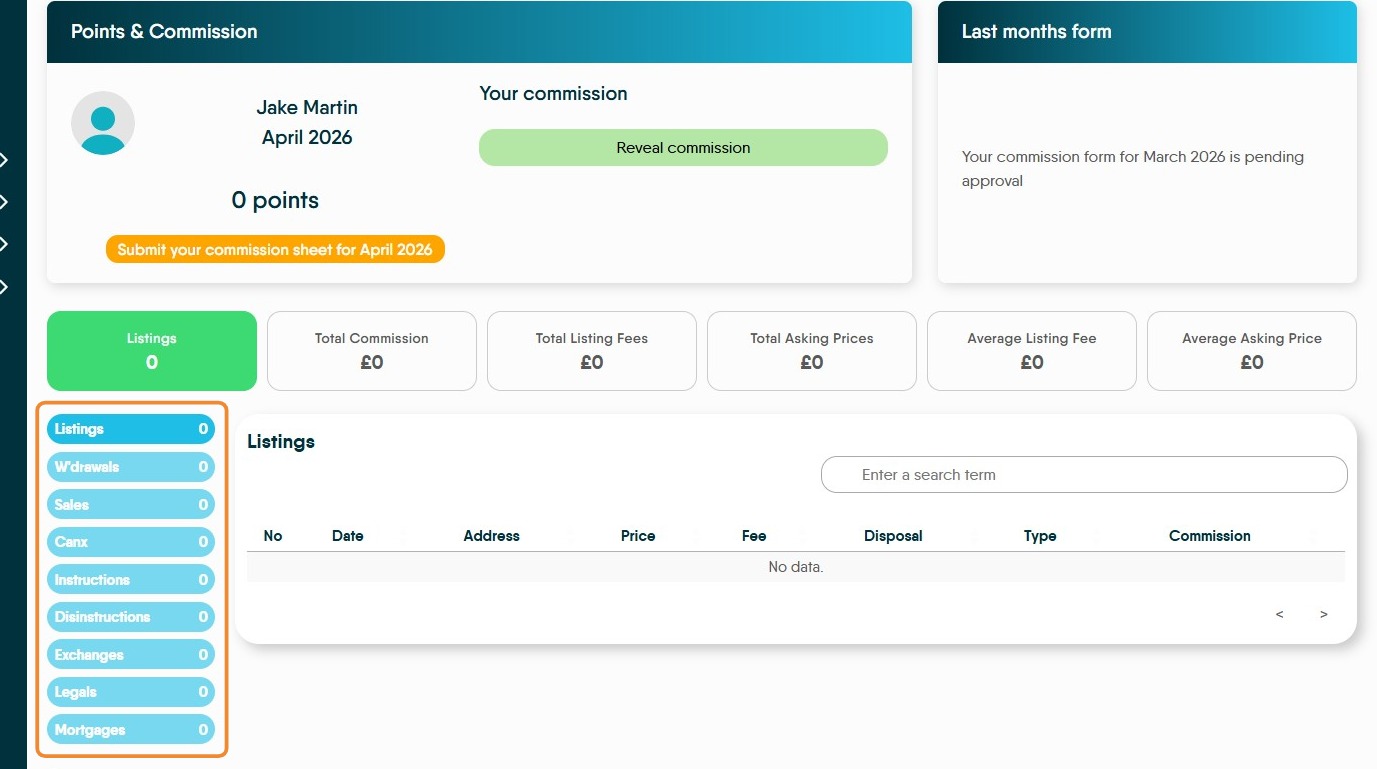
6. Once your last months commission form has been submitted you will see "Your commission form for ......... is pending approval" in the 'Last months form field'.
To submit your current commission payment. Click "Submit your commission sheet for........"
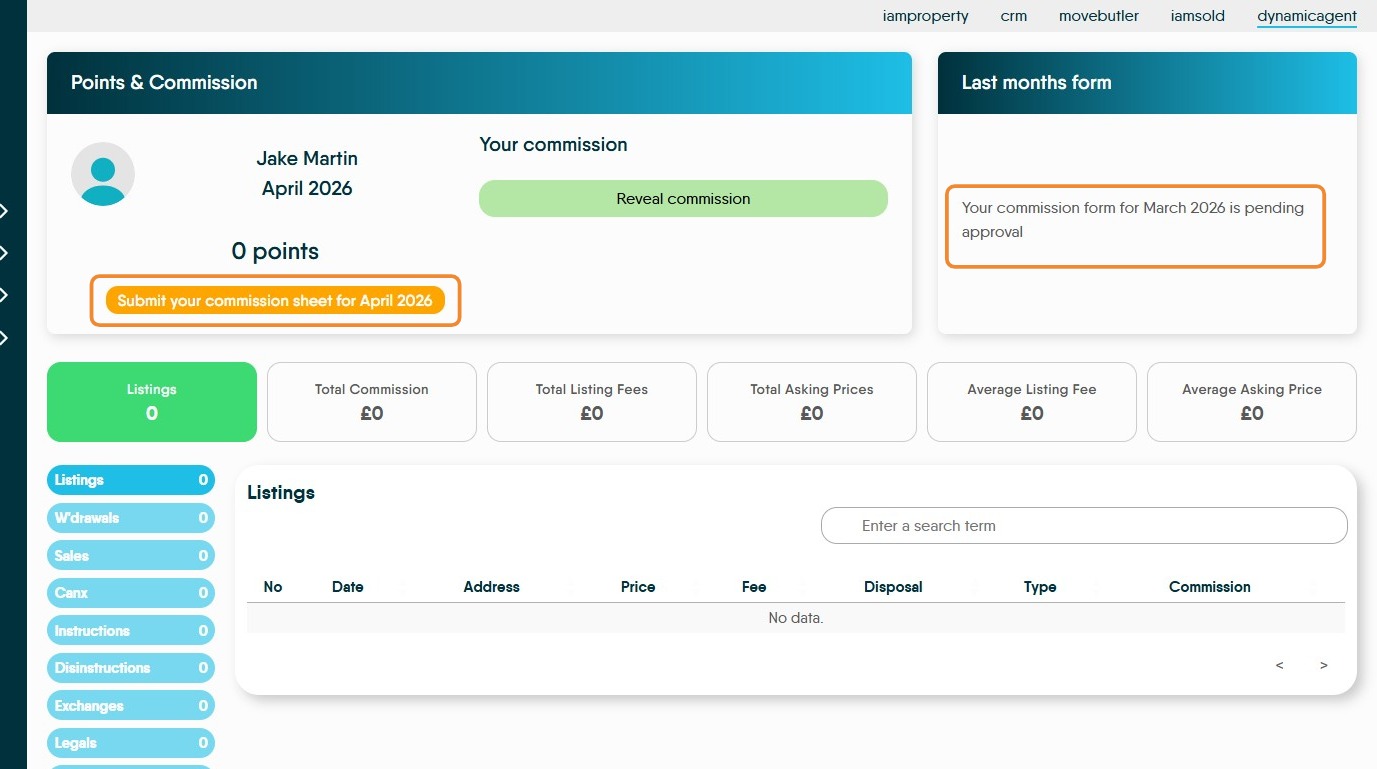
7. Once the form has been submitted this message will show, "This commission sheet is being reviewed"
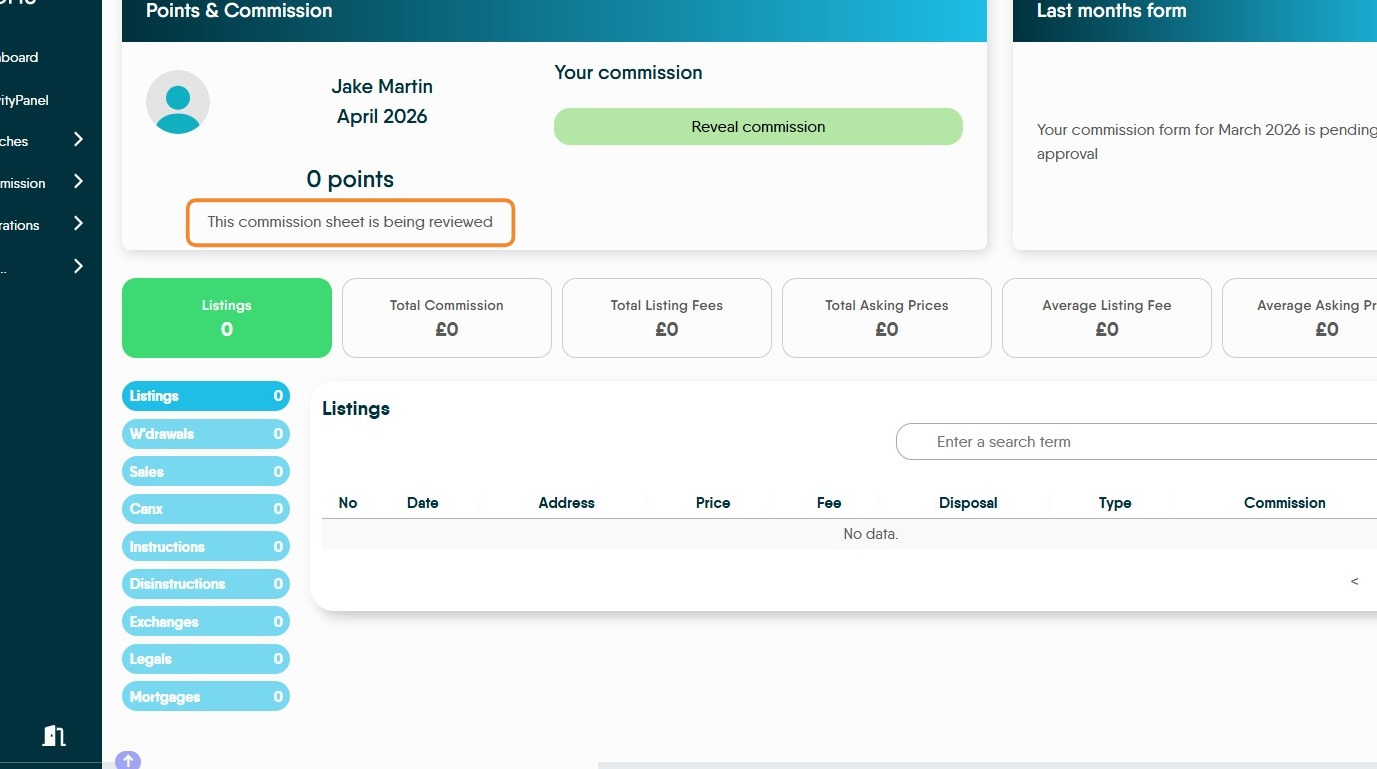
8. Selecting the options in the (blue) menu will show the different commission amounts that are being earned.
W'drawels, Canx, Disinstruction are (depending on company settings) reductions to commission paid.
Tip: The next two sections are for Managers who are either approving commissions before payment or setting commission rates.
Reviewing Staff Commission.
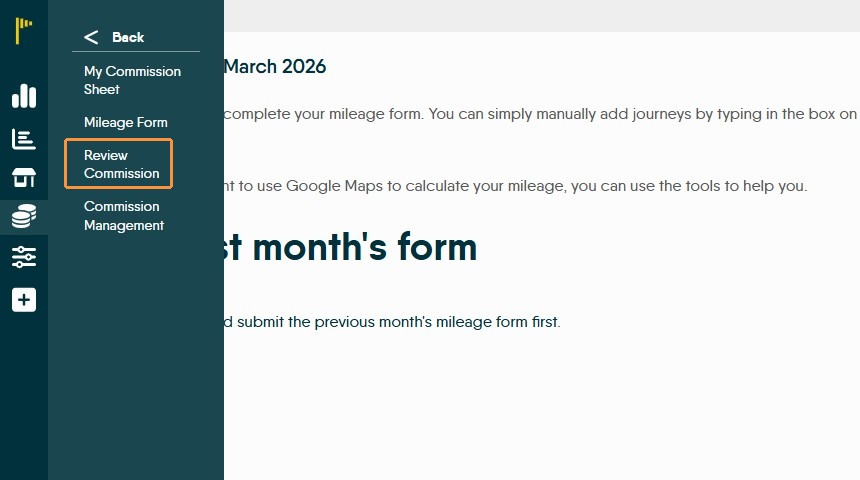
9. Click "Review Commission"
10. This will show a list of all the staff and the status of their commission claims. The status column will clearly show if there is commission claim to review.
Also shown is the detail of who and when the commission was approved with the amount of commission.
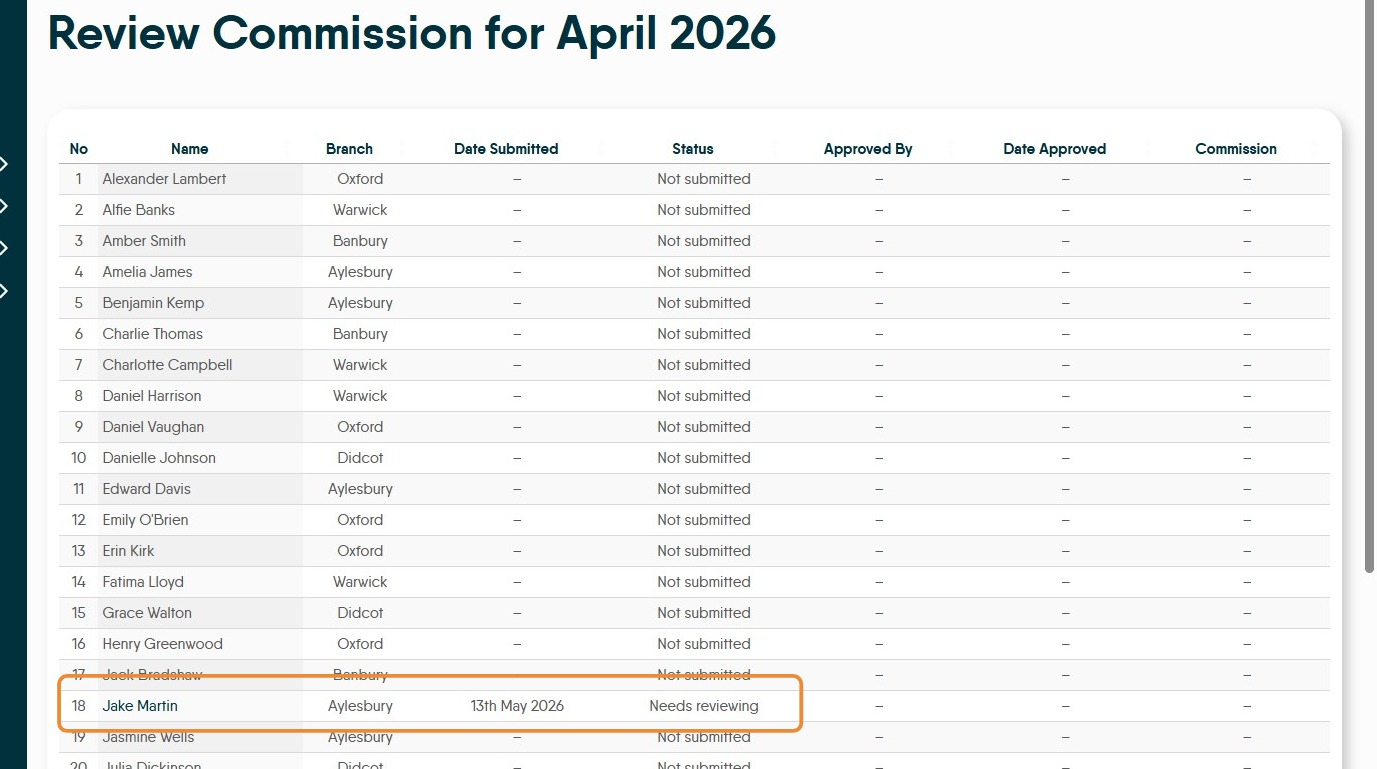
11. Click on the record you want to review.
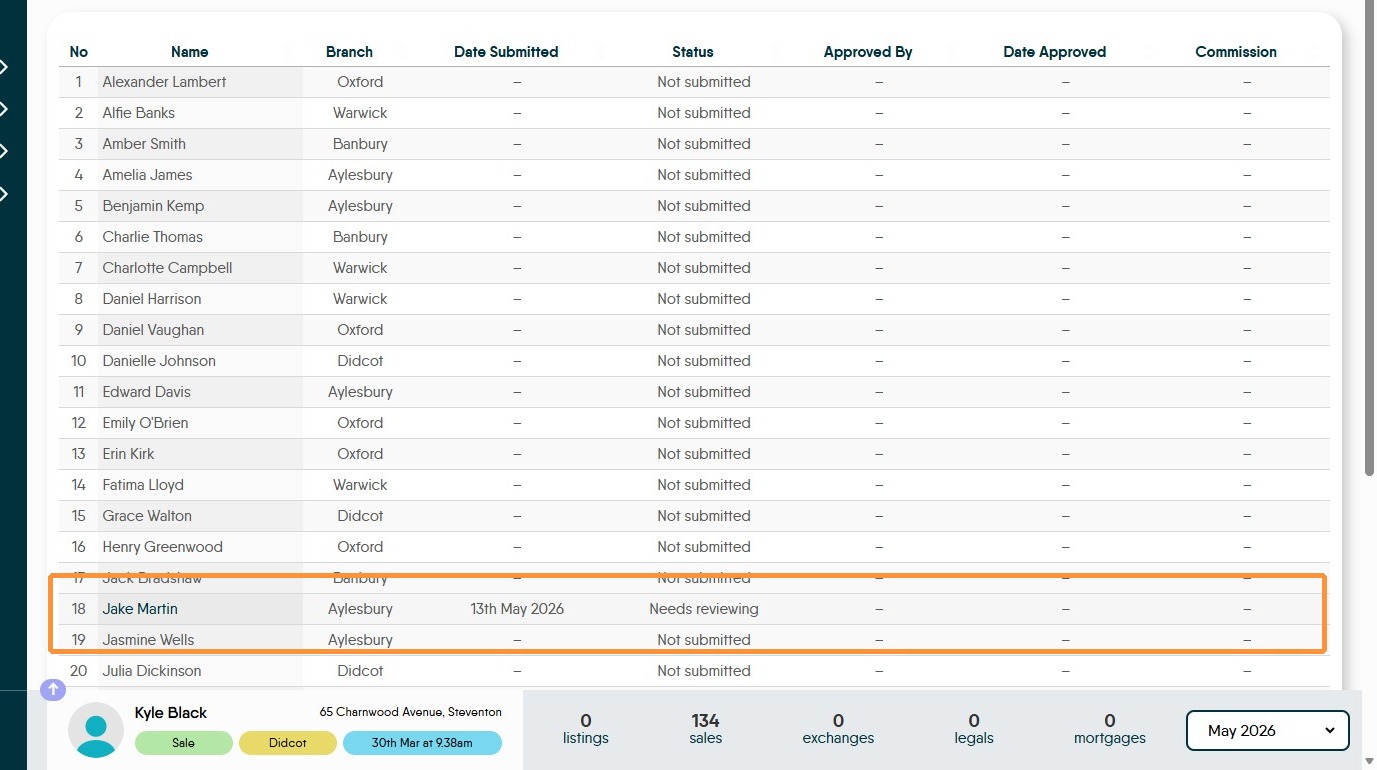
12. You will now see that user commission sheet.
Click "Reveal commission" will show the commission due.
The blue options, bottom left, will allow further details to be shown on the payment to be made.

13. This will show all the commission due to the this member of staff. At this point the commission sheet can be edited Sales/Listings etc added or removed (see here . Click "Approve commission sheet for..."
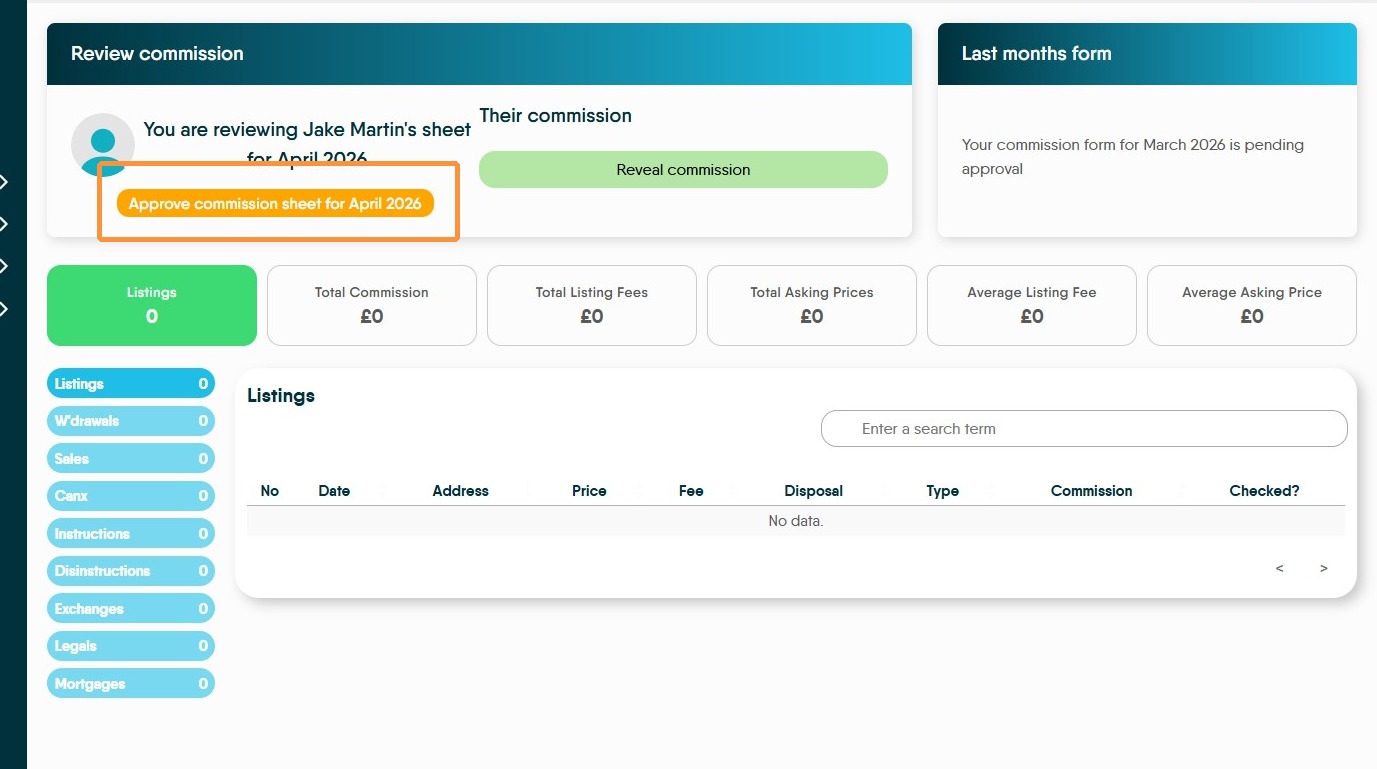
Commission Management
14. Allows commission and points schemes to be set up for individual employees or specific job type e.g. Negotiator, Manager Valuer.
15. Click "Commission Management"
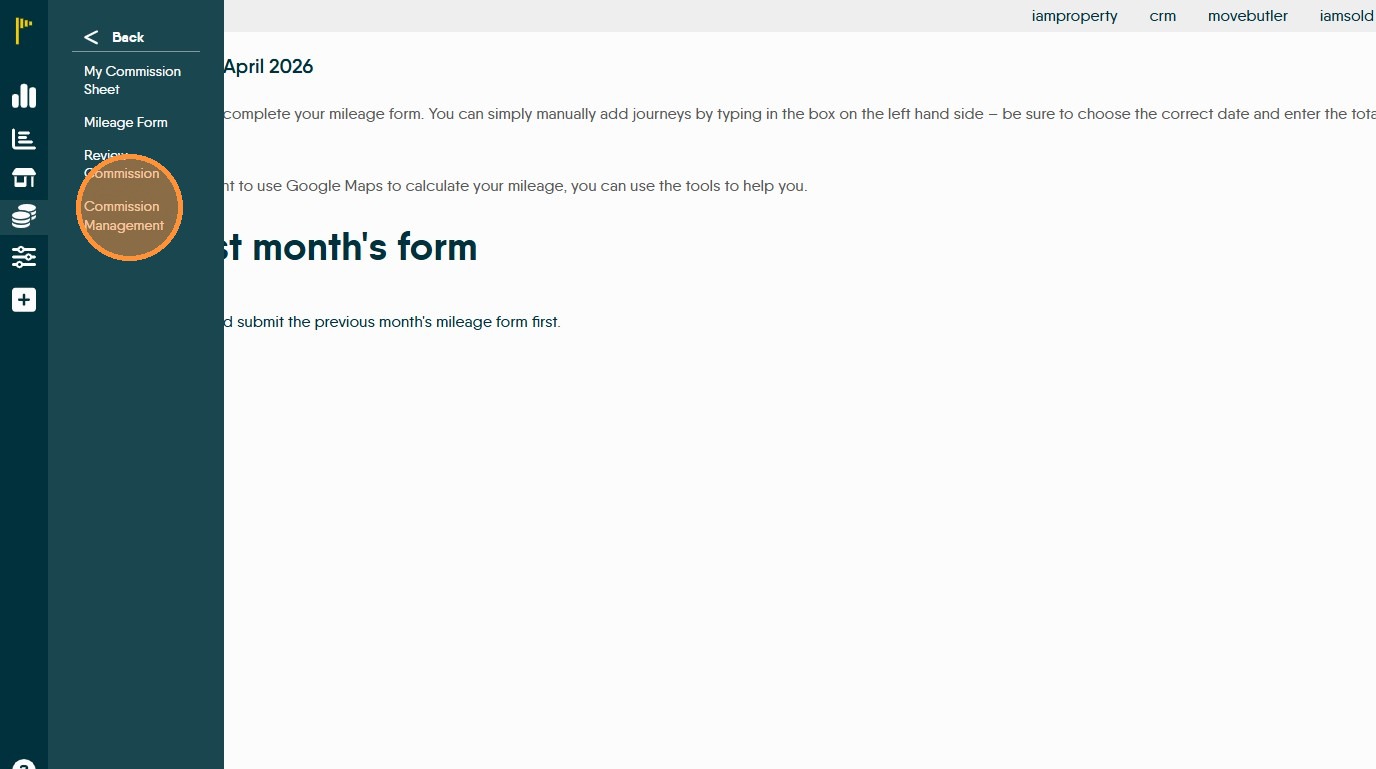
16. This screen will allow you to add new commission amounts to Dynamic Agent. A commission can be added. There are 2 types of commission that can be added 'Core' and 'Tiered' commission
The option to add 'Tiered' commission allows you to add a commission that applies once a set target is achieved by the staff member.

Core Commission
18. Adding Core commission. Click this drop-down to add the metric e.g. Listing. this is the action you are paying the commission on.
If withdrawal, cancellation, dis-instruction are selected this can cause a reduction in the commission paid

19. Then click on each of the options and select the options on screen to add the commissions. Once complete save the entry and add the next Metric.

20. A detailed explanation; To create a commission, choose the 'Metric' i.e what the commission is earned on (sales, Valuations etc), then there is the option to select from either the 'Role', 'Branch' or 'User' menus and create a very specific commission. Or, leave these blank to create a commission for all branches, employees.
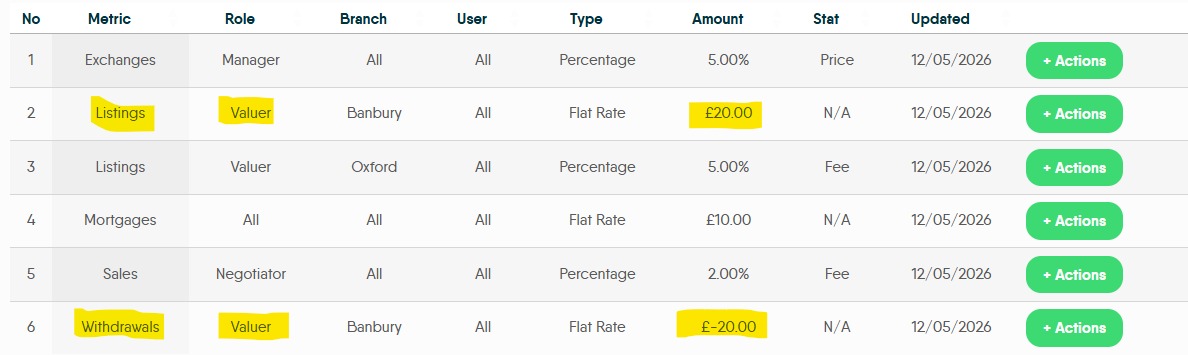
Select the 'Type of Commission' 'Flat Rate' or 'Percentage'. Then set the 'Amount' earned, e.g 20, if a negative (e.g. -20) figure is used it will deduct that from the commission paid.
If a percentage commission is being paid e.g. percentage of fee, click into the 'Stats (if percentage)' field and select 'fee' or 'price' to tell Dynamic Agent what to pay the Commission on.
The options of 'Withdrawal, Cancellation, Disinstruction would be negative commission figures and would view as below. These still need to be added and are not an automatic addition.
Tiered Commission
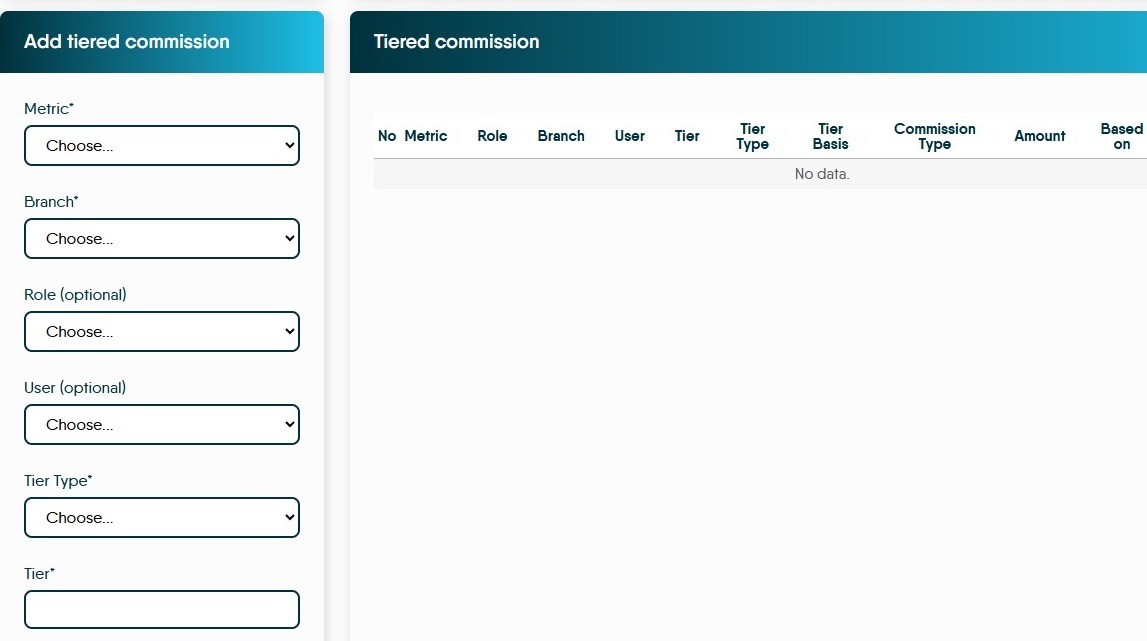
22. Tiered Commission. There is also to option to add 'Tiered' commission this allows you to add a commission payment that applies once a set target is achieved by the staff member. The process of creating a tiered commission is initially the same as adding a standard commission payment.
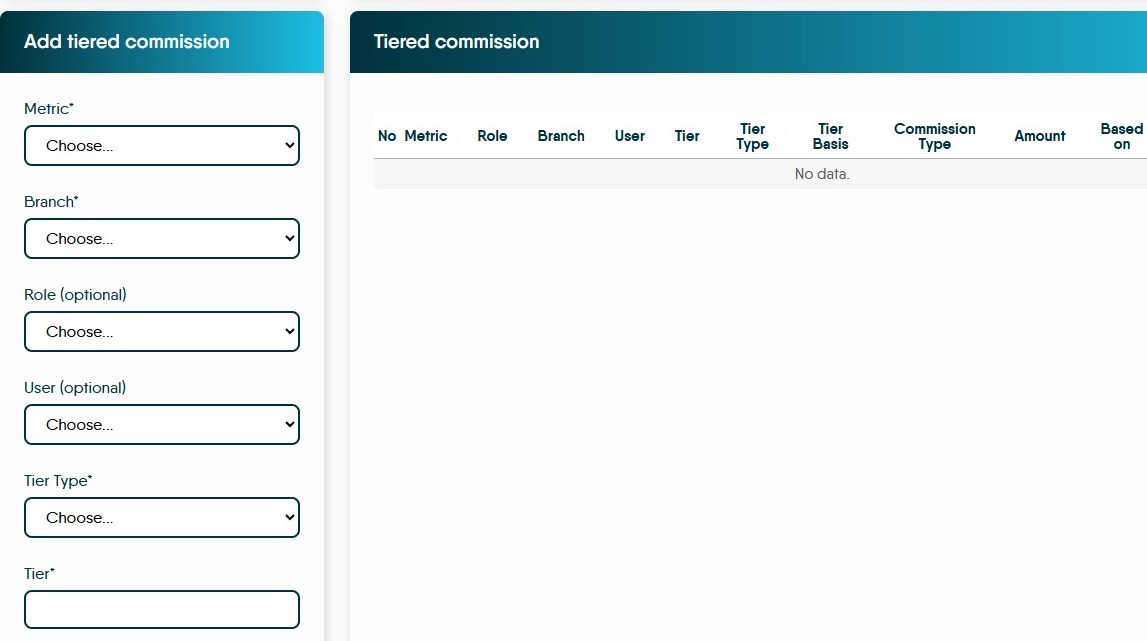
23. Once the initial options have been set. Click this dropdown to set the Tier Type.
There are 2 Tier Types that can be set 'Pounds' which is where the user hits a set value earned e.g. value of sales, or 'Quantity' when an amount is hit e.g. number of sales.


24. Tier. In this section you add the level that the tiered commission starts e.g 10. This is related to the 'Tier Type' e.g if 'Sales was the Metric and quantity was selected this would be 10 Sales.
25. Tier Basis Click this drop-down to select the tier basis. There are 2 options 'Fee' or 'Price' this controls what the tiered commission is paid on.

26. "Type of Commission" option. This sets whether the commission is a flat rate or a percentage of the 'Tier Basis' option that was set previously e.g. percentage of the fee.
Click either "Flat Rate" or "Percentage"
27. "Amount*" option is the value of the commission payment. This can be a positive or a negative value. Using the up/down arrows add the value in, or the number can be added by typing in the filed. Usually a negative figure would only be used if you are creating a clawback of commission paid on the basis of a Withdrawal, Cancellation or Disinstruction.
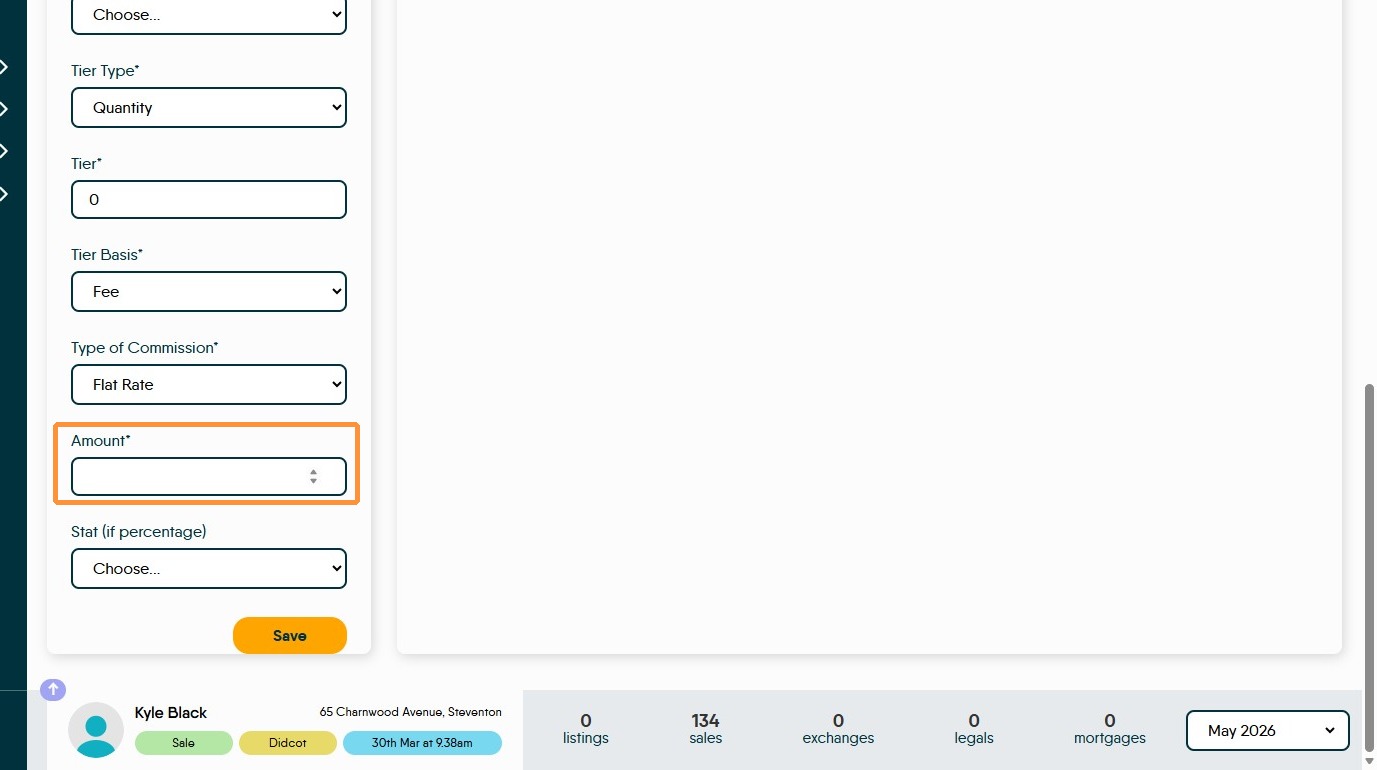
28. "Stat" If the commission is being paid as a percentage this menu allows the choice of whether the commission is based on the Fee or the Price.

29. Once all the options are complete click "Save"
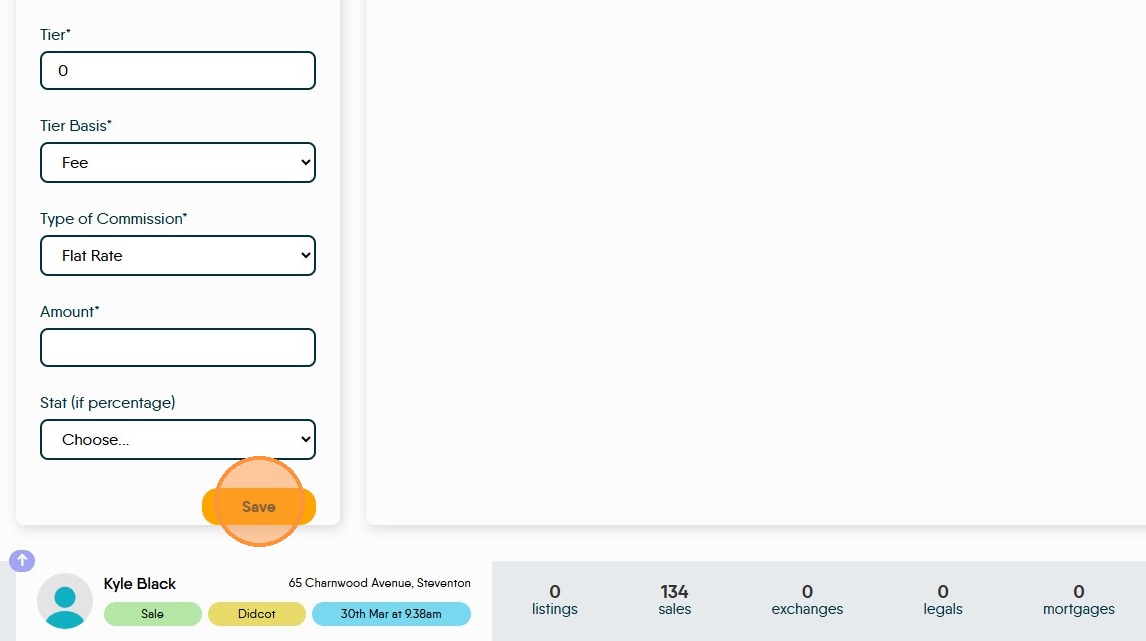
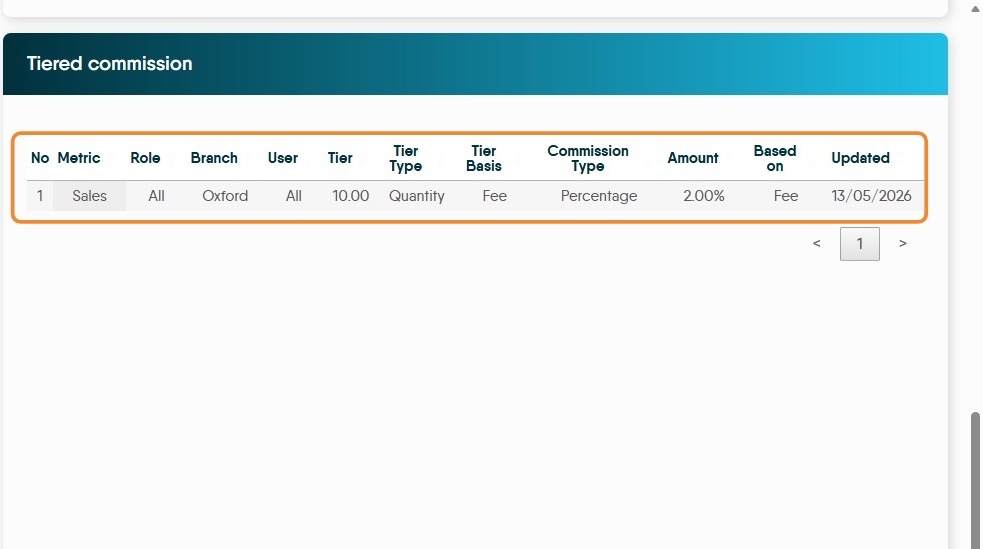
30. The commission will then show on the screen. In this case we have created a commission based on Sales, that once a user hits 10 sales they will earn a 2% commission of the fee earned.
Multiple commissions can be created for different, job role, branches etc
Adding Missing and Removing Transactions
Alert: Alert!
Standard User will (most likely) only see 'Add mortgage' and 'Legal' as there is no requirement for a user to manually add and delete metrics, Dynamic Agent populates this data automatically based on CRM changes.
However the add and delete features are available for CRM Support and Dynamic support to users correct anything that may have been recorded incorrectly.
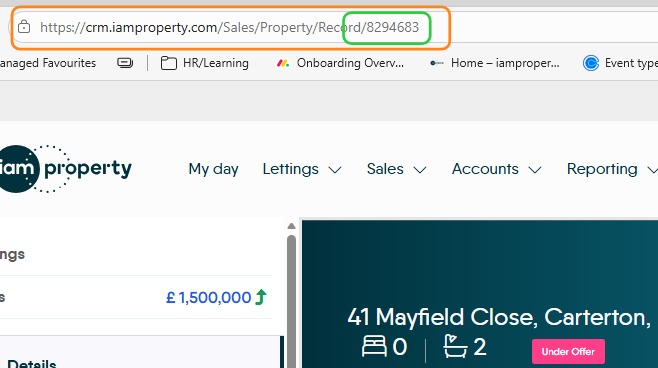
Tip: Tip! to find the URL (or website/page address) this is at the top of the screen. The 'Property Number' is the number at the end of the URL

31. Click "Add..."
This section allows you to manage any missed records, either adding or removing from the commission record.

32. Most of the updates to this section will come automatically from CRM.
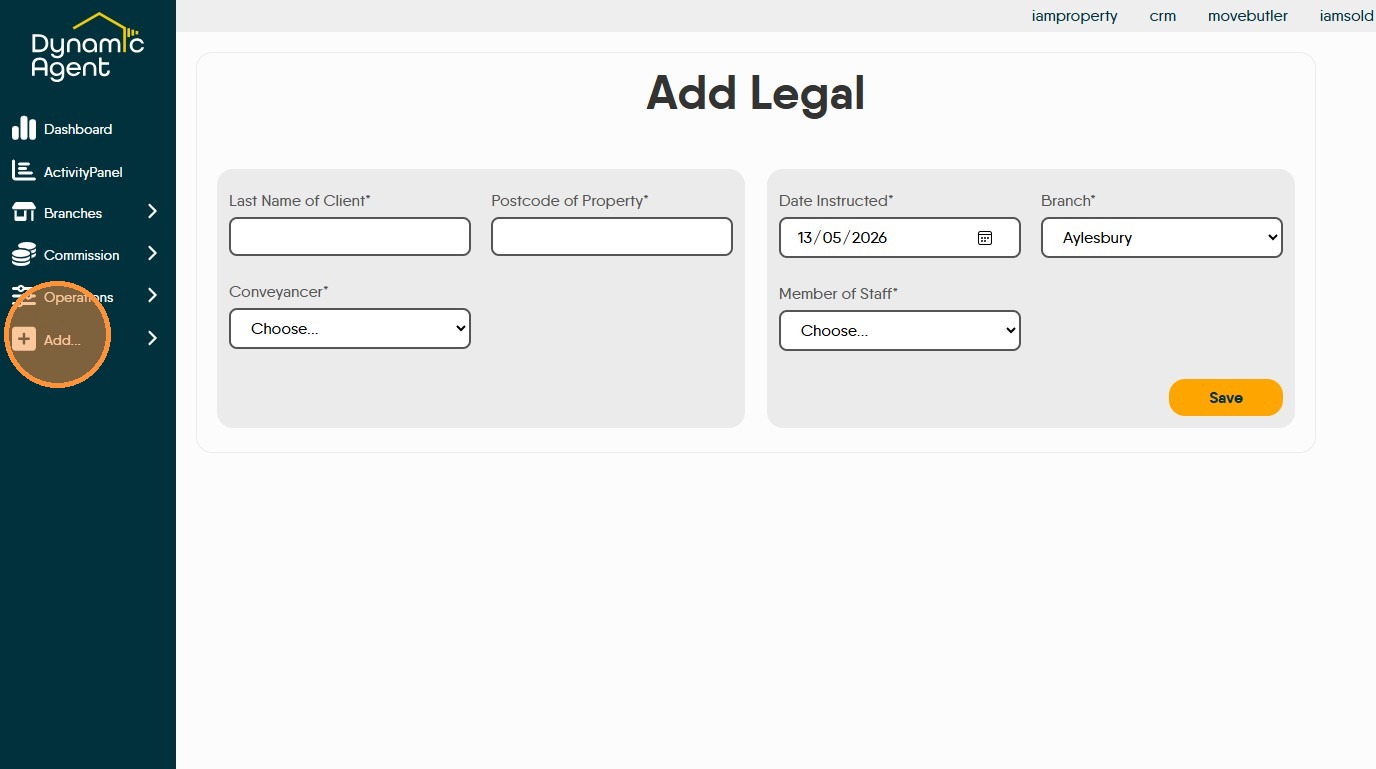
The only options that are likely to be visible to a User are 'Add Mortgage' and 'Add Legal' there is no need to manually update any of the others. As such we will not look at the other options.
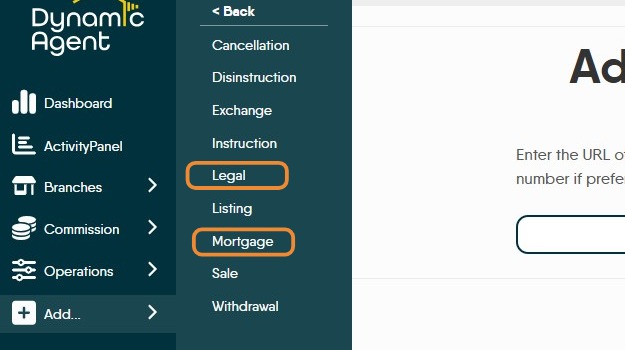
33. Click "Add Legal" to add a new legal instruction to the commission record.
34. Click "Mortgage" to add a mortgage record to the commission record