This guide will look at the Commission section of Dynamic Agent. Both the End Users view, being able to monitor and claim their commission payments and the Business side, setting and managing commission.
Alert: Alert! The data that is visible in the Dynamic Agent screen is dependent on the access permissions that you, as a user, have been granted. If you believe you have the incorrect settings, please refer to your Manager/internal Dynamic Agent support.
Commission
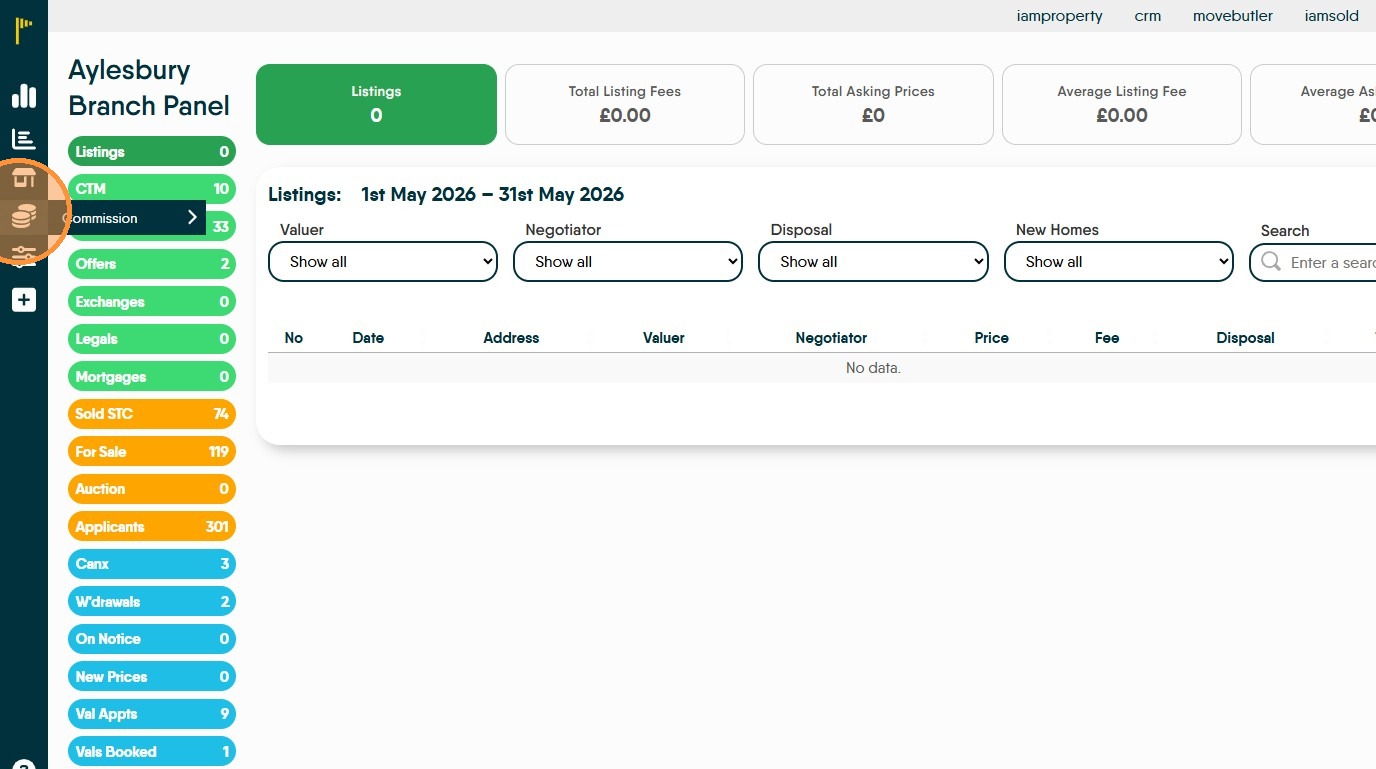
1. Click this icon 'Commission'
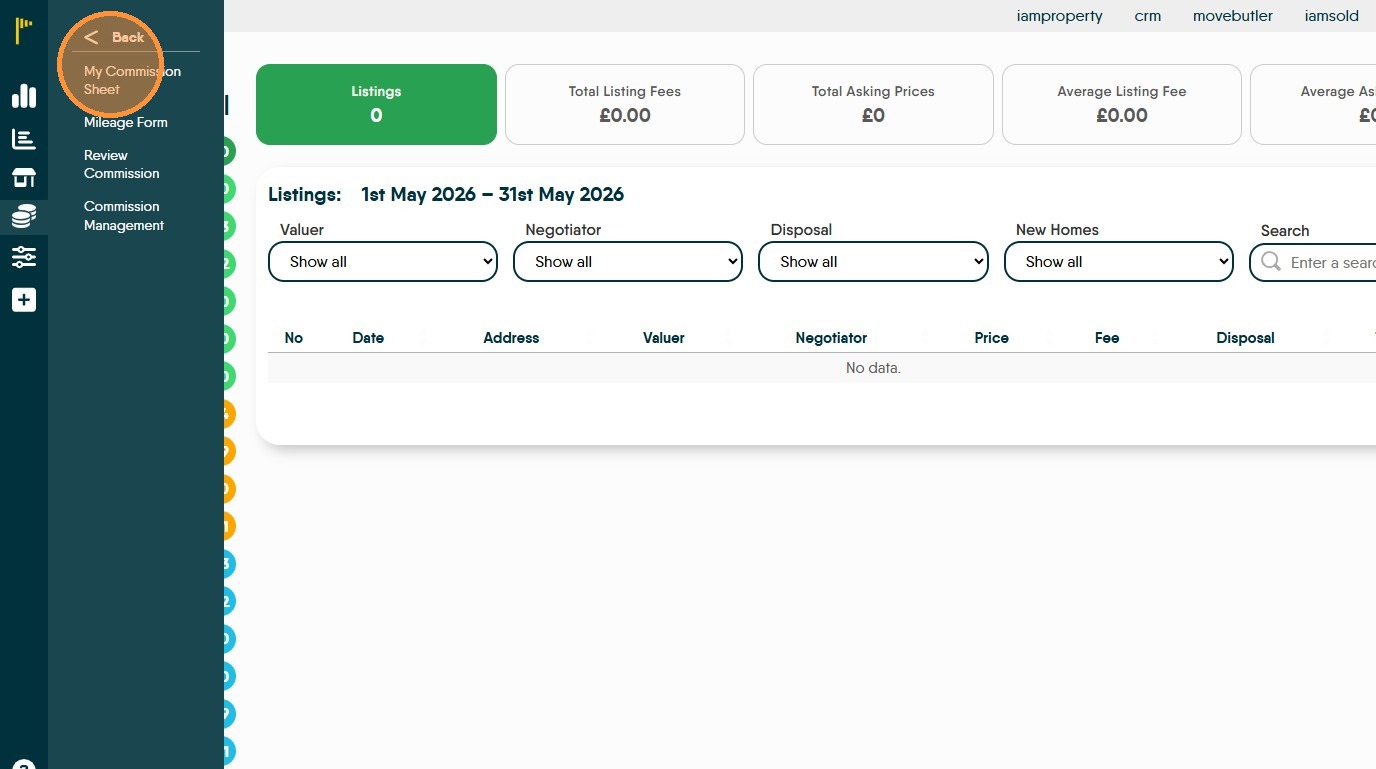
2. Click "My Commission Sheet"
3. Points & Commission. Clicking "Reveal commission" this will show your potential commission.
Across the top of the screen will show the commission due based on the selection in the (blue) menu. The 'Points' option is if your company includes a points scheme as an alternate way of earning rewards.
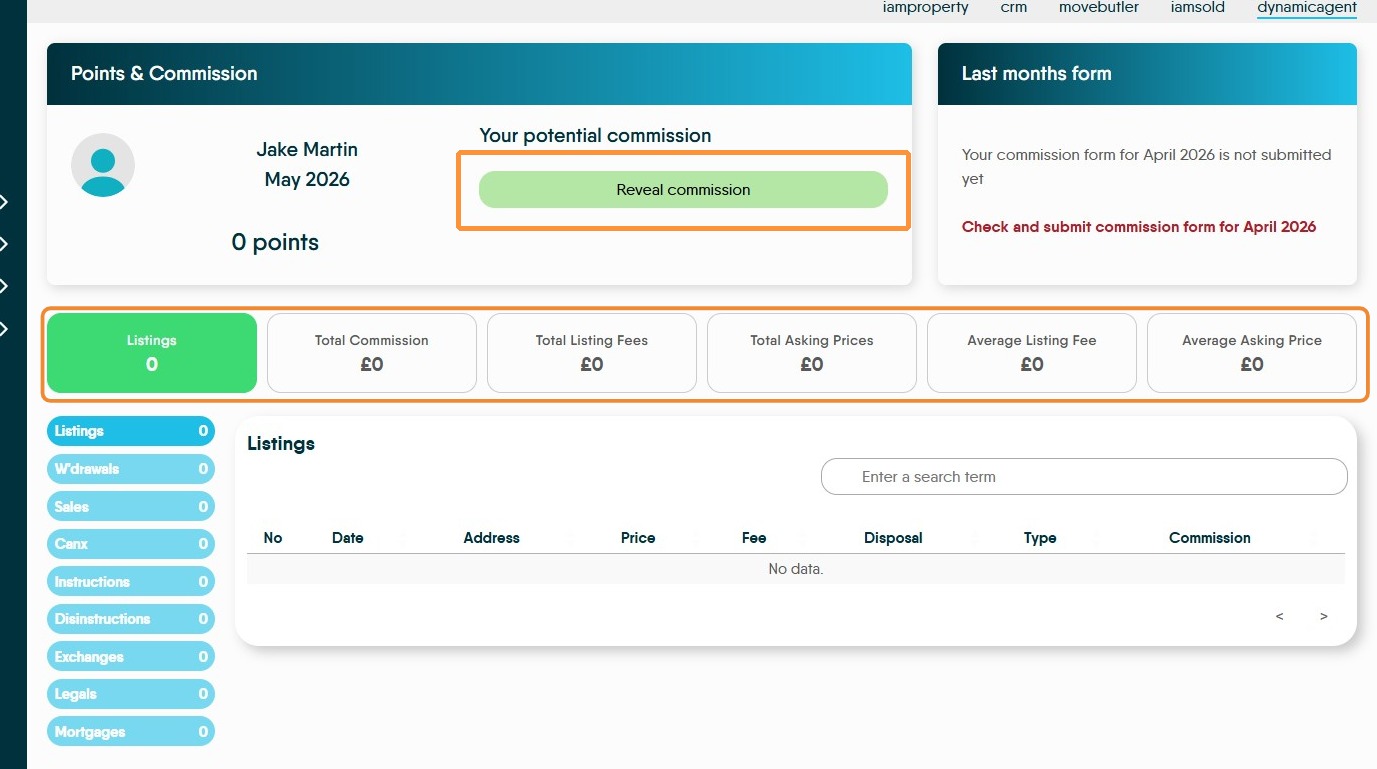
4. Last Months Form. If the previous months commission has not been submitted a notification will show. Click "Check and submit commission form for ....."
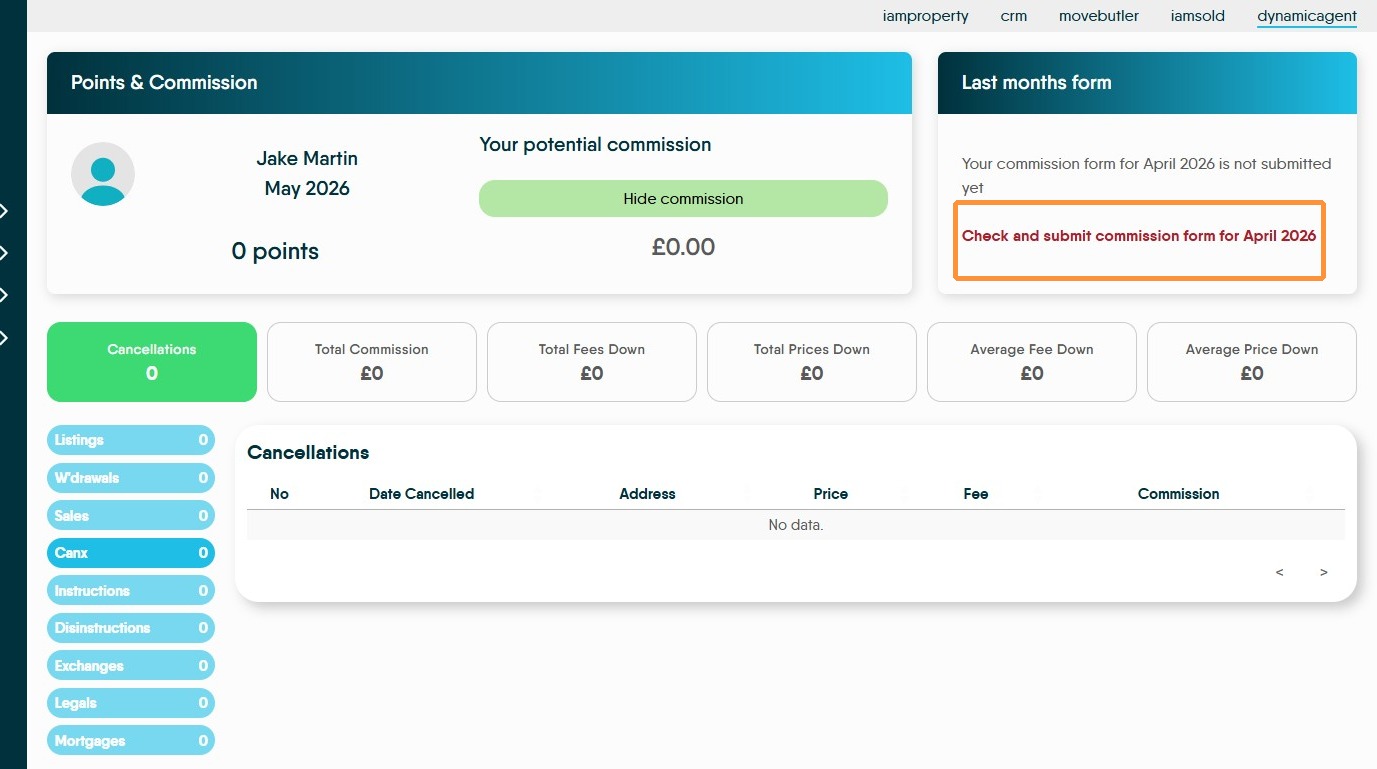

5. This screen will show you the commission owed for the month you are submitting, in this example April 2026.
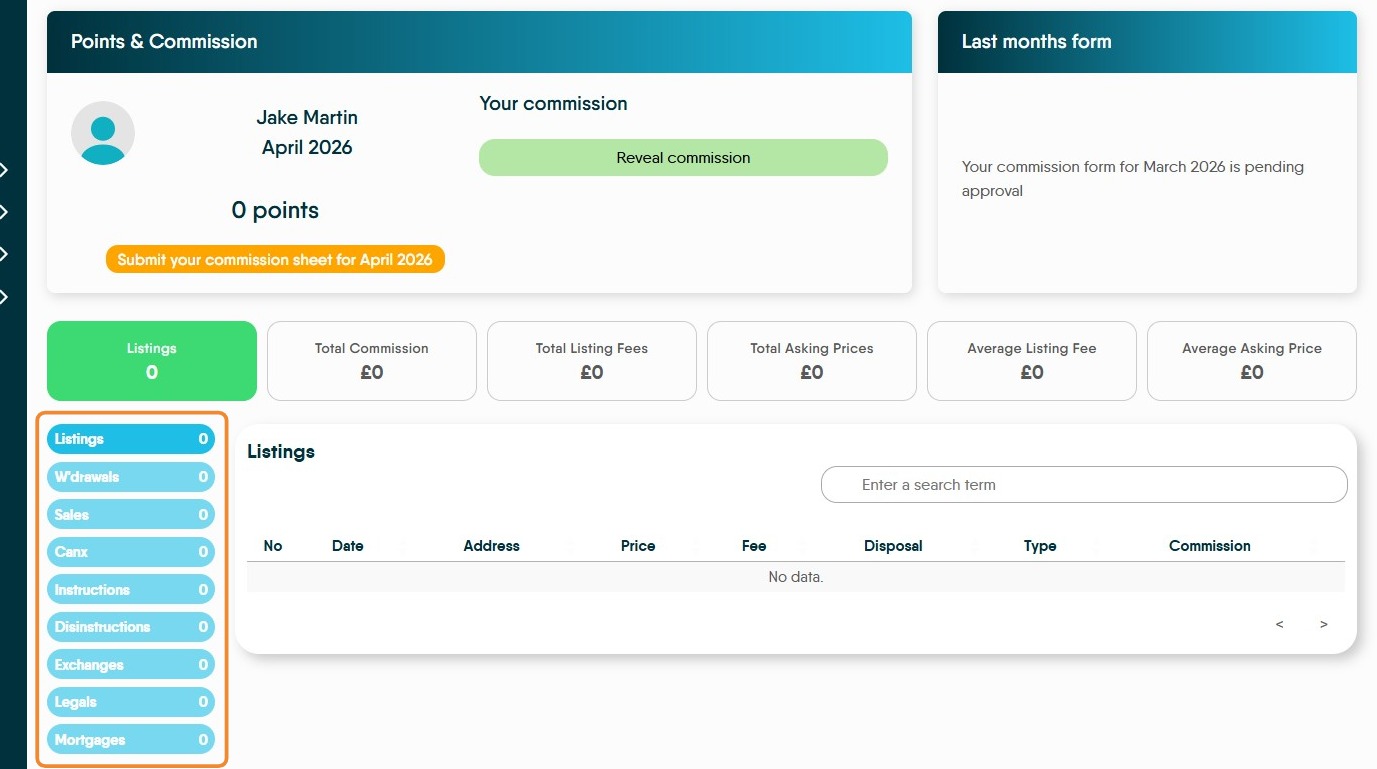
Down the left side of the screen (highlighted) you can select individual sections to see where the commission has been earned e.g. Listings or Sales and where any deductions e.g. W'drawels or Disinstructions have come form.
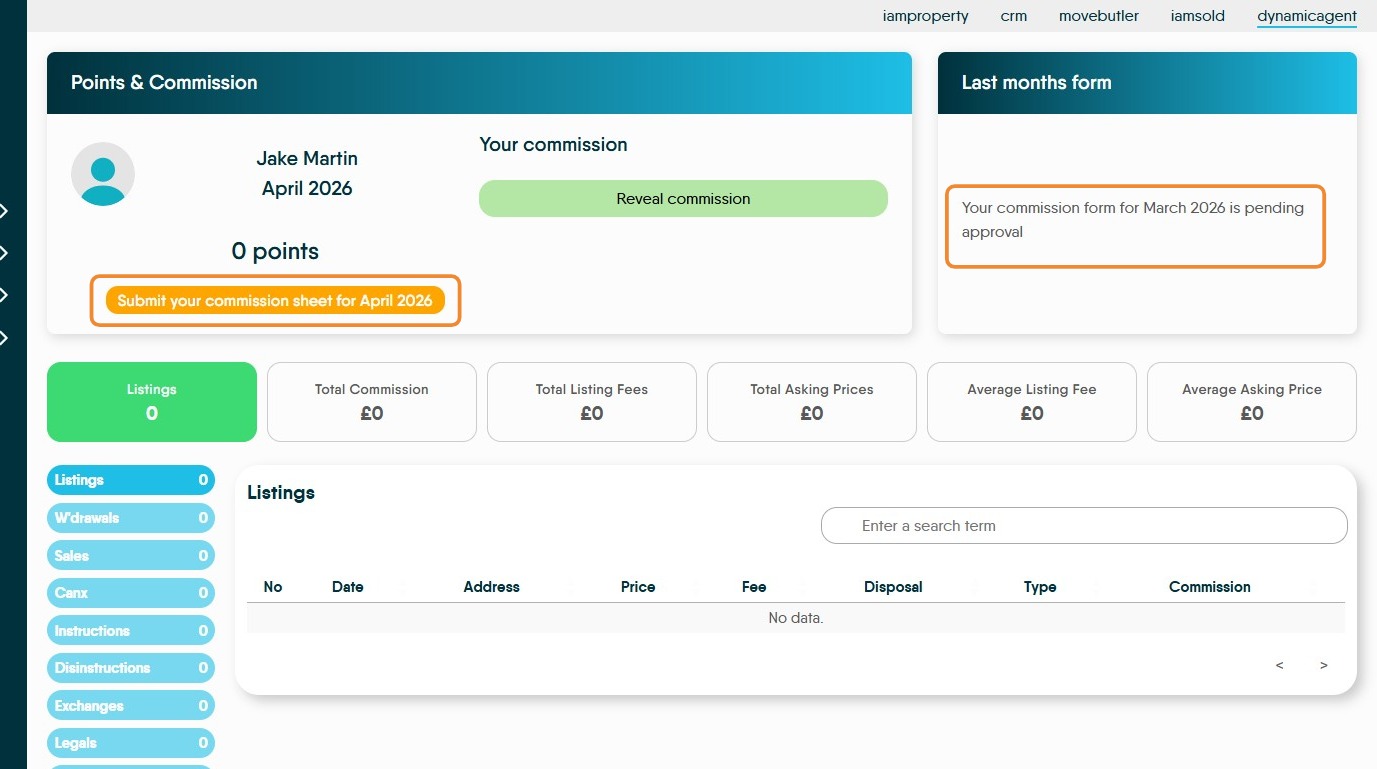
6. Once your last months commission form has been submitted you will see "Your commission form for ......... is pending approval" in the 'Last months form field'.
To submit your current commission payment. Click "Submit your commission sheet for........"
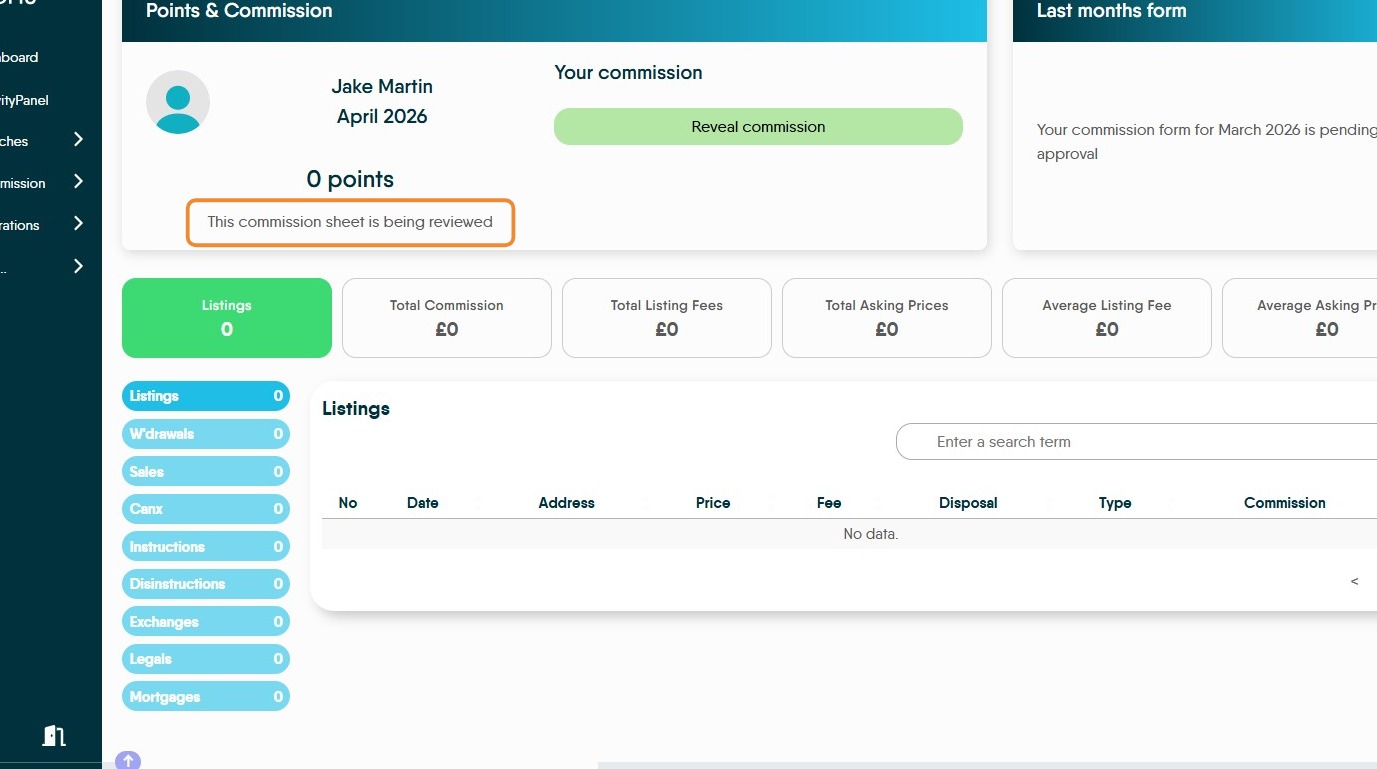
7. Once the form has been submitted this message will show, "This commission sheet is being reviewed"
8. Selecting the options in the (blue) menu will show the different commission amounts that are being earned.
W'drawels, Canx, Disinstruction are (depending on company settings) reductions to commission paid.