Learn how to navigate the iamproperty CRM dashboard to locate and manage Commercial property rent invoicing. This guide provides a simple walk-through to help you effectively invoice your commercial properties. This will allow you to send Rent Invoices to Commercial customers quickly and easily.
Tip: Tip! Rent Invoicing may need enabling before use, instructions are below. Alternatively contact crm.support@iamproperty.com and request it is setup for you.
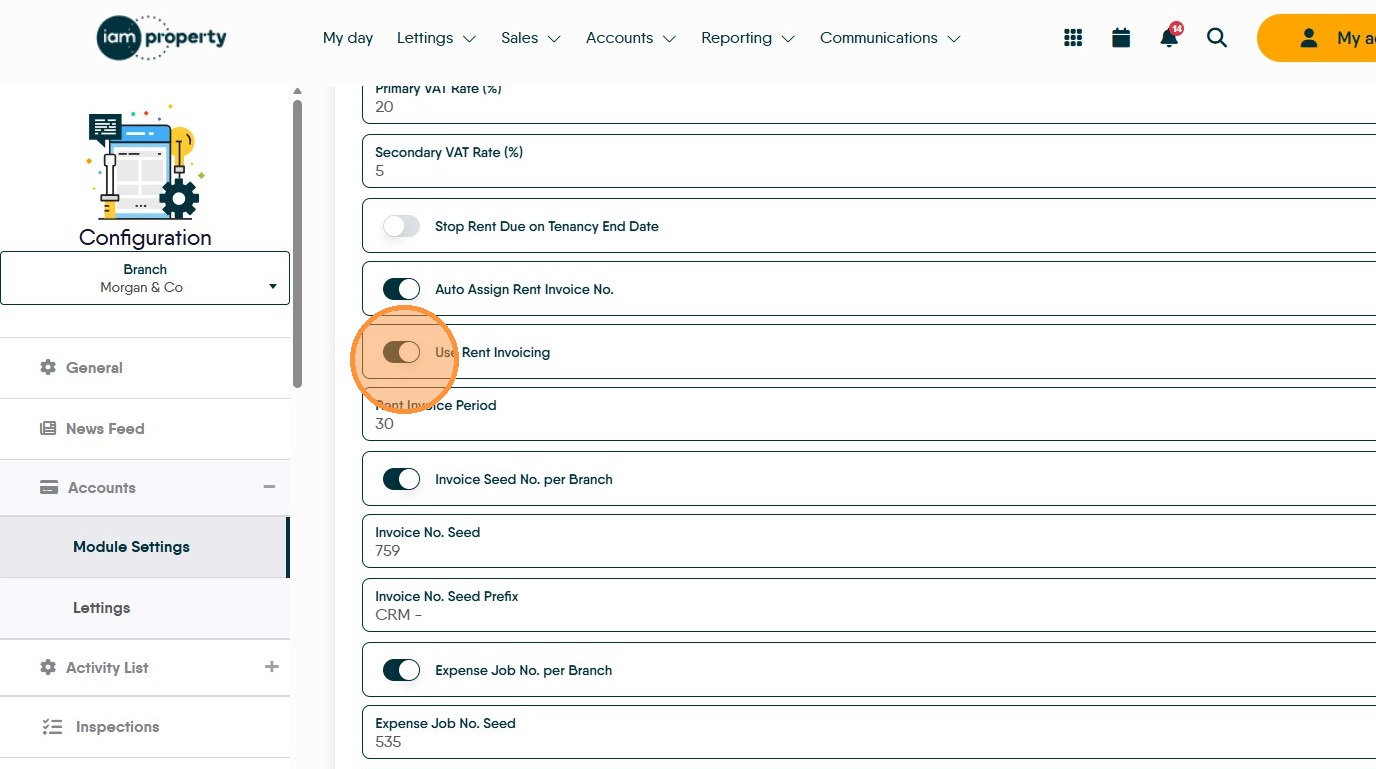
1. To enable Rent Invoicing, navigate to the CRM Accounts configuration menu, this can be accessed from either the 'cog' icon at the bottom left corner of the accounts screen or from the CRM configuration menu in the 'Control Panel'. Either way navigate to the accounts section and select "Use Rent Invoicing"
2. Navigate to https://crm.iamproperty.com/MyDay
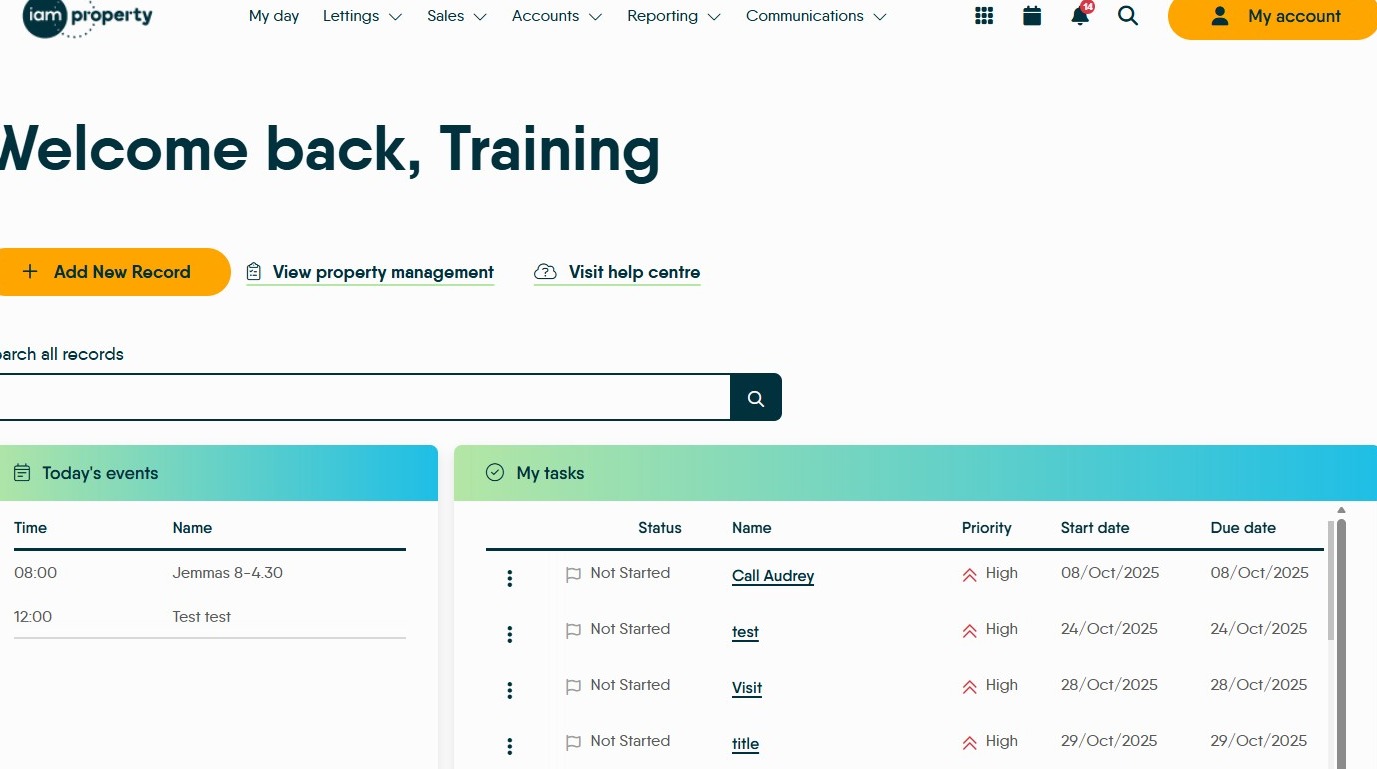
3. From the My Day screen navigate to the property you want to create commercial rent invoices for.
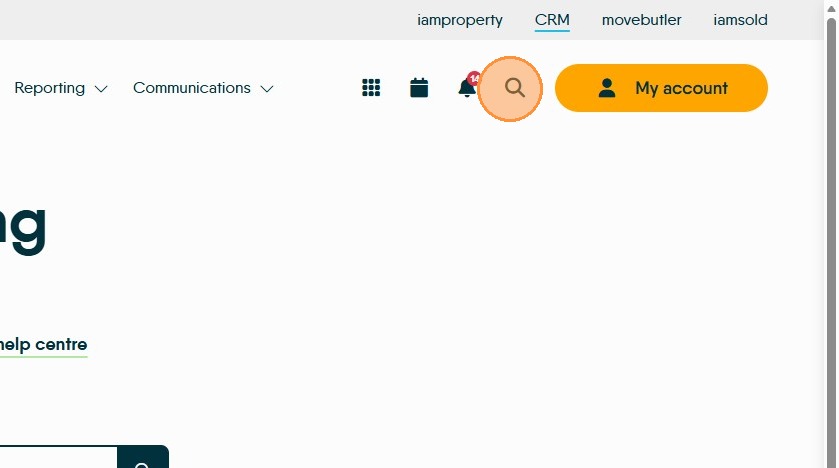
The easiest way is to use the search icon.

4. Once in the Property Record, on the Details screen (the first screen you land on) scroll down to below the property images and select the 'Commercial' toggle to enable the feature for the property.
Then click 'Save'.
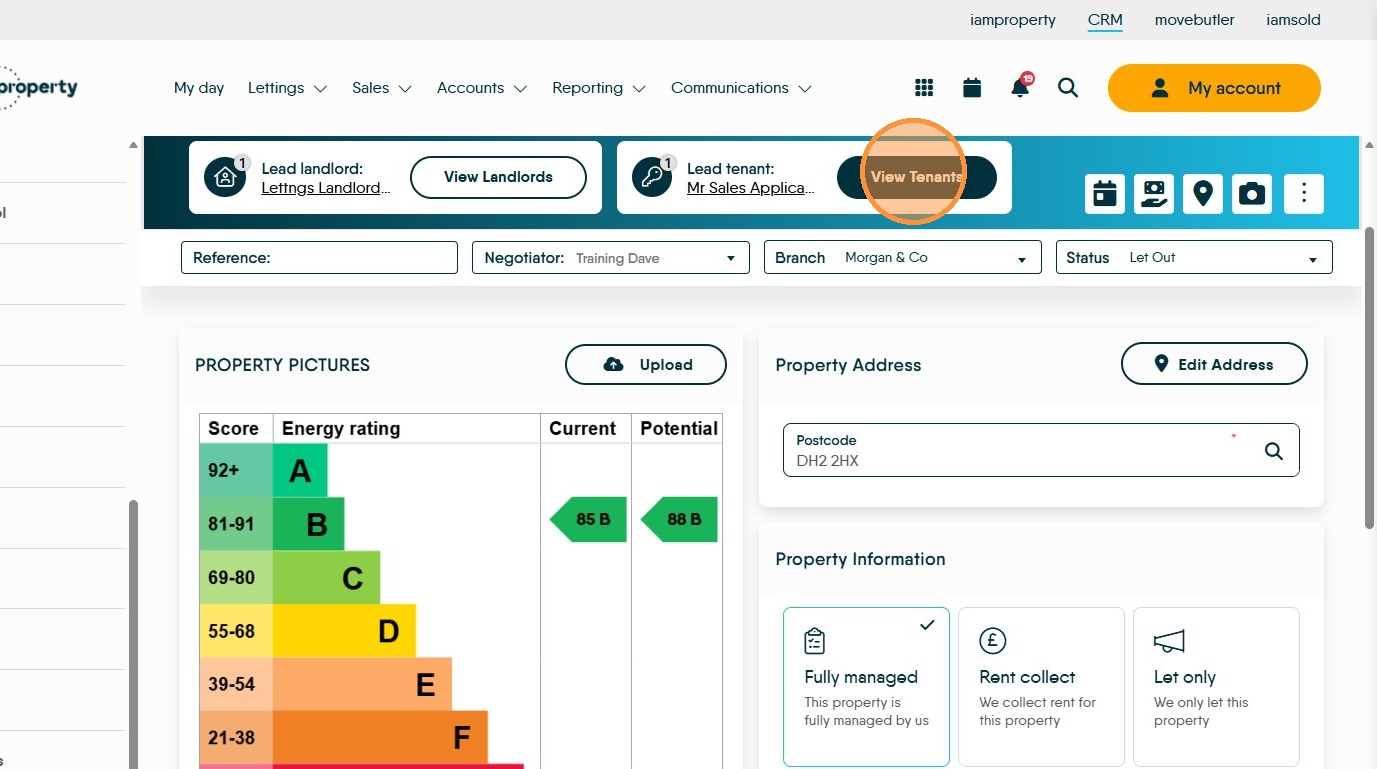
5. Click "View tenants"
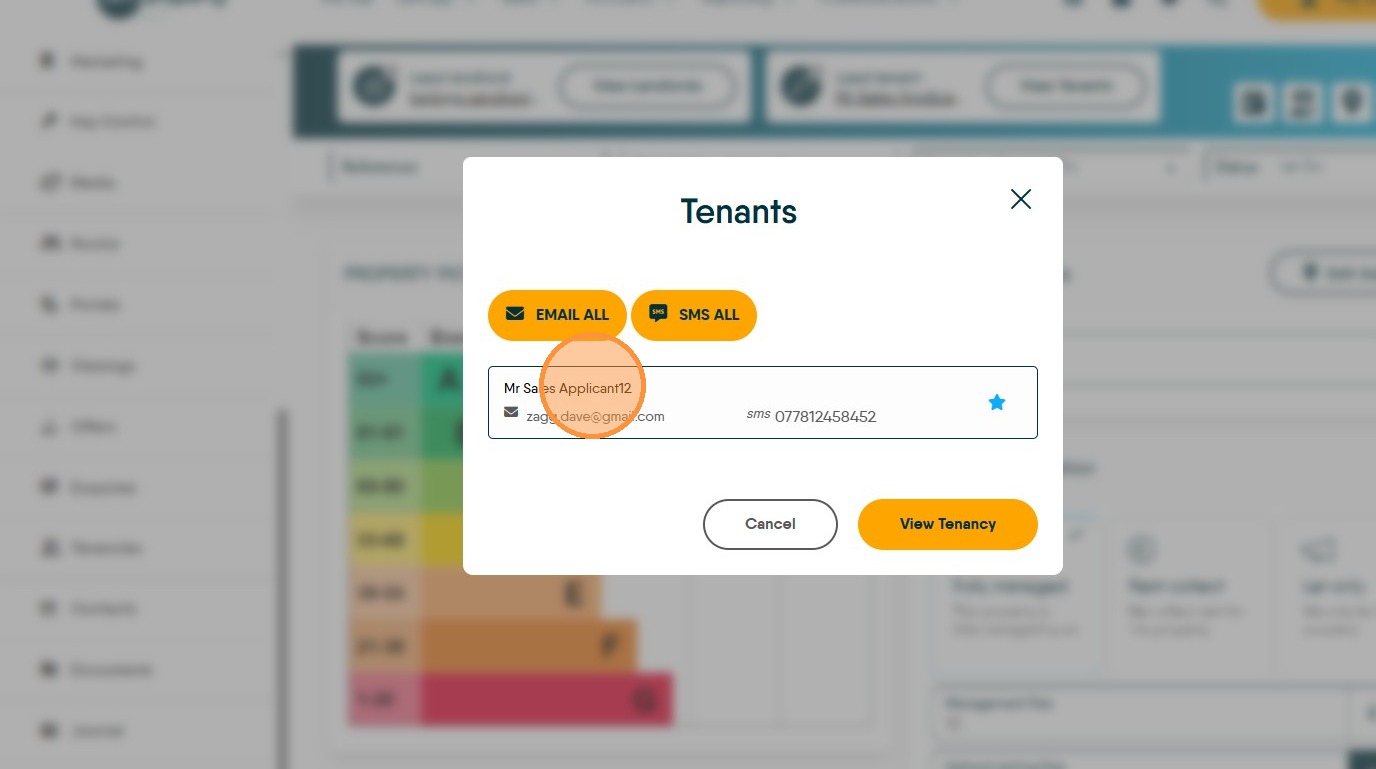
6. Click onto the Tenant name e.g. "Mr Sales Applicant12"
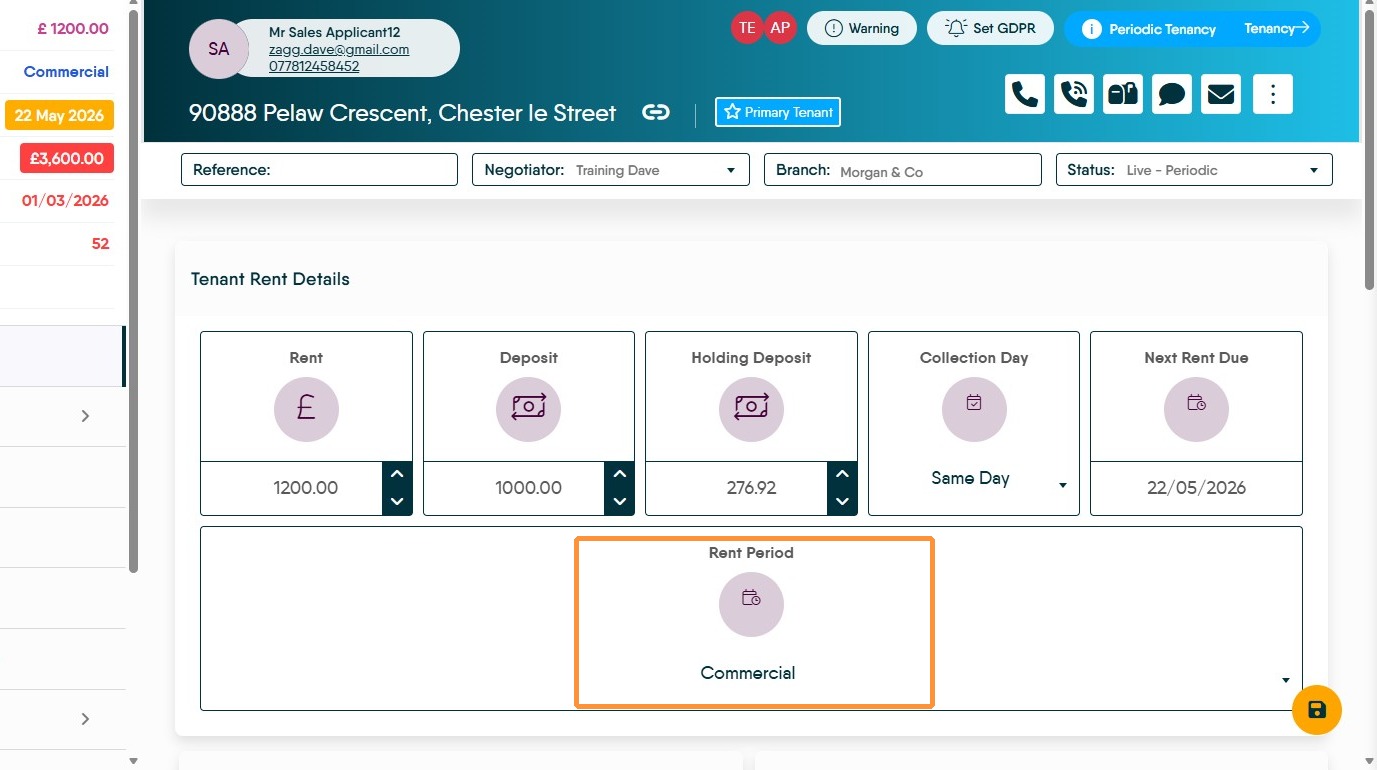
7. In the Rent Period field, click and from the drop down menu select "Commercial"
8. Click onto 'Rent Type' and click "Commercial"
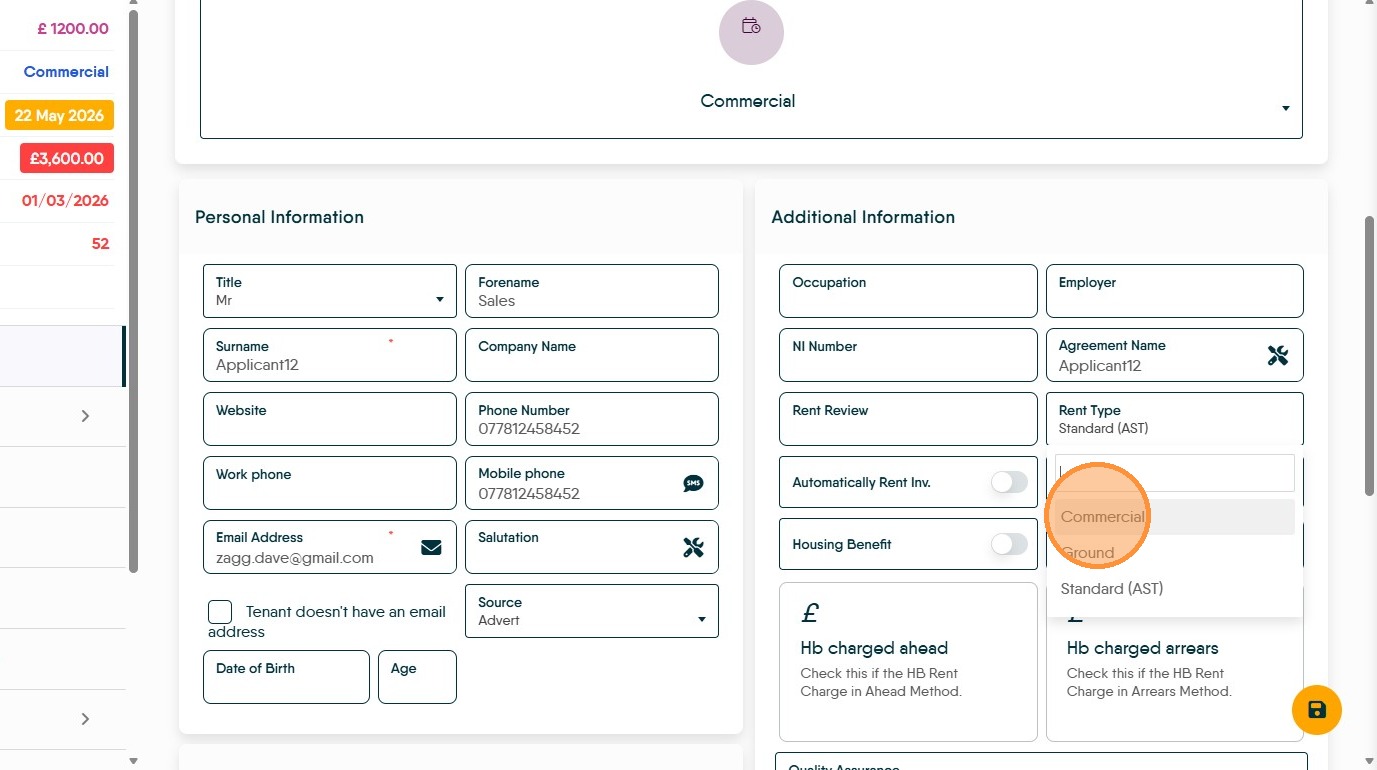
9. Click here to turn on the 'Automatically Rent Invoice' option
Click here to Save.

Creating the Invoice
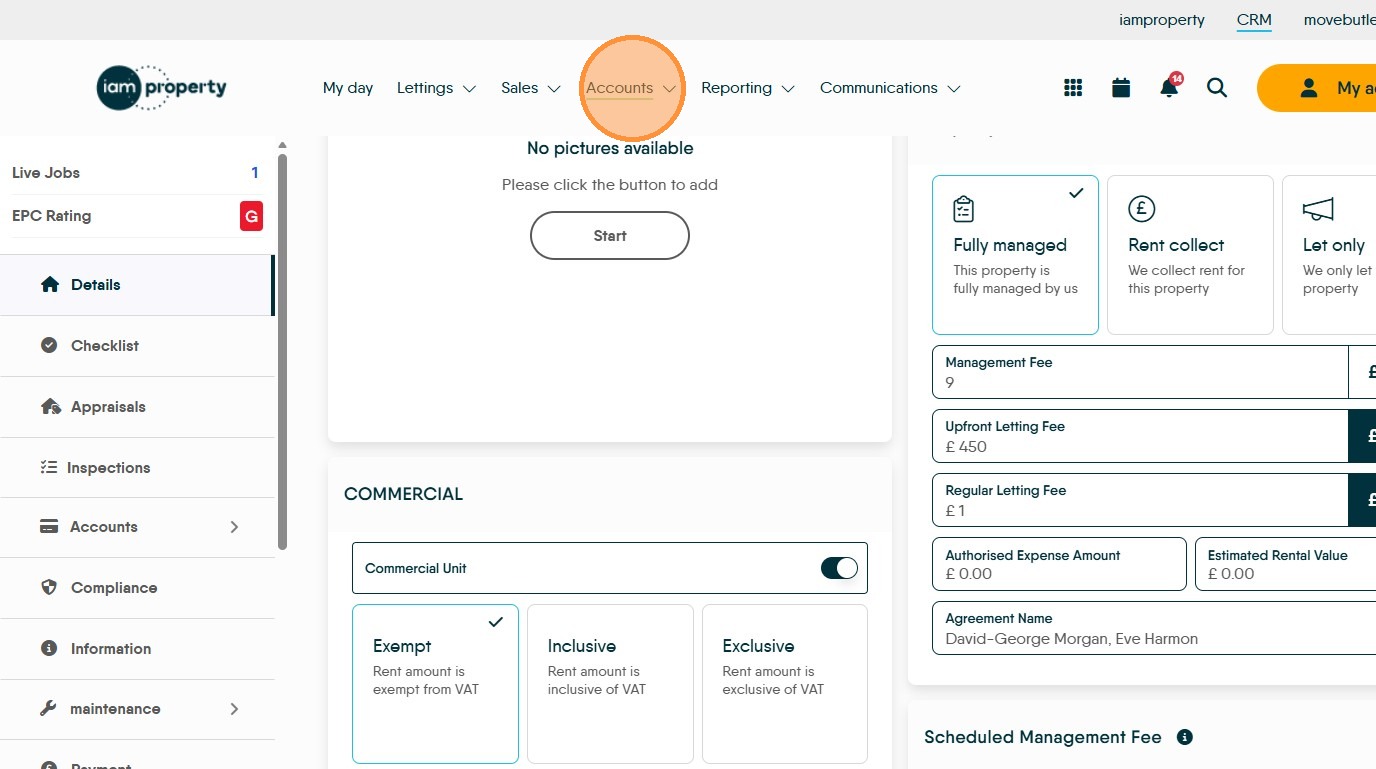
10. Click "Accounts"
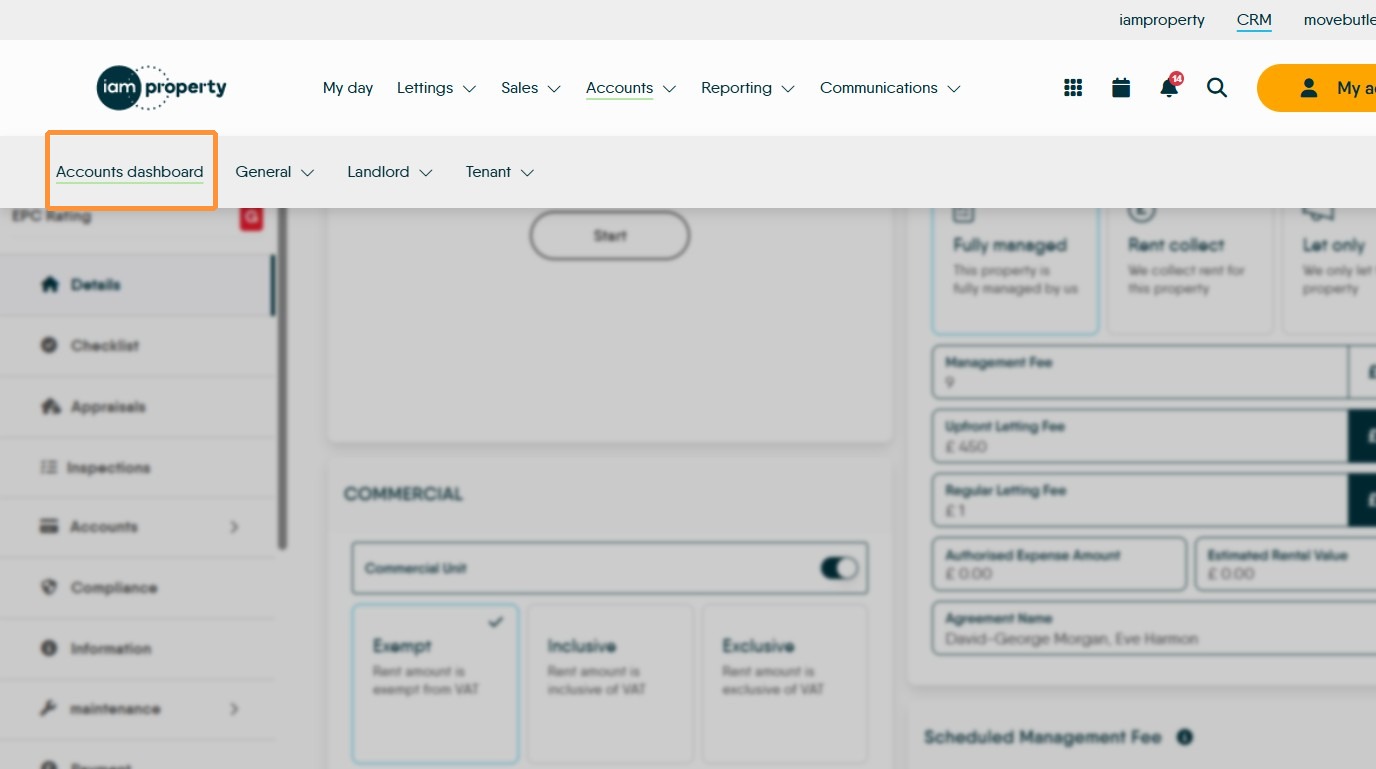
11. Click "Accounts dashboard"
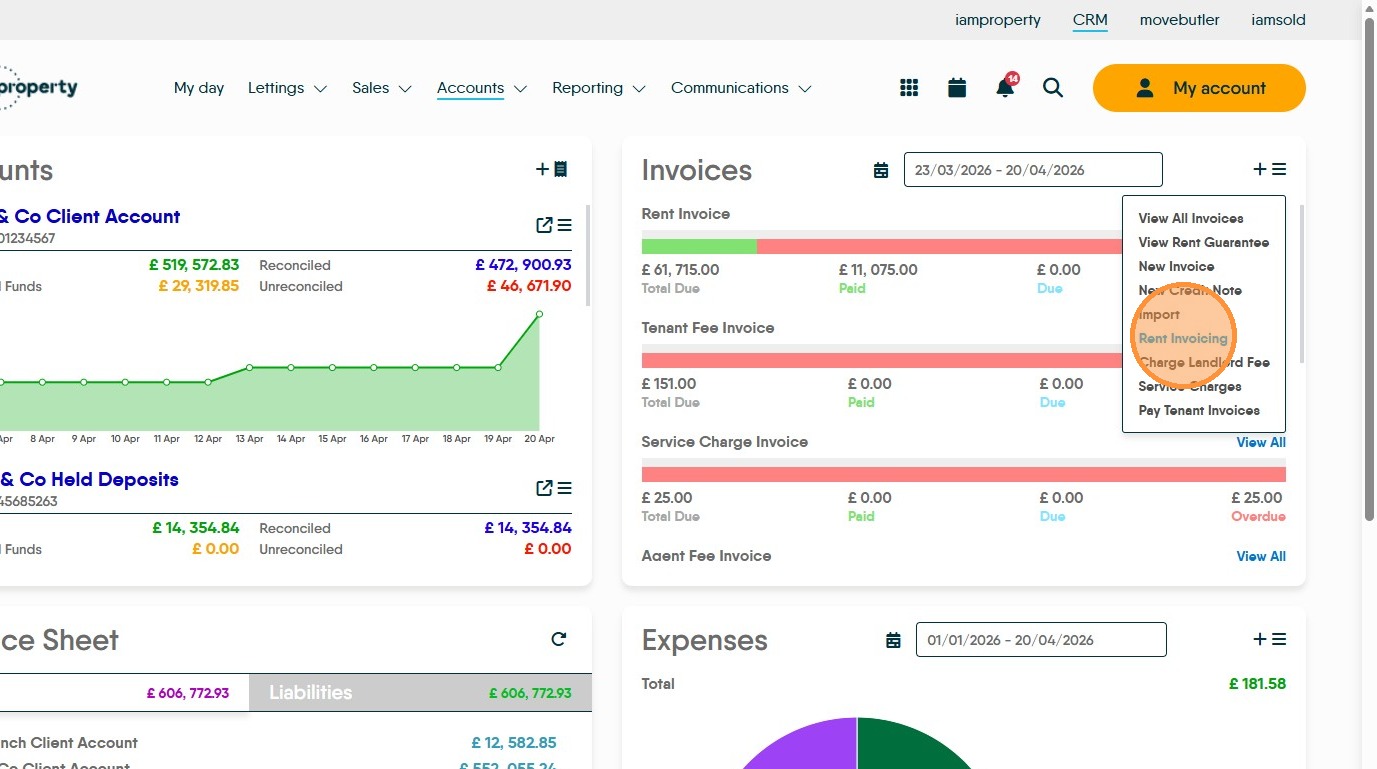
12. On the 'Invoices' tile, click the three line menu.
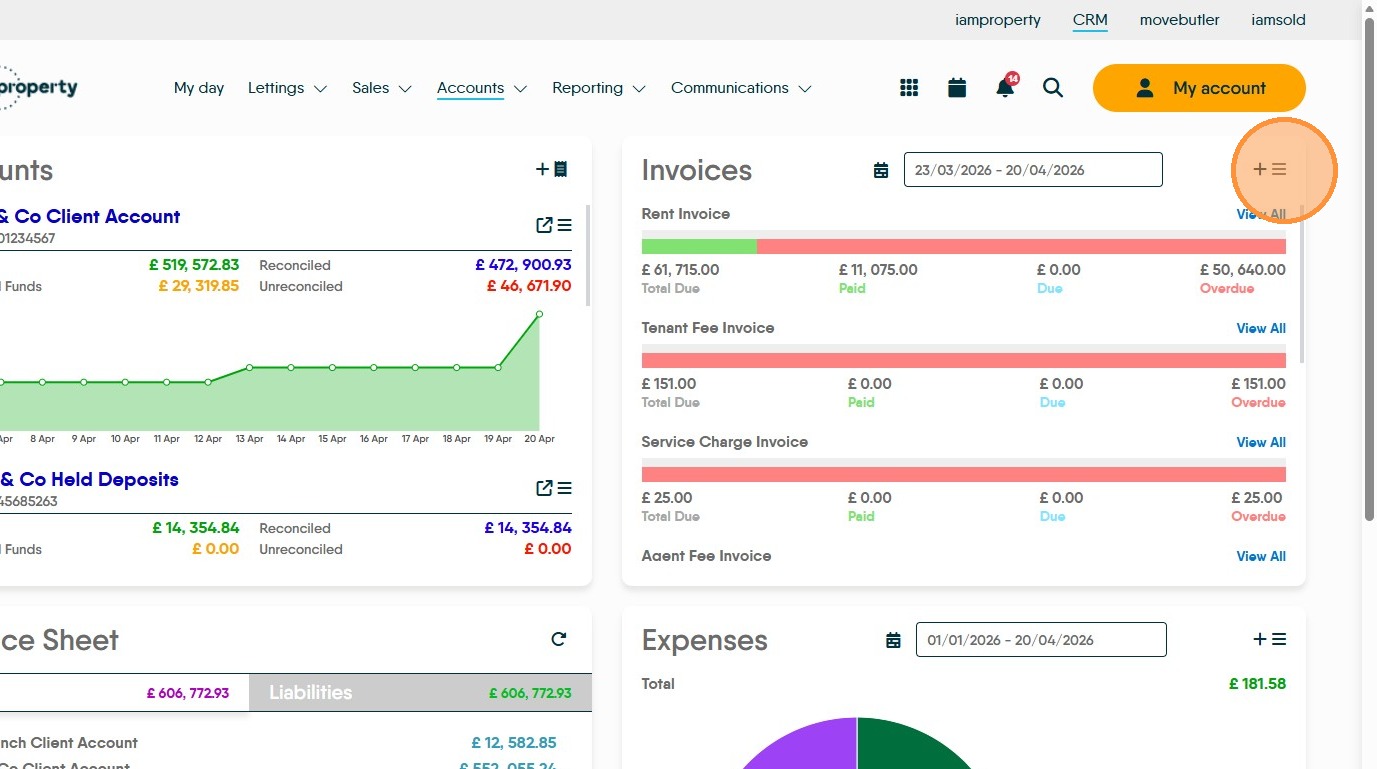
13. Click "Rent Invoicing"
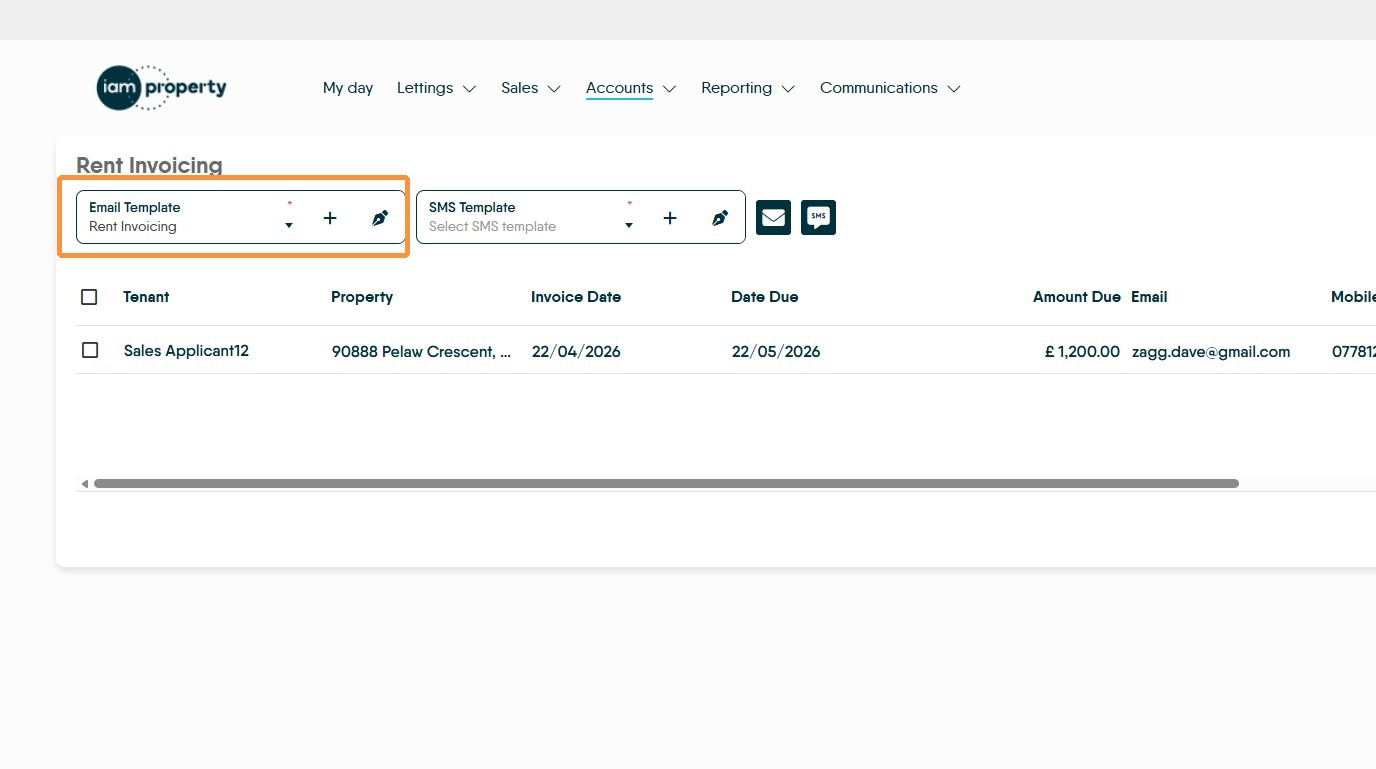
14. Click "Email Templates" and select the template you have created or create new template. If you are sending the invoice via SMS select an SMS template as well.
To learn how to create a template click here

15. The available invoices will show on the screen. You will be able to see if the email has been sent, when and by who.
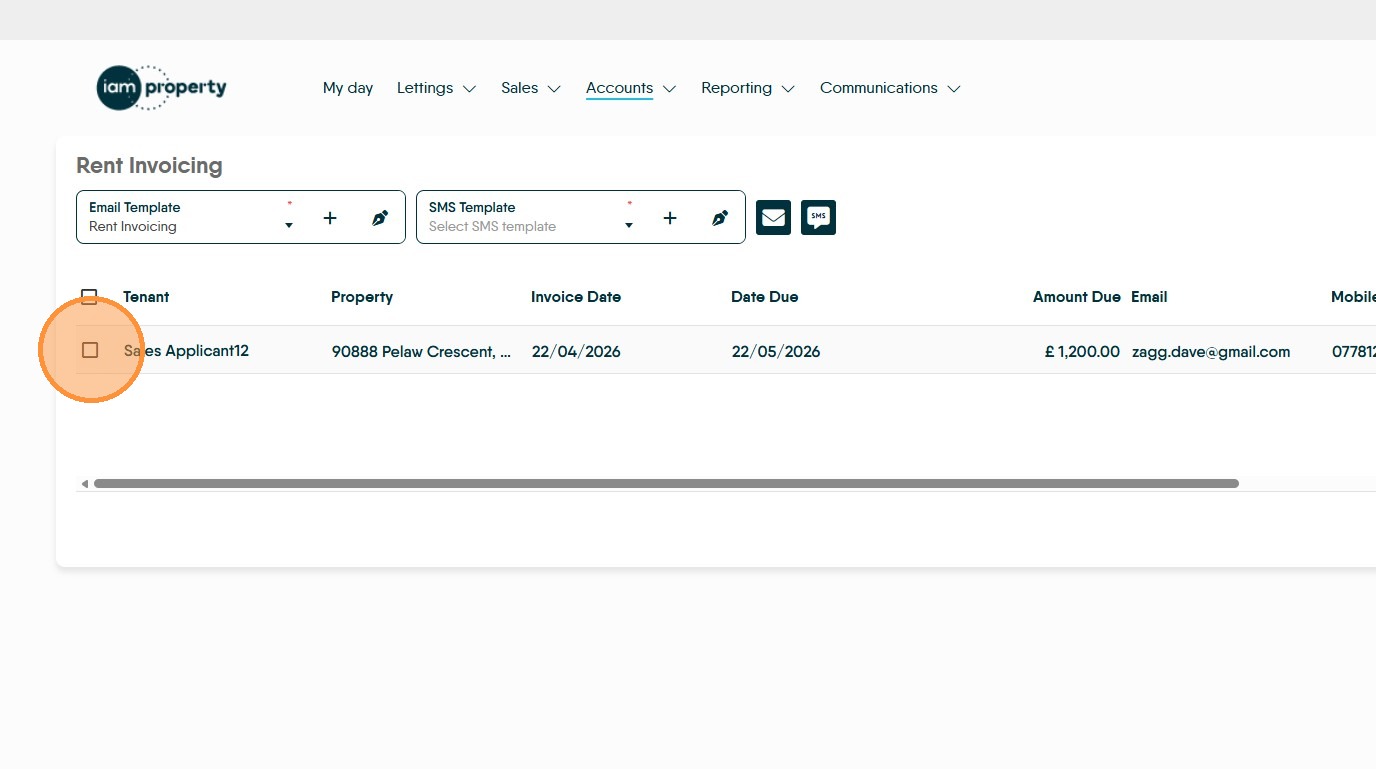
16. Select the invoice(s) you are sending
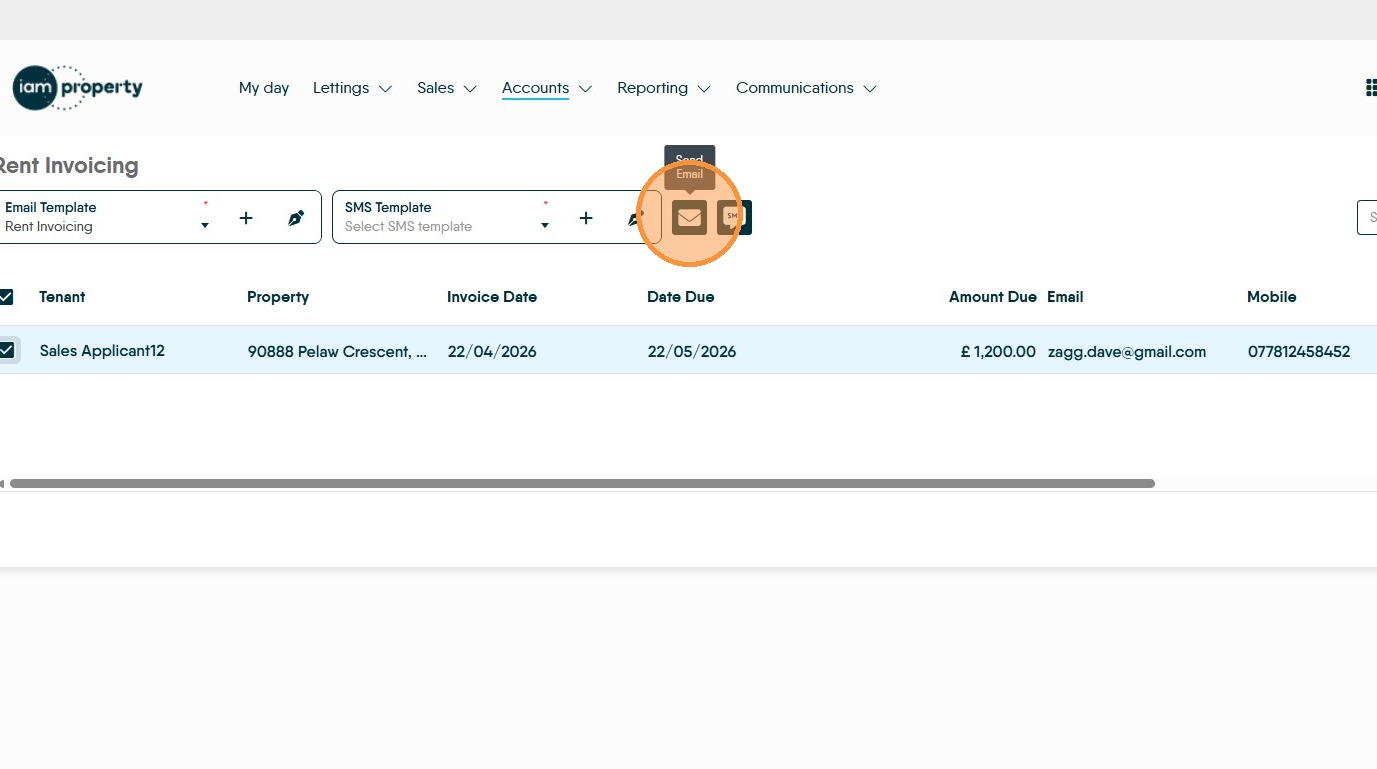
17. Click the 'Send Email' or 'Send SMS' icon.
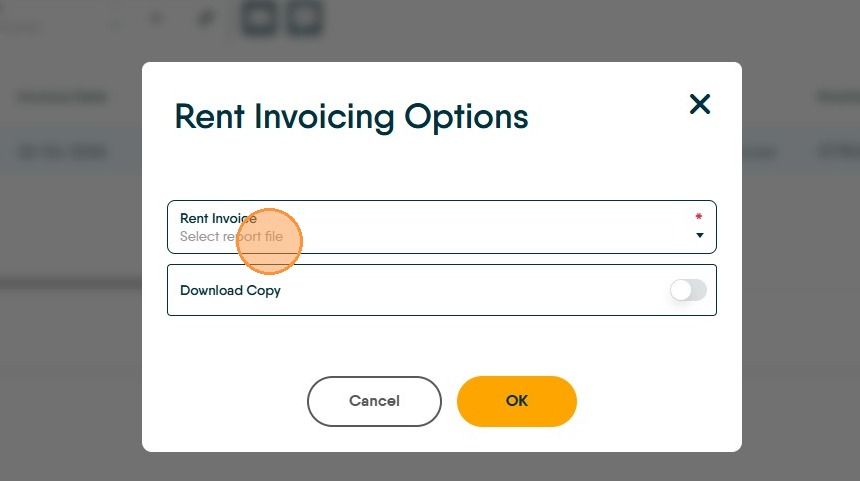
18. From the "Rent Invoice" menu select the type of invoice you are sending.
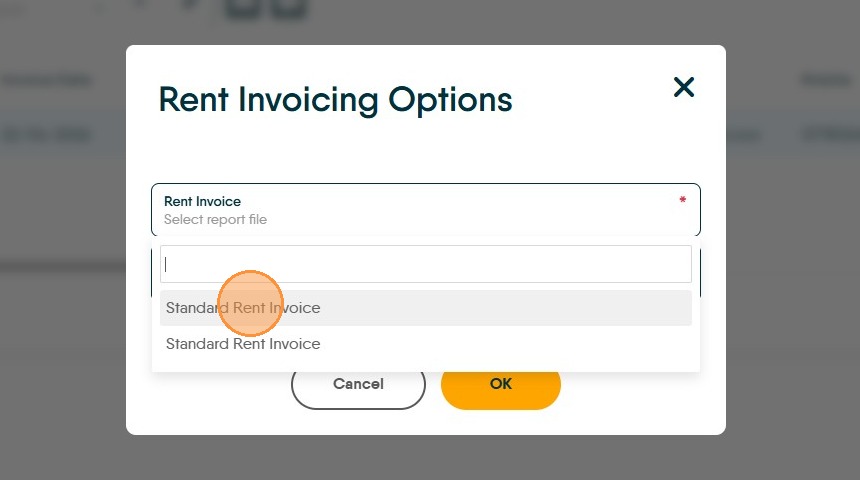
19. The default option added to your account will be "Standard Rent Invoice" if a different invoice style is required please contact support to discuss your requirements.
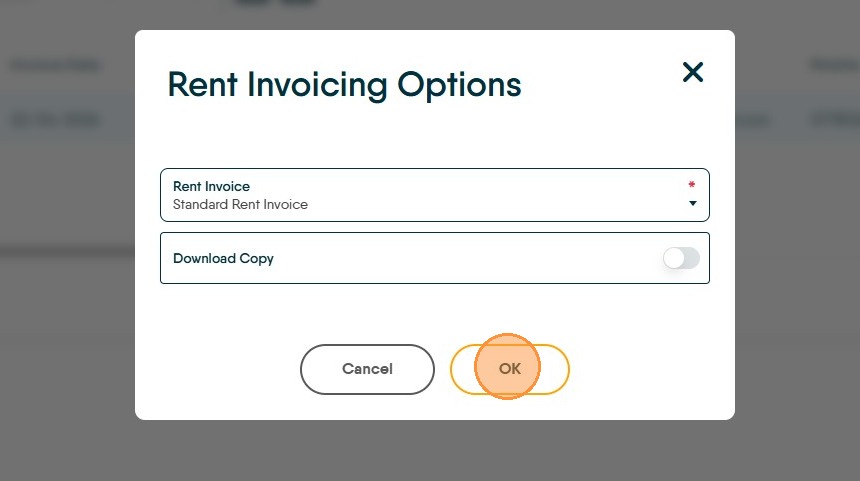
20. Click "OK"
21. You will see a screen indicating how many invoices are being sent and counting down as they are sent.