It you are not using the Mass MOS option in CRM, the process detailed below is how you will send an MOS letter to each individual recipient that needs to be sent the MOS.
1. Navigate to the Property and Offer you are sending the MOS for.

2. Click here , the Generate Letter option

3. Click "Please select a letter"

4. select your letter from the drop down menu

5. Click "Generate"

6. Check the the details of the Vendor and Applicant are correct. Click "Generate"

7. The letter will show on the screen with the merge tags showing. If you want to check the letter before sending click on the 'View Merged Data' icon. Click "Send Email".

8. The letter will be converted to PDF and attached to the email, to view the attachment click the 'paperclip' icon in the email tool bar. The 'eye' icon will allow you to preview the letter.

9. Select who you are sending the letter to from the contacts list. For example, Click "Sales Applicant"

10. Click "Select a Template" if you have templates created they will show in the drop down menu, select the appropriate template. n.b. templates are created by you/your company
In this case we selected Click "Memo of Sale Email"

11. Click the "Subject:" field and add the subject of the email.
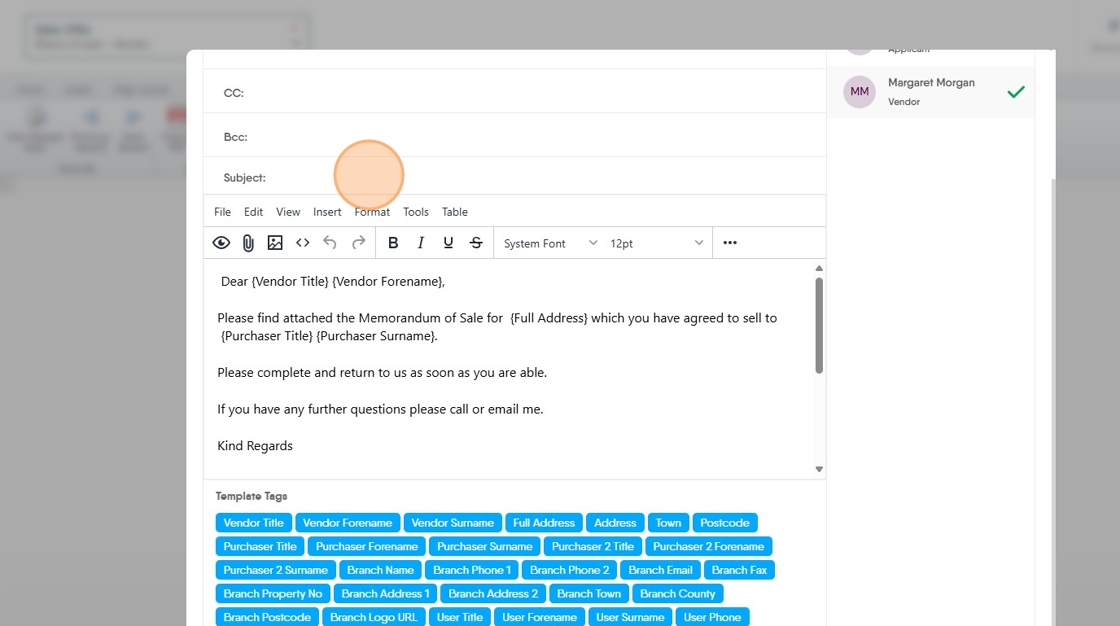
12. Click "Send Email"

Repeat this to send the MOS to all other recipients
14. Click "Memo of Sale - Purchaser"

15. Click "Memo of sale - Vendor"
