This guide provides a step-by-step process for booking property viewings and updating the CRM through the iamsold platform. It ensures that all viewings are accurately recorded and linked to the property, streamlining the management of auction records. By following this guide, users can enhance their efficiency in handling property viewings and maintain clear communication with potential buyers.
Tip: Any viewing added to the property record should be added to the iamsold auction record automatically.
N.B. viewings added to auction DO NOT currently sync back to CRM.
1. Navigate to https://my.iamproperty.com/ias/property
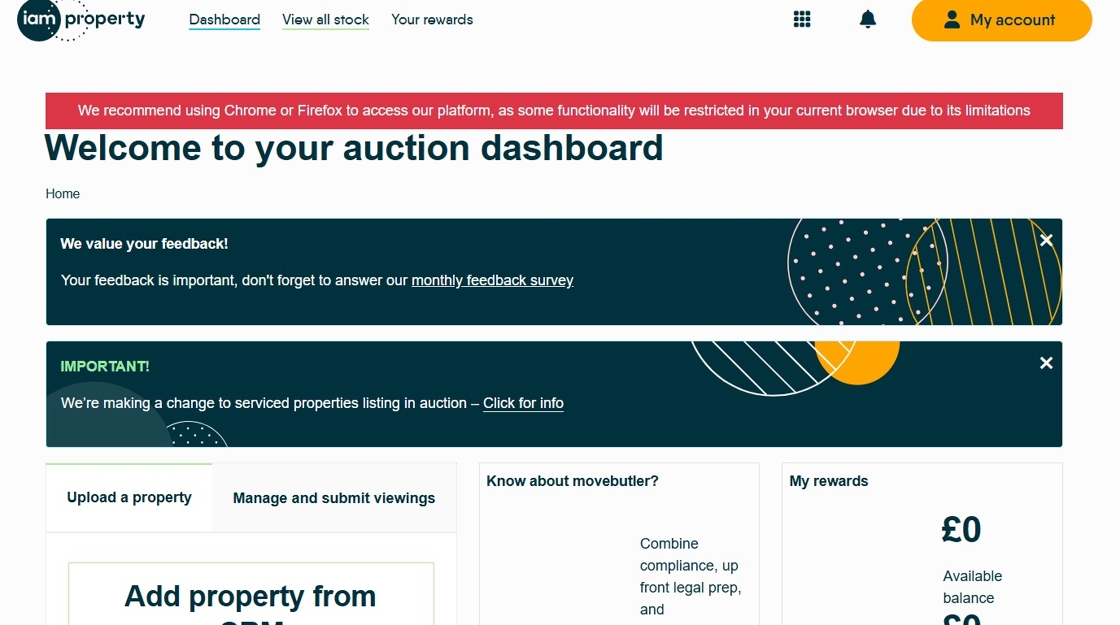
2. Click "View all stock"

3. Click on the property you are creating the viewing for.

4. This field will show if the property is linked to CRM and the property ID, clicking the ID number will take you to the property record in CRM.

5. Click "Submit and manage viewings"

6. Click the "Date *" field and add the viewing date, either use the date picker or overtype the date field.

7. Click the "Time *" field and add the viewing time, either use the date picker or overtype the date field.

8. Add in the Applicant details. Complete these as accurately and completely as possible.

9. Click "Request a pre-viewing call?" if a pre-viewing call to the viewer is required.

10. Click the "That the viewer is aware that their information will be shared with iamsold, and that they are happy for us to contact them in relation to this viewing *" field.

11. Click the "That the viewer is aware that calls to and from iamsold are recorded for training and monitoring purposes *" field.
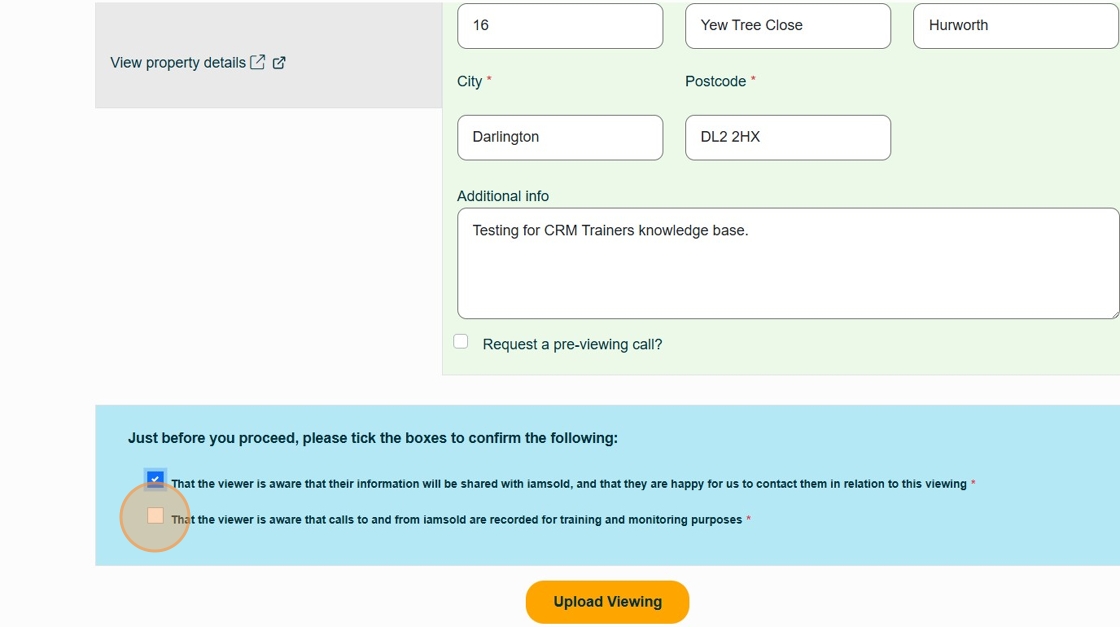
12. Click "Upload Viewing"
