This guide offers essential instructions for efficiently updating property pricing and marketing details, ensuring that both sales and lettings properties are accurately represented. By following the steps, users can set and modify prices in multiple locations, add supporting notes, and manage rental information effectively. This resource is particularly beneficial for real estate professionals seeking to streamline their marketing efforts and maintain accurate financial records.
Adding Sales Property Pricing
Tip: Tip! There are 2 places that the pricing can be set for a Sales property. The Details screen and the Marketing screen. This guide will show both.
Setting Price In Details Screen
1. Navigate to the property you are setting the pricing for
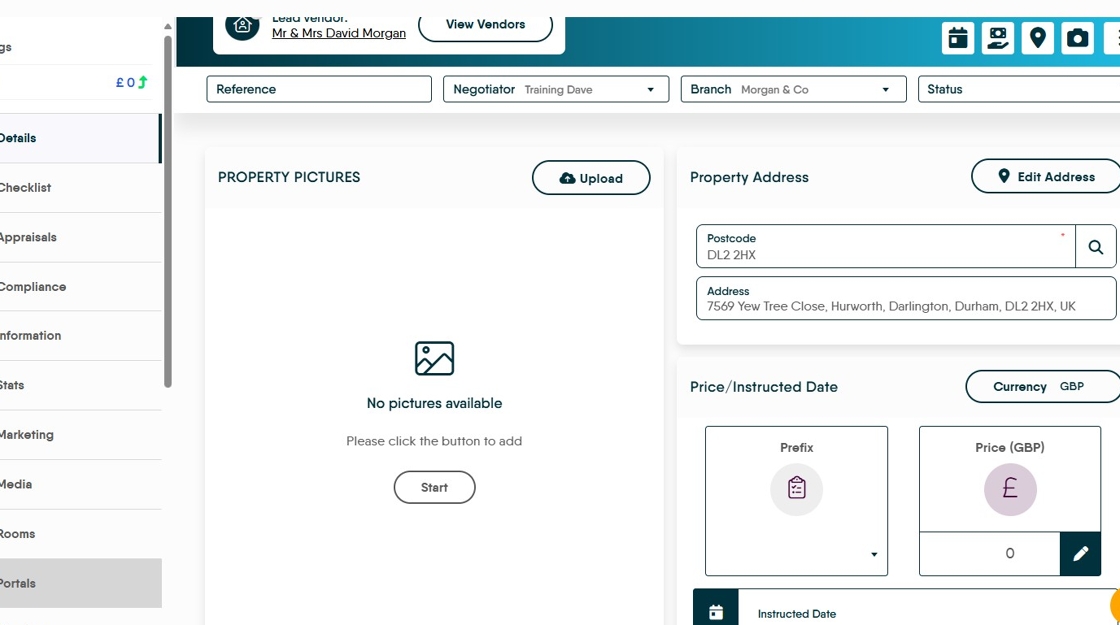
2. Click here.

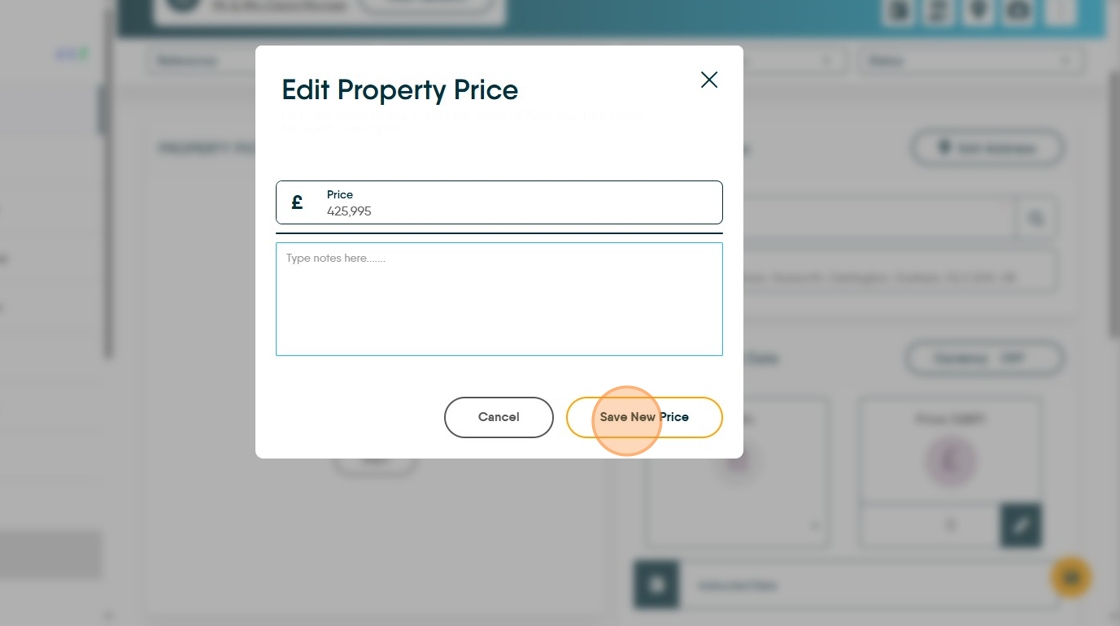
3. Click the "Enter price" field and enter the price.

4. Click the "Type notes here......." field. Add any notes to support the price, reasons for setting that price etc.

5. Click "Save New Price"

6. Click here to set the price prefix in this case we selected "Offers In Excess Of"
Setting Price In Marketing Screen
7. Click "Marketing"

8. In Marketing you can edit the price of the property and edit the Prefix

9. Click this text field and add in the new price

10. The dialogue at the top of this screen will show the price difference and the percentage increase. Click the "Type notes here......." field to add any notes to support the price change.

11. Click "Save New Price"
