This guide provides a step-by-step process for creating a lettings version of a current Sales property in CRM, ensuring a smooth transition from sales to lettings management. By following these instructions, users can efficiently input necessary financial data and manage compliance, checking that all required data is added.
1. Navigate to the property you are adding to the rental portfolio.

2. Click the 3-dot menu.

3. Click "Create Lettings version"

4. Click "Yes"

5. The basic lettings record will now have been created, the Vendor record has also been duplicated here to be the Landlord Record. There are still items to check and update as shown below.
Checking the New Lettings Record
6. Click "View landlords"

7. Click here to check the Landlord details, clicking on the Landlord name will take you to the new Landlord record, where you can view and check all the details added.

8. Click "Cancel"

9. Adding the Management Fees etc
Click to set the Management Type.
Click the "Enter amount" field and add the Management fee in £ or percentage of rent.
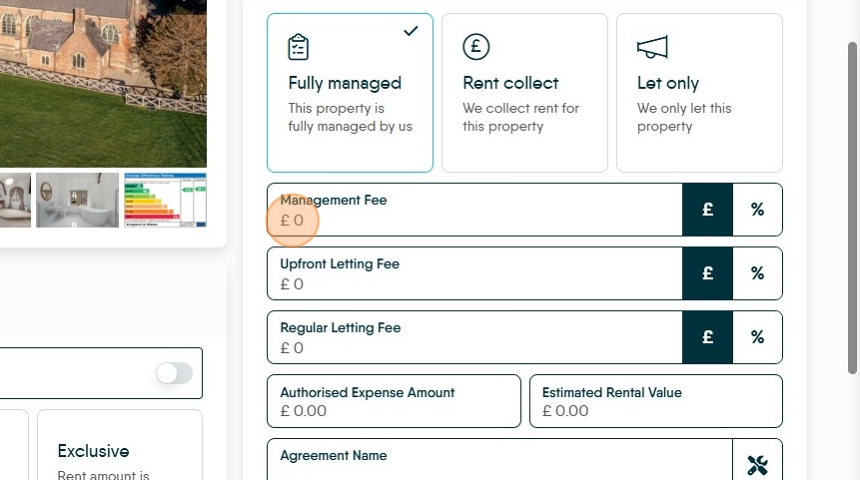
10. Click the "Enter amount" field and add the Upfront Letting fee in £ or percentage of rent. This is charged once only at the start of a new tenancy.

11. Click the "Enter amount" field and add the Regular Letting fee in £ or percentage of rent. This is charged monthly in addition to the rent.

12. If required Click the "Authorised Expense Amount" field.

13. Click here to create the 'Agreement Name', this can be edited as required.

14. Click "Compliance"

15. Compliance Click here and add or update any compliance information that is required for rental properties.

16. Click "Information"

17. Property Information This section allows various pieces of information to be collected about the property that may be of use to a tenant. This information (excluding 'Mortgage') is also shown in the Tenant Portal.

18. Click "Payment"

19. Payment Click here and update the back details for the Landlord, this allows electronic payments to be created from CRM.
Also if a float is to be created it can be added here, also if fixed payments are made to the Landlord these can be set also.

20. Click "Marketing"

21. Property Marketing Click here to set the rental amount

22. Click here to set the deposit.

23. Property Advertising Scroll down to this section and add the advertising data for the Property.
Set the Advertising address by clicking on the tool icon. Set the Advertising status and if your landlord allows Pets or Smokers.

24. Matching Property in this section set the property lease details, Property type and any other options you have available.
All these options impact Property Matching, items set in here will be matched to Applicant records to find accurate matches for properties.

25. Descriptions the property descriptions will show here as will any Key Features added in the previous record. These need to be checked for accuracy and remove any reaction to Sales.
