Learn how to efficiently manage tenancy details by removing existing tenants and adding new applicants to your records. This guide provides a step-by-step walkthrough for updating tenant information within the CRM platform.
Alert: If there is only 1 Tenant in the property, the Tenancy should be terminated from the 3 dot menu in the Tenancy screen and a new tenancy started fresh. The following process should only be used if there are multiple tenants in a tenancy and some are moving out.
Tip: Tip! If you are creating a new Tenancy for an existing tenant that is moving from one property to another, it is best practice to create new applicant record and tenant. This gives the 'new' applicant a different ID number in CRM and reduces the risk of data being confused and mixed when rents are being collected.
1. Navigate to the Tenancy you are managing. In the Left menu select "Tenants" and you will see the tenants in the property.
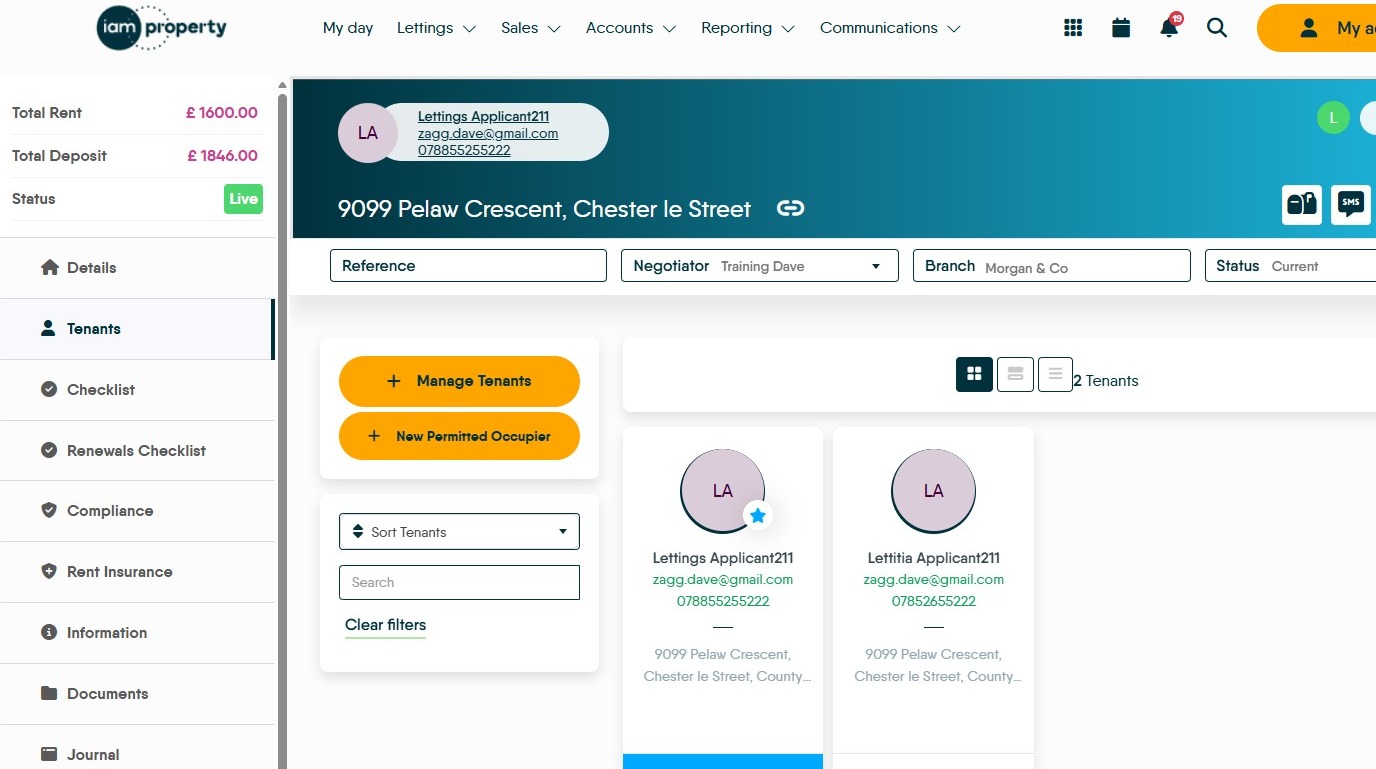
Alert! If the Tenant you are removing is the primary tenant i.e. has the 'blue' star next to the name. The Primary tenancy needs to be moved to the existing tenant.
2. Changing the Primary Tenant flag.
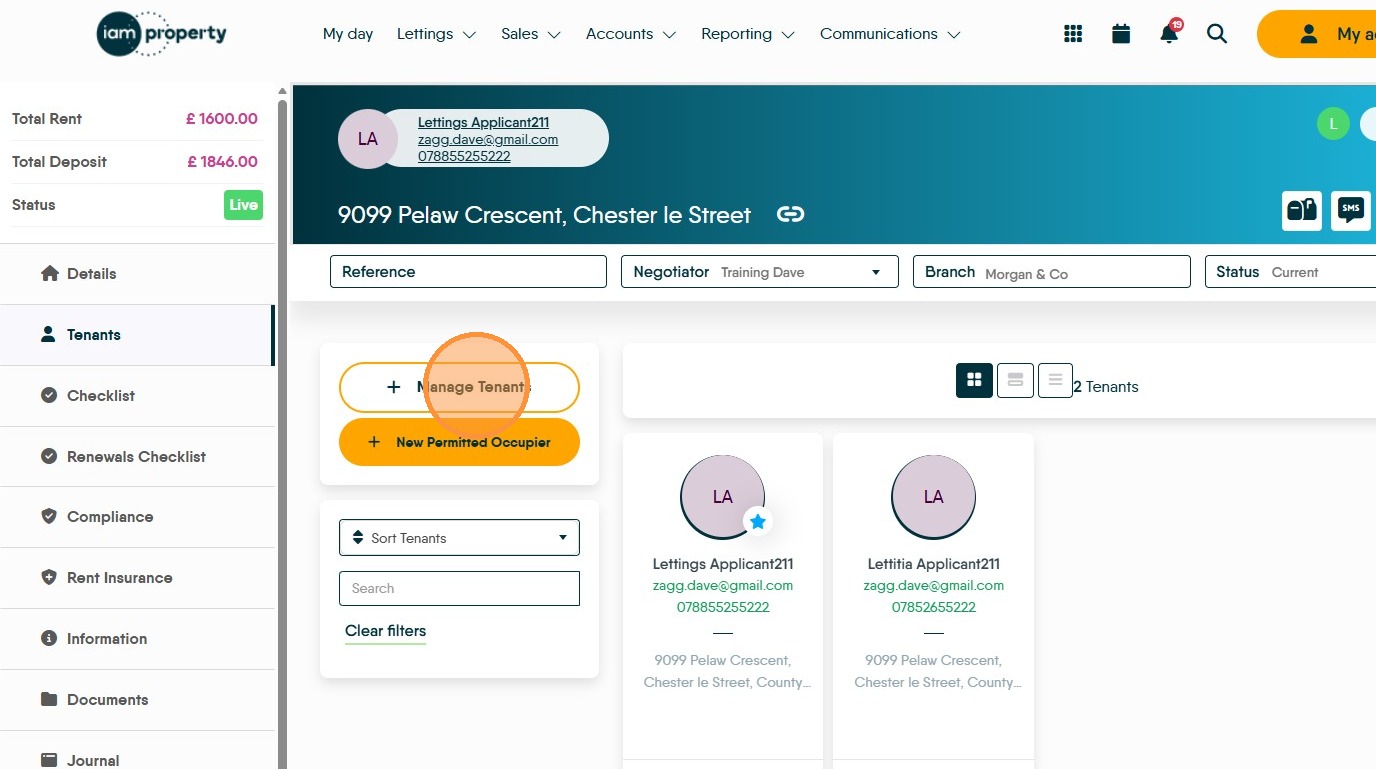
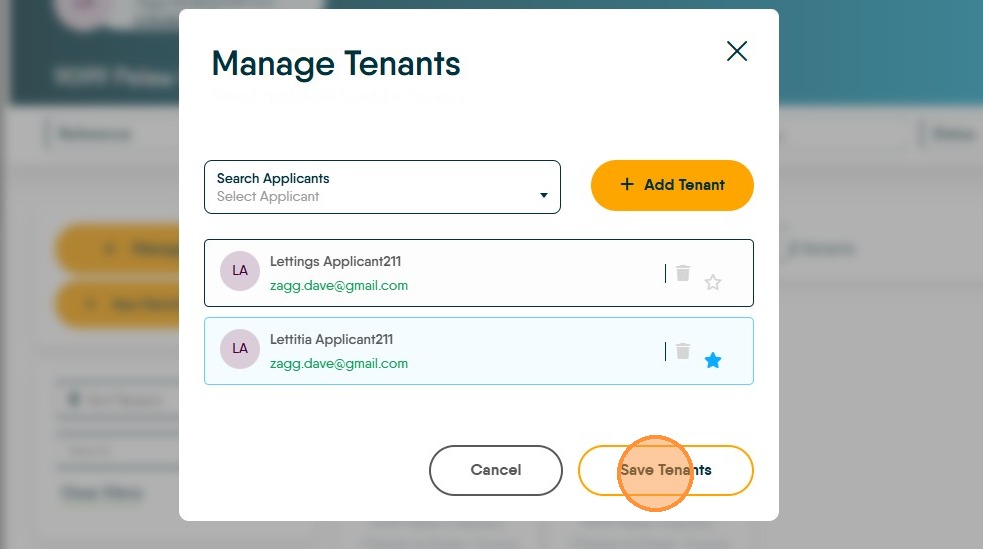
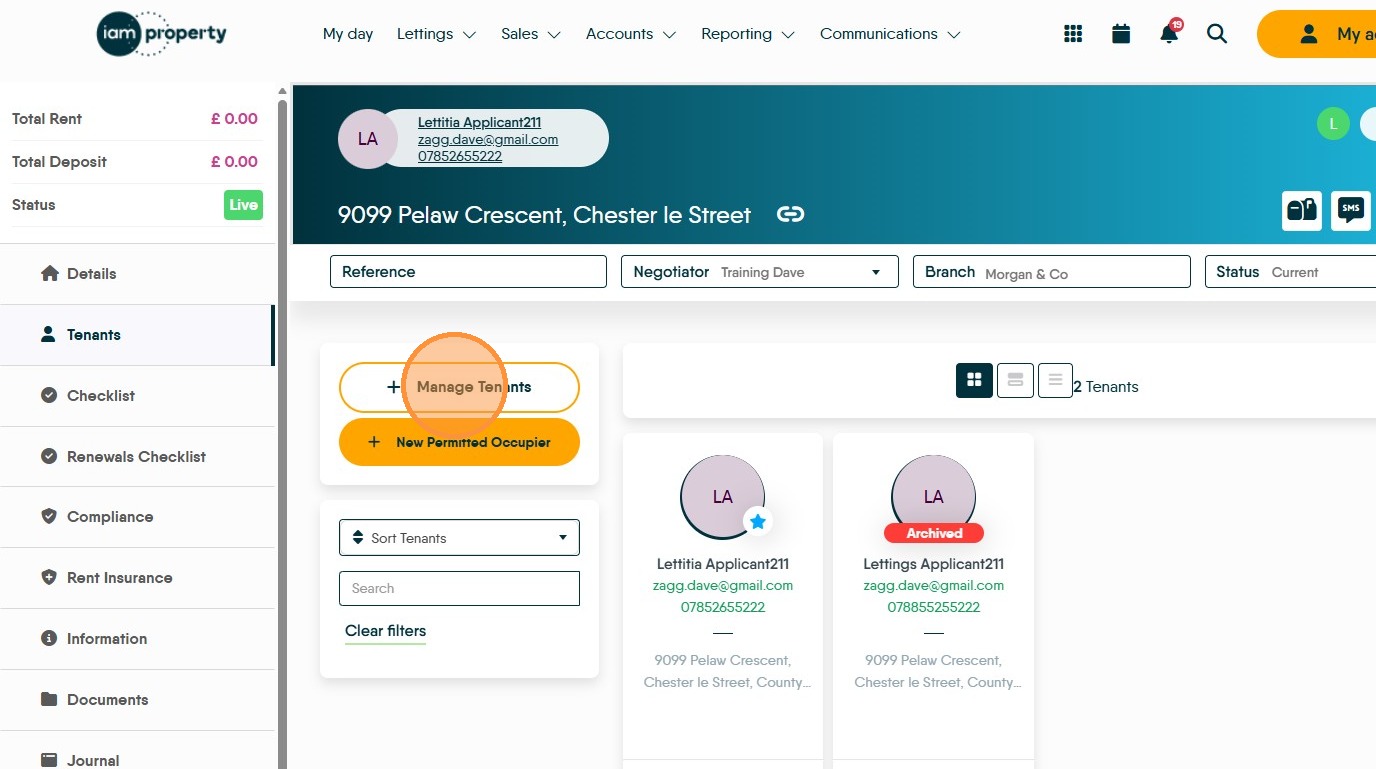
3. Click "Manage Tenants"
4. Click on the 'empty' star next to the Tenant who is taking over as the Primary tenant. This will turn blue to show the transfer has been done.
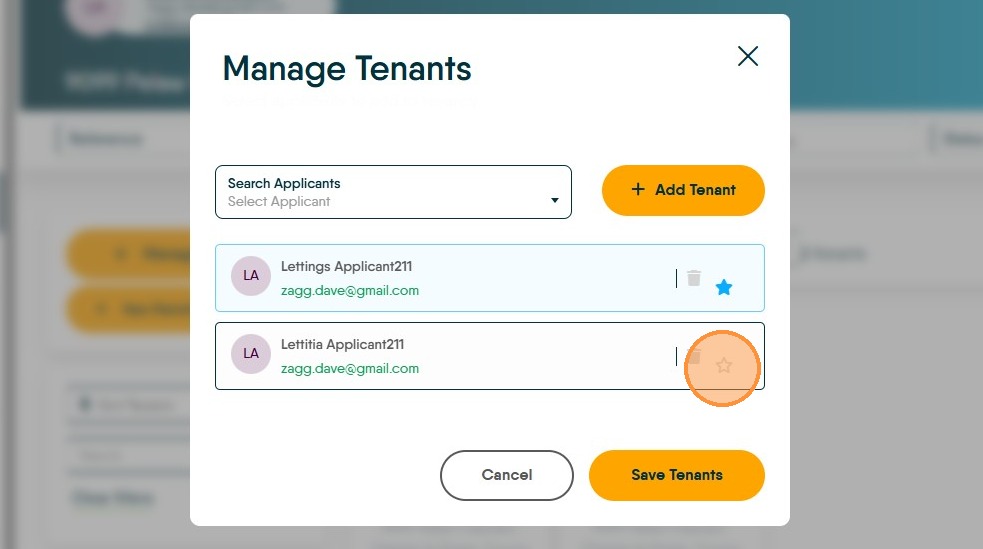
5. Click "Save Tenants" this will return you to the Tenancy screen.
6. Removing the Tenant from the Tenancy
7. On the Tenant that is leaving the tenancy. Click "View Tenant" this will take you to the Tenant record
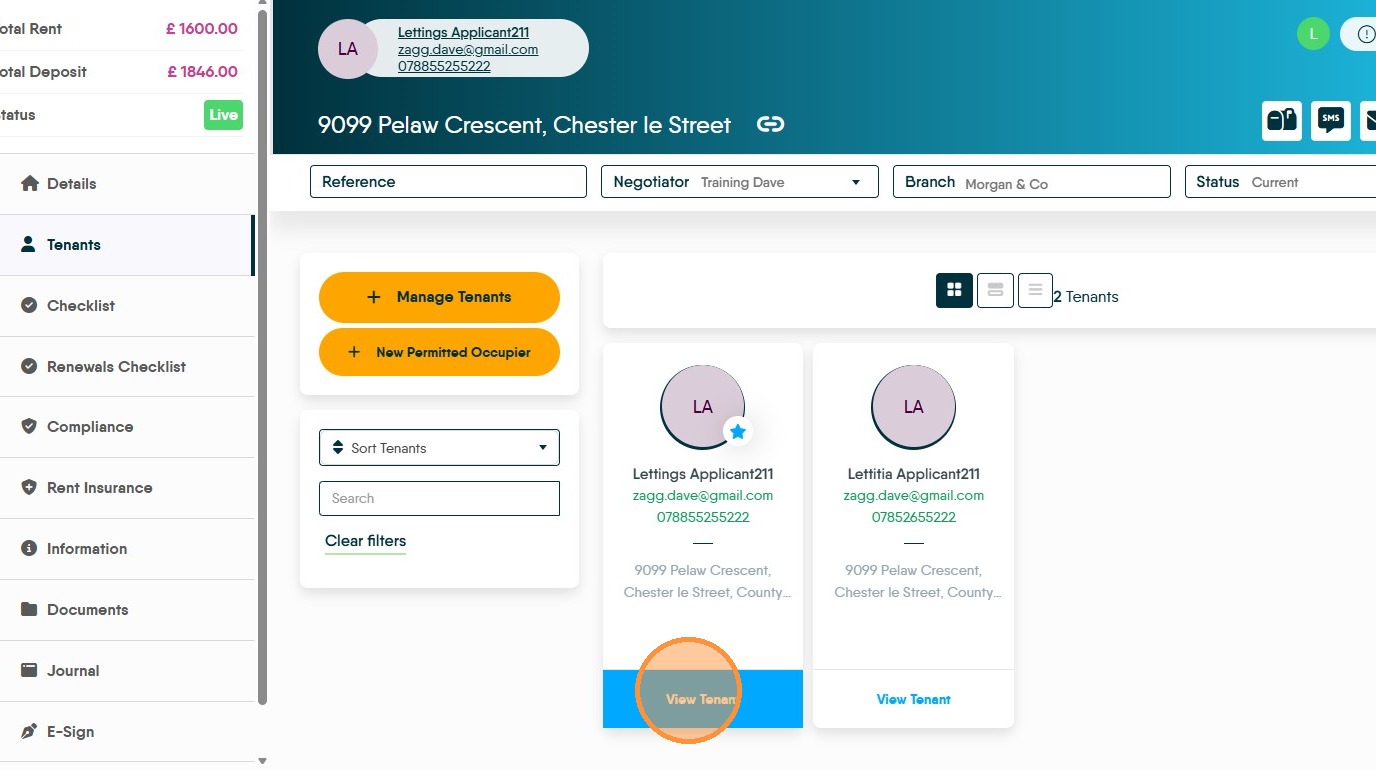
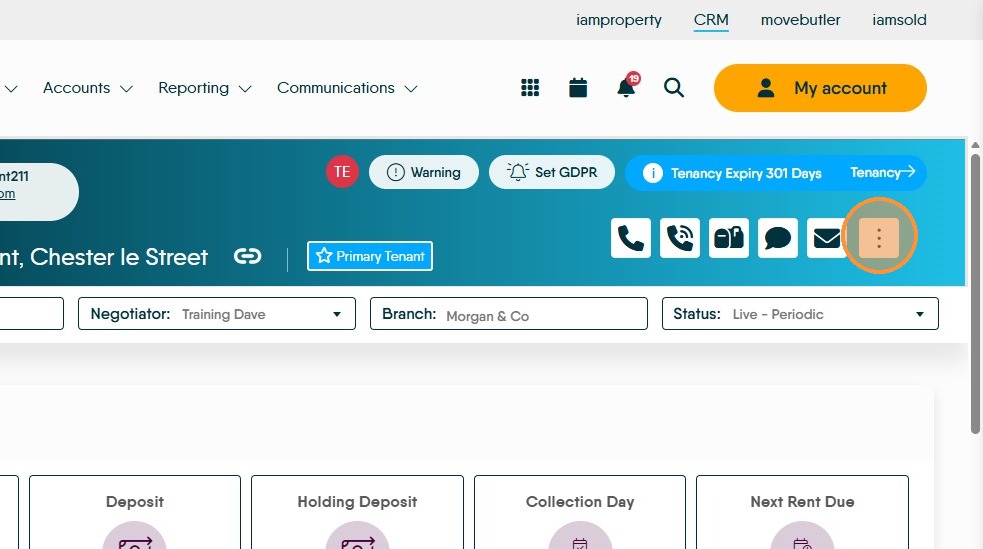
8. In the Tenant Record. Click here.
9. From the menu click "Remove From Tenancy"
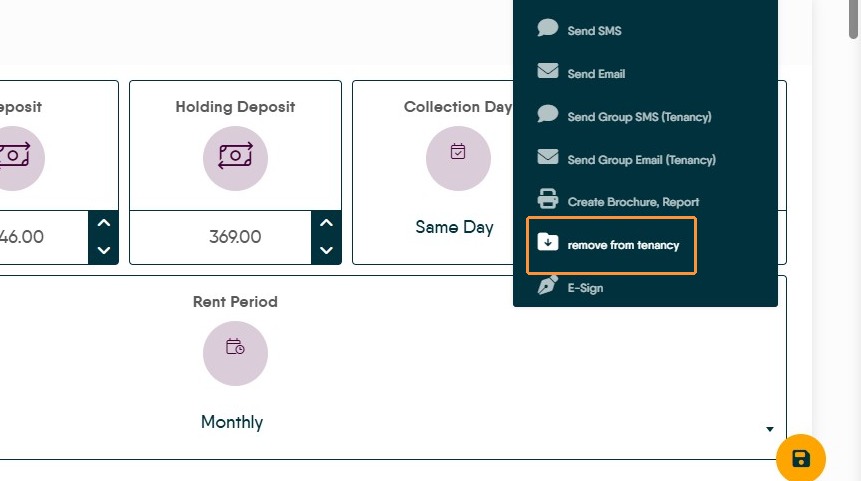
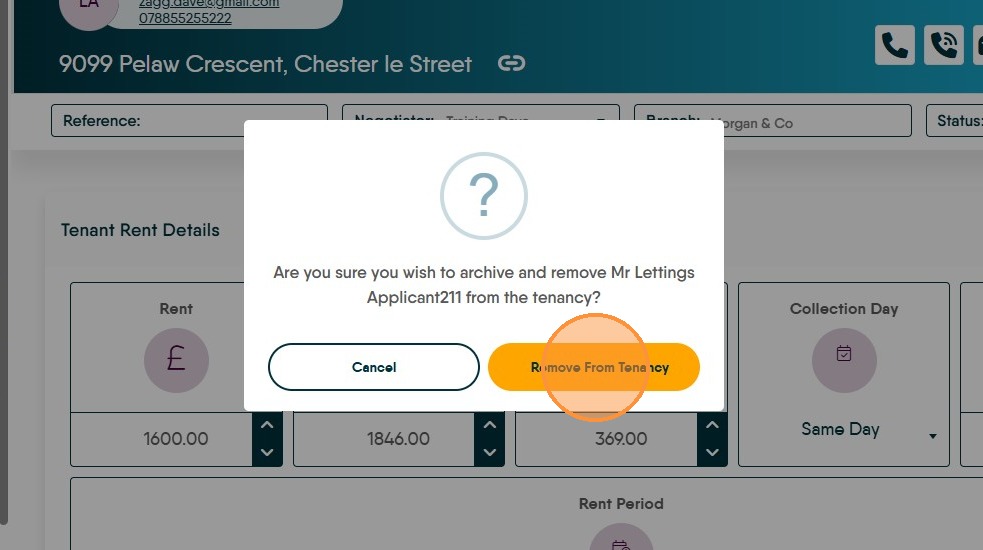
10. Click "Remove From Tenancy"
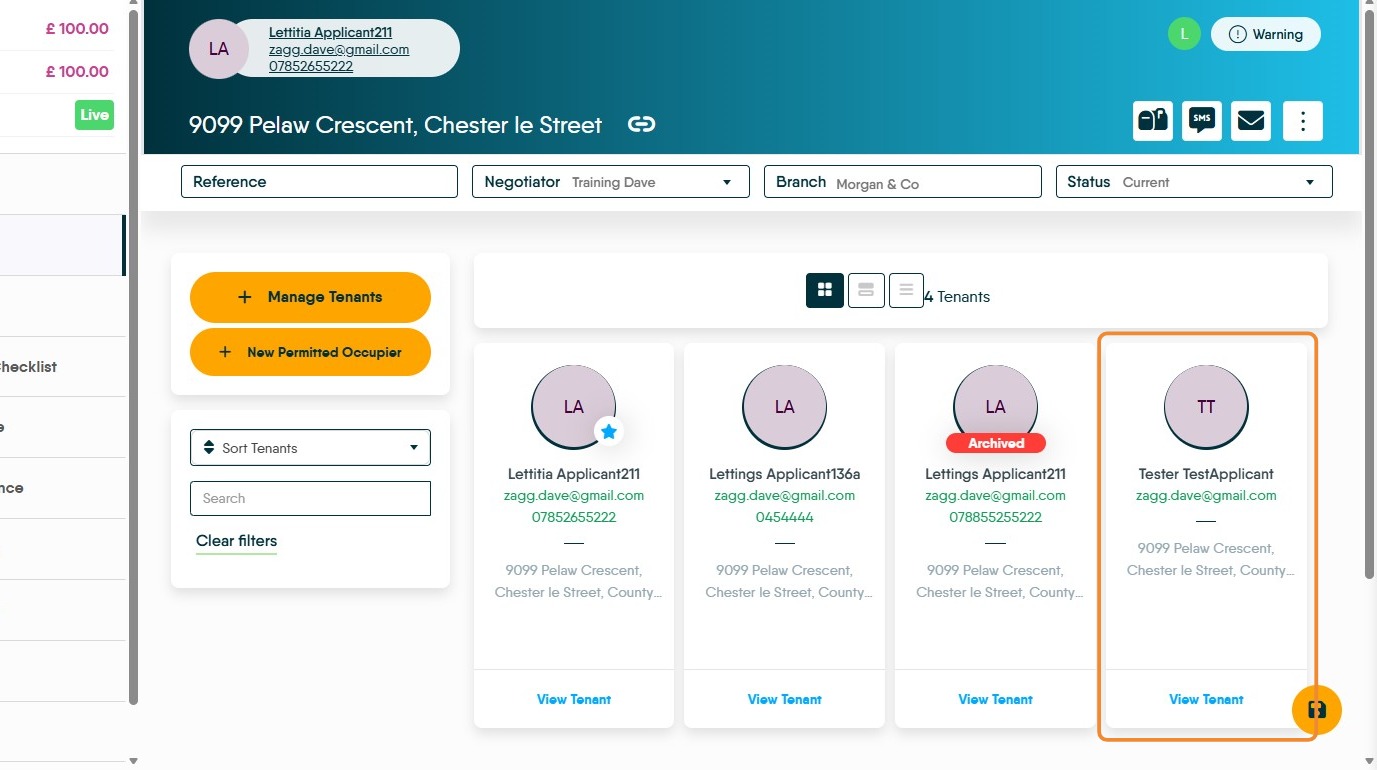
11. The Tenant Record will now show as "Archived" and Removed from Tenancy will show.
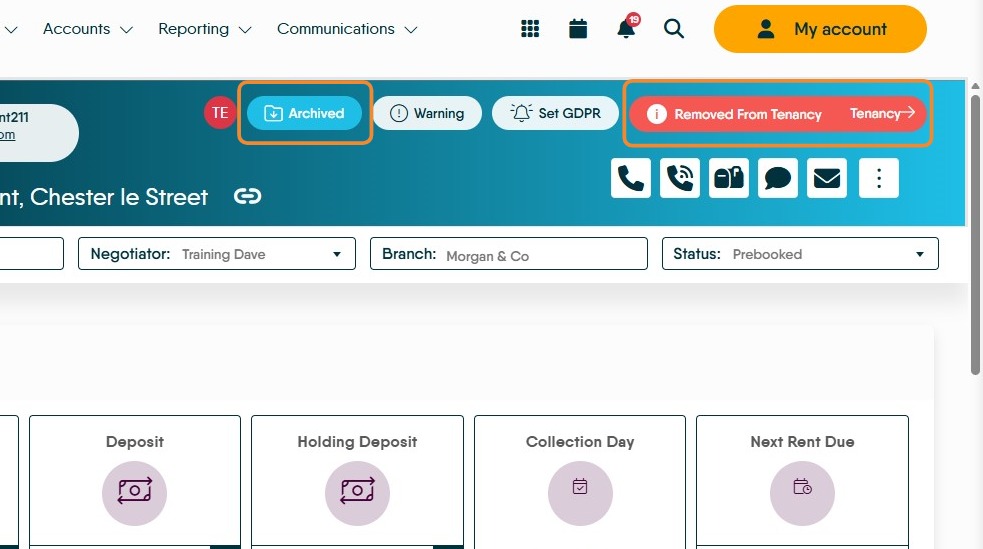
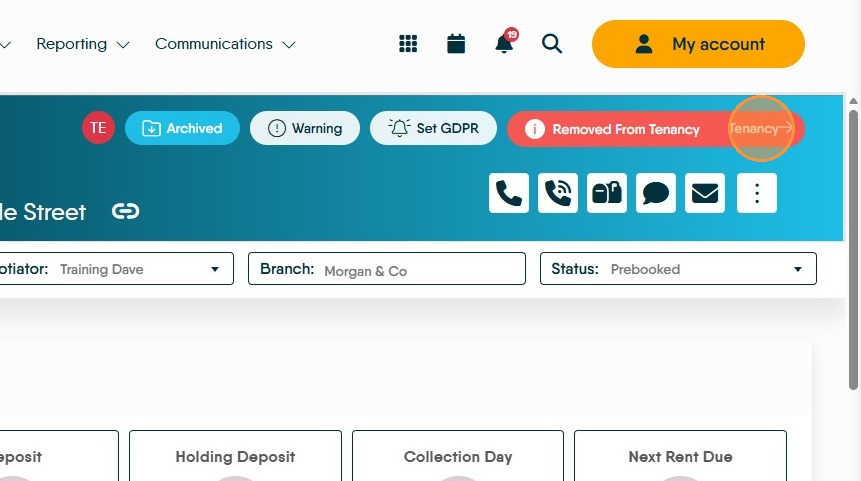
12. To return to the Tenancy. Click "Tenancy"
13. Click "Tenants"
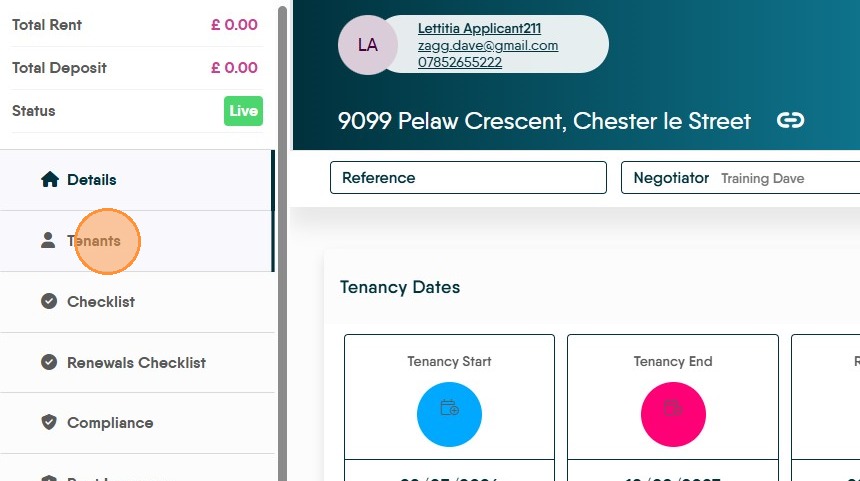
14. The Tenants will show, the primary tenant will be live and the one you have just removed from the tenancy will show as archived
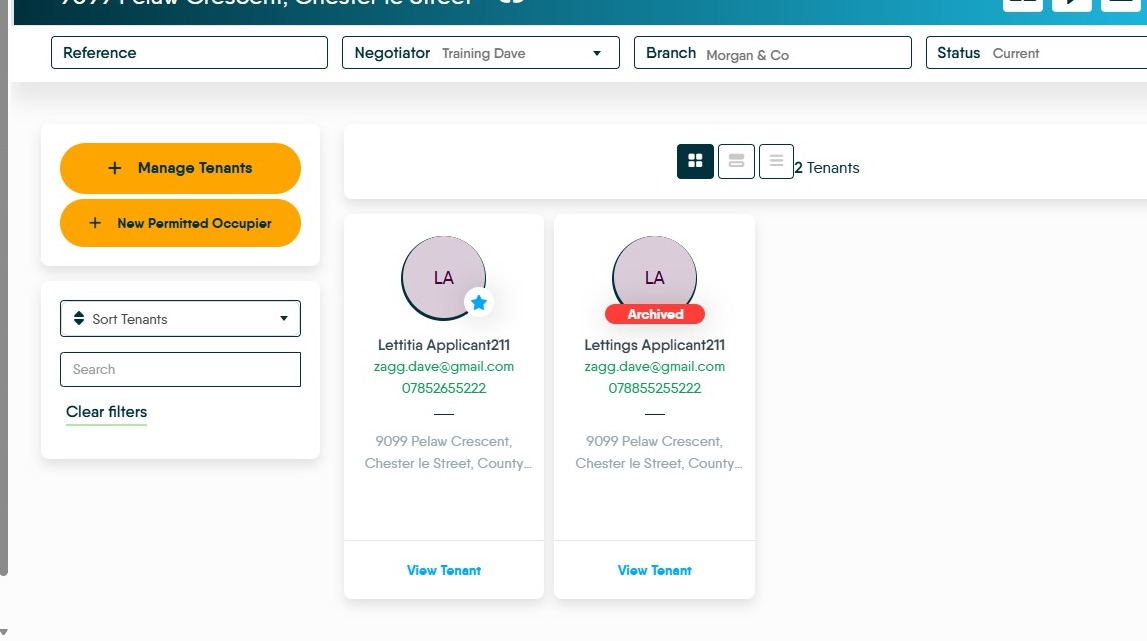
Alert: Alert! Remember to edit any rent splits that where set when the tenancy was created. This is done in the Tenant record. If not done this will cause issue with rent invoices being created.
15. Adding New Tenants
16. The new tenant can be added to the tenancy either from an 'applicant' as Pre Booked tenant and then added to this tenancy or, added straight to this tenancy following the process below.
17. From the Tenancy Record. Click "Manage Tenants"
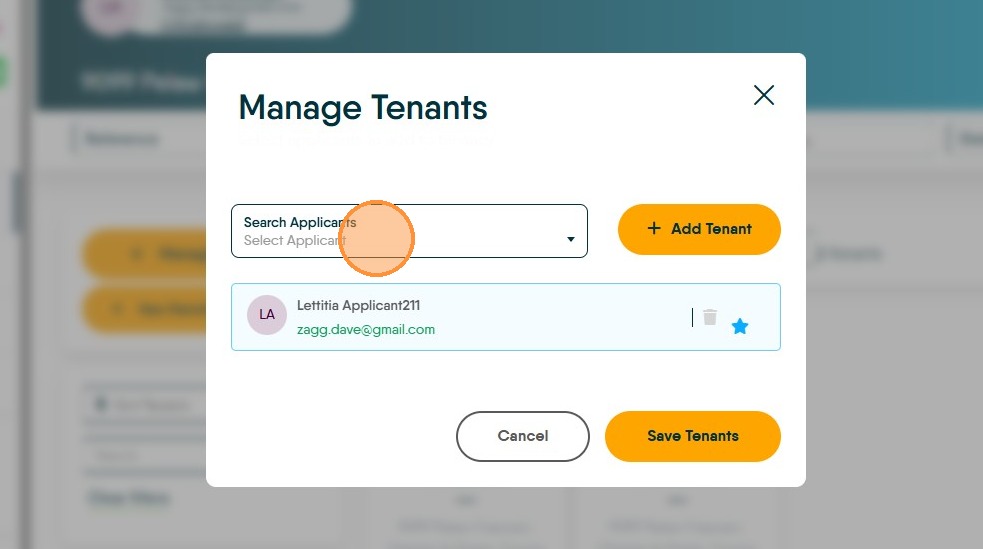
18. Click "Select Applicant" from the search field find and select the previously created record. (e.g. the applicant is already a pre-booked tenant or applicant record in CRM)
19. Click "New Tenant "
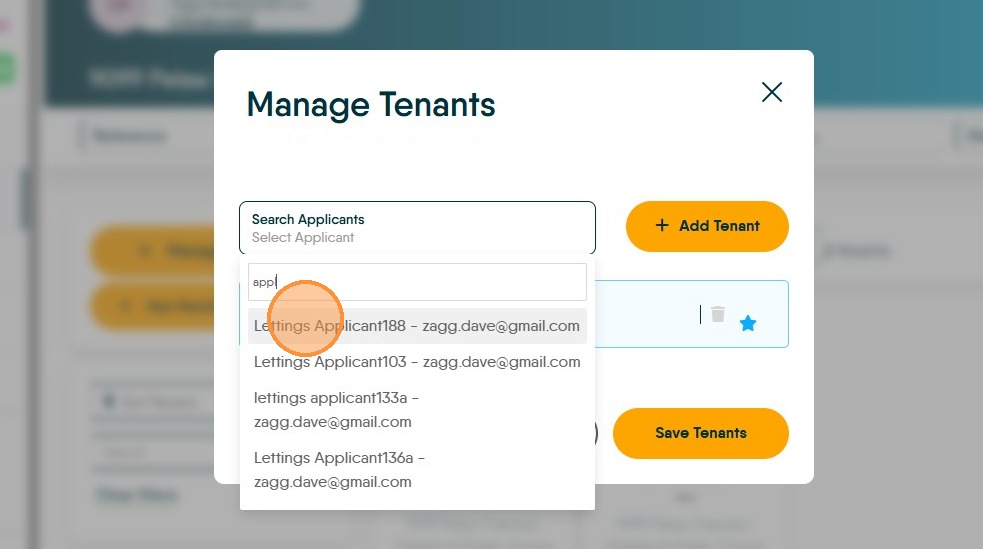
20. The record will show on the screen.
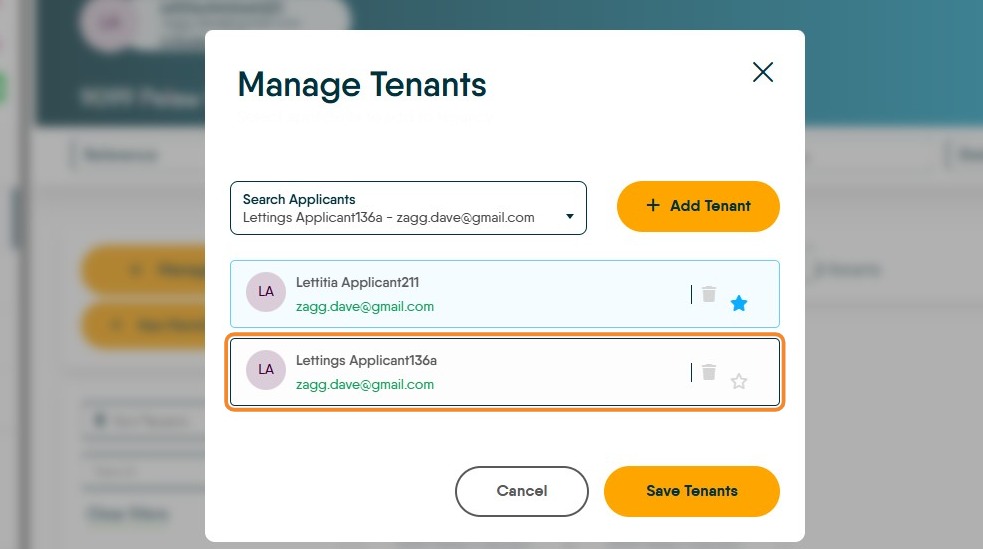
Tip: Tip! Remember to click 'Save Tenants'
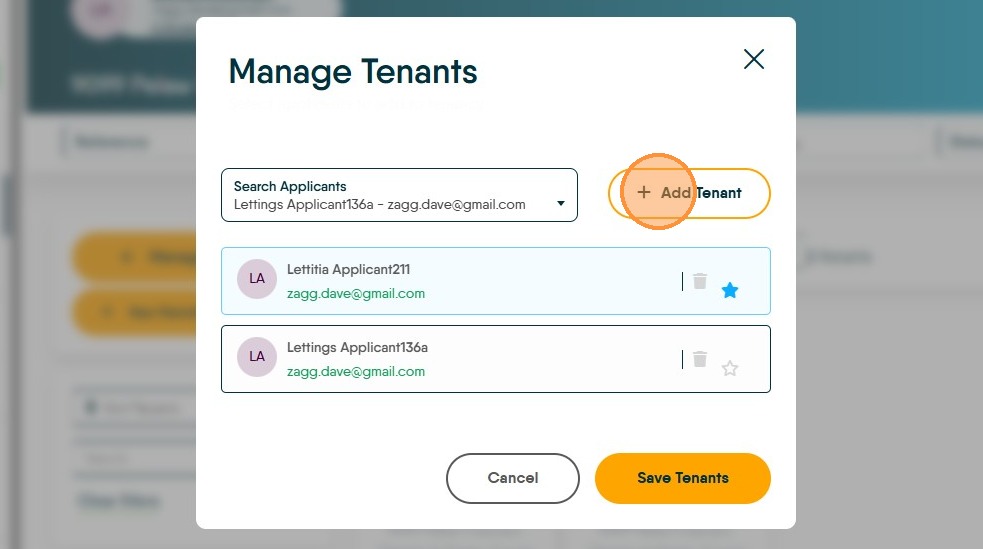
21. To add a new tenant that is NOT currently in CRM. Click "Add Tenant"
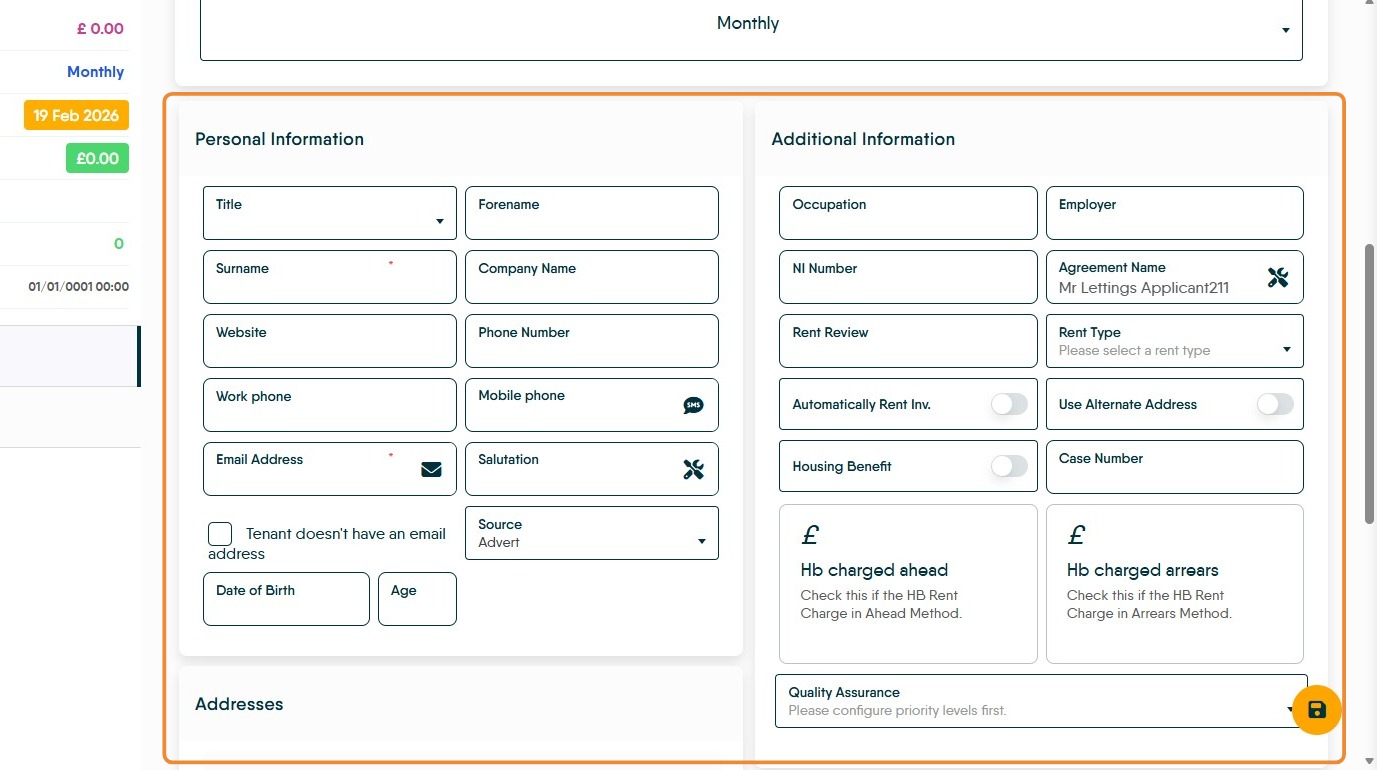
22. In the (blank) Tenant record scroll down and complete all the personal data that is required.
Remember to update the Rent and deposit information at the top of the screen to ensure Rent Invoices are created correctly.
Then Save the record
23. The new Tenant record will automatically show on the screen.