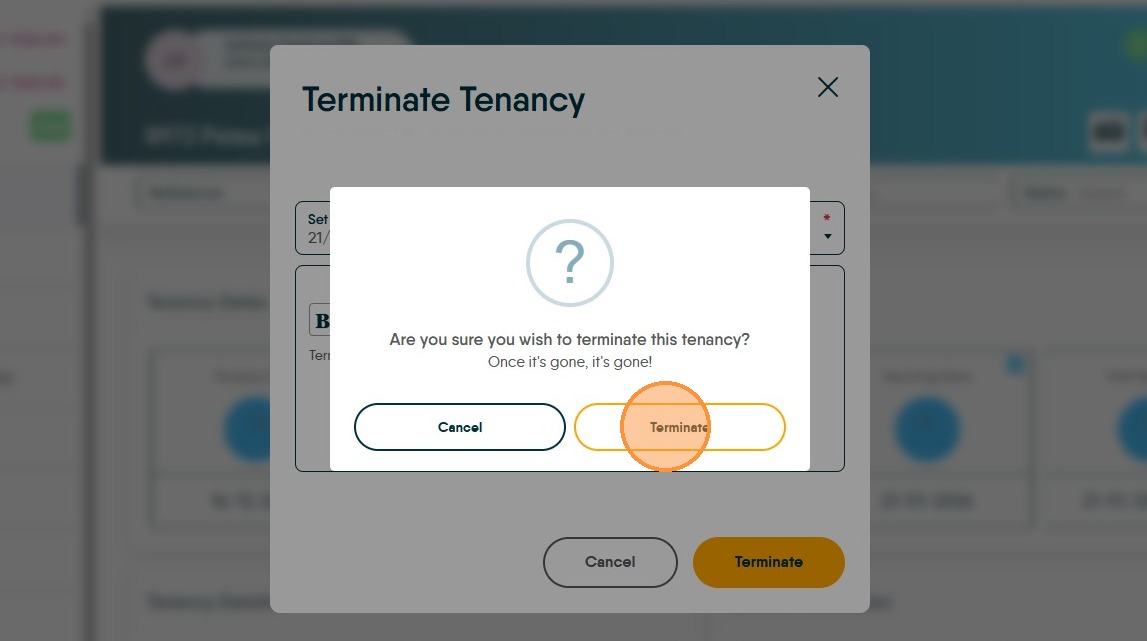
This guide provides a step-by-step process for terminating a tenancy using the CRM platform, ensuring that users can efficiently navigate the system. It simplifies the often complex task of managing tenancy details, making it accessible even for those unfamiliar with the software. Tenants can also be removed individually from the Tenancy if required.
1. Navigate to the Tenancy you wish to terminate.
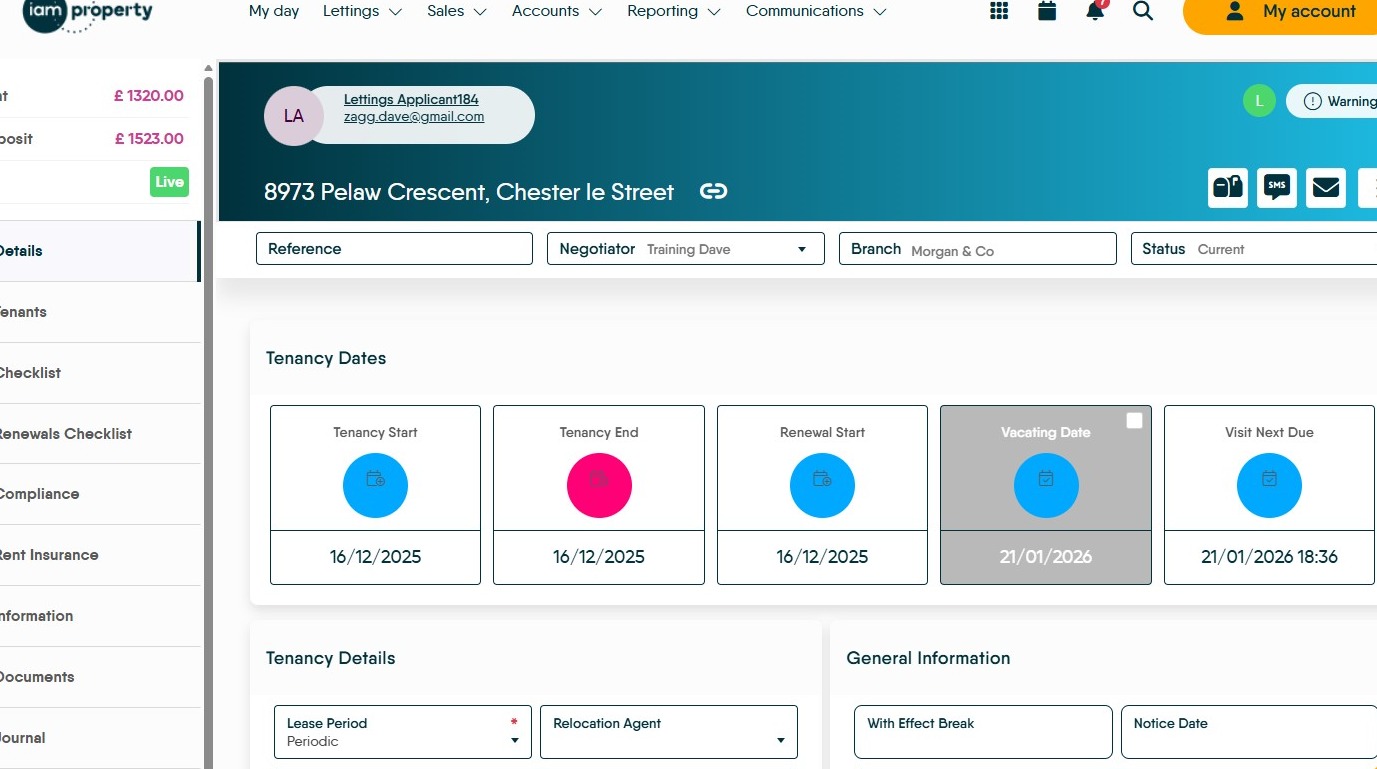
2. Click this text field and set the date the tenants are vacating the property. This is purely for information reasons.
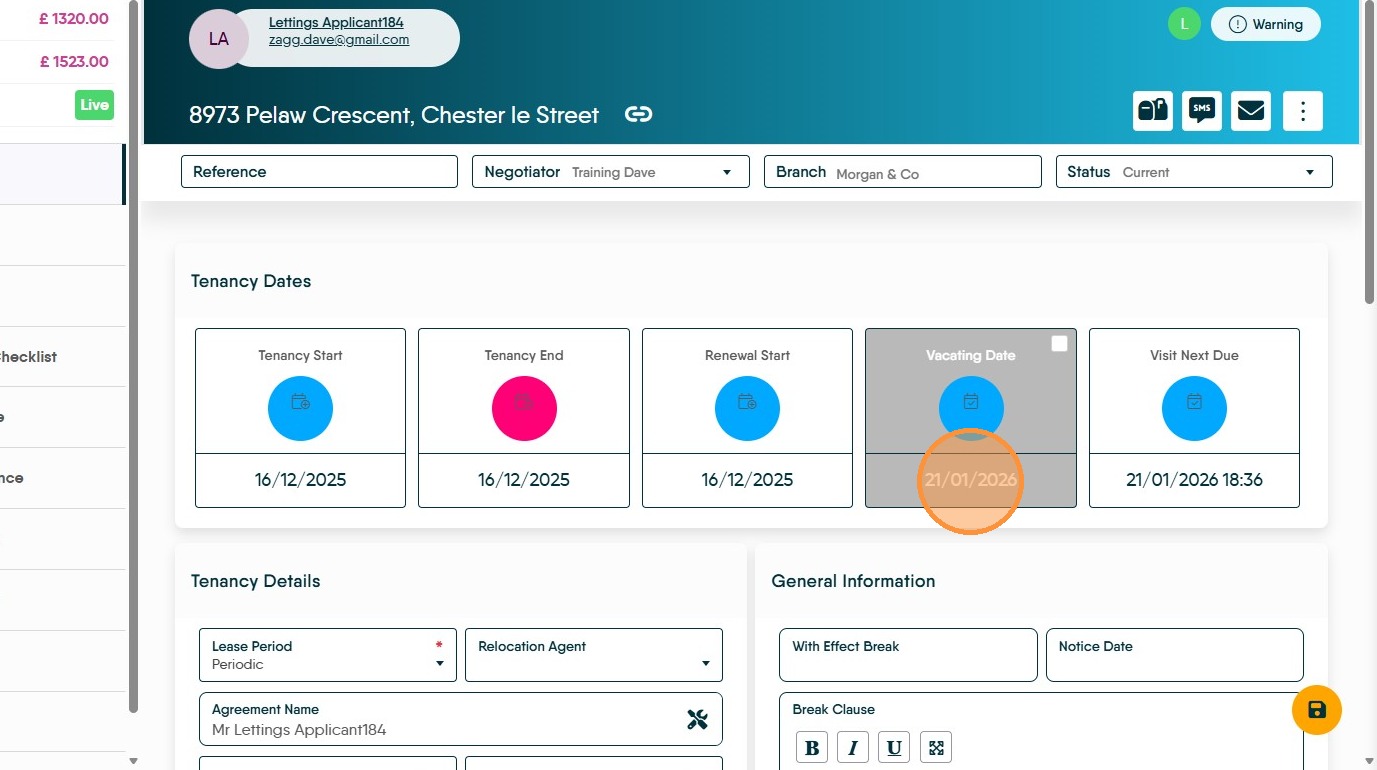
3. Click here.
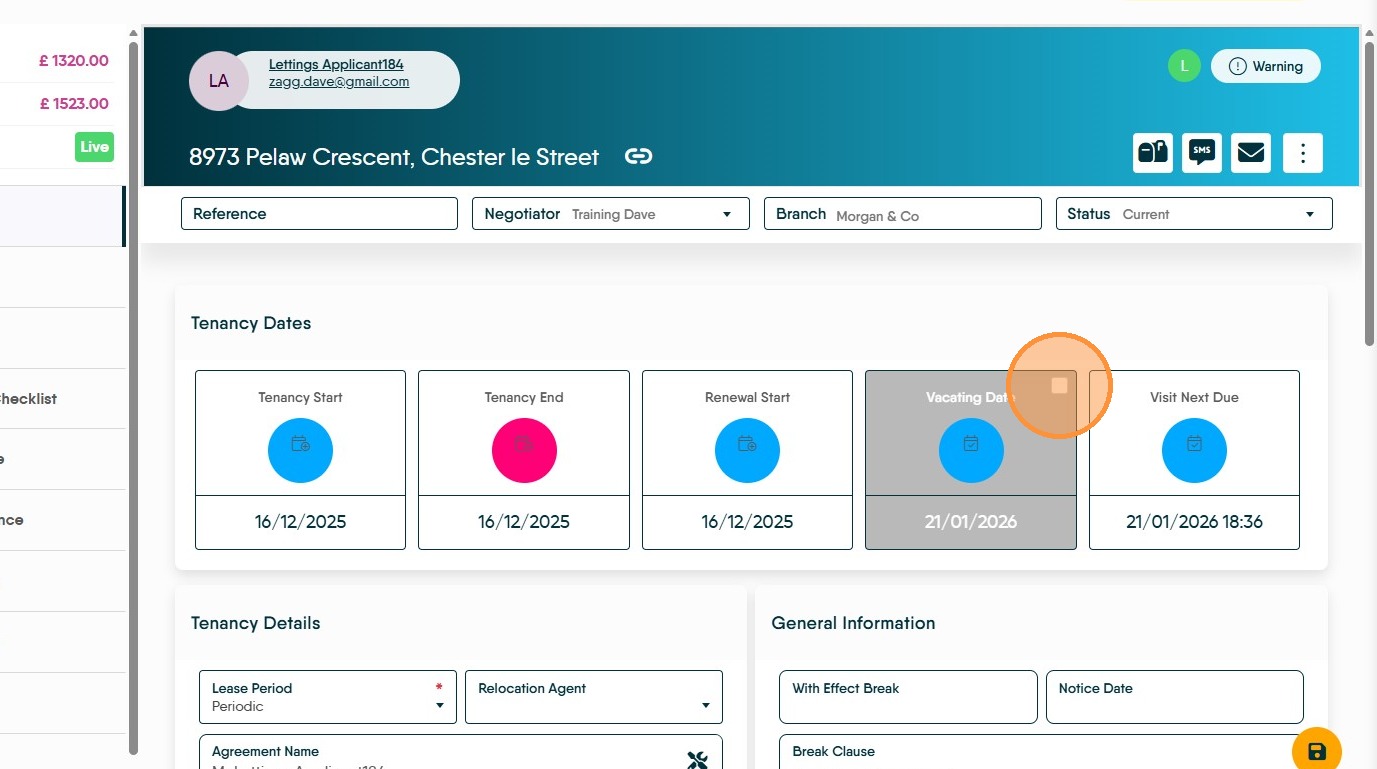
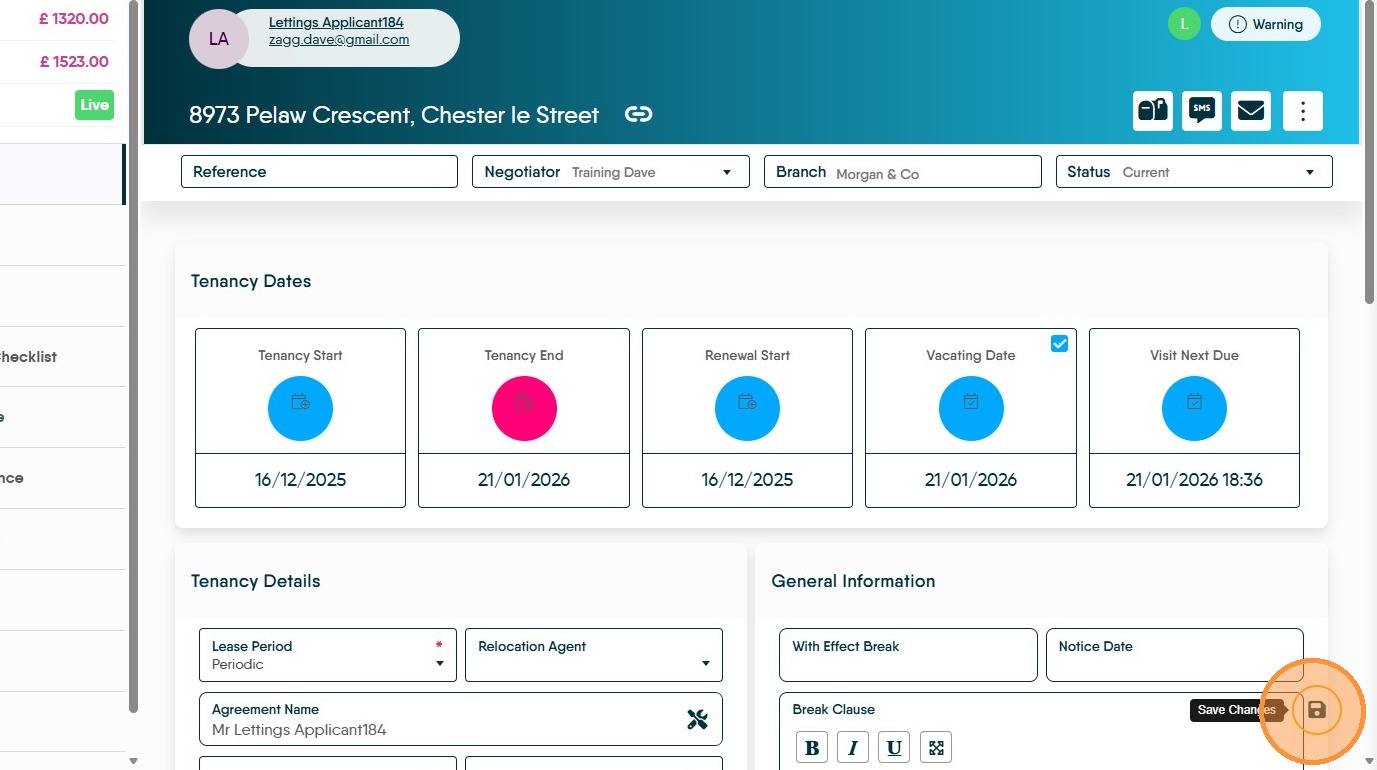
4. Set the 'Tenancy End' date to the date the tenants are vacating and click 'Save'
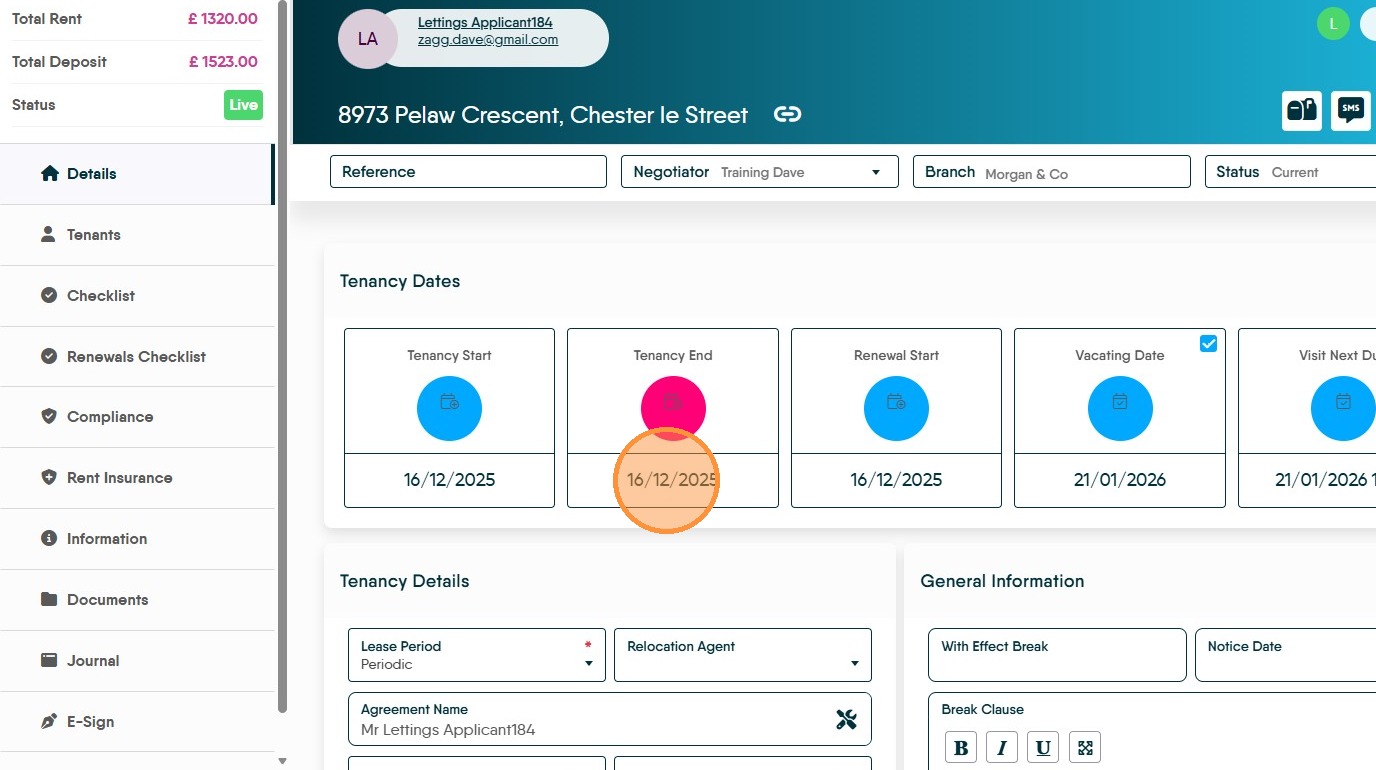
5. Click here to 'Save'
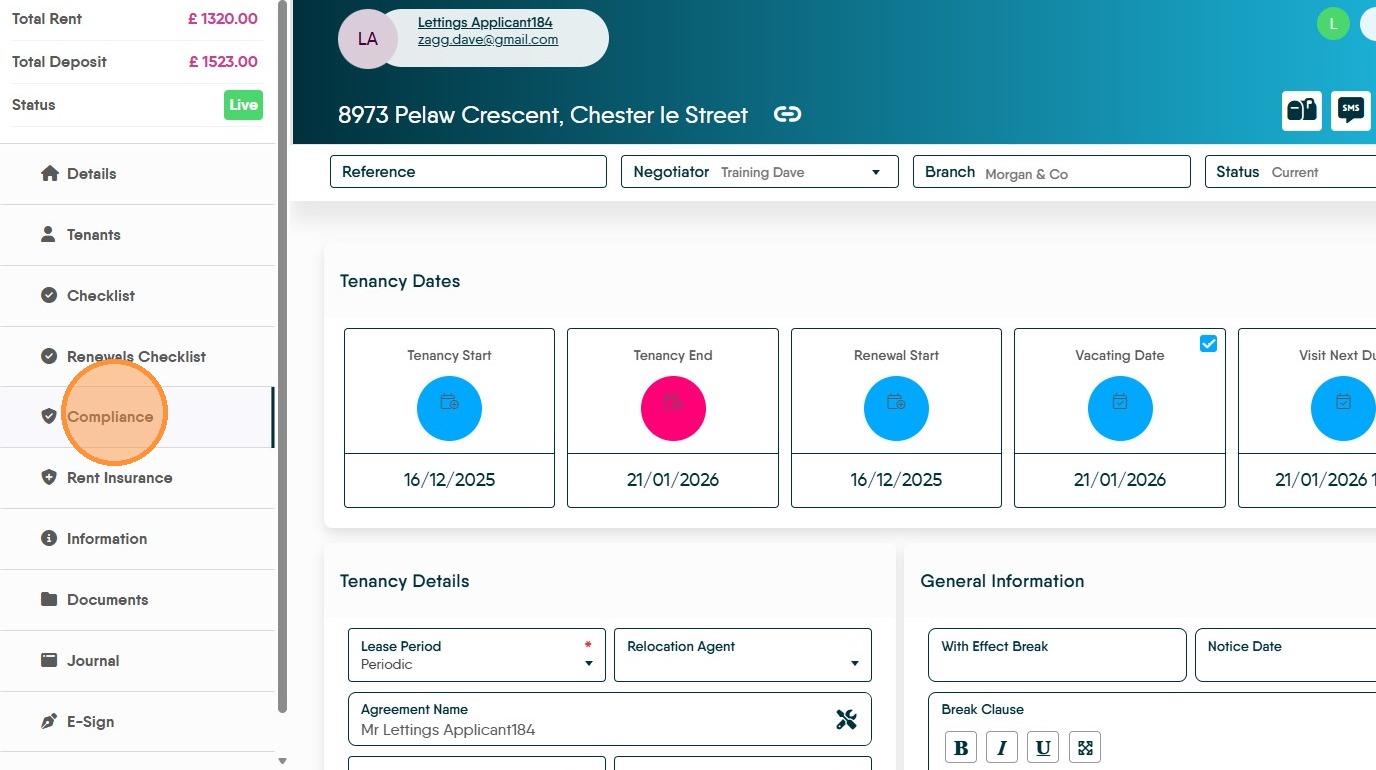
6. If you are using the compliance screen to track the starts and end meter readings. Click "Compliance"
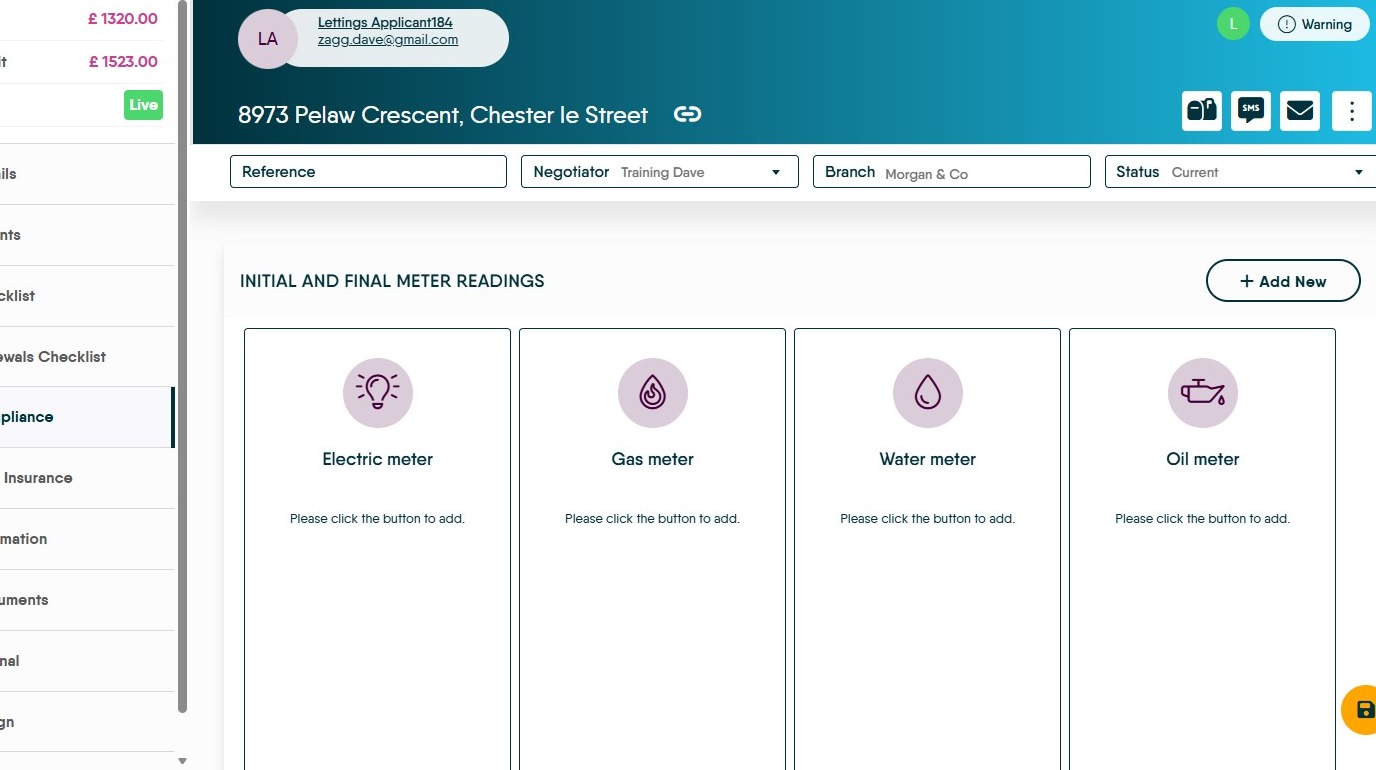
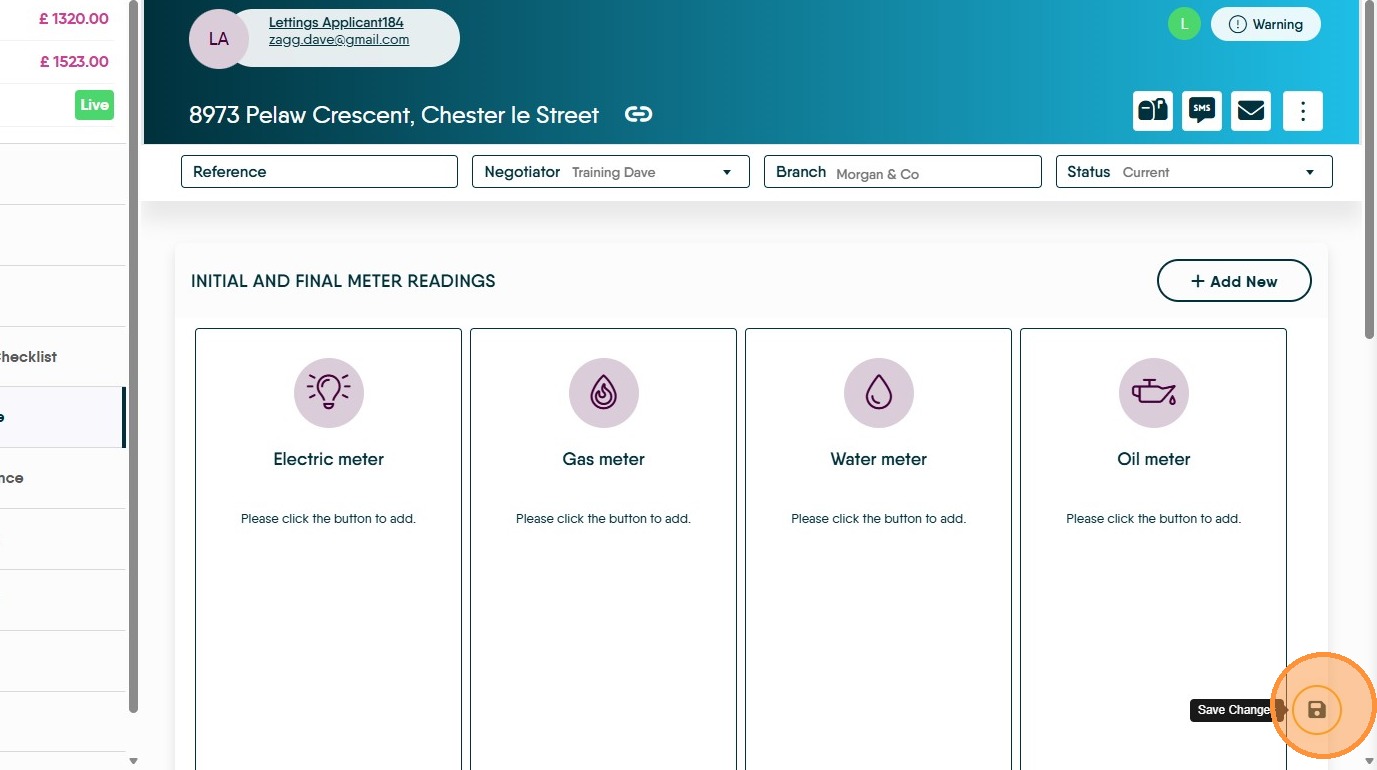
7. Click "INITIAL AND FINAL METER READINGS" and update the readings as required.
8. Click here to 'Save'.
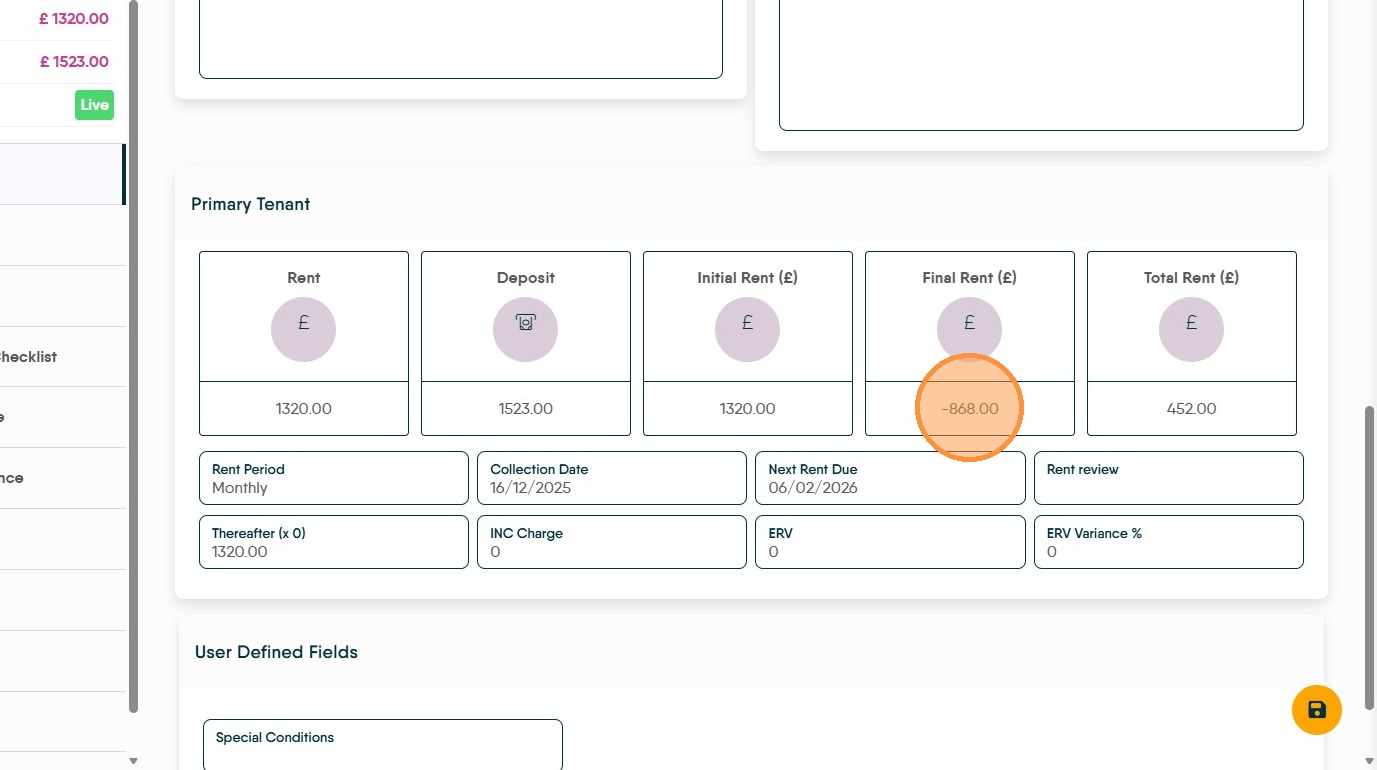
9. The final rent will show at the bottom of the screen in the 'Final Rent' field. If the tenant is leaving before the end of the tenancy a manual rent invoice will need to be created.
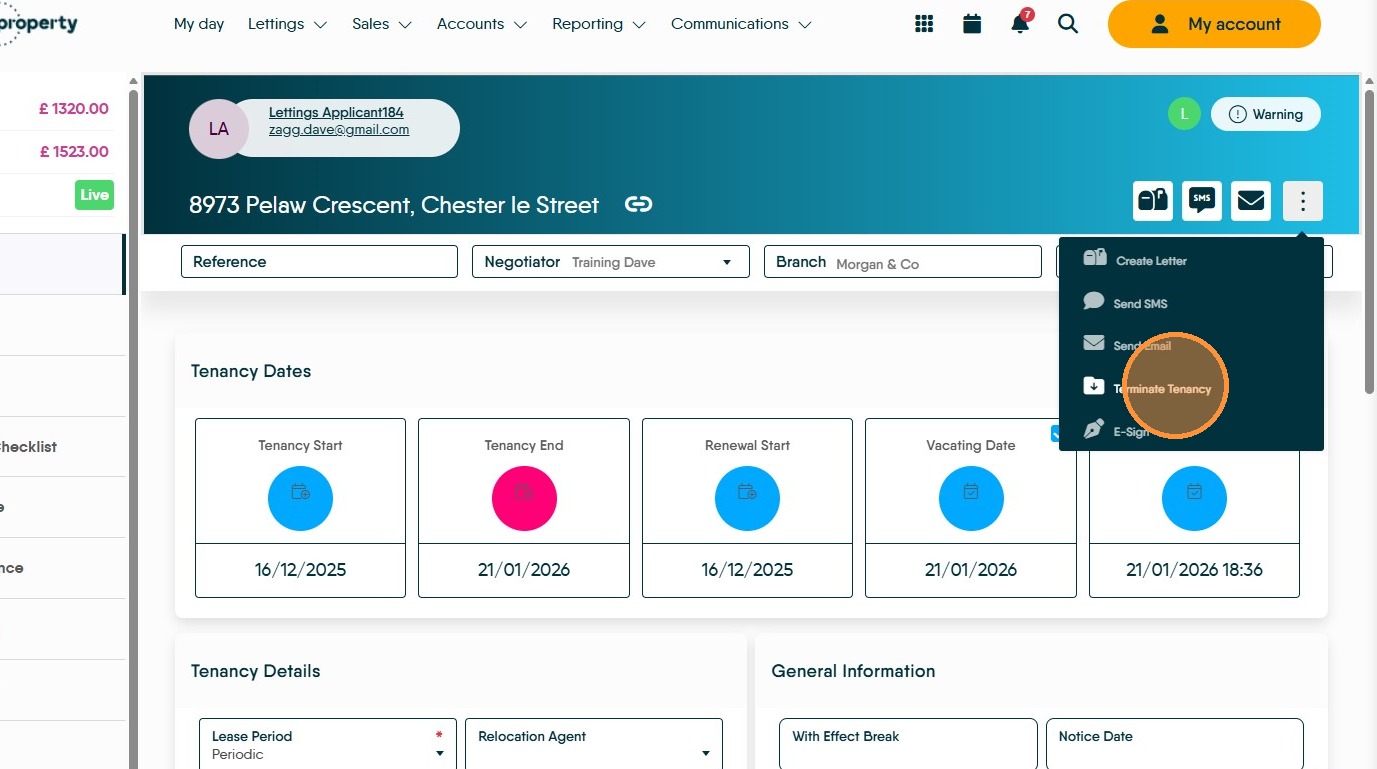
10. To terminate the tenancy, click the 3-dot menu. Click "Terminate Tenancy"
11. Set the tenancy end date and the termination reason. Then add any notes that you require.
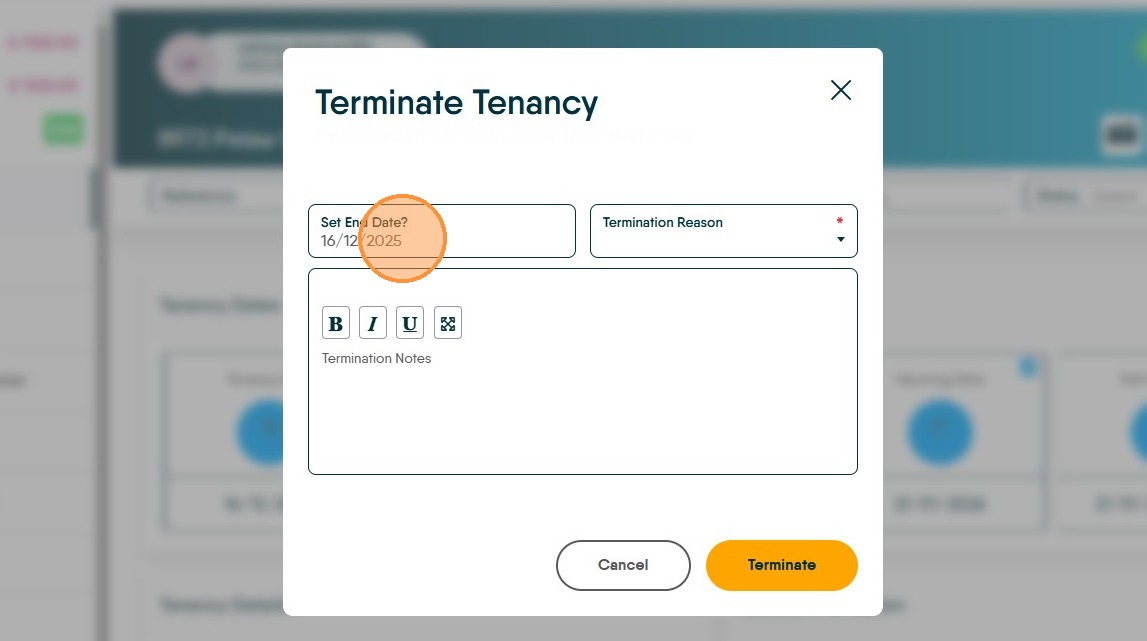
12. Click "Terminate"
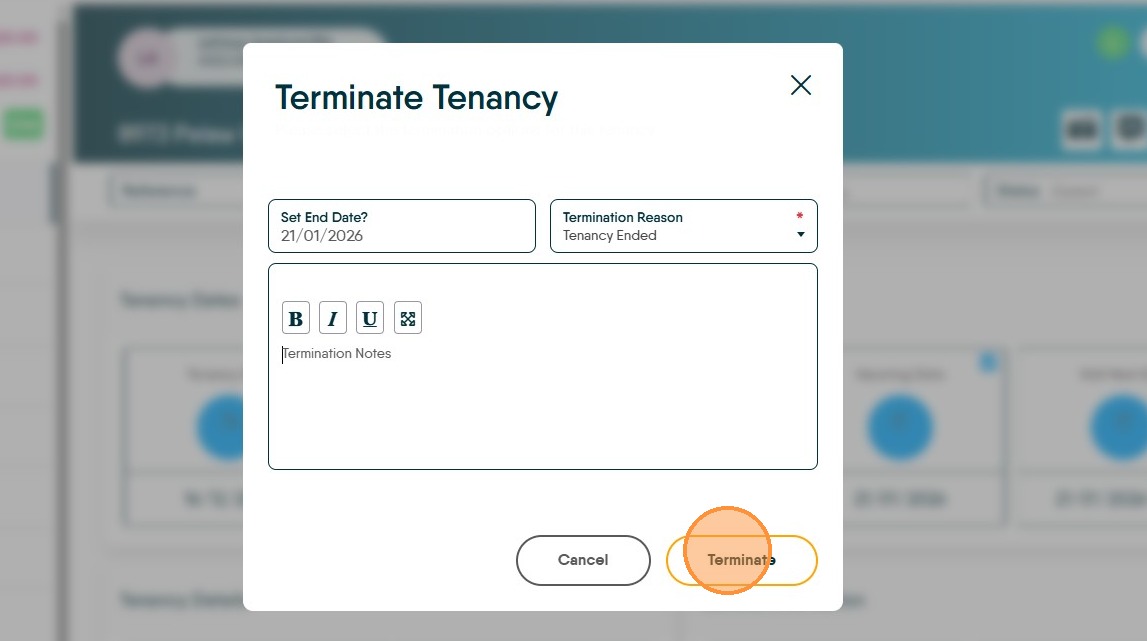
13. Click "Terminate"