This guide offers essential insights for managing landlord tax, especially for those dealing with overseas landlords. It simplifies the process of tax withholding, recording, and reporting to HMRC, ensuring compliance with UK tax laws. By following this guide, landlords and agents can efficiently navigate tax obligations, maintain accurate records, and produce necessary reports, all critical for smooth financial management in rental operations.
For further information on this please visit Paying tax on rent on behalf of landlords who are abroad - GOV.UK
Overseas Landlord Tax
2. If you have an Overseas Landlord with no current CNR or tax exemption. Then tax must be withheld by the agent and paid to HMRC.
3. To withhold tax on behalf of the Overseas Landlord and pay to HMRC.

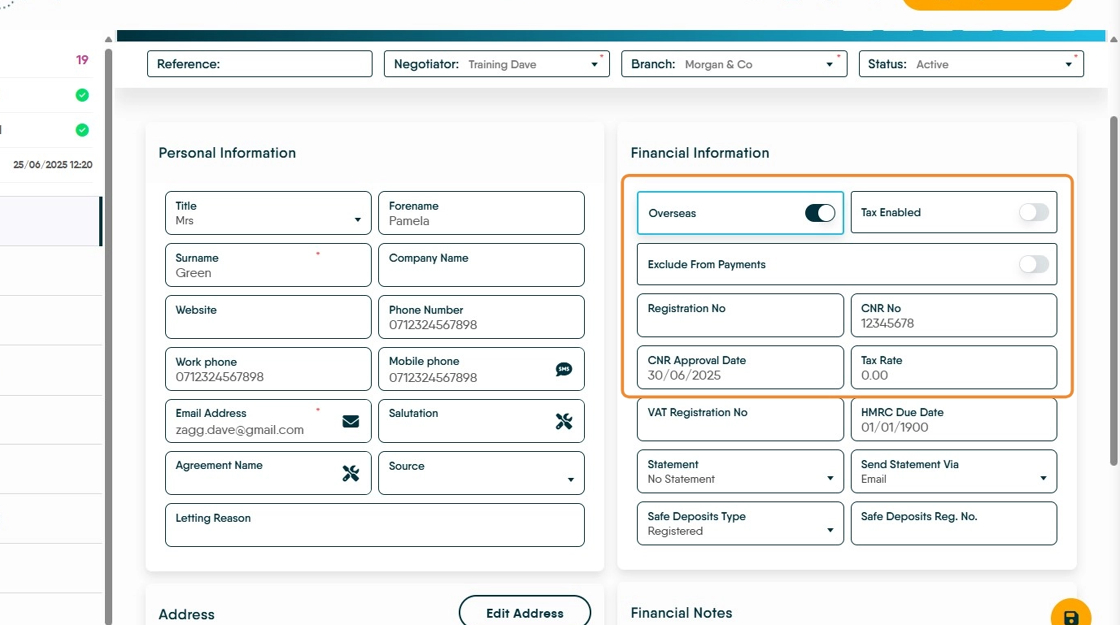
Navigate to the landlord record, In the 'Financial Information' section, enable the Overseas and Tax Enabled options and in the Tax Rate field enter the current rate of tax that Landlord is due to pay.

4. This will cause the CRM to retain the tax at the rate set in the 'Tax Rate' field.
5. The retained tax is moved from the Property Ledger to the Tax Ledger when you Perform Payments. If there are multiple Landlords make sure that all Landlords receive a percentage of the rent so tax can be paid for each landlord.
Paying the Withheld Tax to HMRC.
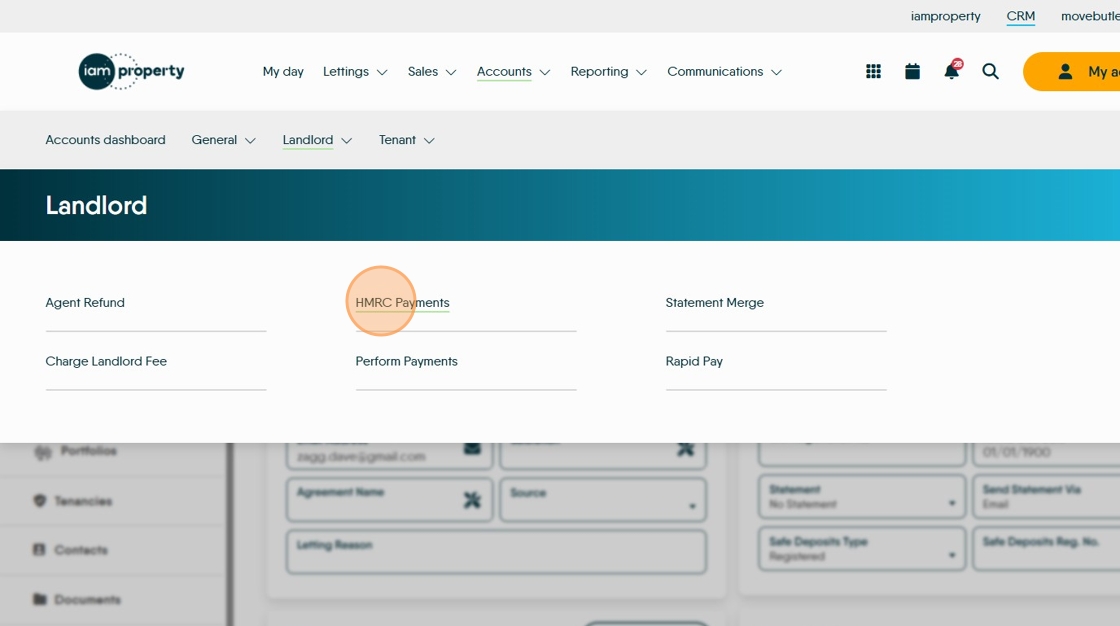
6. In the Accounts menu. Click "Landlord"

7. Click "HMRC Payments"
8. Check the Payment Date, Payment Method, Bank Account are correct and add a clear description of the transaction. Select the payments you are going to make and then click 'Pay'

Landlord CNR
A CNR number removes the requirement for the Landlord to pay UK tax to the HMRC.
10. If the Landlord has a CNR number record it in the 'CNR No.' field and add the registration date in the 'CNR Approval Date' field and remove the tax amount from the Tax Rate' 'field'.
If this is done part way through a year the Landlord will have a tax report that shows retained tax before the CNR was added and no retained tax after.
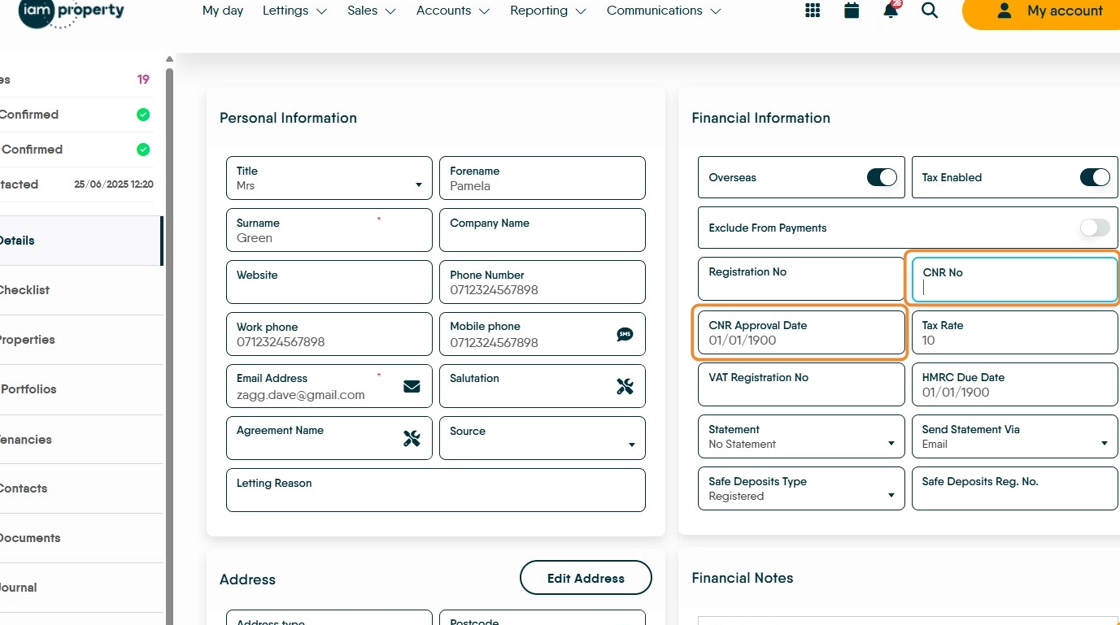
11. The record will look like this.
Landlord Tax Ledger

12. The Tax Ledger is where all the Tax records are held in CRM, each Landlord will be recorded in here.
13. Click "Open New Ledger", Click "Select ledger type", Click "Tax Ledger"
Landlord Tax Reports
14. The tax reports that need to be created to send to Landlords or the HMRC will be in the Accounts Reports section of CRM.
There are 4 reports NRLQ, NRL6, NRLY, ROPL
15. Click "Reporting"
Click "Reports"
Click "Accounts"
Click here.

16. Click this search field.

17. There are 4 HMRC reports that can be run.
18. Click "HMRC Agent Report (ROPL)"

19. The Report will look similar to this.

20. Click "NRLQ Report", Click Year Ending and select the year (e.g. "2024"),
Click to select the Quarter (e.g."Q4 (1 Jan - 31 Mar 2024)")
Click "Run Report"

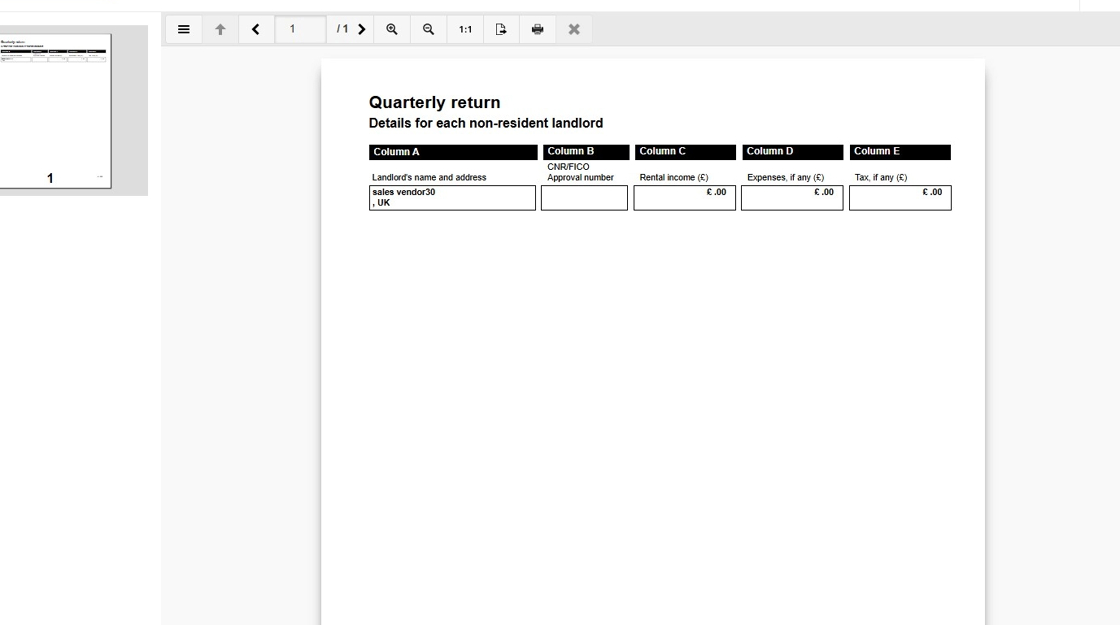
21. The report will look like this.

22. Click "Annual Return NRL6", Click "Select Landlord" select the landlord from the list, Click 'Year Ending' (e.g. "2025") Click "Run Report"
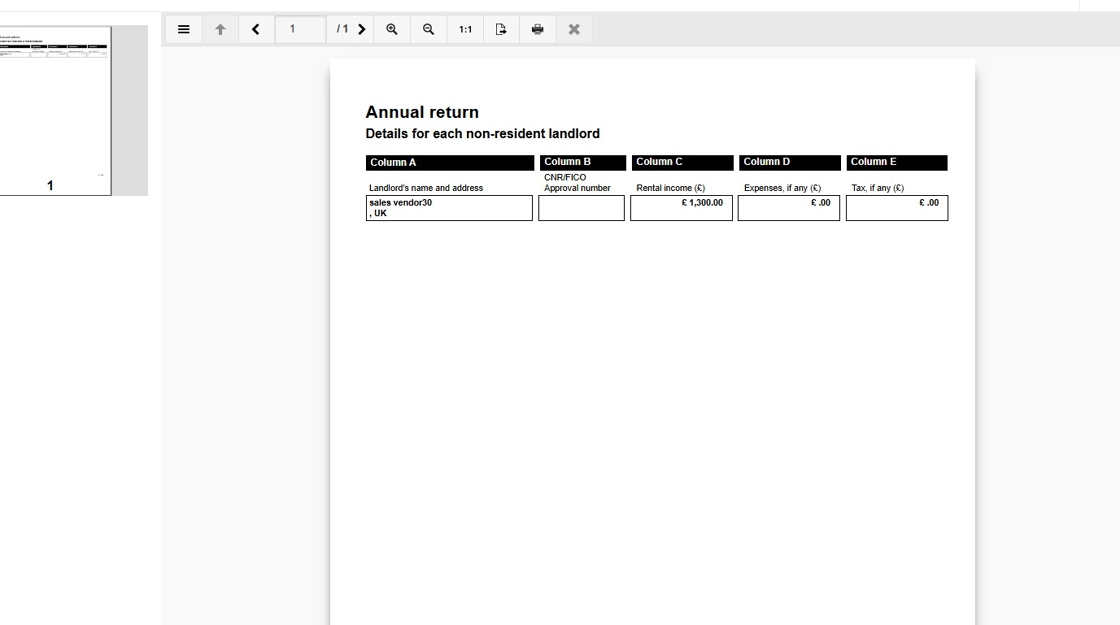
23. The report will look similar to this.

24. Click "Annual Return NRLY" Click Year Ending (e.g. "2025"), Click "Run Report"

25. The report will look similar to this.