This guide provides a straightforward process for adding service charges for tenants, ensuring clarity on whether the charge goes to the agent or landlord. It simplifies the management of tenant accounts by allowing users to create specific or blanket charges, set durations, and define amounts efficiently. By following these steps, property managers can streamline their billing processes and maintain accurate financial records, making it an essential resource for effective property management.
1. Navigate to https://crm.iamproperty.com/MyDay
Tip: Tip! Depending on the option you select, this process can either be a 'Service Charge' which will go to the Agent or a 'Landlord Service charge' which will be paid to the property/landlord.
2. Click "Accounts"

3. Click "Tenant"

4. Click "Service Charges"
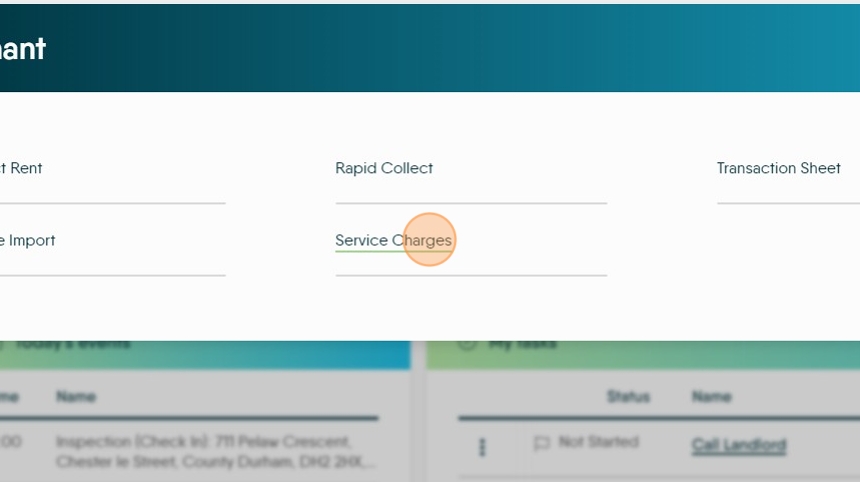
5. Click here to create the Service Charge.
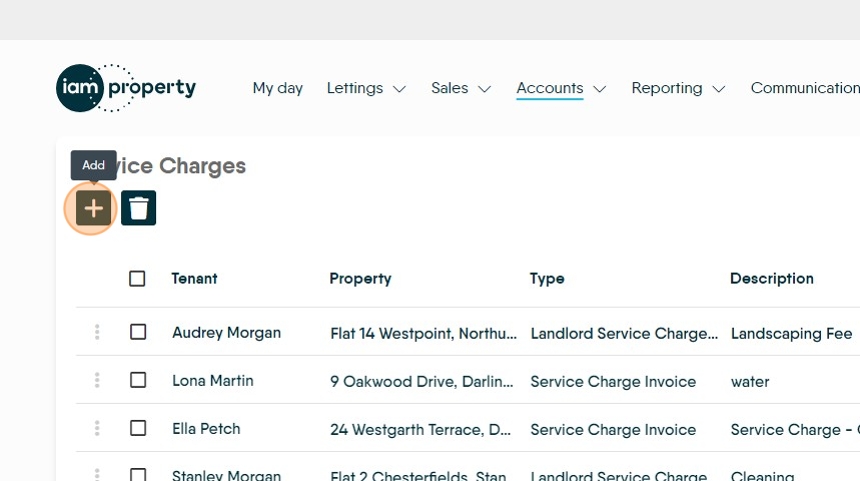
6. Click "Select tenant" and search for the specific tenant you are charging or,

7. Click here to make the charge across all tenants rather than just one specific tenant.

8. Click the "Description" field and add a clear description of the charge.

9. Click the "Start Date" field and set the start date for the charge.

10. Click the "End Date" field. If you are creating an 'indefinite' length charge then you don't need to set this date.
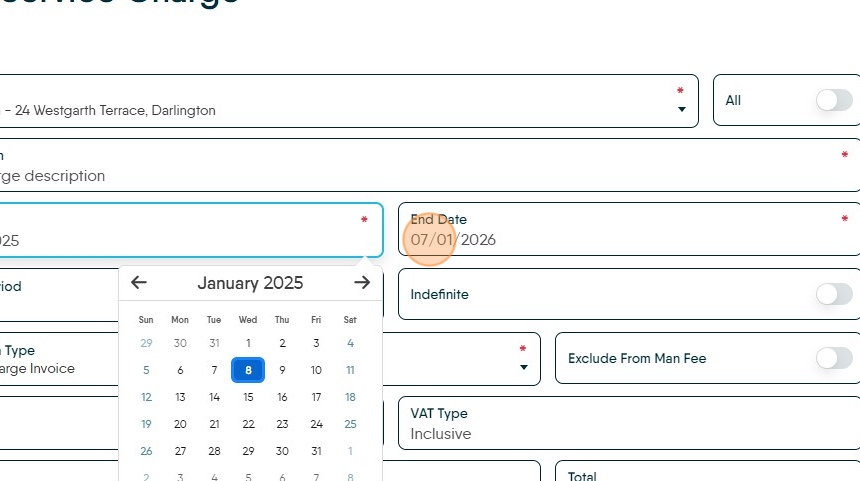
11. Click "Charge Period"

Alert: Alert! If you set the Transaction type to 'Landlord Service Charge' you can use this process to charge non rent payments to the Tenant and pay the landlord. This process creates a debit to the Tenant ledger and a credit to the property ledger, which is payable to the Landlord.
12. Click here to make the charge run for an indefinite period.

13. Click the "Amount" field. Add the amount for the charge

14. Click "Save"
