This guide provides a step-by-step process for efficiently handling rent refunds within the CRM system when payments have not been made to the landlord. It simplifies the refund process, ensuring users can navigate the system with ease and accuracy. By following this guide, property managers can streamline their operations and maintain clear financial records. Anyone involved in property management will benefit from this straightforward approach to managing tenant accounts and refunds.
Tip: Rent payments made in CRM are paid against an invoice, so it is clear how much money should be paid to the Landlord. If basic checks are made it should be very difficult to overpay a rent payment.
However if this has happened, if a Tenant has over paid, best practice would be to pay the rent invoice correctly and then contact your Tenant to confirm what they would like to do with the over payment, you can then easily refund it to the tenant from your bank account or (if tenant requests) bank receipt the money into the CRM Accounts either as unallocated funds or pay it towards the next rent invoice.
1. Navigate to https://crm.iamproperty.com/Dashboards/Accounts
2. Click "Accounts"

If a Rent payment brought in as Unallocated funds or Invoice paid correctly and excess funds not allocated to an upcoming rent invoice.
To refund the unallocated funds to the Tenant
3. Click "General"

4. Click "Unallocated"

5. Click here.

6. Click "Select tenant"
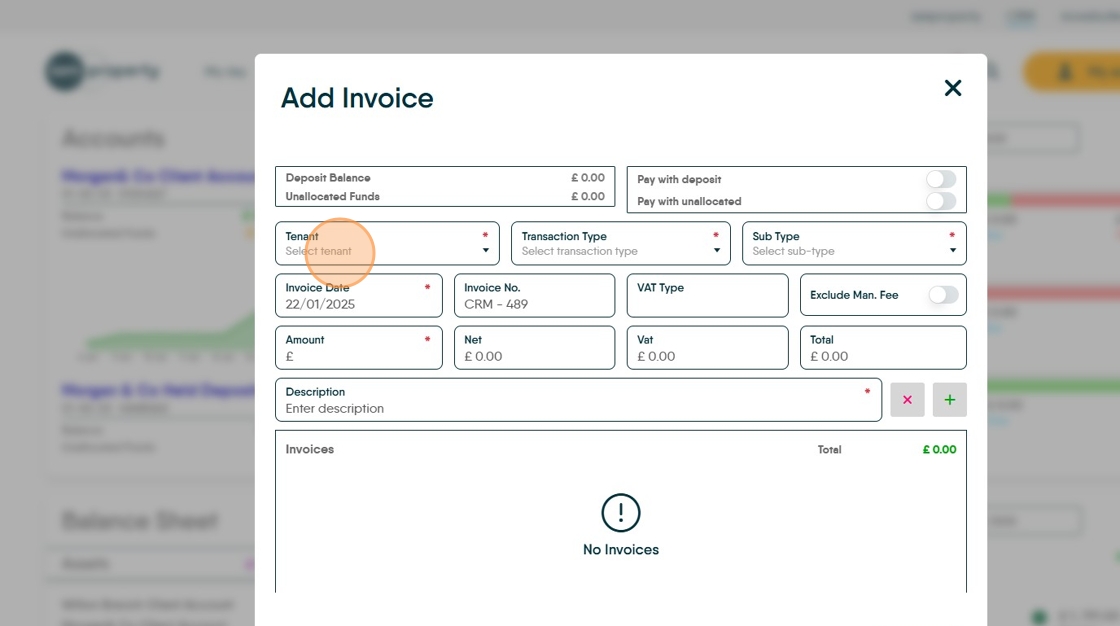
7. Click "Rent Invoice"

8. Click "Rent Invoice"
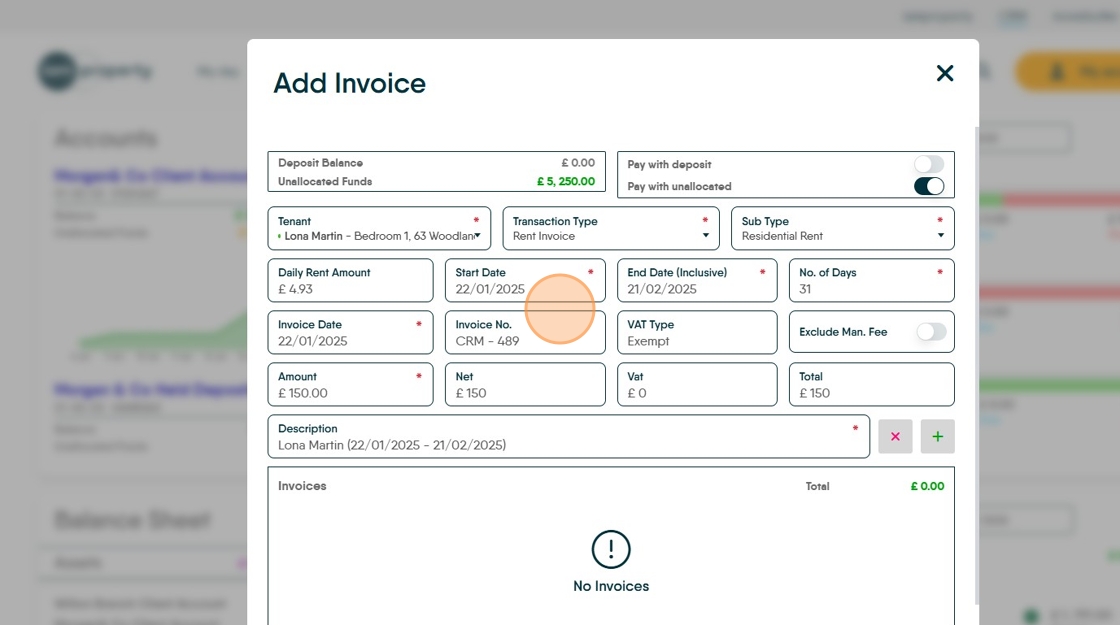
9. To set the amount you are refunding;
Either click and update the "Start Date" "End Date (Inclusive)" field. or edit the number of days rent you are refunding. Click the "No. of Days" field. Or edit the number showing in the 'Amount' field.

10. If not preselected, click here to pay the invoice using the unallocated funds.

11. Exclude the Management Fee by clicking here.

12. Click the "Description" field. The default description will look like a rent invoice, edit it to be clear that this is a rent refund invoice.

Tip: Tip! Always make descriptions for Invoices, or anywhere in the Accounts module, as clear and descriptive as possible. This helps if you need to resolve a problem or just track what you are doing.
13. Click here to create the Invoice.
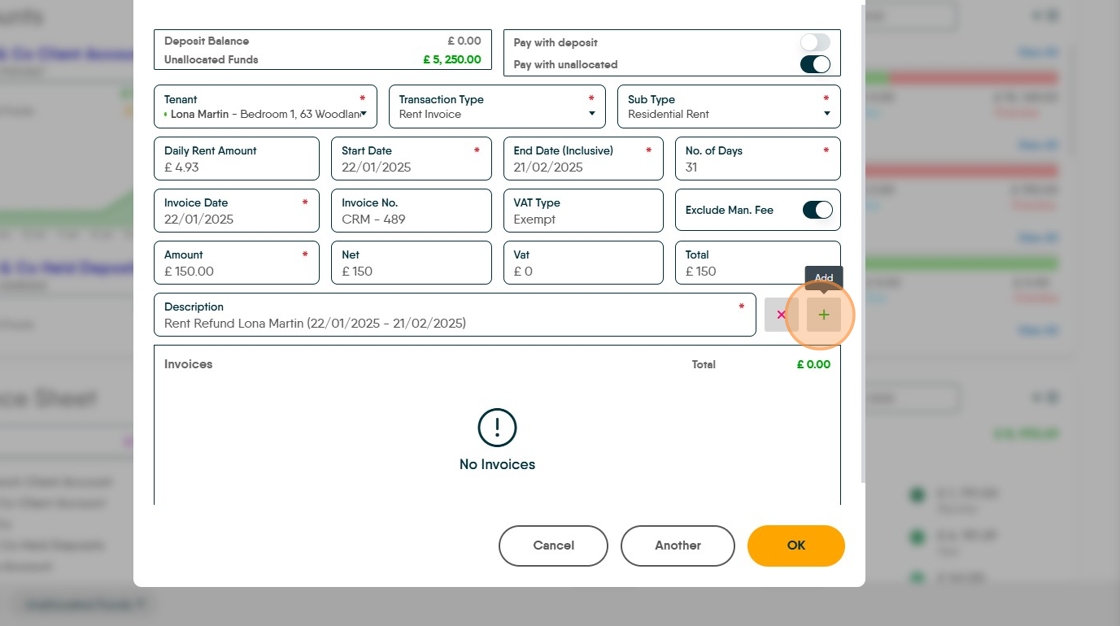
14. Click "OK"

15. Click "No" unless you want to create a hard-copy invoice for your tenant

To Refund the over Payment to Your Tenant.
16. Click here to access the Ledgers.

17. Click "Select ledger type"
Click "Tenant Ledger"

18. Click "Search for Record"

19. Search for and select the Tenant Record

20. The refund Invoice and payment will show here (in this case the top 2 lines).
If you have not selected the option to use Unallocated funds (as shown previously) then you can allocate the funds here by clicking the 3 dot menu to the left of the Tenant Bank Receipt line and selecting 'Allocate' this will show all the outstanding invoices, select the rent refund invoice you have just created.

21. Click here.
Click "Refund"
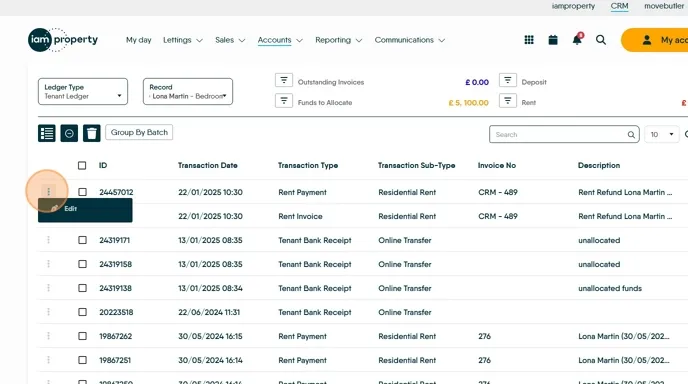
22. Click the "Description" field. Add a detailed description of the transaction.

23. Click "Refund" the payment will then show in the Client Account in CRM to show the payment needs to be made to the Tenant, or if you pay your tenants via BACS and have all their bank details, the payment will show the next time you create a BACS upload file.
