This guide outlines key steps for processing tenant fee refunds in CRM, emphasising accuracy and efficiency. Highlighting the importance of using the procedure only when necessary, as it's not a standard operation. Following this ensures refunds are correctly recorded and reflected in the tenant ledger and real-world bank accounts, aiding financial accuracy and compliance. It’s an essential resource for property management professionals seeking to streamline refunds and avoid common pitfalls.
Alert: Alert! This guide is produced to cover a specific situation for a specific client and is outside of normal or standard practice.

1. Navigate to https://crm.iamproperty.com/Dashboards/Accounts
Returning the funds to the Tenant in CRM
Alert: Alert! This process should only be performed when there are no other options. It is not a standard process that you would perform in CRM.
In this case we are showing a refund for a FEE payment made by a Tenant and subsequently paid out to the Agent as part of their Agent Fees, that needs to be refunded and the refund shown in CRM.
2. Click "Accounts"

3. Click "General"
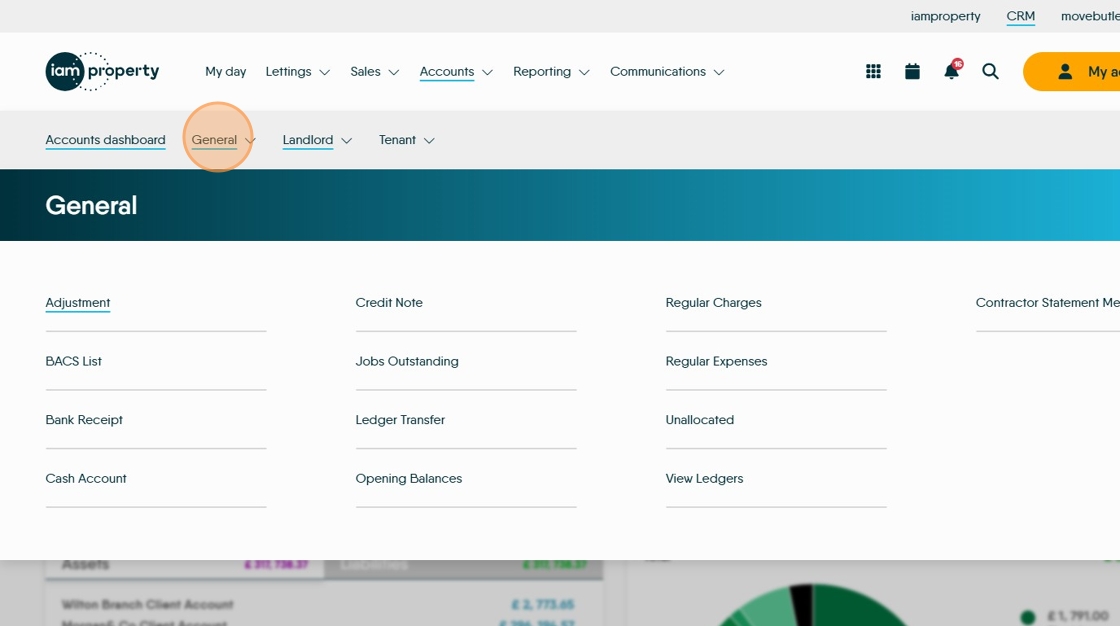
4. Click "Adjustment"


5. Click "Select account type"
Click "Tenant"

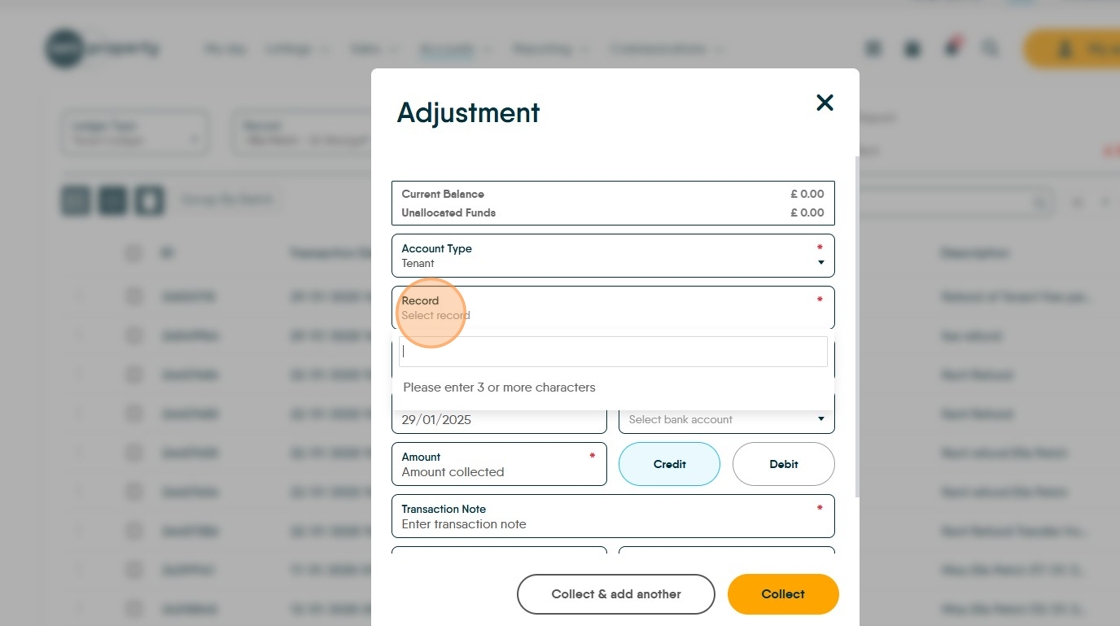
6. Click "Select record" and type the name of your tenant.
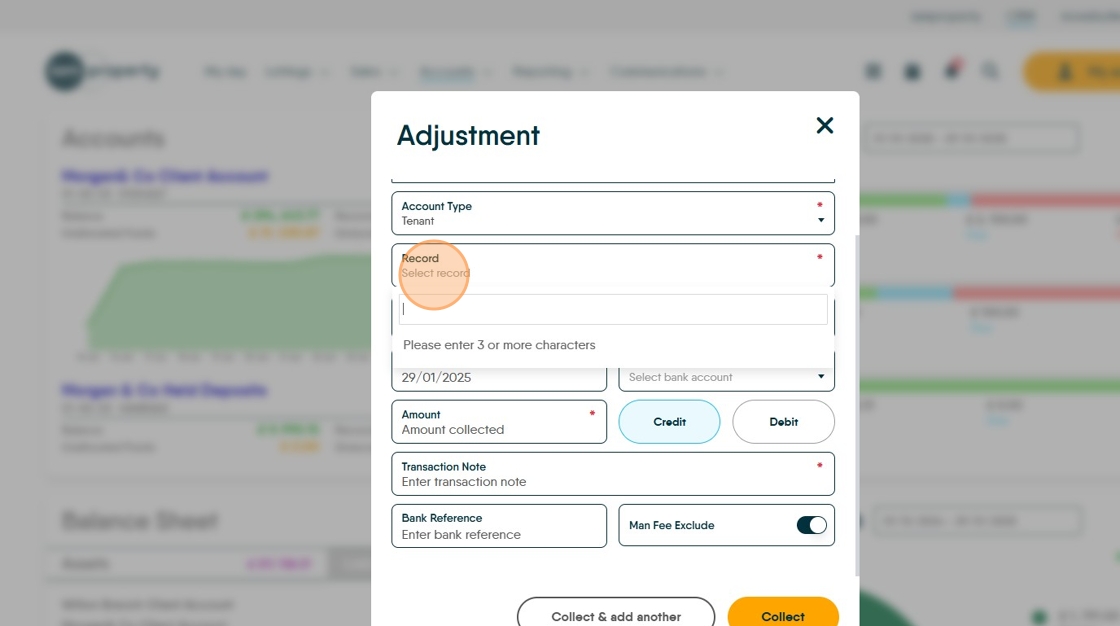
7. Click "Select bank account"

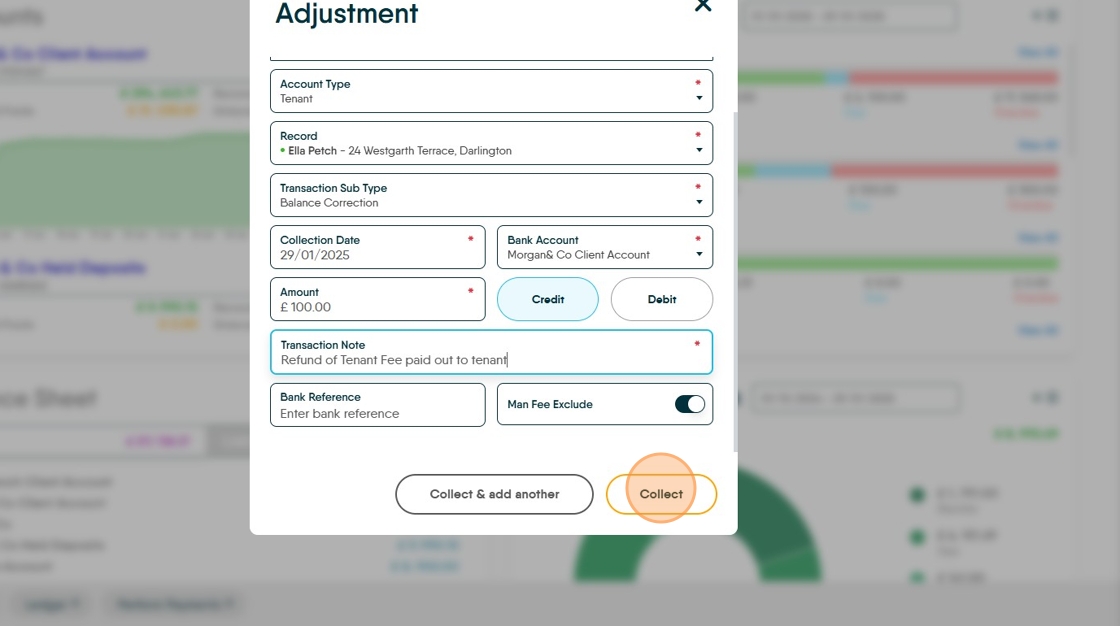
8. Click the "Amount" field and enter the amount to be refunded (in this case). Make sure 'Credit' is selected.

9. Click the "Transaction Note" field. Make sure this is as descriptive as possible e.g. "Refund of Tenant Fee paid out to tenant".

10. Click "Collect" this will credit the selected account.
Tip: Tip! to show the funds in the Tenant Ledger
11. Click here to access the Ledger.
Click "Select ledger type" in this case Tenant
Click "Tenant Ledger" and search for the Tenant you have credited
Click here, the refunded Adjustment will show on the screen as a credit.
To show the Funds as returned to the Tenant
12. Click "Accounts"

13. Click "General"

14. Click "Adjustment"

15. Click "Select account type"
Click "Tenant"
16. Click "Select record" and enter the name of the Tenant you are refunding.
17. Click "Select bank account" and select the account (usually Client Account)

18. Click the "Amount" field and add the amount.

19. Click "Debit" to move the refund from the Tenant.

20. Click the "Transaction Note" field.

21. Click "Collect"

22. If you now check the Tenant Ledger, the fees will show as another adjustment out of the Tenant Ledger.

Alert: Alert! You now need to ensure that the transactions are done in your 'Real World' Bank Accounts to reflect the refunded Tenant Fee to your Client Account and the refund of the fee from your Client Account to your Tenant.