This guide provides a step-by-step process for handling rent refunds from a tenant when payment has already been made to the landlord, ensuring accurate financial management. By following the detailed instructions, users can efficiently navigate the necessary systems and maintain clear records of transactions. It is essential for property managers and agents to understand this procedure to ensure compliance and maintain positive relationships with both tenants and landlords. Viewing this guide will streamline the refund process and enhance operational efficiency.
Tip: If you follow the rent collection process in CRM this should be a VERY rare requirement.
1. Navigate to https://crm.iamproperty.com/Dashboards/Accounts
Alert: Alert! This process should only be followed if the Landlord has been paid out using perform payments and the payment made to them.
The refund is made up of 2 parts, refunded rent from the Landlord and refunded Agent/Management fees from yourselves.
2. The Landlords rent payment needs to be returned back to you by the Landlord, this will be any rent the Landlord has been paid for this property in the period you are refunding.
Once refunded by the Landlord. Click here to show the refund in CRM.

3. Click "Landlord"

4. Click "Select property" that the rent refund is for. Type the details.
Select the property

5. Click the "Amount" field. This is the amount the Landlord is refunding to you.

6. complete all the other required fields

7. Click the "Description" field and enter a detailed description that clearly identifies the transaction, for example 'Landlord Rent Refund payment.'
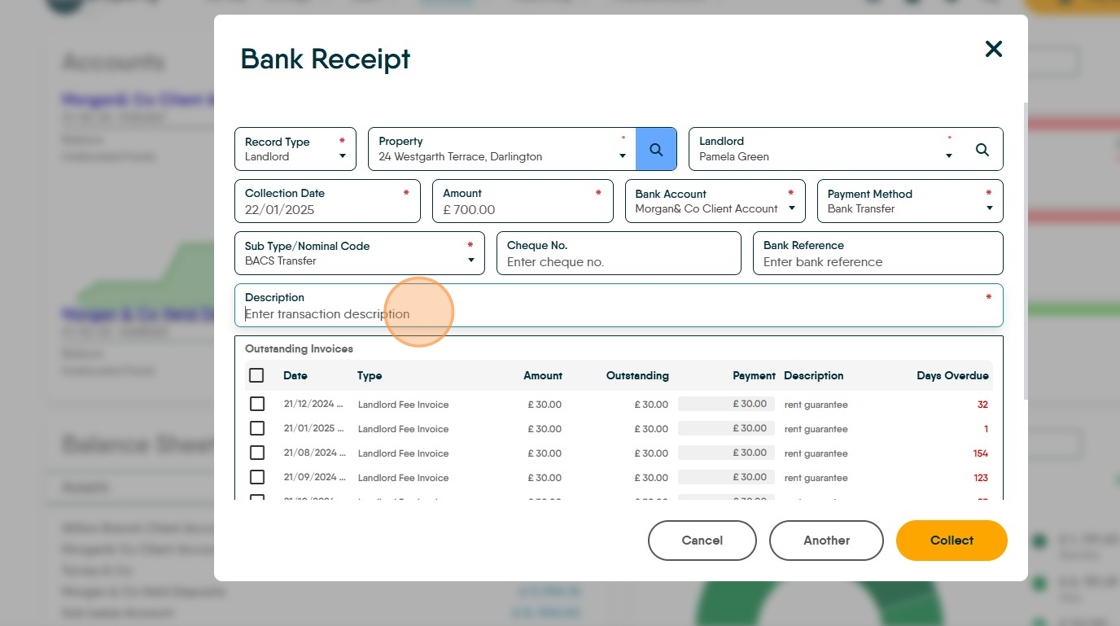
8. Click "Collect" to receipt the money into CRM. The money will now show as Un-Allocated against the Property in the Property Ledger.

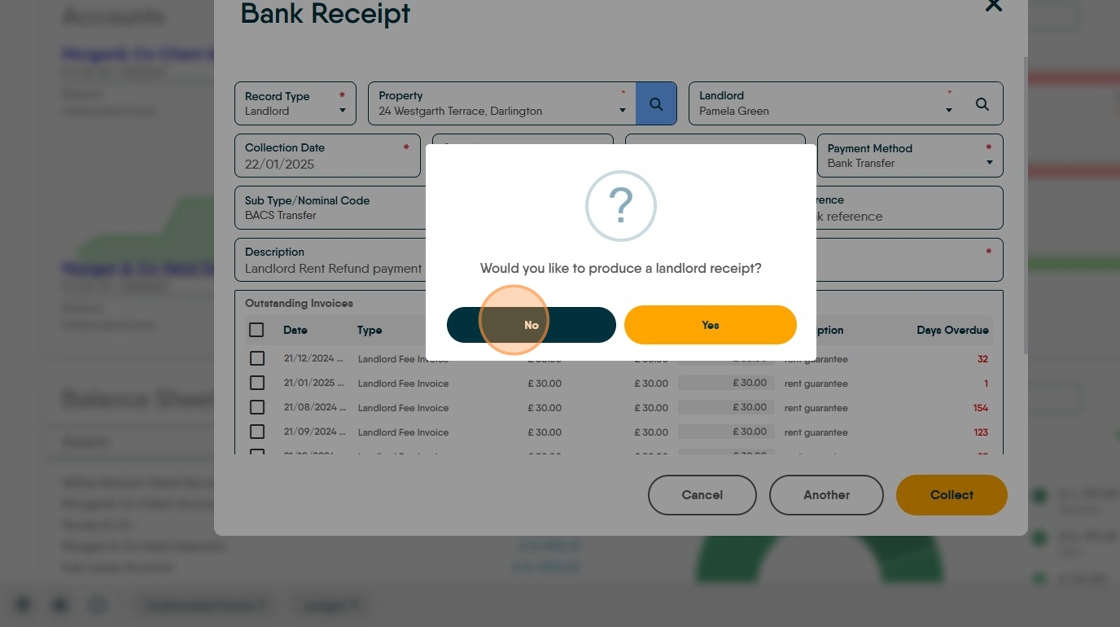
9. There will be an option to create a receipt for the payment, select as required. Click "No" (unless you want to create a receipt to send your landlord.
Refund the Landlord Management fees
10. Click "Landlord"

11. Click "Agent Refund"
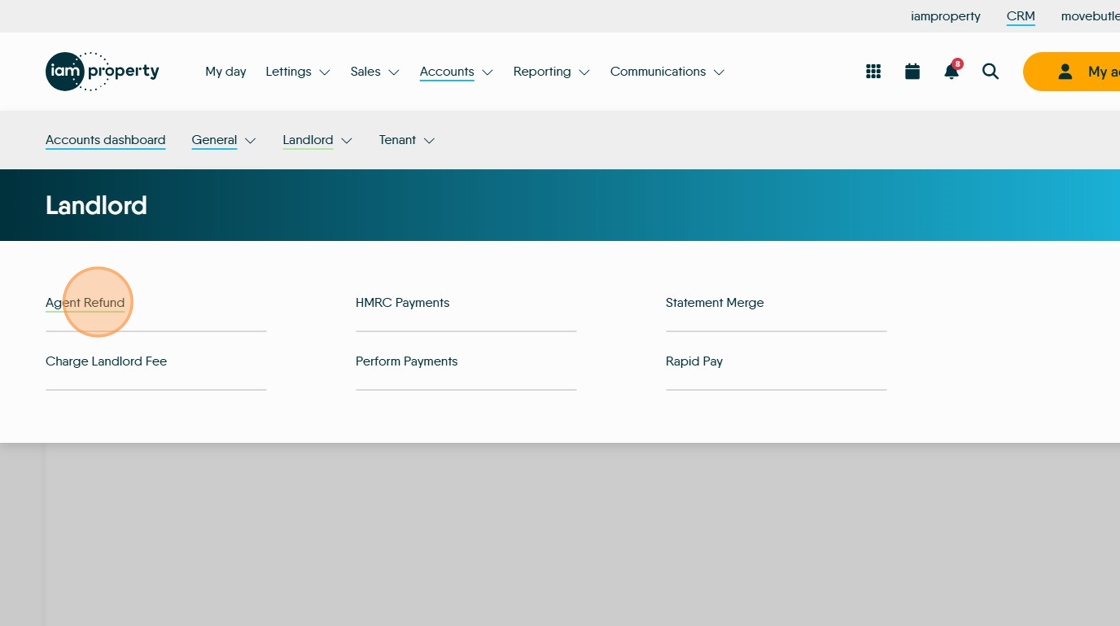
12. Click "Select landlord"
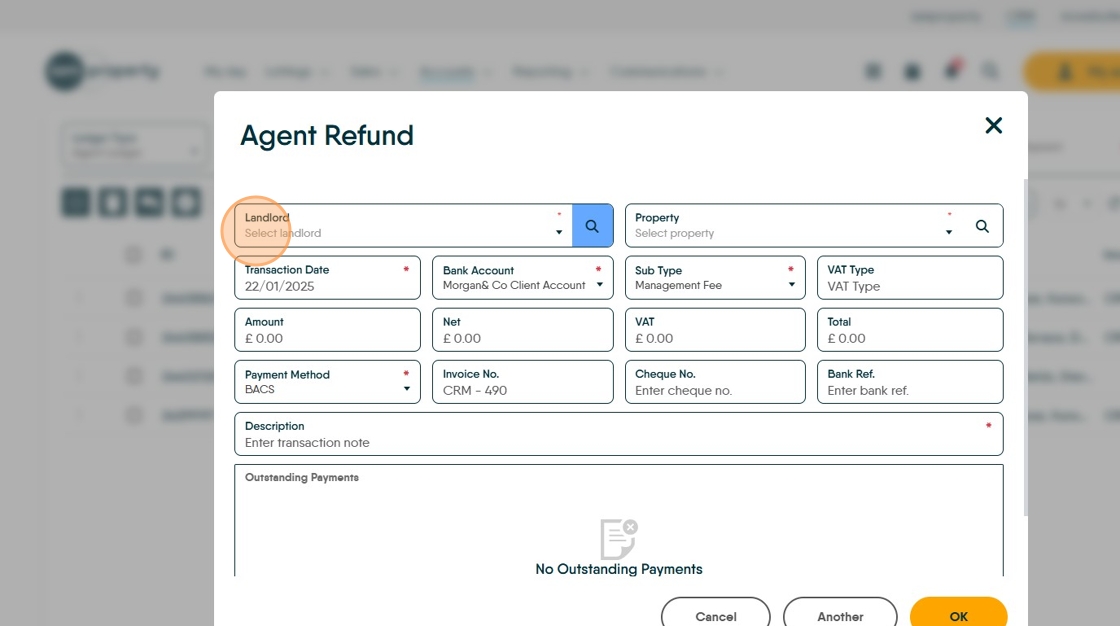
13. Click on the Property the rent is being refunded for

14. Click "Management Fee"

15. Click the "Amount" field and enter the value of the management fees you are refunding.

16. Click the "Description" field and add a detailed description eg. 'Refund of Management fee for rent refund'
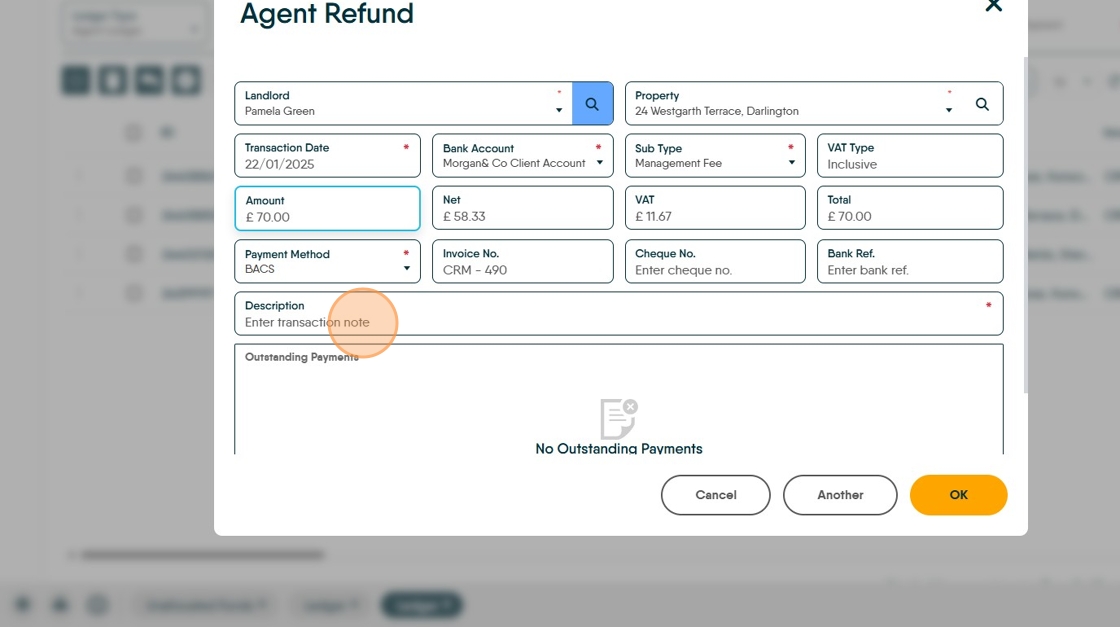
17. Click "OK"

18. Click "yes or No" as required

Transfer the refunded rent and fees to the Tenant

19. Click "Accounts"
Click "General"
Click "Ledger Transfer"
20. Click "Select ledger"
Click "Property Ledger"

21. Click "Select record" this is the address for the rent refund

22. Click the "Transfer Amount" field and enter the value of the rent refund. This amount is Refunded Rent and refunded Management fees

23. Click "Select ledger"
Click "Tenant Ledger"

24. Click "Select record" this is the name of the Tenant being refunded

25. Click here this will create a detailed description of the transaction.

26. Click "Transfer" this will perform the transfer of funds from the Property record to the Tenant record.

Creating the repayment to the Tenant
27. From the Accounts Dashboard. Click here.

28. Click "Select tenant"

29. Click "Select transaction type"

30. Click "Rent Invoice"

31. Click here and exclude the management fee.

32. Click the "Amount" field and edit to be the amount being refunded, in this case £770

33. Click the "Description" field and add your detailed description.

34. If not already checked, make sure 'Pay with Unallocated ' is selected, this will save you a step. Click here to create the Invoice.

35. Click "OK"


36. If you want to create an Invoice to give to the tenant (or receipt as the process is the same) Click "Yes"
Click here.
Click "Standard Tenant Invoice"
Click "Run Report"
Click "Print"
Refunding the Tenant
37. Click here to access the Ledgers.

38. Click "Select ledger type"

39. Click "Tenant Ledger"

40. Click "Search for Record" and search for the tenant record.

41. Click onto the Rent Payment line in the Ledger..

42. Click "Refund"
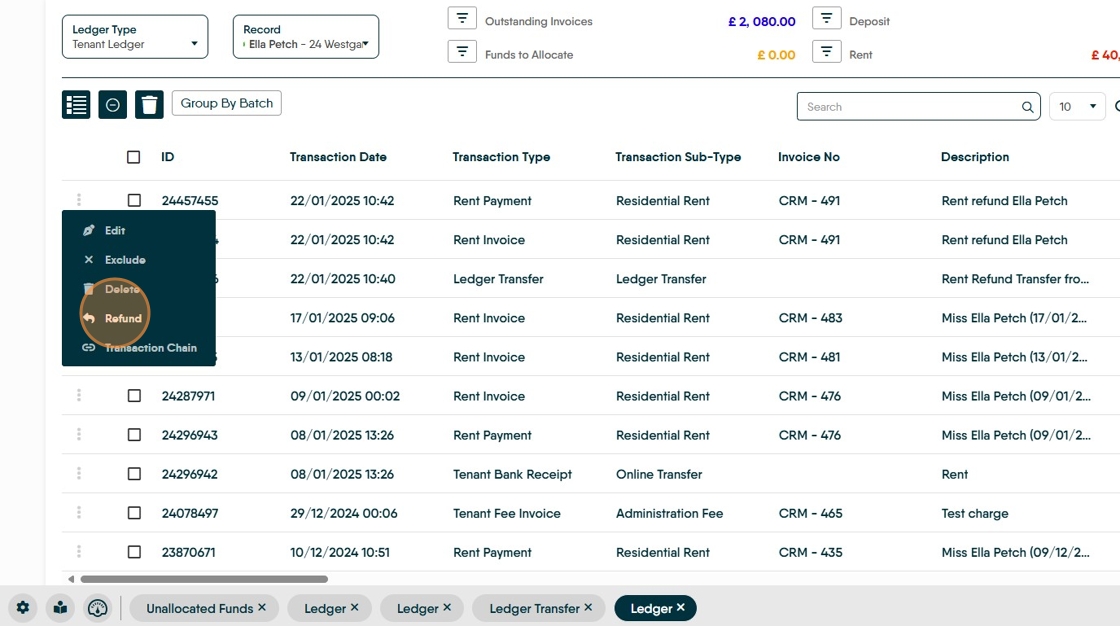
43. Click the "Description" field. Create a clear description

44. Click "Refund"
