This guide provides a step-by-step process for refunding tenant holding payments in CRM and how to transfer the balance to the Agent ledger. By following the detailed instructions, users can easily navigate the system to process refunds and associated fees, minimising errors and saving time. Whether you're new to the CRM or need a refresher, this guide is a valuable resource for maintaining financial integrity in tenant accounts.
In this example we will refund £100 to a tenant and then £80 to the Agent ledger as withheld funds. We will make the assumption that the holding fee has been brought into CRM as 'Unallocated Funds' i.e. not applied to a rent (or other) invoice'.
1. Navigate to https://crm.iamproperty.com/Dashboards/Accounts

2. Click here to access the Ledger screen.

3. Click "Select ledger type"

4. Click "Tenant Ledger"
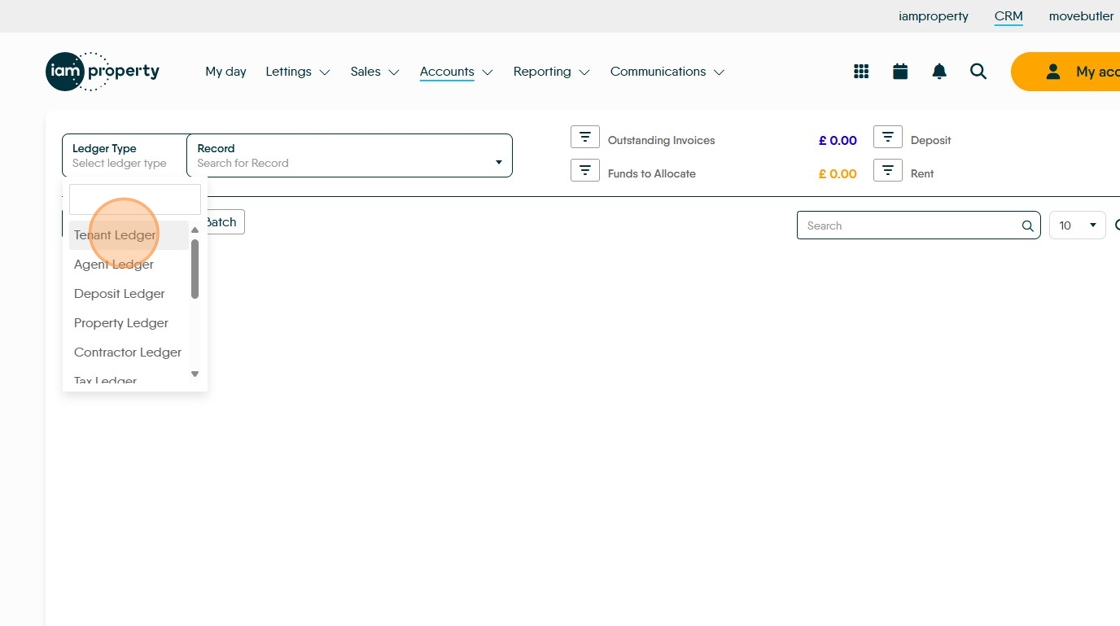
5. Click "Search for Record" Search for the Tenant record and select from the list here.
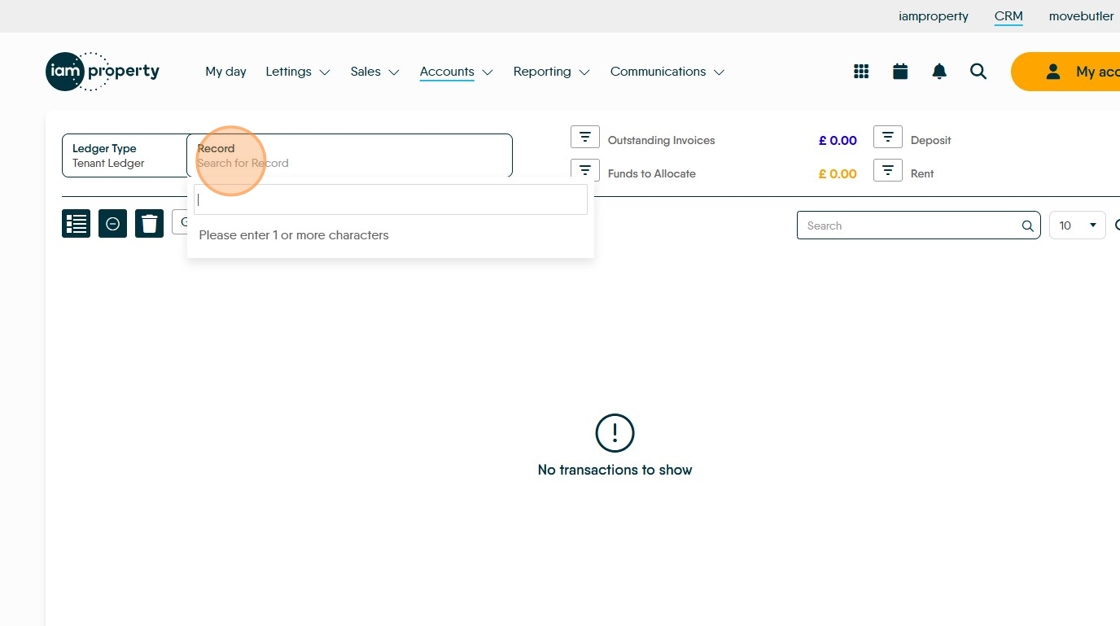
6. Click the 3 dot menu

7. Click "Edit"

8. From the 'Edit Transaction' screen. Click the "Amount" field.

9. Edit the amount to value you are returning to the Tenant. Click "Save"

10. Click this checkbox.
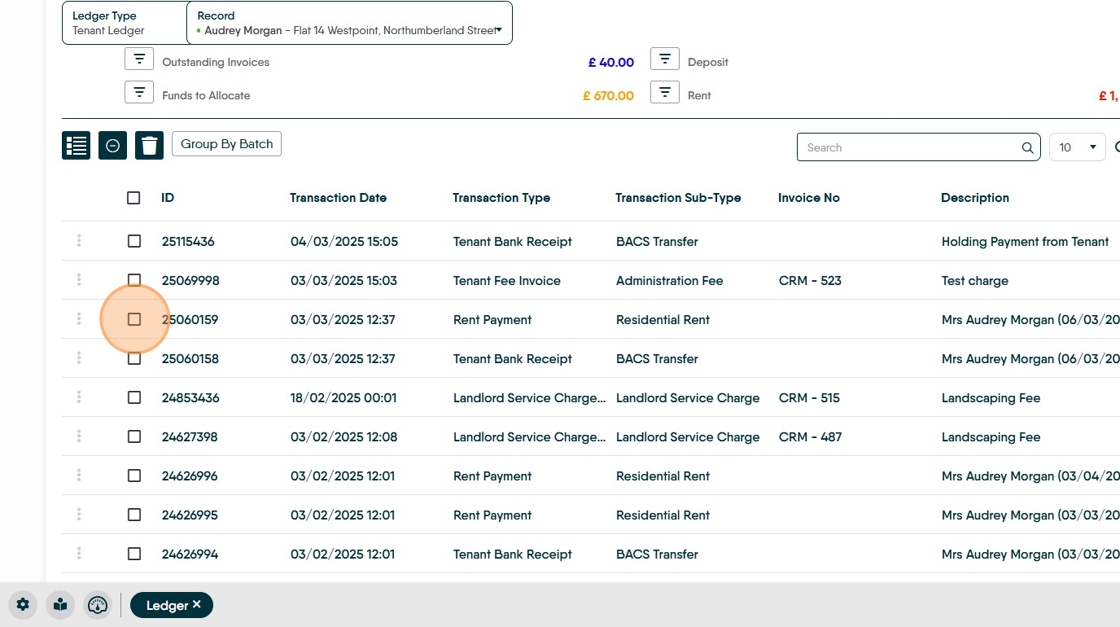
11. Click here.

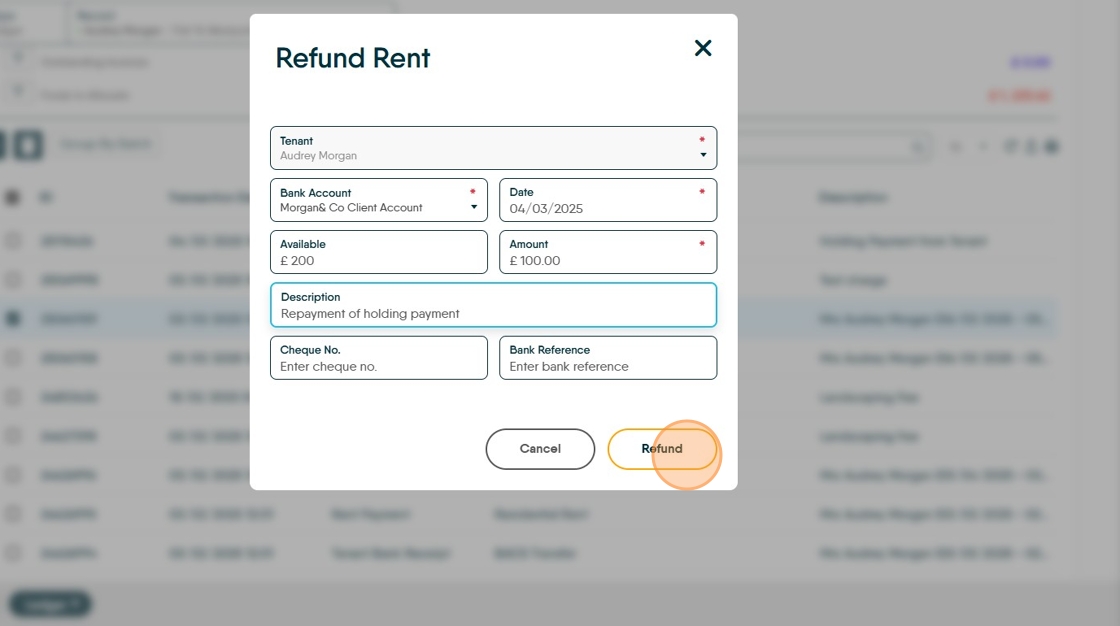
12. Click "Refund"

13. Click the "Amount" field and edit to the amount we are refunding.

14. Click the "Description" field. Type a clear description for the transaction e.g. "Repayment of holding payment"

15. Click "Refund" this will create the refund transaction in the Client Account.
16. Click this icon.

17. Click here.

18. Click this checkbox.

19. Click this icon.

20. Click here.

21. Click "Select tenant" and type your tenant name, select from the drop down list.
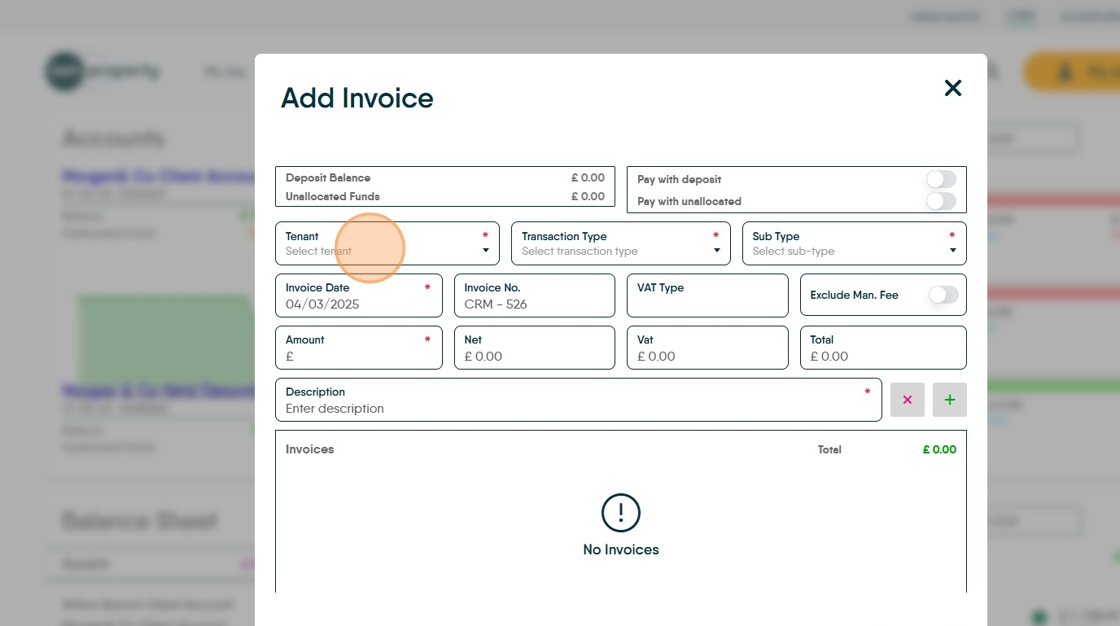
22. Click "Select transaction type"

23. Click "Tenant Fee Invoice" (in this case) or the appropriate option.

24. Click "Administration Fee"

25. If you want to "Exclude the Management fee" Click here

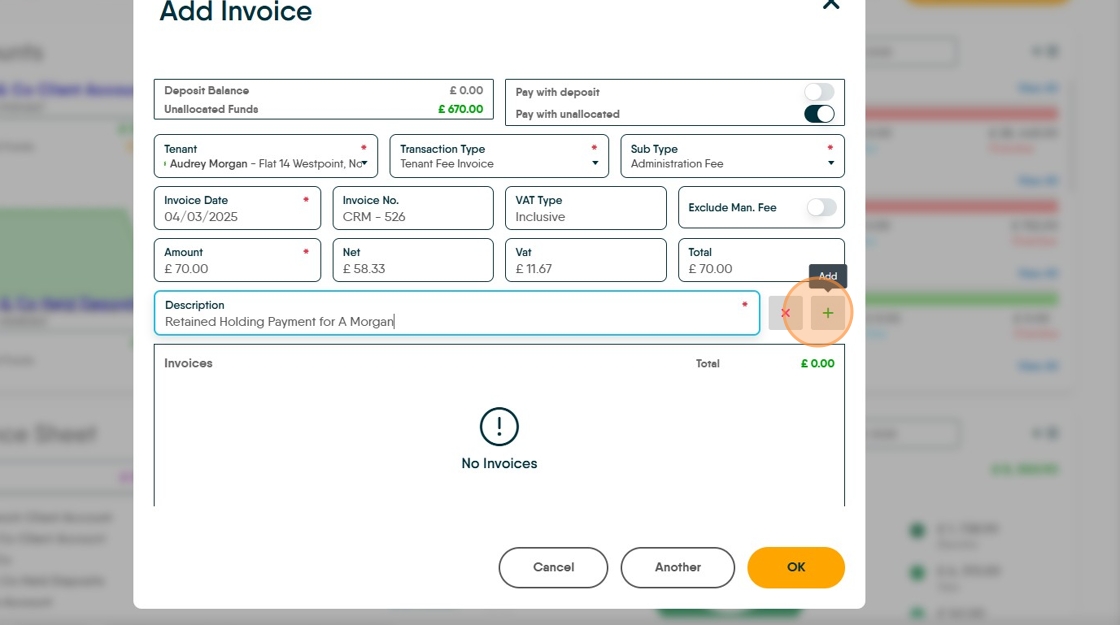
26. Click the "Amount" field. Add the amount of the fee/charge

27. Click the "Description" field. Type a clear accurate description e.g. "Retained Holding Payment for A Morgan

28. Click here. This will create the invoice.
29. Click here.

30. Click "Select transaction type"

31. Click "Tenant Fee Invoice"

32. Click the "Amount" field.

33. Type "7"
34. Click the "Description" field.

35. Type "Withheld Holding Fee"
36. Click here.

37. Click here.
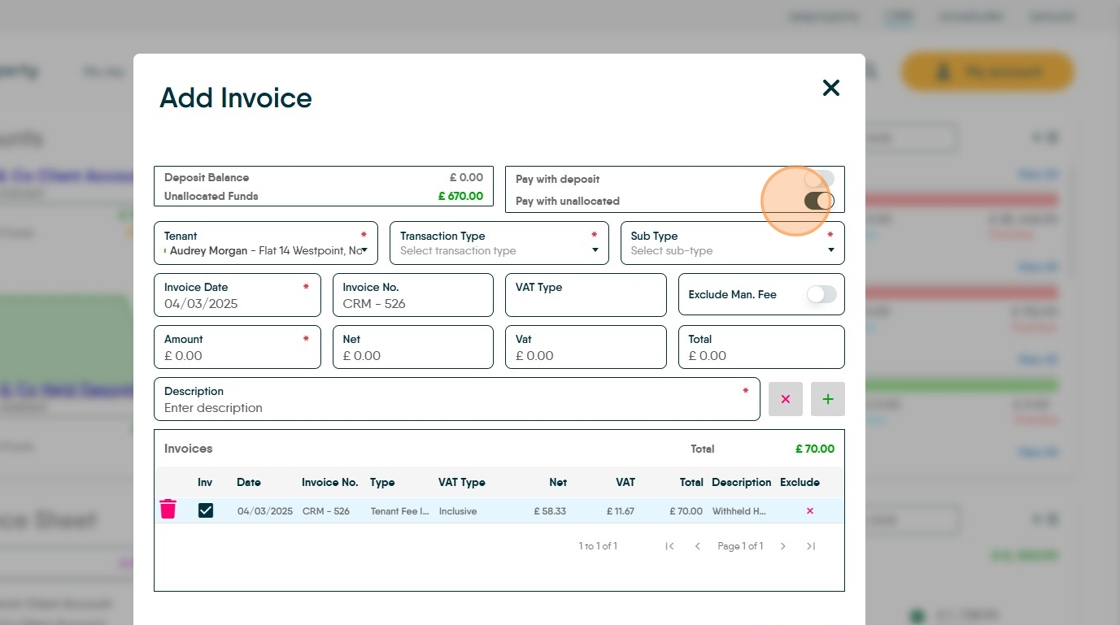
38. Click "OK"

39. Click "No"

40. Click here.
