This guide provides a comprehensive step-by-step process for handling deposits the CRM system, transferring deposits to DPS etc and refunding back to tenants. By following these instructions, users can streamline the receipt and refund process for both tenants and landlords, reducing errors and enhancing customer satisfaction. It's an essential resource for property management professionals looking to optimise their financial operations and maintain clear records.
1. Creating a Ledger Transfer this is referenced a few times in this guide, the instructions are at the end.
2. Navigate to https://crm.iamproperty.com/Dashboards/Accounts
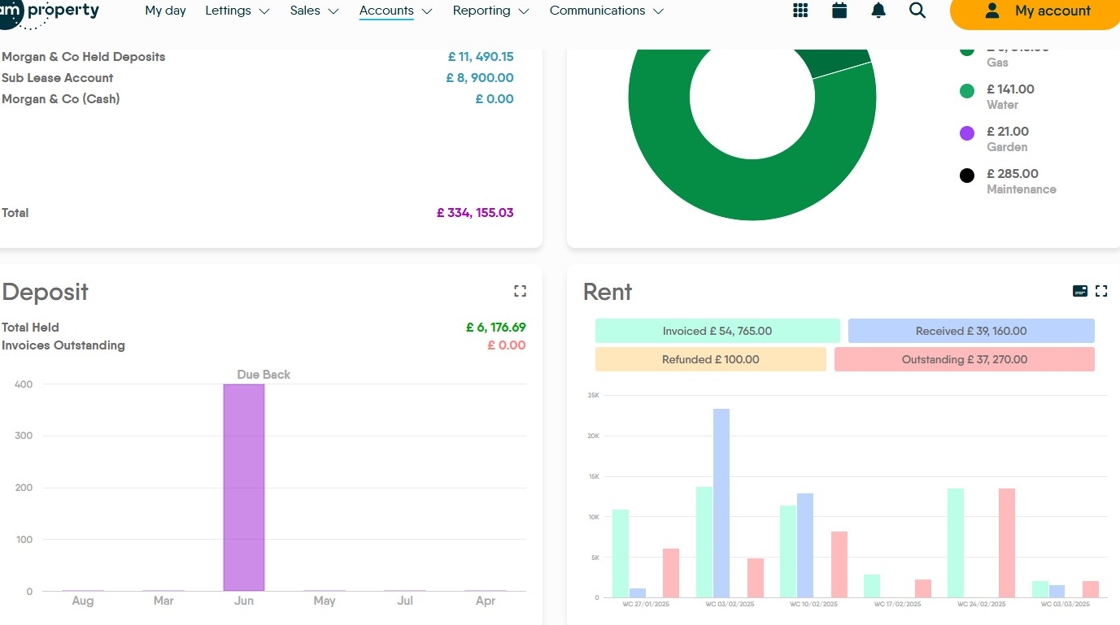
How do you find Deposits?
3. On the Deposit tile click here to see all of the rents.

4. The Payment OS column shows the amount that has not been transferred to a scheme, whether that is a deposit protection scheme, a Landlord or a Deposit account you control.

How To Transfer the Deposit...
5. Click the 3-dot menu.

6. Click "Transfer" the next screen will allow you to select which scheme to use.

Selecting the Deposit Scheme to Use
Tip: This guide will show the full process for the first option then just the screens after that.
Deposit Transfer - Protection Scheme
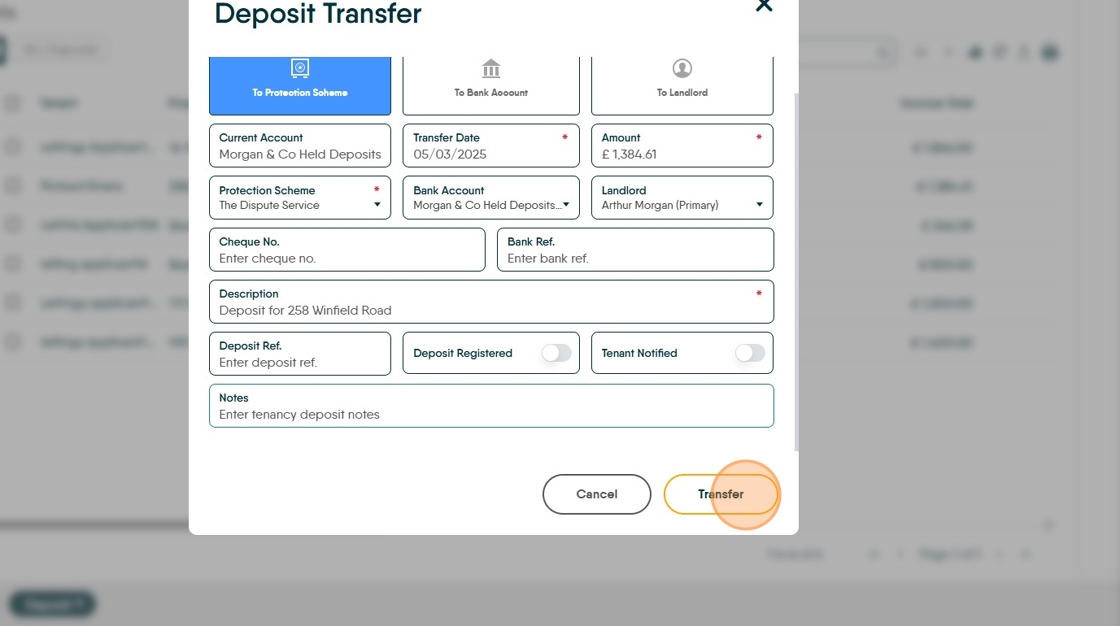
7. Click "To Protection Scheme" and then "Protection Scheme" if not already selected, from the list select the option that you are using
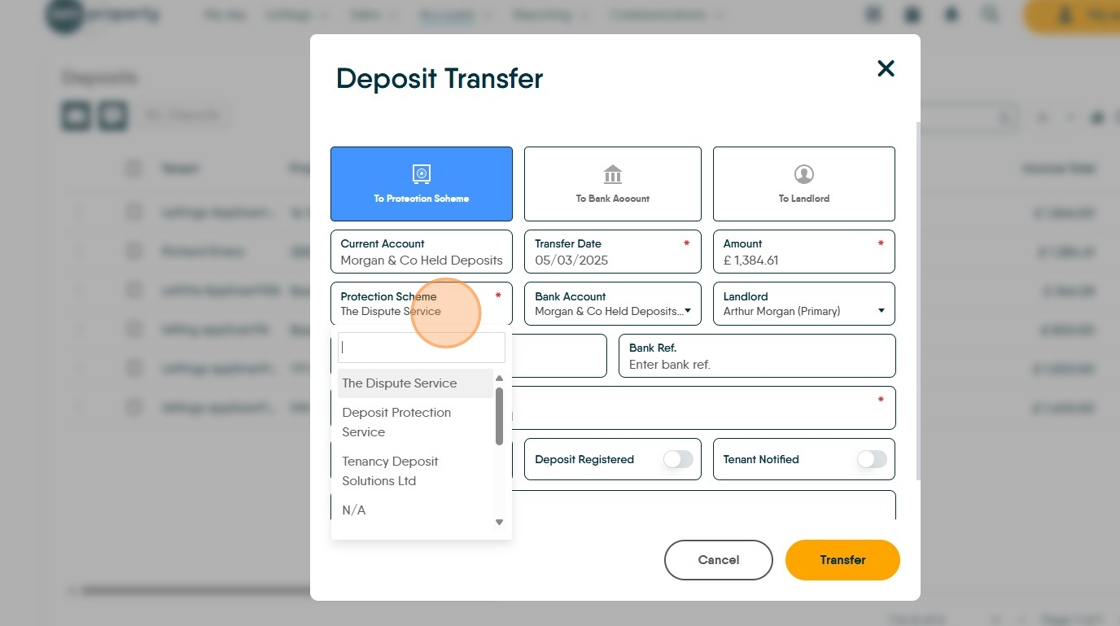
8. Check all of the mandatory fields are correctly completed.
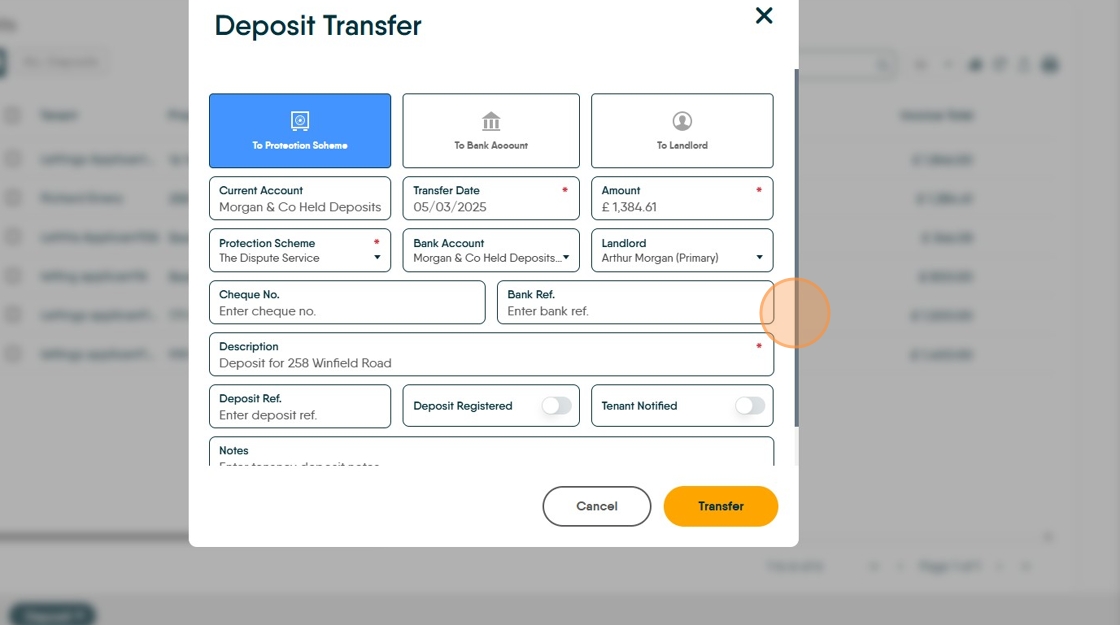
9. Click the "Description" field and update, if required. Best Practice; Make your description as clear as possible as this will help in finding the transaction later.

10. If the deposit has already been transferred to the scheme. Click the "Enter deposit ref., Deposit Registered and Tenant Notified" fields. These will update the fields in the Tenancy record.

11. Click the "Notes" field and update/add any notes you want to add.

12. Click "Transfer" and the transfer within CRM is done. Transferring to a protection scheme will create a payment line in the Client Account. The payment still needs to be made to the Deposit Protection Scheme by Bank transfer
Deposit Transfer To Bank Account - Agent Deposit Account
13. Click the "To Bank Account" option. Check and update the details for the account the deposit is being transferred to, also the amount etc.
The payment now needs to be transferred to the Deposit account.

Deposit Transfer to Landlord
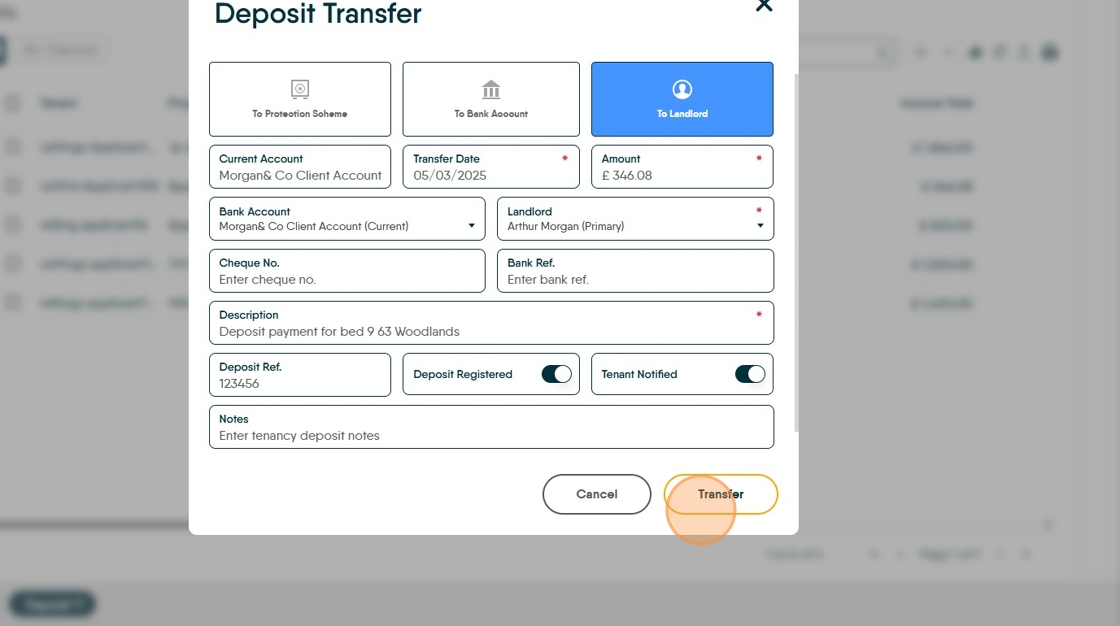
14. Select Landlord. Check all the mandatory fields are correct and click "Transfer.
The deposit transfer to a Landlord can be done via BACS from CRM if the landlord is setup or as a Bank Transfer from your Client account
Refunding Deposits
Refunding Deposit - Held in Agent Deposit Account
15. In the Deposits screen on the Accounts dashboard. Click here.

16. Click "Refund"

17. Click the "Amount" field and type the amount you are refunding to the tenant.

18. Click "Refund"

Alert: The money will then be available to be transferred either via BACS, if the tenant is set up for this, or as a bank transfer/cheque etc.
The retained funds left in the account will sit as deposit and can be used to pay contractors bills or transferred to the Property to be paid to the Landlord.
Refunding Deposit - Deposit Protection Scheme
Tip: Tip! Deposits held in a Deposit Protection Scheme will automatically be refunded to the Tenant from the scheme. The remaining funds will be sent to the Agent to refund to the Landlord or use to pay maintenance fees.
To use the funds to pay for refurbishment or pay to the Landlord follow below.
19. The retained deposit needs to be receipted into the CRM. Click here to open the Bank Receipt.

20. Either click "Select property" and type the property details or click "Tenant" and add the Tenants details.

21. Or use the Tenant option search for and select the name in the drop down box.

22. The screen will populate with the details. Click the "Amount" field and add the amount of the retained deposit returned by the scheme.

23. Click "Select payment account" this is the account that the retained deposit from the scheme was paid into.
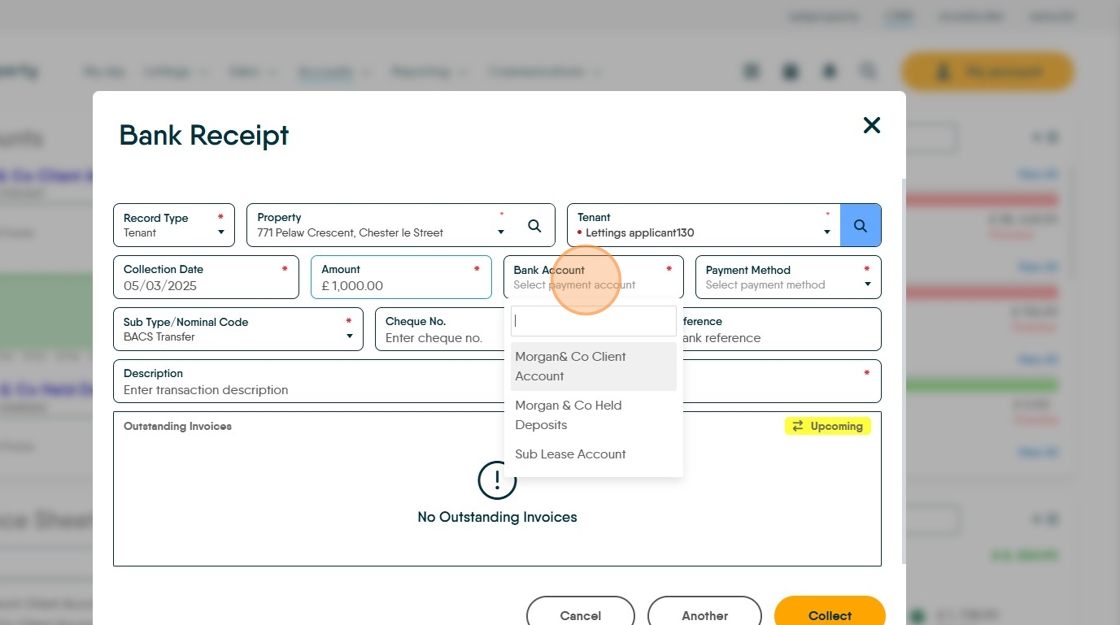
24. Click "Select payment method" i.e. how it was paid to you.

25. Click the "Description" field.
Best practice is to use a detailed description e.g. "Withheld Deposit transferred from DPS" as this helps with tracking the transaction.
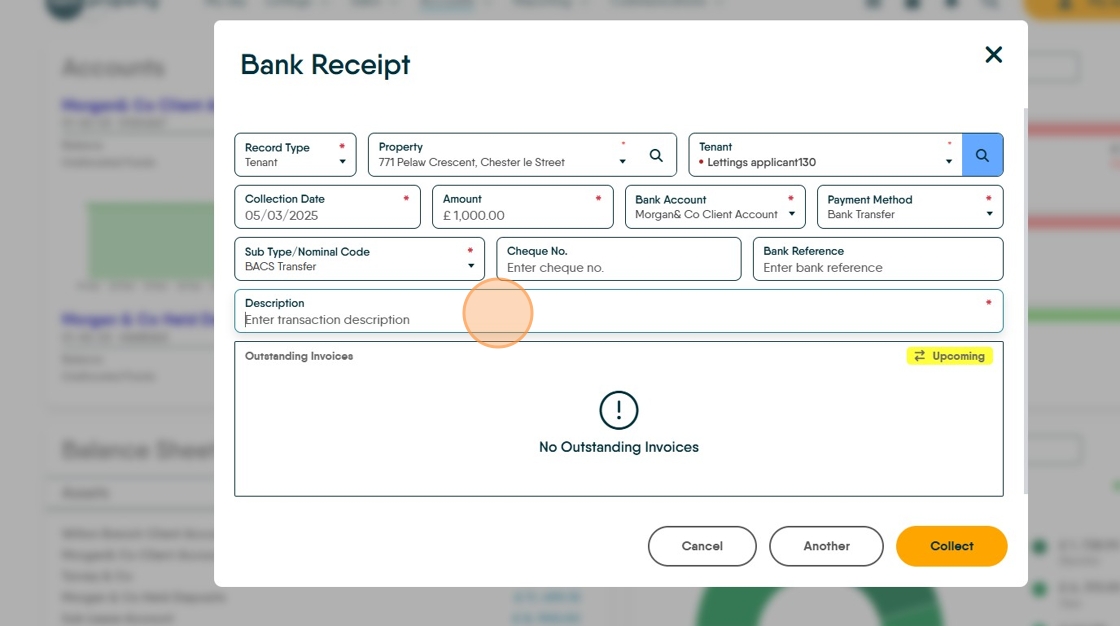
26. Click "Collect" to show the refund in the CRM.
This brings the funds in as 'Unallocated' to the tenant ledger.
Best practice here is to allocate these funds to an invoice, as shown below.

27. Click "No" or "Yes" to this.

Alert: Alert! This refund is paid back into the Tenant Ledger as it is technically the Tenants money.
28. To create the refund invoice click here.

29. Click "Select tenant" and type the tenants name, select the tenant name from the drop down menu.

30. Click "Select transaction type". Click "Deposit Invoice"

31. Click the "Amount" field and edit to the amount being retained/returned from the deposit scheme.

32. Click here to exclude the management fee.

33. Click the "Description" field. Type a detailed description of the transaction.

34. Click here and select "Pay with unallocated".
This will allocate the Unallocated funds (aka 'Retained Deposit') to the Invoice.

35. Click here to create the invoice.

36. Click "OK"

37. Click "No" or "Yes"

38. Once the Invoice has been created, in the scenario above the invoice will be automatically paid and the retained funds will show as a deposit payment. Depending on how the funds are being used will change what happens next.
If the funds are being used;
- To pay for refurbishment of the property then the funds can stay as Deposit or be transferred to the Float and used to pay any contractors invoices.
- Being returned to the Landlord, the funds need to be transferred to the Property Ledger.
Refunding Deposit - held by Landlord - Returned to Tenant
Alert: Alert! In this case the funds need to be receipted into CRM from the landlord, then transferred to the tenant or transferred to float if used for refurbishment.
39. Click here to create the Landlord bank receipt.


40. Click "Record Type" and select Landlord from the drop down menu.
Click "Landlord"

41. Click "Select property" type the property name and select from the drop down menu.
42. Click the "Amount" field and add the amount of the deposit being returned to the tenant or withheld for refurbishment.

43. Click the "Description" field. Add in a detailed description as mentioned previously.

44. Click "Collect"

Alert: Alert! This will collect the funds as 'Unallocated' to the Property Ledger, the funds need to be moved to either the Tenant Ledger or the Float Ledger. If this is not done and 'Perform Payments' is done then the Landlord payment will be sent back to the Landlord.
45. Click "No" or "Yes"

46. Ledger transfer the Landlord bank receipt to the tenant ledger from the property ledger.
Click "Accounts"
Click "General" then "Ledger Transfer"

47. Click "Select ledger". Click "Property Ledger". Click "Select record" and search for and select the property record.

Alert: Alert! If the Returned Deposit funds are being held to pay for refurbishment works transfer them to the Float Ledger rather than the Tenant Ledger.
48. Click "Select ledger", Click "Tenant Ledger" (or Float if the funds are being used for refurb), Click "Select record" search for the tenant details. Click the "Description" field and add the description

49. Click "Transfer" to transfer the funds to the Tenant Ledger.

50. If the funds are being transferred back to the Tenant, it is best practice to create a deposit invoice.
Click here to create a Deposit Invoice.
Click "Select tenant"
Click "Select transaction type"
Click "Deposit Invoice"

51. Click the "Amount" field add the amount of returned deposit.

52. Click the "Description" field and add a clear description.

53. Click here to exclude the Management Fee.

54. Click here to create the Invoice.

55. Click "OK"

56. Click "No" or "Yes"
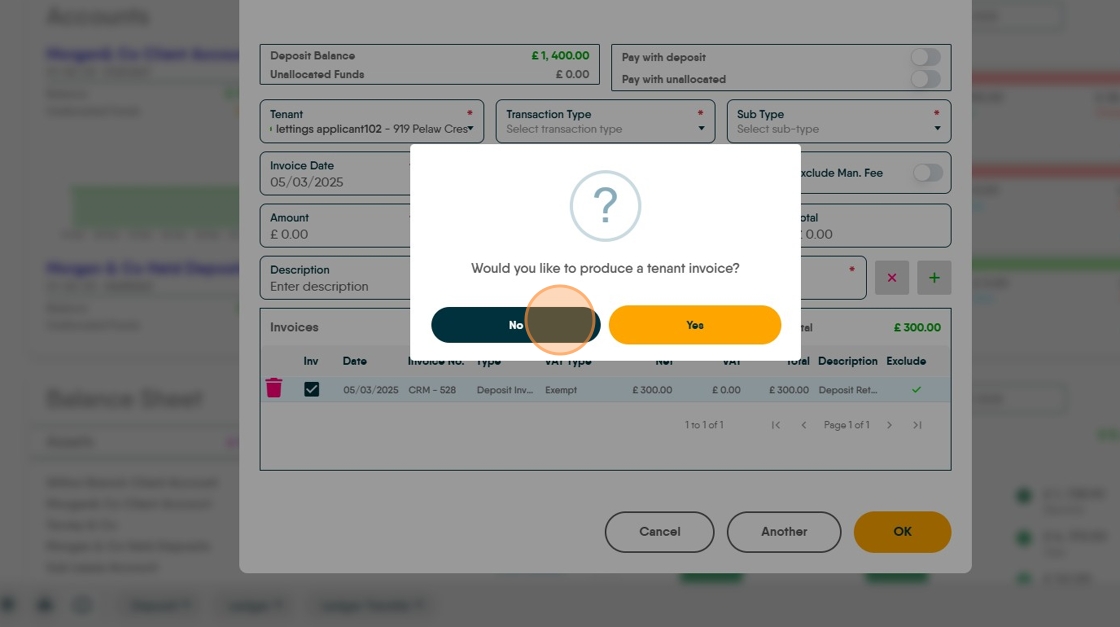
57. Once the Invoice is created, go to the Tenant Ledger and use the retained funds to pay the Invoice. Click "Ledger"

58. Click "Tenant Ledger"

59. Search for and select the tenant from the drop down list.

60. Click here.

61. Click "Allocate"

62. Click this checkbox to select the invoice we are allocating the funds to.

63. Click "Allocate"

64. Return to the Accounts dashboard and click here.

65. In the deposits list, find the deposit you are returning and click the 3-dot menu

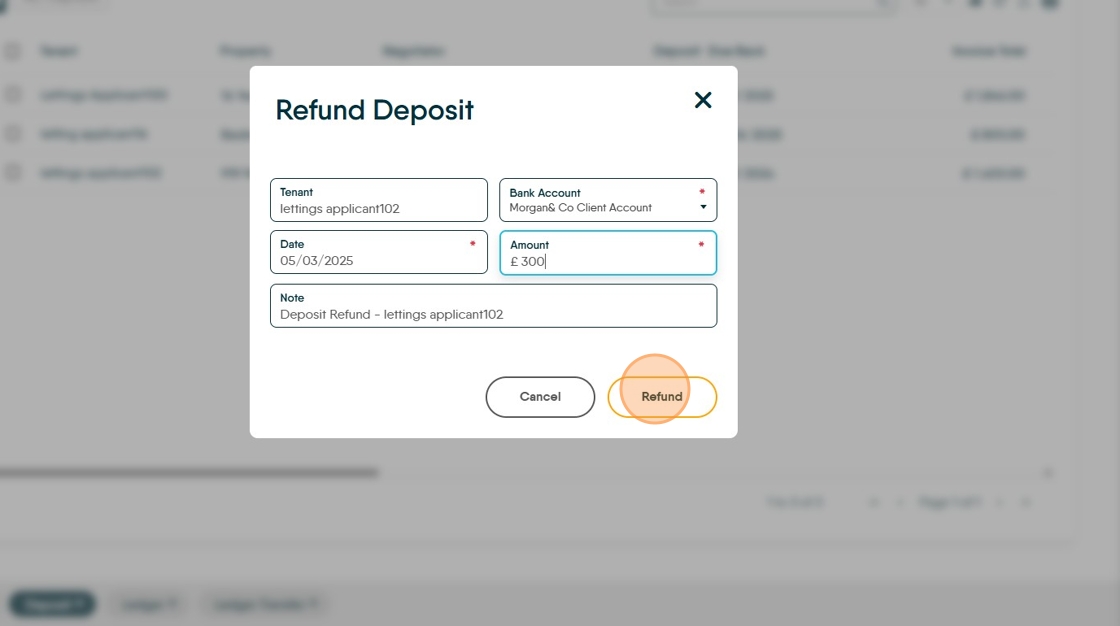
66. Click "Refund"

67. Click the "Amount" field and update with the amount you are refunding.
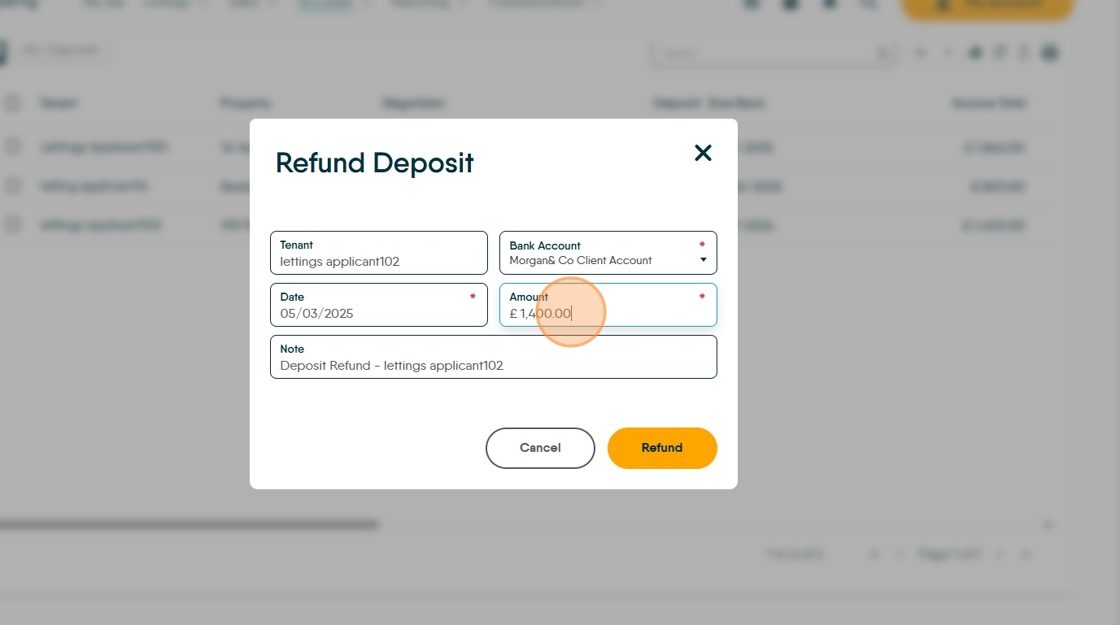
68. Click "Refund"
How to Ledger Transfer funds in CRM.
69. Click "Accounts"

70. Click "General" then click "Ledger Transfer"

71. In the Ledger Transfer screen. Click "Select ledger" then click "Deposit Ledger"

72. Click "Select record" and type the tenant name and select from the drop down menu.

73. Click the "Transfer Amount" field and add the amount you are transferring between ledgers.

74. Click "Select ledger" then click "Property Ledger"

75. Click "Select record" type the property address and select from the drop down menu.

76. Click here to create a description for the transfer, edit as required. Although this is a very complete description, we would suggest adding that this is a 'Withheld Deposit'

77. Click "Transfer" to move the funds between the ledgers.

Alert: Alert! If transferring the funds to the Property Ledger they will be paid to the Landlord next time you do Perform Payments.