This guide provides step-by-step instructions for leaving Private and Public feedback on Viewings in the CRM, ensuring your comments remain confidential while effectively tracking viewer interactions. This guide will look at all options for viewing and updating feedback. By following these detailed steps, users can streamline their feedback process, improve communication with clients, and maintain organised records.
Alert: The process for leaving Private and Public feedback is essentially the same, a different field is selected and filled in.
Private Feedback is only visible to CRM users logged into the correct branch etc on CRM.
Public Feedback is available for anyone with access to the property details to view. A Landlord or Vendor with access to the respective client portals will be able to view any Public Feedback, as well as CRM users logged into your company and branch.
Adding Feedback via Lettings/Sales Activity Dashboard
1. Through this guide we will use the Sales feedback screens. The process for Lettings is identical.
2. Navigate to https://crm.iamproperty.com/Dashboards/Sales
From the Activity List, select the Viewings Requiring Feedback option. This will show all the Sales or Lettings viewings that have not had viewing feedback added or been saved with final viewing notes.

3. Click the 3 dots next to the record you want to open.

4. From the menu click "Open Viewing" this will open the Viewing record for the record you selected.

5. Click "Feedback"

6. Click either the "Private Feedback Notes" or "Public Feedback Notes" field and enter the feedback notes you want to add.
You can create a Private, or Public feedback, template to allow you to quickly and accurately compile feedback.

7. Add your feedback (either private or public) Click "Save Viewing"

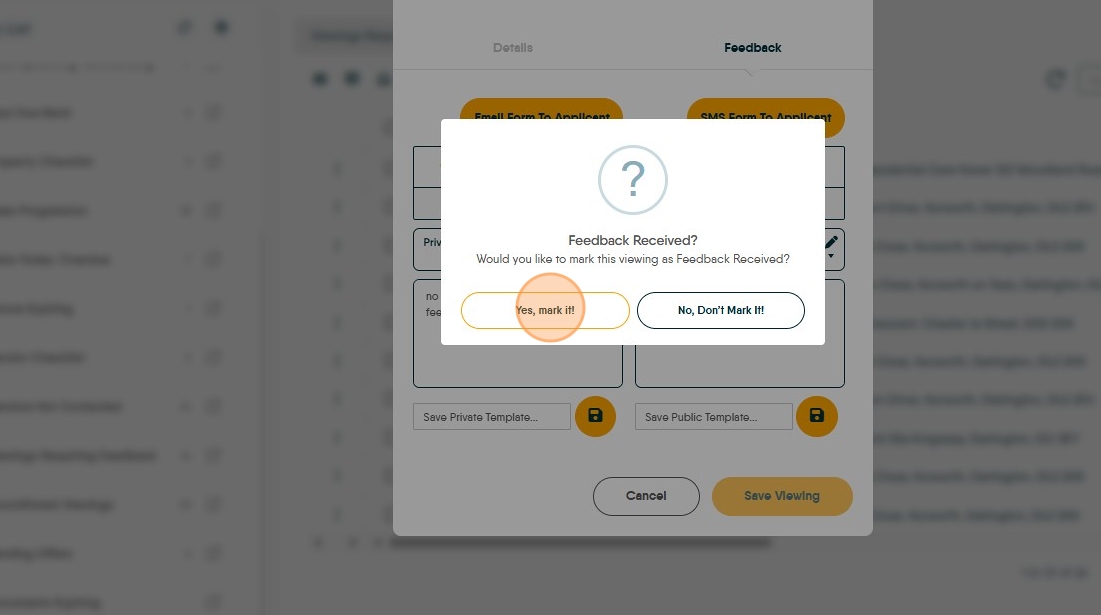
8. If want to keep adding feedback to the record click "No, Don’t Mark It!" this will allow you to keep adding comments, for example if you cant get in touch with the viewer and want to leave a note showing you tried. etc.

9. If you have been successful (or have decided to stop trying) click the "Public Feedback Notes" field and copy the feedback you want to show to the Vendor/Landlord into the private notes field and click 'Save Viewing'

10. Click "Yes, mark it!" the feedback will be saved and the record marked as completed. The record will be removed from the 'Viewings Requiring Feedback' list.
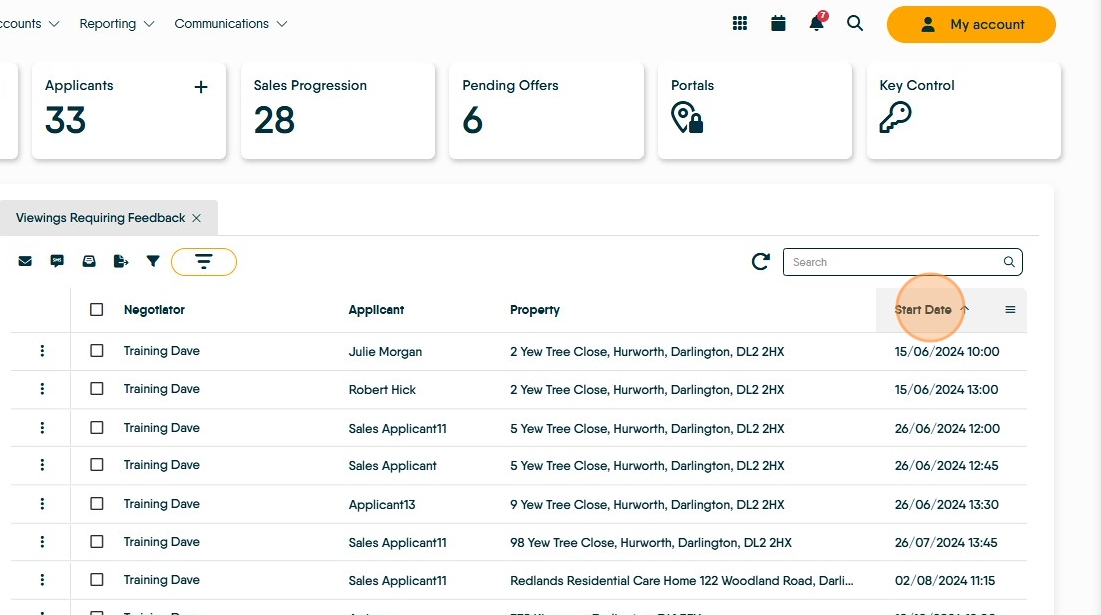
Sorting The Activity List Screen
11. To sort the Activity List screen, click on any of the column headers and this will sort the data by ascending or descending order based on the column selected. For a more detailed sort click the 3 lines that show when the mouse is hovered over the column header.
Here we selected the date column so the order would be oldest to newest (first click)or newest to oldest (second click) depending on how many times the header is clicked. You can also use the search box to search for specific records.
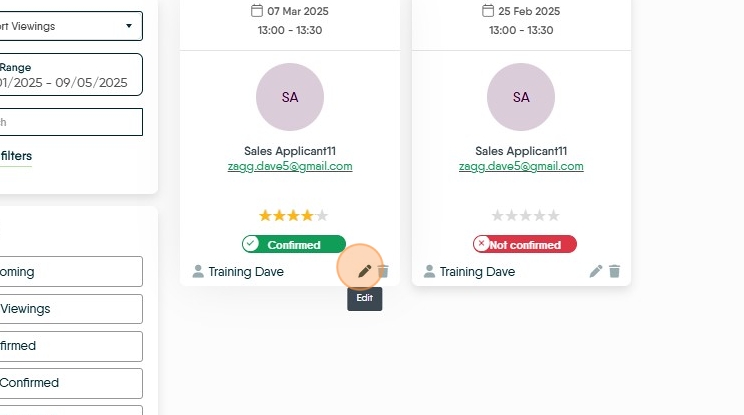
Leaving Feedback from the Property or Applicant Records
12. In the Property or the Applicant record, in the left menu scroll and select 'Viewing' to see the viewing record .

13. Click here.
14. Click "Feedback"

15. Then leave notes as you would accessing the feedback from the Viewing appointment in the calendar. or click here to see detailed description.
Detailed Process for Leaving feedback.
Tip: Tip! For accurately noting feedback you can create a feedback template, this might contain recommended wording or questions to be asked of the viewer.
16. Create feedback templates in this section, click the 'Pencil' to create the template.
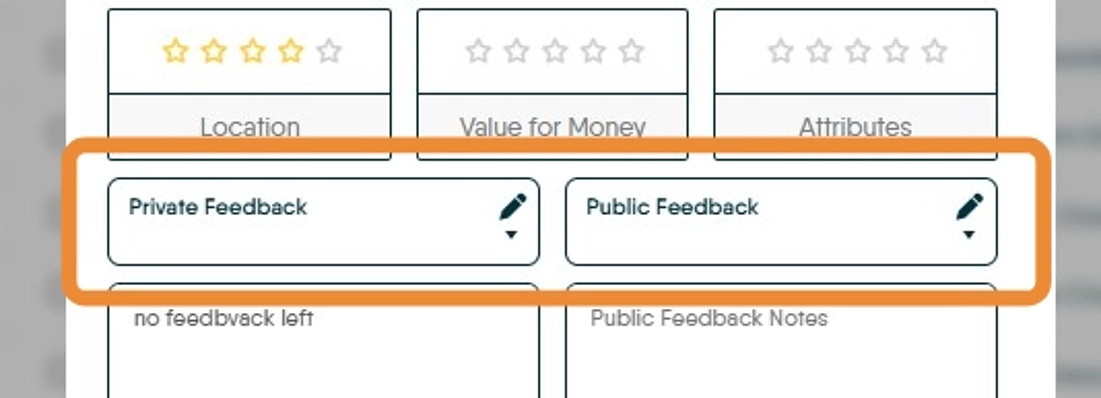
17. Click here and leave 'stars' for the property 'Location'

18. Click here and leave 'stars' for the properties 'Value for Money'
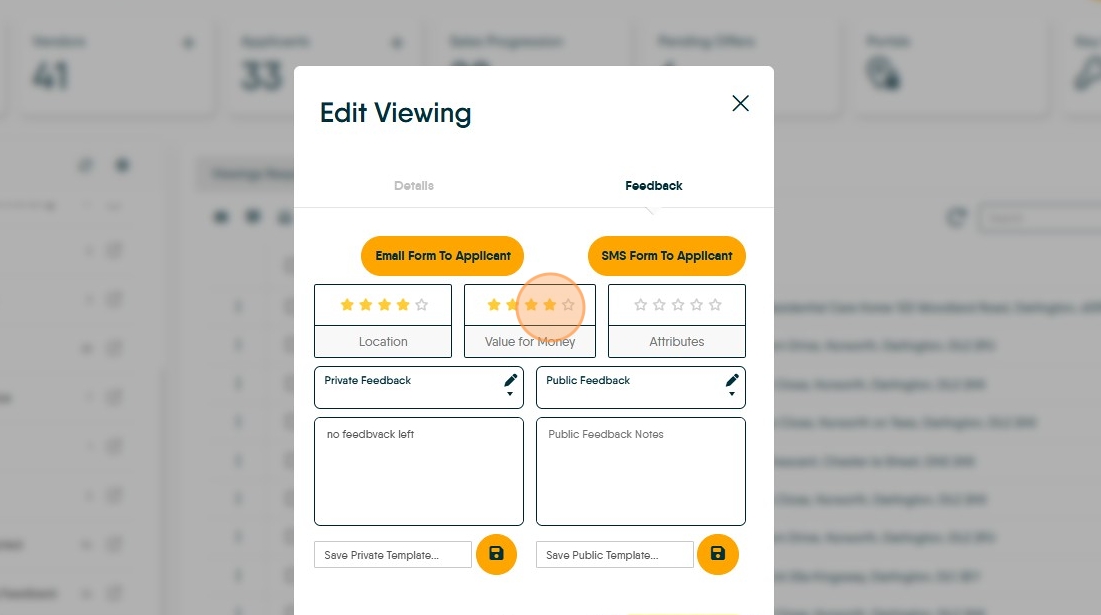
19. Click here and leave 'stars' for the property 'Attributes'
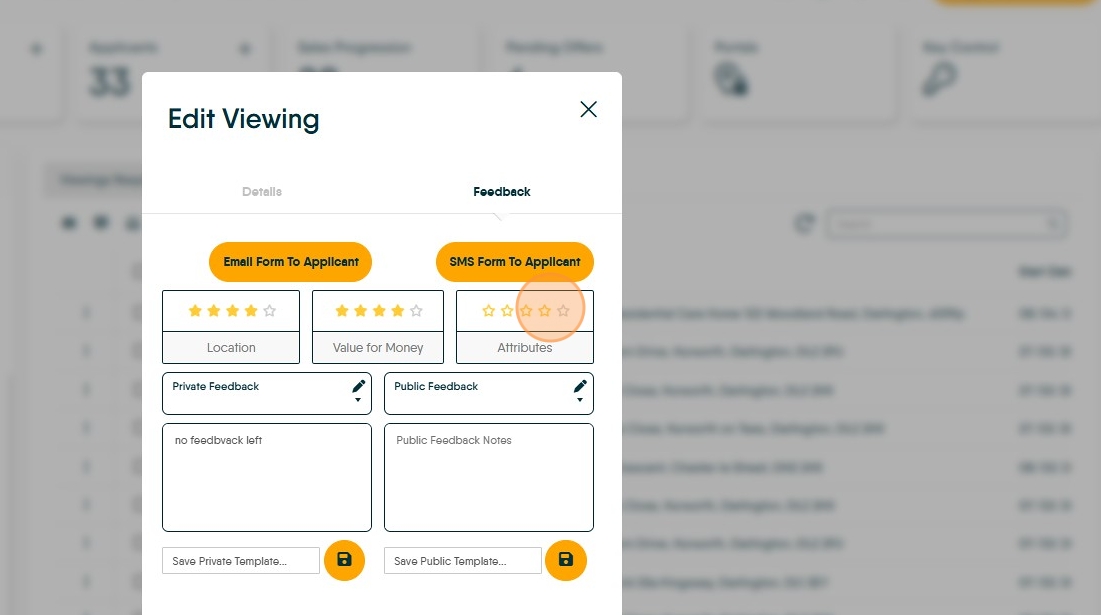
20. Click the "Private Feedback Notes" field and leave any Private feedback received from the viewer. If the viewer leaves feedback via the emailed link, their feedback will show here for you to edit and copy to public feedback.

21. Click the "Public Feedback Notes" field add the feedback notes you want the Vendor/Landlord to see.

22. If you have been successful (or have decided to stop trying) click the "Public Feedback Notes" field and copy the feedback you want to show to the Vendor/Landlord into the private notes field and click 'Save Viewing'

23. Click "Yes, mark it!" the feedback will be saved and the record marked as completed. The record will be removed from the 'Viewings Requiring Feedback' list.

24. If want to keep adding feedback to the record click "No, Don’t Mark It!" this will allow you to keep adding comments, for example if you cant get in touch with the viewer and want to leave a note showing you tried. etc. The record will stay in the 'Viewings Requiring Feedback' list until cleared.
