This guide provides a comprehensive overview of how to view and manage sales progression for a property within the CRM system. It outlines multiple methods to access the Sales Progression screen, ensuring users can choose the most convenient option for their needs. Additionally, it details how to complete necessary fields and manage chains for both purchasers and vendors, making it a valuable resource for effectively tracking property sales.
1. Navigate to https://crm.iamproperty.com/MyDay
Accessing Sales Progression
Tip: Tip! There are 3 ways to access the Sales Progression screen.
2. Click "Sales"

3. Click "Sales Progression"

4. This will take you to the progression screen.

5. Click "Sales Dashboard"

6. Click "Sales Progression"

7. Alternatively, Click "Sales"
Click "Properties"
Click to select your property.
Click "Offers"
Click this link.

8. This will take you to the Progression screen (as above)

9. Once in the Progression screen, complete all the fields as required. There are some of the progression items that cannot be completed until a previous option is completed. These are the Yellow fields, as an example if the screen shown, the 'Memorandum of Sale Sent' field needs to be completed before the 'Searches Ordered' field can be completed. You can add notes to these fields and the estimated date.

Adding a Chain
10. To add to the chain, Click "Chain". The chains can be as long as you require and have the information to complete.

11. From this screen you can complete the fields as required.
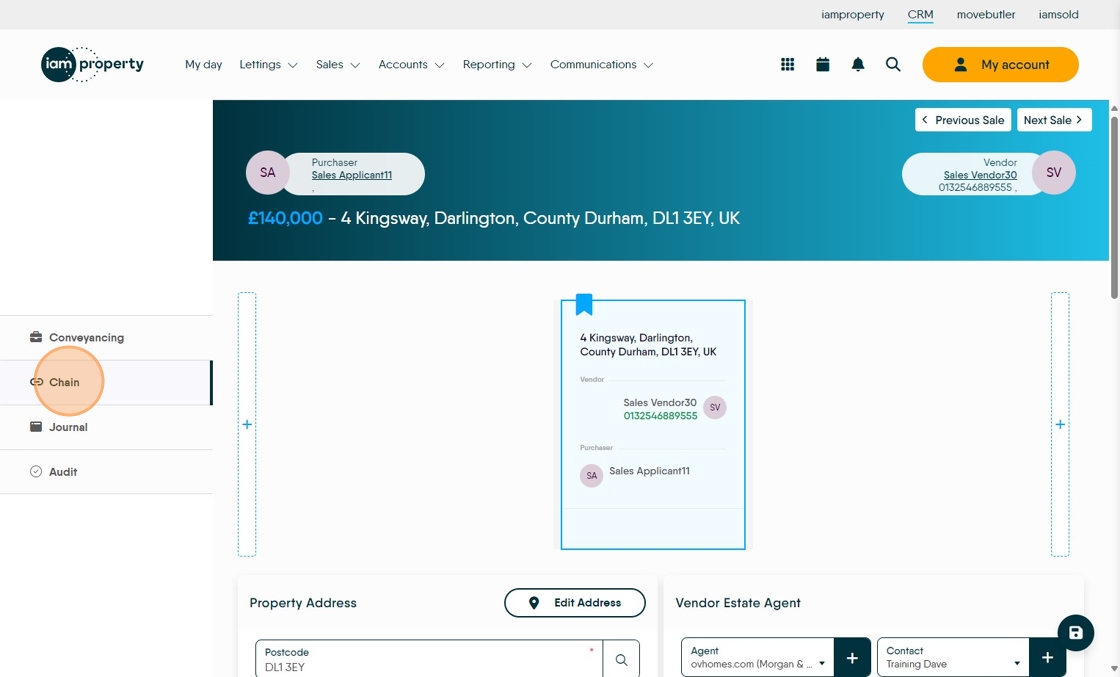
12. To add to the purchasers chain Click here.

13. To add to the Vendor chain Click here.

Journal
14. The progression has its own journal. Click "Journal"

15. Click "New Journal"

16. Click "Select a Journal entry type" from the drop down menu.

17. Add in the details for the journal entry
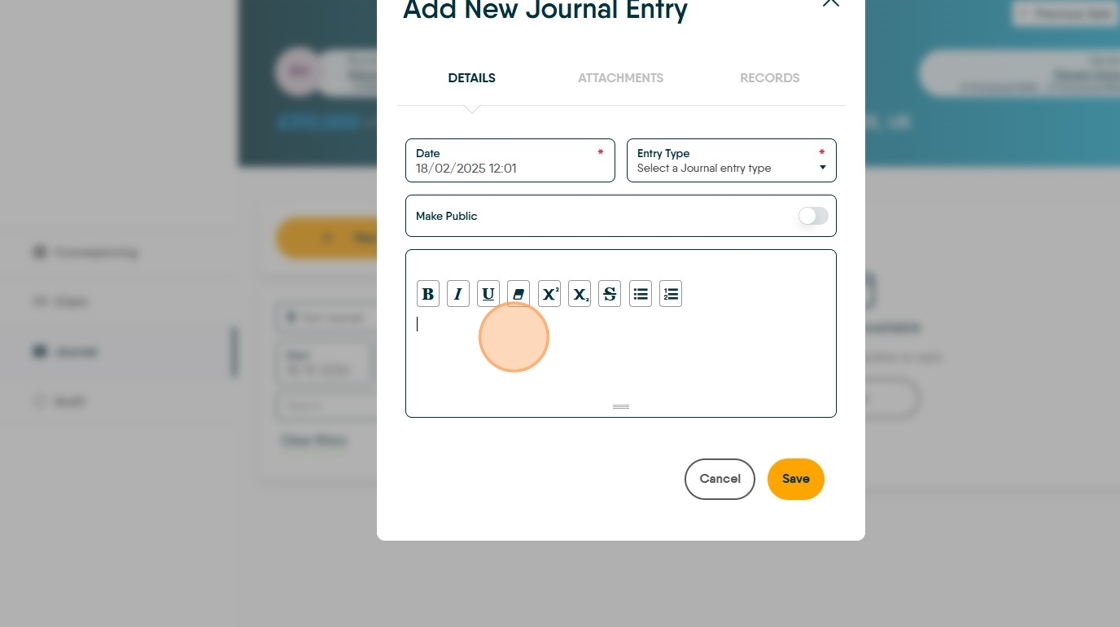
18. Click "ATTACHMENTS" this will allow you to add 2 additional documents to the journal entry.

19. Click "RECORDS"

20. Click this text field. This will allow you to see which records the journal is linked to and also to link this journal to other records e.g. you might want to link a record in a journal to a Vendor, this means the journal entry will show in the Vendor journal.

21. Click "Save"
