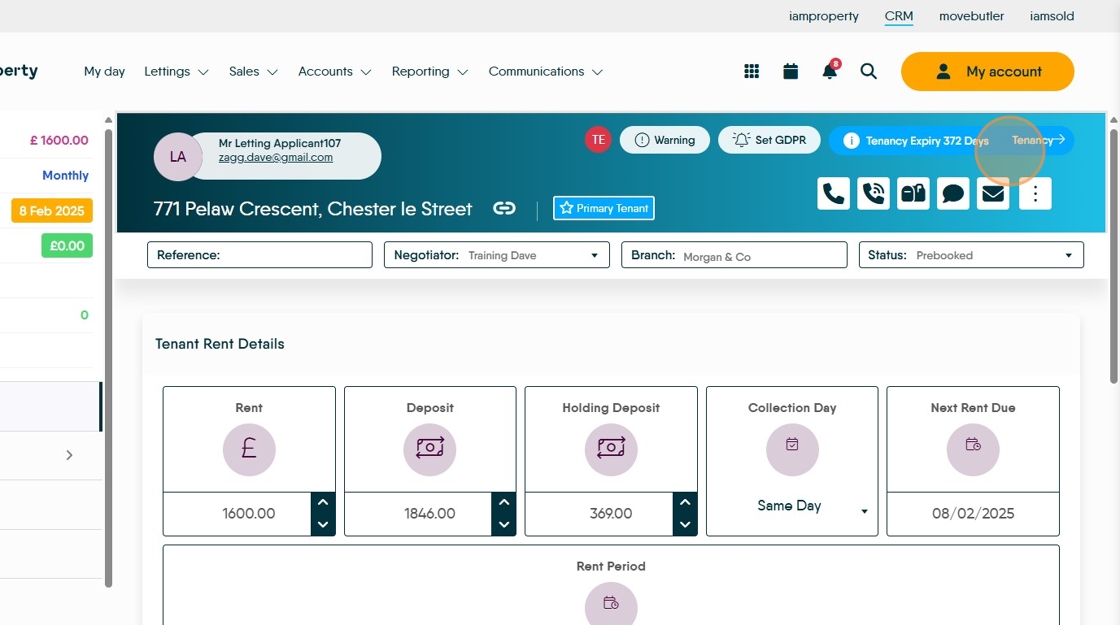
This guide provides a straightforward process for accessing detailed tenancy information for a specific property, helping property managers to efficiently manage their rental agreements. By following these steps, users can quickly navigate the system to view important details about tenants and their agreements, which is essential for effective property management. It's an invaluable resource for anyone involved in property rentals who need to stay organised and informed.
Tip: There are a few ways to view the Tenancy details. The quickest way (and the way we would advise) is to use the global search option and search the tenant or property name, then select the Tenancy tile that shows on screen.
Alternatively you can find the tenancy from the tenant record, the property record, even from the Landlord record. We will look at Tenant and Property record in this guide.
1. Navigate to https://crm.iamproperty.com/myday
Simplest and Best way to find the Tenancy record.
2. From the My Day Screen. Click into the 'Search all records' field and type the name of the tenant or property. Click the magnifying glass to search.

3. If you are not in the My Day screen, use global search. Click the Search icon

4. Type the Tenant name or the Property details, press enter. Click "View Tenancy" to jump to the tenancy record.

5. You are now in the Tenancy Record.
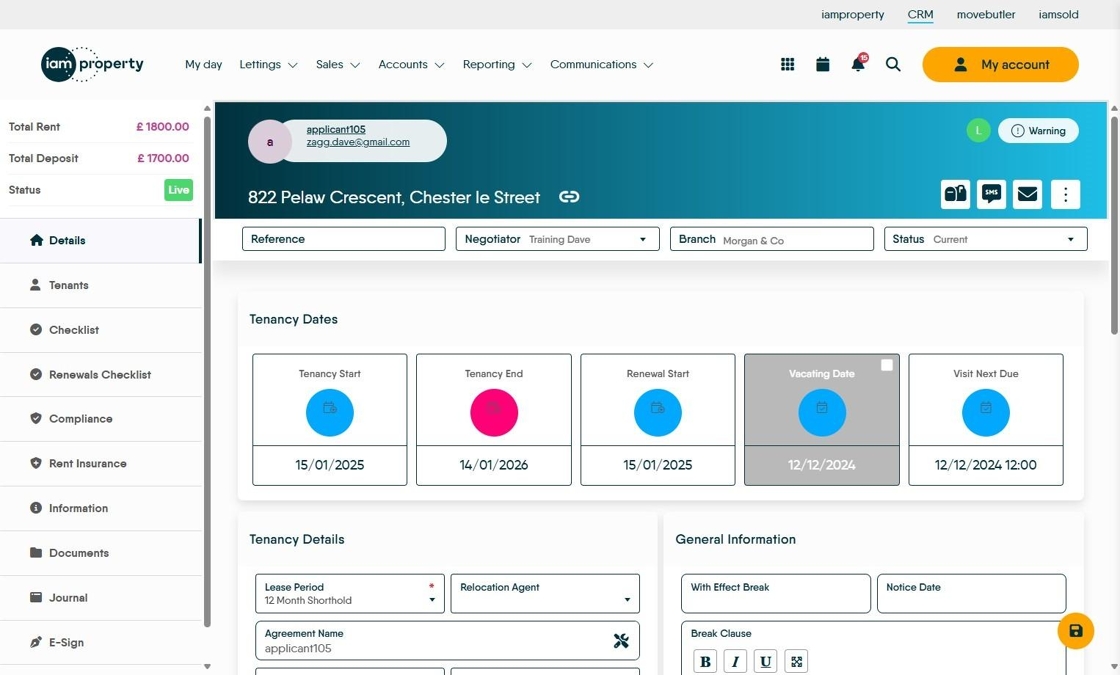
Alert: From here down are the alternate ways to find a Tenancy from various places on the CRM. The vast majority of times you will not need these options, we include them for completeness and clarity.
Finding the Tenancy From Property or Tenant Search Views

6. Click "Lettings"

7. Click "General"

8. Click "Properties" or click "Tenants"
9. Click "#all" to view all of the records.

10. Then from the list, select the details of the tenant or property you want to look at.

Tip: Tip! The quickest way is from the Tenant record.
11. In the Explore my Tenants screen, select the tenant you want.

12. This will take you to the Tenant record, from here Click "Tenancy"

13. You are now at the Tenancy record.

Viewing Tenancy details from a Property Record
14. Click "View tenants"

15. To go to the Tenant record, click on the Tenant name

16. This will take you to the tenant record, from there click "Tenancy" to move to the tenancy record.

17. You are now in the Tenancy Record. To return to the Property, click on the address.

18. Click "Properties"
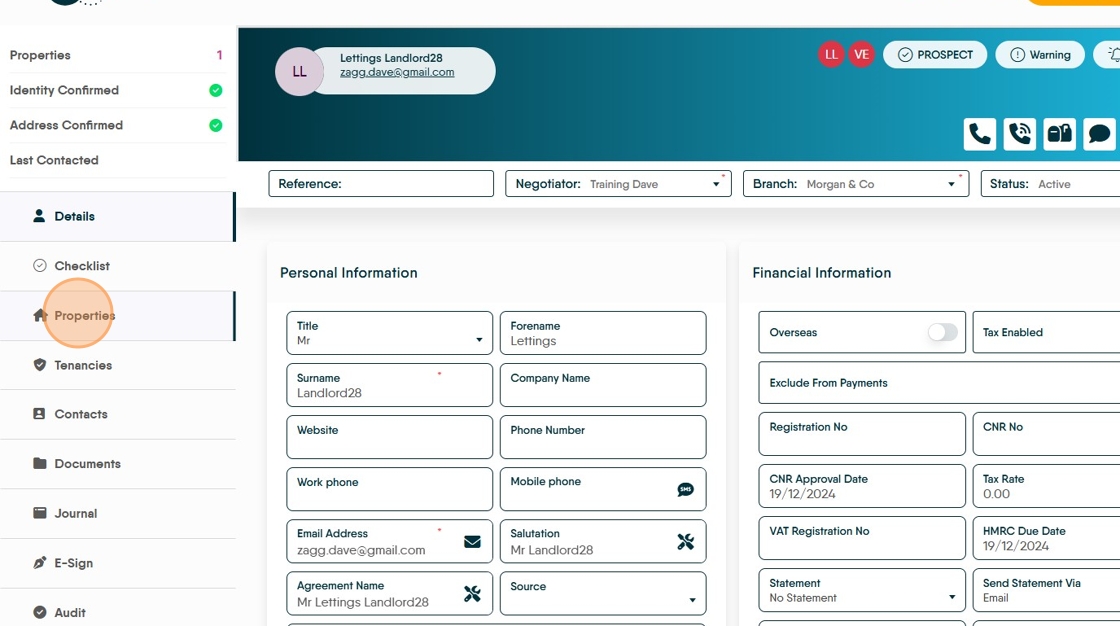
From Property Record, Tenancies tab.
19. Click "Tenancies"

20. All the Tenancies current, Pre Booked and Archived can be viewed.

21. Click onto the small icon "LA" this will take you to the Tenant Record

22. Click "Tenancy" to go to the tenancy record.