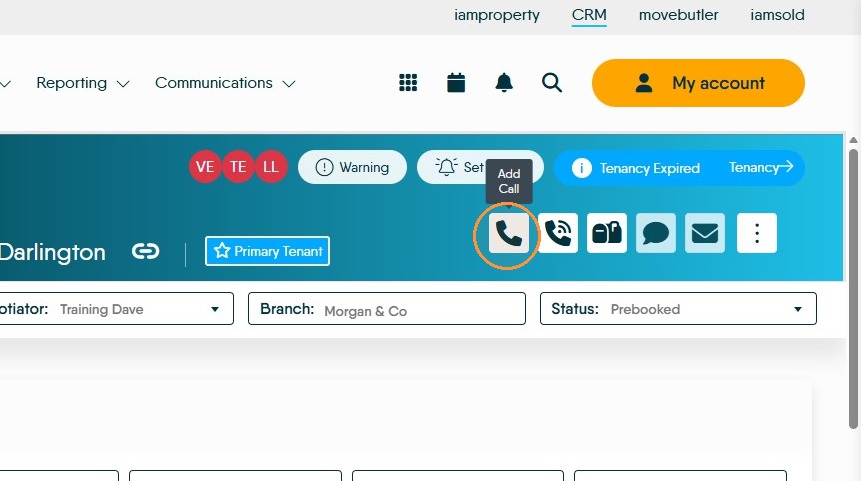
Learn how to effectively track and manage your professional communications within the MyDay CRM. This guide walks you through the steps to create a record showing the caller details, set reminders, and mark your phone call as completed. In CRM these are known as 'Log a Call' i.e. make a record someone has called in to the office and 'Plan a Call' make record to remind you to call a client. This feature is important tracking of what is said to Landlord/Vendor/tenant/applicant etc is important
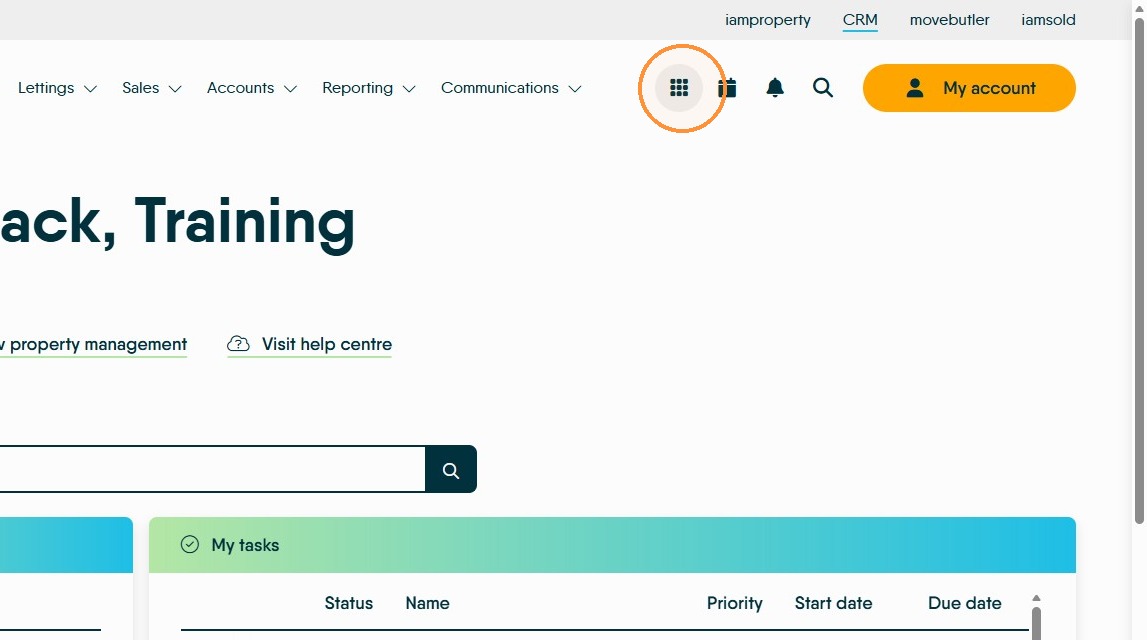
Tip: Tip! There are multiple places that calls can be planned or logged from, however the one constant is using the quick access ( you may hear it called 'Bento' or 'Rubics cube' menu) . So, this is the one we will look at here.
Accessing Calls
1. From any screen in CRM. Click "Quick Access" menu
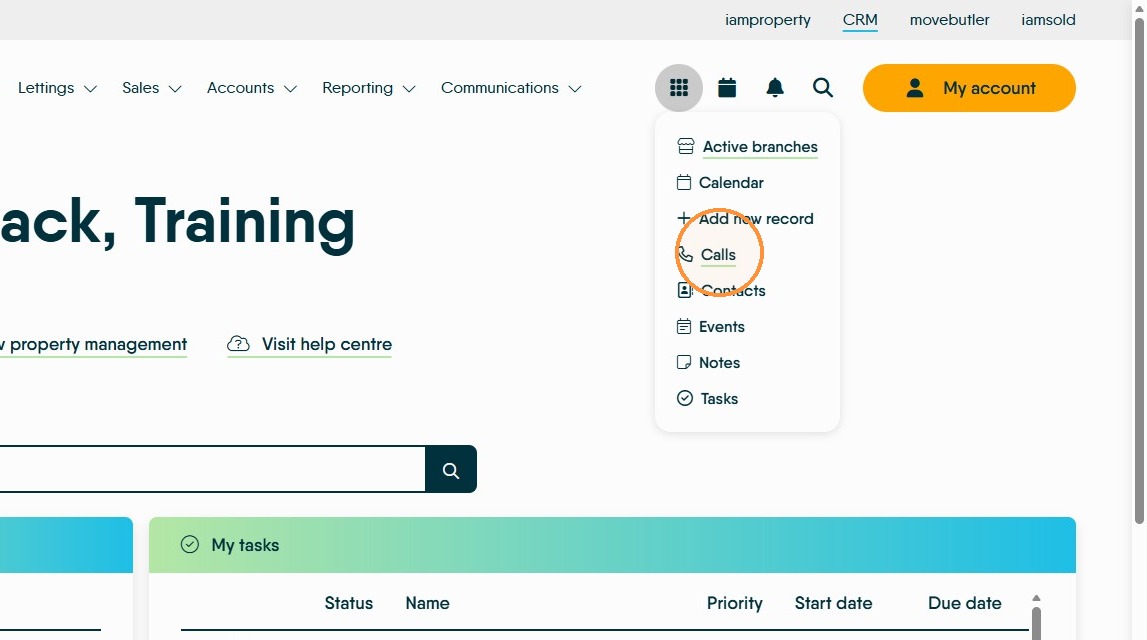
2. Click "Calls"
Creating a Call Record
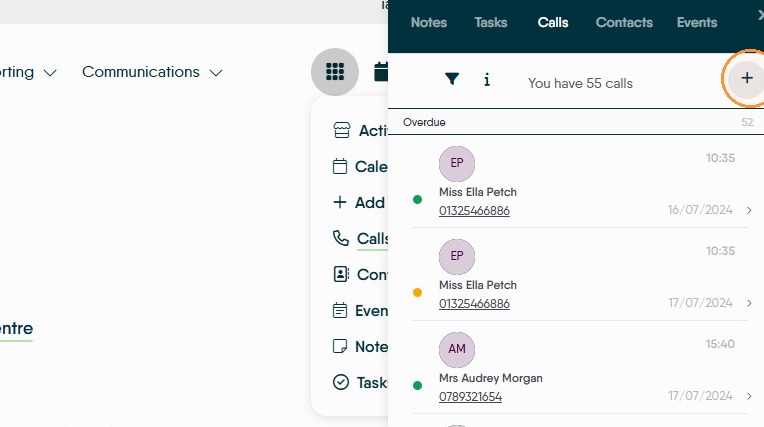
3. Click the "+" (add button) to create a new call record
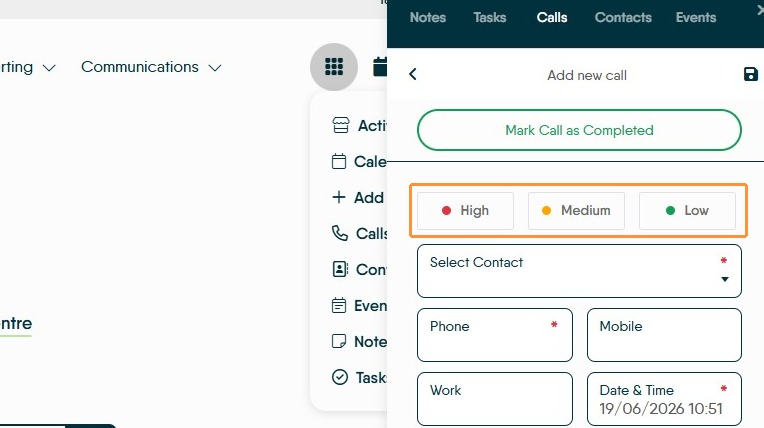
4. Set a Priority for the Call, if required select 1 of the options.
In the "Select Contact" start typing the name of your contact, after 3 characters CRM will start to return results.
Select the contact you want and their details will show on the screen.
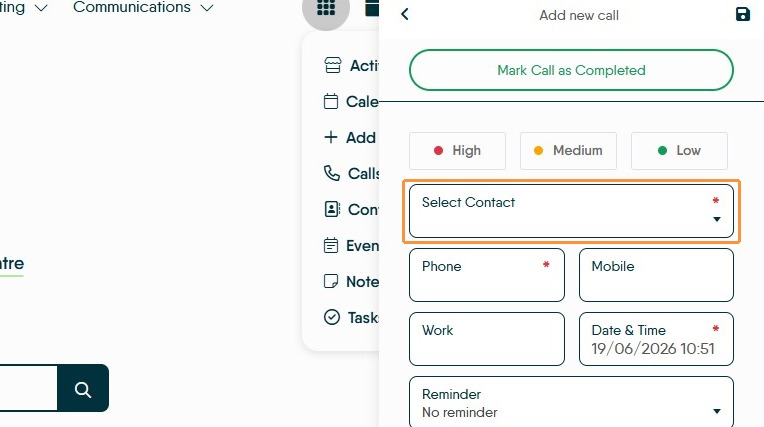
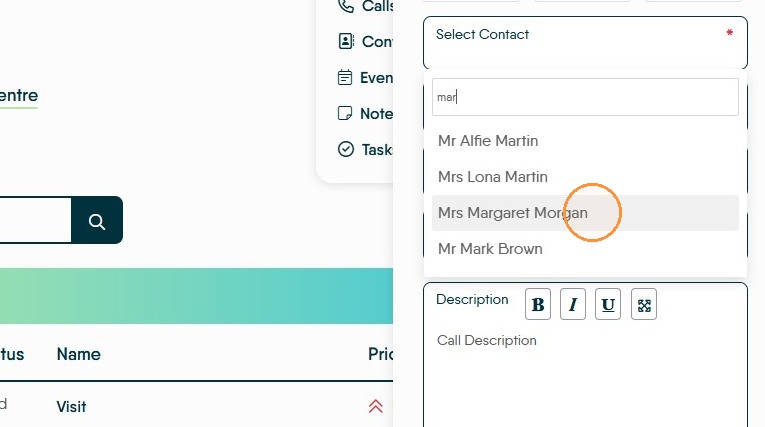
5. All the contact details for the contact will show on the screen.
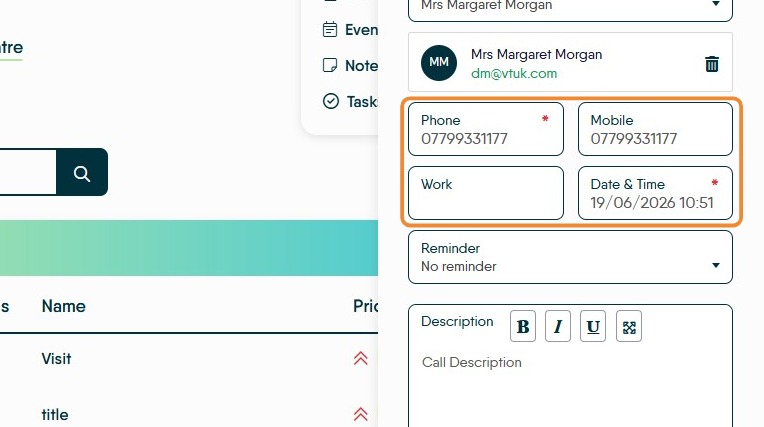
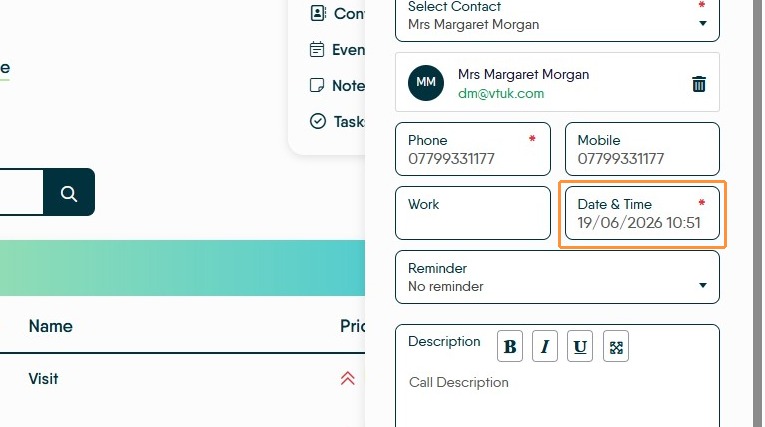
6. If the call is being 'Added' or planned for the future. Click the "Data & Time" field and set the date and time that the call is being made.
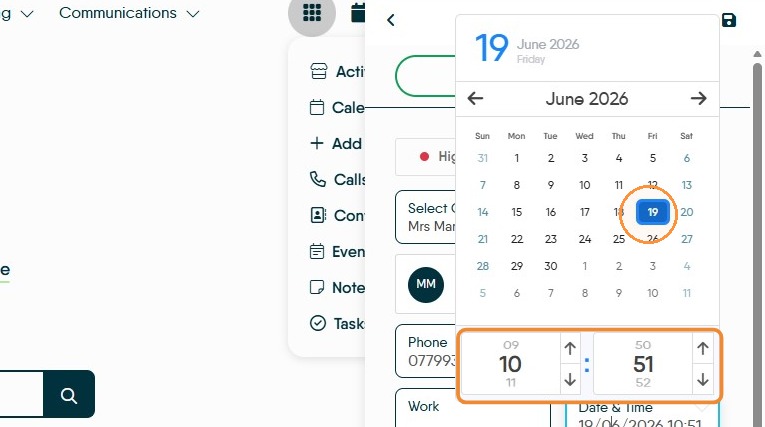
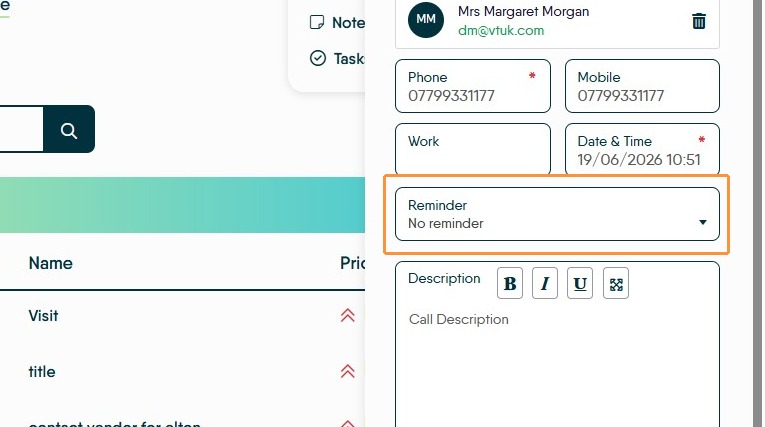
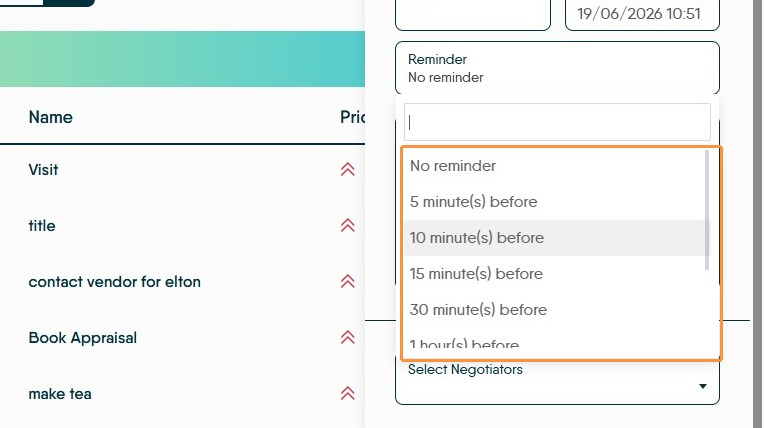
7. "Reminder" if a reminder is required, set the time in the drop down menu. The options are from 5 minutes to 1 day before.
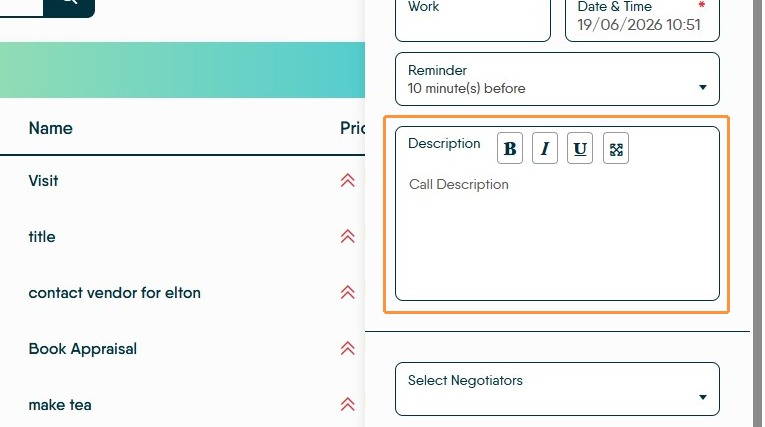
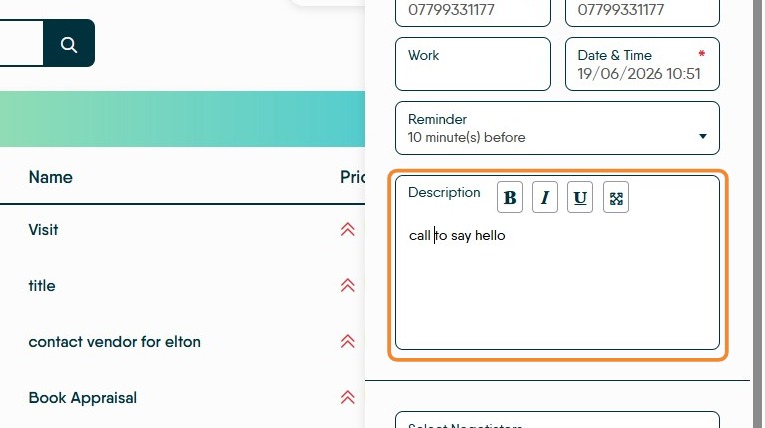
8. In the "Call Description" field add what you will be discussing
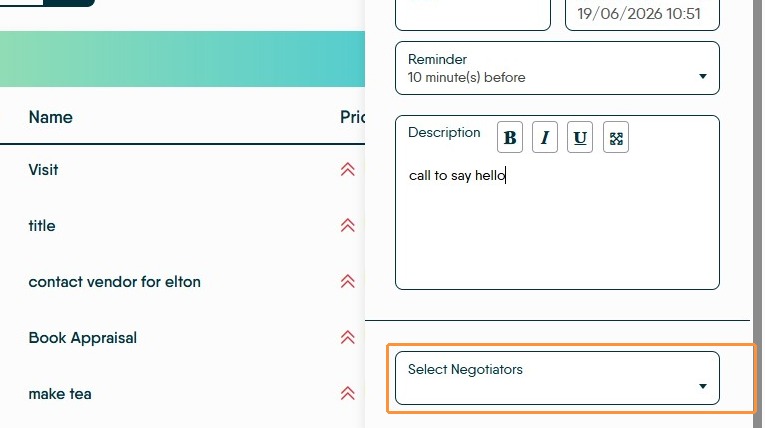
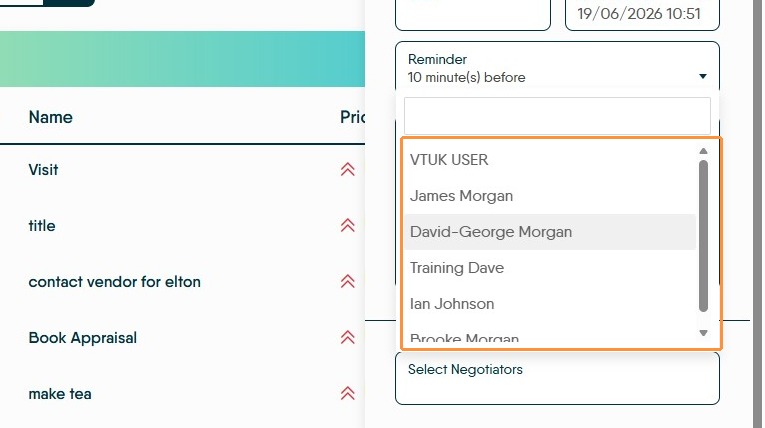
9. Select 'David-George Morgan' from the Negotiators list
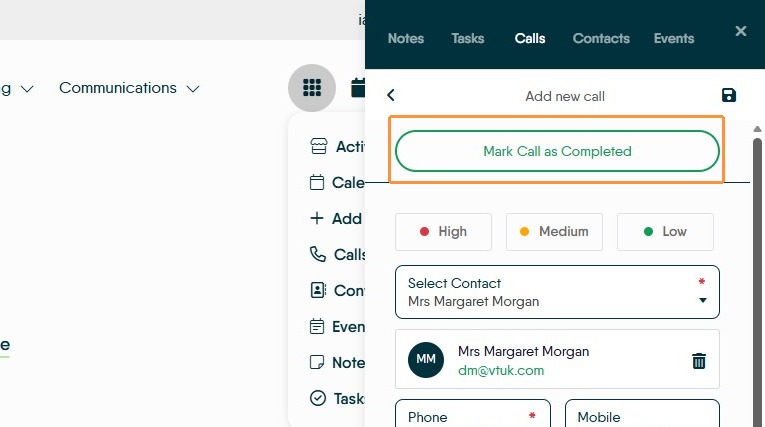
10. To complete a call click 'Mark Call as Completed' to open the completion details
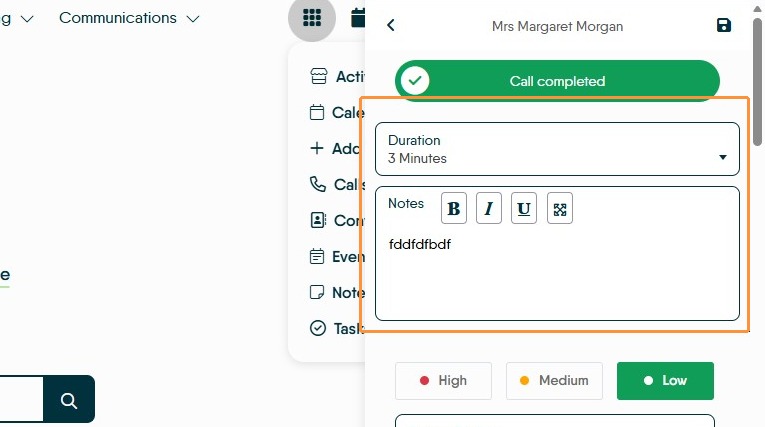
11. Add the duration of the call and some notes to describe the call outcome.
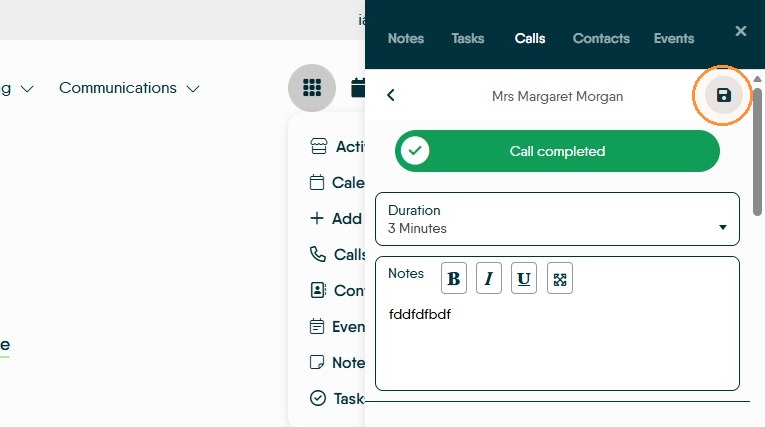
12. Click the "Save" icon to save the record and the 'X' to close the calls panel.
Once saved the call will be recorded in the Journal for the contact used.
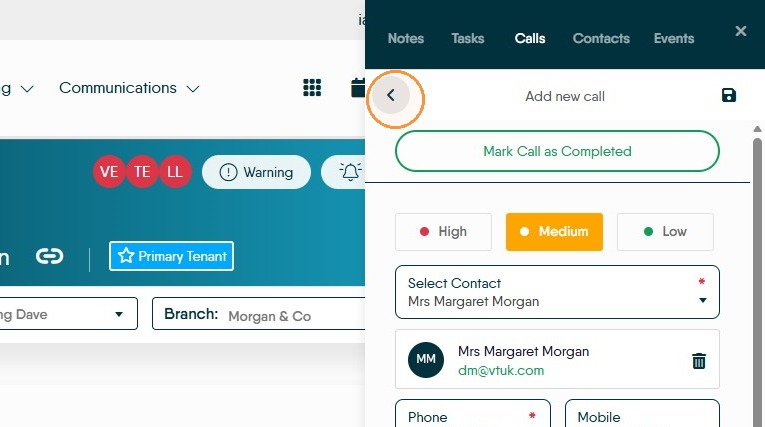
13. To move away from the call, without editing anything, click the back arrow.
Managing Call History
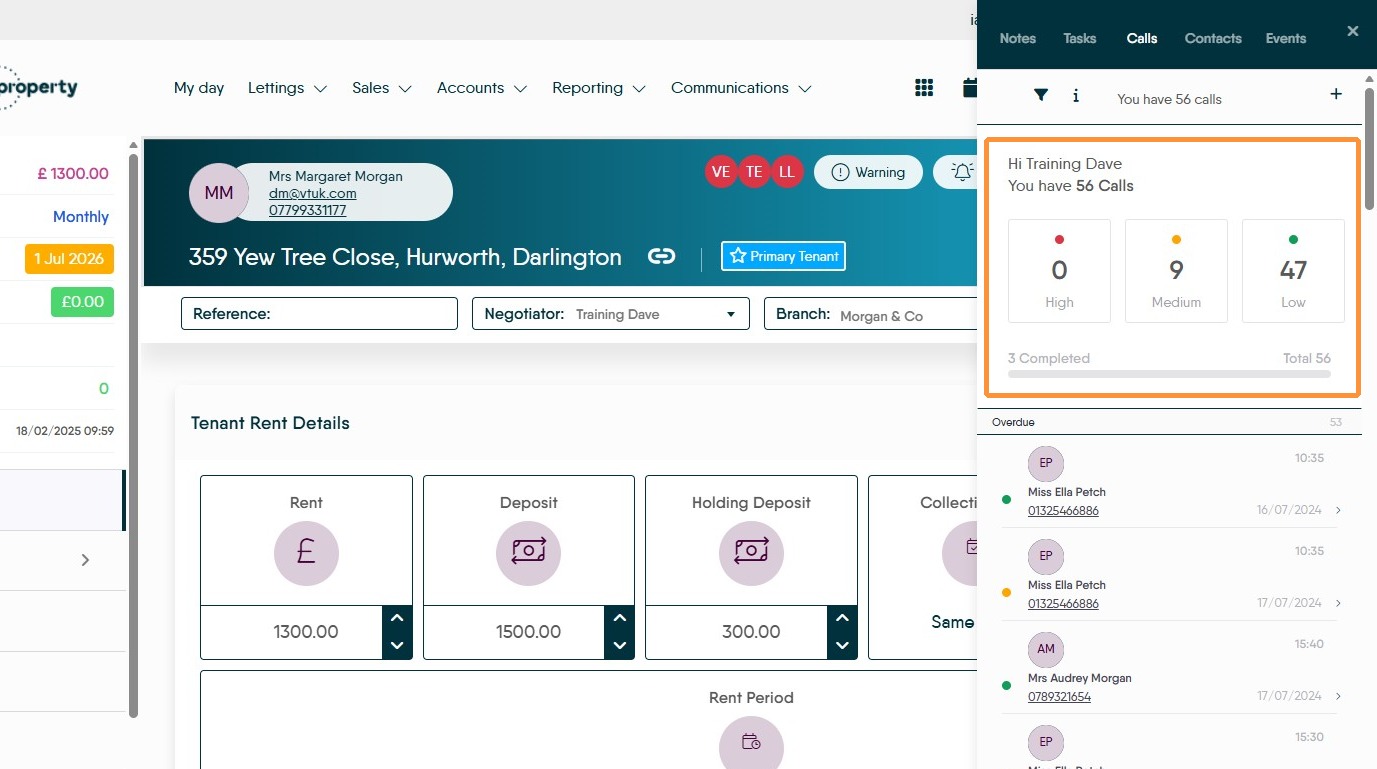
14. The call list shows all currently due and overdue calls. The Most Overdue are shown first. Select a call from the list to view its details
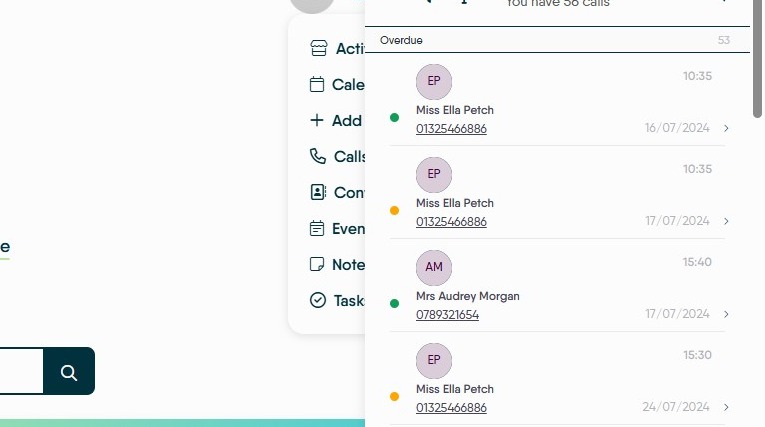
15. To Filter the call list and view specific Negotiators, click here.
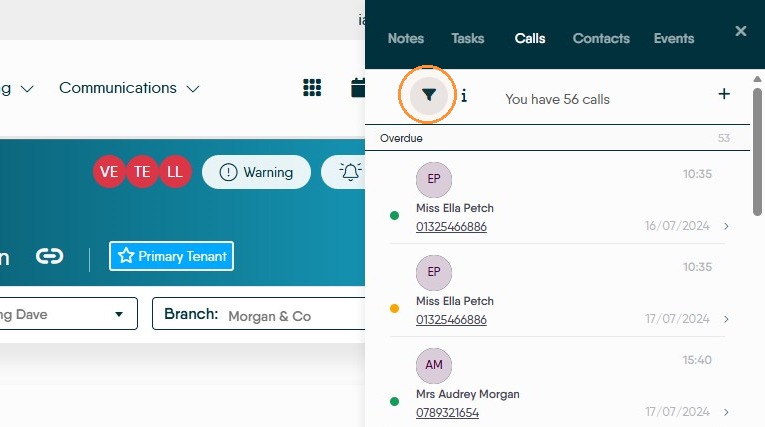
16. Click "Select User" and select the required user from the drop down menu
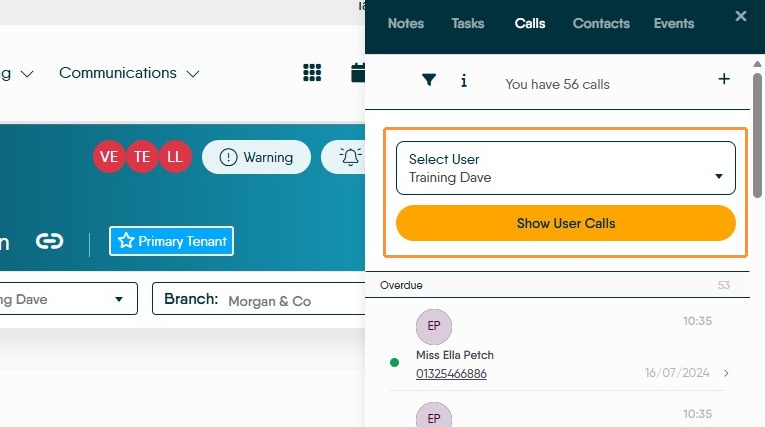
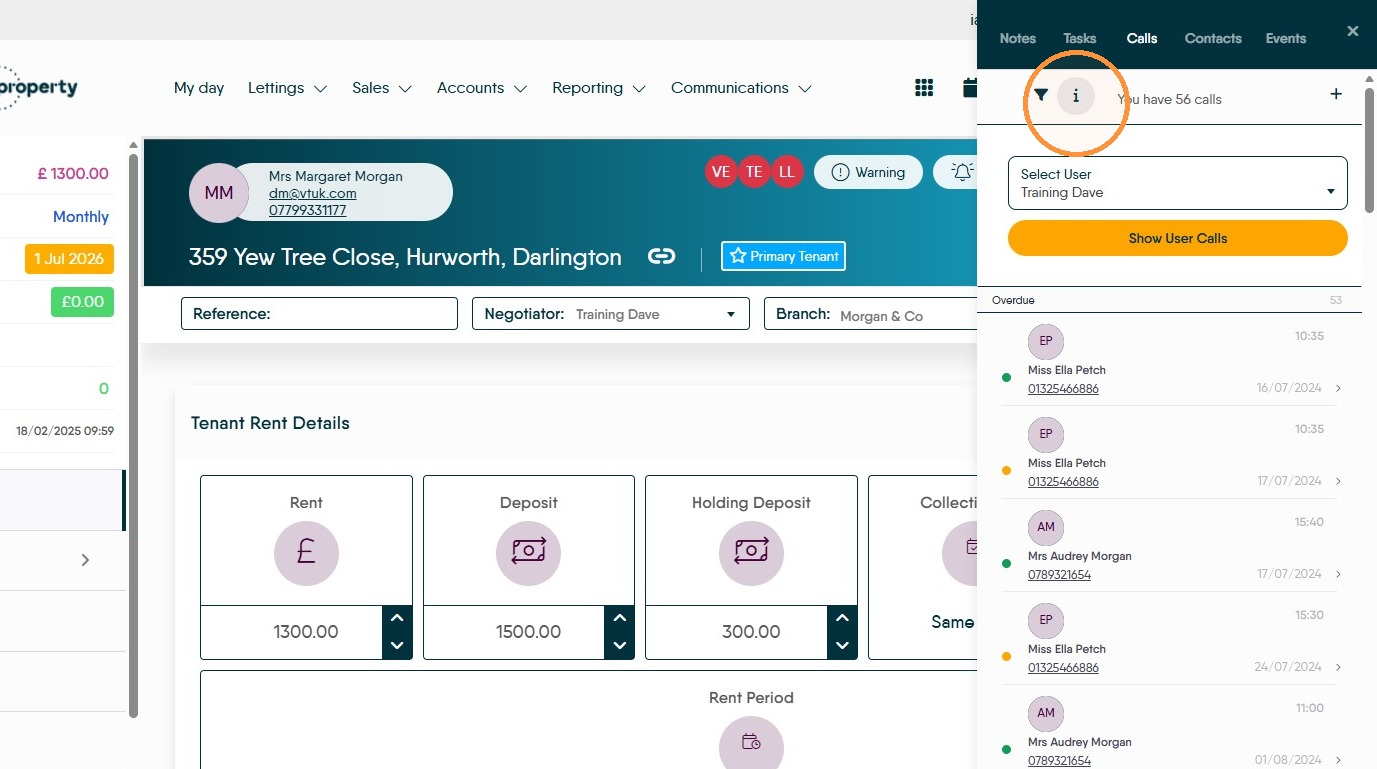
17. Click the "i" to view how many calls are in each of the priorities.
Where else can calls be created?
18. Calls can be created from anywhere that the record is a person e.g. Applicant, Vendor, Landlord etc. Also from the 3-dot menu in a lot of the Dashboards
19. The options are at the top of the screen
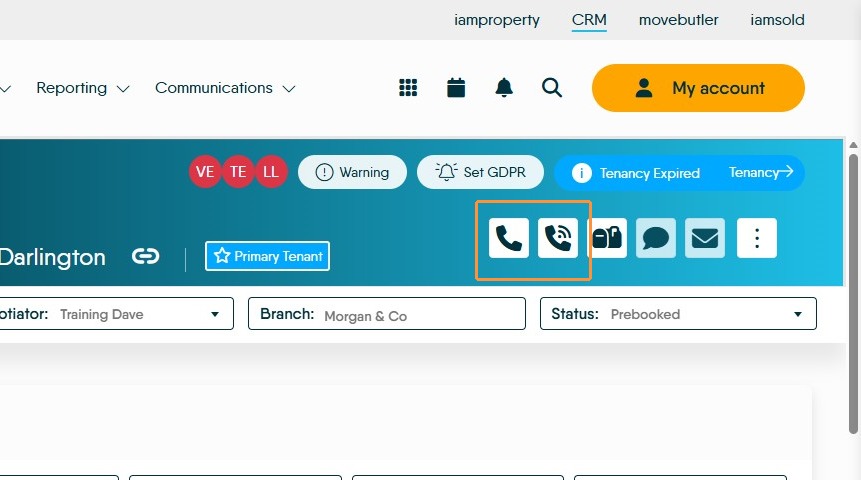
20. Click 'Add Call' to plan a future call as shown above. The 'Log call' option will open the related Journal to create a call note.