Learn how to navigate your CRM dashboard to identify suitable properties and refer them for auction. This guide walks you through verifying vendor details and finalising the referral submission process to streamline your workflow. There are 2 ways a property is identified as a potential for Auction, from the My Day screen and from the property record.
Alert: Alert! Auction Triggers needs to be enabled for the Account and per user in CRM. Contact crm.support@iampropertry.com to have the feature enabled and either request the feature is switched on for your users, or add the feature in the 'Users' menu in CRM Control Centre.
Tip: Within CRM there are now Auction Triggers that will identify if a property would be suitable for Auction, these triggers give you guidance where the property has been on the market for longer than expected, had no offers etc. These indicators give you the opportunity to speak with the Vendor and discuss the option of Auction, also other options based on viewer feedback etc.
From My Day screen
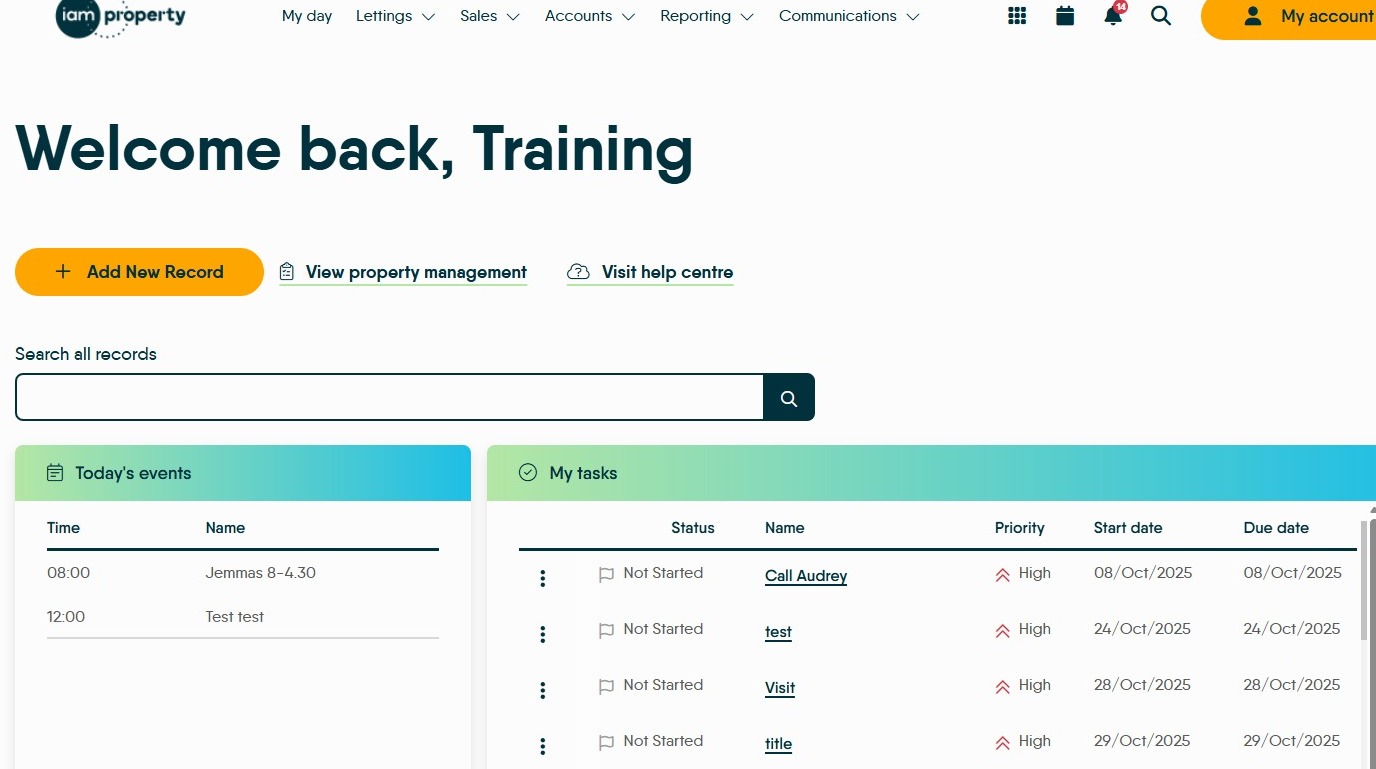
1. Navigate to https://crm.iamproperty.com/MyDay and scroll down the screen.
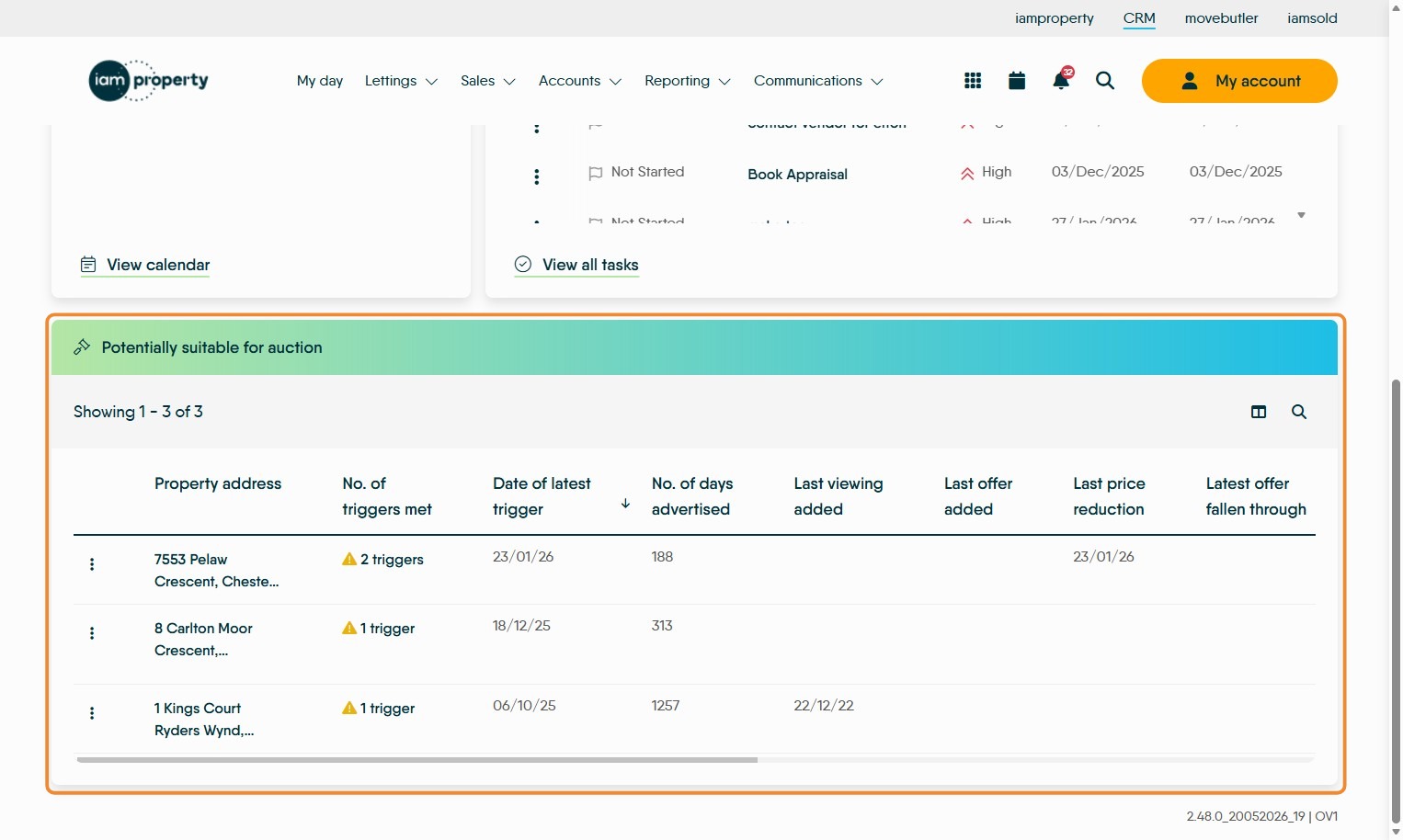
2. At the bottom of the My Day screen is this "Potentially suitable for auction" section.
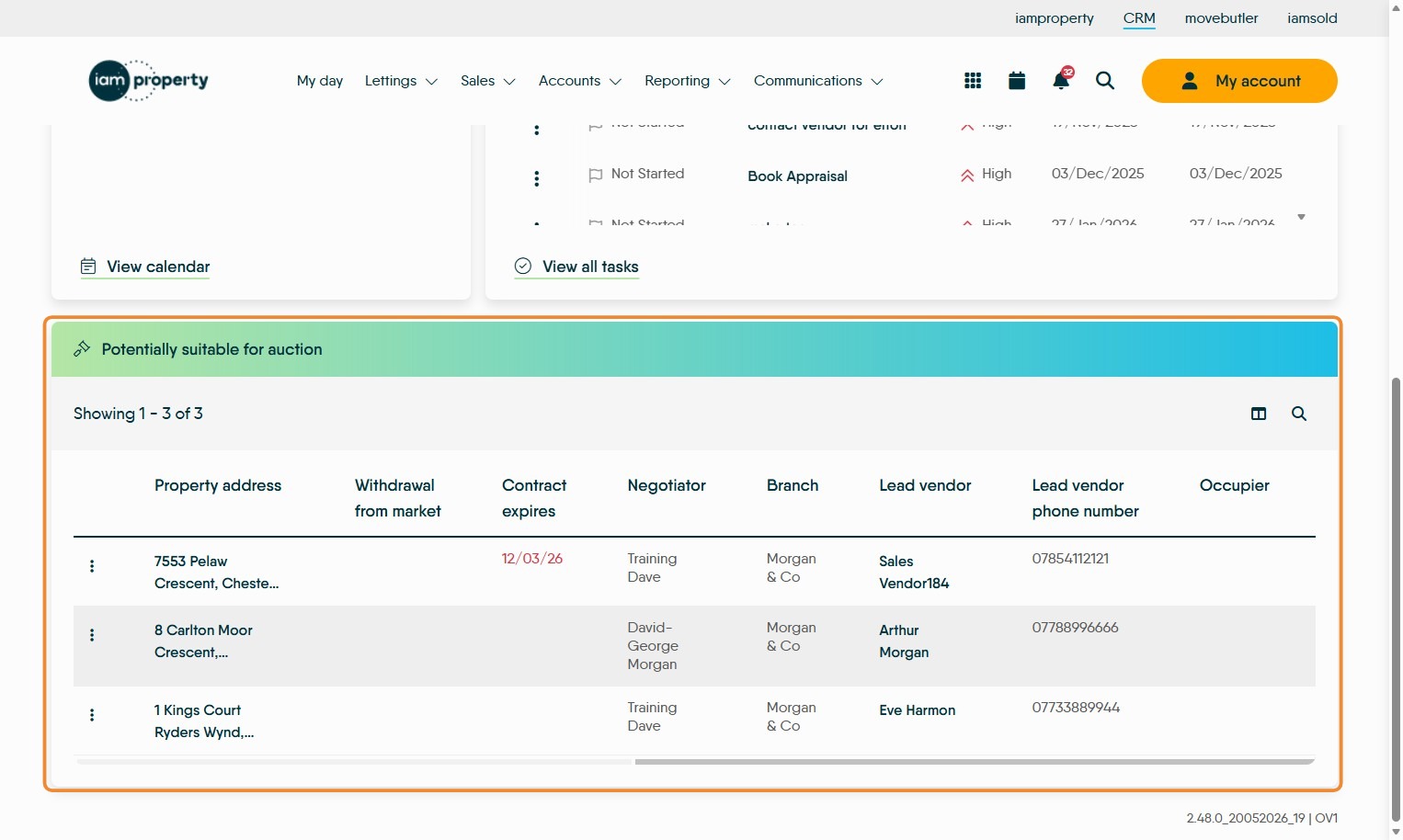
Alert: Alert! Even though the property is 'For Sale' with your agency, it is still a requirement that you contact the Vendor to discuss using Auction, explain the process and for their permission to send the details to the Auction Specialists.
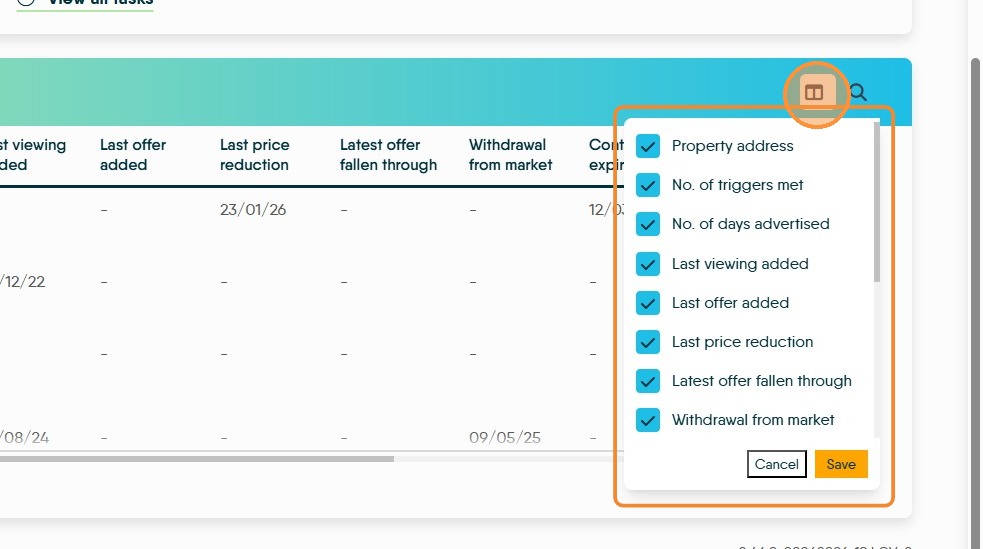
3. There are a number of auction triggers that cause a property to show in this list, these are shown below. To edit the Auction Triggers that control which properties are added to this list, click here. In the menu, select the options you want visible and save.
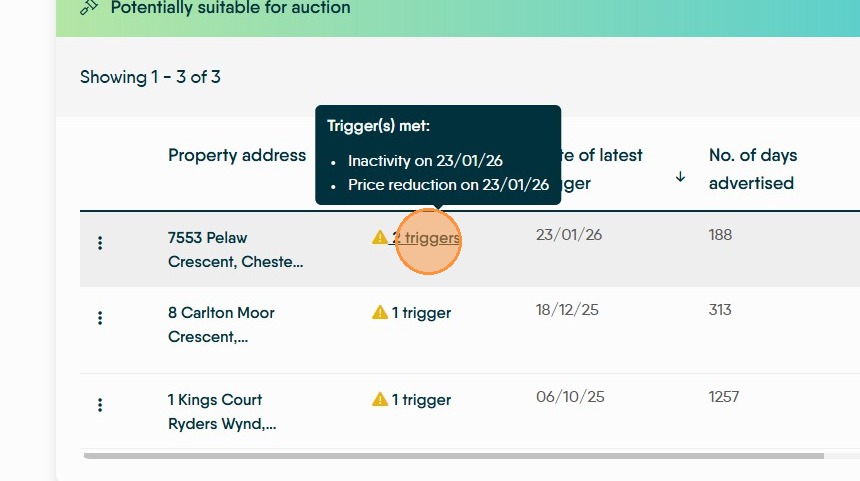
4. In the main body of the screen. The 'No. of Triggers Met' option, when hovered over, shows the individual triggers hit to create the auction suggestion.
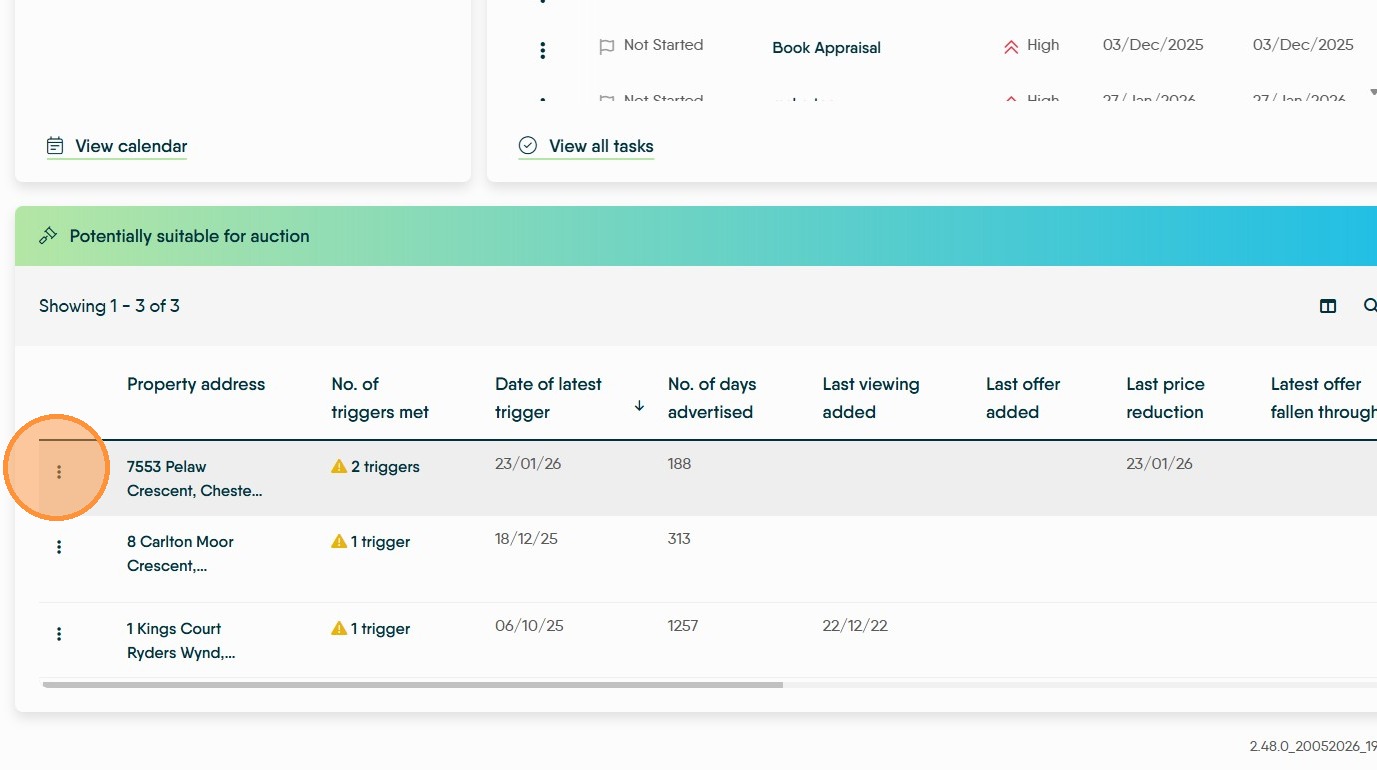
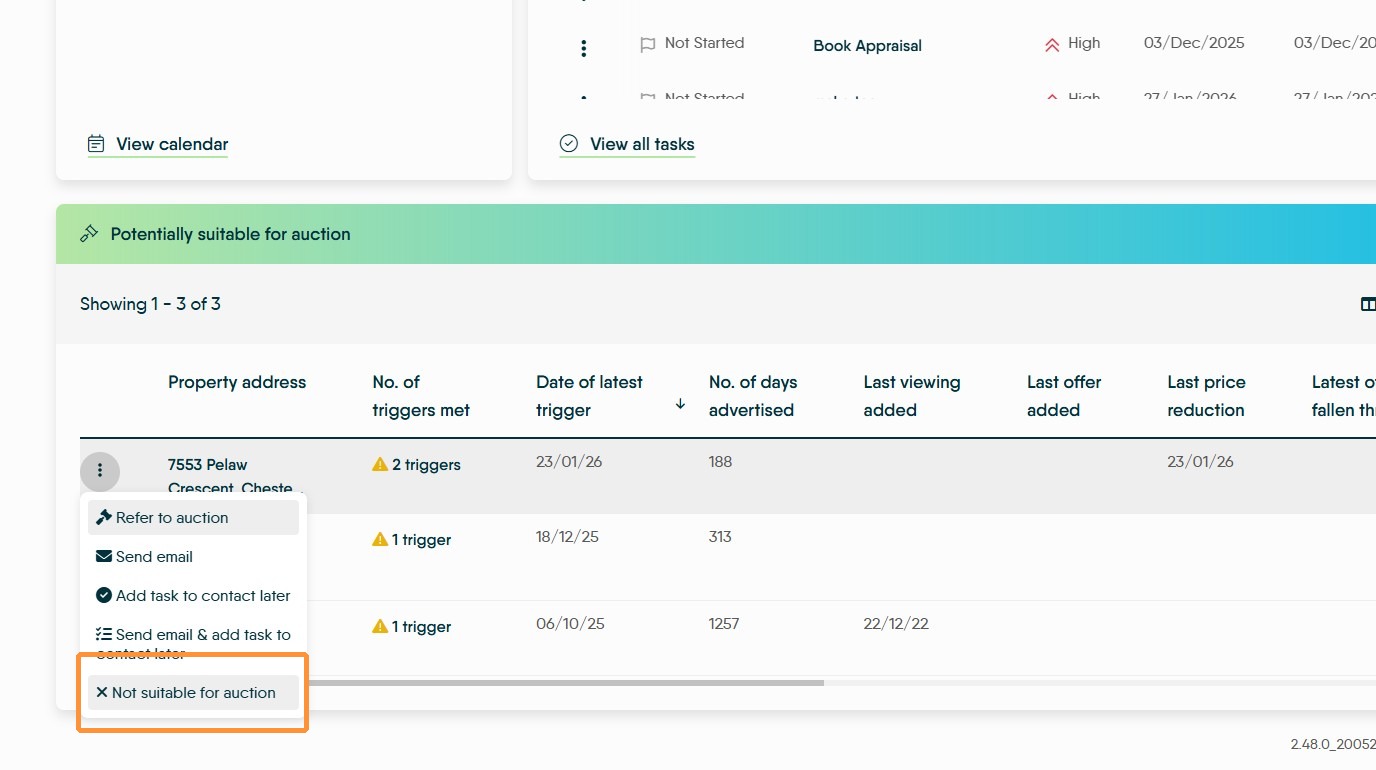
5. Click "3-dot" menu
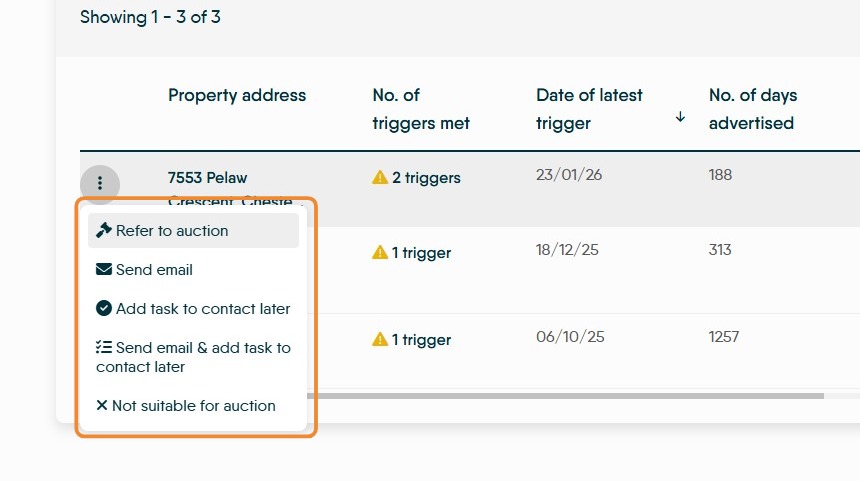
6. There are a number of options on this menu.
- "Refer to auction"
- "Send email"
- "Add task to contact later"
- "Send email & add task to contact later"
- "Not suitable for auction"
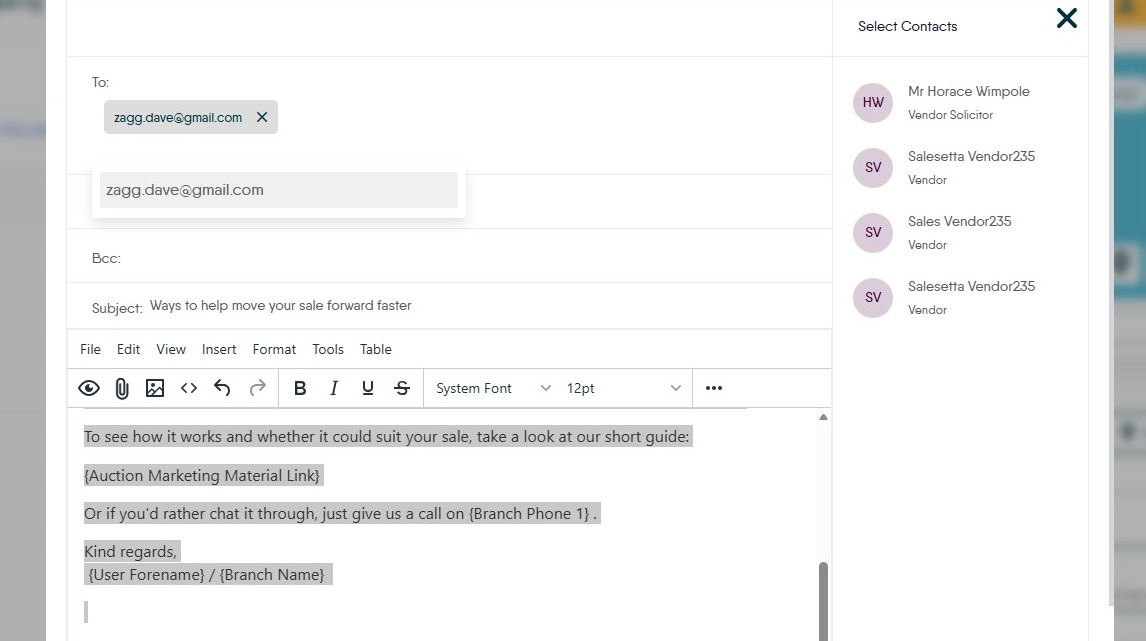
"Send Email" will send a standard email to the Vendor/Vendors explaining what the auction process is and the key benefits. For the email text click here
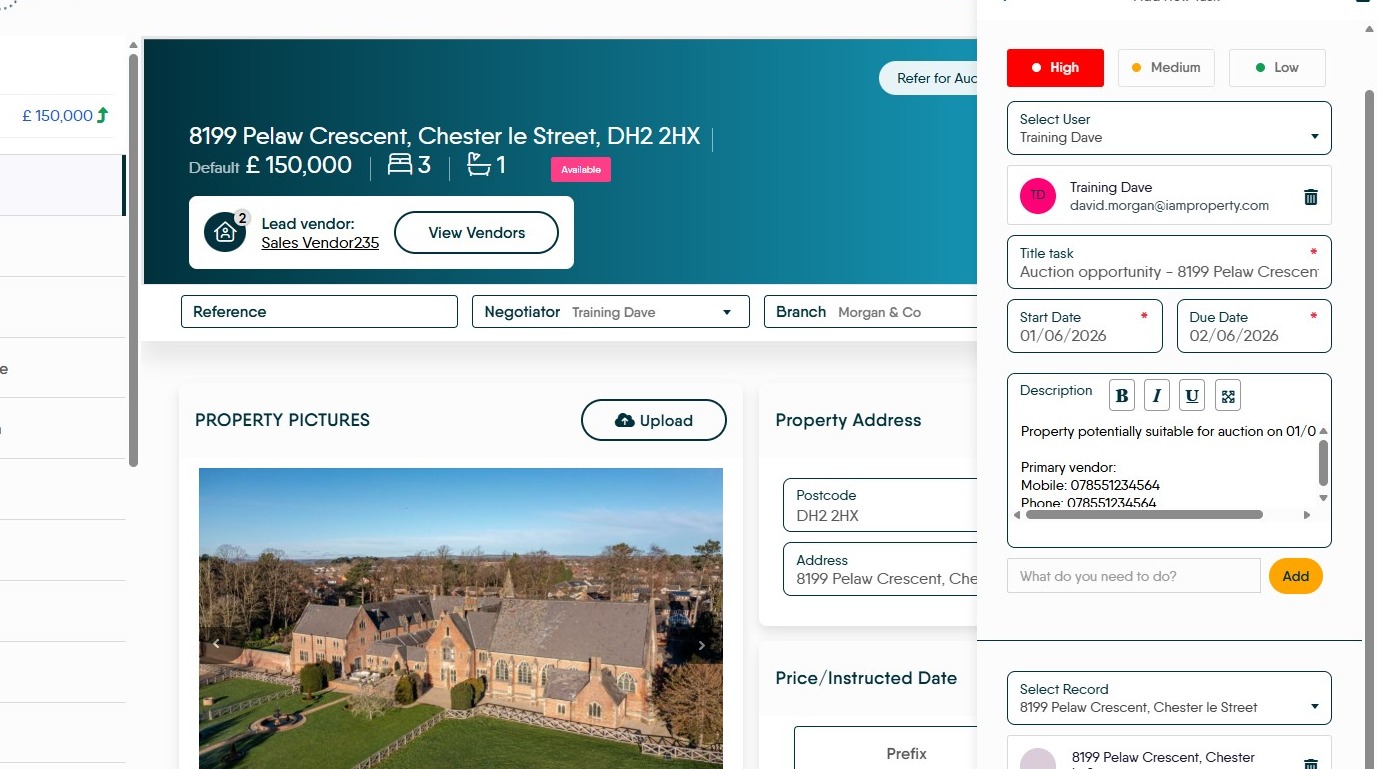
"Add Task to contact later" opens a prefilled Task screen to create a task to remind you to make the call/contact later, by changing the name of the allocated user it can also be allocated to anyone else so they get the task to contact later.
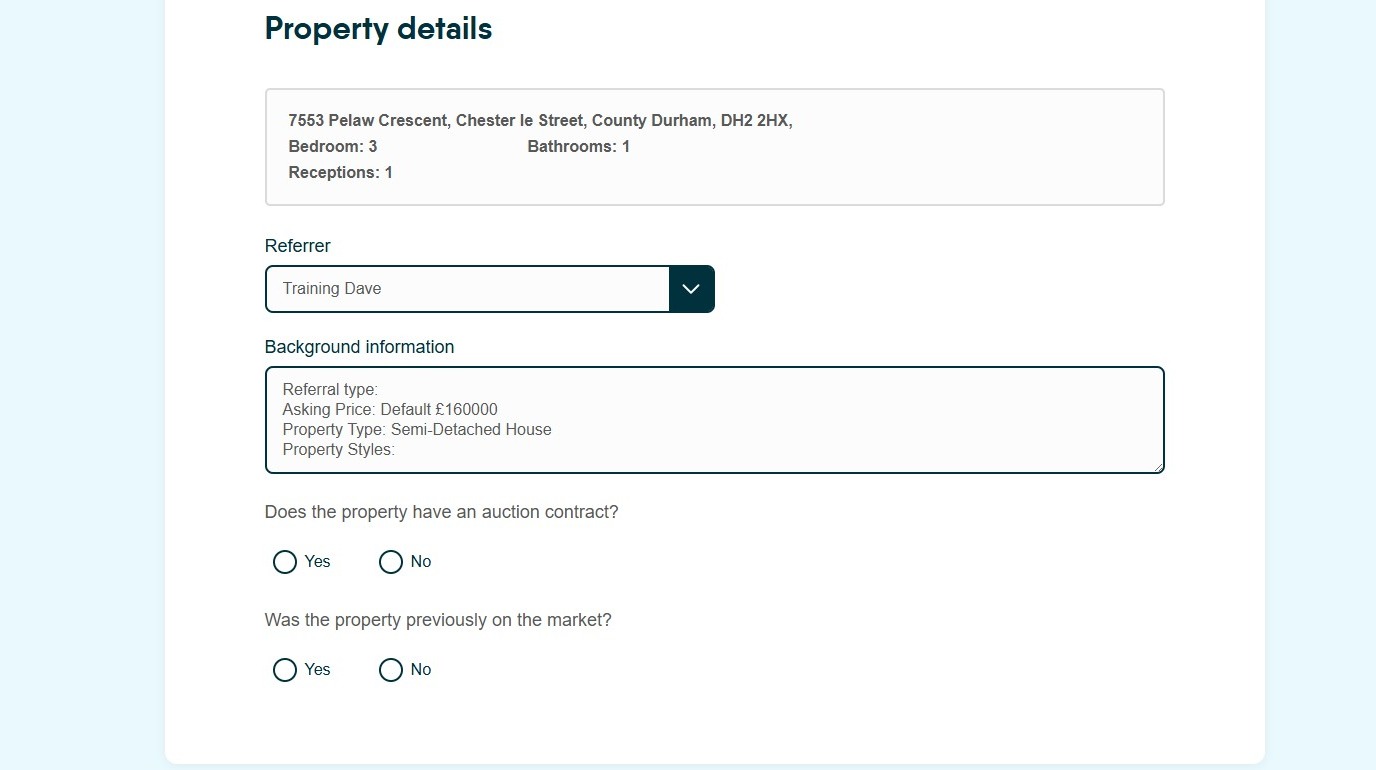
7. Once 'Refer to Auction' is clicked this screen will show displaying all the relevant details for the property, taken from CRM. Additional Information can be added to, or edited from the 'Background Information' field. Complete any fields that are not completed.
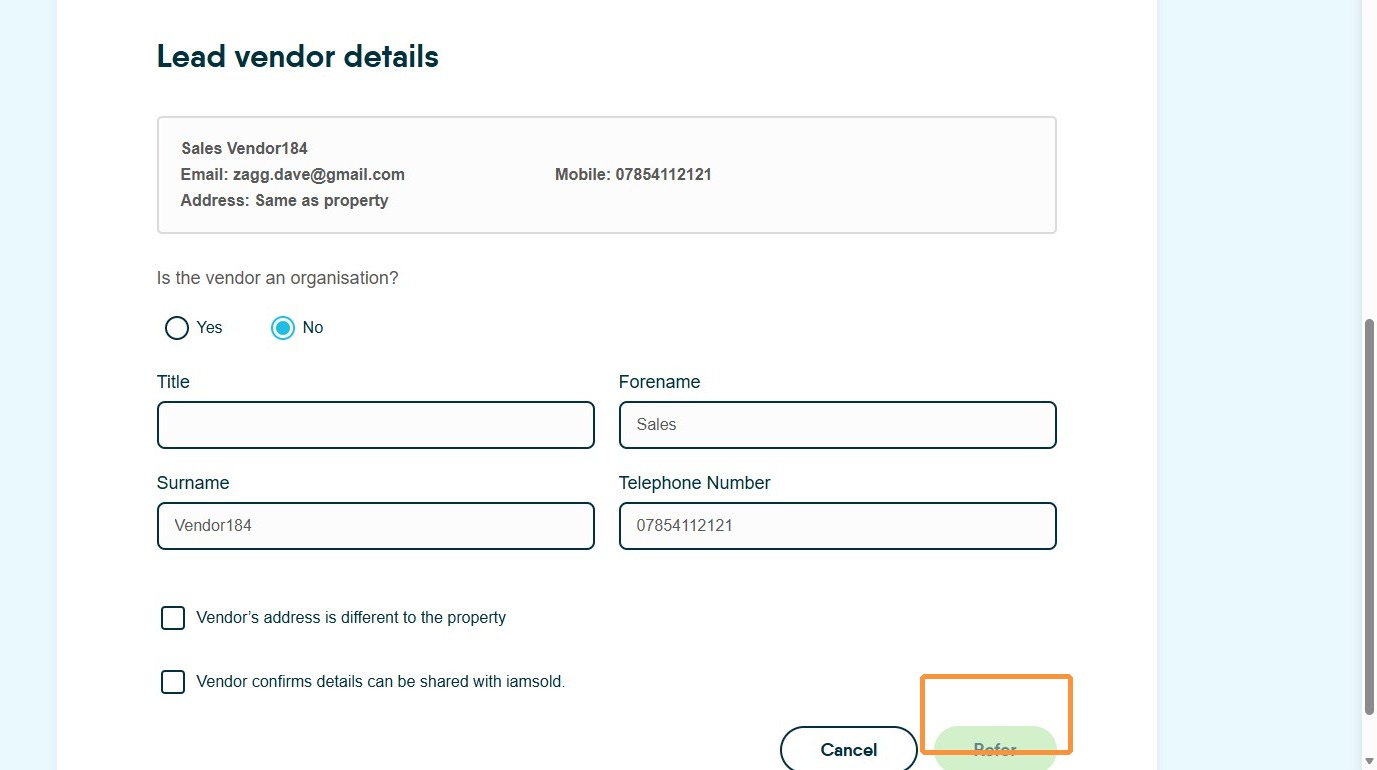
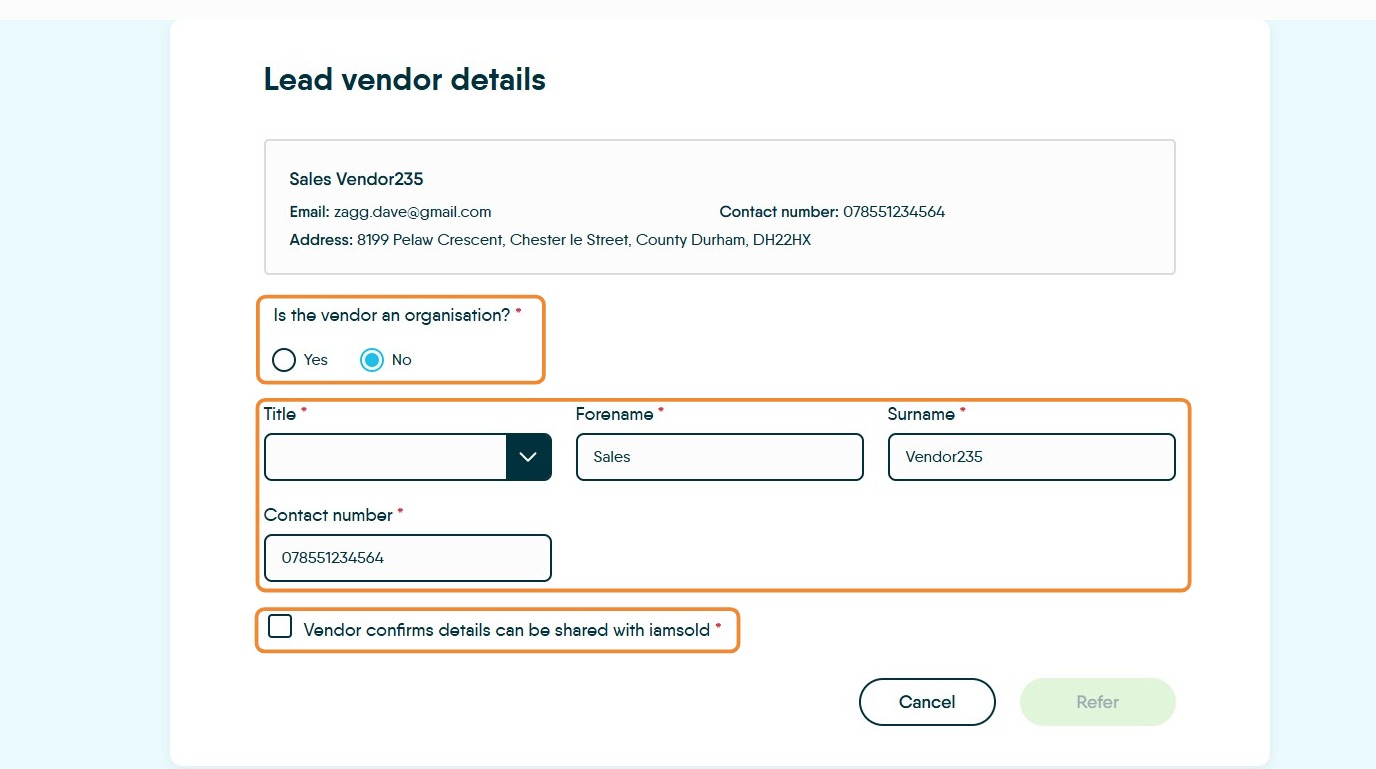
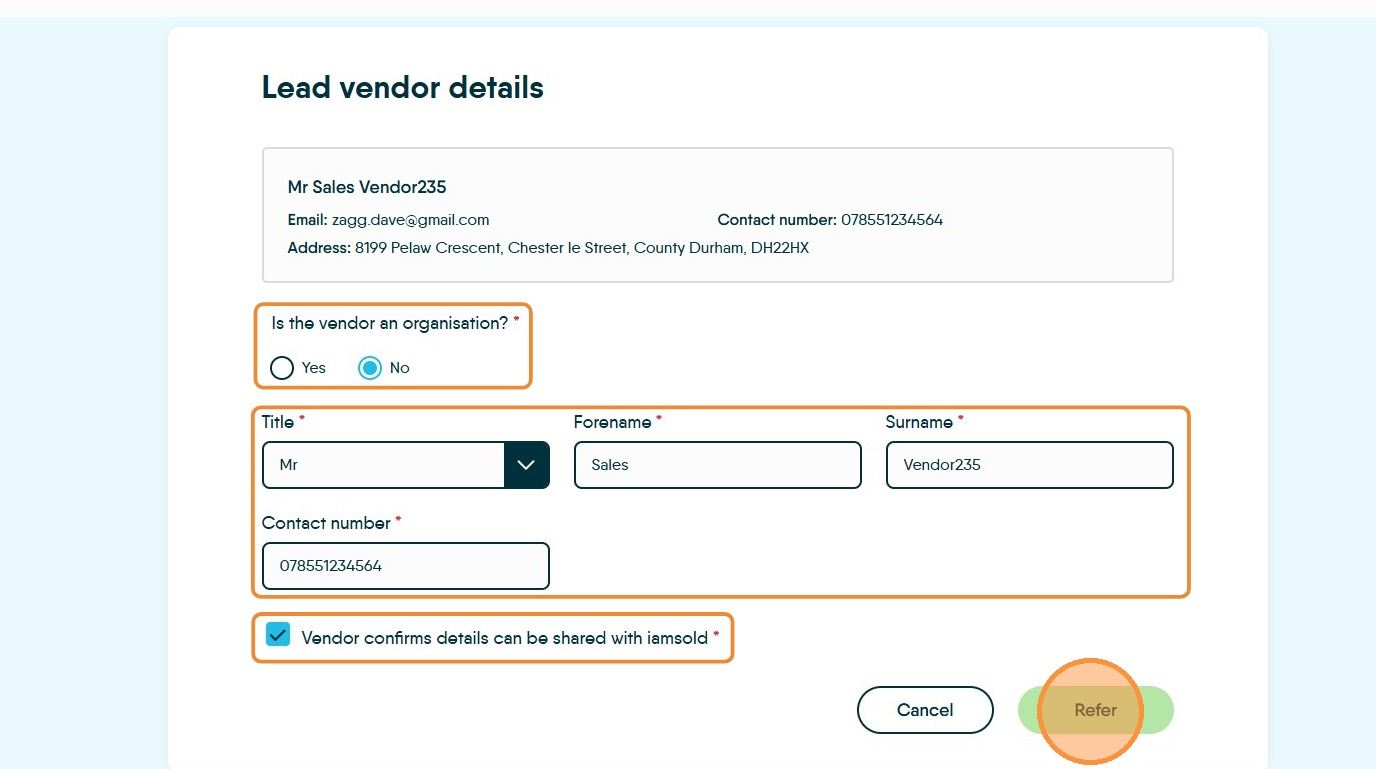
8. Scroll down to "Lead vendor details" and add in any missing information. Once complete the 'Refer' option will be available to click and send the property to the Auction Specialists.
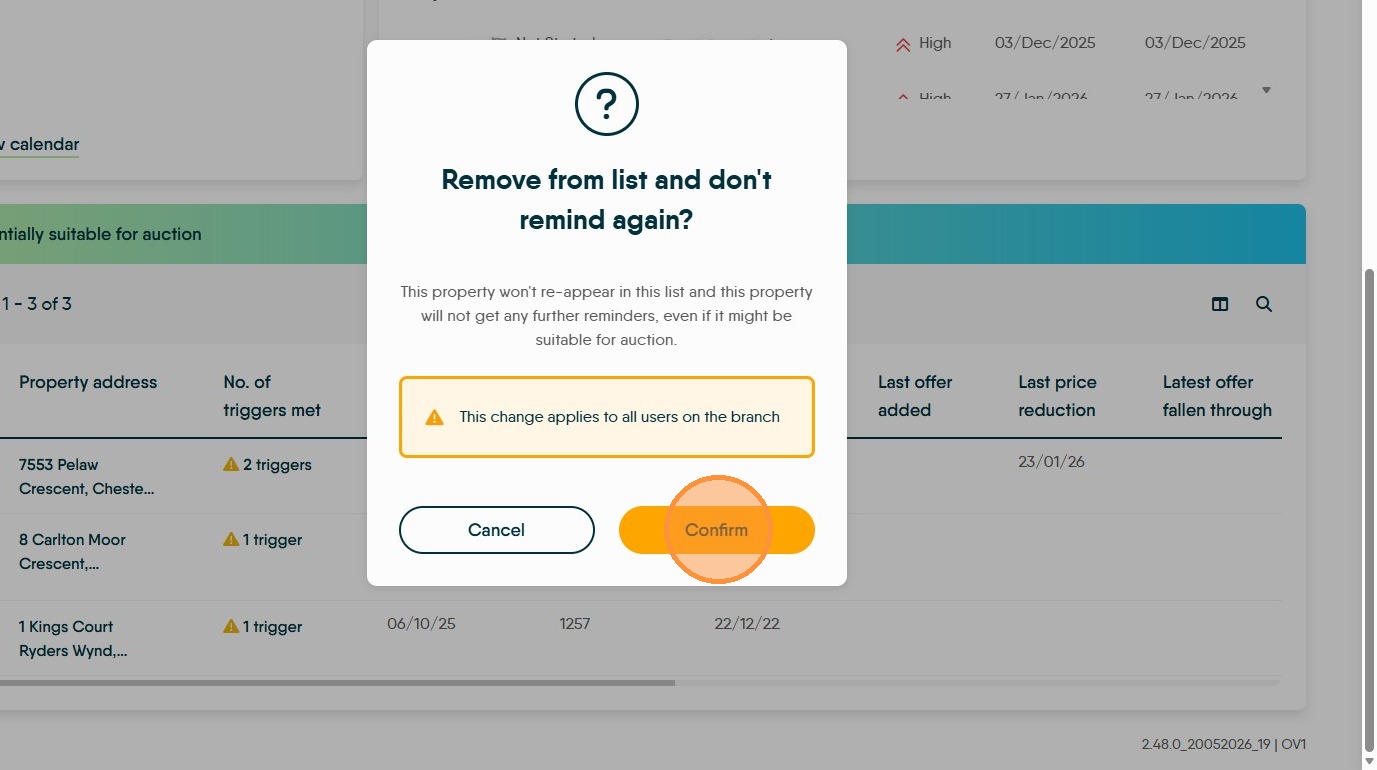
9. "Not suitable for auction" Clicking this will show a "Remove from list and don't remind again?" option, click confirm to stop the property from being suggested in the future.
From a Property Record
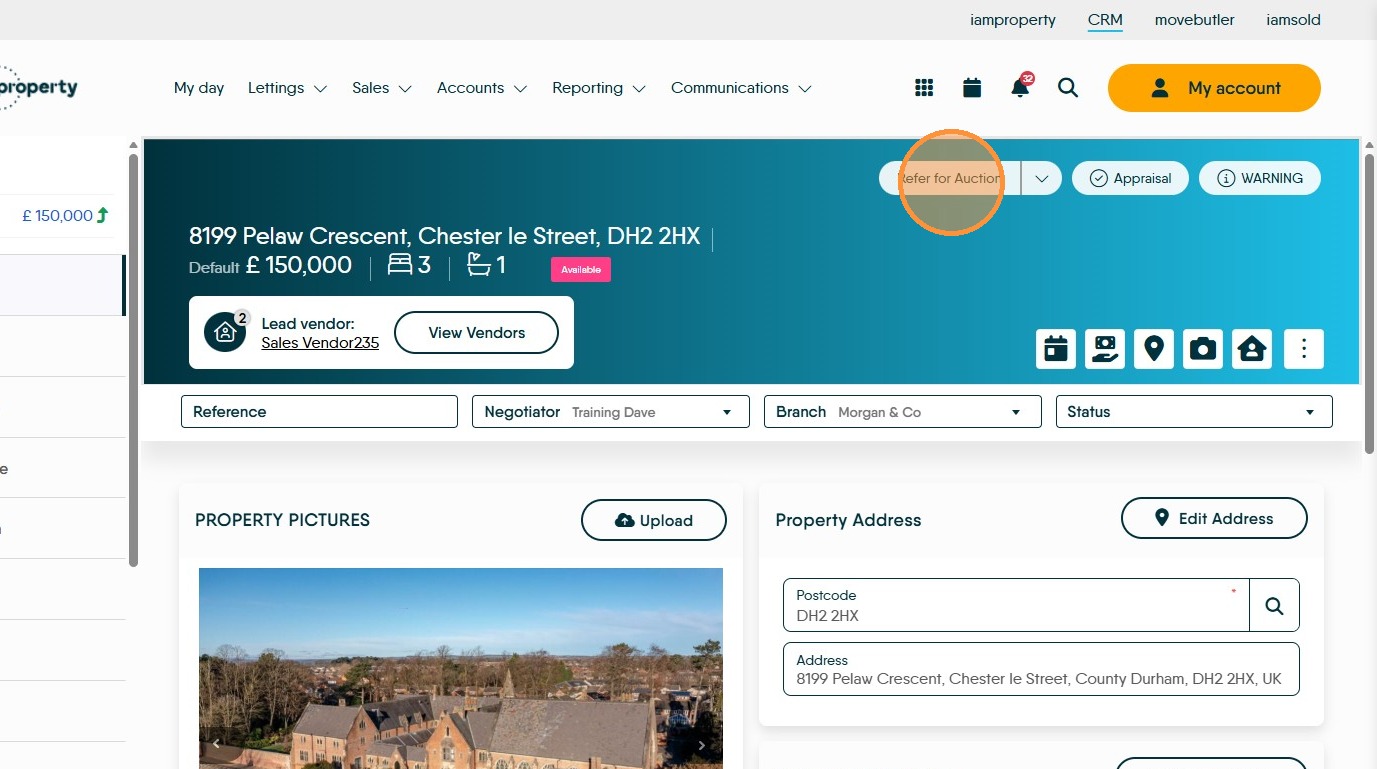
10. Click "Refer Property for Auction" this is shown on all properties not just those that are suggested. To refer the property for Auction click here to see the process.
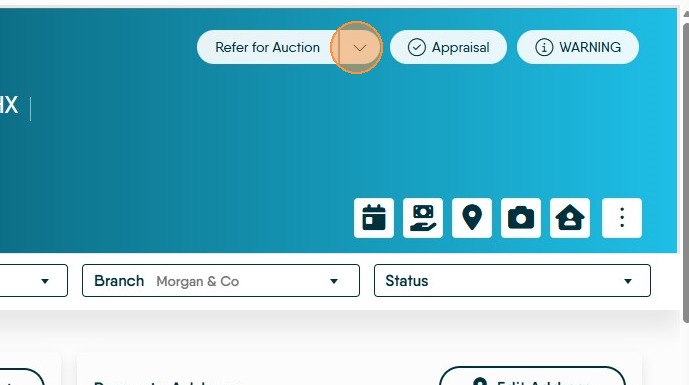
11. Click here. Other than 'Refer for Auction' there are 3 other options.
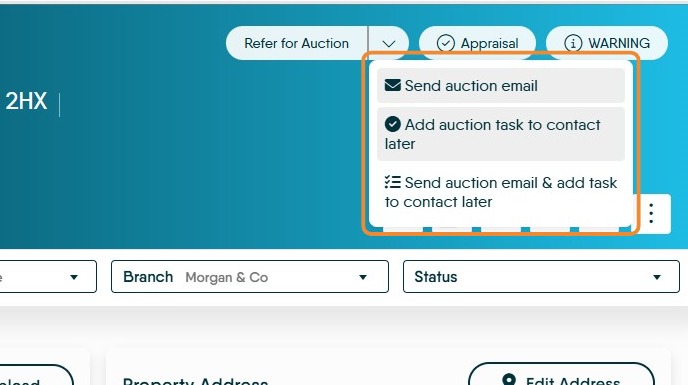
12. Click "Send auction email"
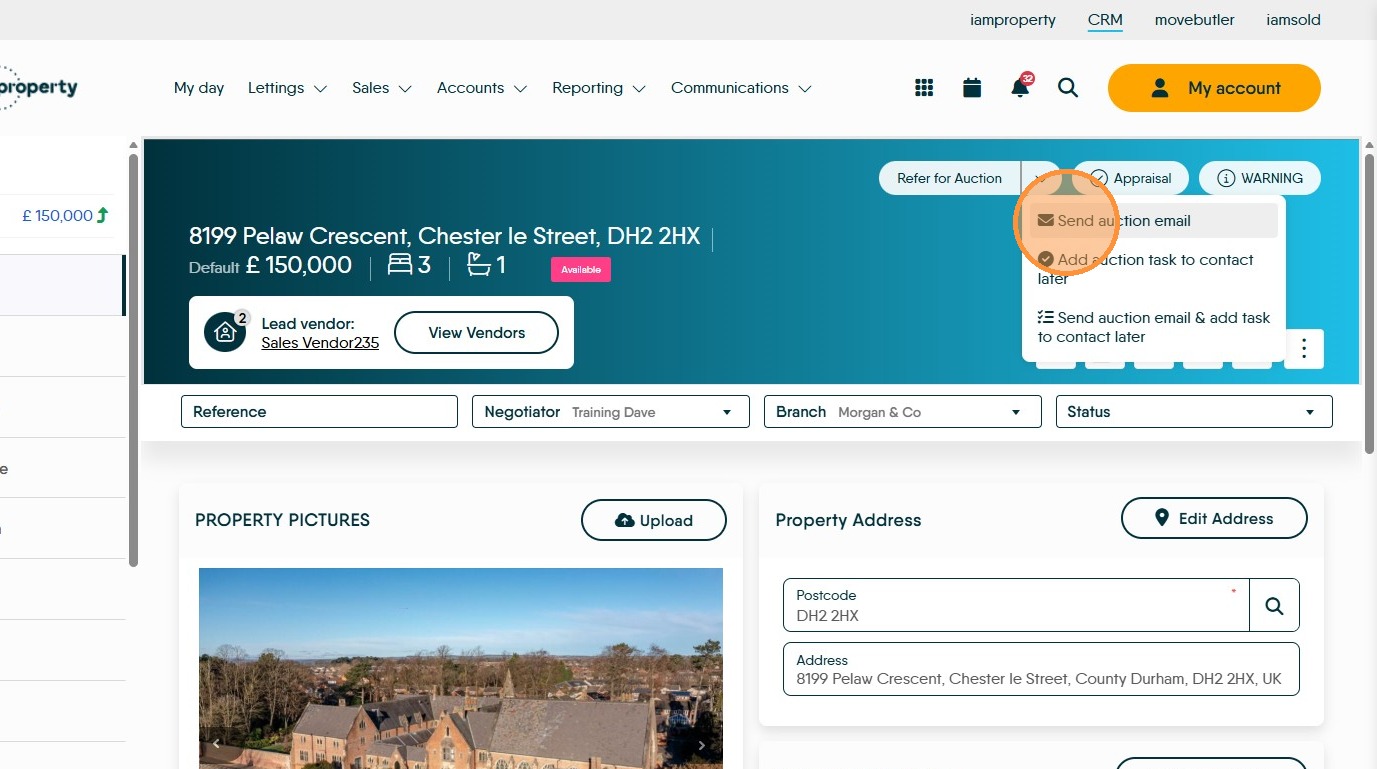
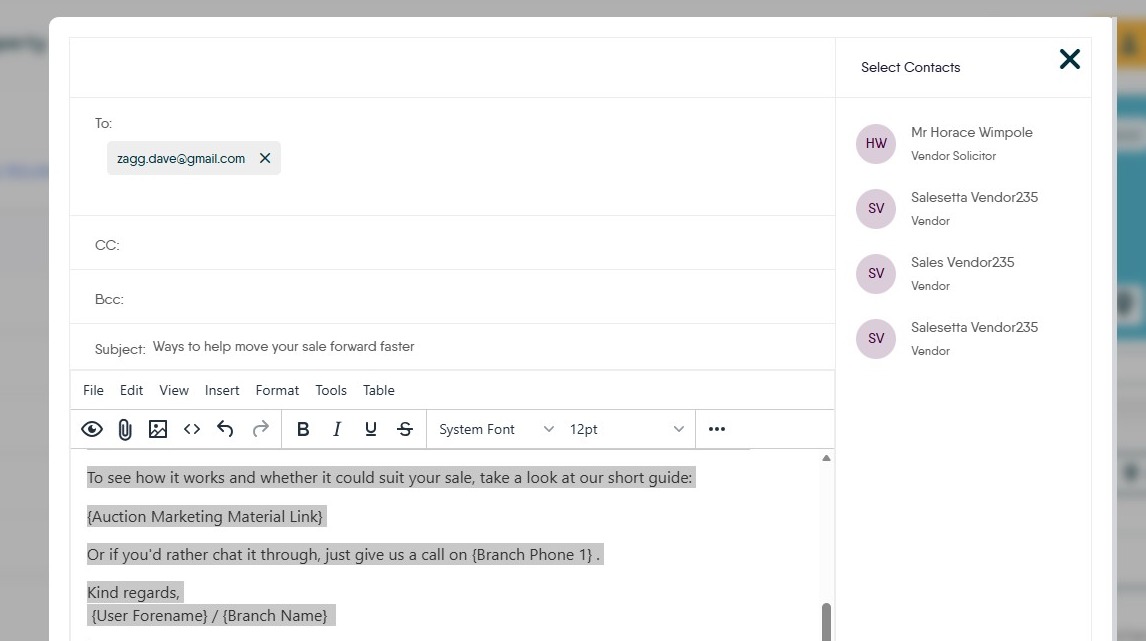
13. This will create an email addressed to the Primary Vendor, the secondary vendors can be selected if required. As can the Vendor Solicitor. The text is pre set although can be edited on a case by case basis if required. Click send (at bottom of the screen) to send email.
To view the email text click here
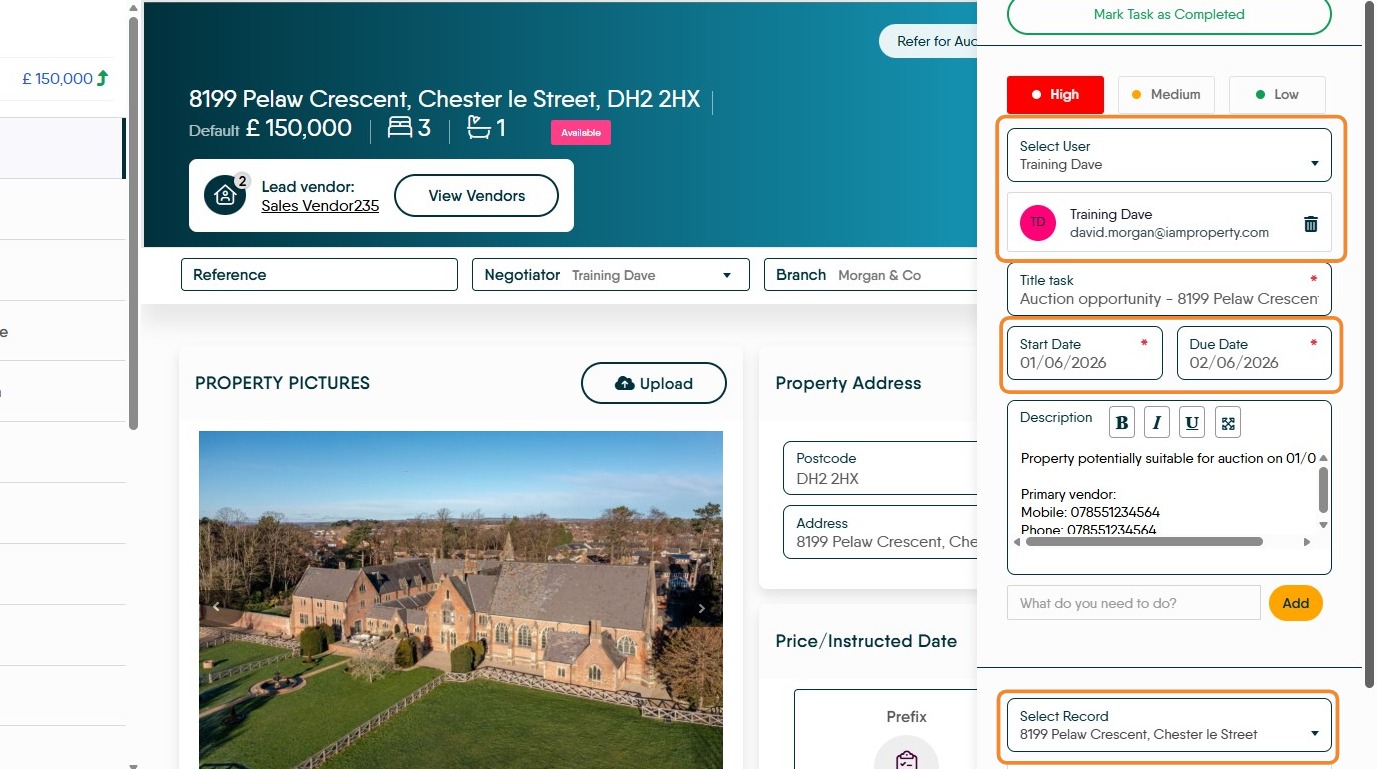
14. "Add Auction Task to contact later" will create a task to remind you, or whoever is nominated, to contact the Vendor and discuss the Auction opportunity. The task list shows on the 'My Day' page, once the task has reached its start date it will show in the Task List.
By clicking into 'Select User' the person responsible for contacting the Vendor can be changed, to any user in your branch/company (depending on branch settings). By default it is the person creating the task.
The 'Start' and 'Due' dates can be edited and control when the Task shows on screen.
The 'Select Record' screen shows the detail for the property and has a link to the CRM Property record.
15. "Send auction email & add task to contact later" is merge of both of the other options, sending both the email and creating the task.
Refer Property to Auction
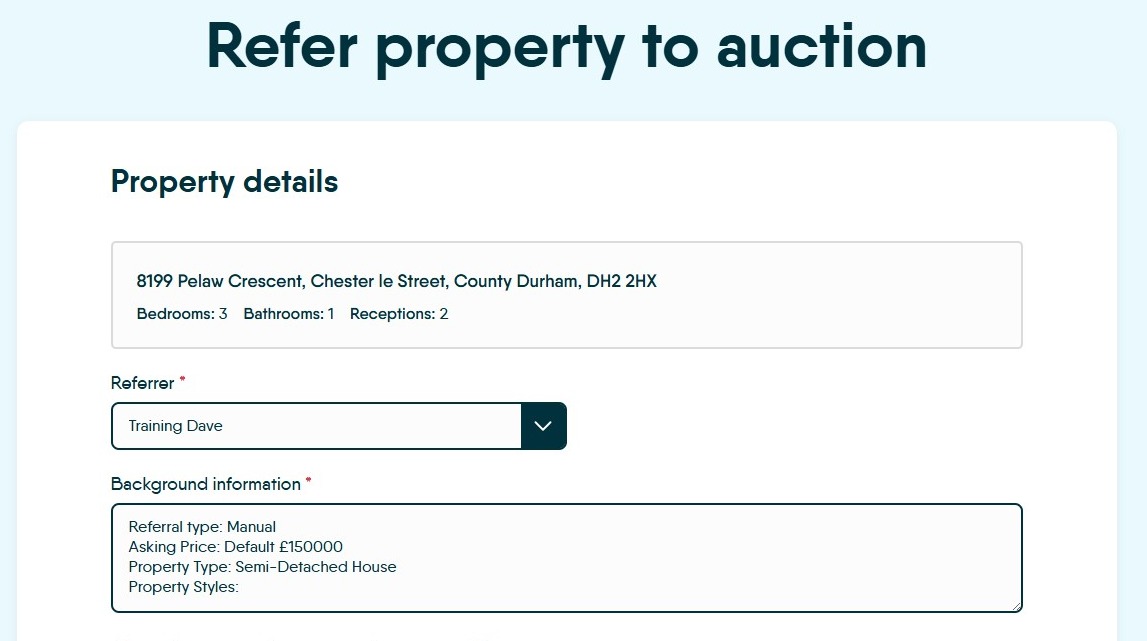
16. Click "Refer Property to Auction" on any screen and this is the screen you will come to.
Property Details are the first screen.
Ensure that all screens are correctly completed and all options marked with a red star are completed.
If the information in CRM is correct it will be copied over to here.
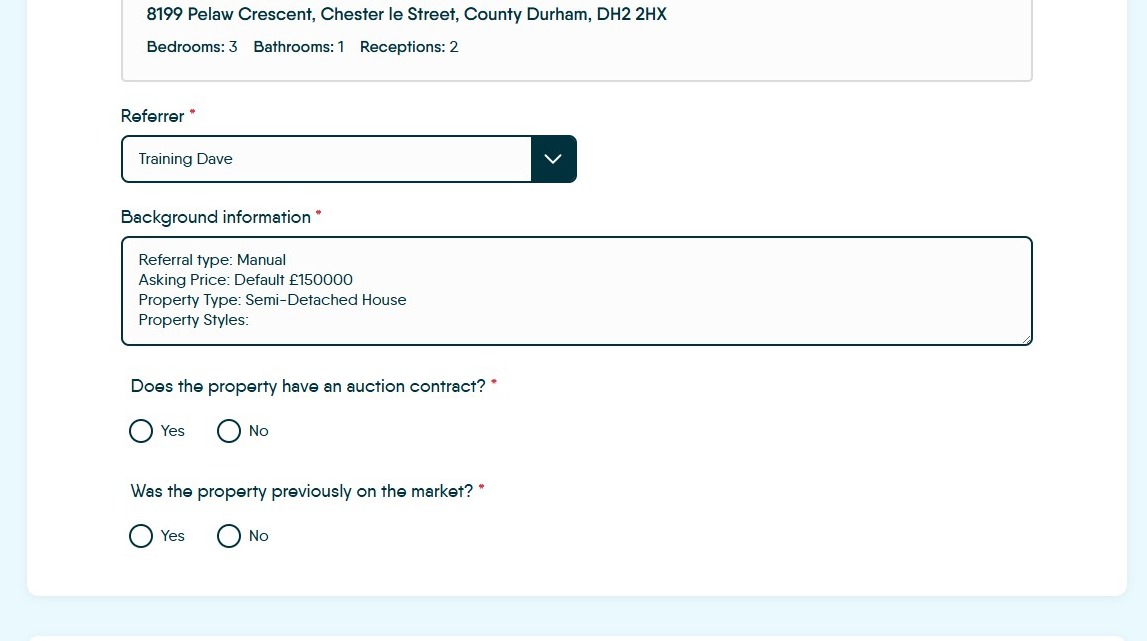
17. Next screen is "Lead Vendor details" the detail will be brought over from CRM, ensure it is correct and all fields with a red star are completed.
Once completed, click "Refer"
Alert: Alert! Once the Property has been accepted for Auction, please make sure you add the Auction notes etc to the properties marketing and re-upload to portals and your website.
Also change any status indicators you use in CRM to show this property is now an auction property.
Email Text
18. Auction Referral Email Text
n.b. any words in the { } braces are merge fields where the data is pulled in from the property record to personalise the email.
Hi {Forename} ,
We've been reviewing the marketing of your property and wanted to share another option that could help move your sale forward.
Selling by Modern Method of Auction offers a clear timeline, committed buyers and the potential to complete in as little as 56-days*. Buyers can also purchase with a mortgage, helping open your property to a wider pool of potential buyers.
Key benefits include:
More certainty, with buyers committing financially to the purchase
Faster timescales, helping you plan your move with confidence
Transparent bidding, which can help drive competitive offers
An undisclosed Reserve Price, so your property won’t sell for less than you’re willing to accept
To see how it works and whether it could suit your sale, take a look at our short guide:
{Auction Marketing Material Link}
Or if you'd rather chat it through, just give us a call on {Branch Phone 1} .
Kind regards,
{User Forename} / {Branch Name}