Learn how to accurately manage property listing statuses, advertising preferences, and descriptions within the CRM platform. This guide provides a walkthrough of the essential fields required to ensure your property data is complete and ready for market.
Prices and Matching
1. Navigate to the Marketing screen of the property you are completing.
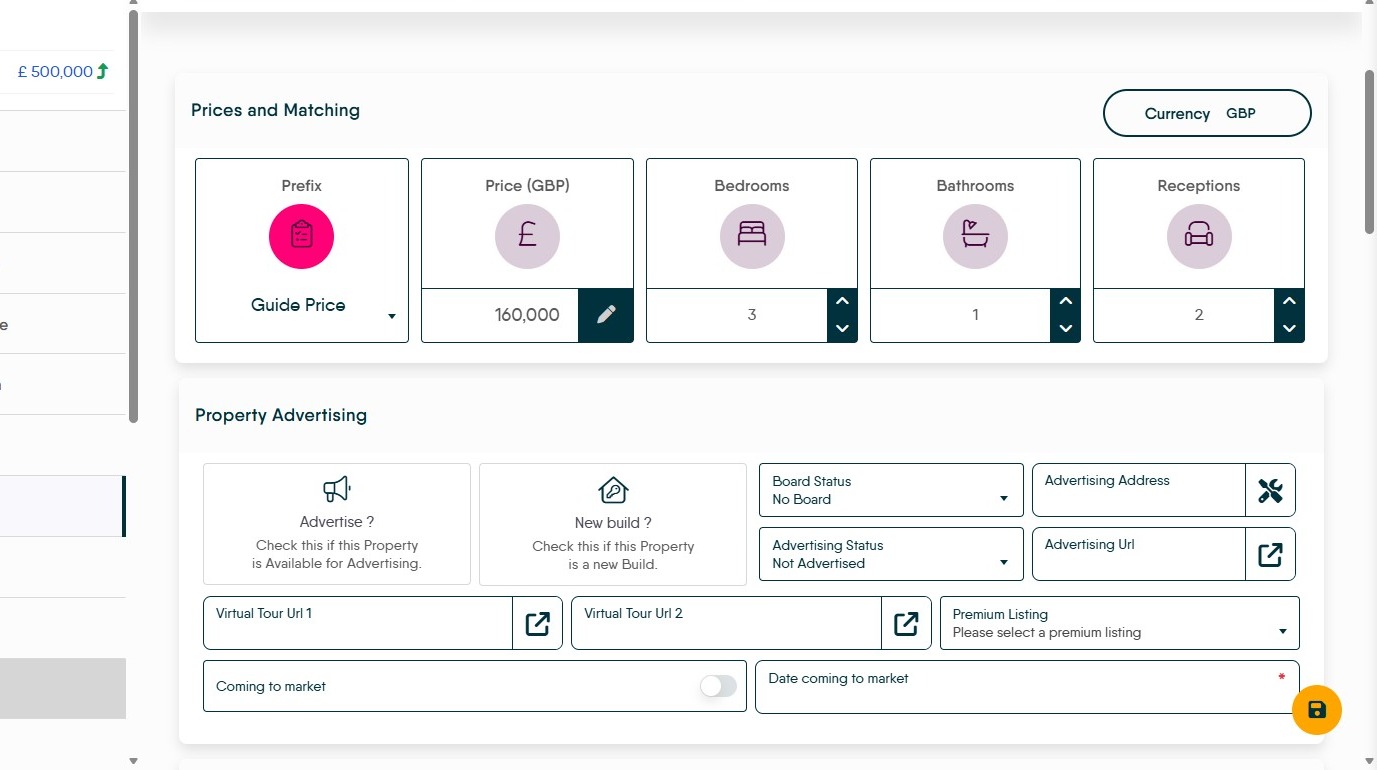
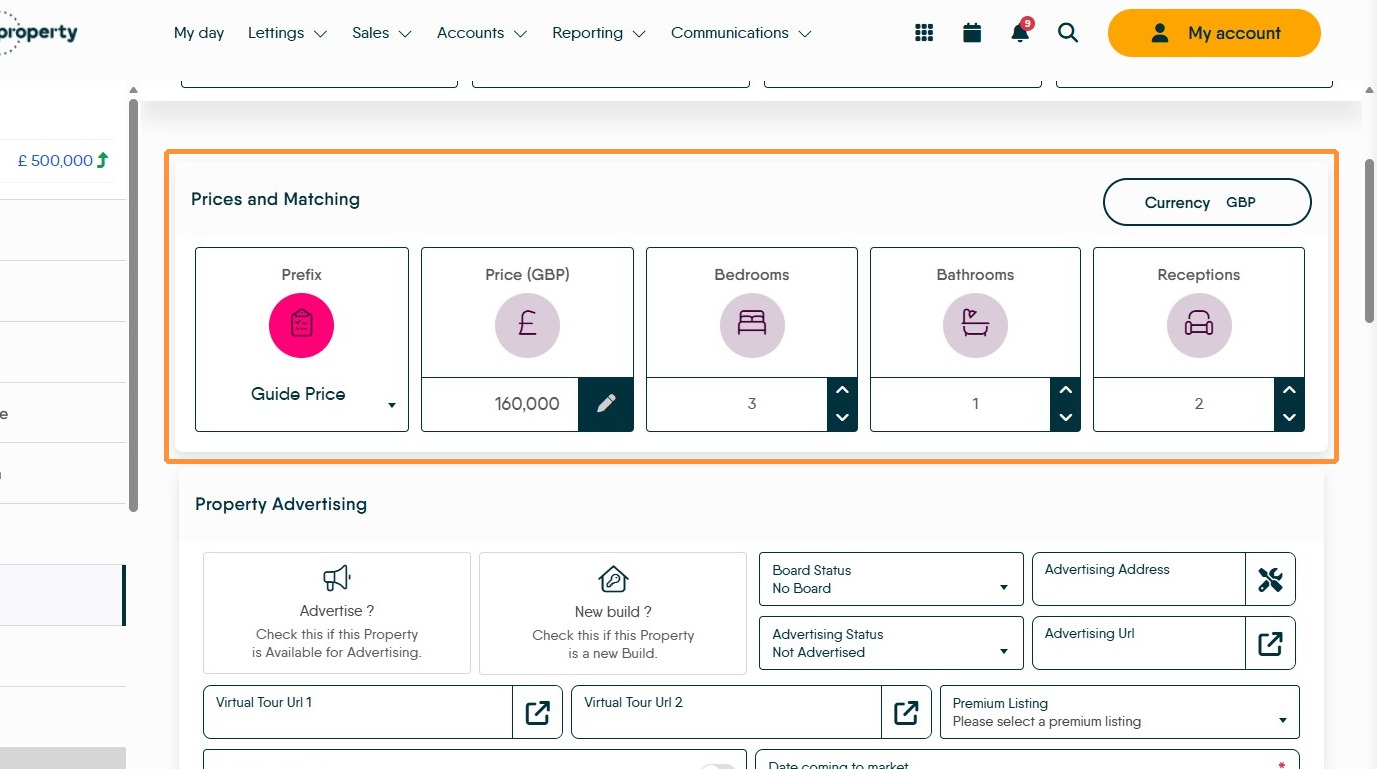
2. Click "Prices and Matching Currency" make sure the price, numbers of bedrooms, bathrooms, receptions are correct.
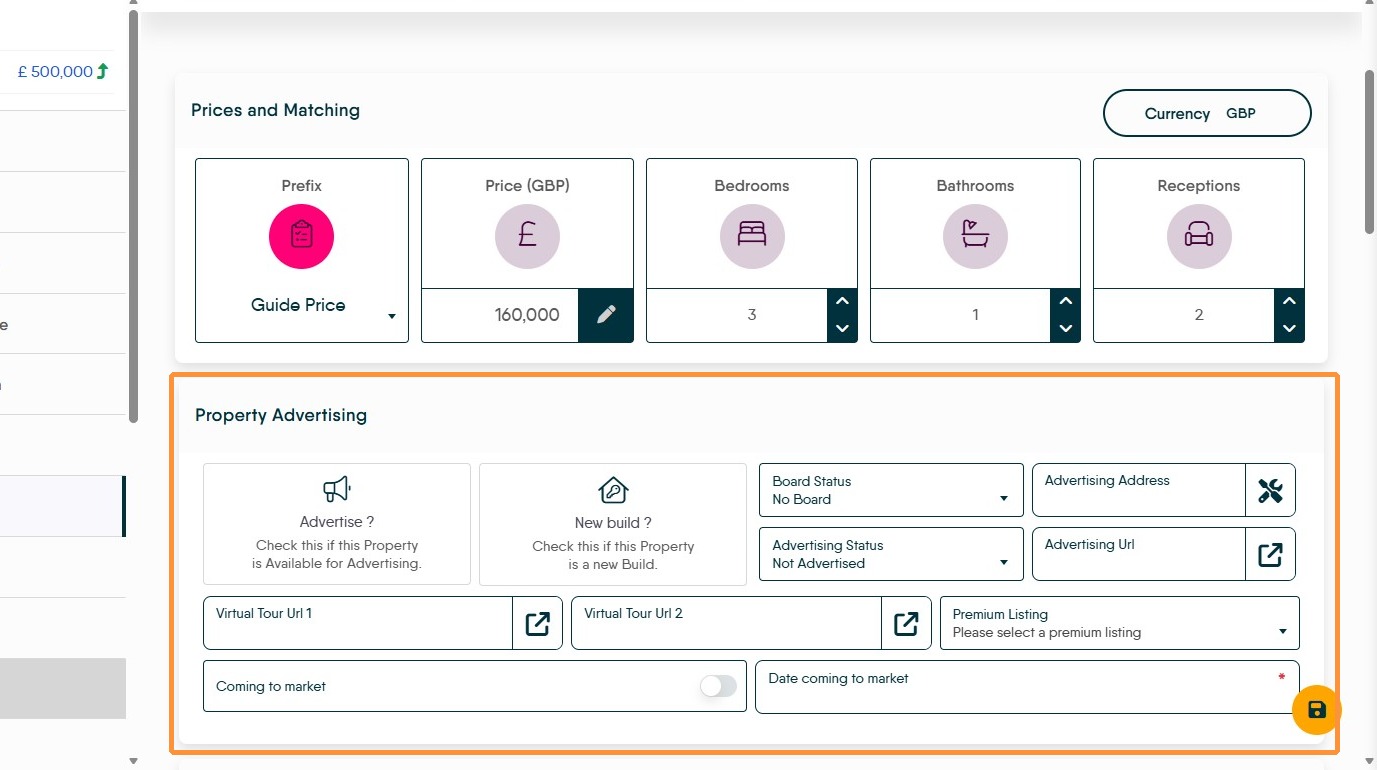
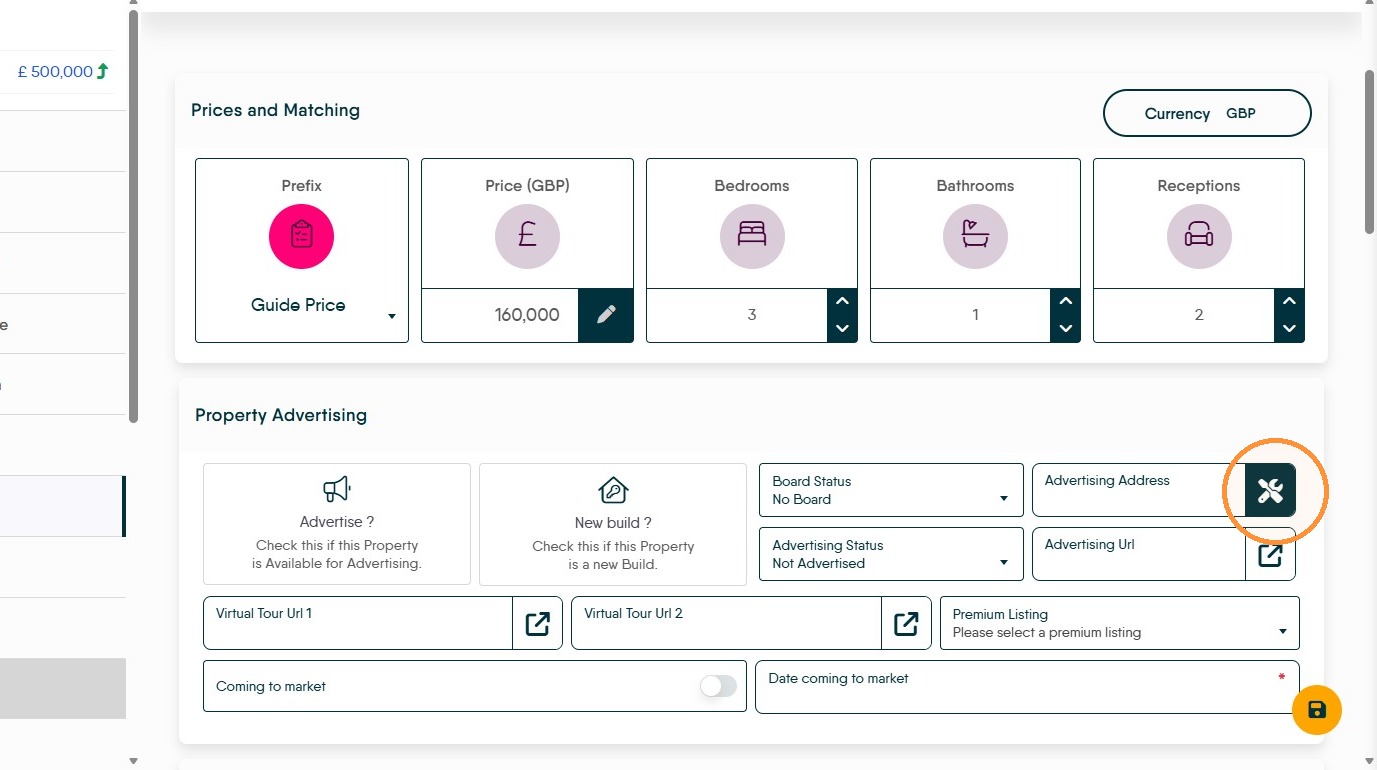
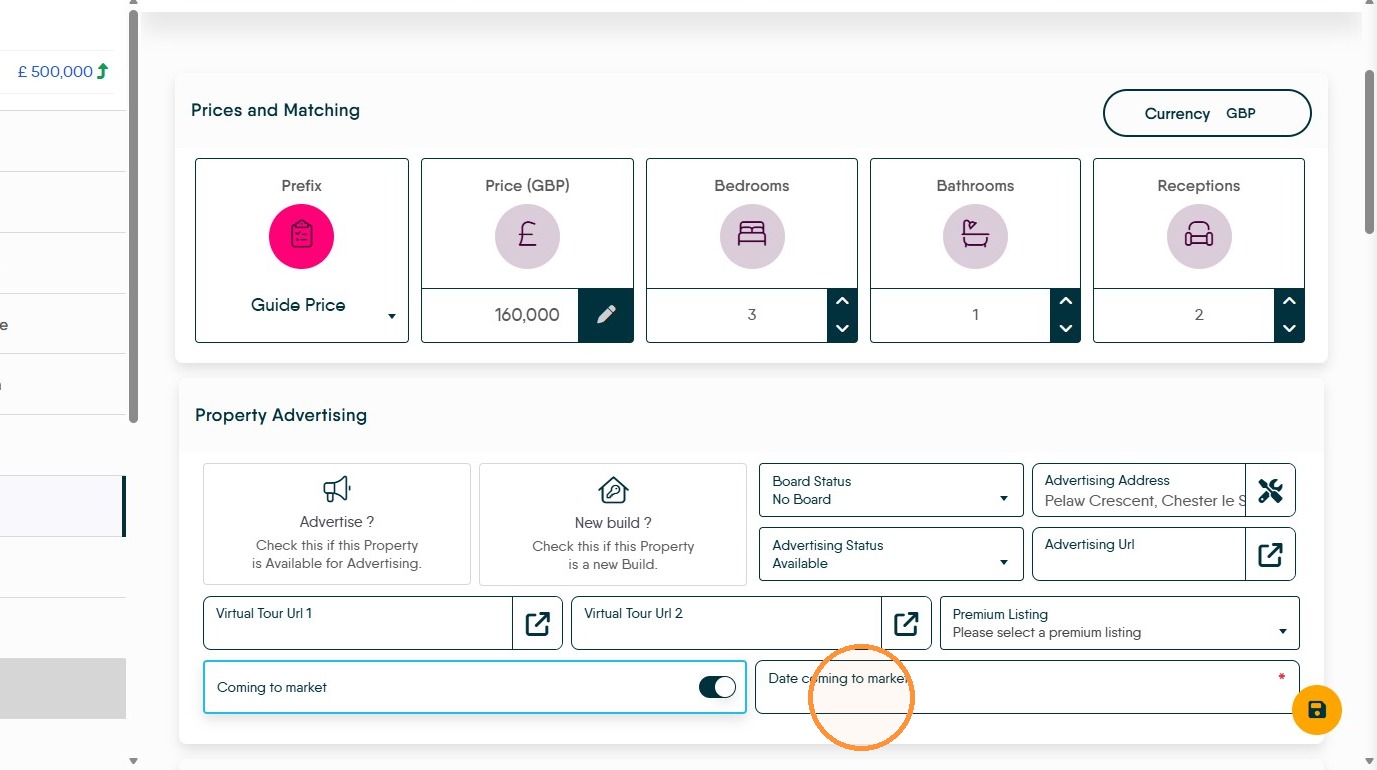
3. Click "Property Advertising" and (if required) complete all the options on the screen.
Virtual Tour, is where you would add a link to the virtual tour host.
Once the full Marketing screen plus media etc is added to the record the last option to selected is the "Advertise" button, once the screen is saved this will enable the property to be uploaded to the online property portals.
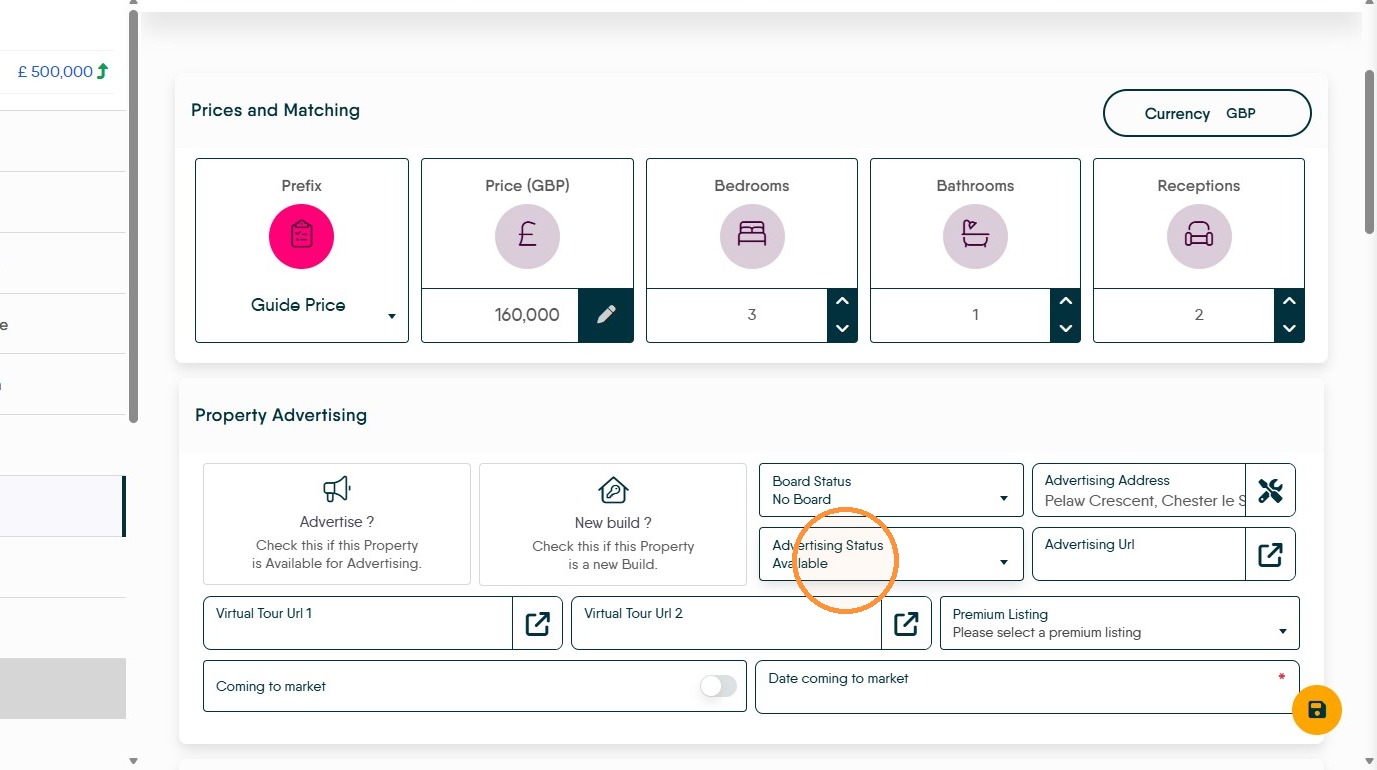
4. Set the "Advertising Status" to "Available" or the option you are using.
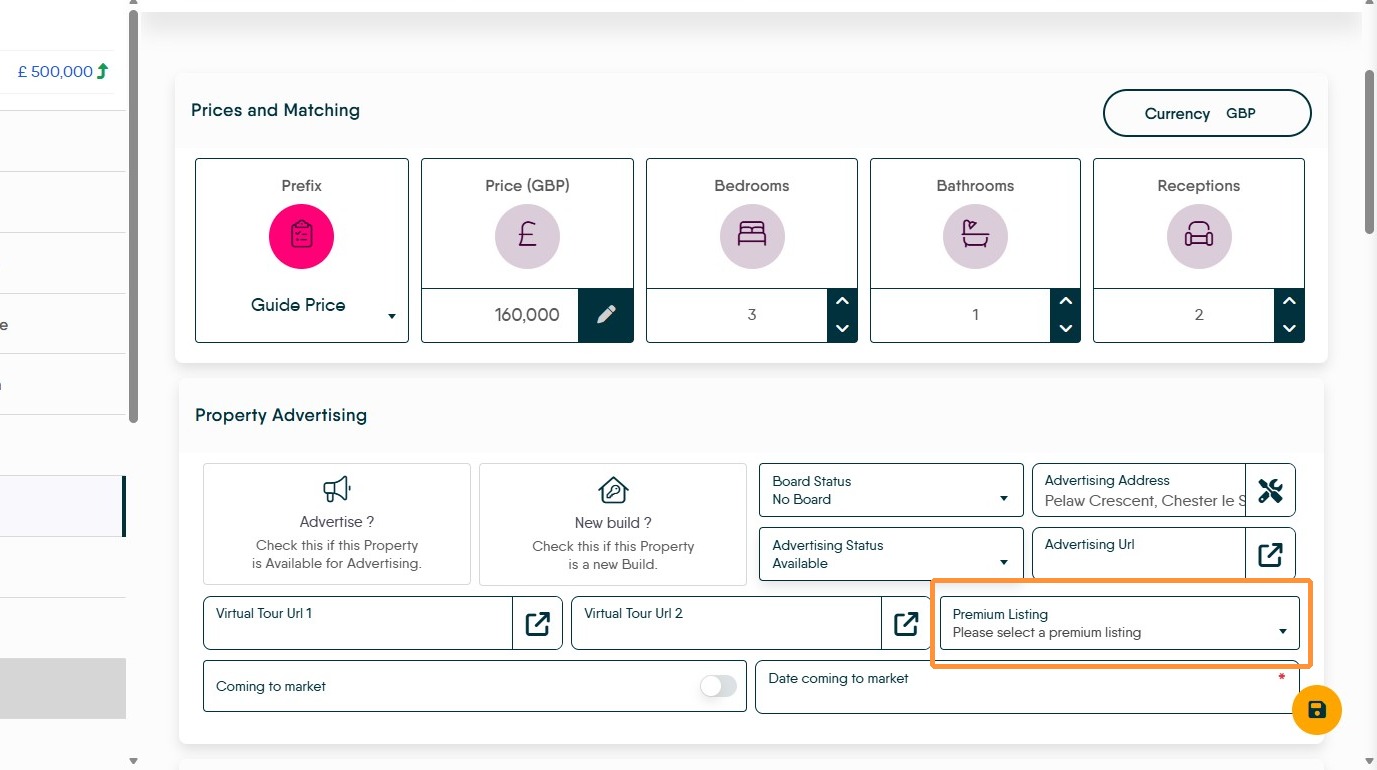
5. Select a "Premium Listing" option if required.
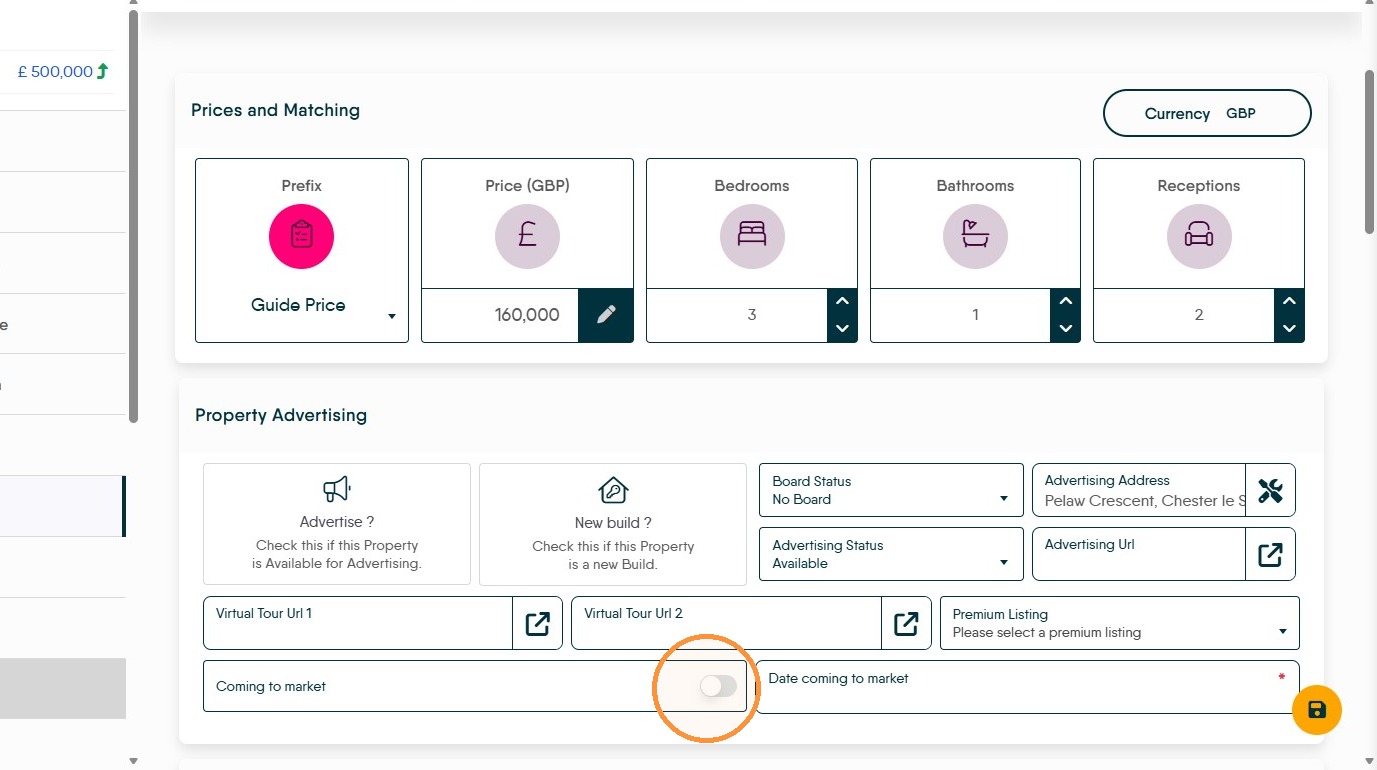
6. If required. Enable the "Coming to market" toggle and select the availability date.
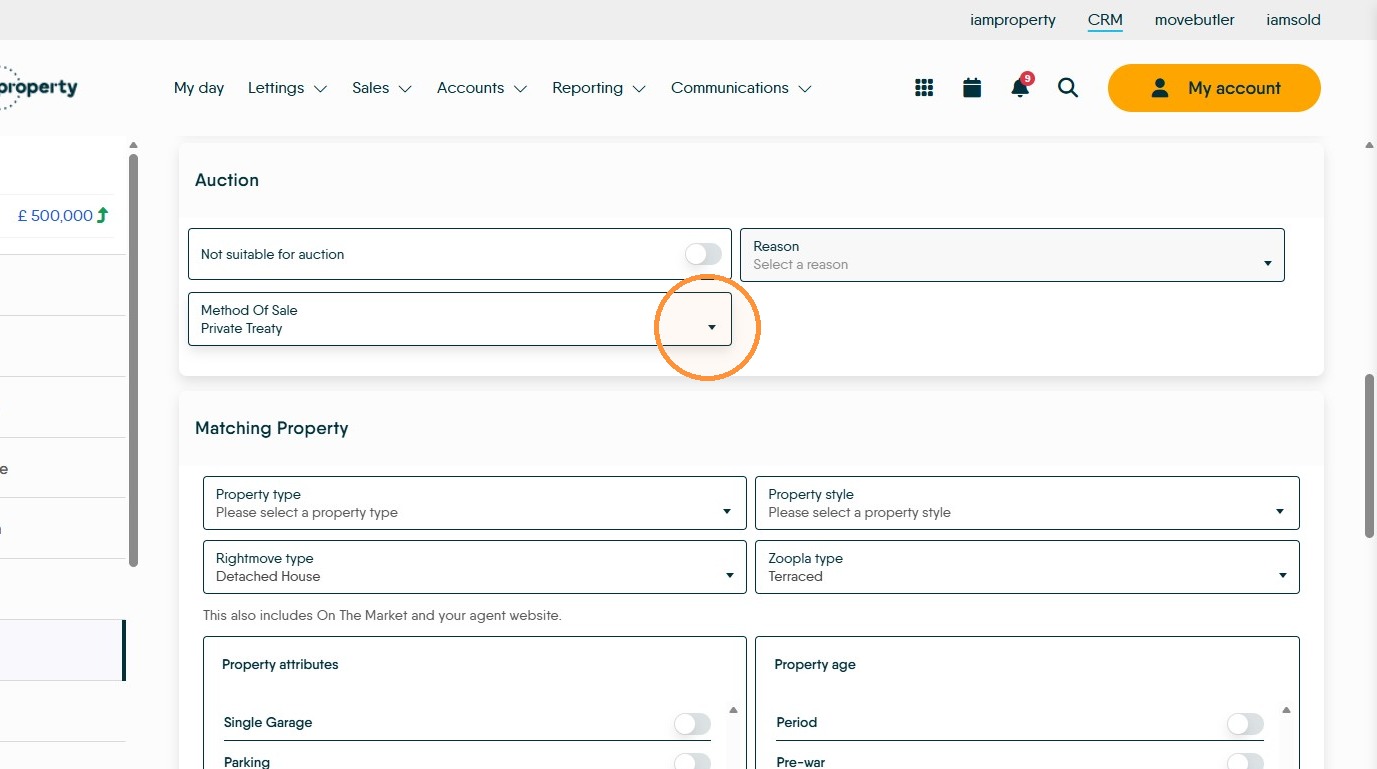
Auction
7. This allows you to note if the property is Not suitable for Auction and add a reason why. Initially select "Private Treaty" as the method of sale.
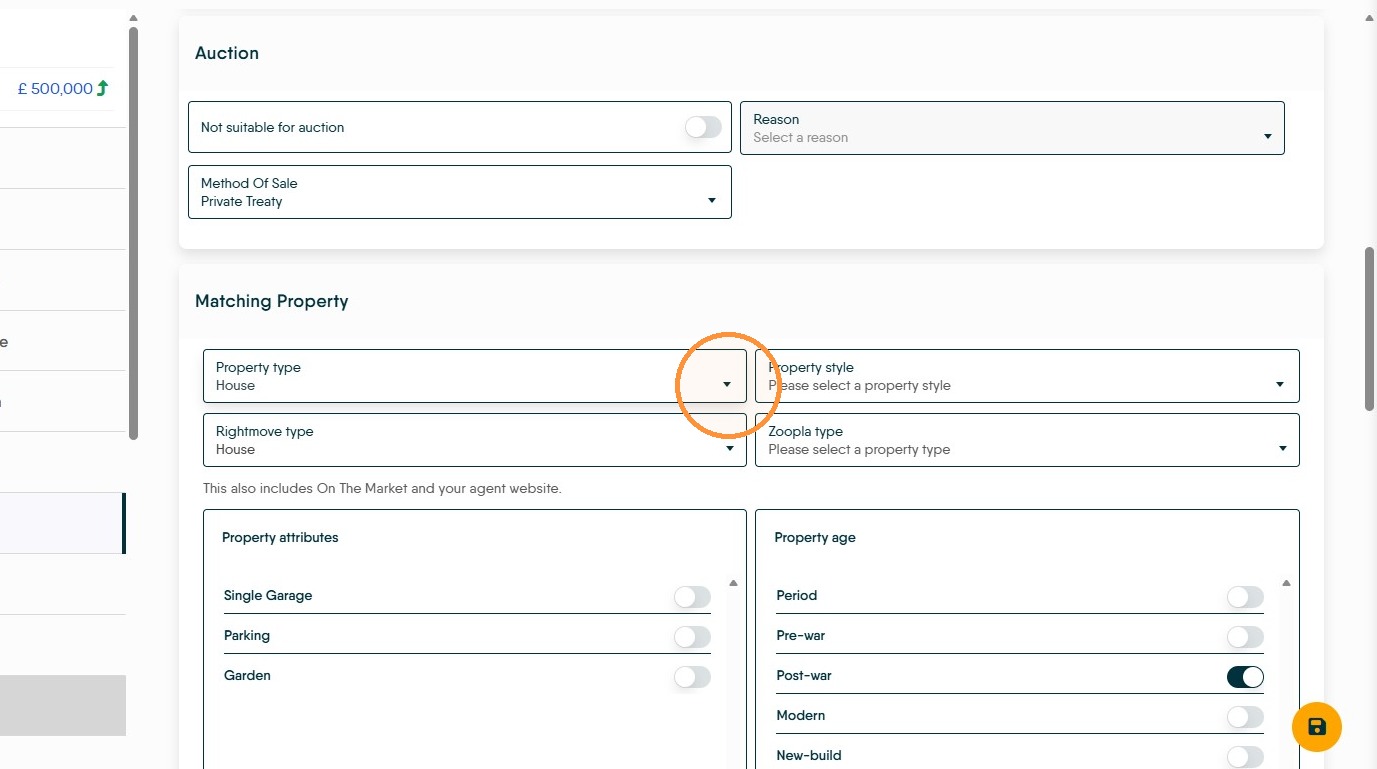
Matching Property
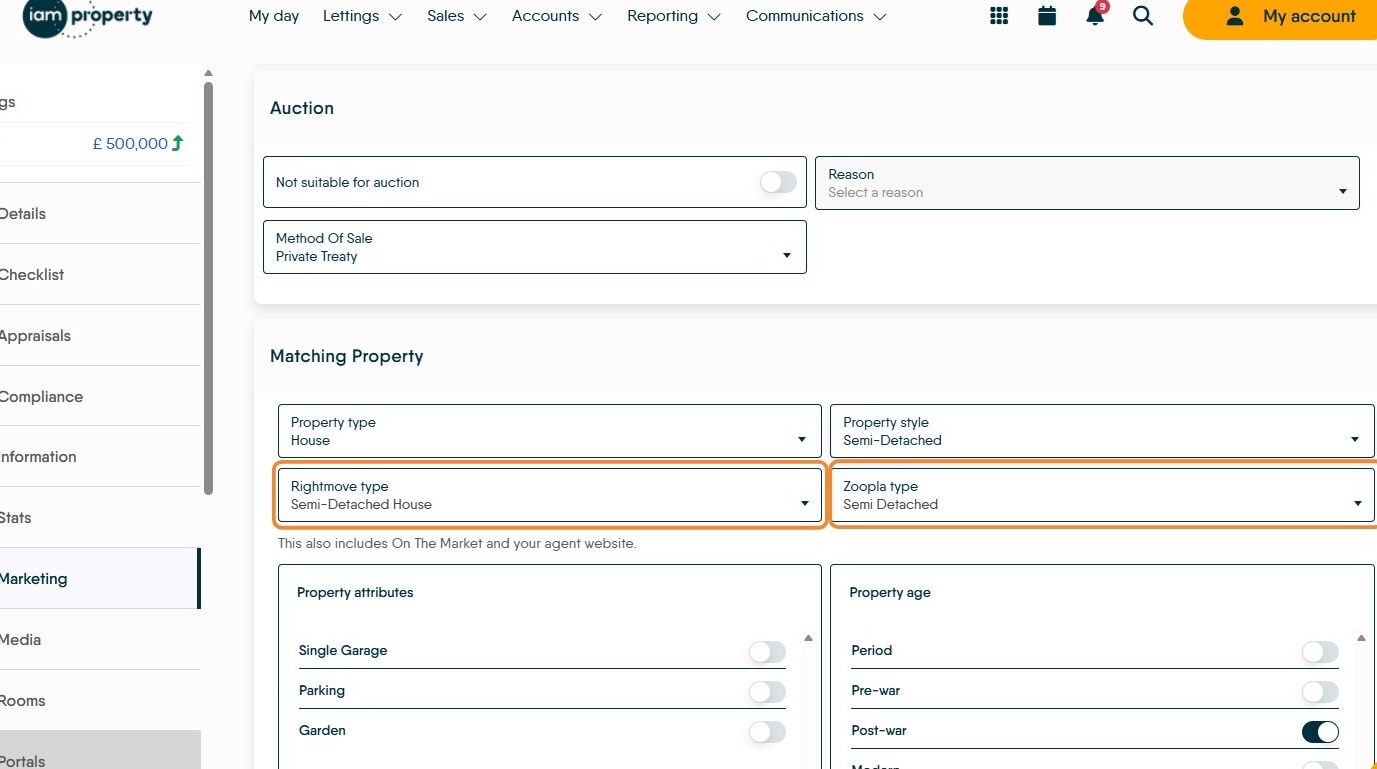
8. In "Property Type" Select the property type from the drop down menu
9. In "Property Style" Select the property style from the drop down menu.
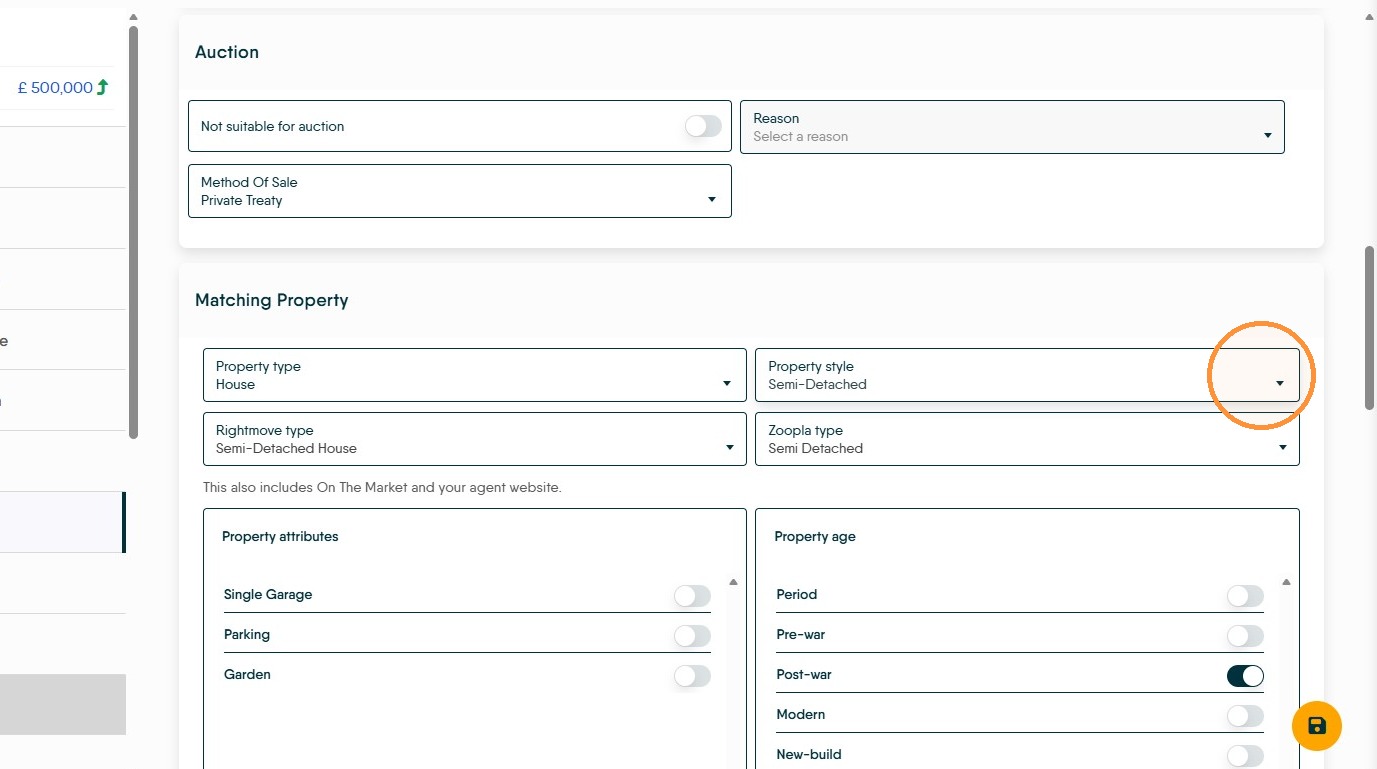
10. This will set the Rightmove and Zoopla property classification as well as On The Market and your own website
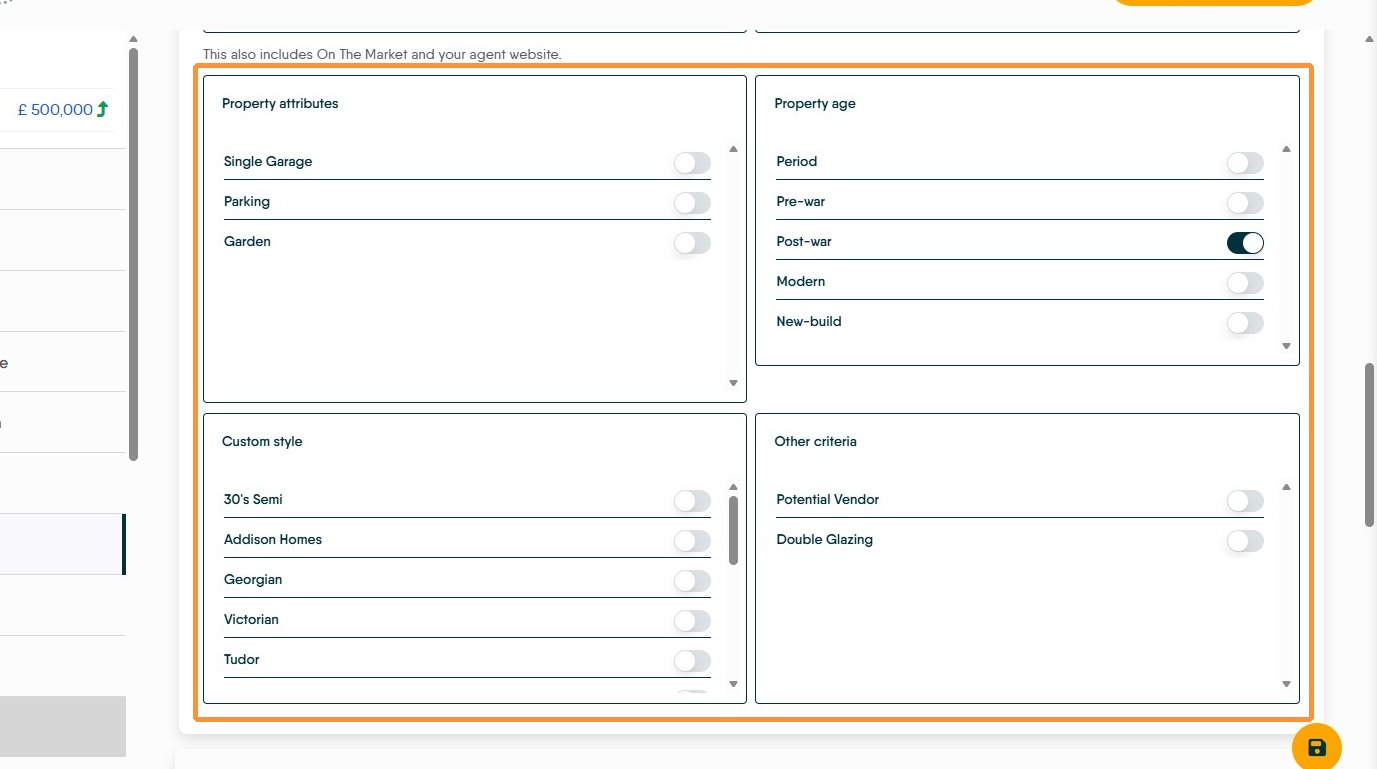
11. Click "Property attributes" "Property Age", "Custom Style" and "Other Criteria" are optional selections that can help make a match to an Applicant more exact.
Setting these options needs to be linked to setting the same option on an Applicant record otherwise there will be no match. This set of options is mirrored in an Applicant record.
Descriptions
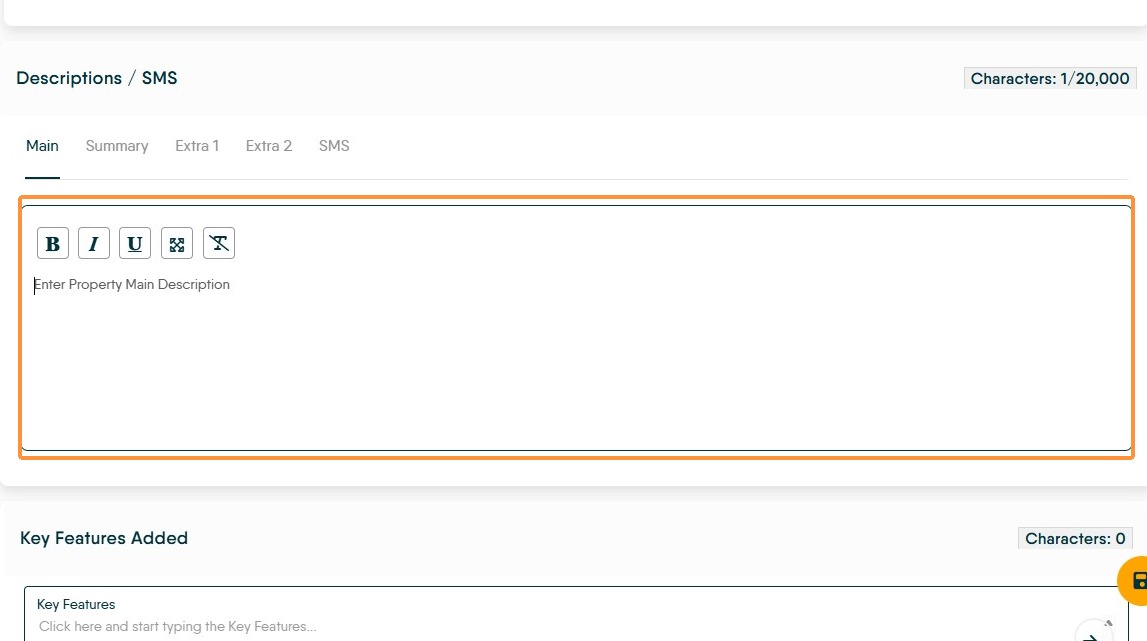
12. Click "Enter Property Main Description" type the full property description into this screen.
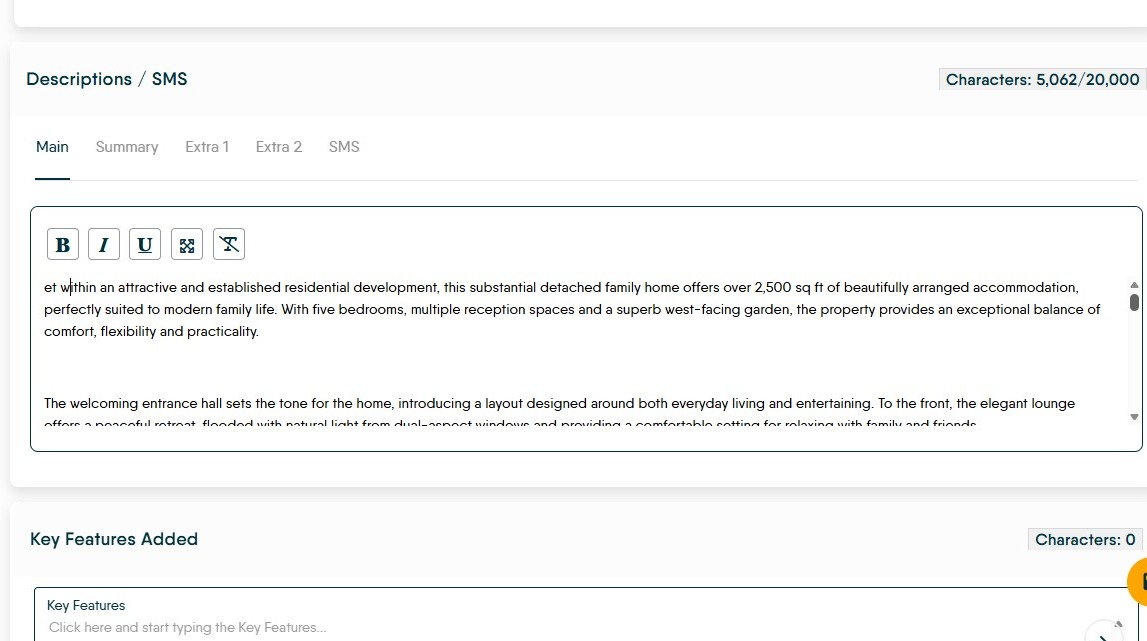
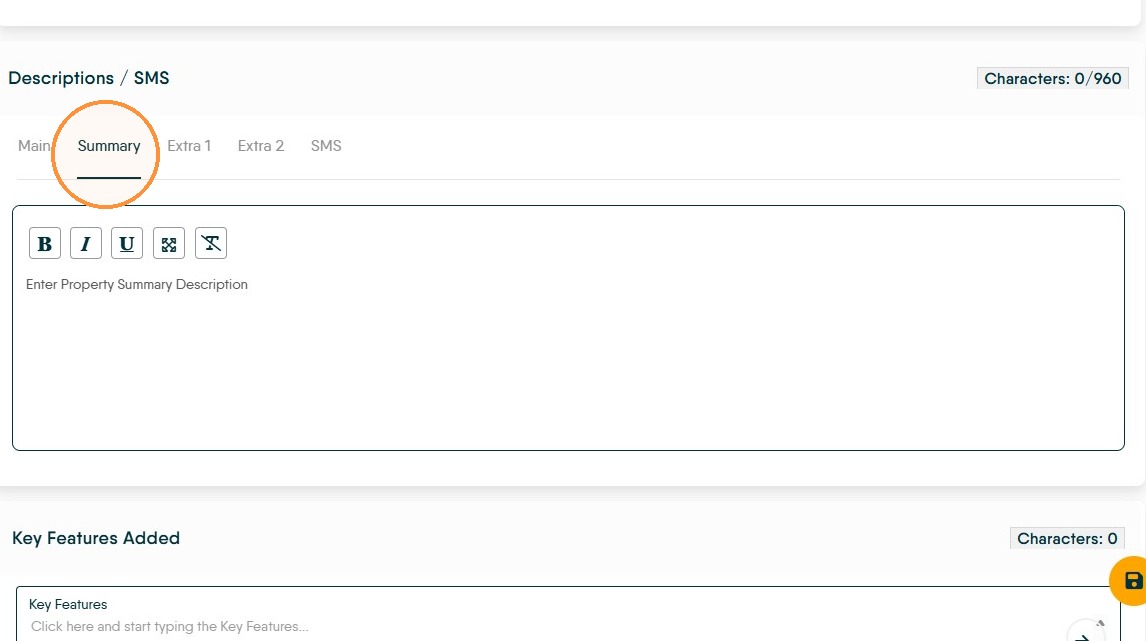
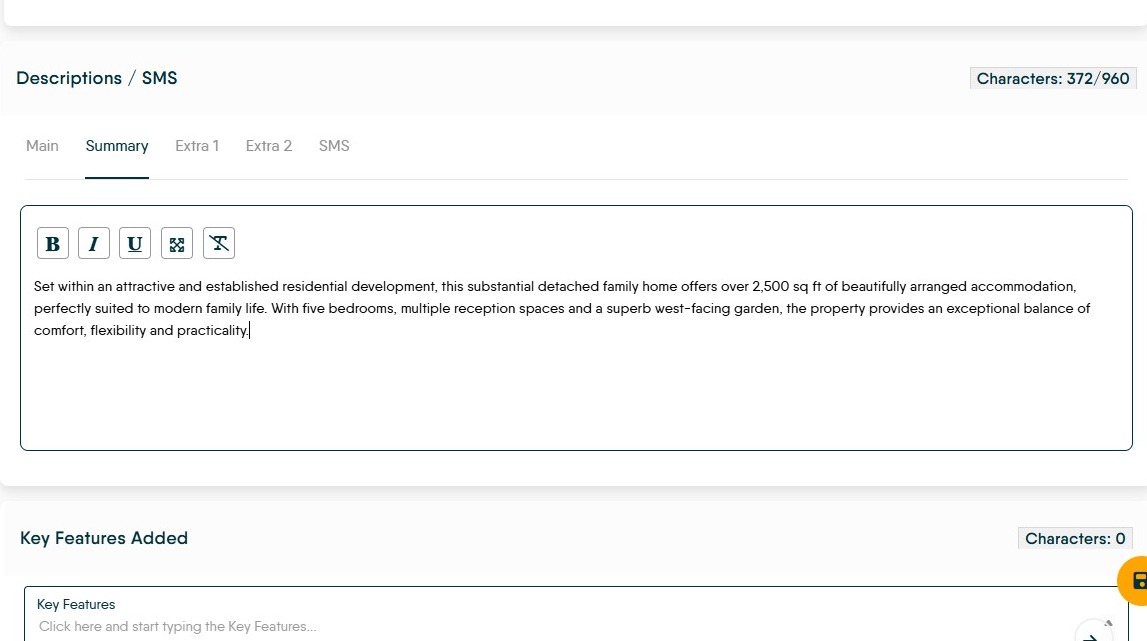
13. Navigate to the Summary option and enter the property summary description.
Key Features
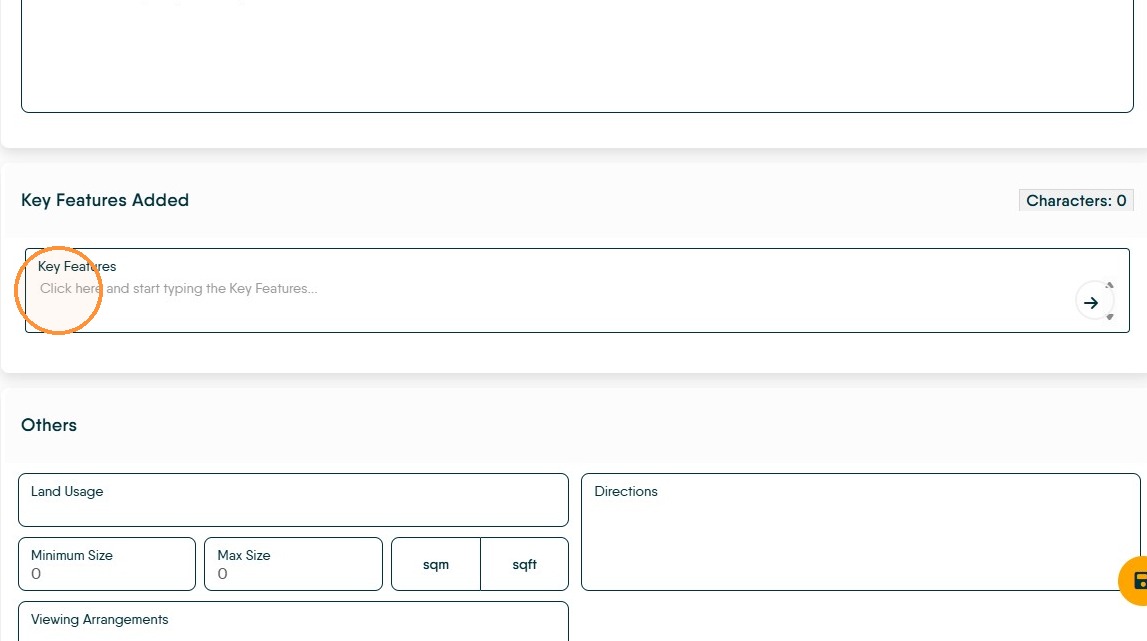
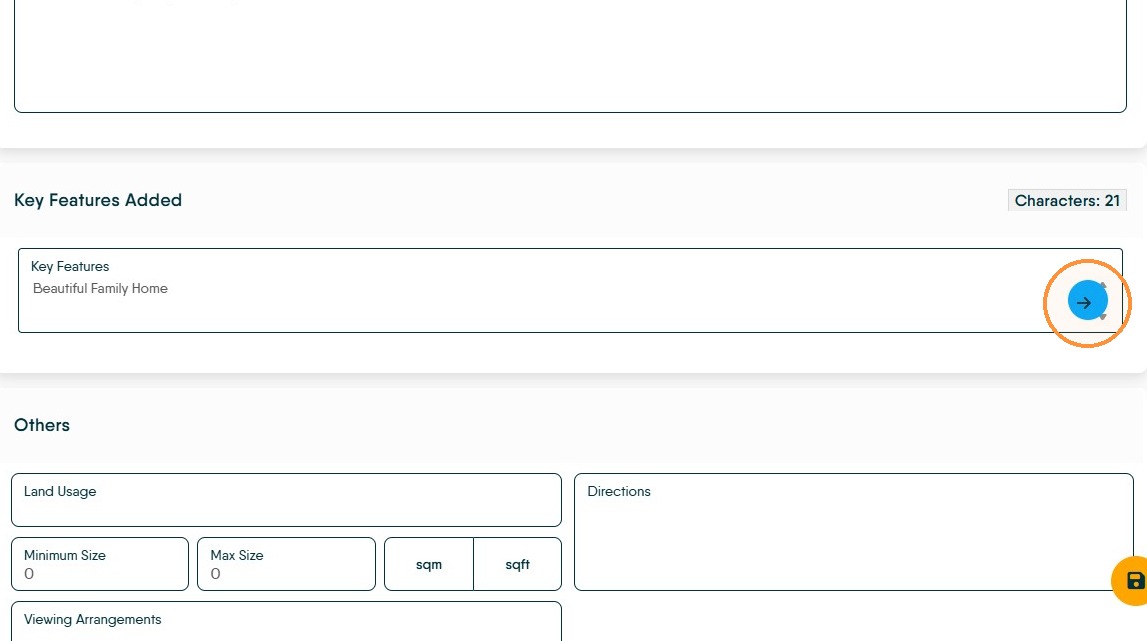
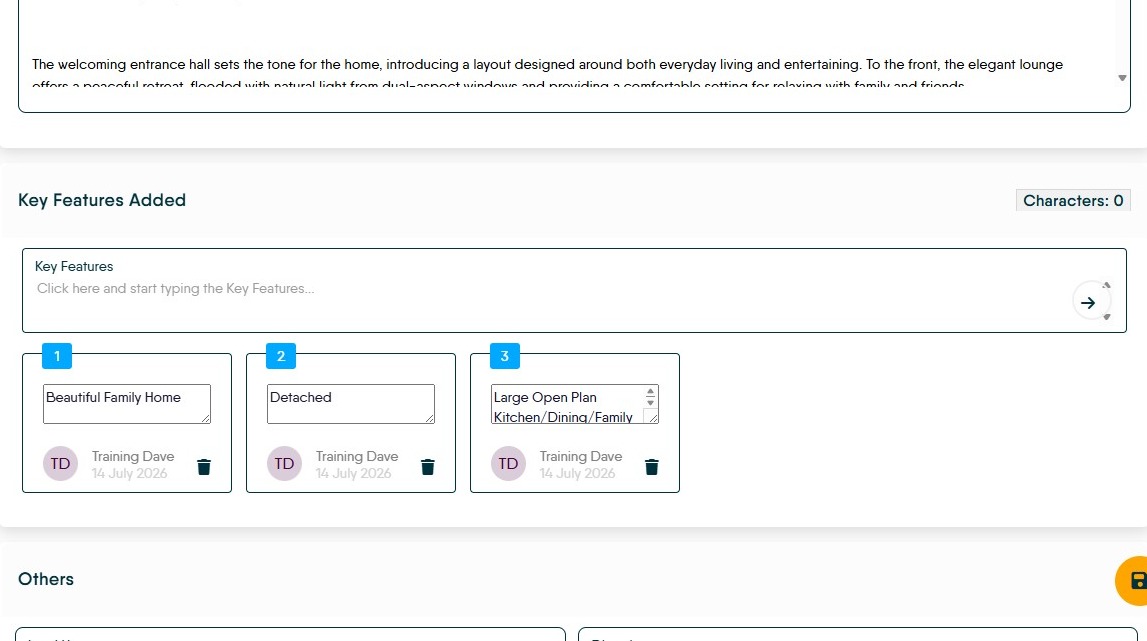
14. Type and add Key Features to the property listing. Up to 10 can be added and show as bullet points on the property upload.
Review the list of added key features.
Others
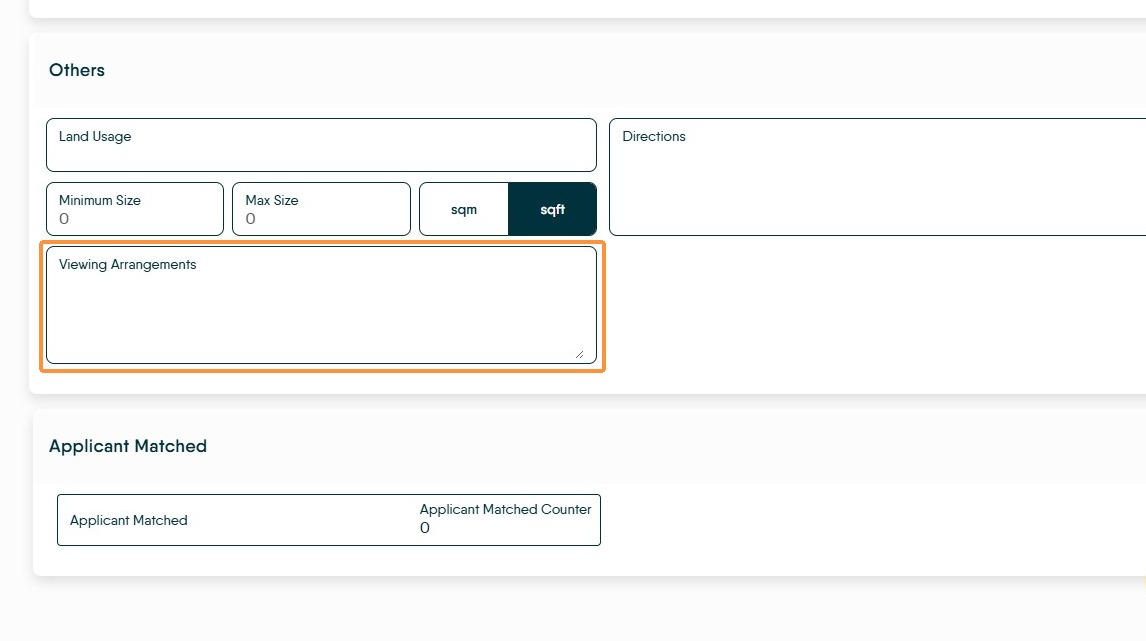
15. "Viewing Arrangements" If required add notes in here about any requirements when completing a viewing