Learn how to create a Quarterly landlord statement merge in accordance with the new rules for HMRC Making Tax Digital from iamproperty CRM. This guide will walk you through the necessary steps to create a landlord merge. We have also included dates for 2026 report and a link to the HMRC webpage that explains what needs to be sent and when.
Alert: Alert! If You usually run your (monthly) Landlord statements using 'Property' the quarterly statement must be run as 'Landlord' else it will irreversibly amend the start date of their next monthly statement run.
Also; You will need the 'Consolidated Landlord Statement' to run this report, if you don't have it please contact CRM Support on crm.support@iamproperty.com and request the report to be added.
1. Navigate to https://crm.iamproperty.com/MyDay
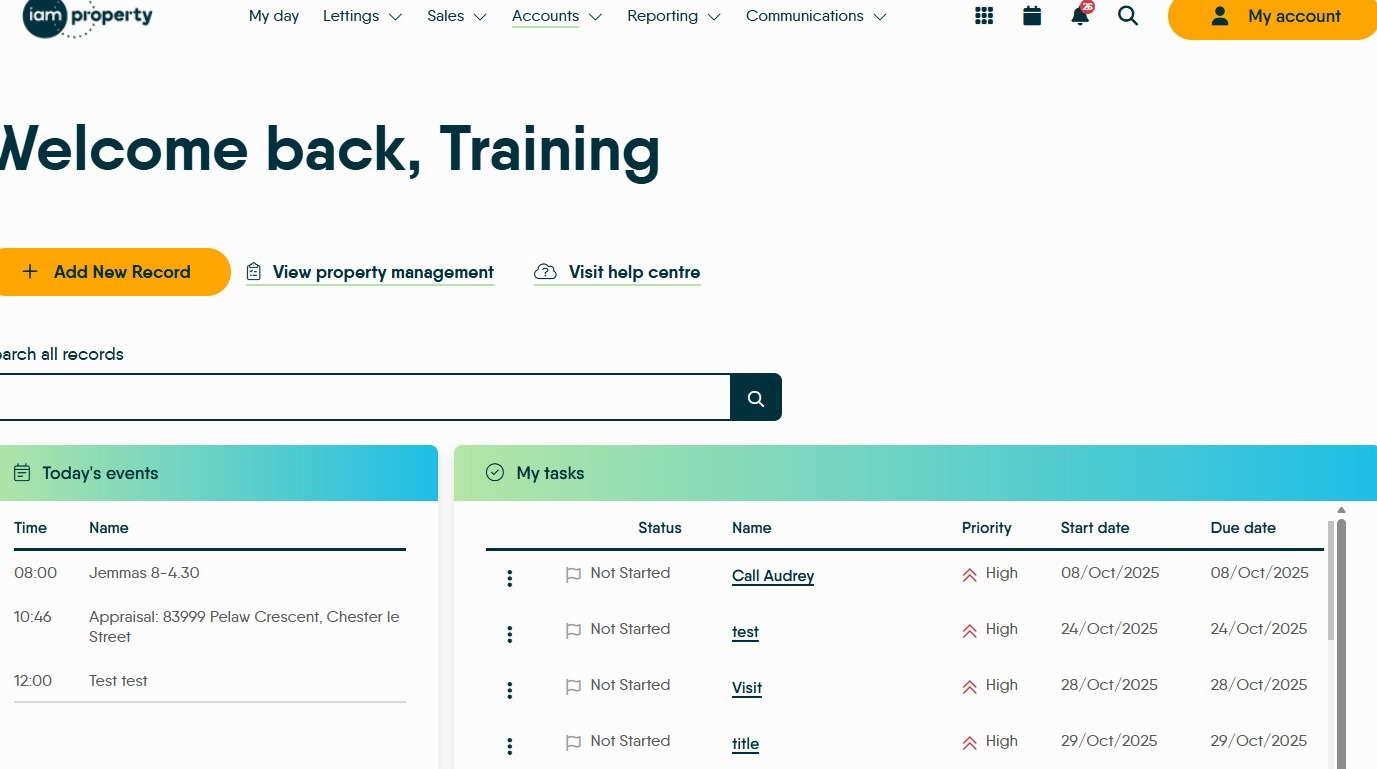
2. Click "Accounts"
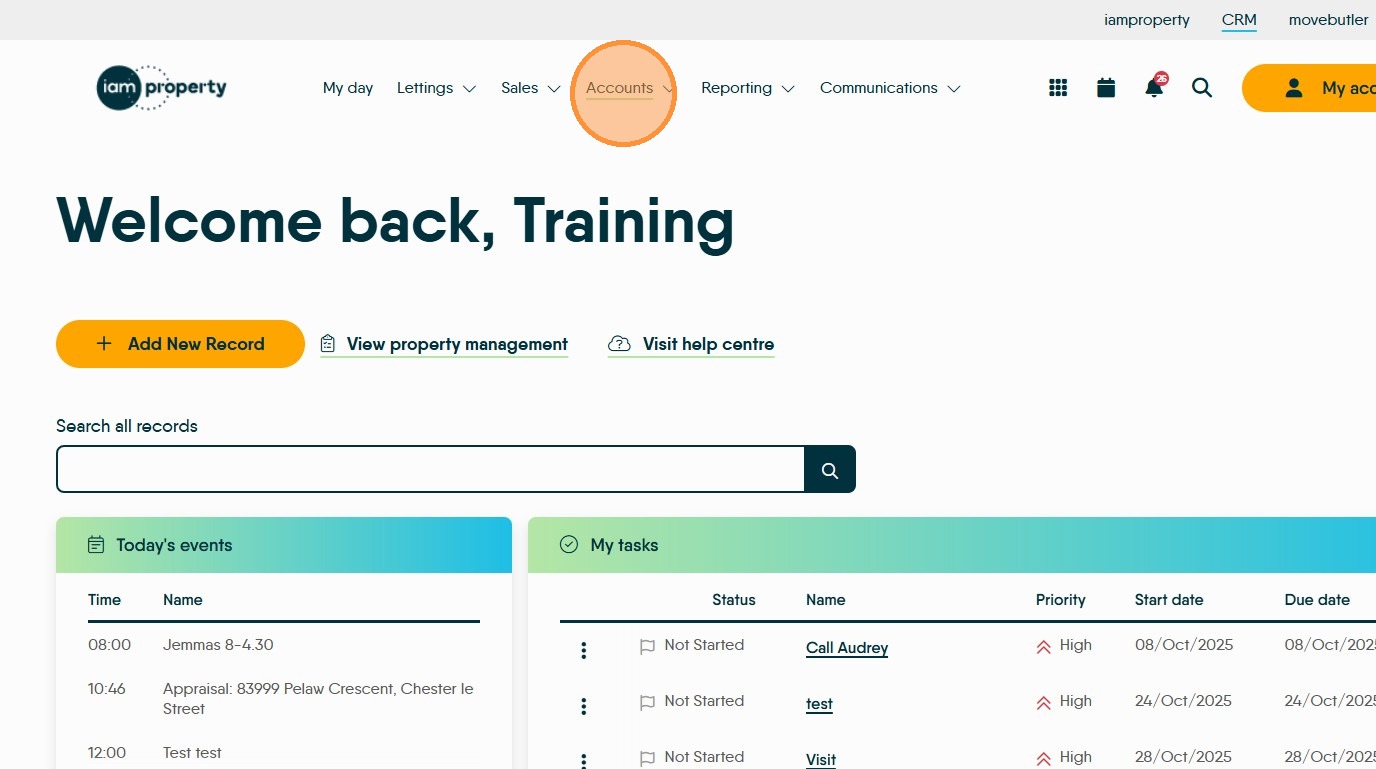
3. Click "Landlord"
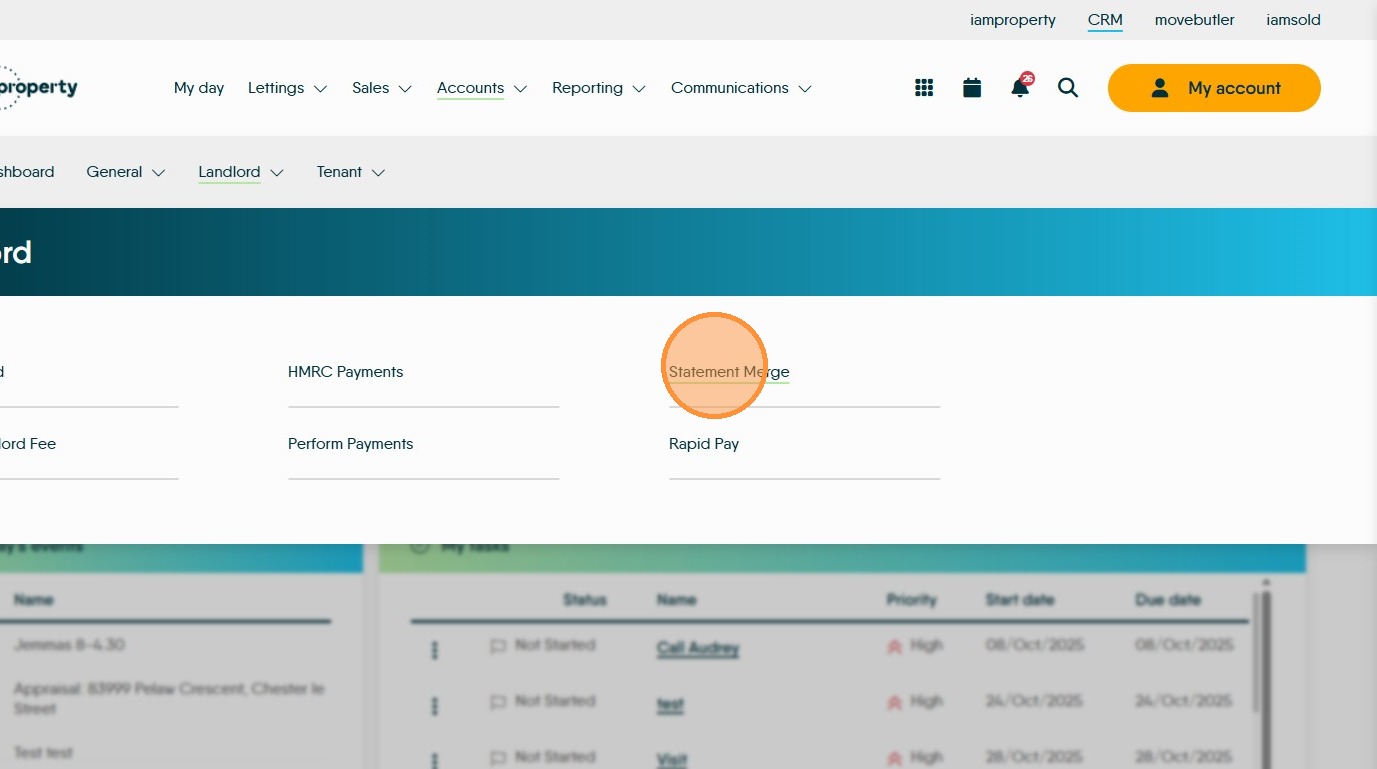
4. Click "Statement Merge"
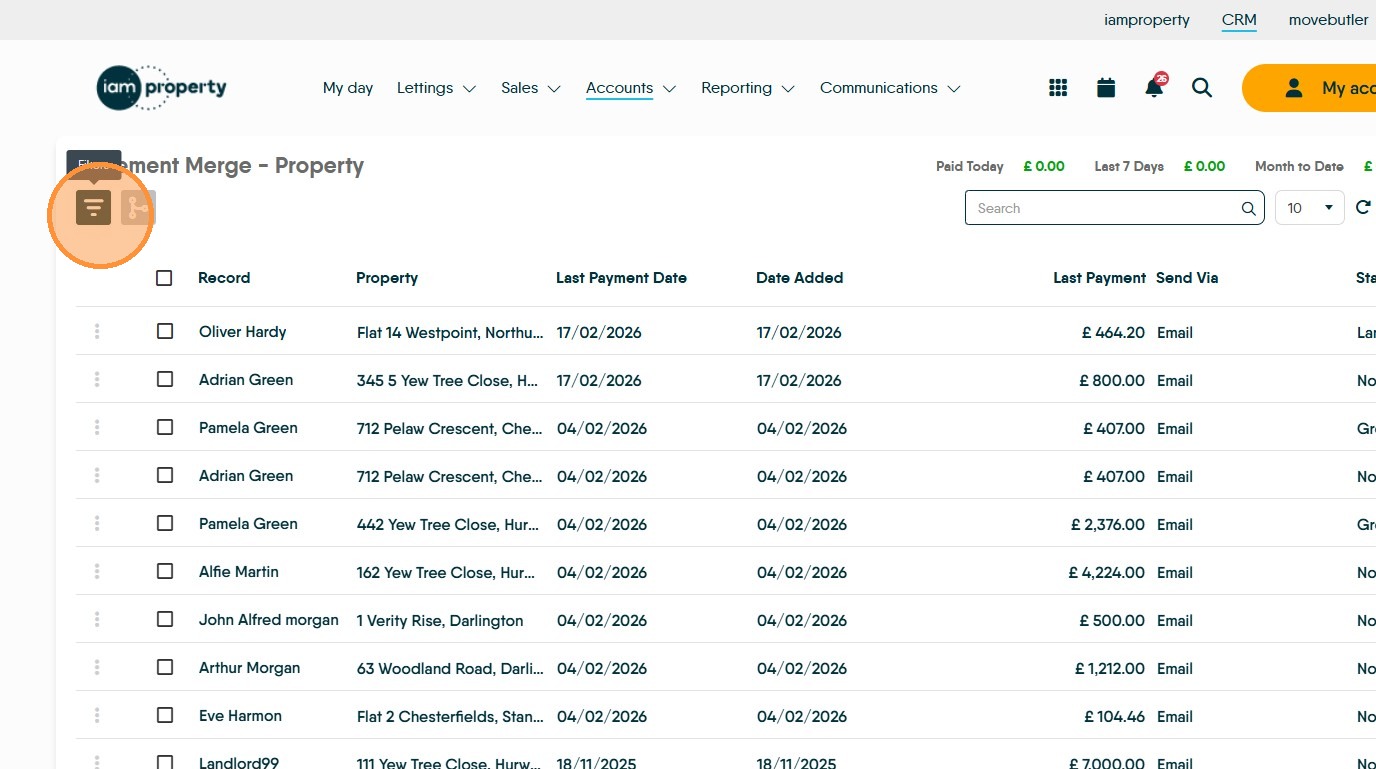
5. Click here to open the Filters menu.
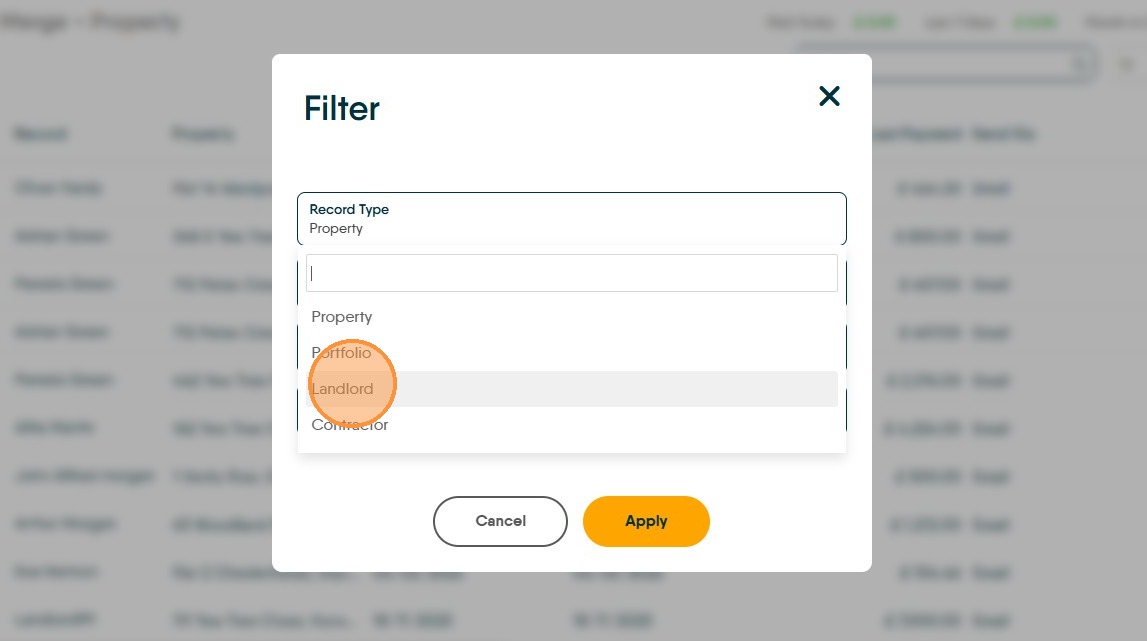
6. From the drop down menu select "Landlord" this will create a report for a specific landlord, rather than the usual setting of property which creates a report per property.
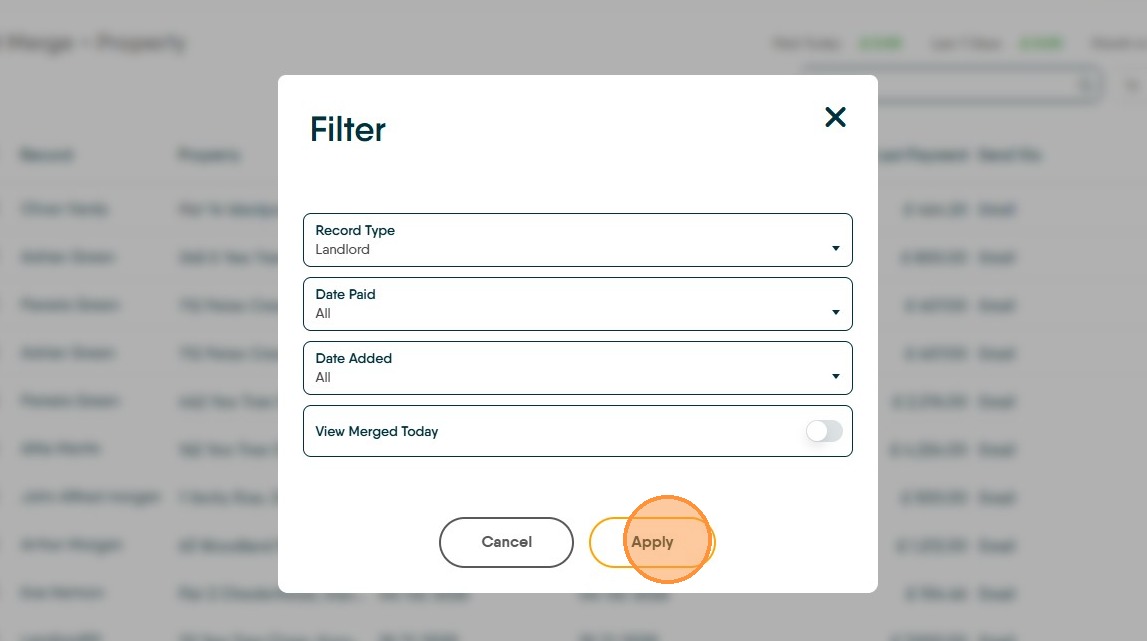
7. Click "Apply"
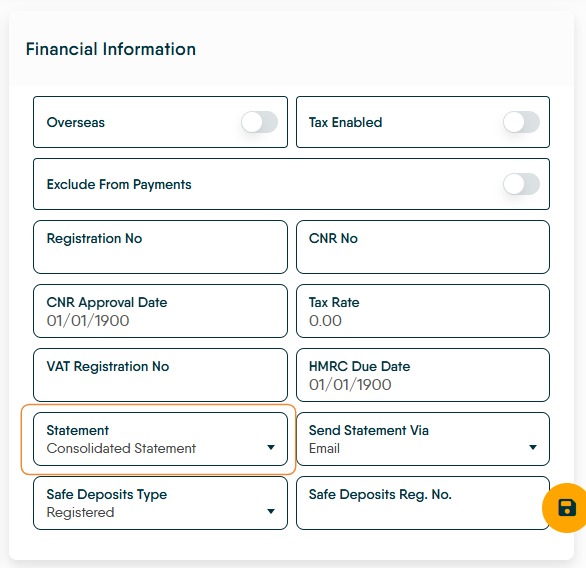
Top Tip! - If you want to easily identify those landlords who want/need a quarterly statement you can use the statement type field on the Landlord record to select Consolidated Statement and this will feed through onto the filters on the statement merge. This is in the Landlord Record, in the Financial Information section.
To sort the list of Landlord, type 'Consolidated' into the "Search" field.
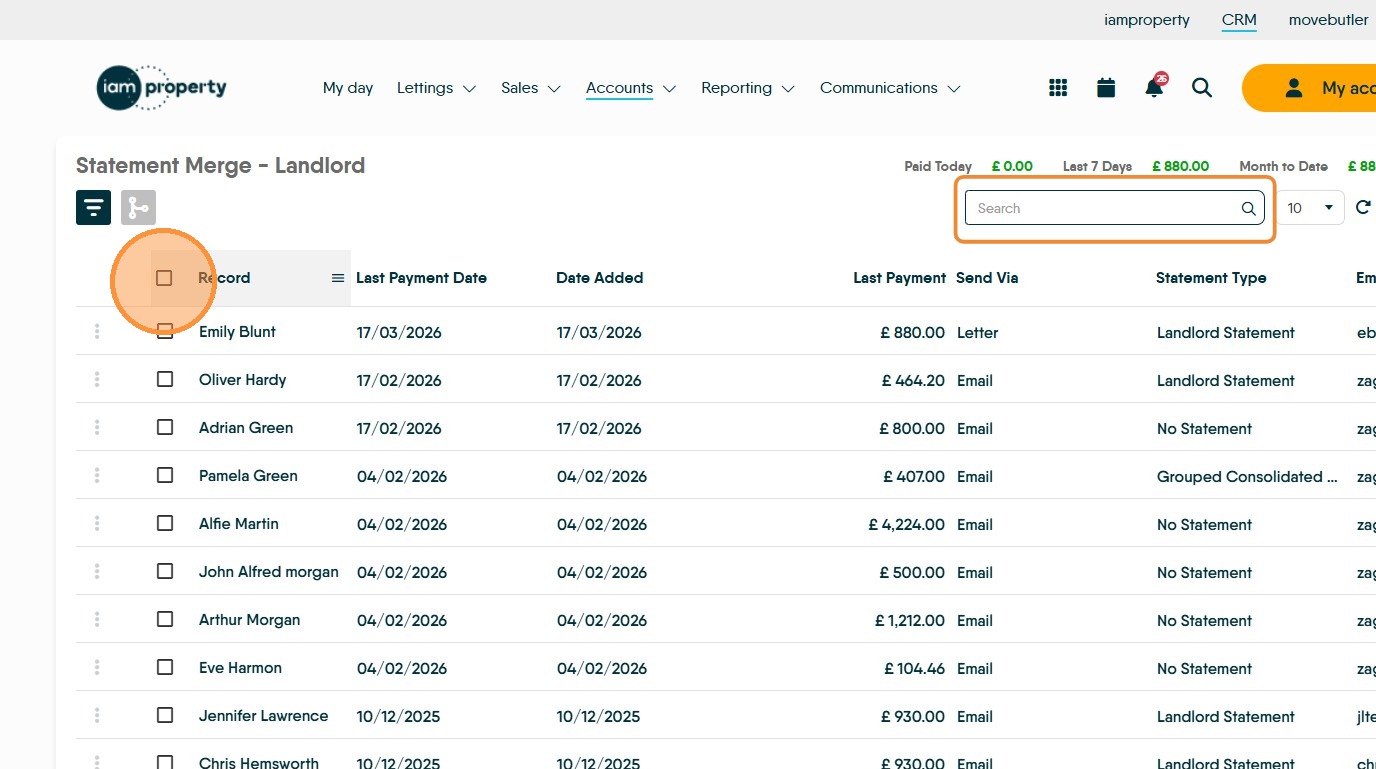
8. Click this checkbox to select all the Landlord records, or click the checkbox next to each of the Landlords you need to send a statement email to. (If you have followed our suggestion above) To sort the list to only show the Landlords requiring a Quarterly statement type 'Consolidated' into the search field
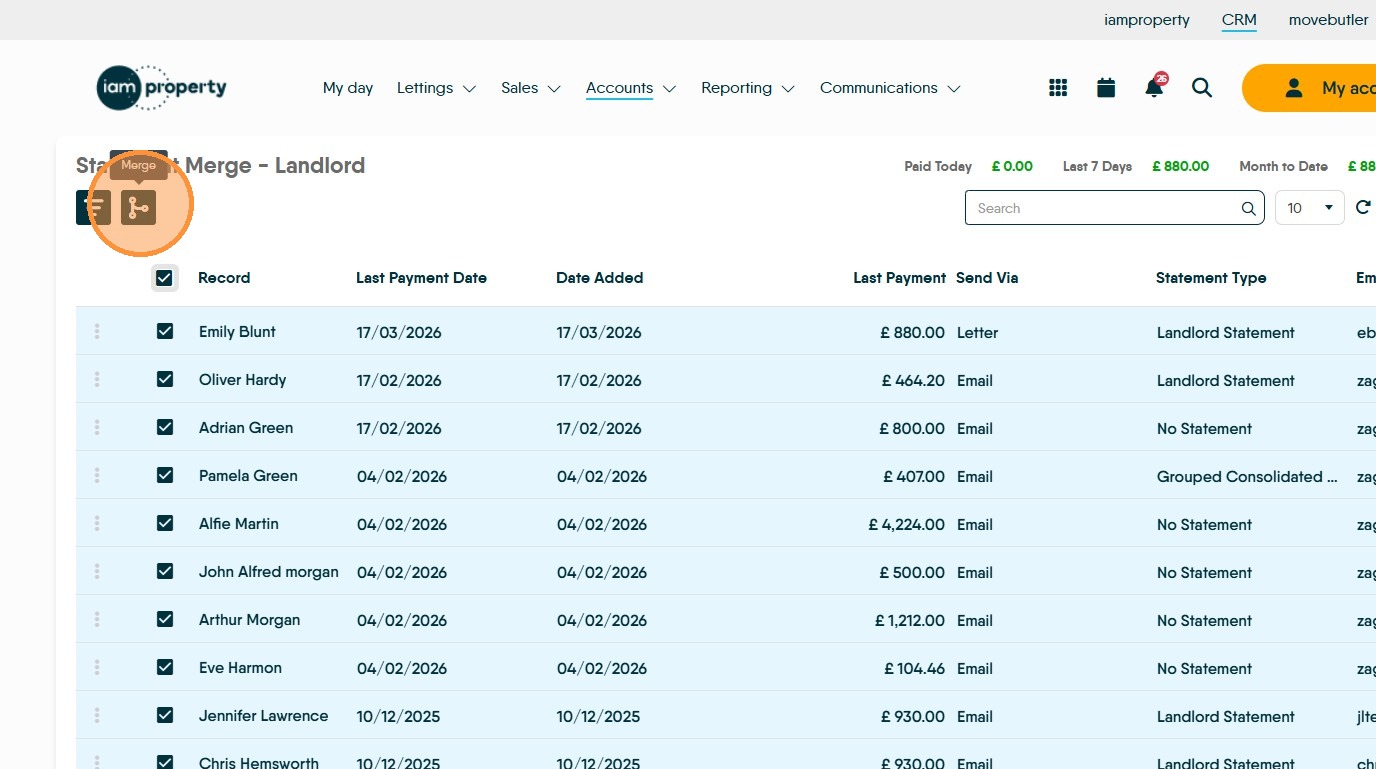
9. Click the 'Merge' icon to start creating your quarterly statements.
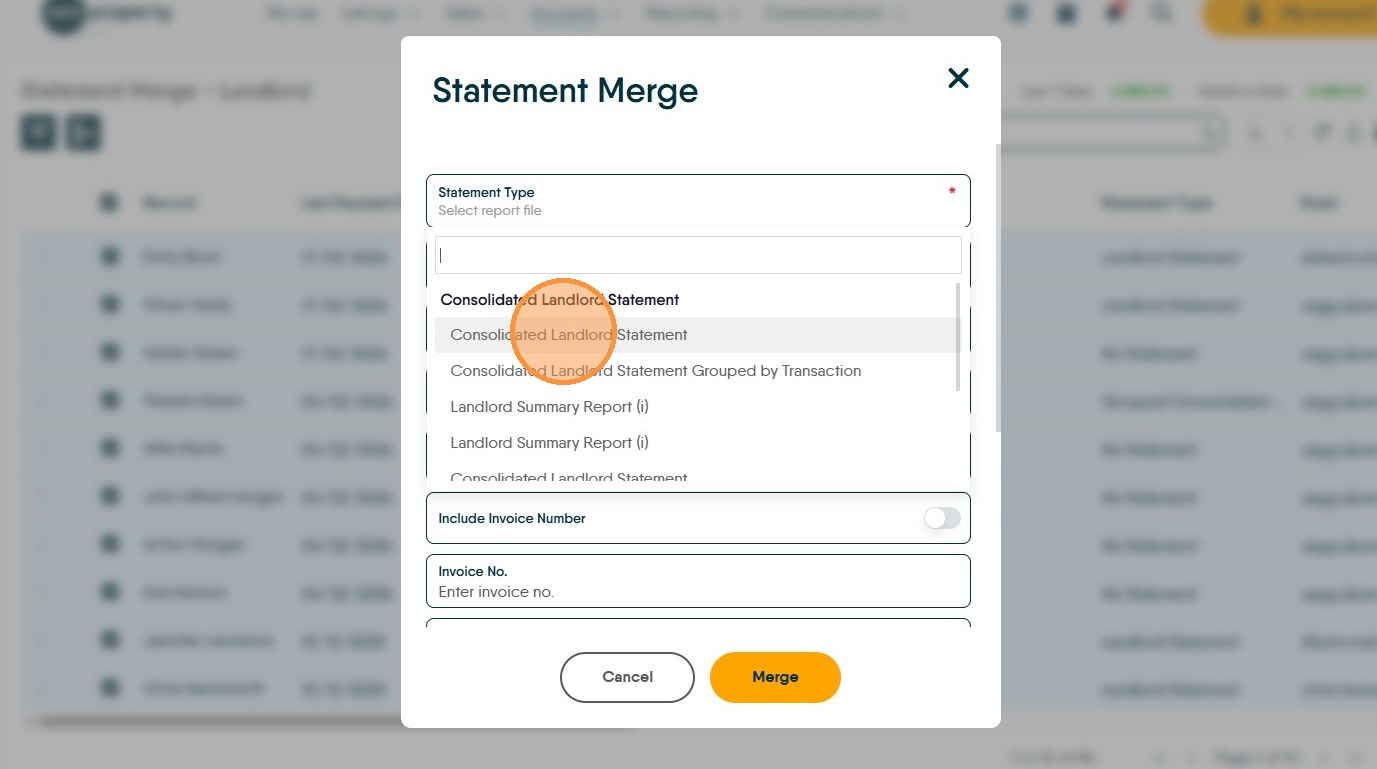
10. Click "Statement Type"
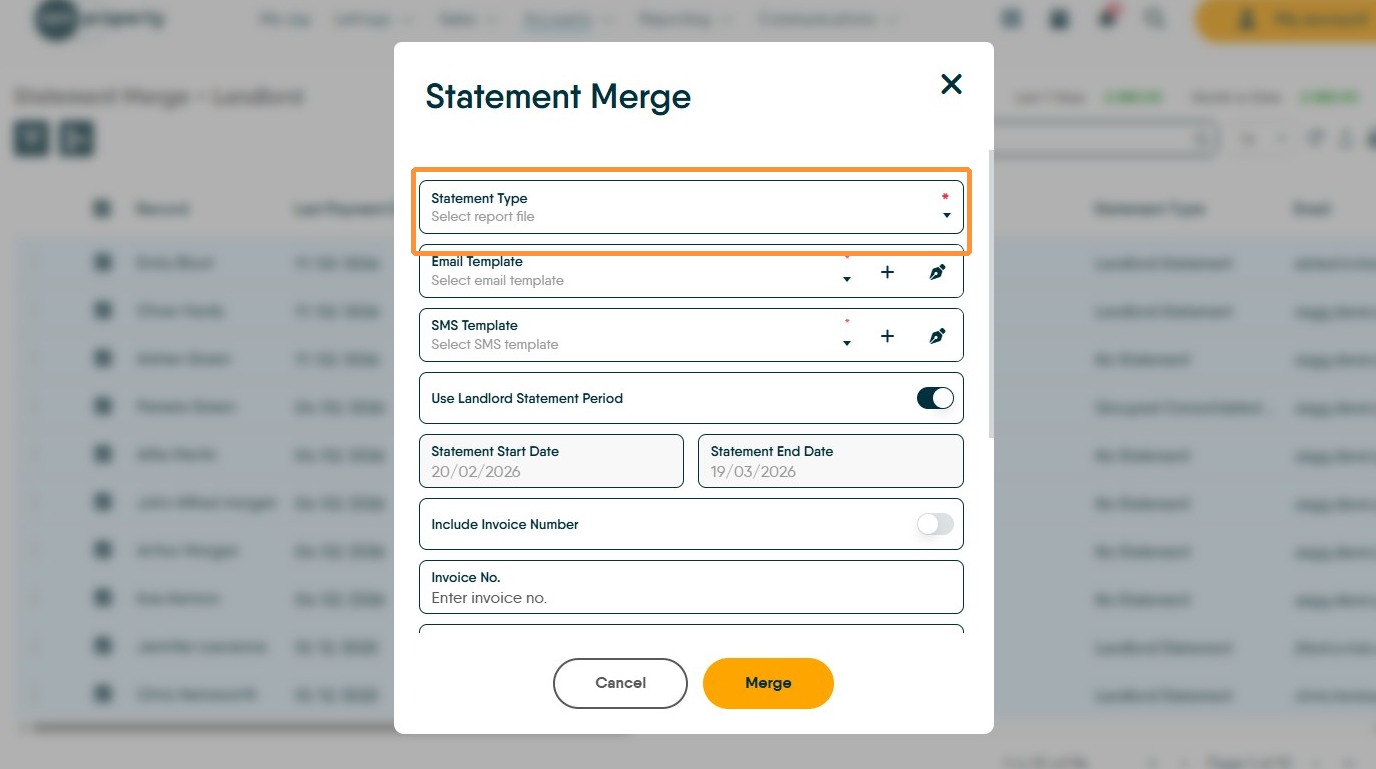
11. From the drop down menu select "Consolidated Landlord Statement"

12. Click here and from the drop down menu select the Template you are using for the quarterly statement e.g. we have created 'Quarterly Statement' so would select that option.
Click "Quarterly Statement"
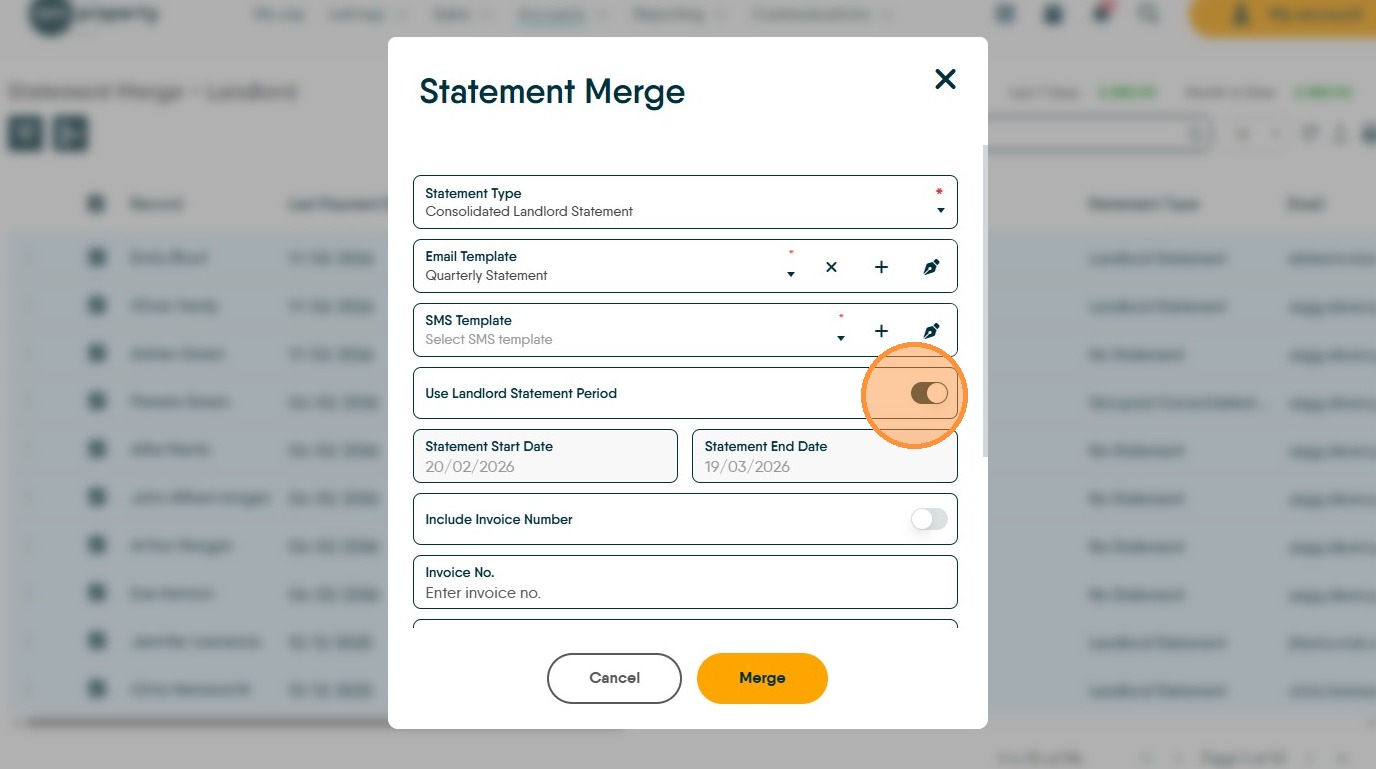
13. Click here and turn OFF the 'Use Landlord Statement Period' option.
It is possible this is already disabled (if so it will show grey as in the following screen), however CRM best practice is to have this option enabled for sending Monthly statements to Landlords.

14. Click the "Statement Start Date" field and from the drop down calendar select the start of the quarter you are creating the statement for.
Click "February 2026"
15. Click "Statement End Date" and set the date that denotes the end of the quarter. You must be past the end of the quarter and have concluded all the appropriate transactions to run this report.
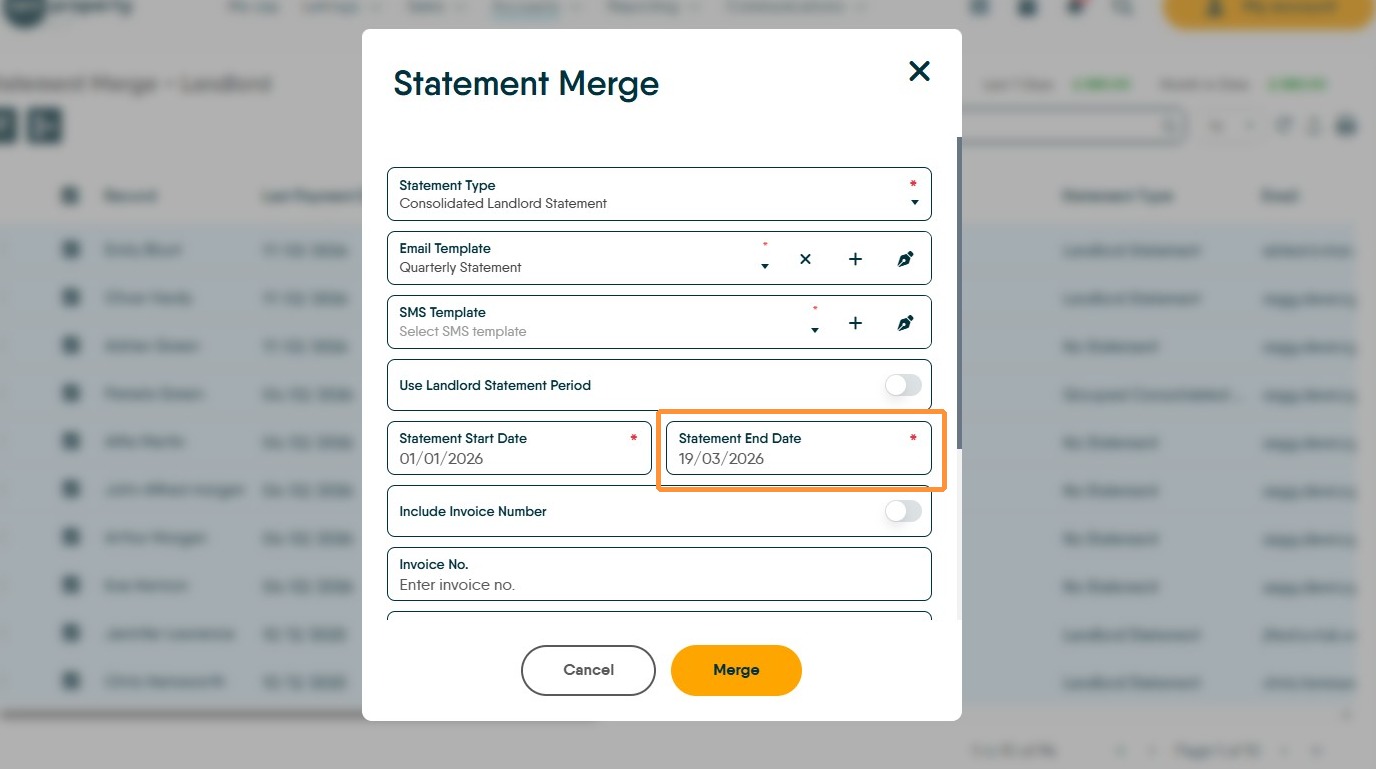
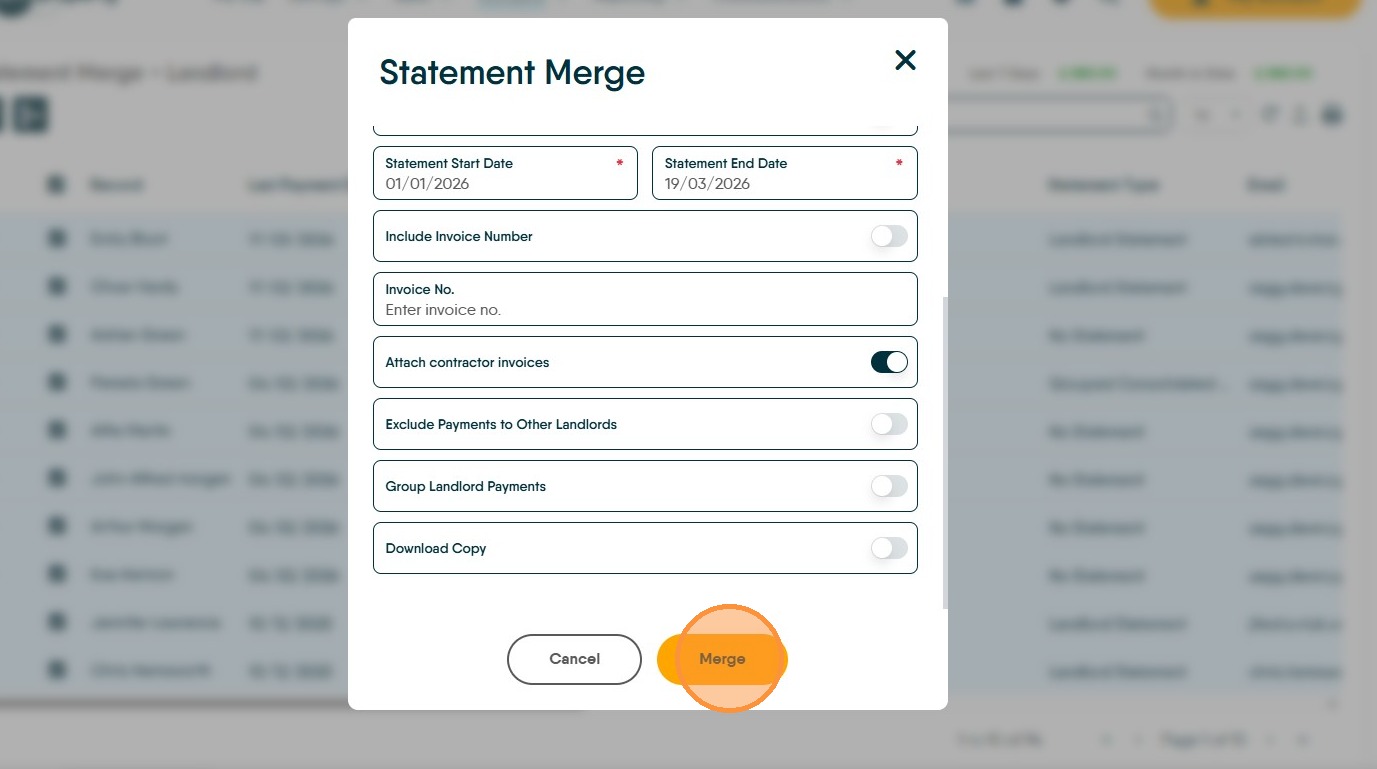
16. Click "Merge" this will then create the statements, attach them to emails and send out to the Landlords selected.
Update Periods
Alert: The following information comes from the HMRC website the link to this information is here This webpage details all the information that is required to be sent and the dates the information should relate to and the deadlines
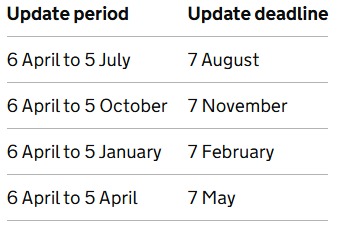
17. Using standard update periods
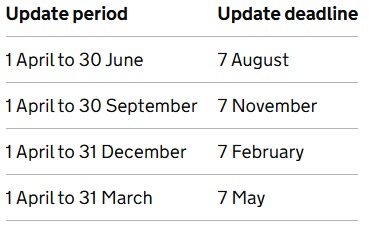
The standard update periods are based on the tax year.
Once each update period has ended, you need to send your update within one month.
The following table sets out the update periods and deadlines that apply.
18. Using calendar update periods
You can choose to send quarterly updates that end on the last day of month. This will make your record keeping simpler if your accounting period ends on 31 March.
You’ll need to meet the same deadlines as standard update periods.
The following table sets out the update periods and deadlines that apply.