This guide provides a straightforward process for charging landlord fees and adding additional charges within the CRM system. These are fees over and above the Management Fees set in the property record, which are paid automatically when a landlord is paid.
1. Navigate to https://crm.iamproperty.com/Dashboards/Accounts
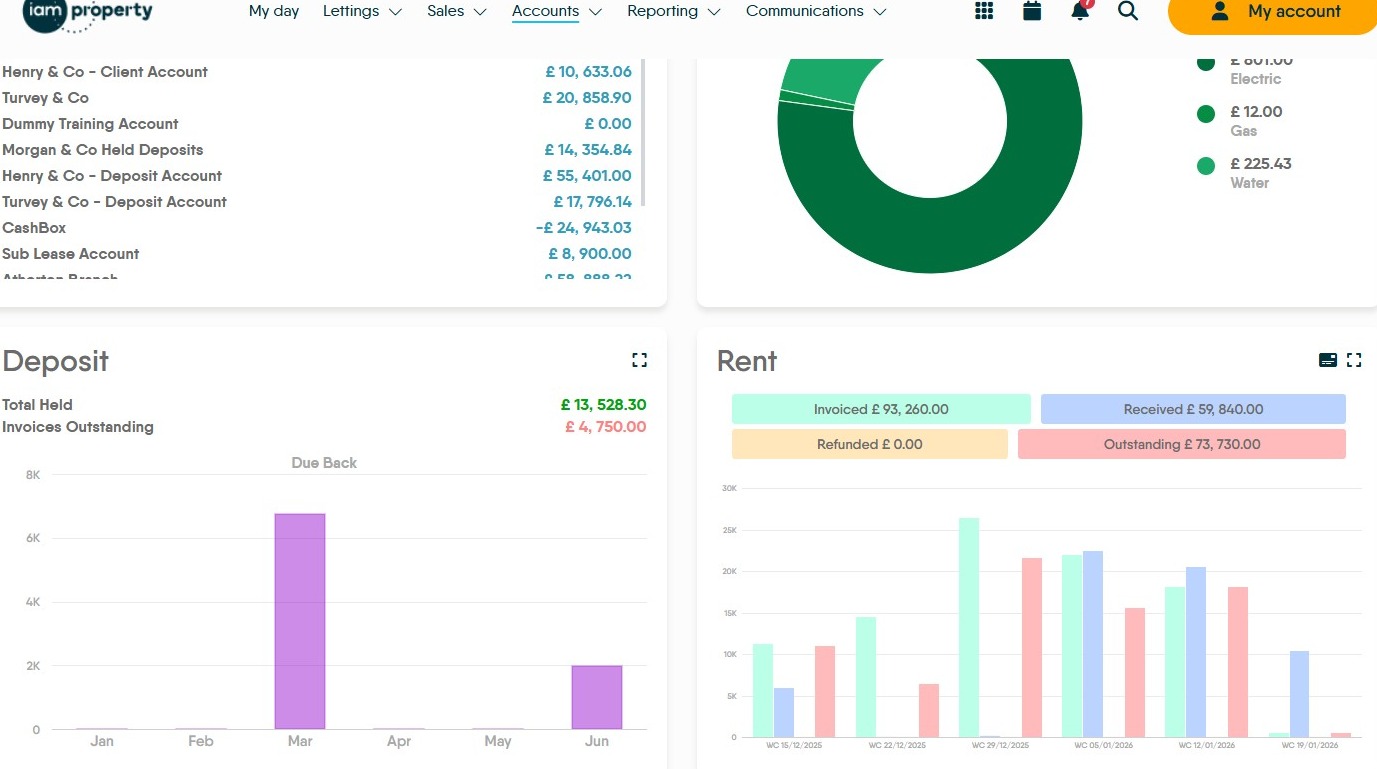
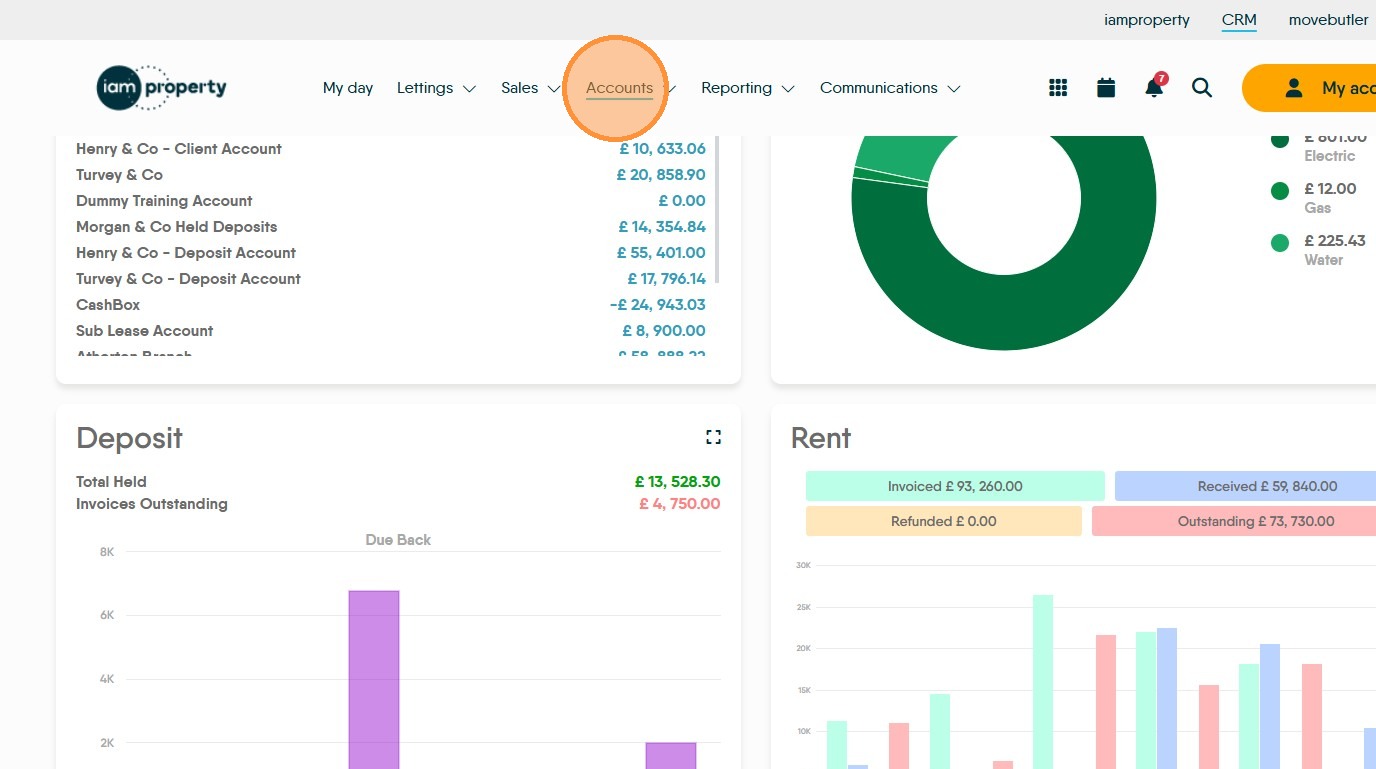
2. Click "Accounts"
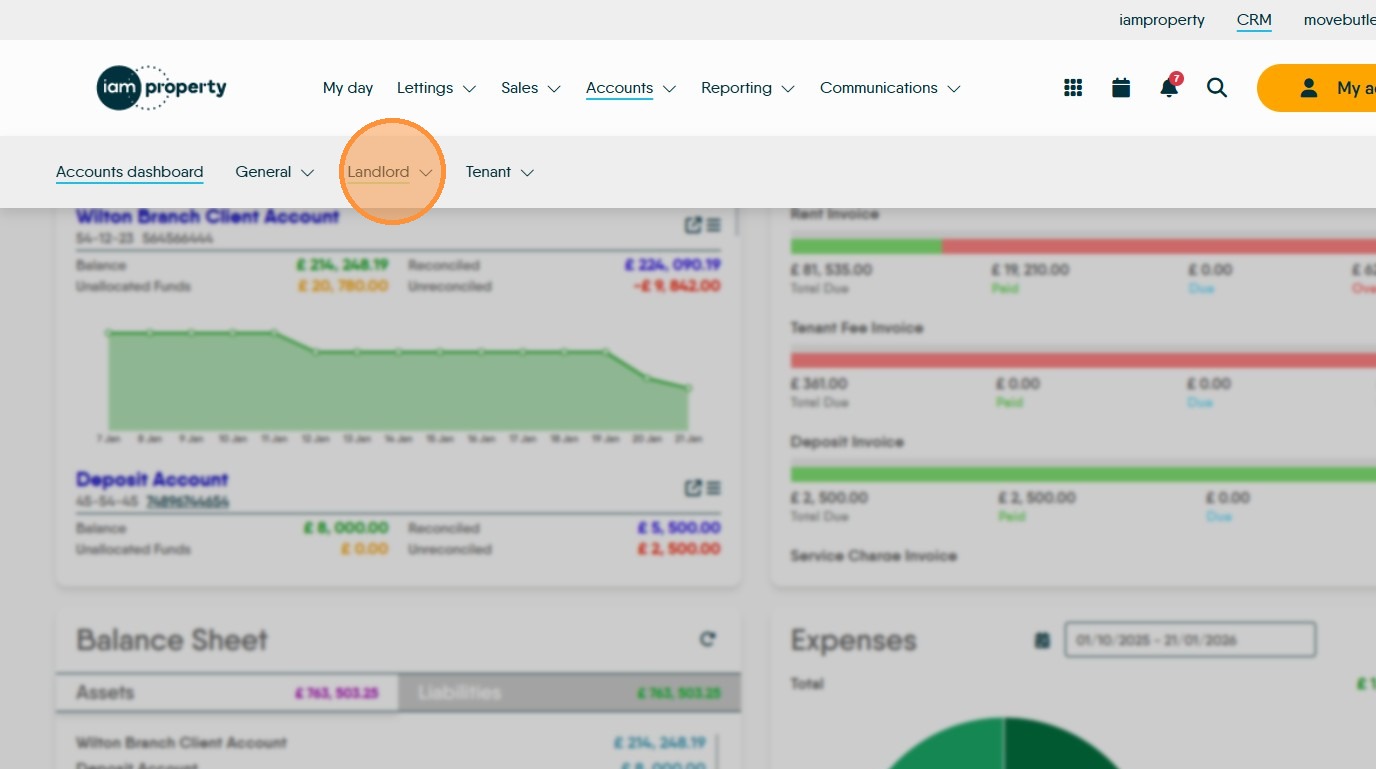
3. Click "Landlord"
4. Click "Charge Landlord Fee"
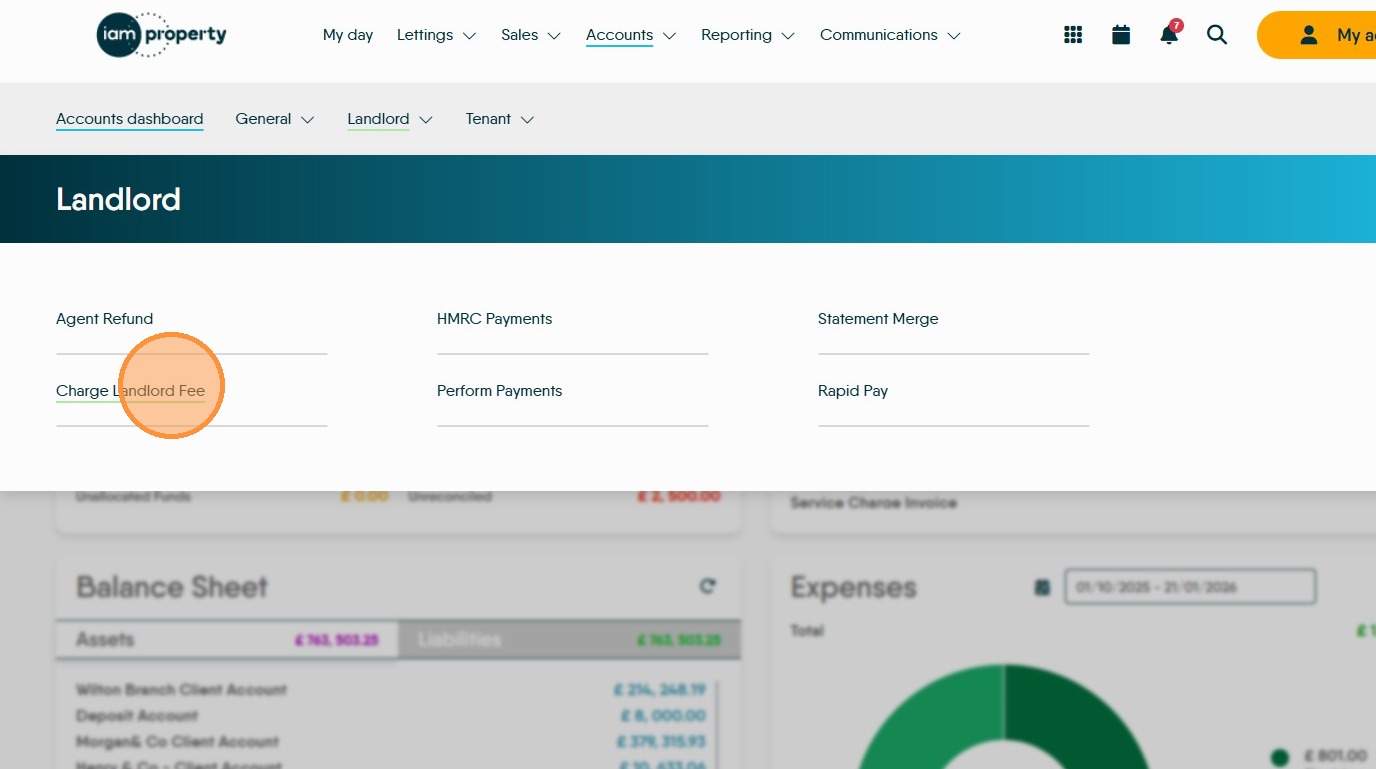
Tip: Tip! You can create a charge or a credit from here. To credit a Landlord there must be an invoice to place the credit against.
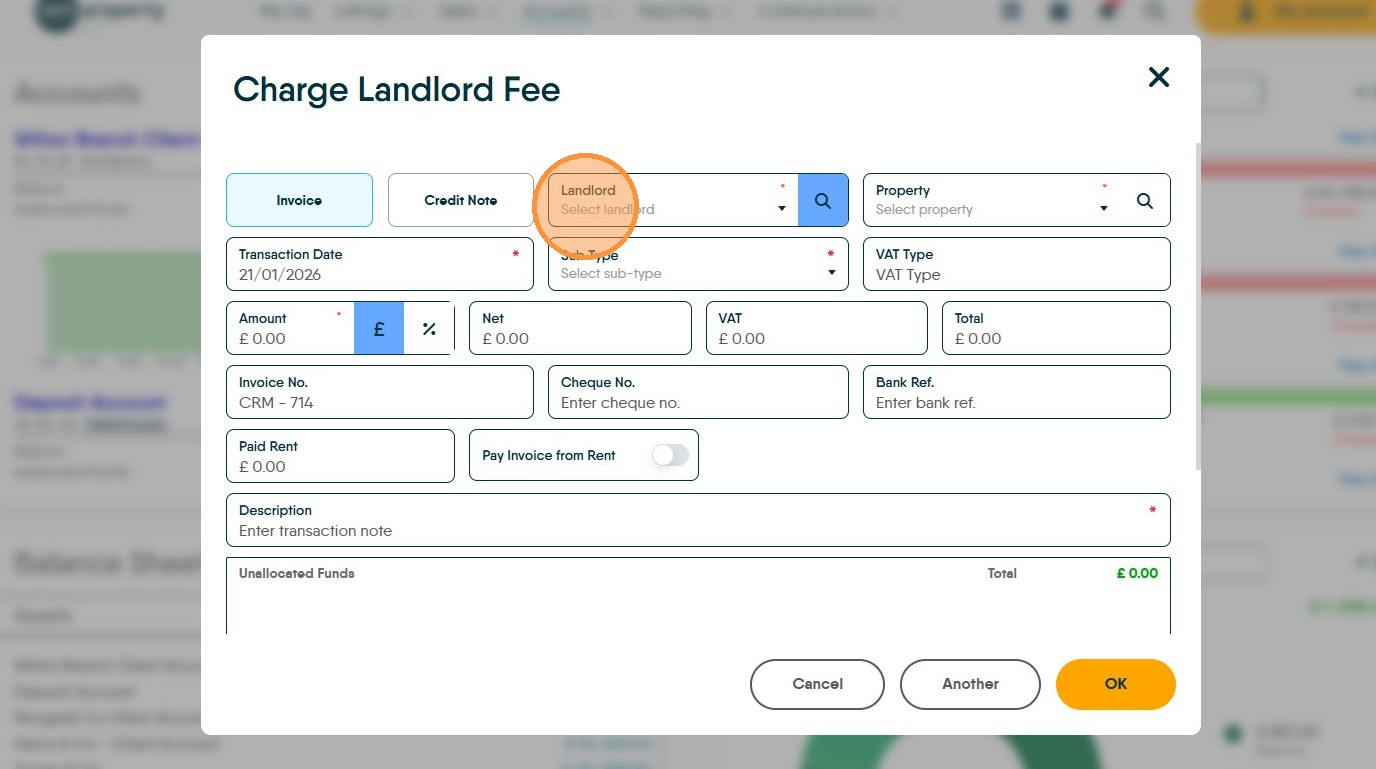
5. Click "Select landlord" and search for your Landlord.
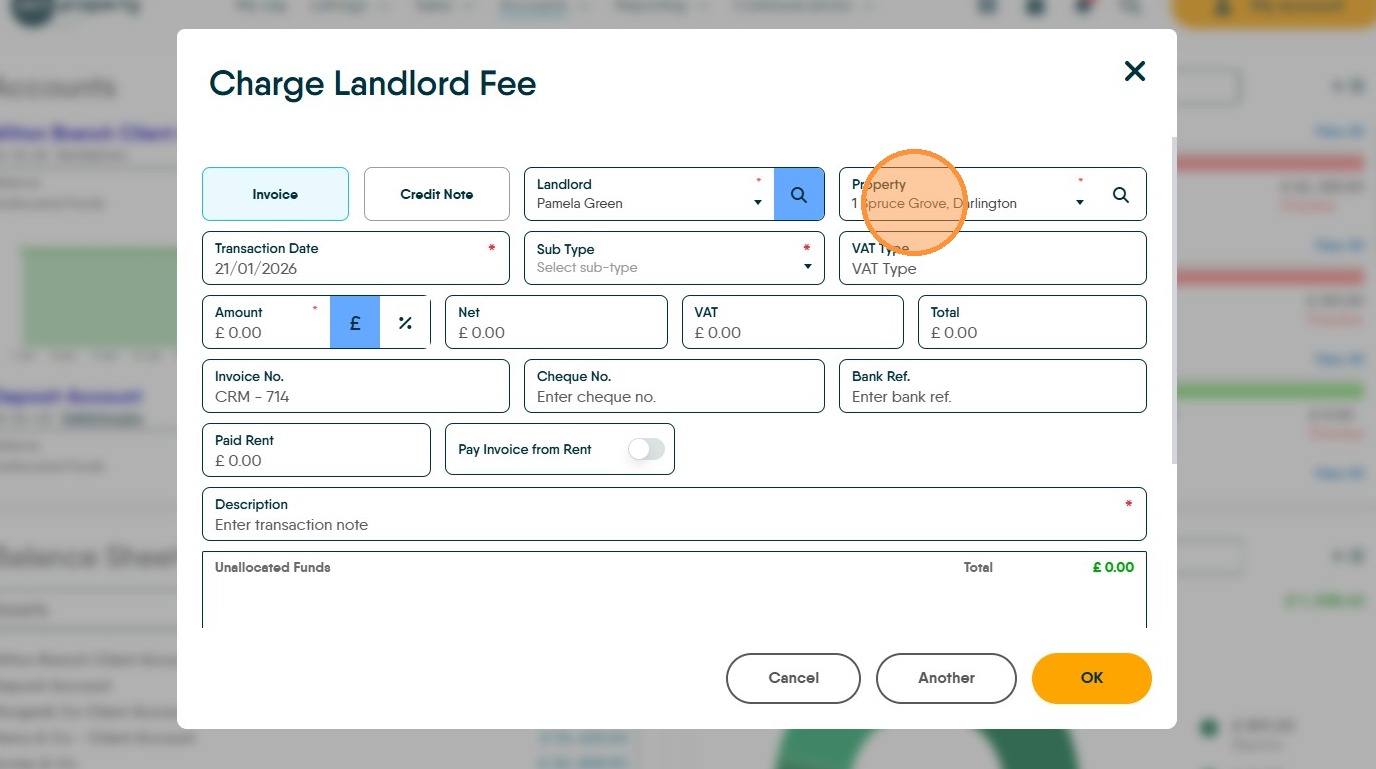
6. Click the "Property" menu and select the property you are creating the charge against.
It is possible to search by property rather than Landlord, to do this click on the magnifying glass icon next to the property field.
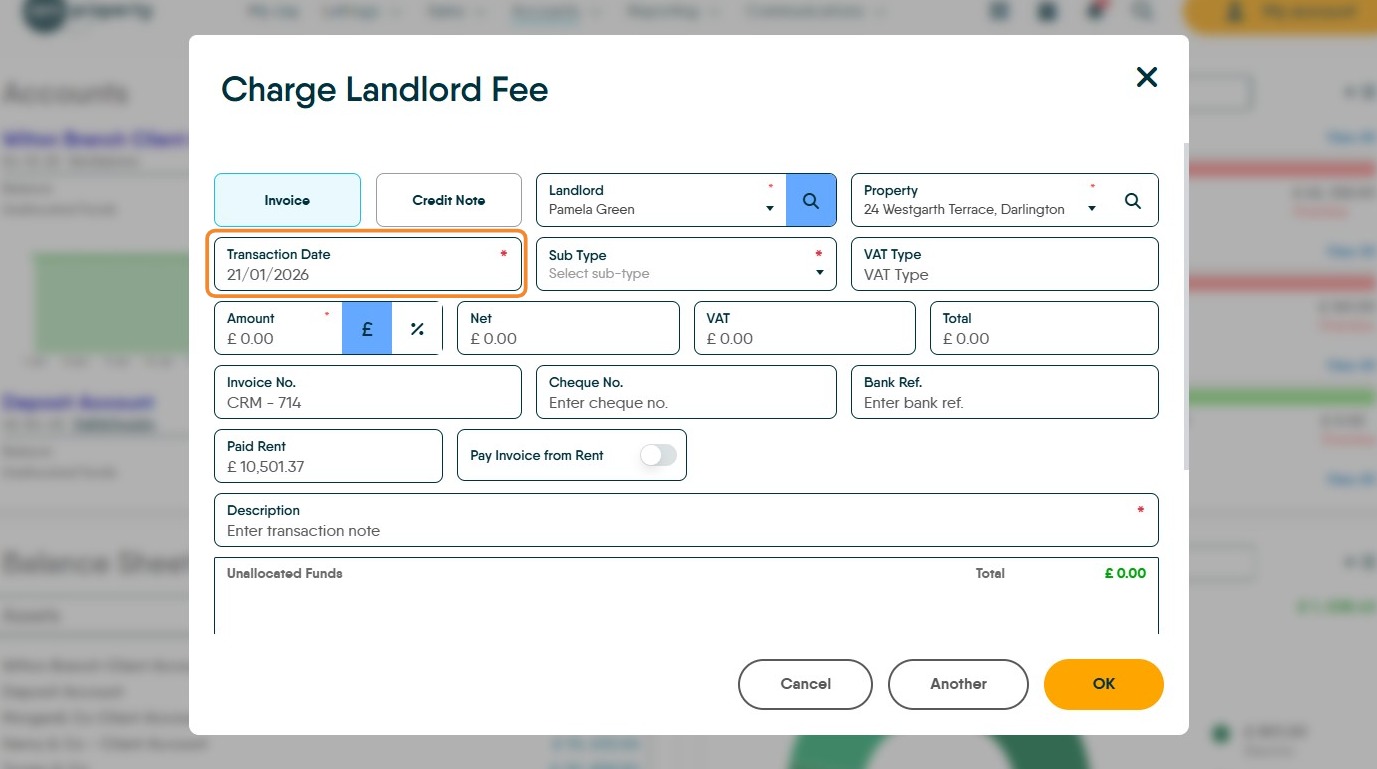
7. Check the "Transaction Date" is correct.
8. Click "Select sub-type" and select from the menu, sub types are customisable and will impact how the VAT is charged on the fee.
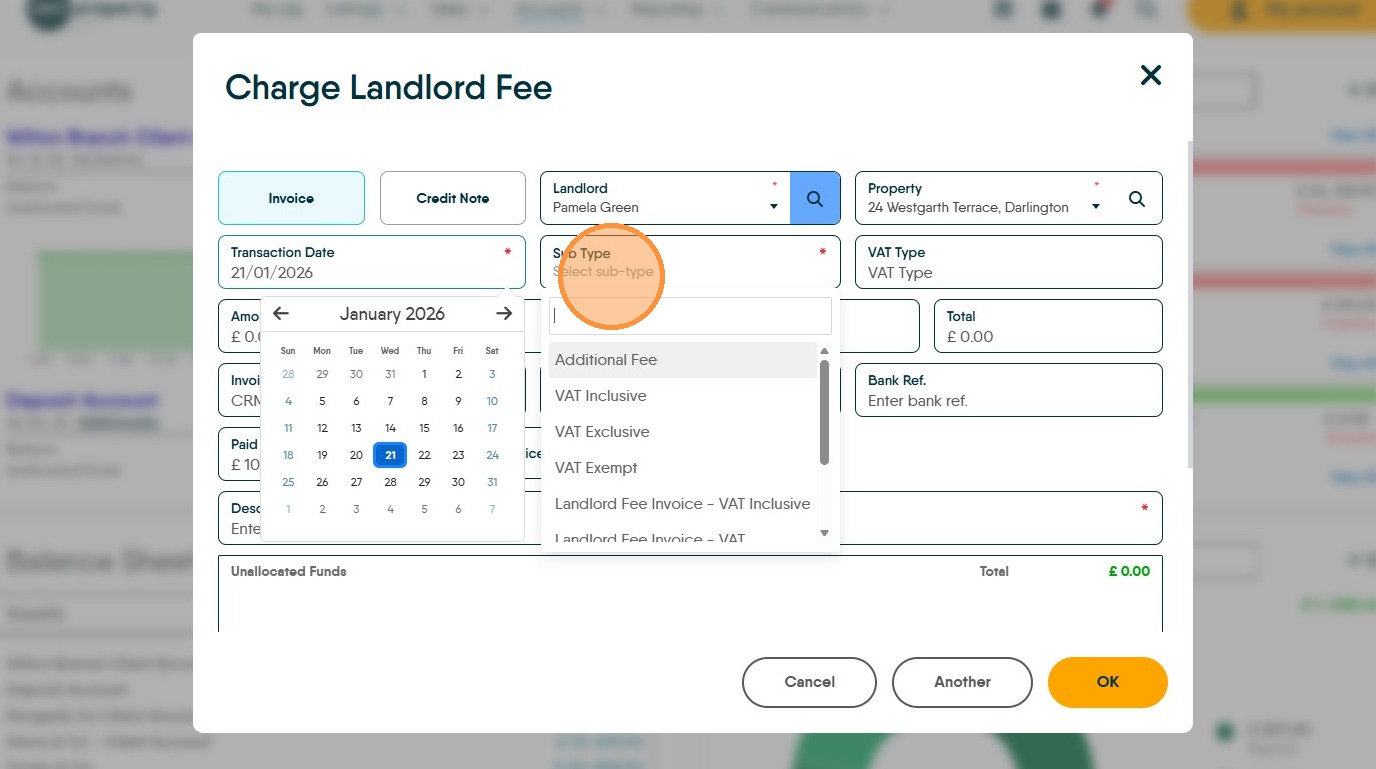
9. The 'sub type' controls how the VAT is shown here once the fee amount is added.
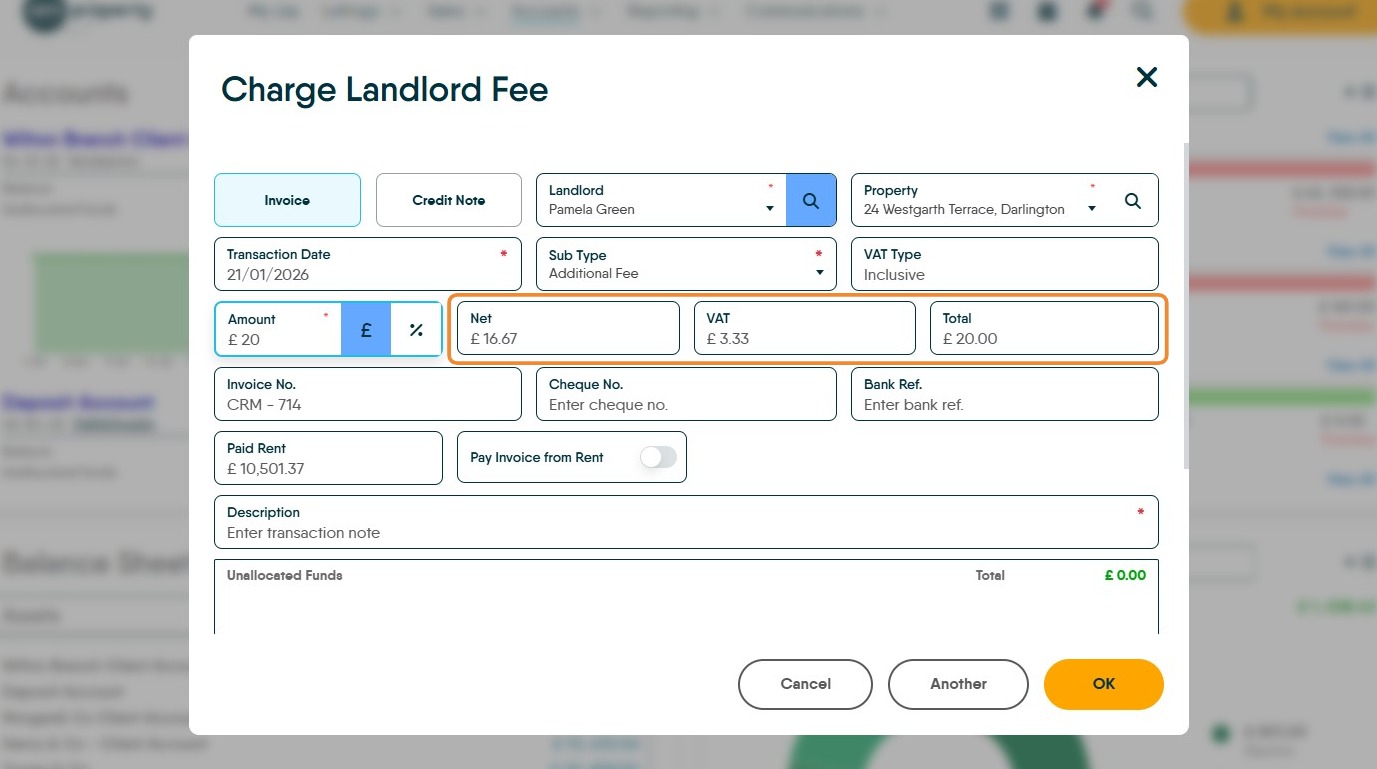
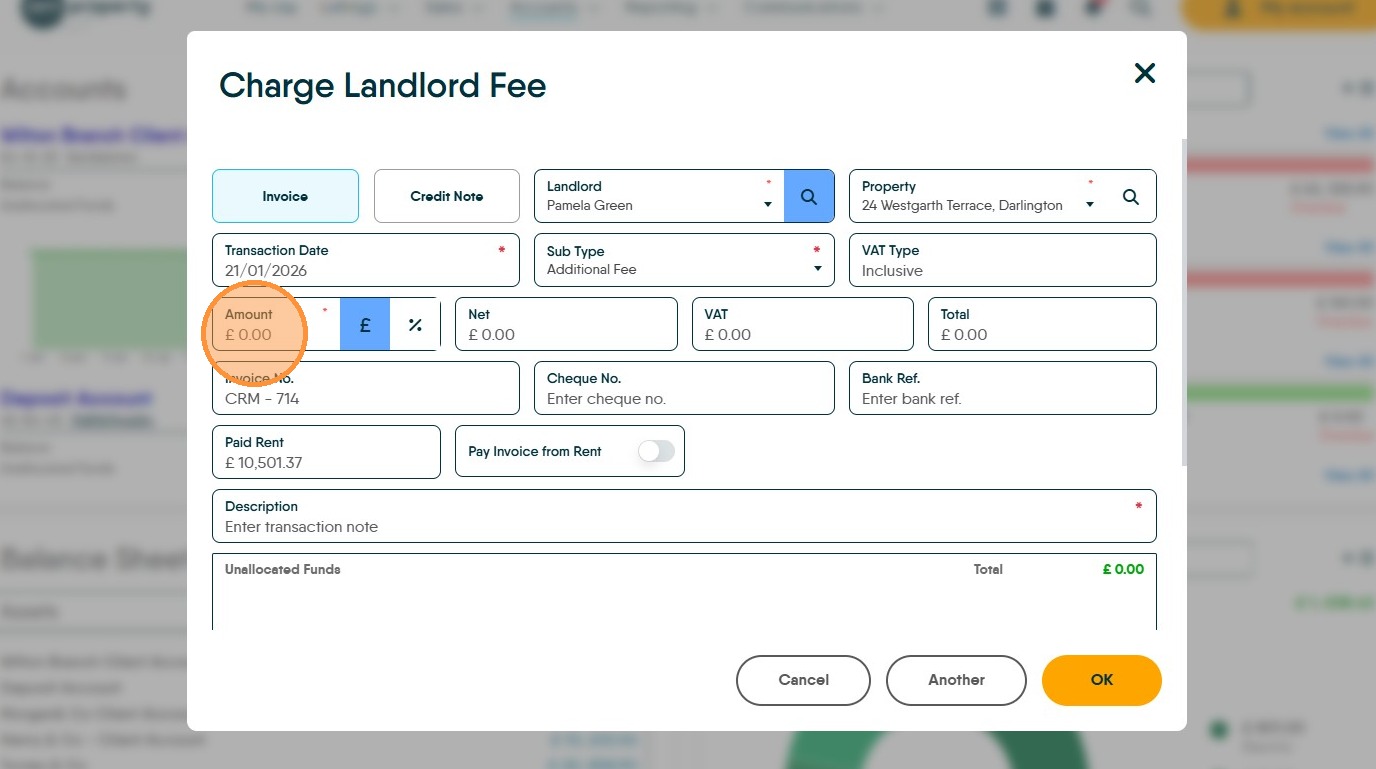
10. Click the "Amount" field and add the amount of the fee.
11. Click the "Invoice No." field. The invoice number will be automatically added, if a prefix (e.g. CRM) is required it can be set in configuration.
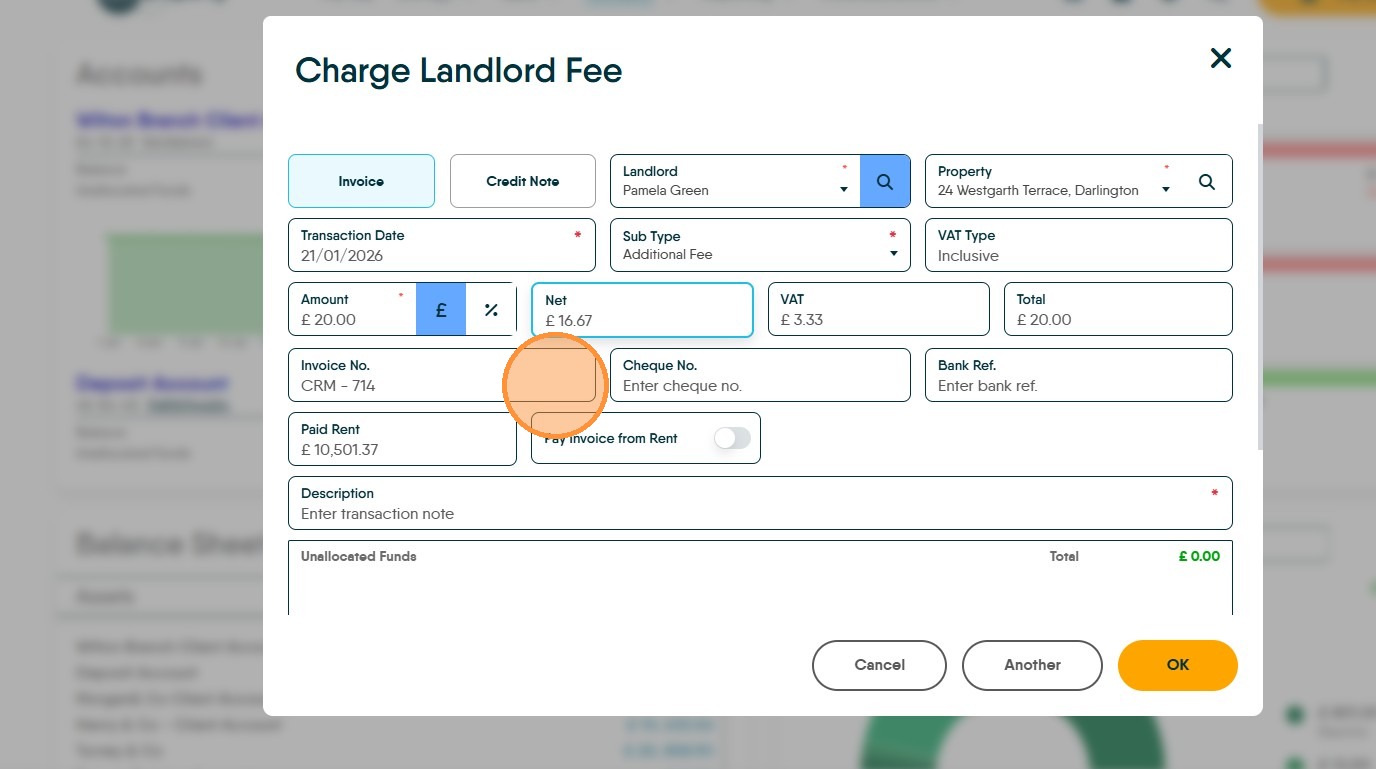
12. This screen has the option to take the payment for the fee from the rent, select this icon to do that. This collects the fee payment at that moment before any other payments are made.
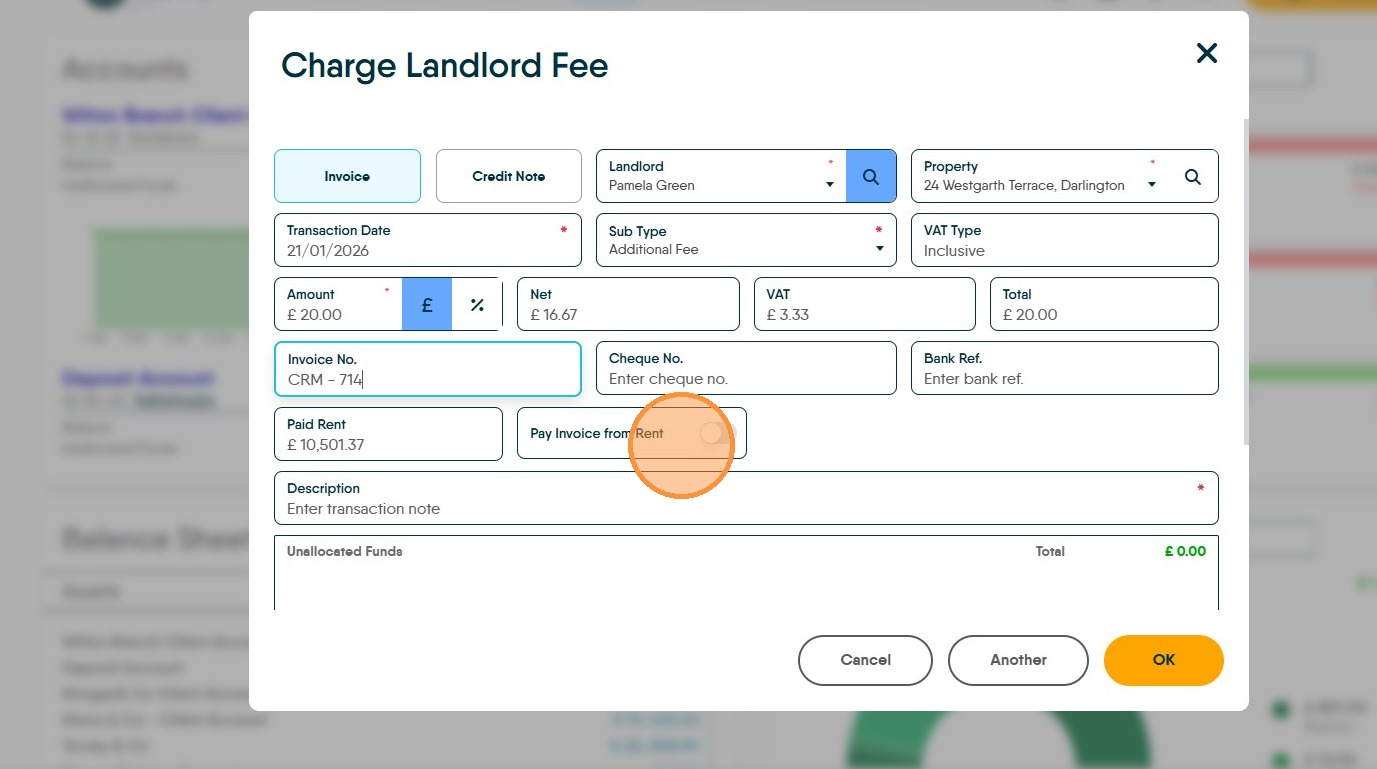
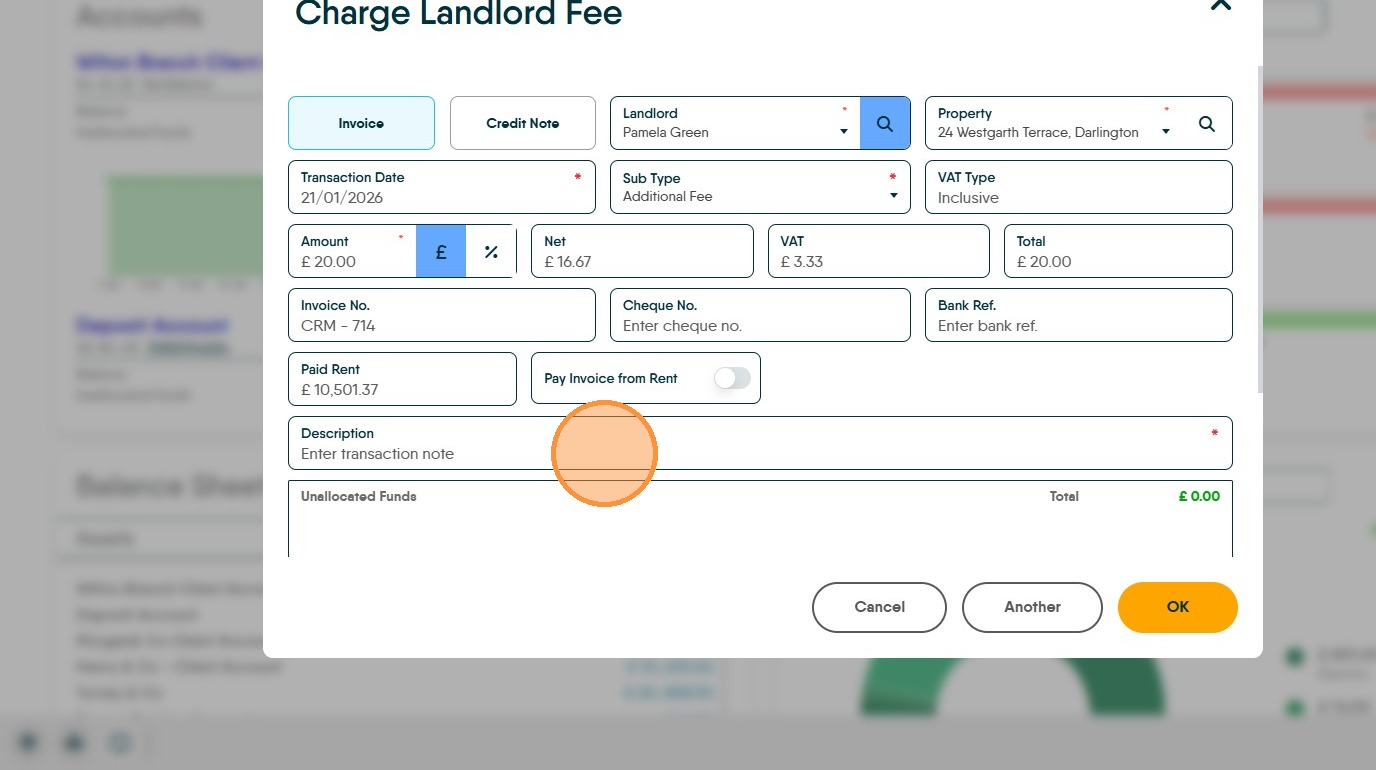
13. Click the "Description" field. Add a clear description of the charge
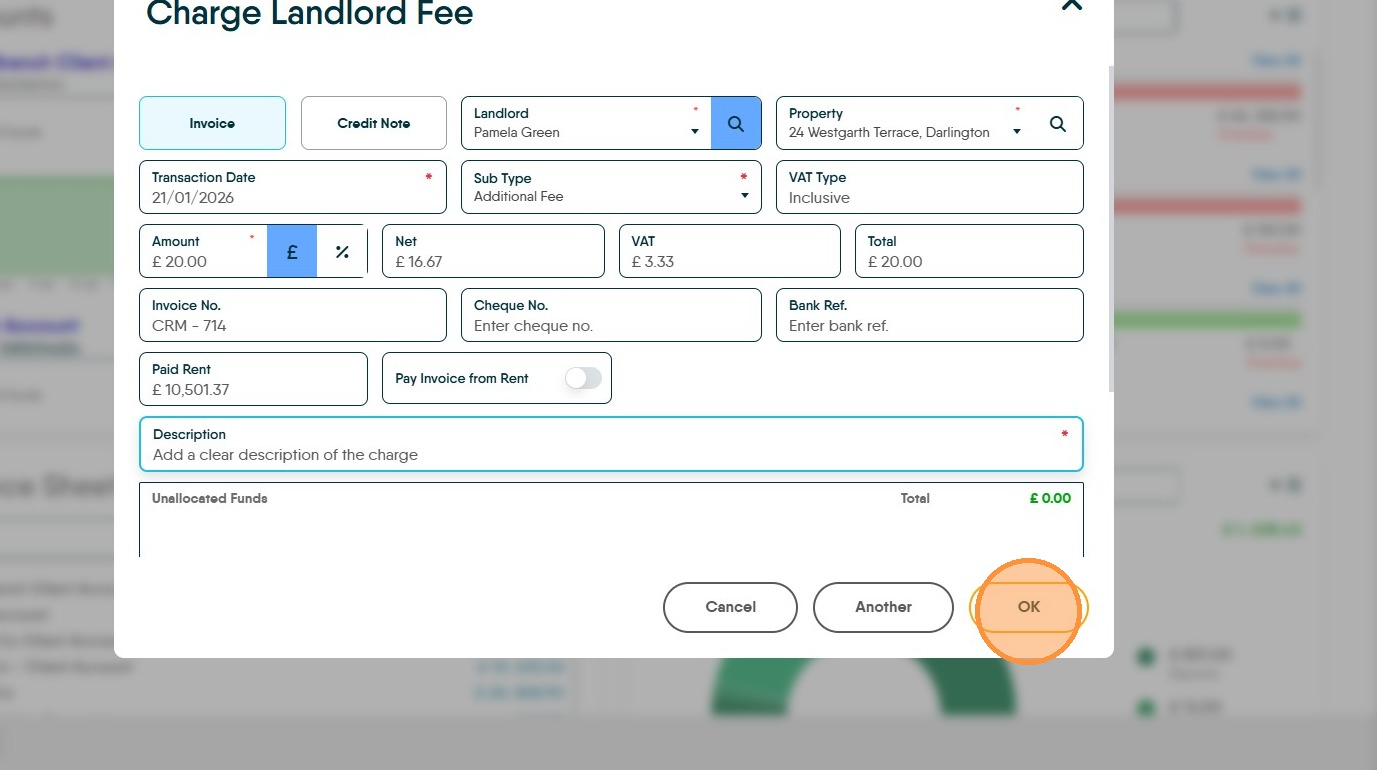
14. Click "OK" to create the Landlord Fee
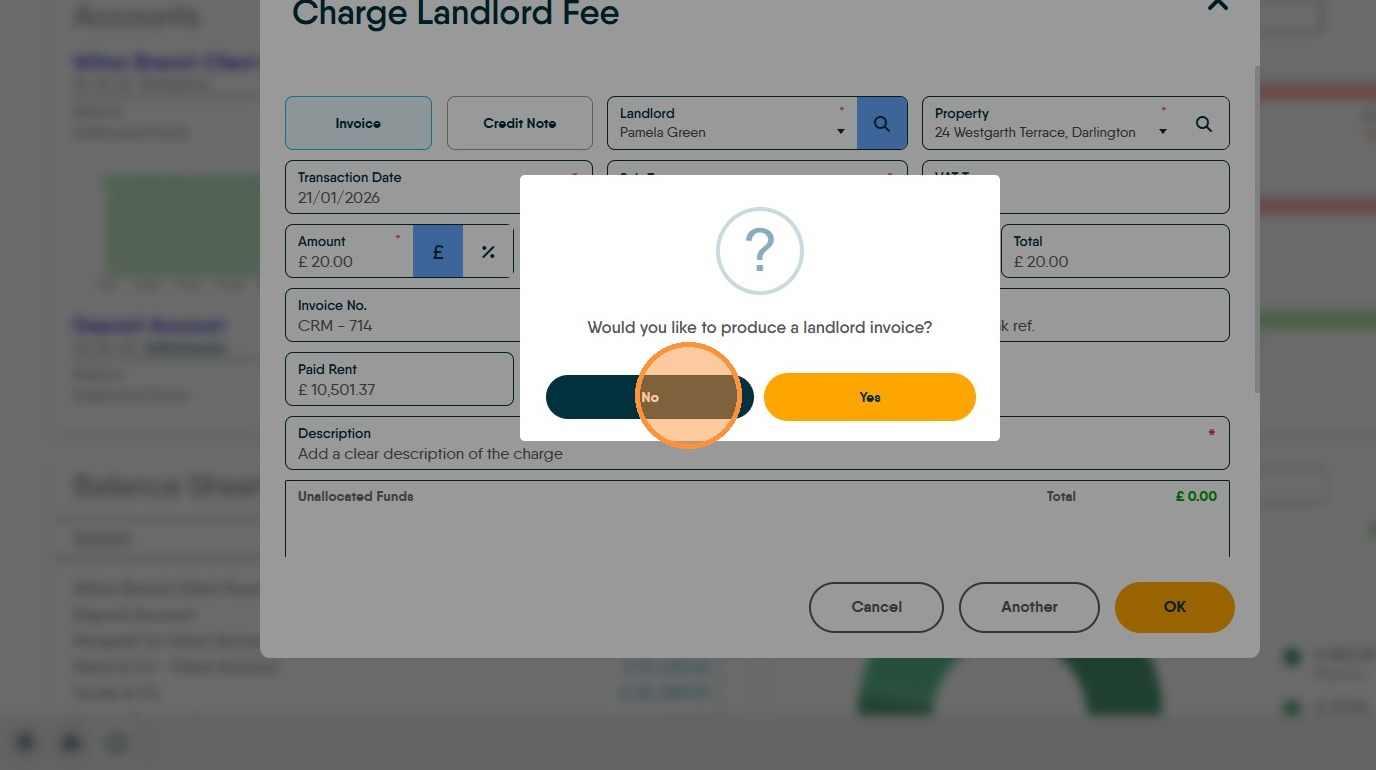
15. A Landlord Invoice can be created if required. Select the option required.