This guide provides a step-by-step process for efficiently managing payments within the CRM system, ensuring users can navigate the platform with ease. By following these instructions, users can streamline their payment processes, maintain accurate financial records, and enhance their overall productivity. Whether you're a landlord or property manager, this guide is essential for simplifying payment tasks and improving financial management.
1. Navigate to https://crm.iamproperty.com/Dashboards/Accounts
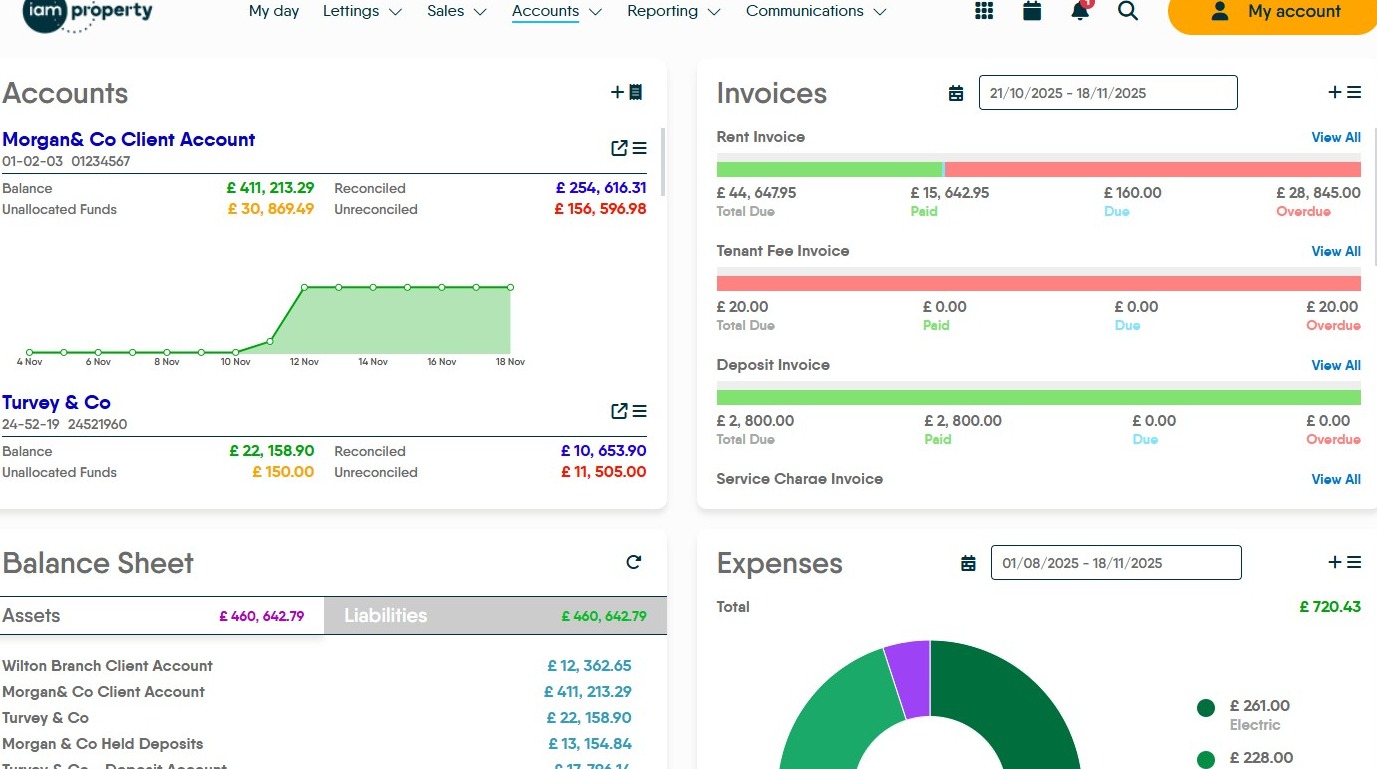
2. Click "Accounts"
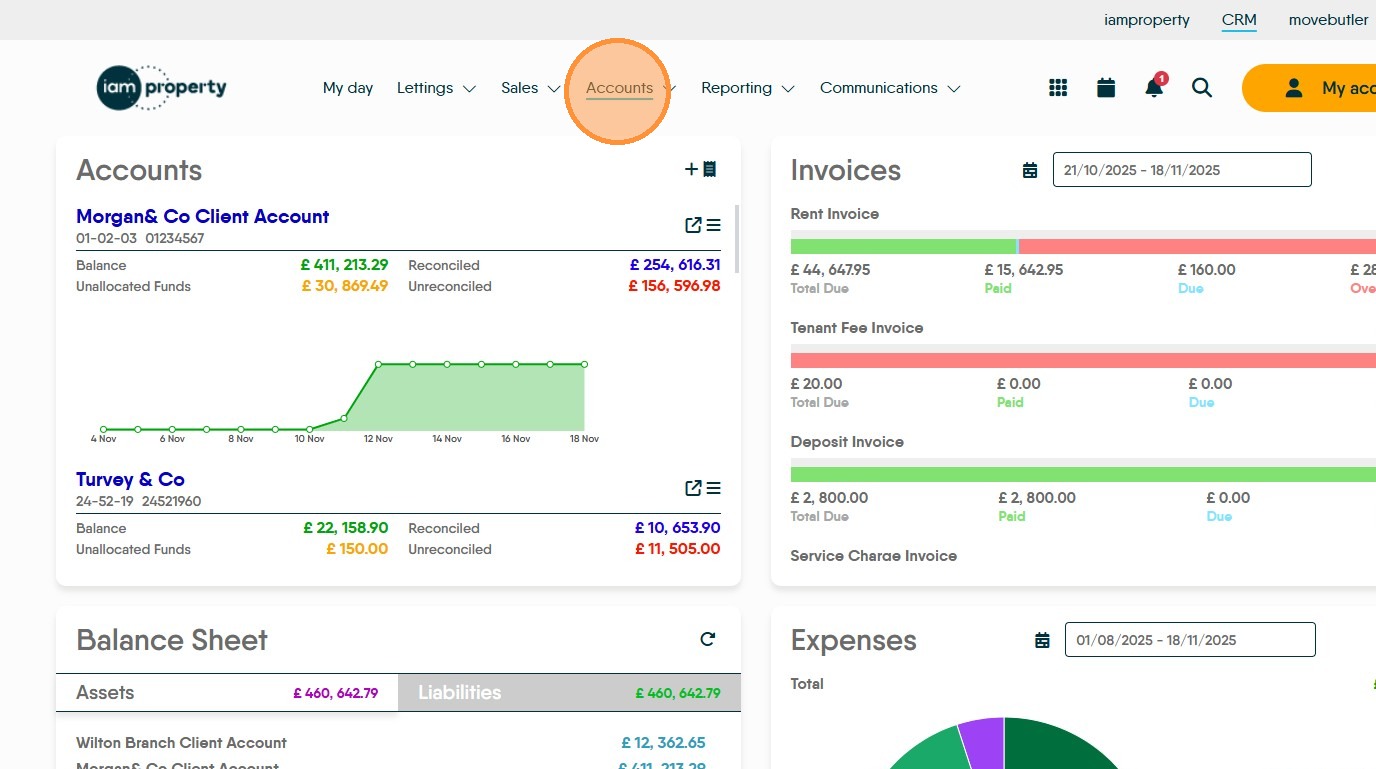
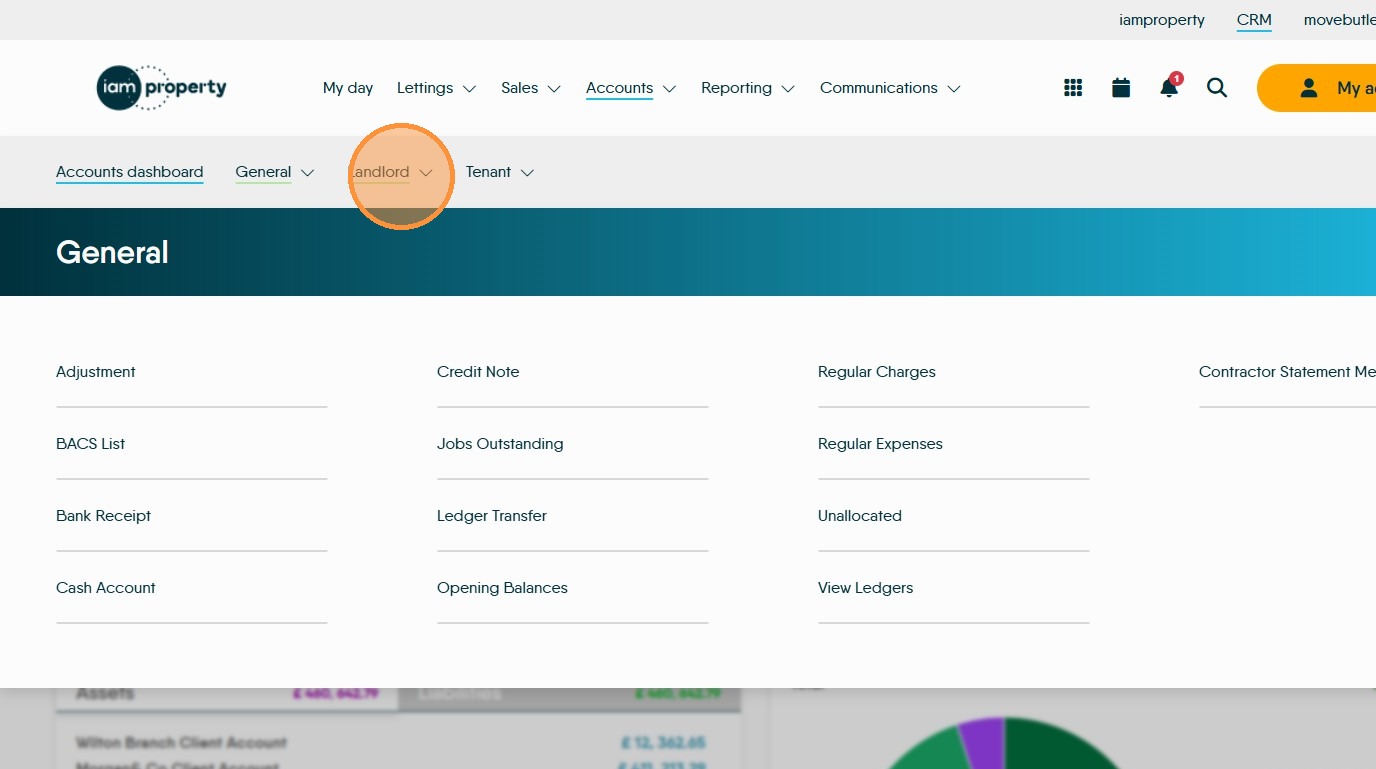
3. Click "General"
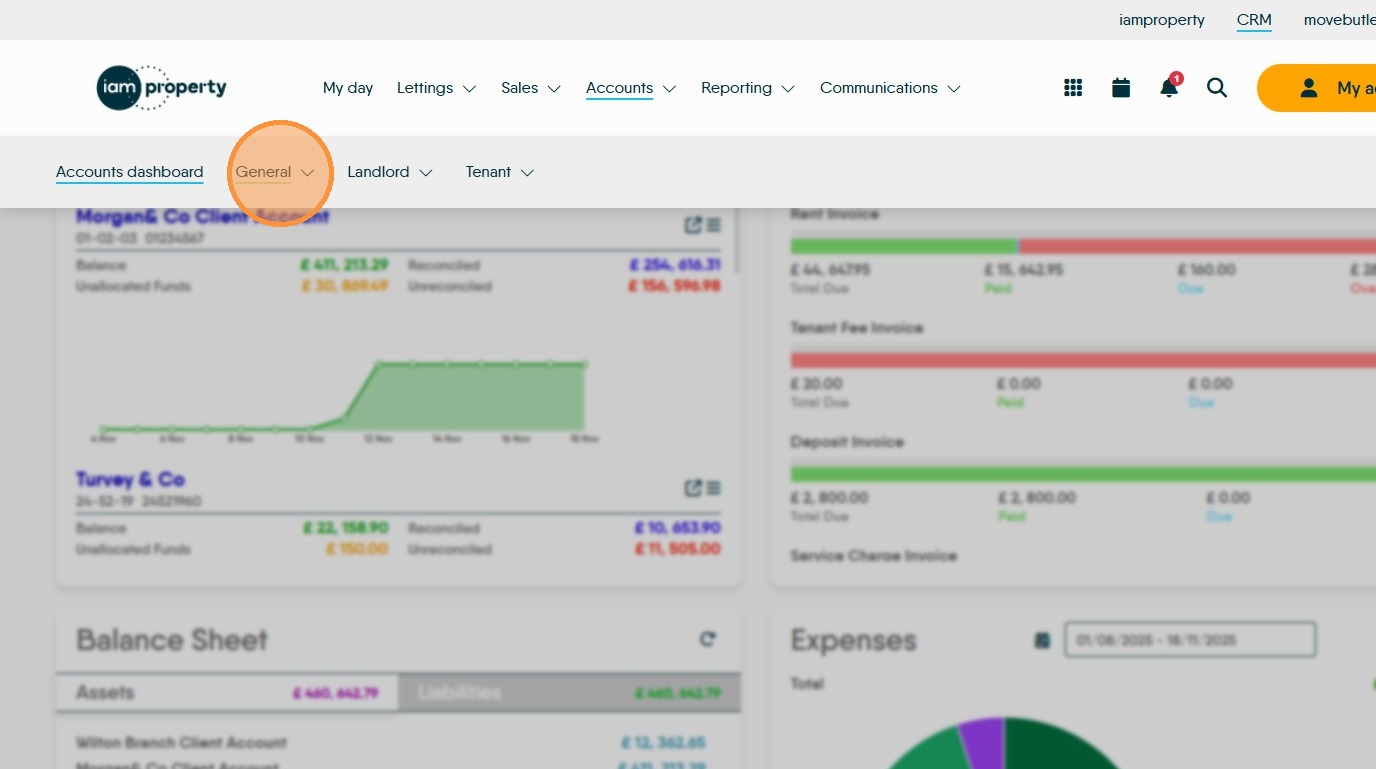
4. Click "Landlord"
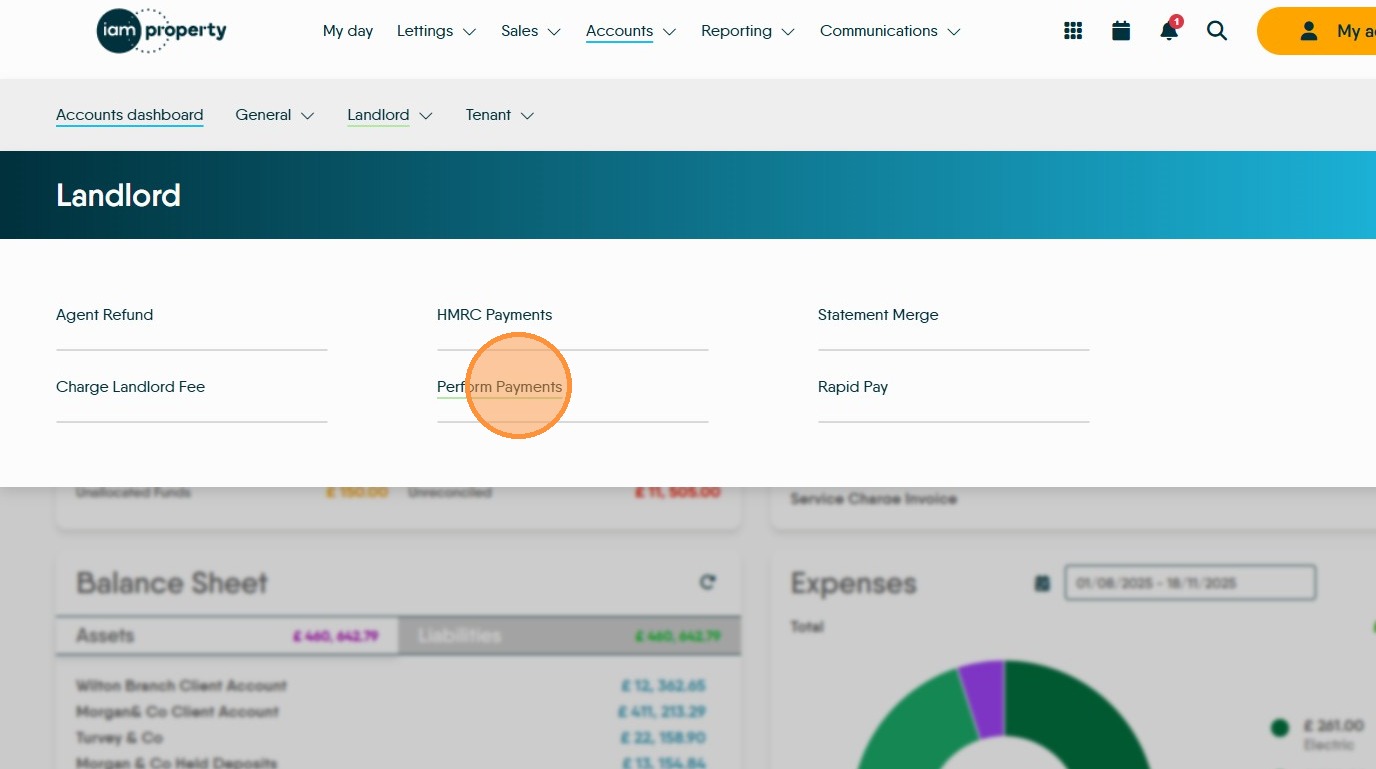
5. Click "Perform Payments"
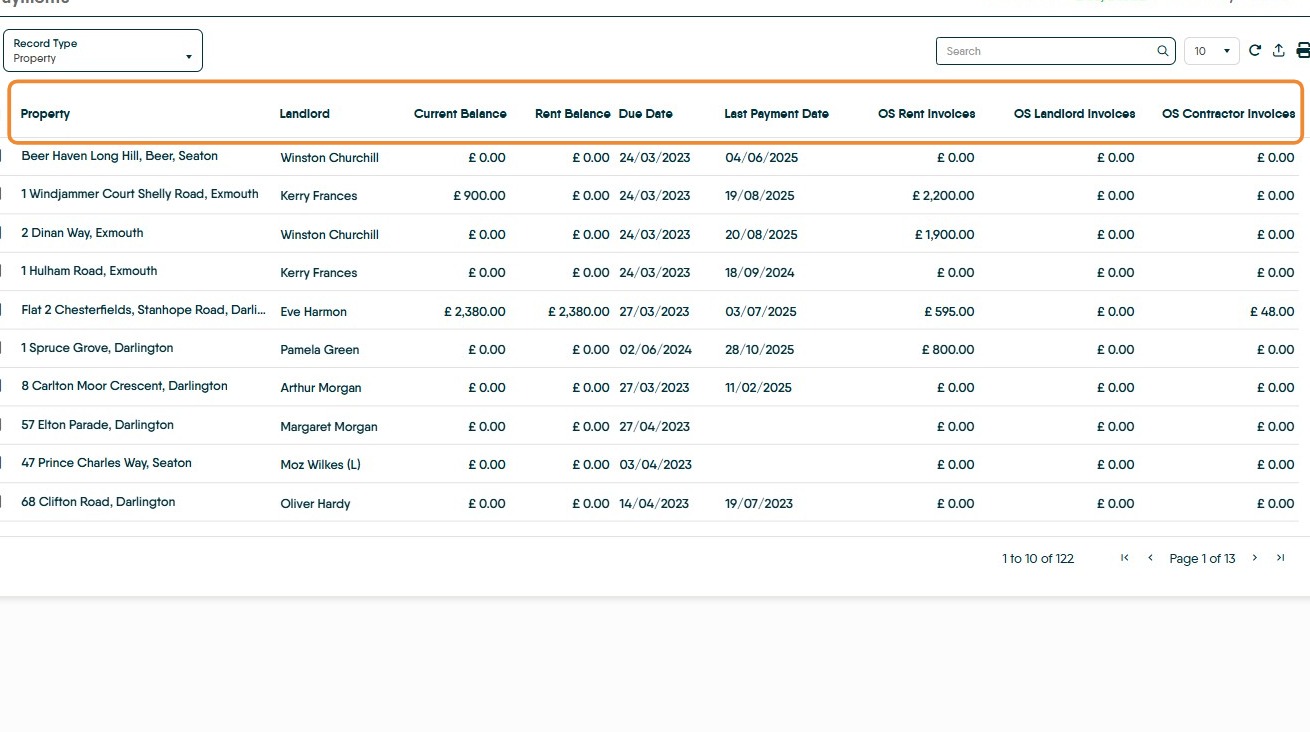
6. The Perform Payments screen will show "Property, Landlord, Current Balance, Rent Balance, Due Date, Last Payment Date, OS Rent Invoices, OS Landlord Invoices and OS Contractor Invoices" (OS = Outstanding)
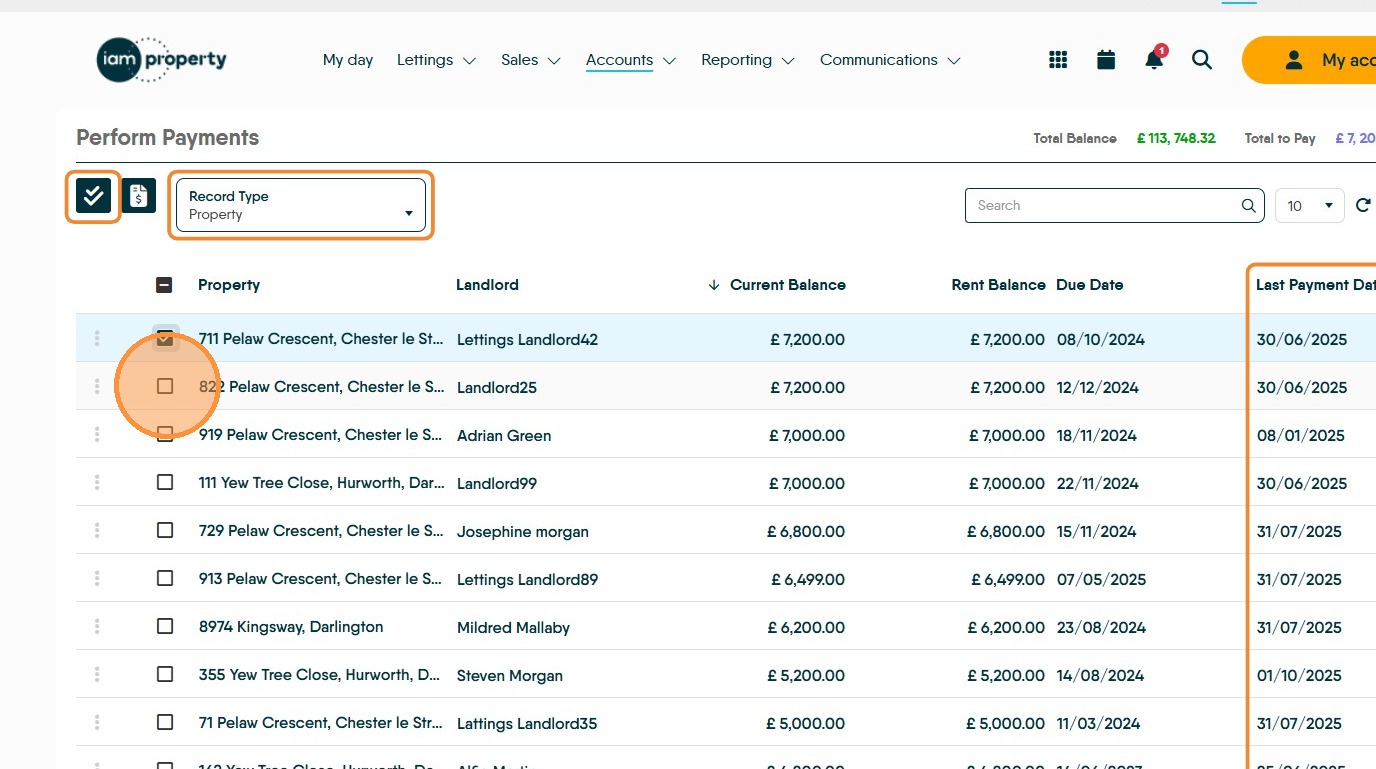
7. Click the checkbox next to the payments you wish to make. You can sort this list using the 'Record Type' option this will allow the option of a Portfolio view or a Property view (as shown). Once the Landlords you wish to pay have been selected, click the 'Pay Selected' icon ( 2ticks)
The list can also be sorted by using any of the column headers, the most useful will be 'Last Payment Date' as this shows the date the last payment was made to a Landlord. This screen can also be exported to a .csv file for reference or use in excel/sheets etc.
8. The "Perform Payments" screen will show on the right side of the screen. This shows all of the payment detail for a payment to a Landlord.
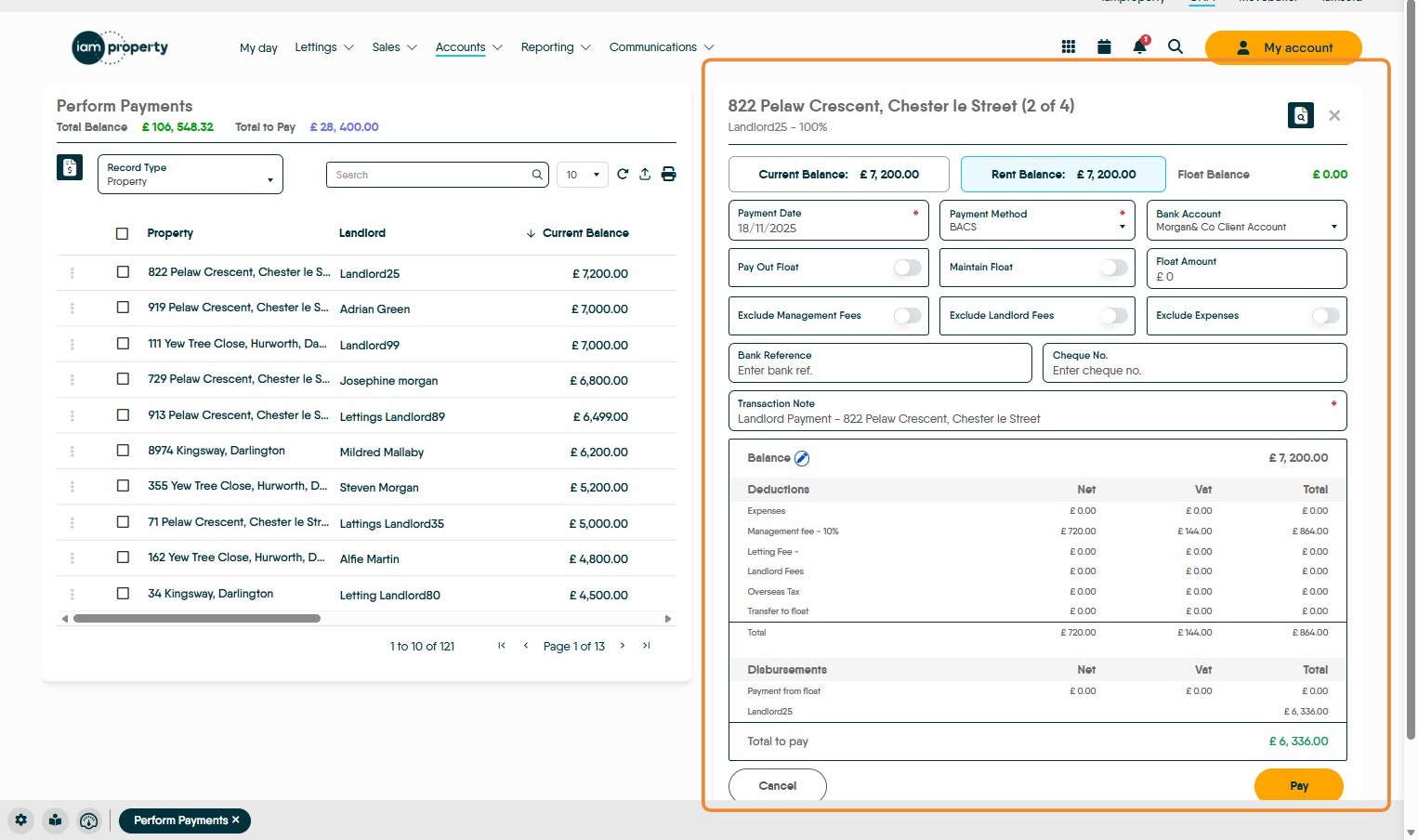
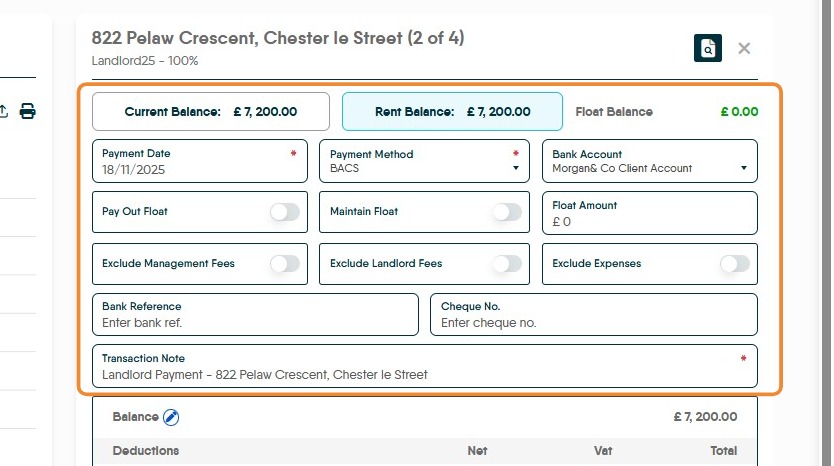
9. The top section of this screen shows information on the current balances, these are the amounts in the Landlords account before any other charges. Current Balance is any funds retained/held on the Landlords account, Rent Balance is the rent due to the Landlord (pre-expenses and fees). Also visible is the current Float balance, the float can also be managed from here. Fees and Expenses can also be excluded from here, if fees and expenses are excluded they are rolled over to the next month.
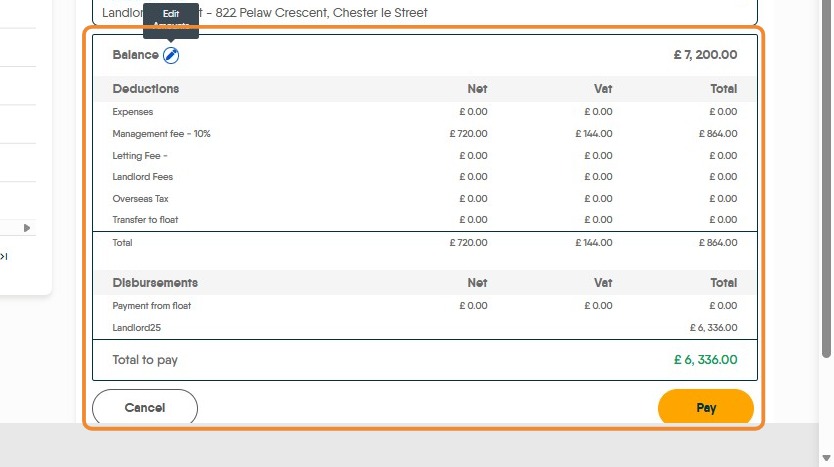
10. The bottom part of this screen shows the balances that will be charged to or paid out from you to the landlords. By clicking on the 'Edit Amounts' icon some of the balances can be edited.
If on this screen there are 2 lines for Expenses, one as shown here and another in a larger font, this second option is for any expenses that have already been paid to the contractor via the 'Save and Perform Payment' option.
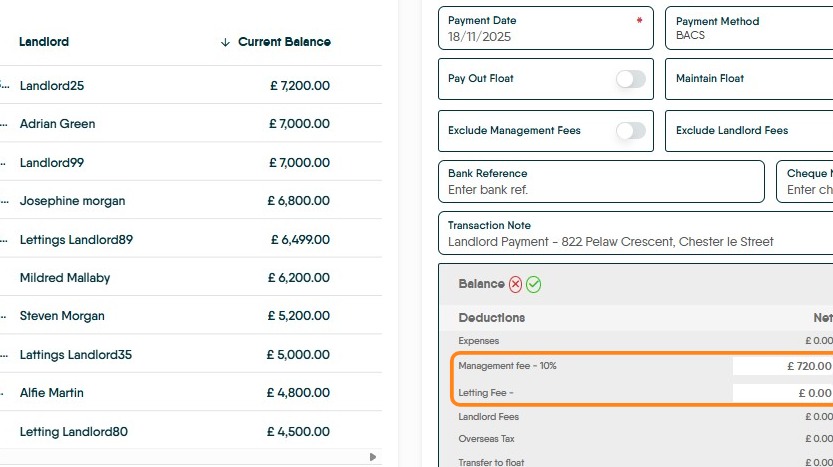
11. These amounts can be edited. If the Landlord disbursement is edited, any retained payment will be held against the Landlords account and will be available to be paid out at the next perform payments.
Once all the edits are complete, click the 'green tick'
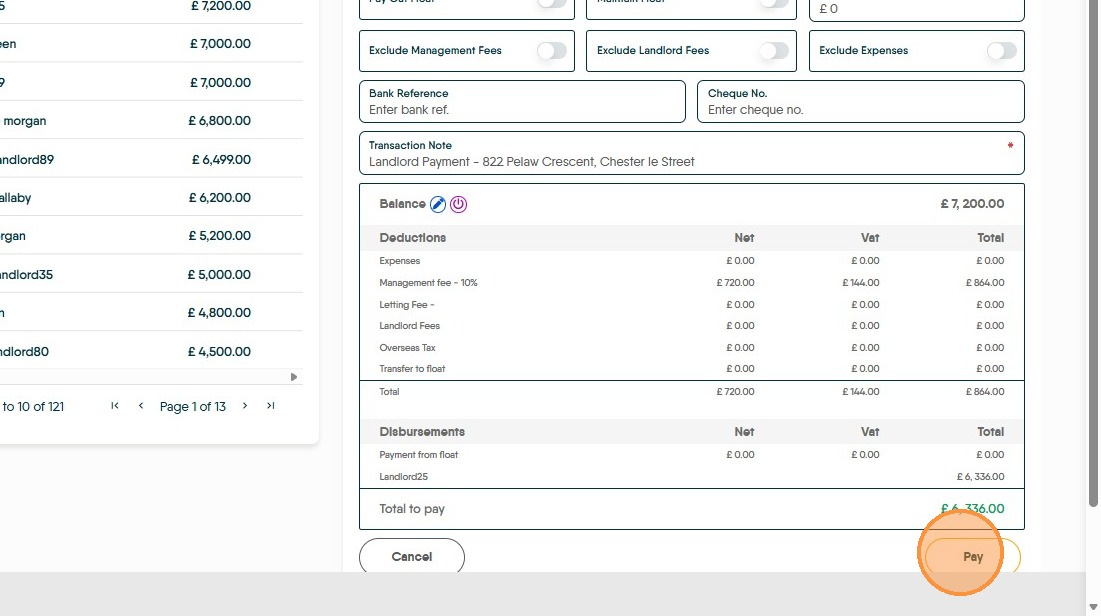
12. Clicking "Pay" will create the payment line to the Landlord and if not paid previously will create the payments to any contractors. If the payments are to be made via BACS then these will be added to your BACS list, if payments are cheque, bank transfer etc then the payment line will show in the Client Account on CRM.
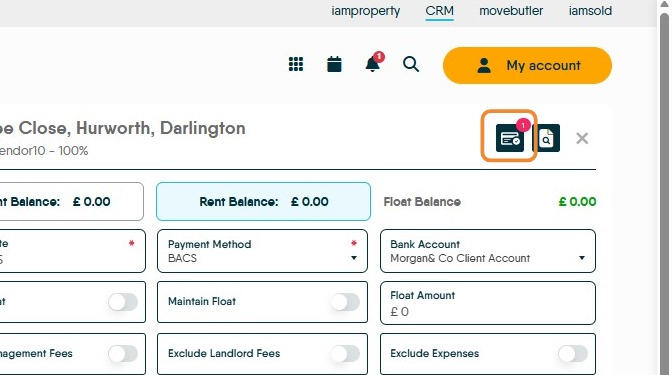
13. The icon highlighted here shows if there are any expenses that are in 'Jobs Outstanding' and have NOT yet been charged to the Landlord. Clicking here will take you to the Jobs Outstanding screen where the job can be charged to the Landlord.

14. The icon highlighted here allows a sample statement to be created.
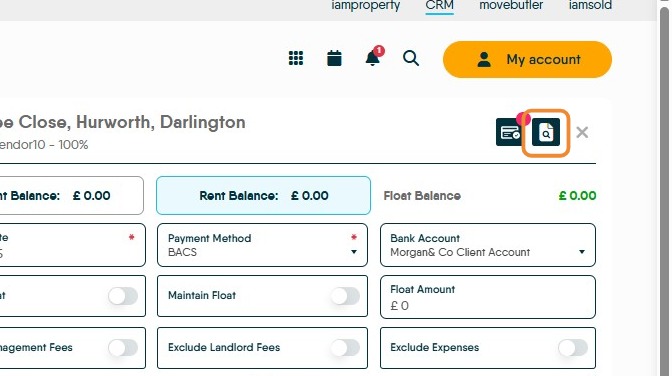
15. Click "Landlord Statement" and select from the drop down menu, set the statement dates if required and any other fields required. Click "View"