This guide provides a straightforward process for reconciling accounts and confirming balances, ensuring accuracy in financial records. By following the steps outlined, users can efficiently verify their account status and maintain financial integrity. It's an essential resource for anyone looking to streamline their accounting practices and avoid discrepancies.
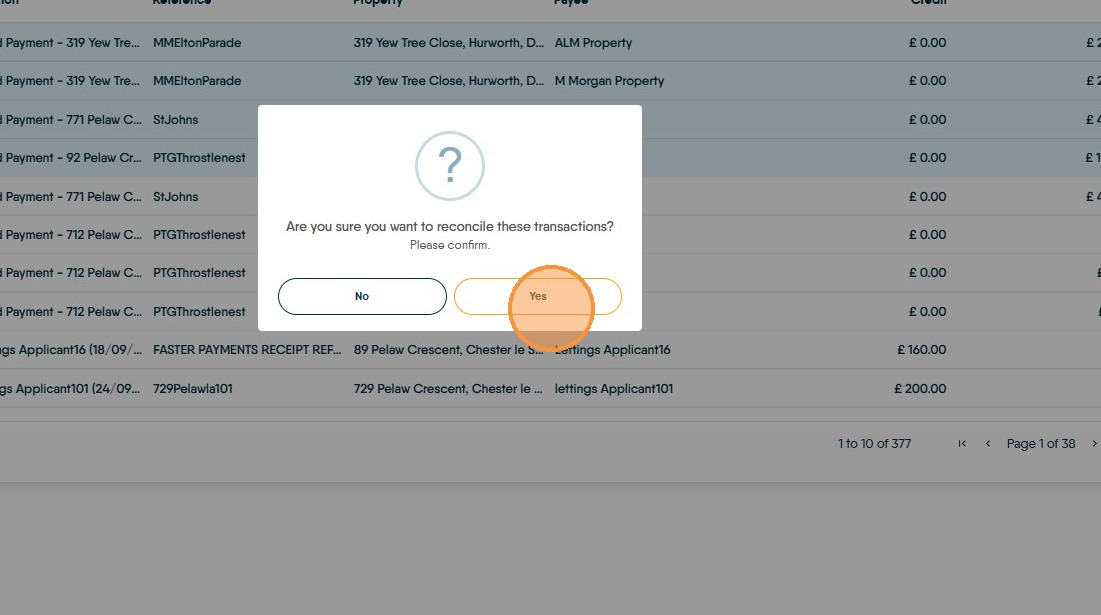
Alert: Alert! Only Reconcile payments you are confident are correct and accurate. Reconcile shows that you are confident a payment/transaction is correct. If you have ANY doubts about a payment DO NOT reconcile it. If there is an error it can take up to 2 weeks for our support team to reverse the reconciliation to allow any edits to be made.
1. Navigate to https://crm.iamproperty.com/Dashboards/Accounts?clickLink=accounts-perform-payments-link
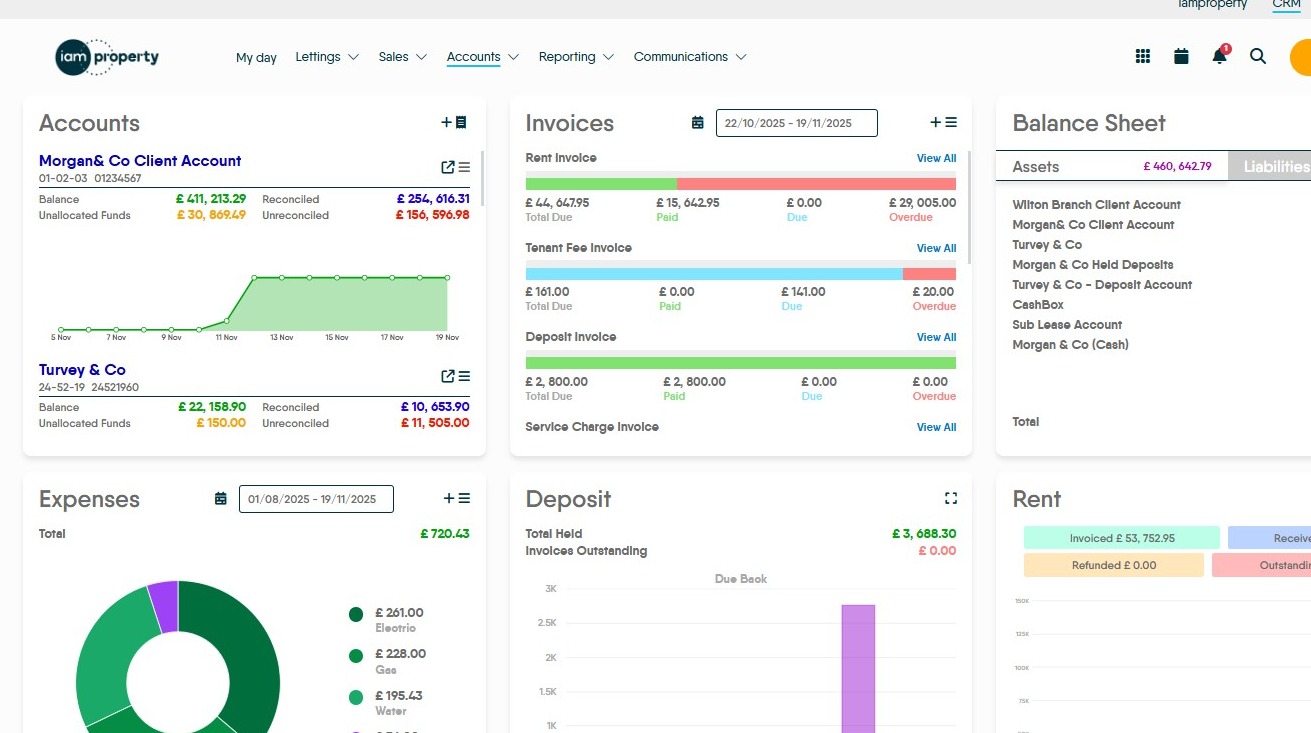
2. Click the 3-line menu.
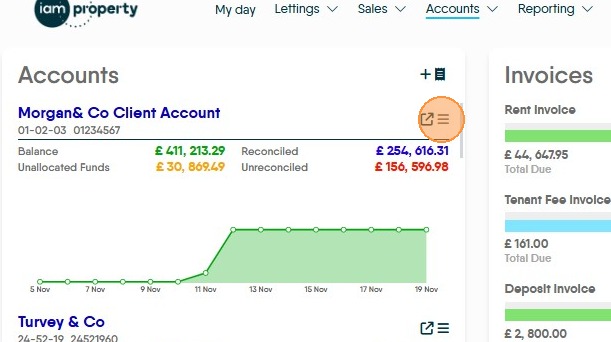
3. Click "Reconcile"
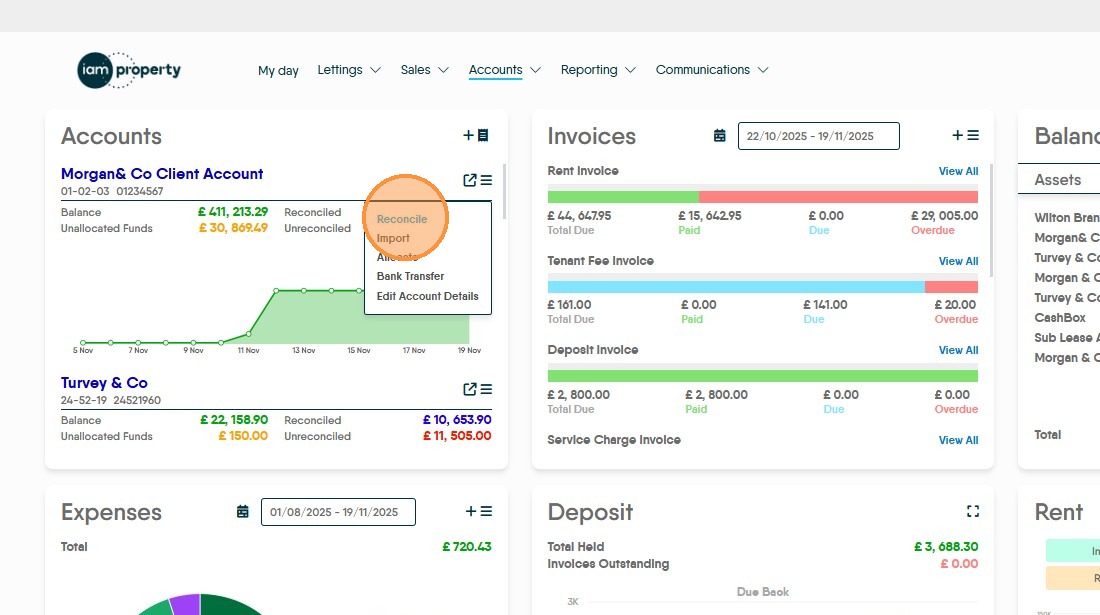
4. Click the checkbox beside all transactions you wish to reconcile.
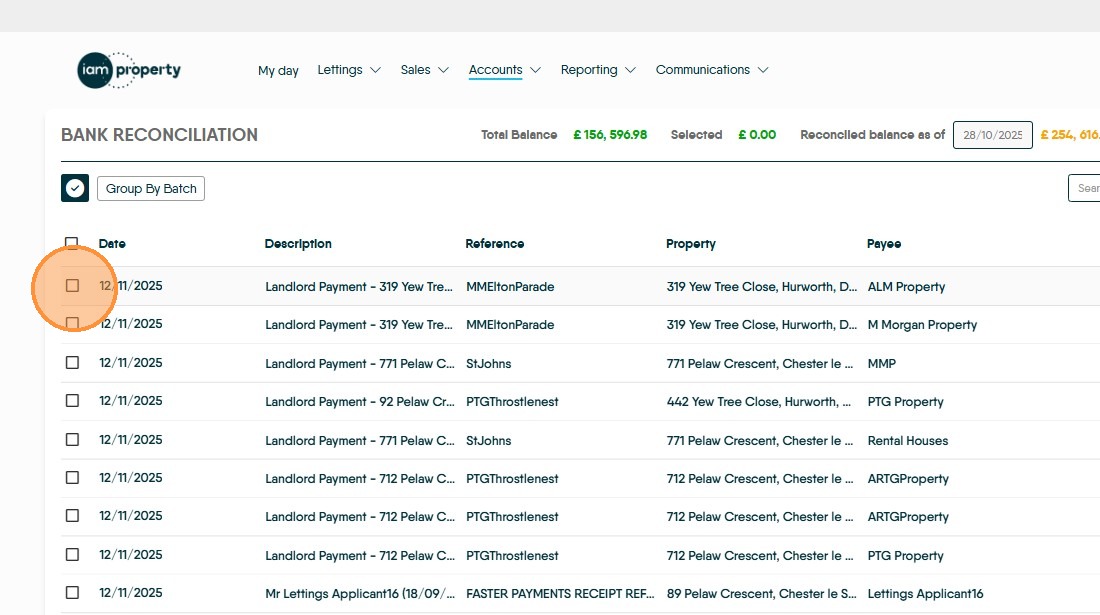
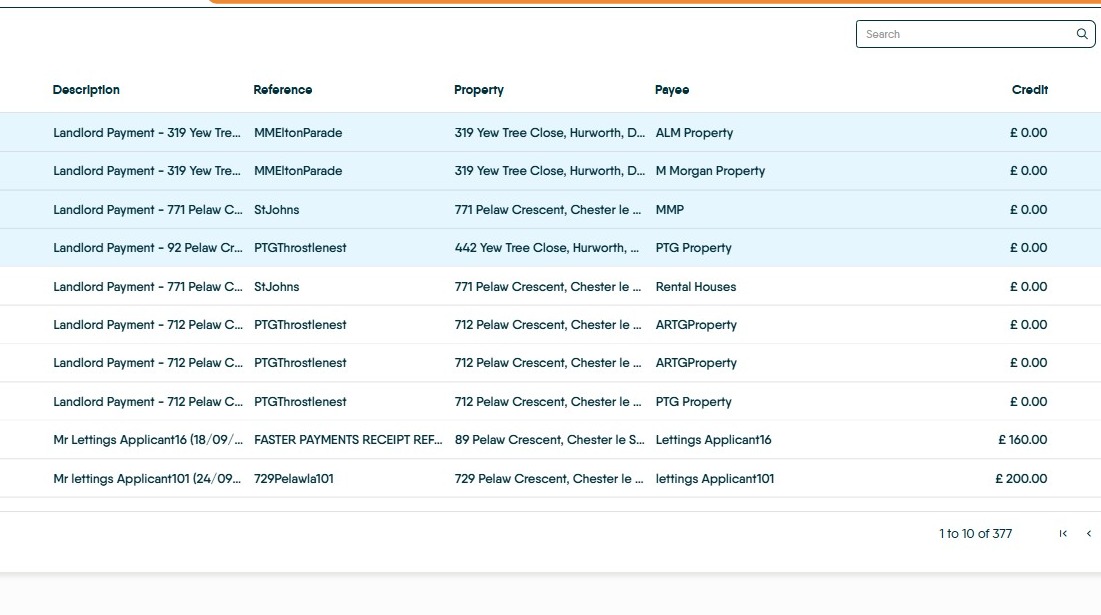
5. The fields at the top of the screen will show the reconciled balances.
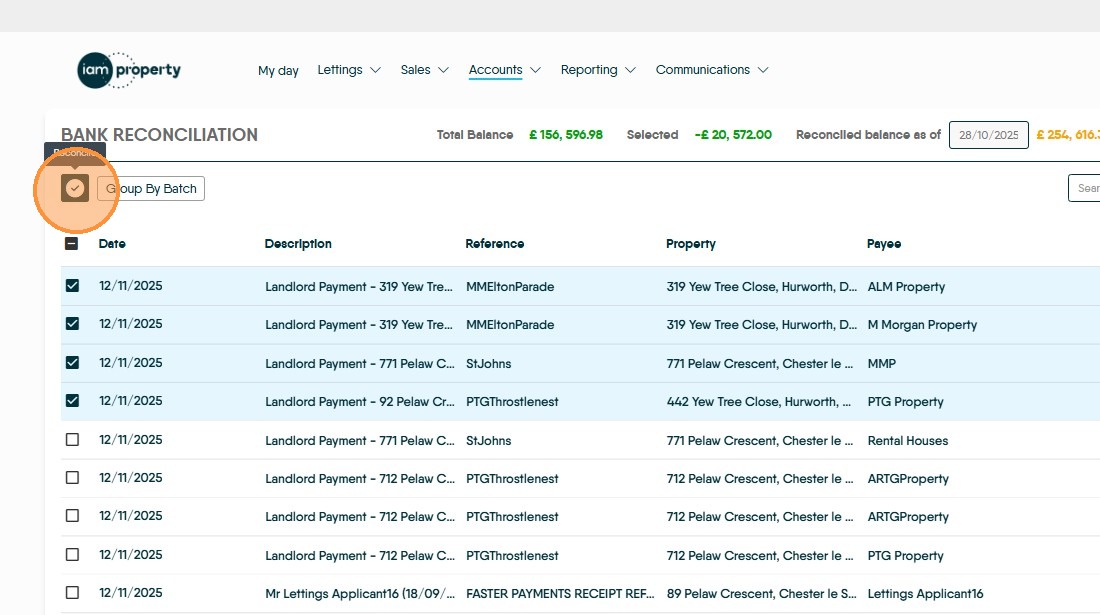
6. Click here to perform the reconciliation.
7. Click "Yes" only if you are totally happy with the transactions you are reconciling.

8. Reconciliation Log
9. Click "View Log"
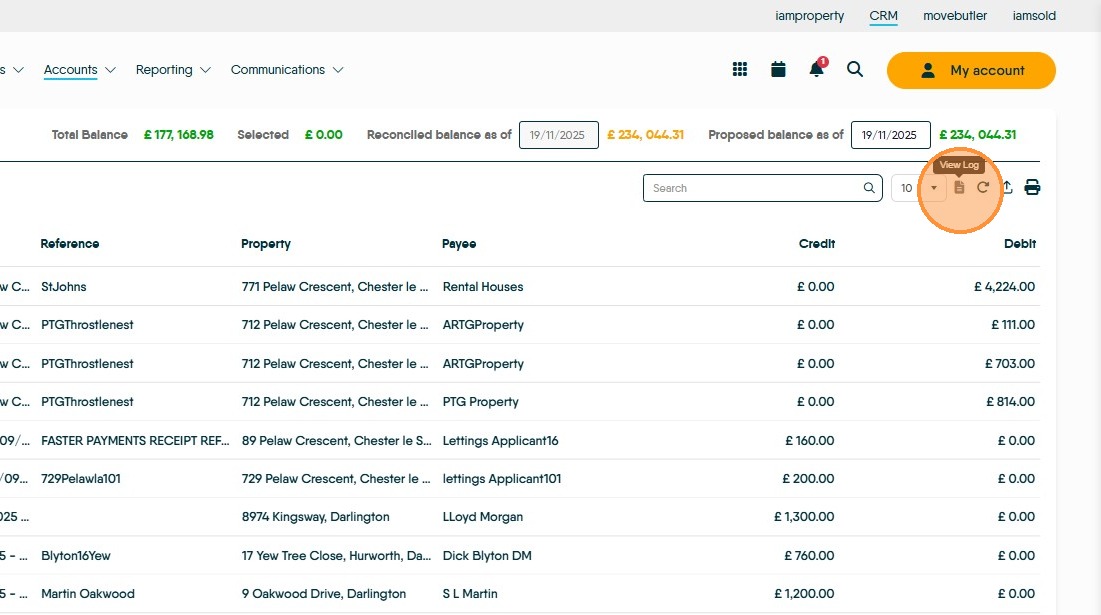
10. This will show a list of all the reconciliations logs produced in the period shown in the 'Date From...Date To' fields this is usually 3 months and can be edited to any time line you require.
Clicking the down arrow will show a list of all transaction reconciled in that log, there is also the option to download the log to .csv
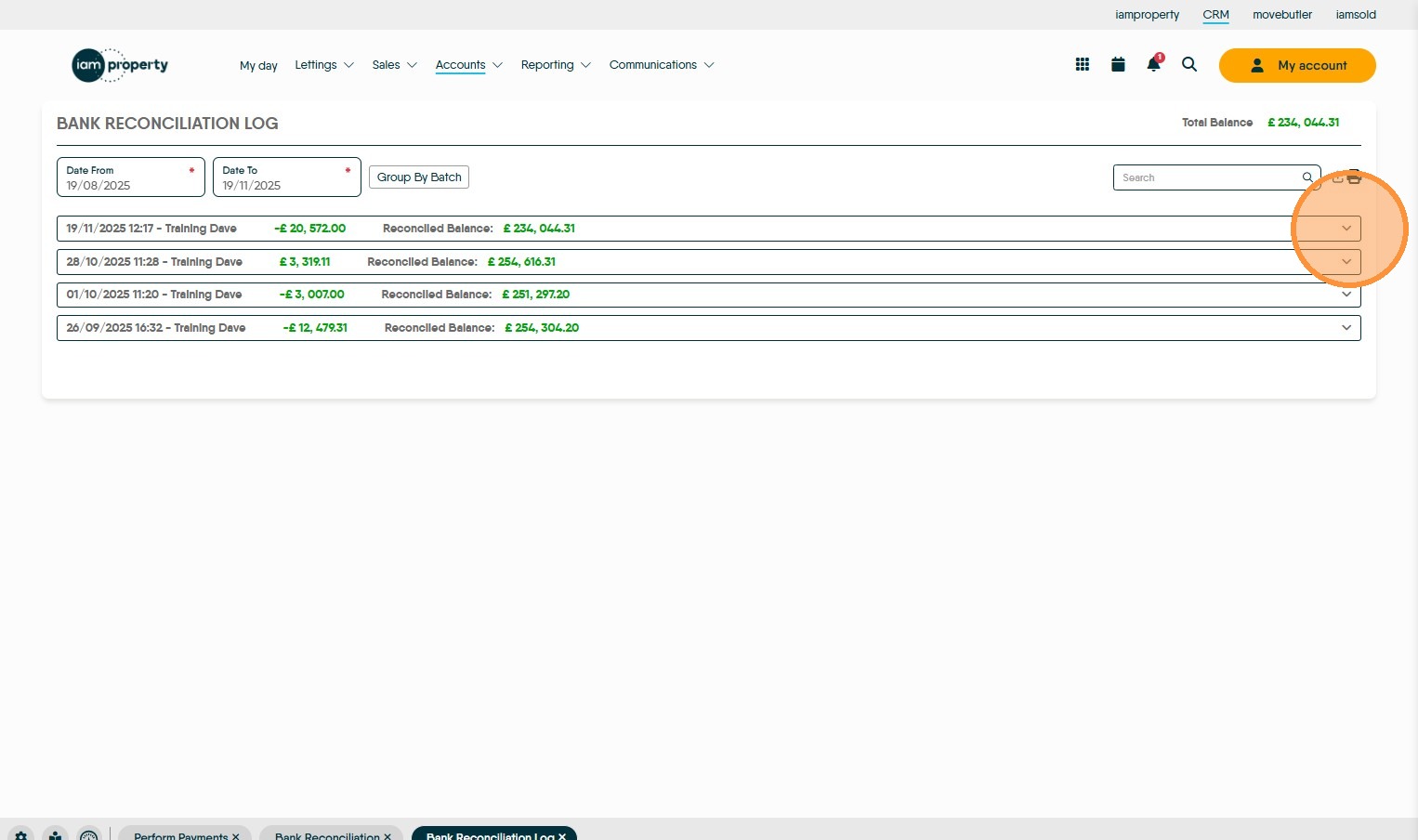
11. Click this link to view transaction details
Click "Property Transaction Type Sub Type Date Amount Invoice No Cheque No Bank Reference Excluded Description"
Click "Cancel"