This guide offers a straightforward process for importing transactions into CRM accounts using the Bank Import feature, making it an essential resource for users looking to streamline their financial data management. Bank Import allows you to use your downloaded bank statement to import transactions into CRM and match them to Invoices created in CRM and automatically receipt them.
Tip: To use this feature you need to be able to download your bank statements from your online banking in a CSV format. If you need support doing this or cant perform the download please contact Your Bank.
1. Navigate to https://crm.iamproperty.com/Dashboards/Accounts
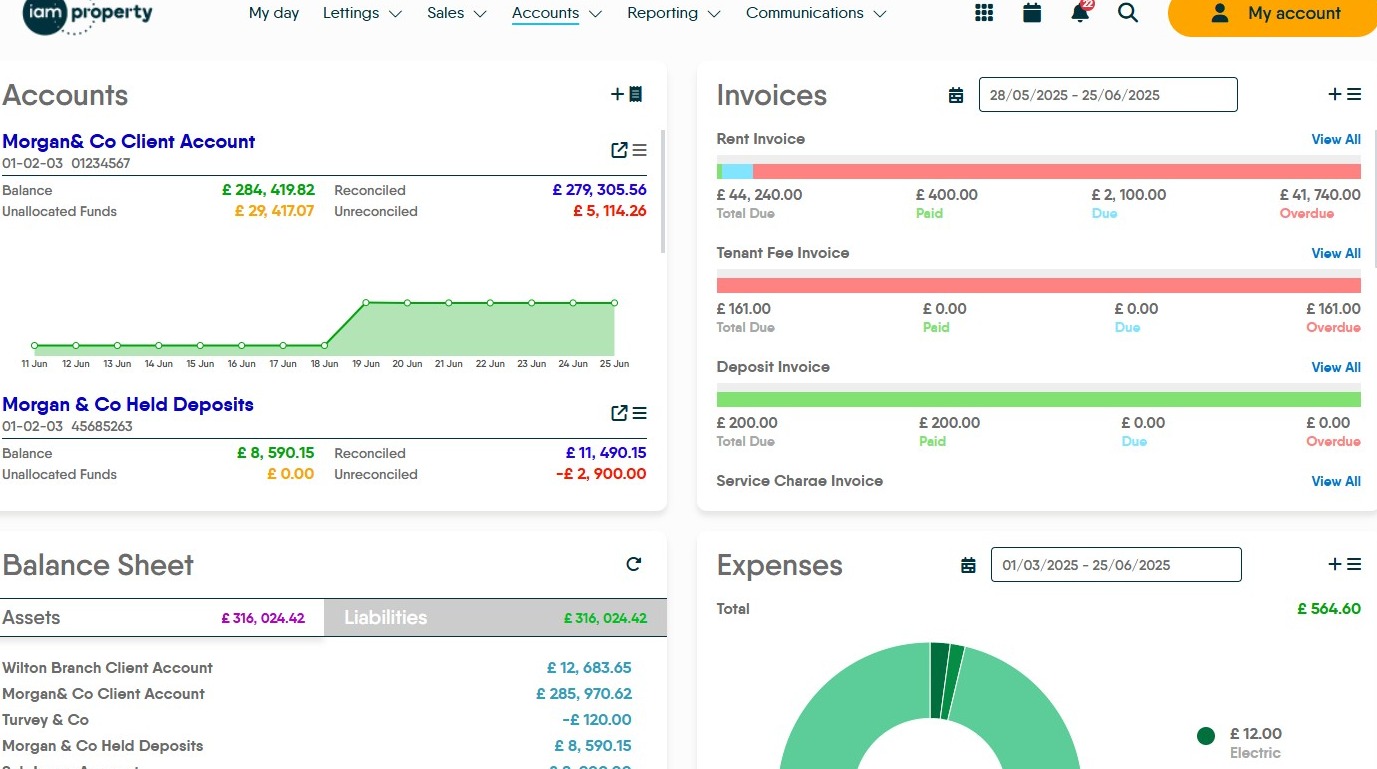
2. Click here.
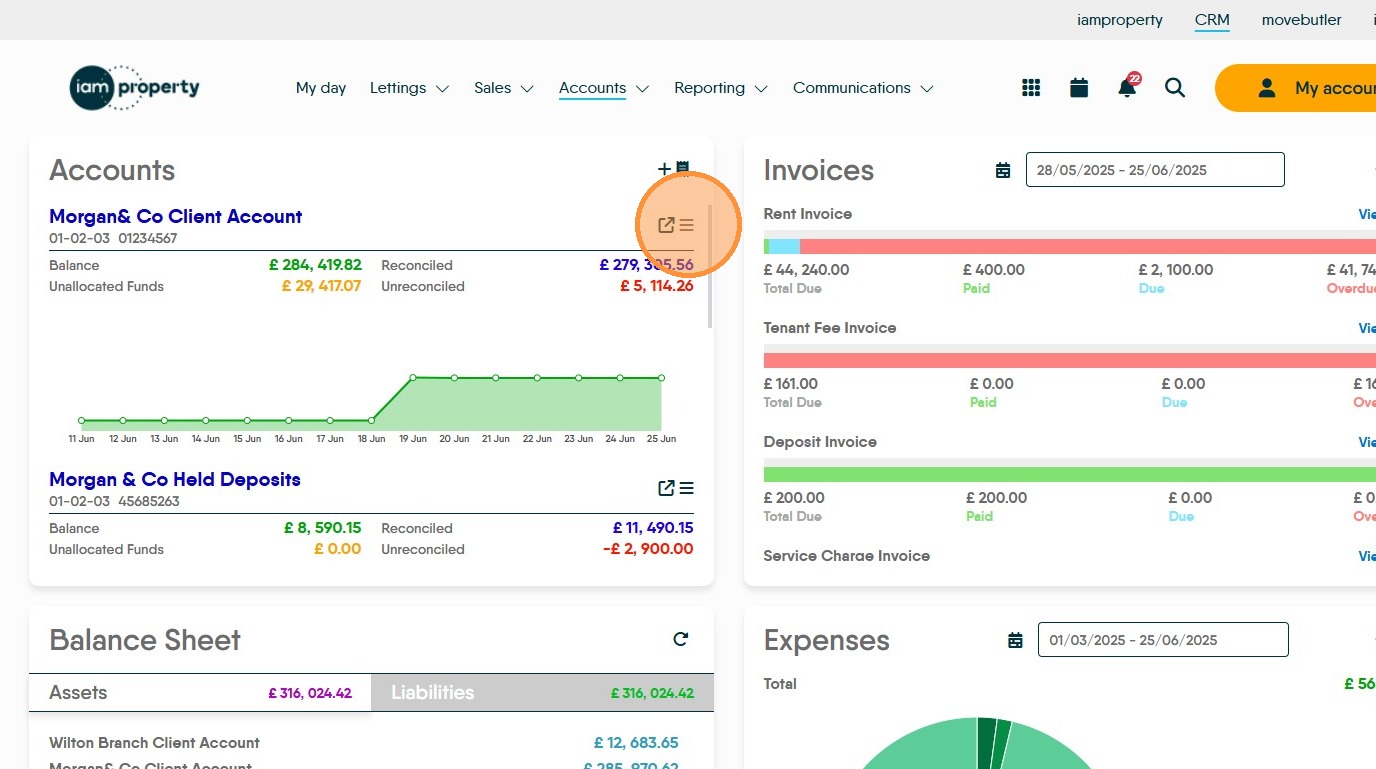
3. Click "Import"
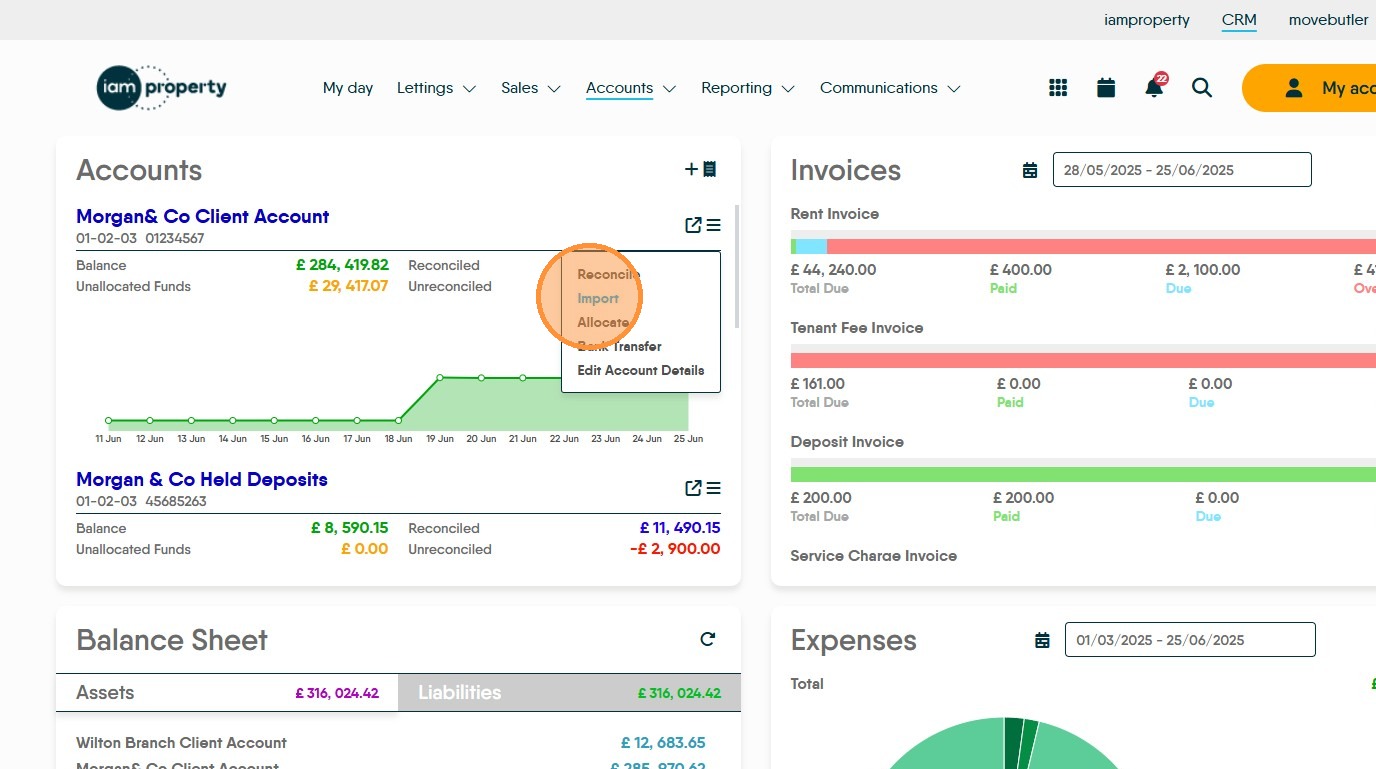
4. Click "Upload" Once upload is clicked there will be a screen displayed where you can search for and select your bank statement. If you don't know where the file is saved to, check the 'Download' folder on your computer first. Then re run the downloading process from the bank and make note of where the document is saved.
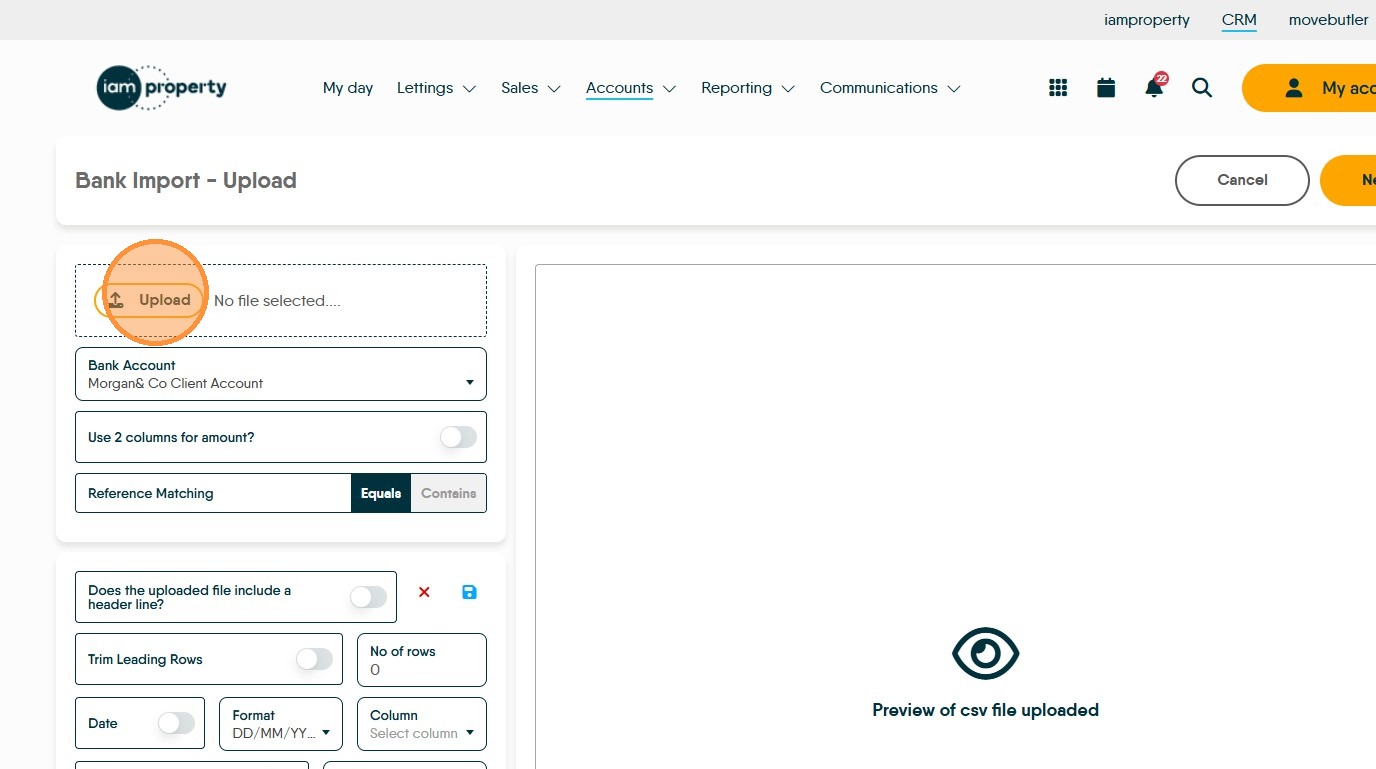
5. The file detail will then show on your screen.
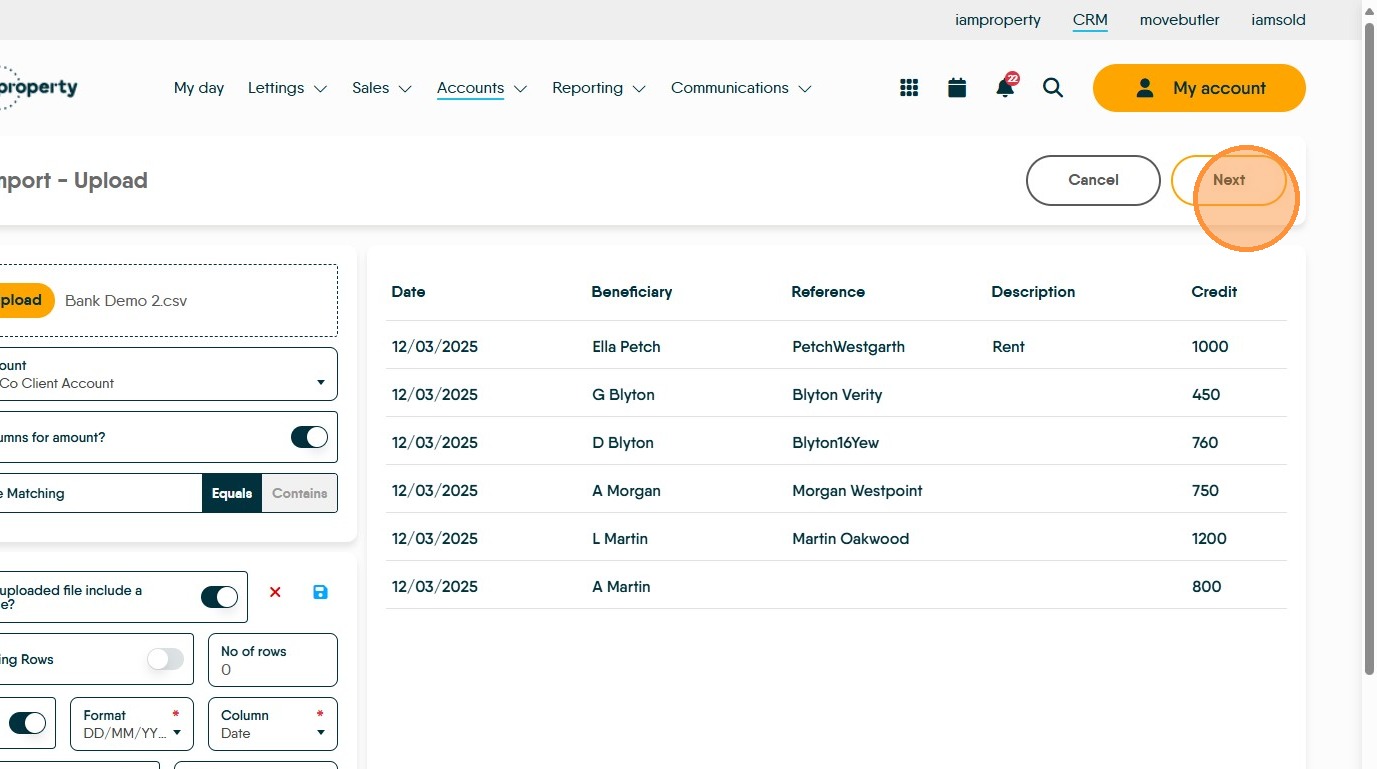
If your bank statement shows Credits and Debits, select the 'Use 2 Columns for amount' option to show both of these. Leave 'Reference Matching' on the (pre selected) Equals option as this is the most accurate process to match the Tenants Payment references to their rent invoices.
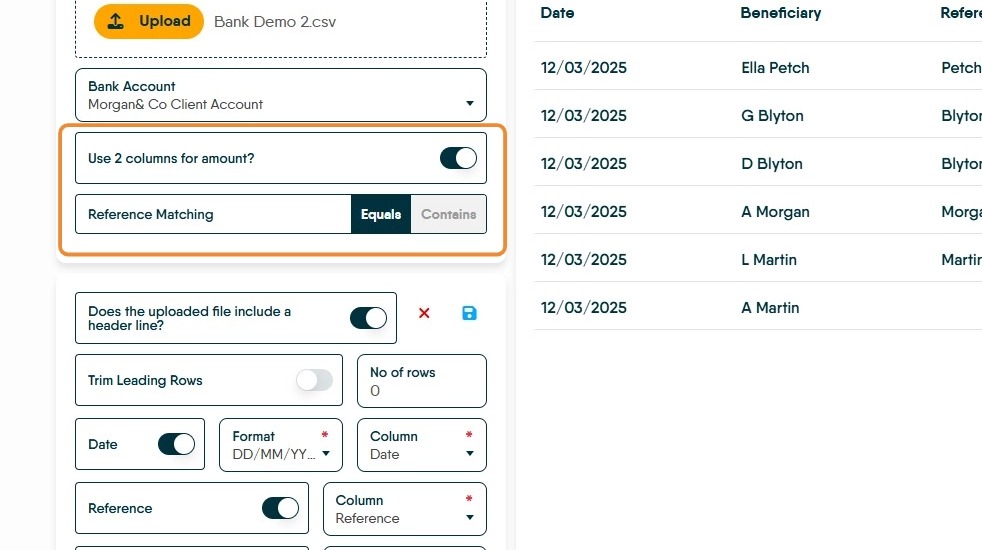
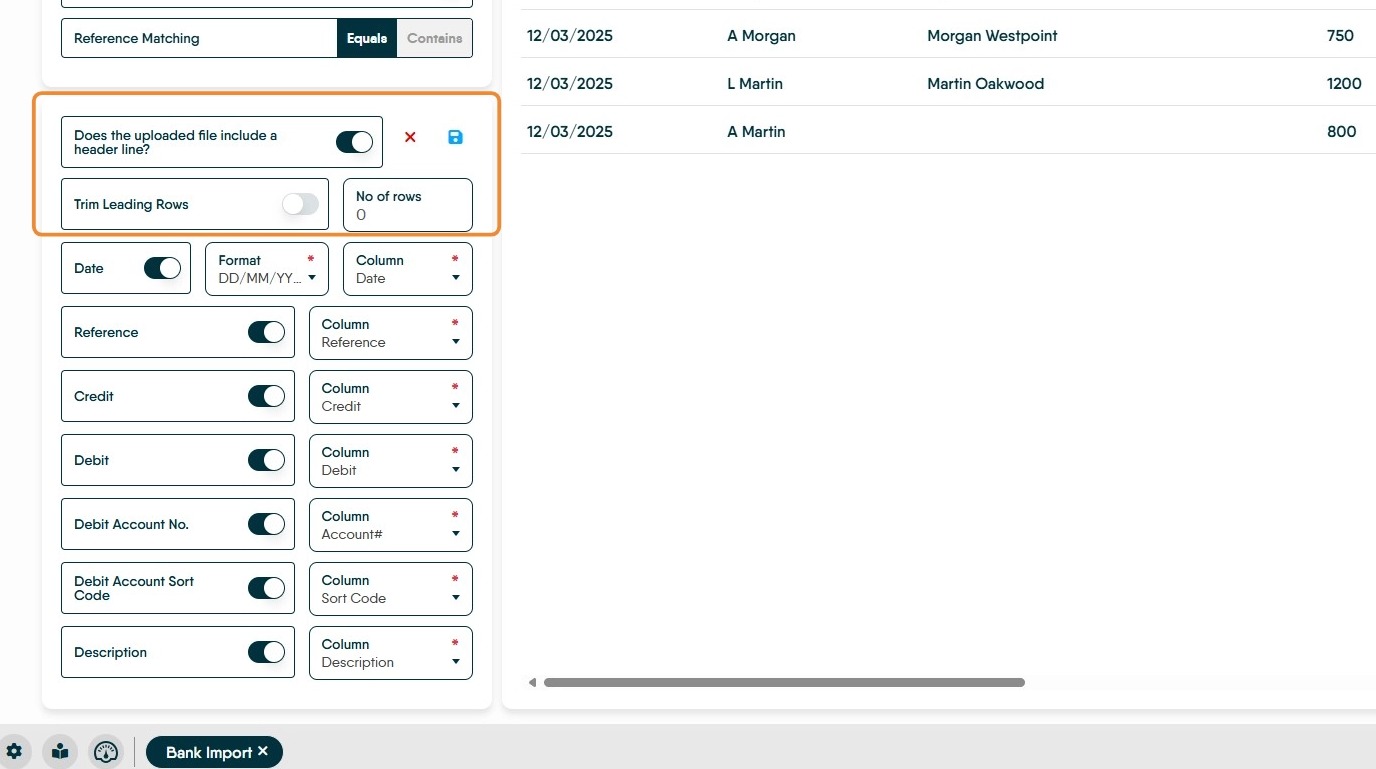
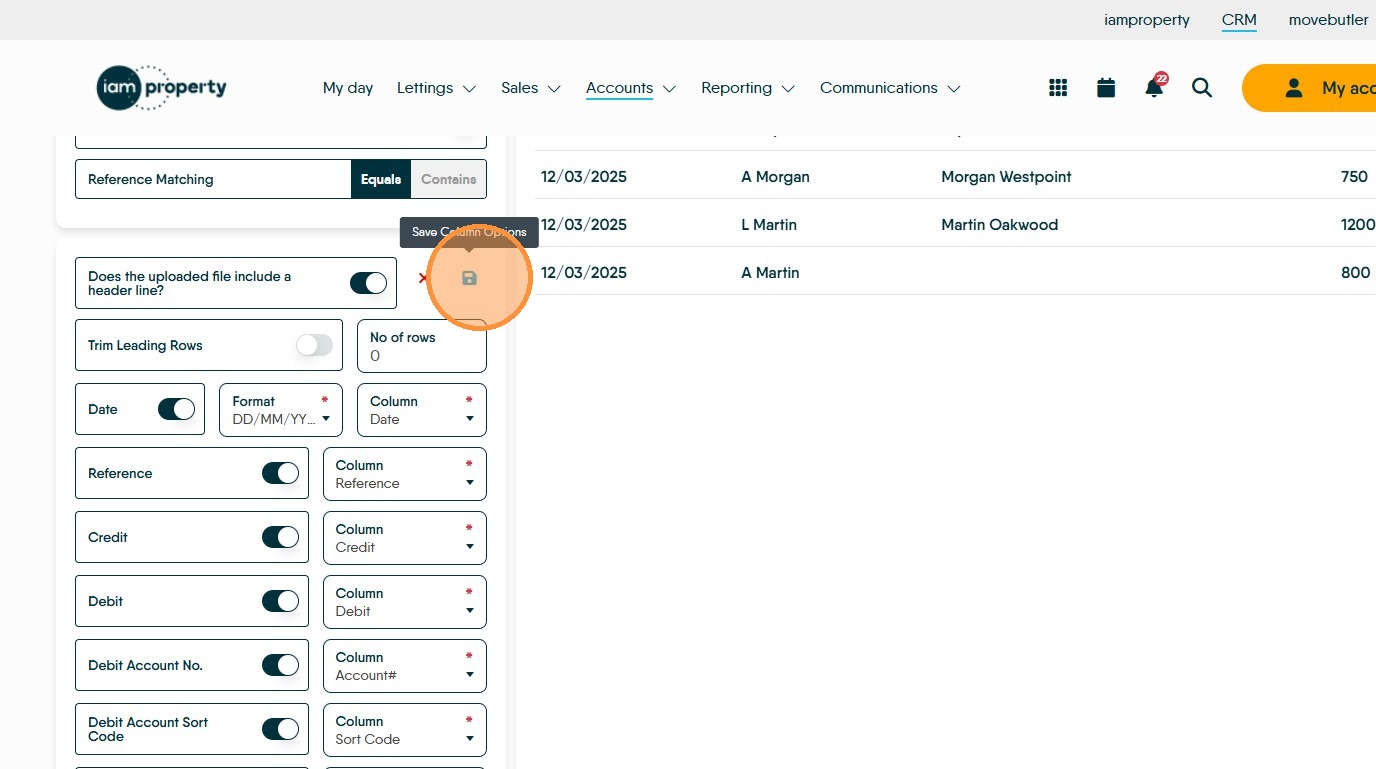
6. The first time you run this process you will have to set and save the formatting.
This first section tells the CRM if your Bank statement includes any header line and/or any leading rows. e.g. Name, Account Number etc.
"Trim Leading" rows, this relates to any text added to the top part of the statement download before the actual statement data starts. This allows you to set how many rows are used before the statement header line, for CRM to ignore when importing the data.
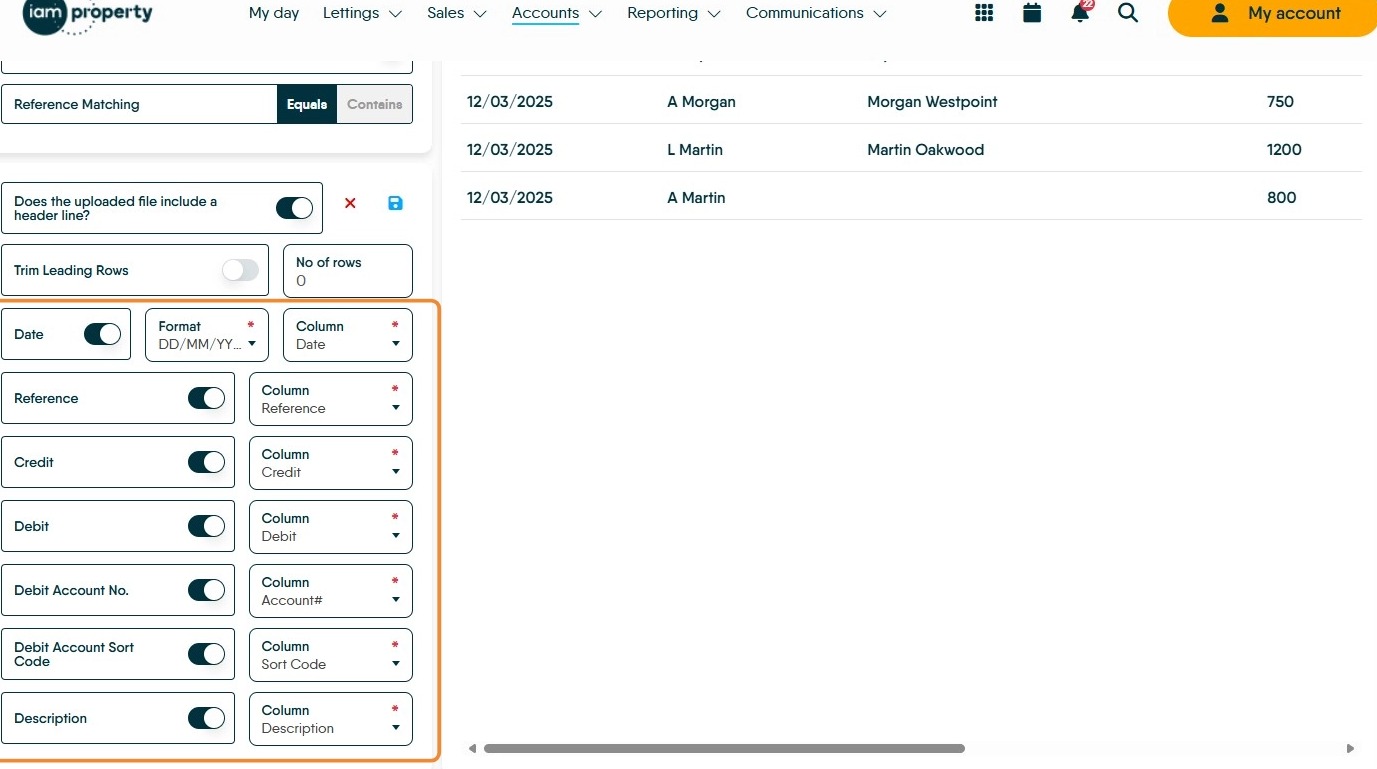
7. This section matches
- The date format used by your Bank to CRM
- The data columns supplied by your bank with the columns that CRM uses.
8. Click here to save your settings.
9. Click "Next"
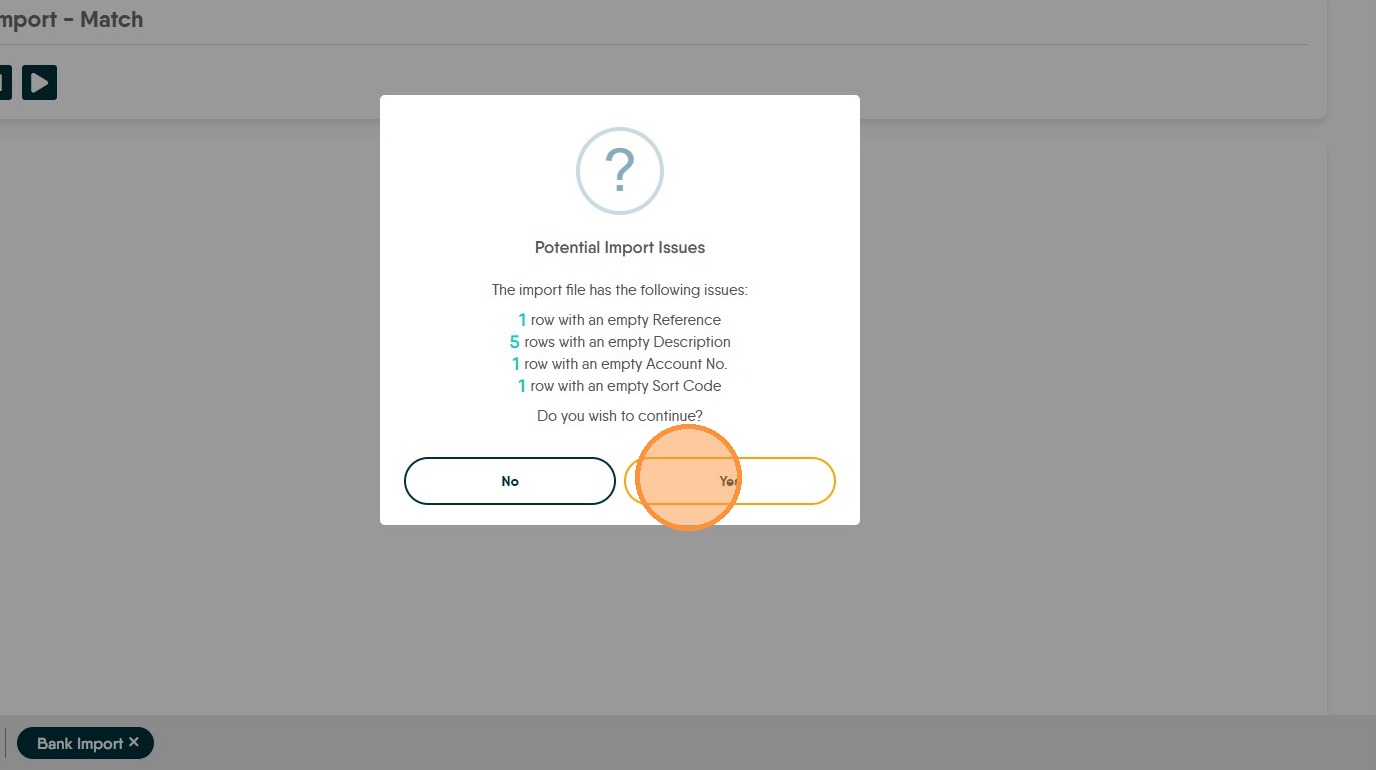
10. Click "Yes" This screen shows any errors that are in your data.
In this case it is showing that there is 1 row without a Bank Reference, 5 Rows that don't have a description of what the payment is (e.g. Rent Payment). None of these are 'show stoppers' that will prevent the import process from working.
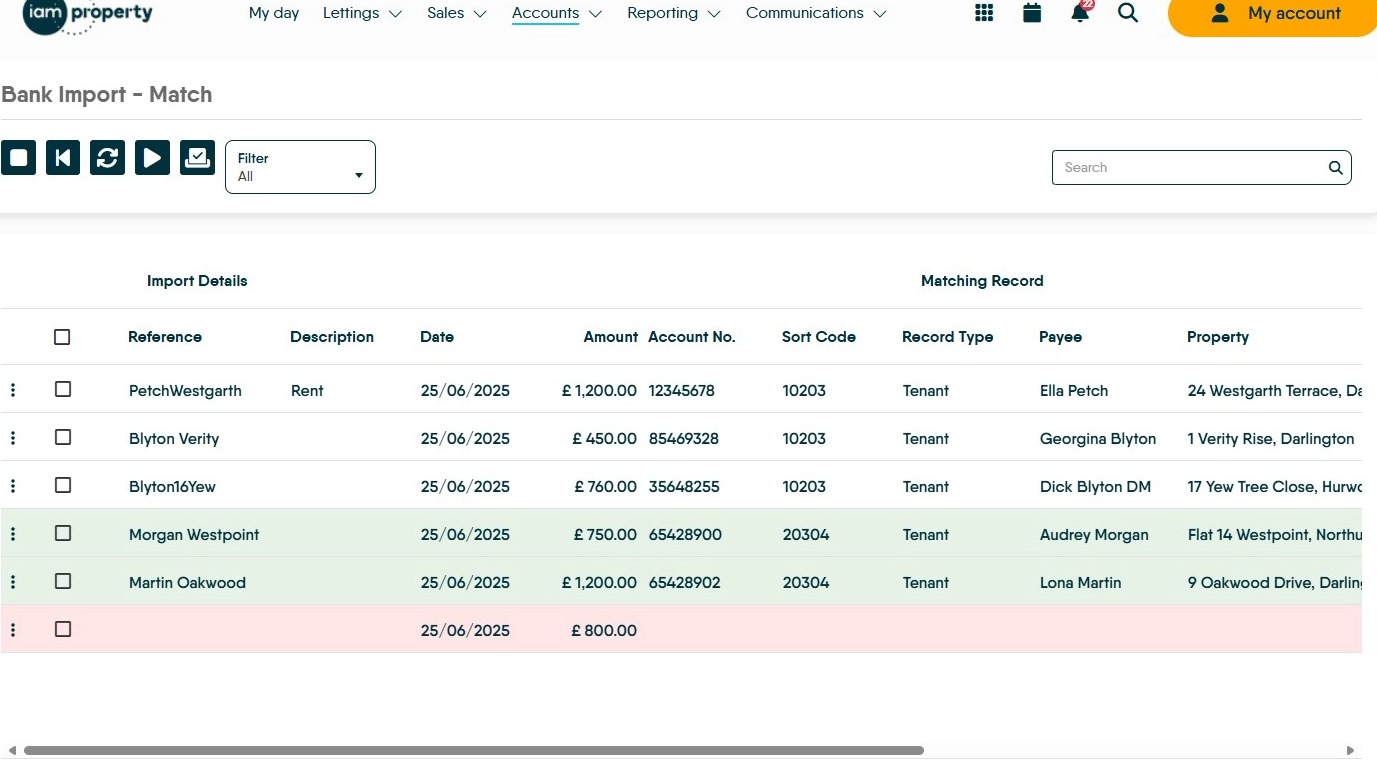
11. The screen will then show the transactions matched, or not, to the records in CRM.
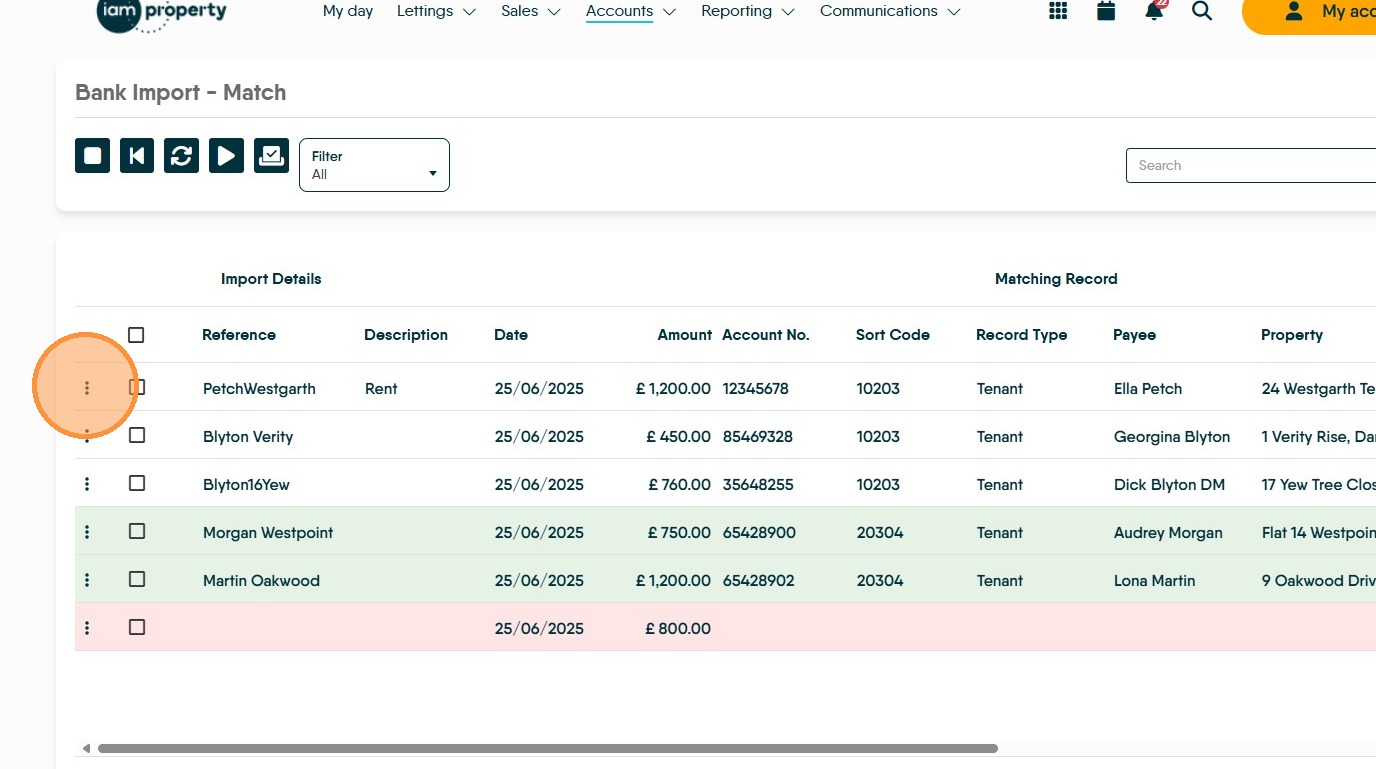
The 'Green' highlighted rows show transactions where a 100% match can be made to a Payee and an invoice.
The 'Red' highlighted rows show transactions where NO match can be made to any Payee and invoice.
The 'White' highlighted rows show transactions where a possible match can be made to a Payee and an invoice. There is an invoice, however there is some error e.g. amounts may not match
12. To solve a 'White' record click here.


13. We can see that the 'Bank Import' has matched the incoming funds to a specific record (highlighted) and there are a number of invoices to be paid, none match the payment. So you have the option to select the invoices to pay, by clicking into the checkboxes to the left of the transaction line. and if required click "Upcoming" and allocate the payment against an upcoming rent invoice.
Click "Collect" to collect the payments and pay the invoices.
Click "Save" to cave the transactions , turning the line 'Green' to be processed with all the other transactions.

14. To collect all the payments that are 'Green' i.e. those that are auto matched and those that are resolved. Click the checkbox to the left of each line
It is a good practice to collect all the 'Green' transactions you can use the filter to only show these and afterwards resolve the issues.
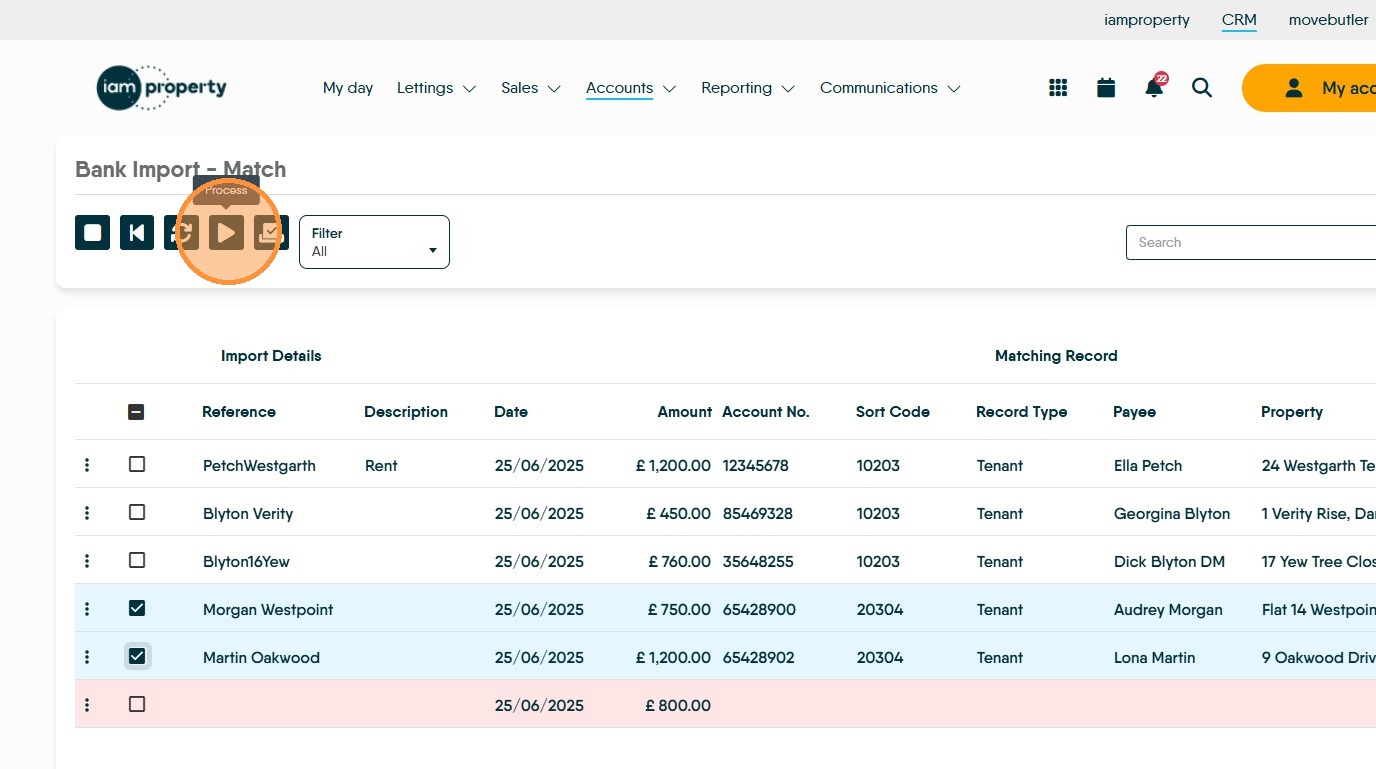
15. Then Click here to process all the selected transactions.
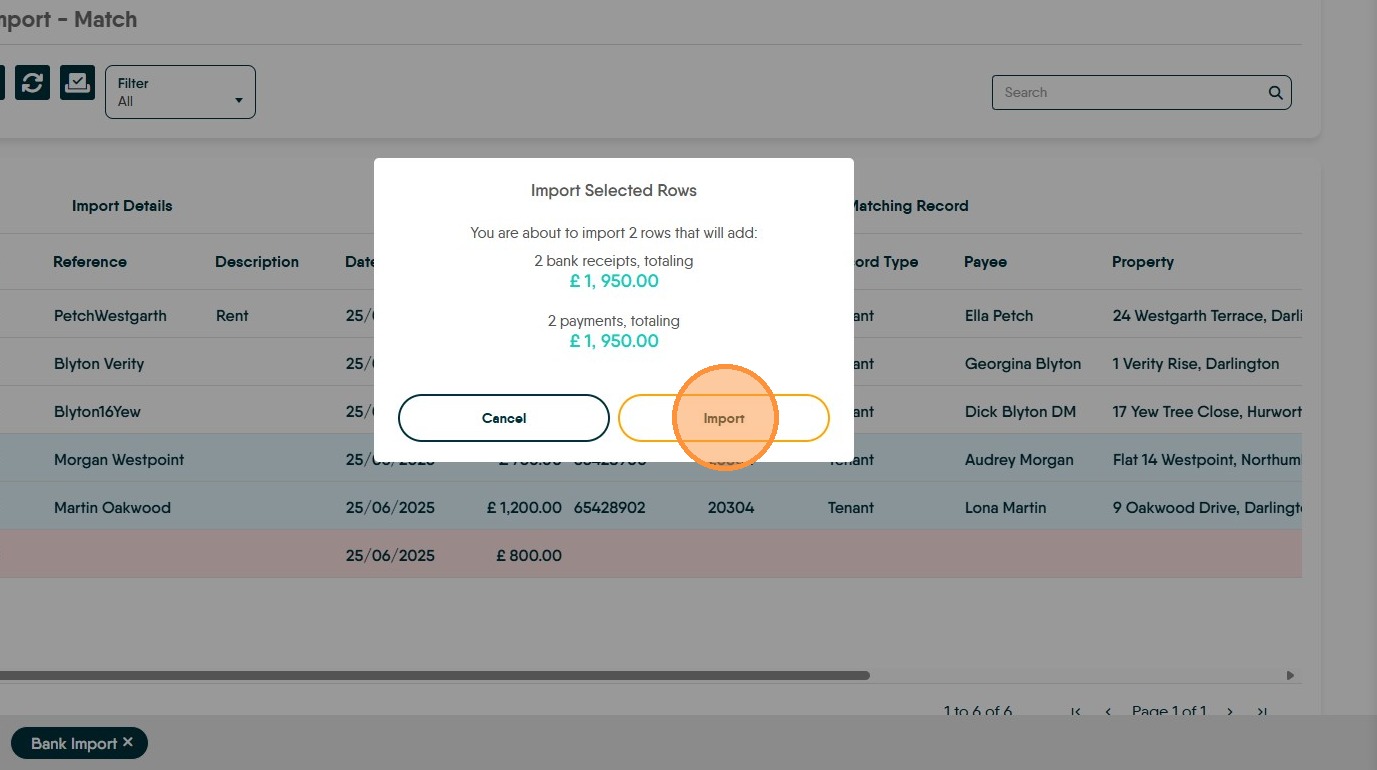
16. Click "Import"
17. To resolve the 'Red' line Click here.
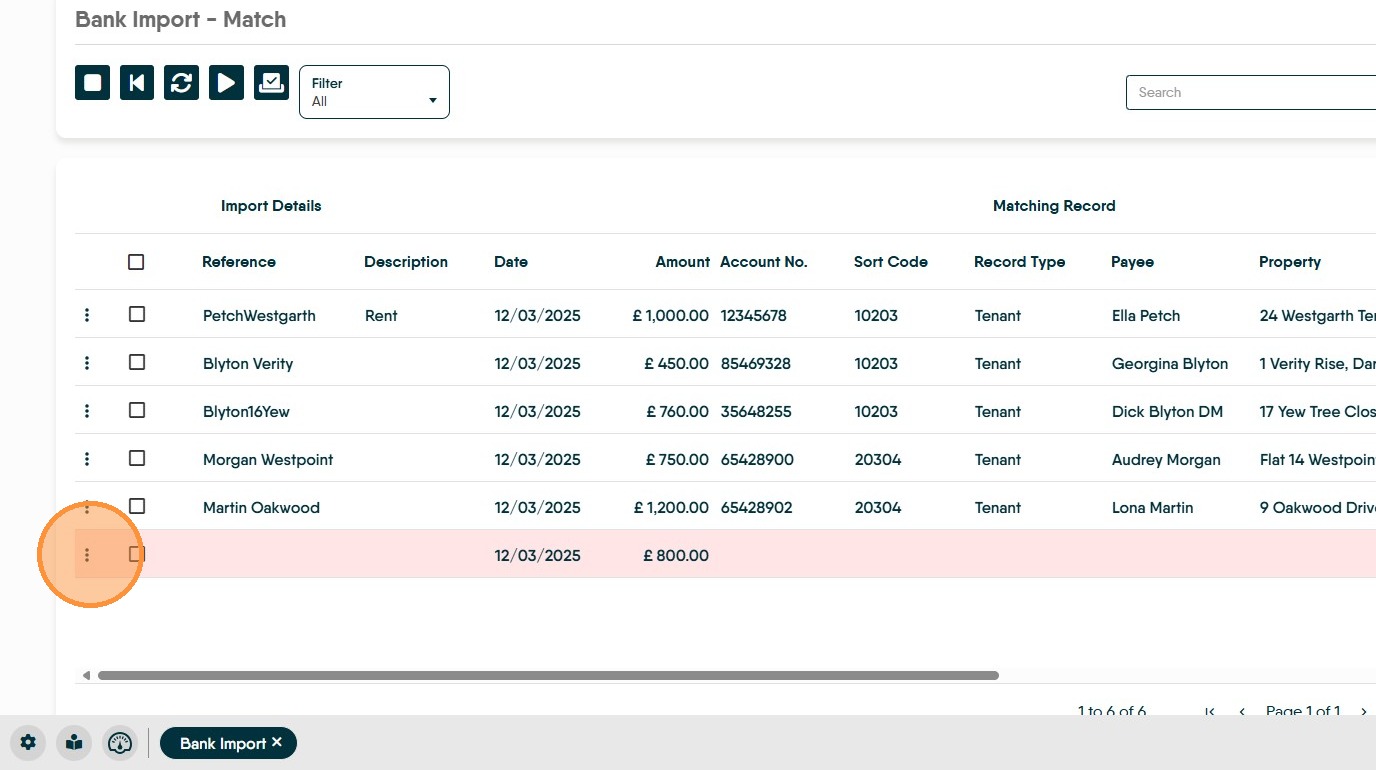
18. Click into the Import screen and using the information that you have in CRM etc. and try to work out who/what the payment is for. If there is a reference or description as part of the import this may help. For example, you can use the 'Rent' screen in the accounts dashboard to see who has (in this case) £800 invoice outstanding and work out from there who it may be.
If you cant track it down then you can either receipt the payment to a holding property and re allocate when the transaction can be tracked down, or leave the transaction uncollected till you can resolve it.

19. If you can resolve the payment. Click "Select record" and search for the payee
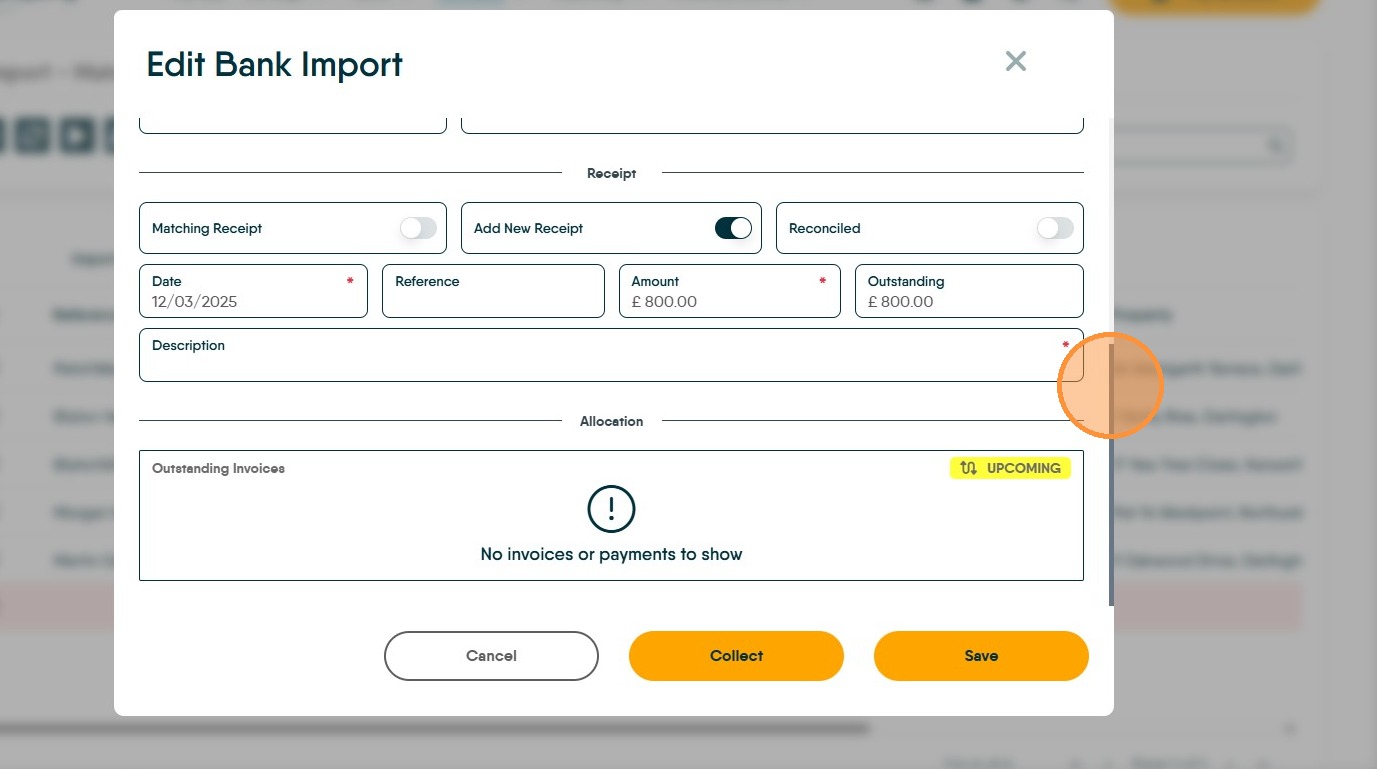
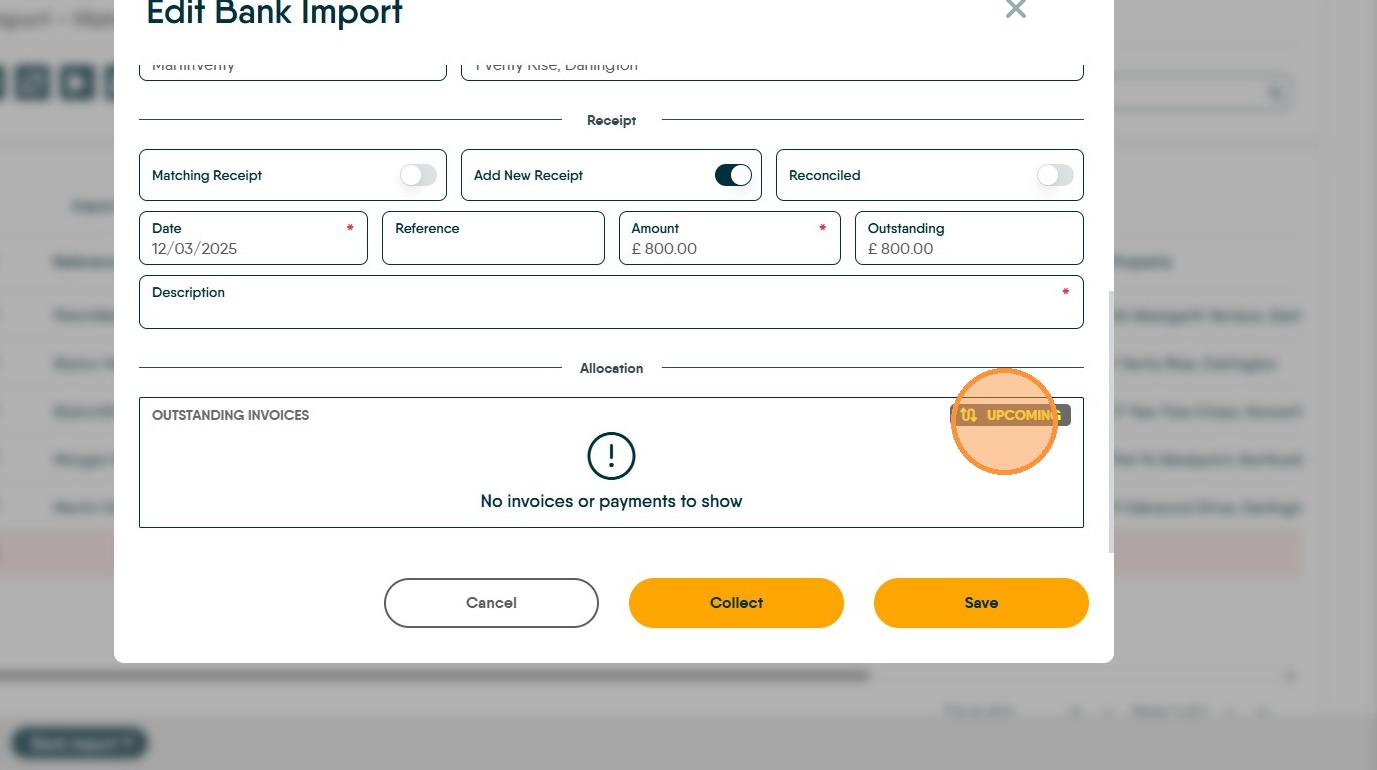
20. The outstanding invoices for that user will show on the screen and can be selected. For example if the payment is rent that is not yet due. Click "UPCOMING"
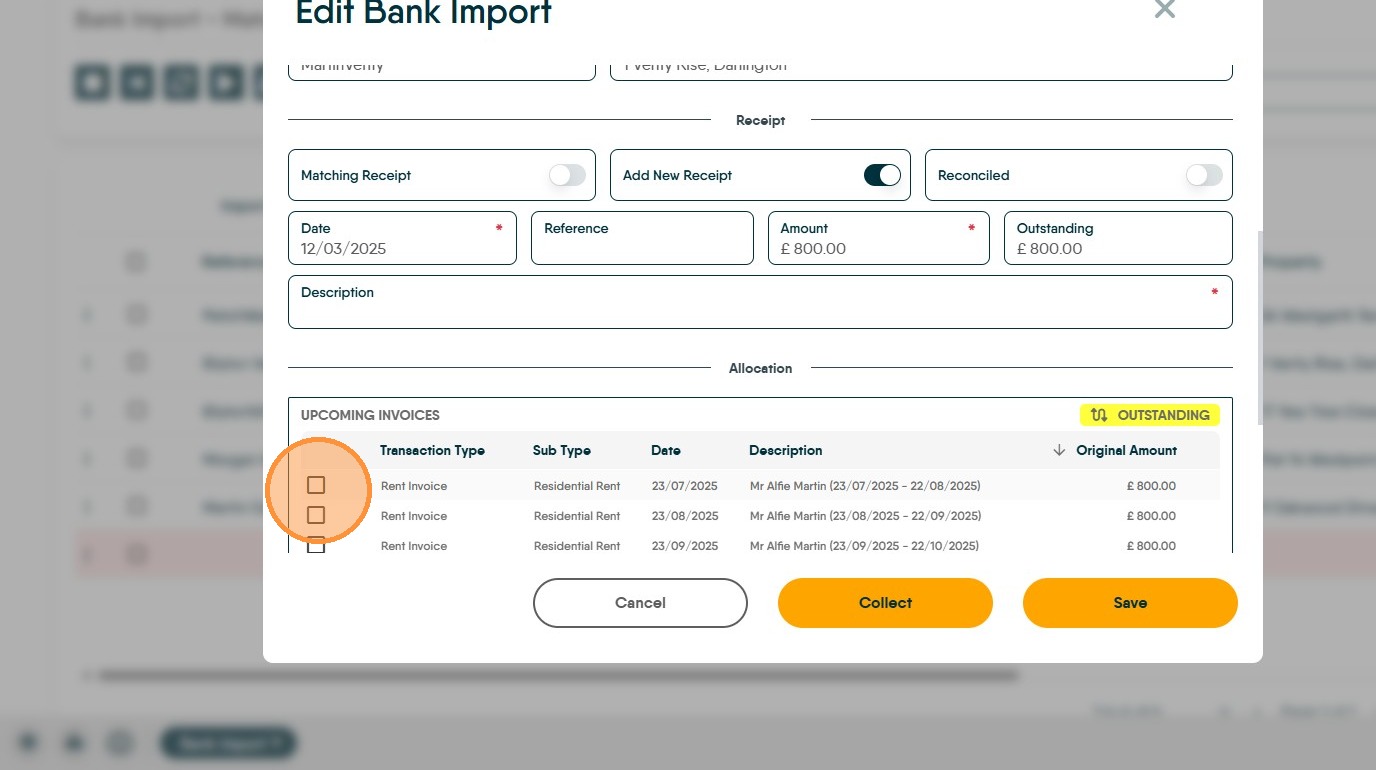
21. Then select the rent invoice you want to pay. Click this checkbox.
22. Add a description into the 'Description' field
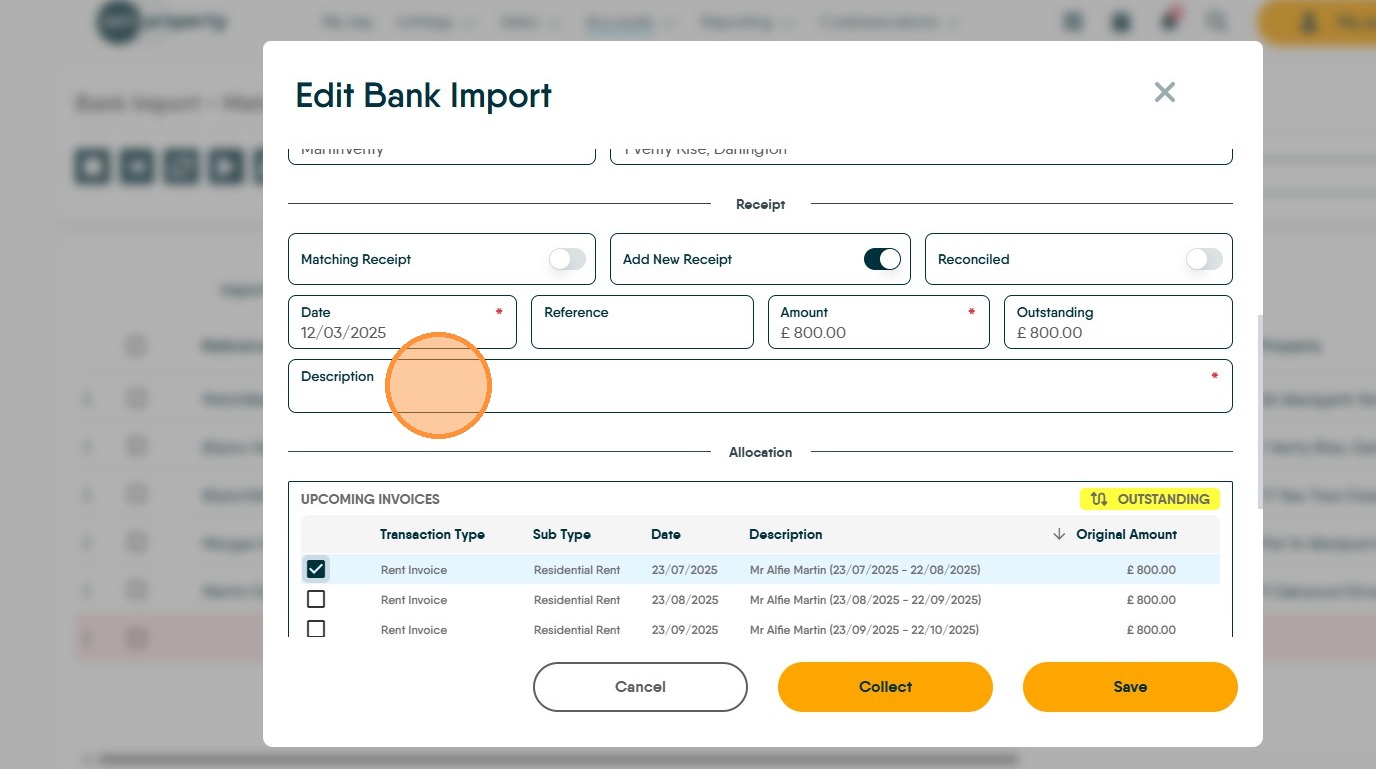
23. Click "Save" to change the line from red to green. Select the rows you want to collect now and process them.