This guide provides a step-by-step process for adding an Energy Performance Certificate (EPC) rating and certificate to your CRM system. It streamlines compliance management for property listings, ensuring you meet regulatory standards efficiently. Following these instructions can help enhance your property's appeal and marketability by showcasing its energy efficiency. Viewing this guide will save you time and ensure accuracy in your compliance documentation.
1. Navigate to the property record you are adding the EPC to
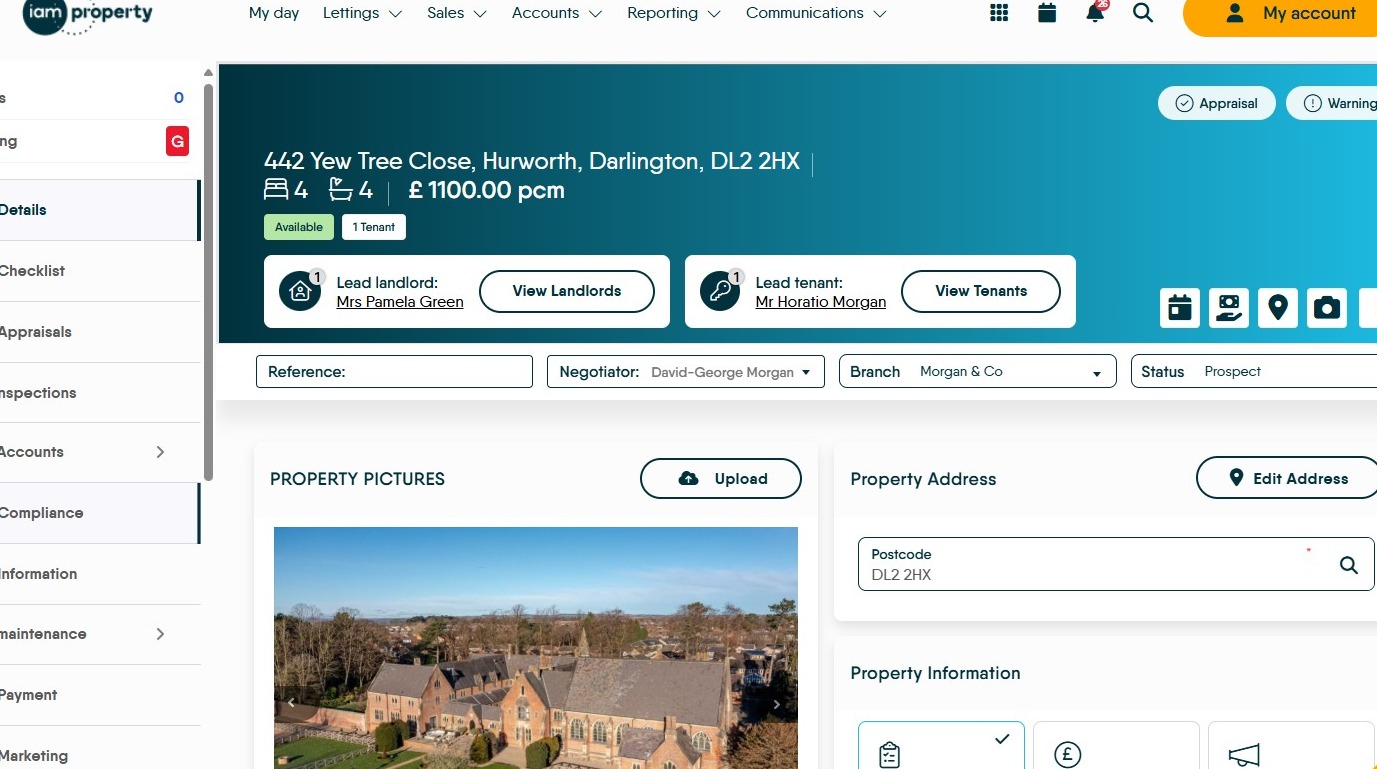
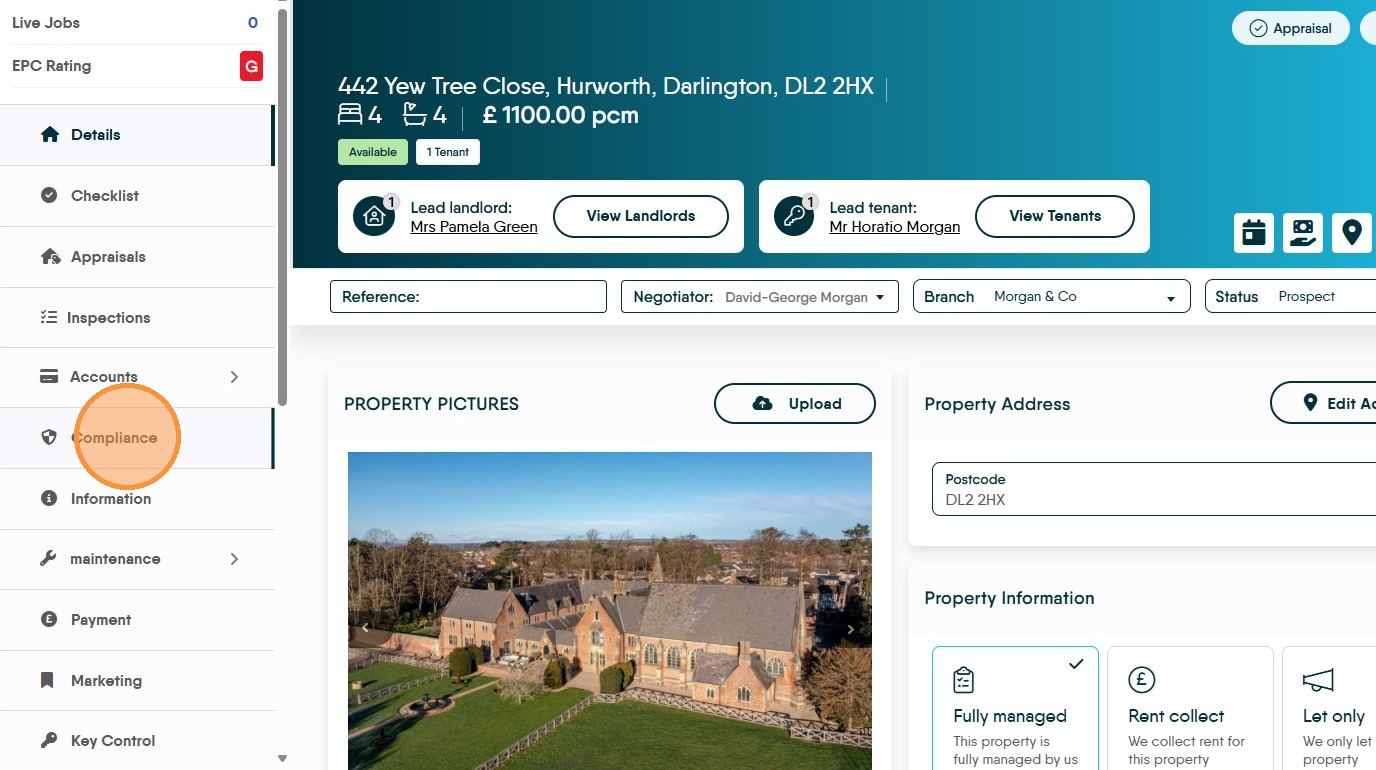
2. Click "Compliance"
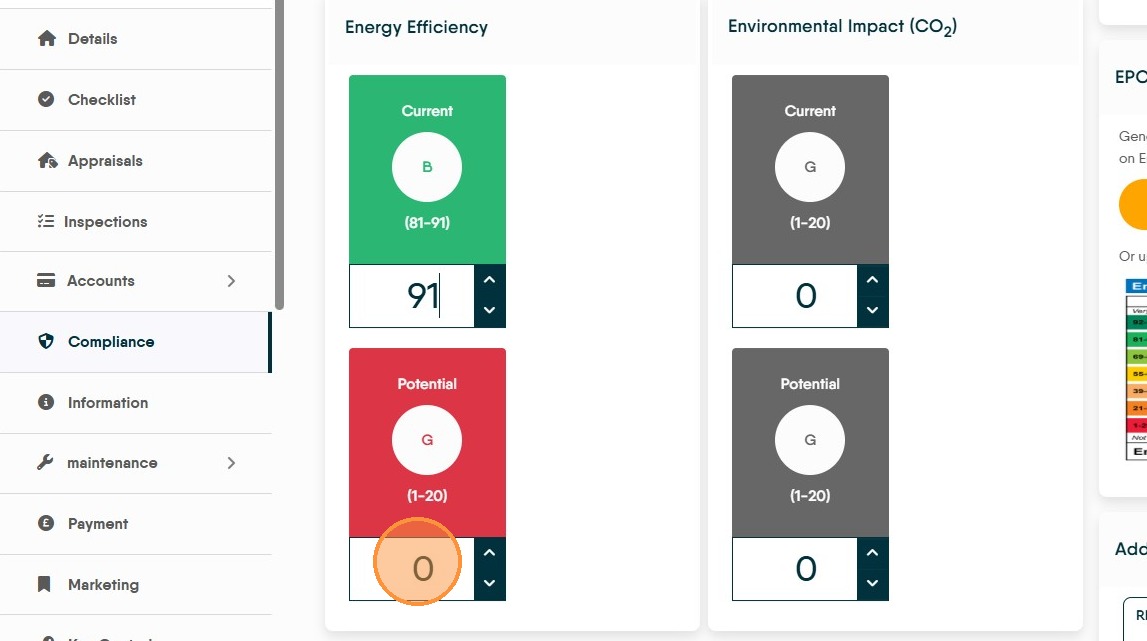
3. Click here and add the Current EPC rating.
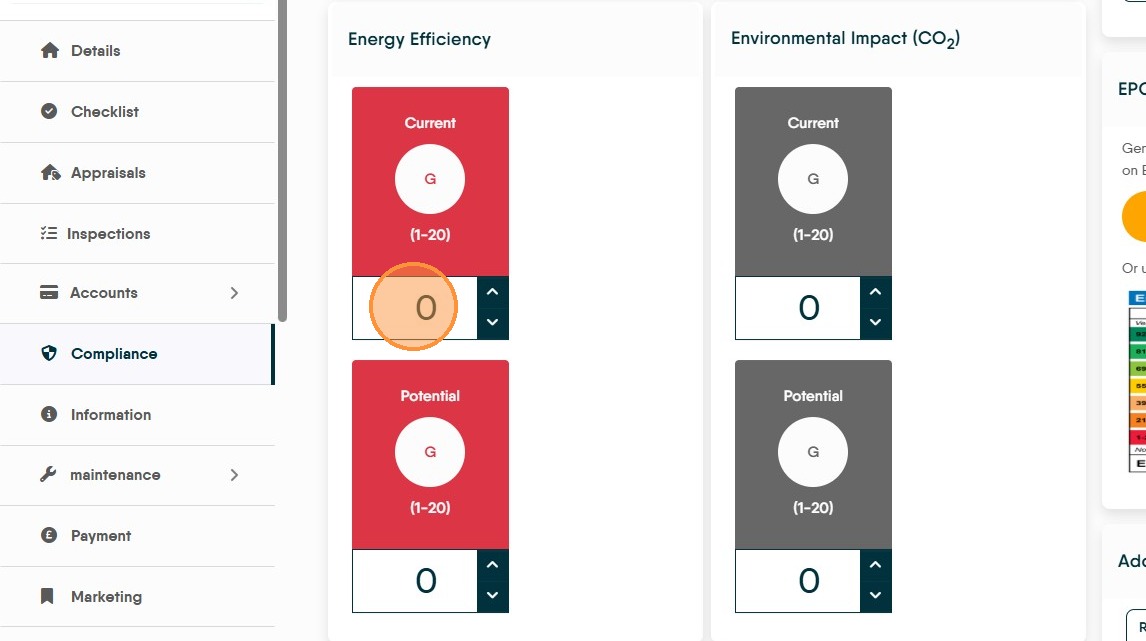
4. Click here and add the Potential EPC rating
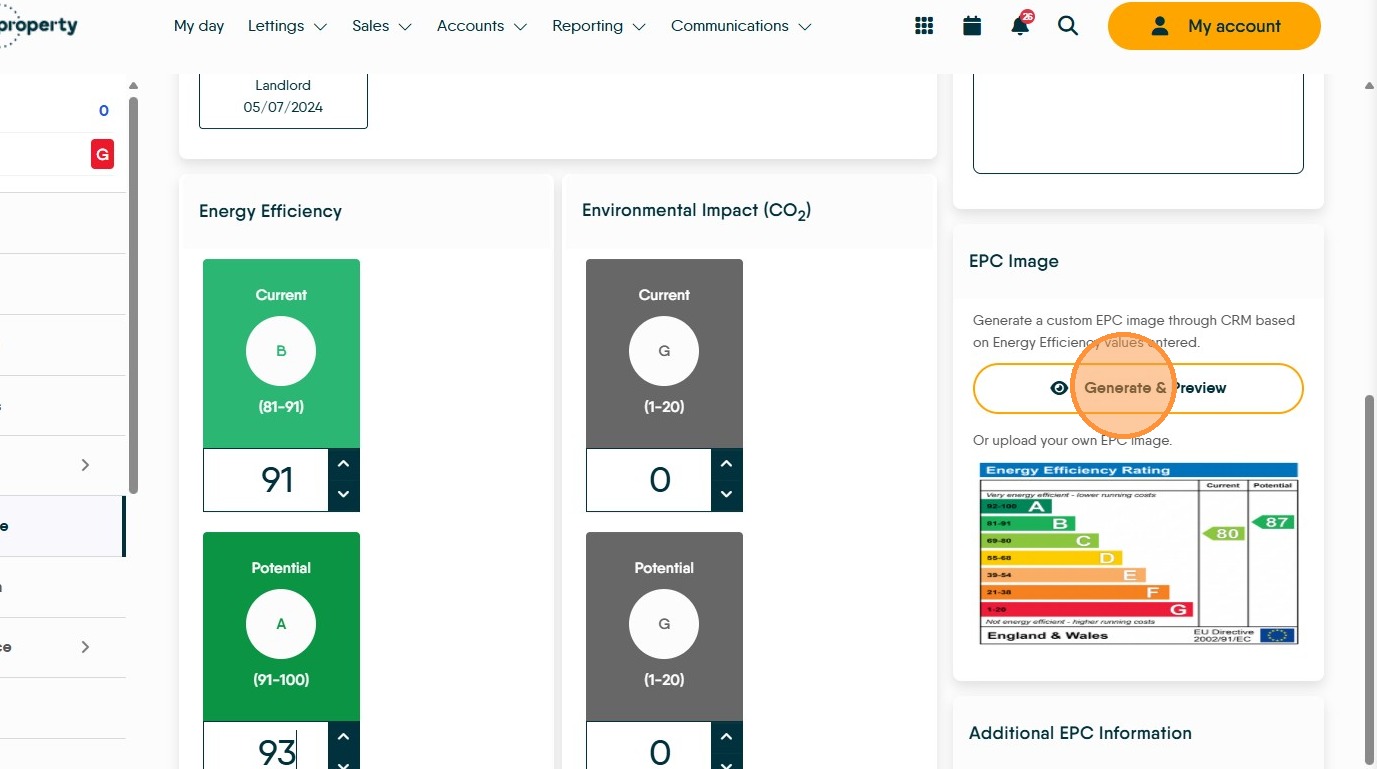
5. Click "Generate & Preview" this will create the EPC graph. If an EPC is already created for the property and you are updating it, follow the same process as above and a new graph will be created to replace the current one.
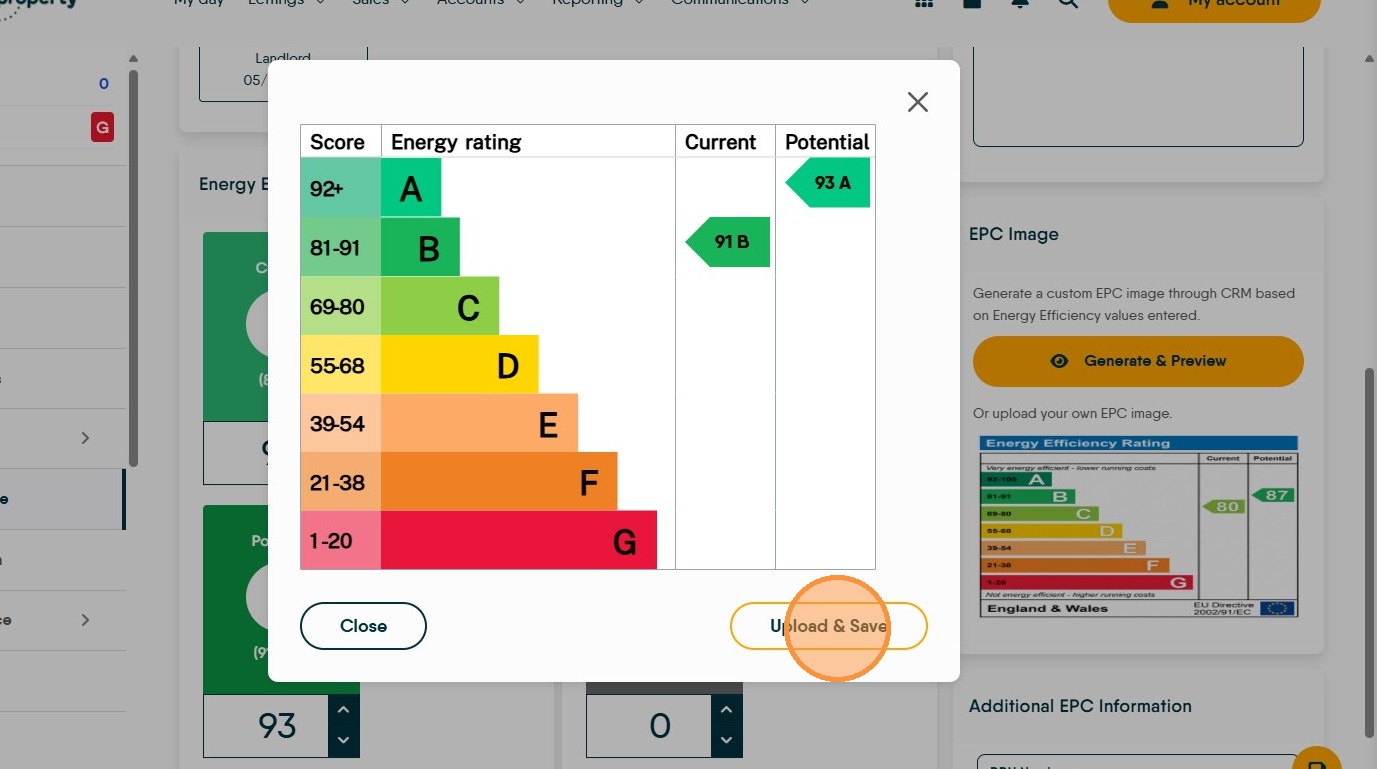
6. Click "Upload & Save" this will update and upload the EPC graph image to the media folder for the property.
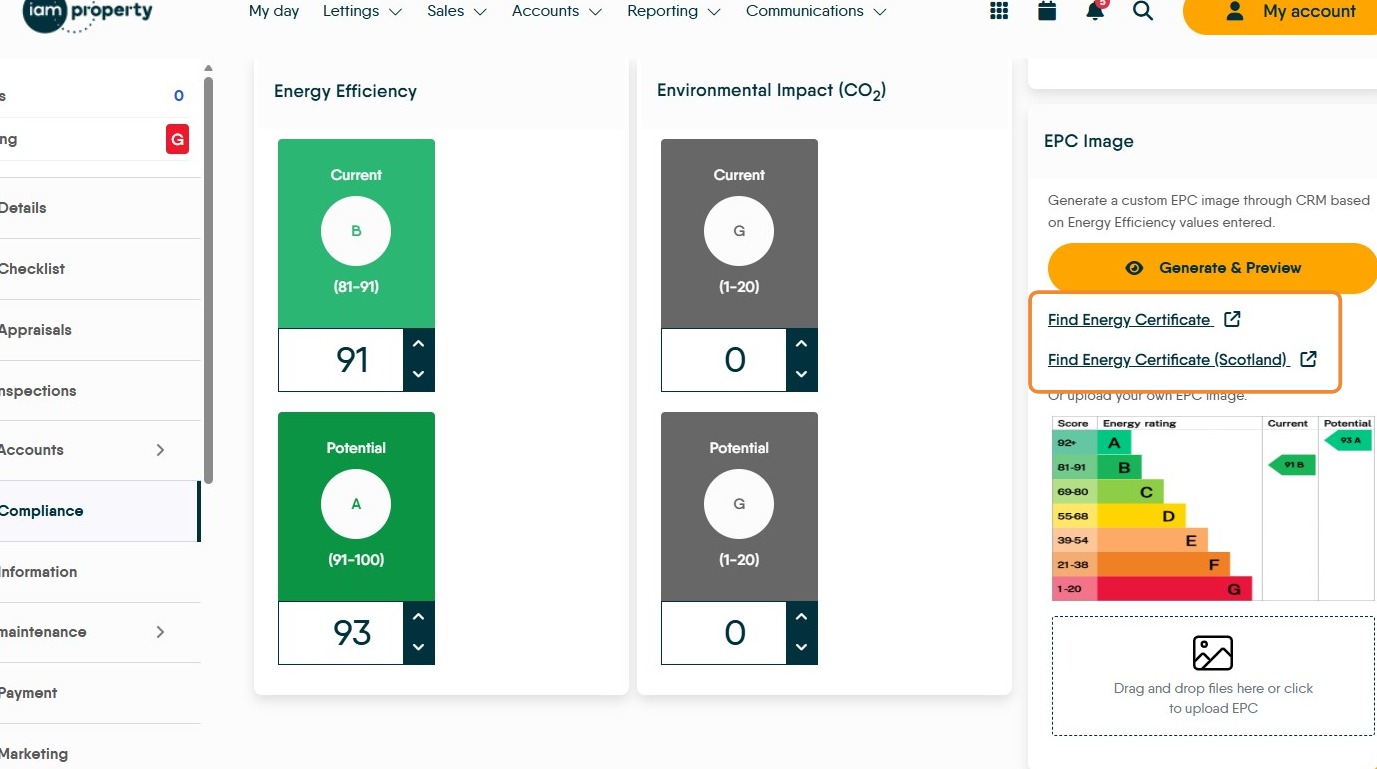
Tip: Tip! Updated Information
To find the EPC details you can now search directly from the CRM Compliance screen, as shown below.
7. If you dont have the accurate EPC information or want to add the certificate detaisl. Click "Find Energy Certificate"
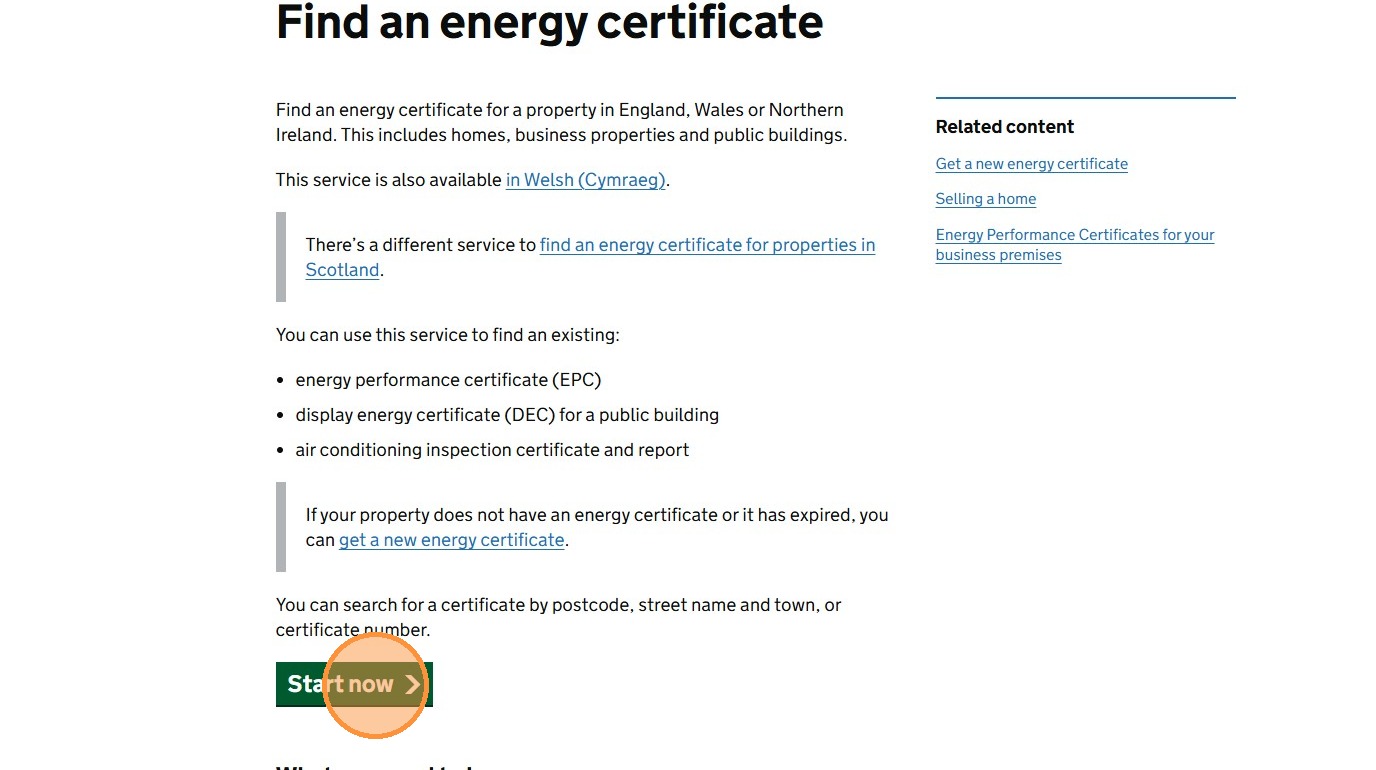
8. Click "Start now" and follow the process through.
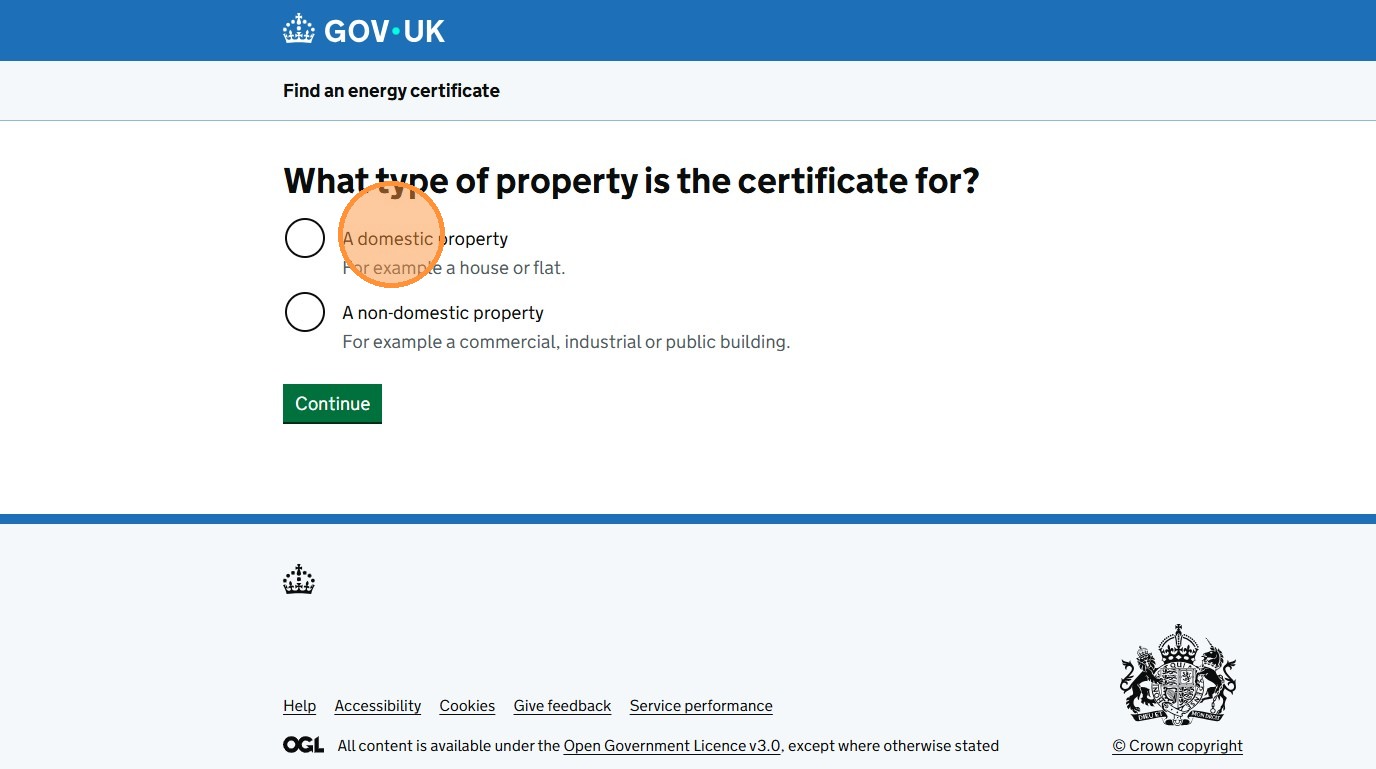
9. Click "A domestic property" (unless it isnt!)
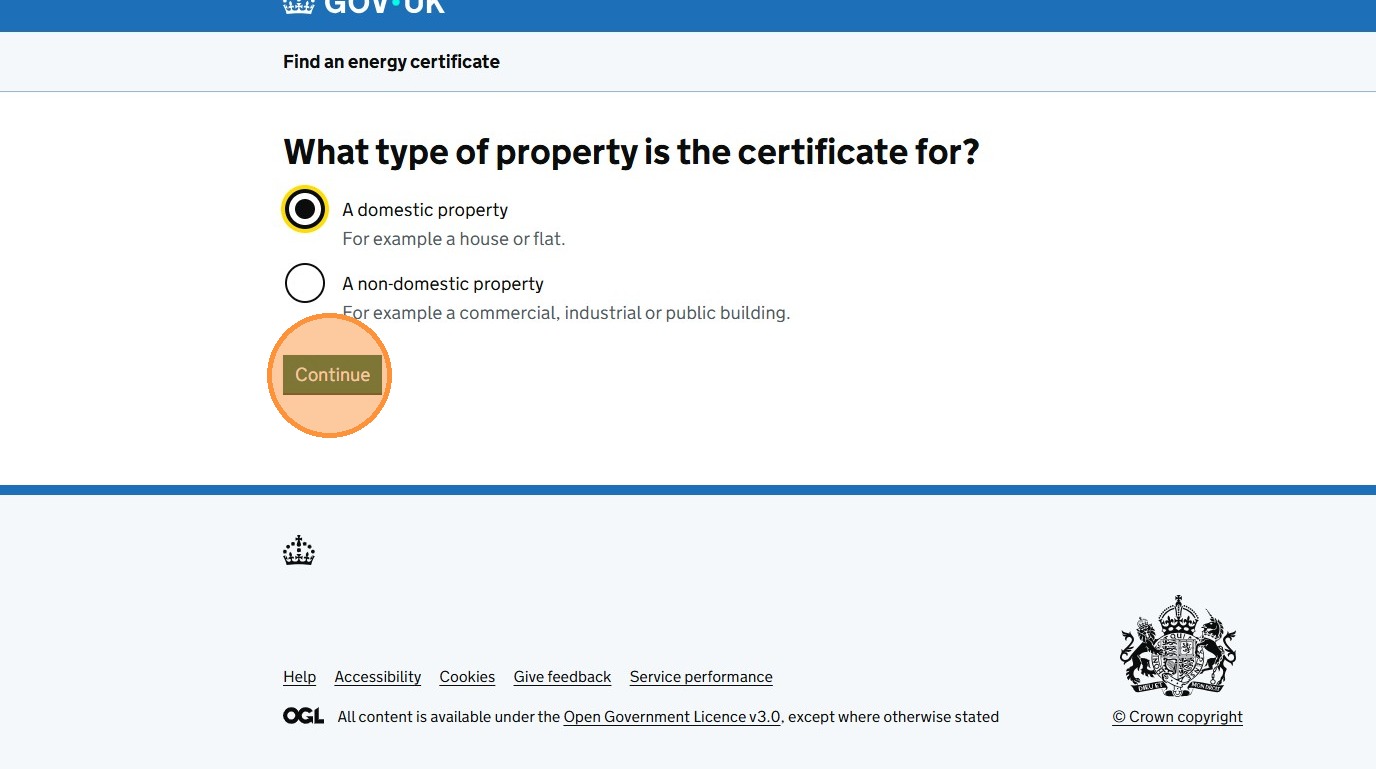
10. Click "Continue"
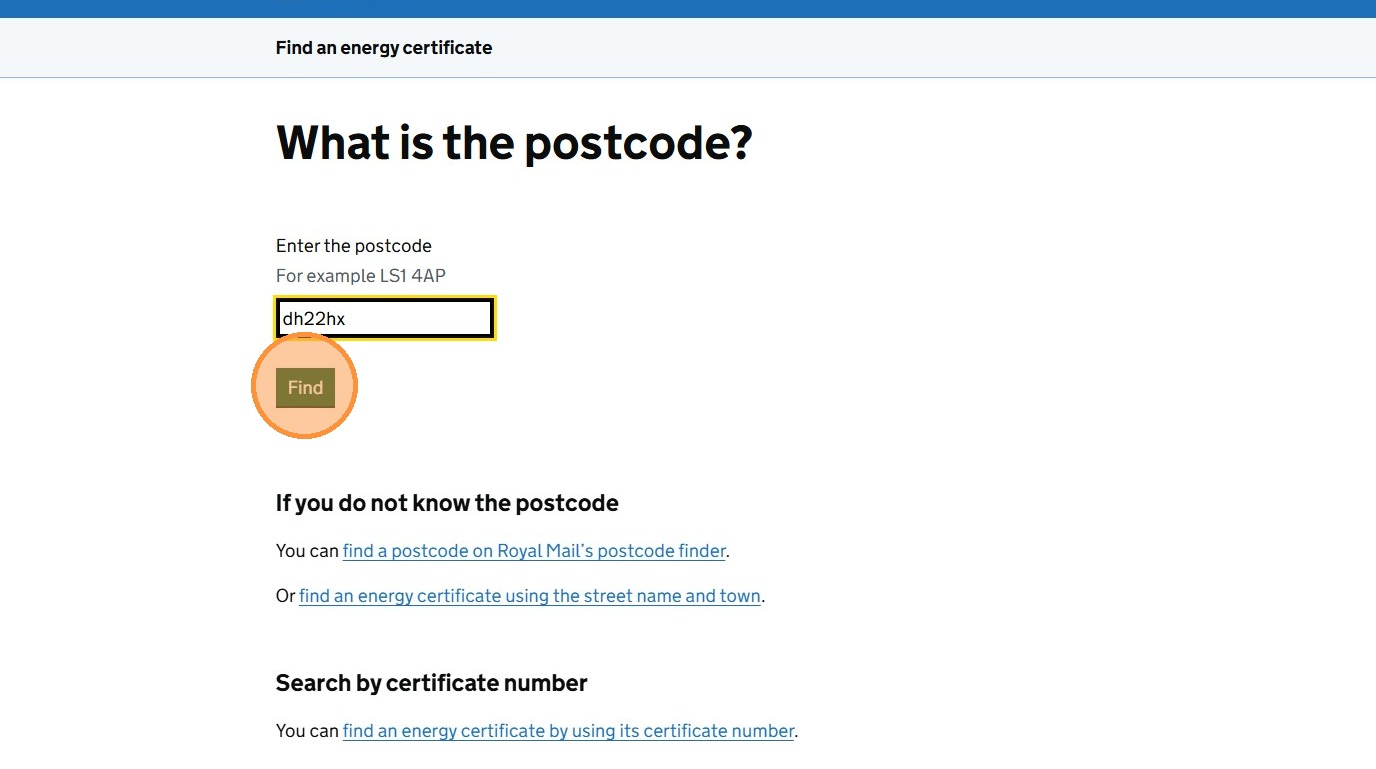
11. Click the "Enter the postcode" field type the postcode. Click "Find"
12. The EPCs for that postcode will show on the screen. You will be able to see easily of the EPC are valid or not.
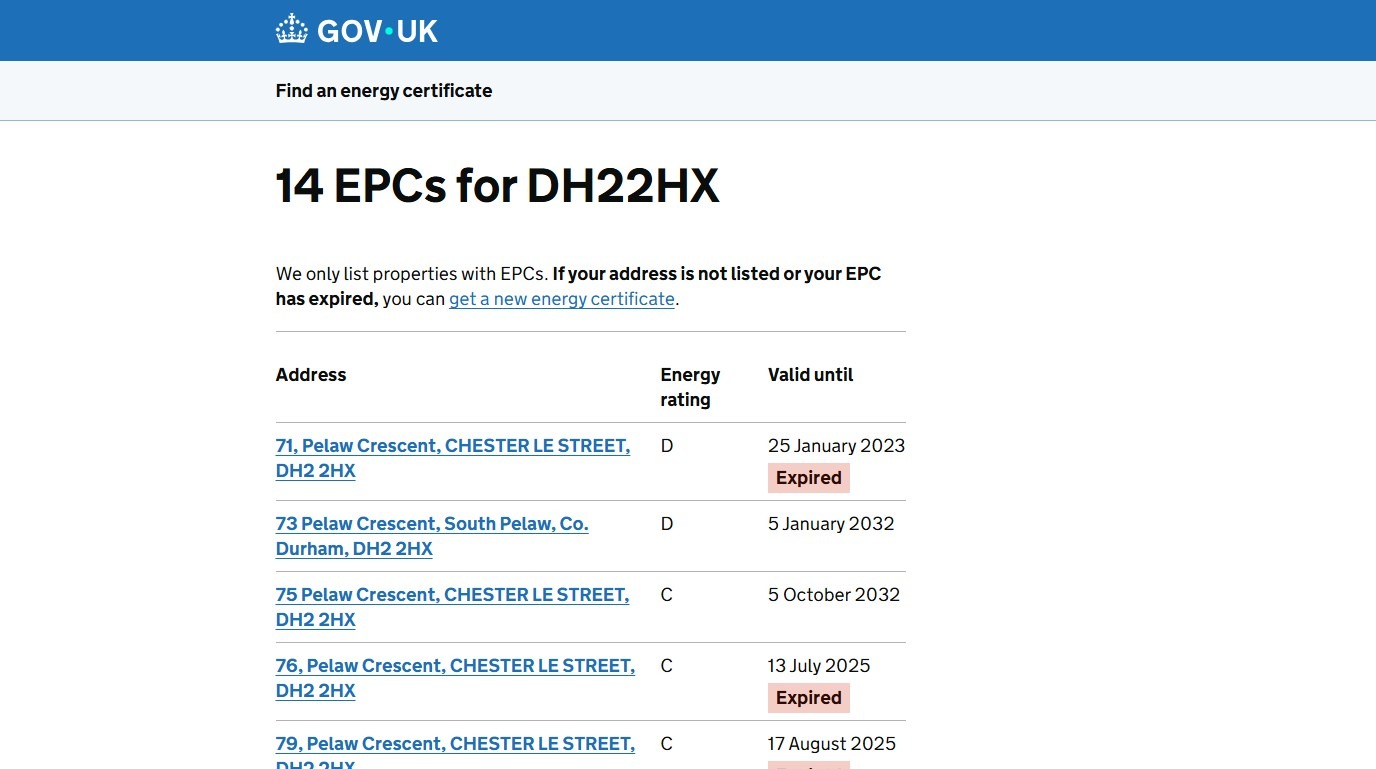
13. Select the required EPC
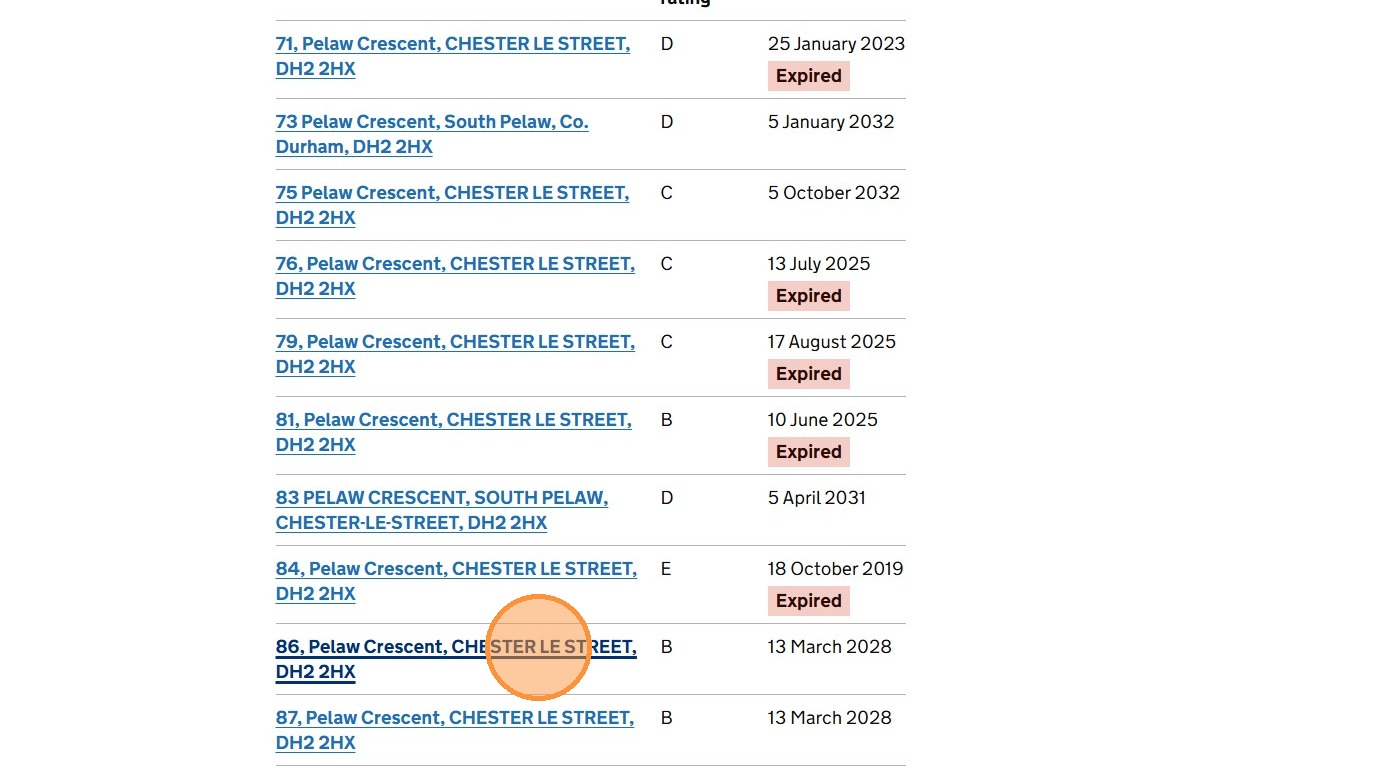
14. This will show the EPC details
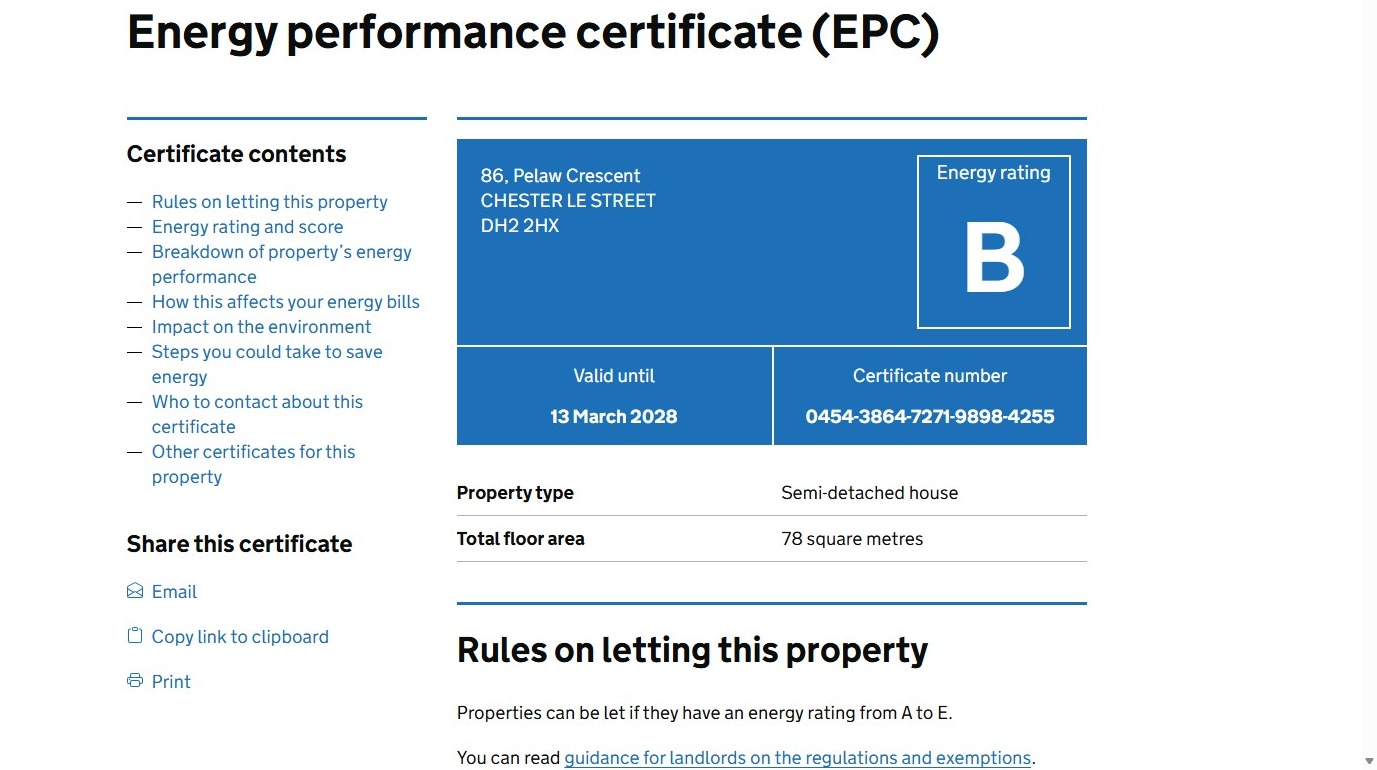
15. If you want to make a copy of this information. Click "Print" and (from Microsoft Print Manager) pick the option to save the print to PDF and save this PDF into the property record
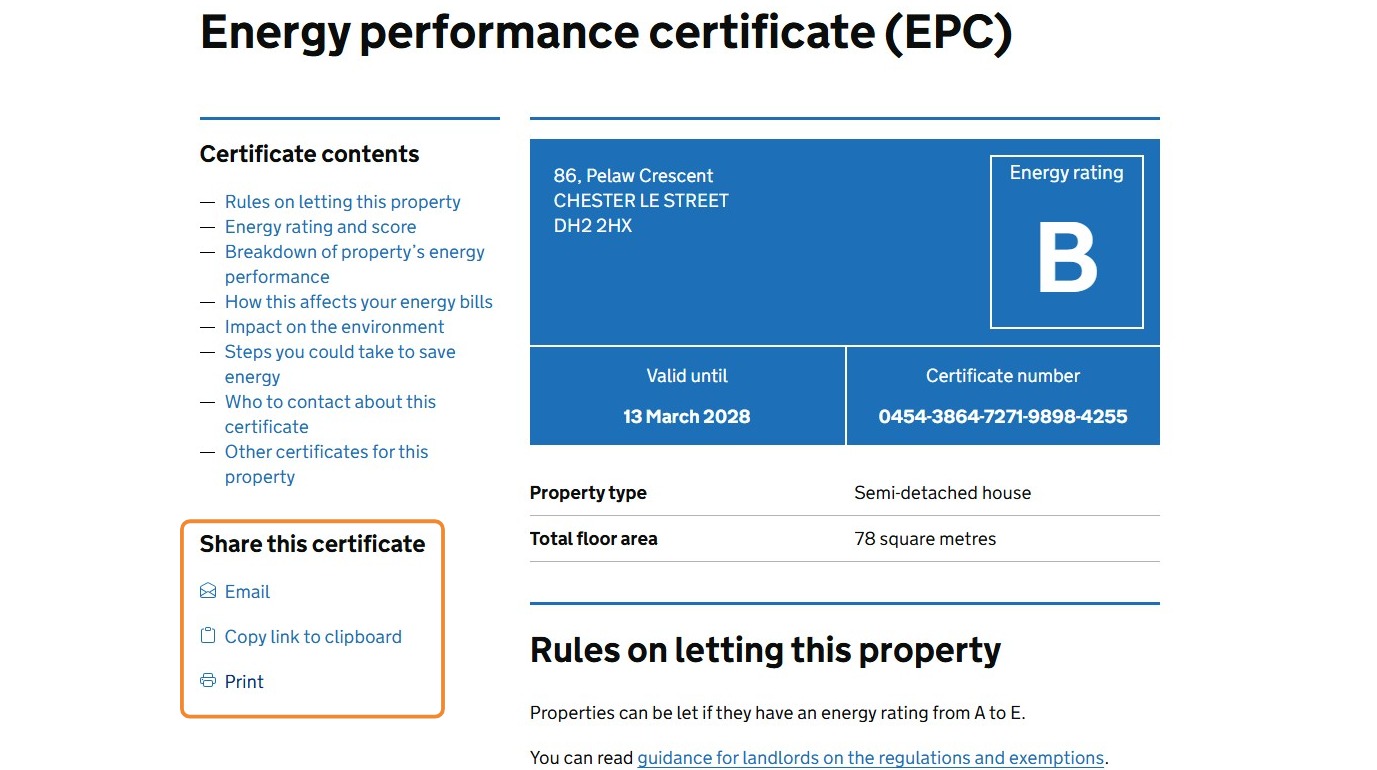
16. Click this text field to add the certificate number.
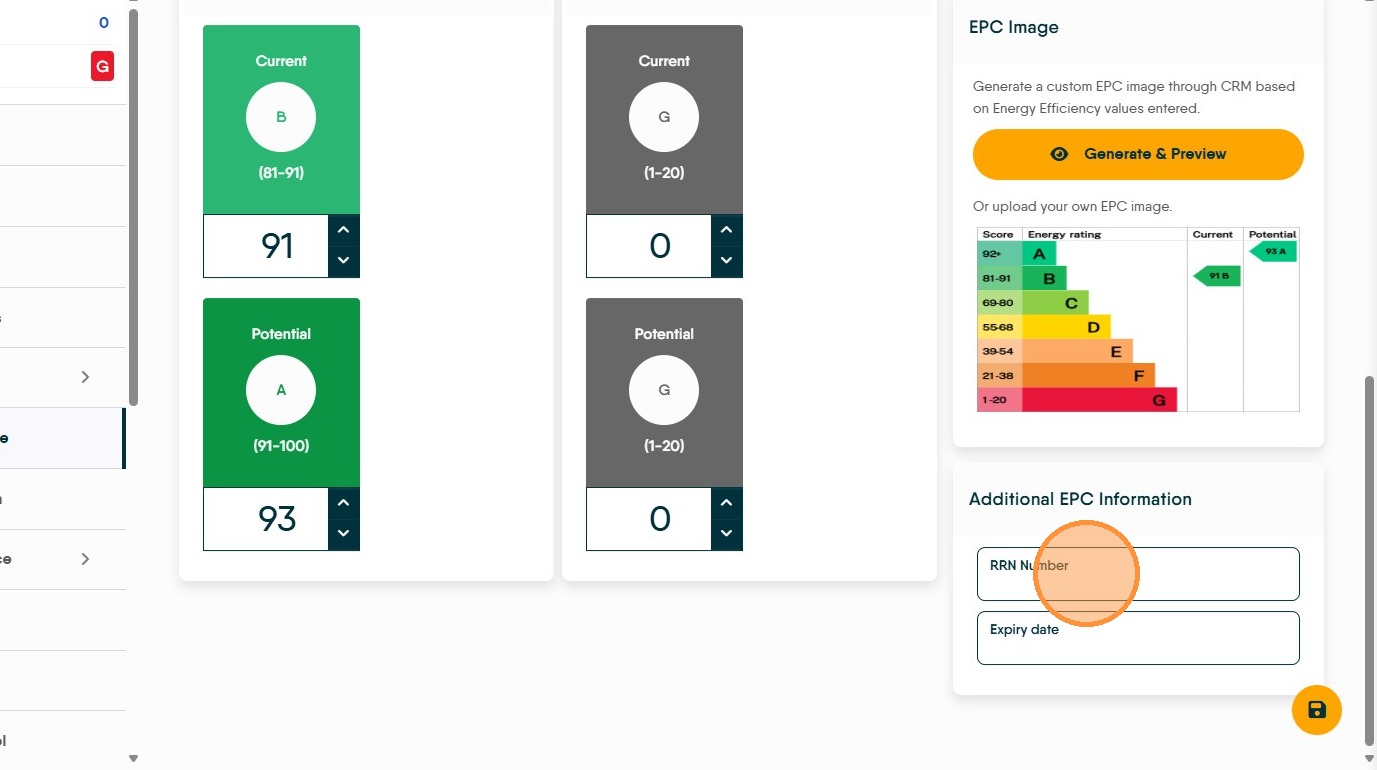
17. Click this text field to add the EPC expiry date.
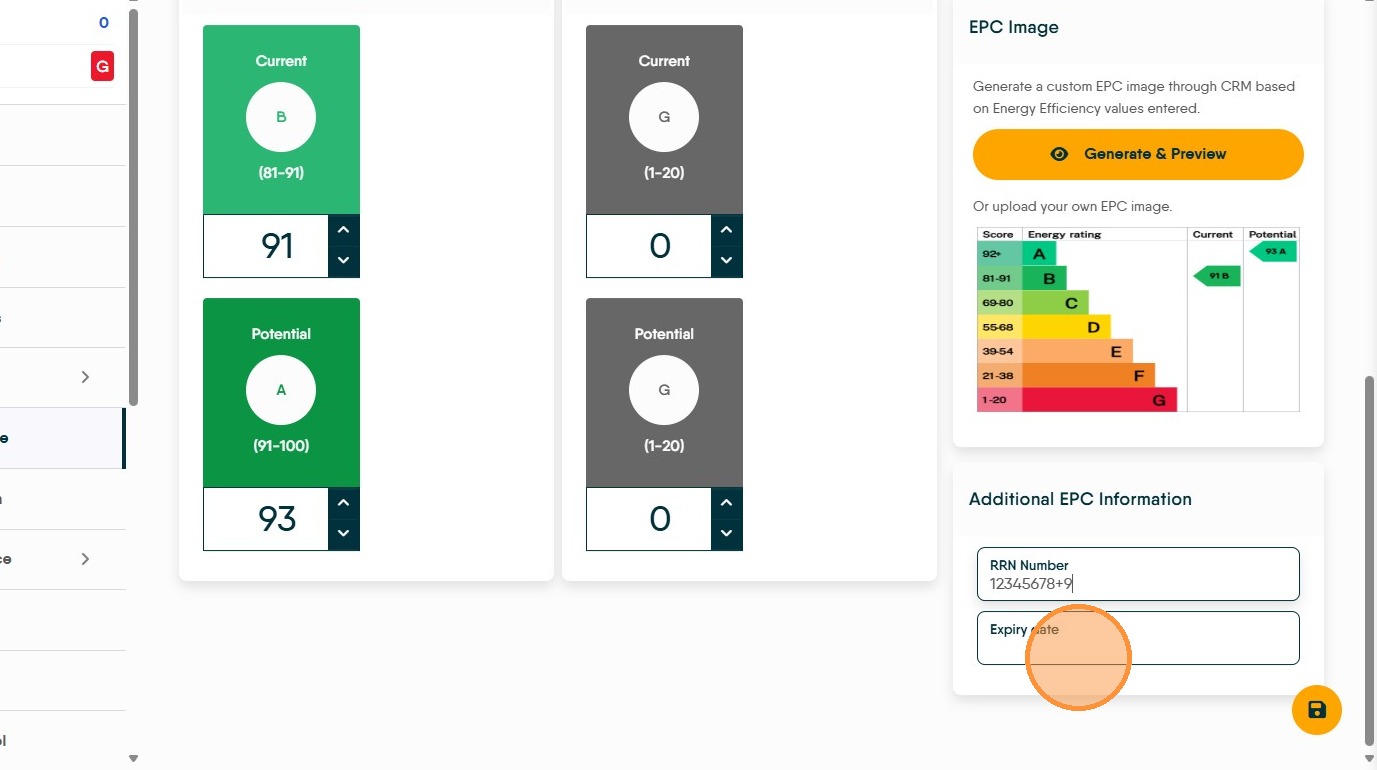
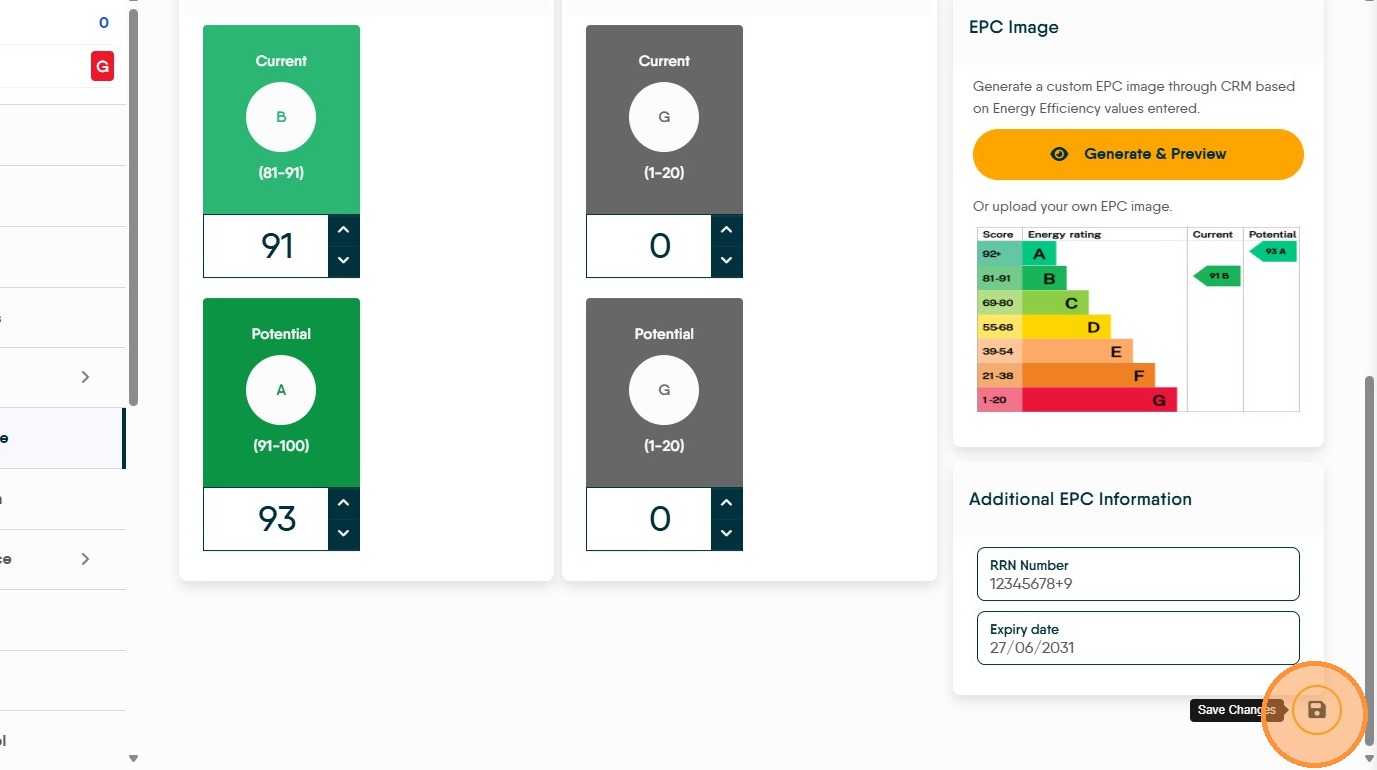
18. Click here to Save the new EPC.
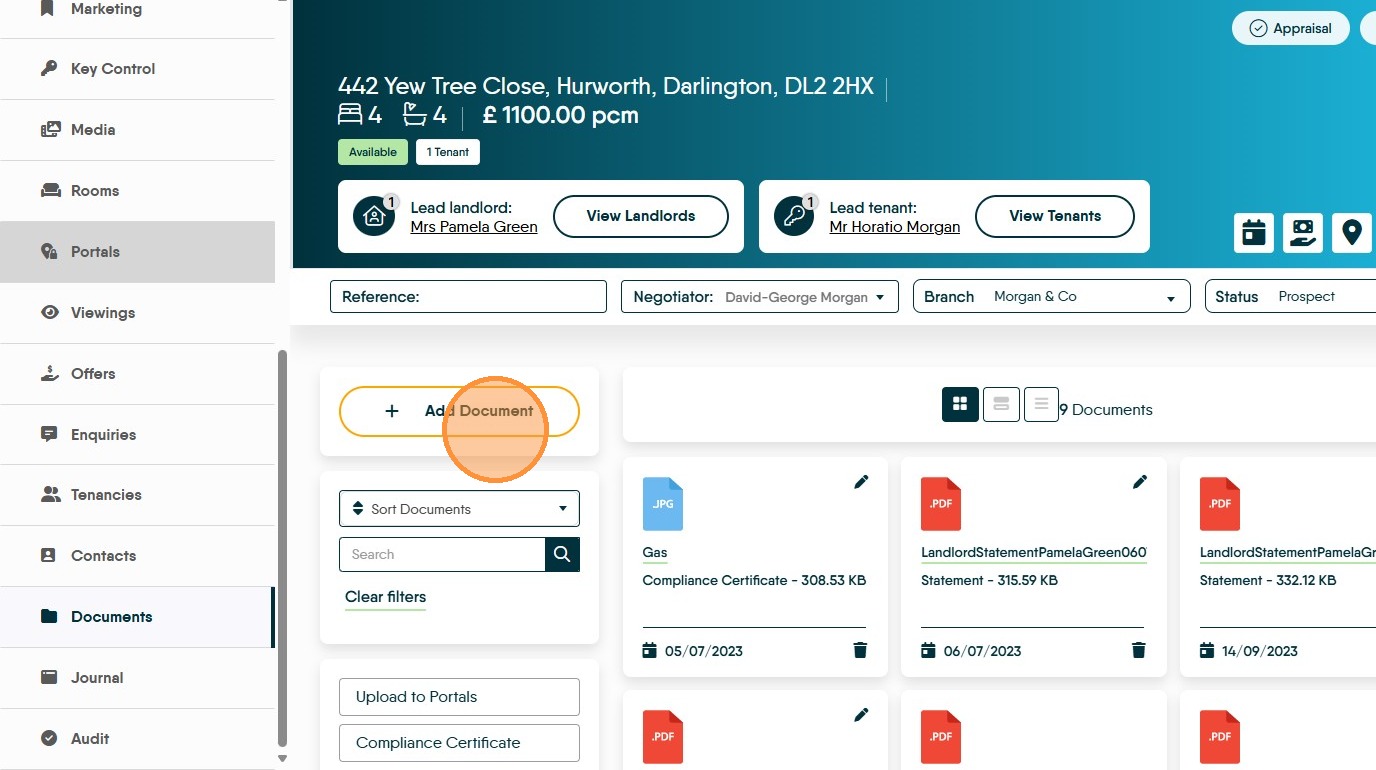

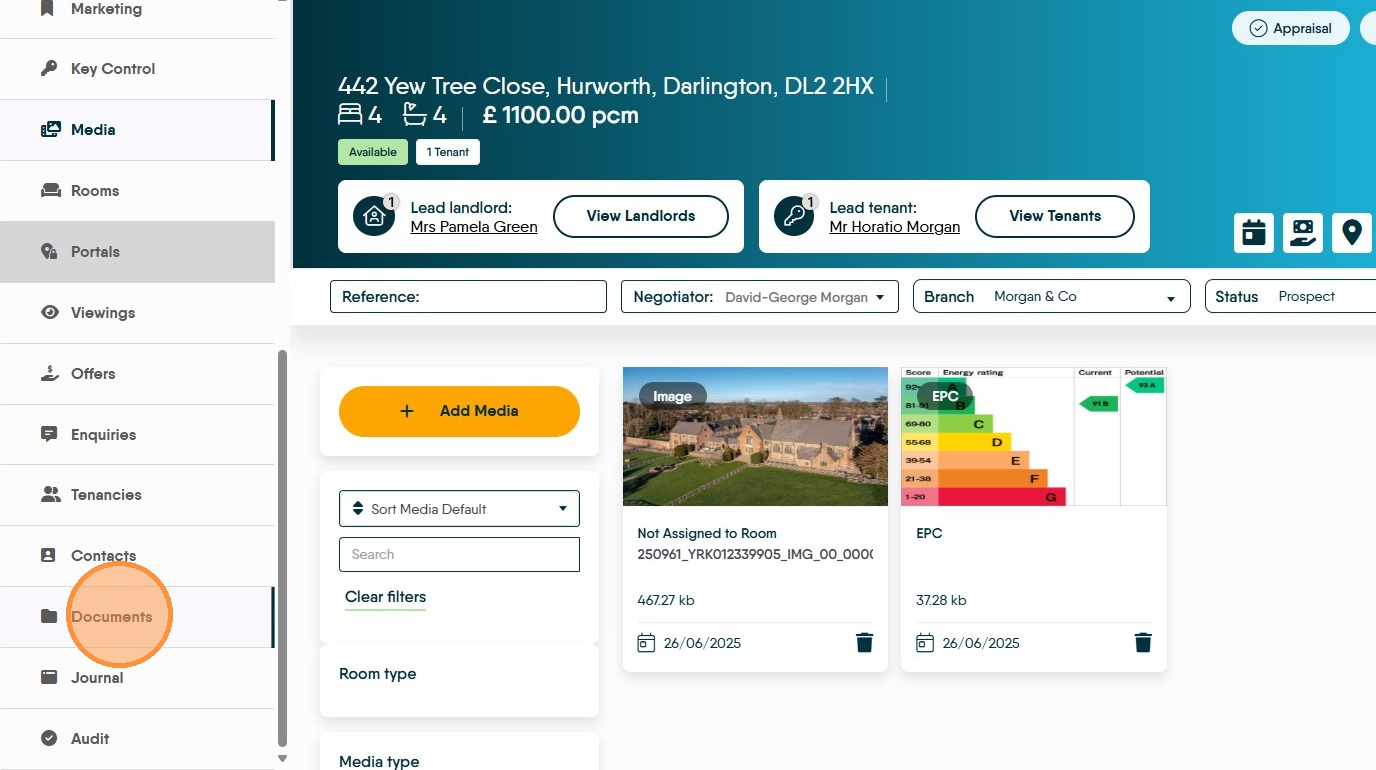
19. The EPC graph will be automatically added to the Media folder. Click "Media" to view
20. To add a copy of the certificate to the property record, click "Documents".
21. Click "Add Document" then search for and add the document to CRM