This guide provides a straightforward method for updating and adding to lookups by adding new status, improving the accuracy and usability of your property management system. Lookups are the drop down menus used in areas of the CRM This guide will look at adding a Lookup to a Sales Property, however the process is the same for all CRM lookups. Following the steps outlined will ensure that users can easily identify sold properties, facilitating better decision-making and reporting.
1. Navigate to https://crm.iamproperty.com/Dashboards/ControlCentre
2. Click "Configuration"

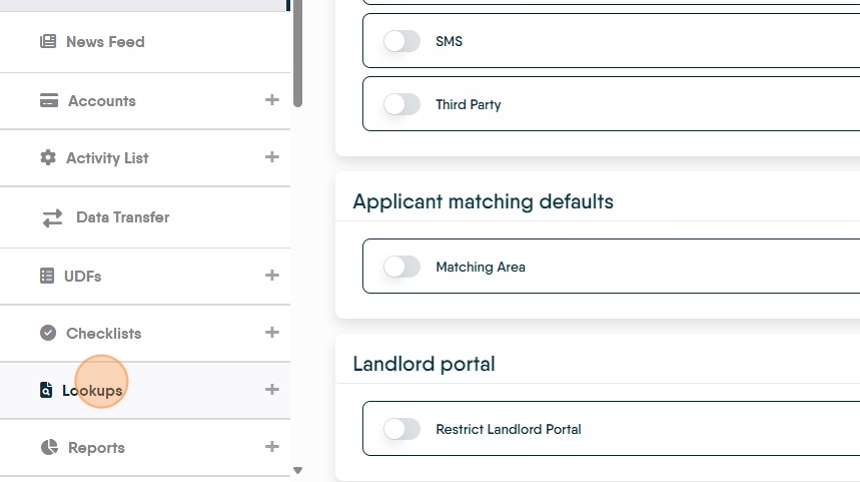
3. Click "Lookups"
4. There are 3 options in 'Lookups' Common (for menus that are across the whole of CRM) Lettings and Sales. In this case we click "Sales"

5. Click "Select a Lookup" there are multiple options in the list, select the option you want to edit. n.b. you cannot add a new lookup option.

6. As an example. Click "Property Statuses"

7. Click "add new Lookup"

8. Click this text field and give your new lookup a name.

9. Click "Save Option" you can create and save multiple options at a time.

10. To activate all the newly created menu options. Click "Add All" to only activate one, select the option to add and click on 'Add'

Tip: Tip! This will make the Lookup available for all users, in that Branch, as soon as the lookup is created. If there are multiple branches then the lookup needs to be created for each branch.