This guide provides a straightforward approach to configuring Vision+ Referencing Checks. It breaks down the configuration steps clearly, ensuring that even those with minimal technical expertise can follow along. By leveraging this guide, users can enhance their CRM functionality, improve efficiency, and ensure a smoother experience in managing client referencing. Don't miss out on optimising your property management workflow!
Alert: To use Vision+ you will need to have a Vision+ account and the associated Client ID and Secret key.
If you require a contact at Vision+ please ask Support (crm.support@iamproperty.com) or Training (crm.training@iamproperty.com)
1. Navigate to https://uat-feature.vtopenview.com/MyDay
2. Click "My account"

3. Click "Control centre"

4. Click "Configuration"

5. From the Configuration menu click "Referencing Checks(by Vision+)"
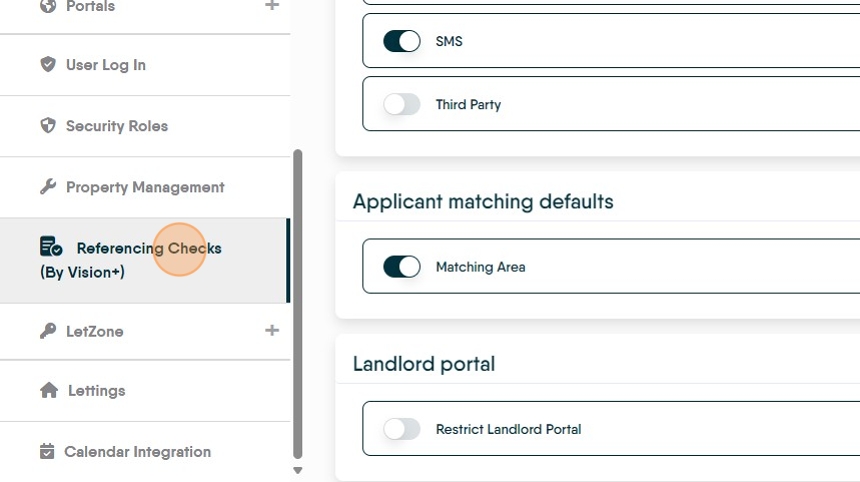
6. Click the "Client ID" field and enter your Client ID. (These are supplied by Vision+)

7. Click the "Client Secret" field and enter your code. (These are supplied by Vision+)
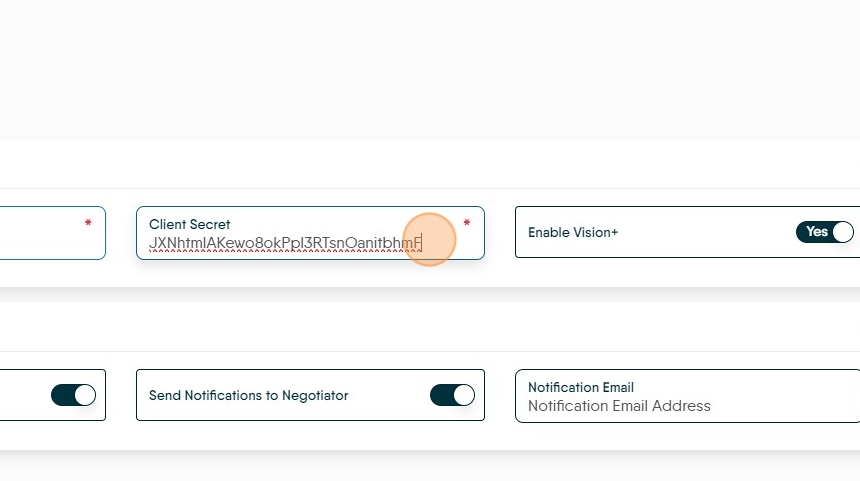
8. Click "Enable Vision+"

9. Click here to enable notifications to be sent.

10. Click here and enable if you want the Property Negotiator to get the notifications.
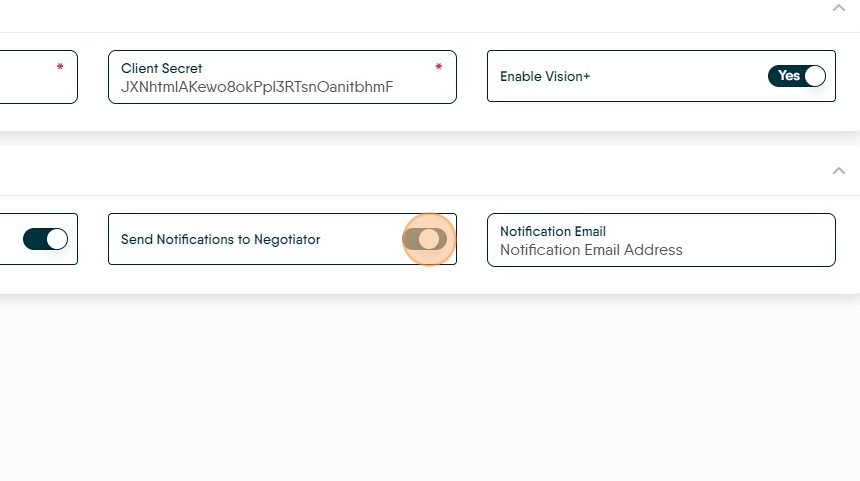
11. Click the "Notification Email" field.

12. Click here to save the settings.
