It is essential for users of iamproperty CRM ensure compliance with GDPR regulations to help effectively manage client communications. This guide provides a step-by-step process to set default GDPR preferences, which is crucial for enabling key CRM features like property matching and marketing outreach. By following this guide, users can personalise client permissions and avoid potential issues related to data privacy.
1. Navigate to https://crm.iamproperty.com/MyDay
Tip: Tip! This process will allow you to set a default GDPR setting for all new 'person' records added to the CRM after you have enabled to GDPR.
iamproperty CRM will not stop you sending messages from CRM if the GDPR is not set, however the icons will be greyed out. Some features on CRM e.g. Matching properties/applicants will not work correctly without GDPR being setup and 'Marketing' allowed.
2. Click "My account"

3. Click "Control centre"
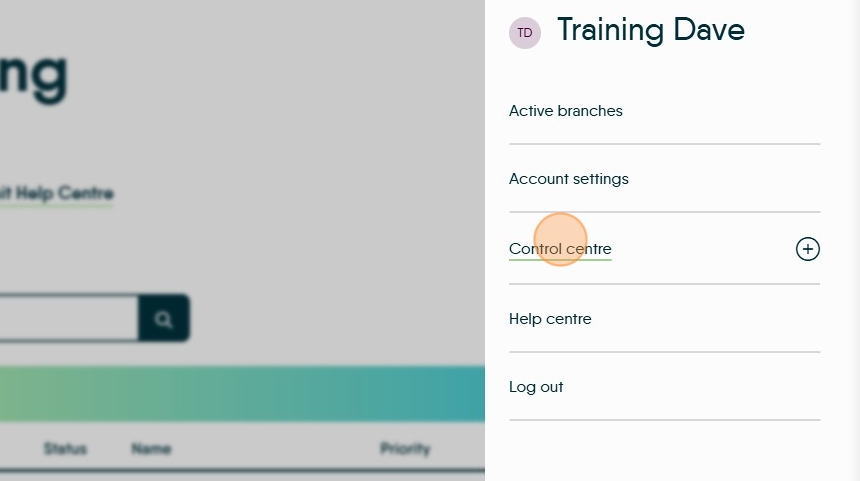
4. Click "Configuration"

Setting GDPR
5. General setting is the first menu option in 'Configuration'
Click here to begin setting the defaults.

6. Click here on each of the options that you want to enable for your client base.

Tip: If you have clients who specify they don't want to be contacted in a specific way. Turn off/disable that particular option in the specific client record.
Disabling a particular permission e.g. email will not stop you sending an email to a client.