This guide provides a step-by-step approach to effectively manage your personal account settings in CRM. By following these instructions, users can easily update personal information, adjust security settings. As well as access Control Centre and configuration settings.
1. Navigate to https://crm.iamproperty.com/MyDay
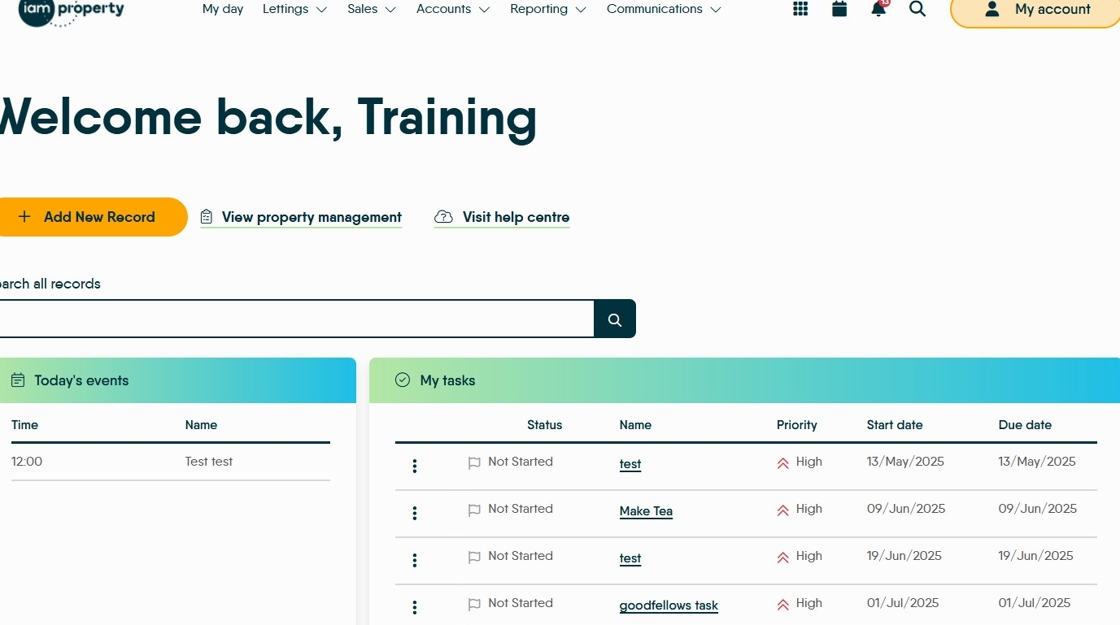
2. Click "My account"

3. This will show a menu with a number of items.
Active Branches will show all the branches that are currently active on the logged in users account. Branches can be selected or deselected here.

4. Click "Active branches"

5. Click the branch you want to enable or disable . Enabled are blue with a tick in the right corner, disabled are black.

6. Click "Save". The user will now be able to see the data for the selected branches.

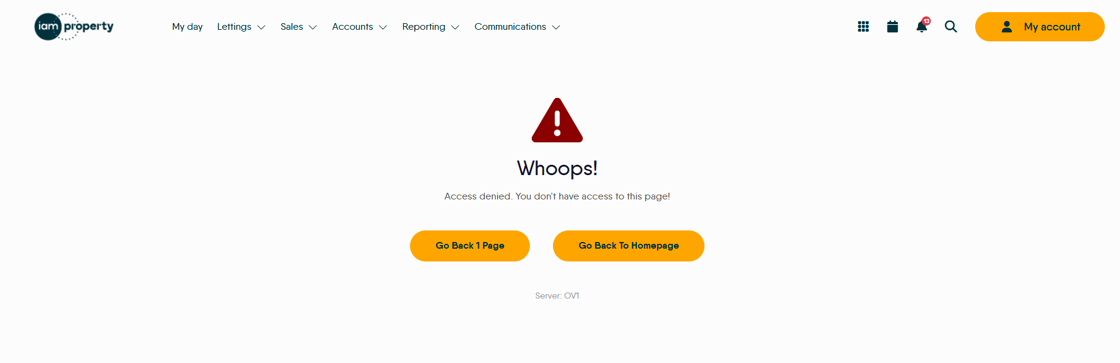
Tip: Tip! If you see an error message informing that access is denied, it is possible this is due to not having a particular branch enabled. Enable your other branches and retry.

7. Click "Account settings" this option will allow you to update your personal details in CRM. This is important to do as there are parts of CRM that look at this information to complete merge fields in message or letter templates.

8. Click this dropdown.

9. Click the "Forename" field and set the forename to be what you want CRM to call you.

10. Click the "Surname" field.

11. Click the "User name" field to update your username. You can use this to log into CRM rather than your email address.

12. Click the "Email Address" field.
Click the "Phone" field.
Click the "Mobile Phone" field.
Click the "Work phone" field.
Click "Save personal details"
13. Click "here to update your personal GDPR on CRM

14. Click here to change your password for CRM.
