
This guide provides a straightforward method for filtering records in the CRM using the 'Explore your...' (aka Search) view. By following the steps outlined, users can efficiently narrow down their results for a variety of record types applicant list, making it easier to manage and review potential candidates.
In this guide we look at the Lettings Applicants list, however there are similar options available for Sales records as well.
Records that can be sorted in the way detailed below are as follows;
Sales;
- Sales Applicant
- Vendor
- Sales Property
- Solicitors
- Sales Compliance (movebutler users only)
Lettings;
- Lettings Applicant
- Landlord
- Lettings Property
- Tenant
- Contractors
- Guarantors
2. Navigate to https://crm.iamproperty.com/MyDay

3. Click "Lettings"

4. Click "General"

5. Click "Applicants" or any option in the highlighted area.

6. Click "#all"

7. There are 2 views a 'tile' view, which is the standard view and can be re selected using the highlighted icon.
The key difference between the 2 options is the 'list' view can be sorted by the header rows and other options, further on in this guide.
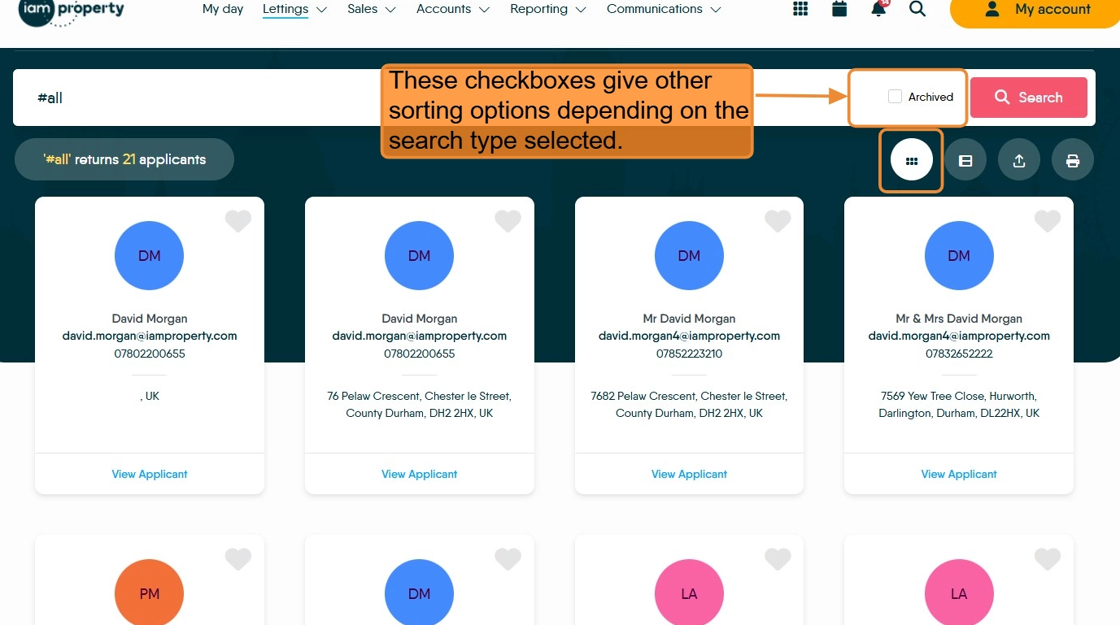
8. Click here to select the List view.

Alert: The CRM will always show the last chosen listing option Tile or List views.
9. The list view will display like this.
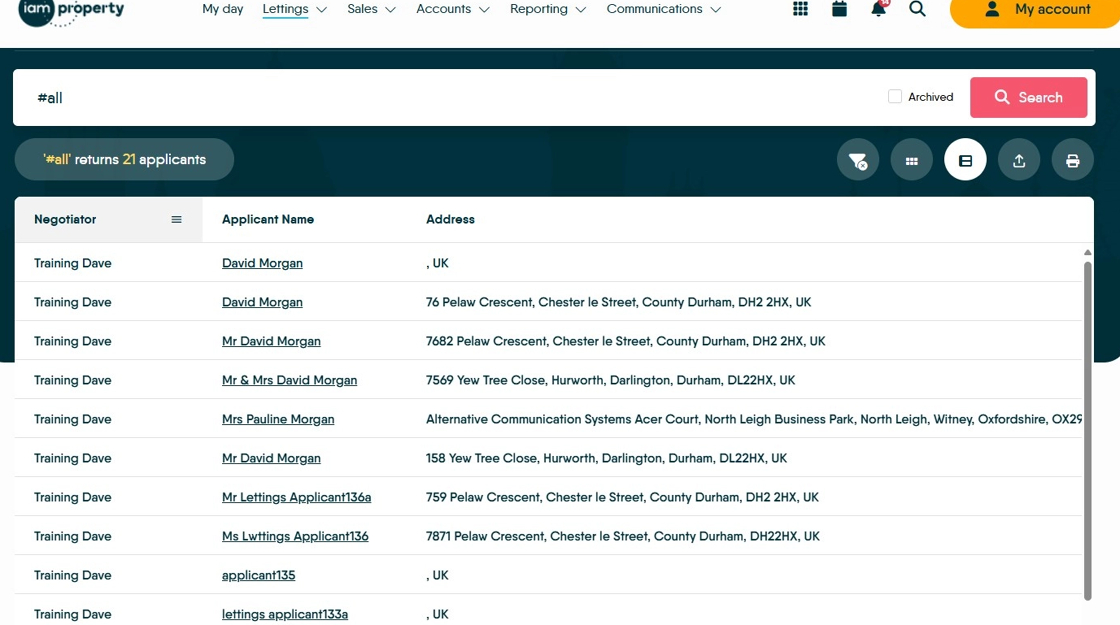
10. Any of the headings in the highlighted area can be selected and sorted.
This is across all areas of CRM, if there is a header line then, in most cases, it can be clicked on the sort the columns. The exceptions are Landlord and Tenant columns in some lists.

11. For example. Click "Applicant Name" and the column (and the rest of the data) will sort by Ascending, click again to sort via descending order.

12. Click here on the 3 line menu. This will allow you to filter the data in this column by your own search terms.

13. From this next screen, click "Contains"

14. You will then see a list of the options available. For example click "Equals" to find entries that match the search term you used.

15. Click the "Filter..." field. Enter your filter terms for that column.

16. Your search results will show on the screen. Selecting one of the highlighted icons will allow you to export the list to excel or PDF.

17. Click here to clear the filters you have created.

Comments
0 comments
Please sign in to leave a comment.