This guide outlines a clear process for adding the Reporting Dashboard module to specific branches and users within the CRM system. It ensures proper setup to enhance data analysis, support informed decision-making, and improve operational efficiency.
1. Navigate to https://crm.iamproperty.com/Dashboards/ControlCentre
2. Click into "Branches"

3. Click the branch you wish to add the Reporting Dashboard to. It will become highlighted in the list
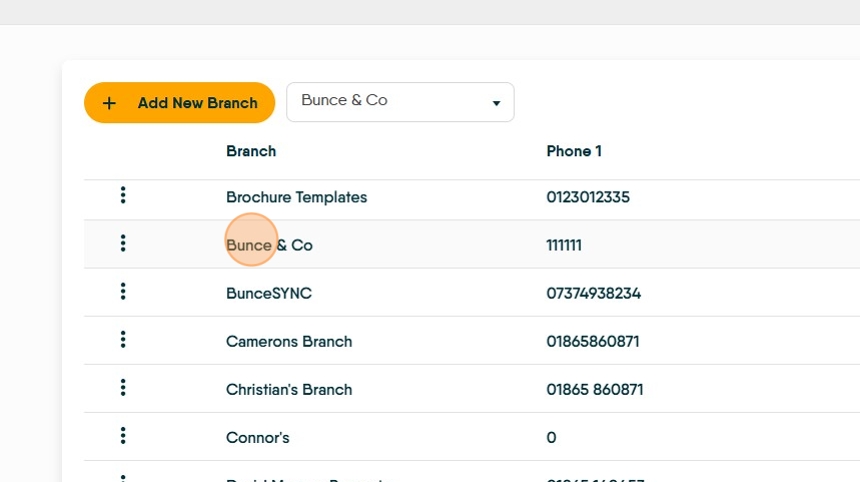
4. Click "Reporting Dashboard" in the module list. It will change from Red to Green.
If "Reporting Dashboard" is already green then the branch already has it, so skip this step.

5. Return to "Control Centre"

6. Click into "Users"
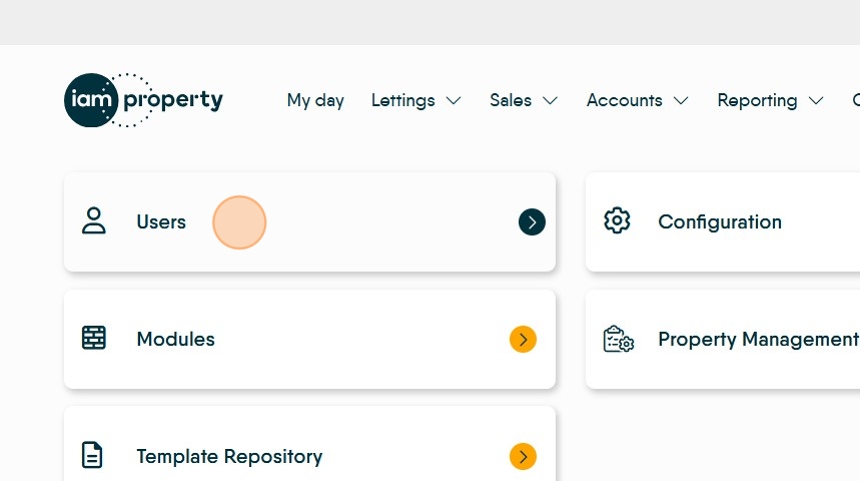
7. Uncheck the top listed user

8. Search for, or locate in the list, the user you wish to update
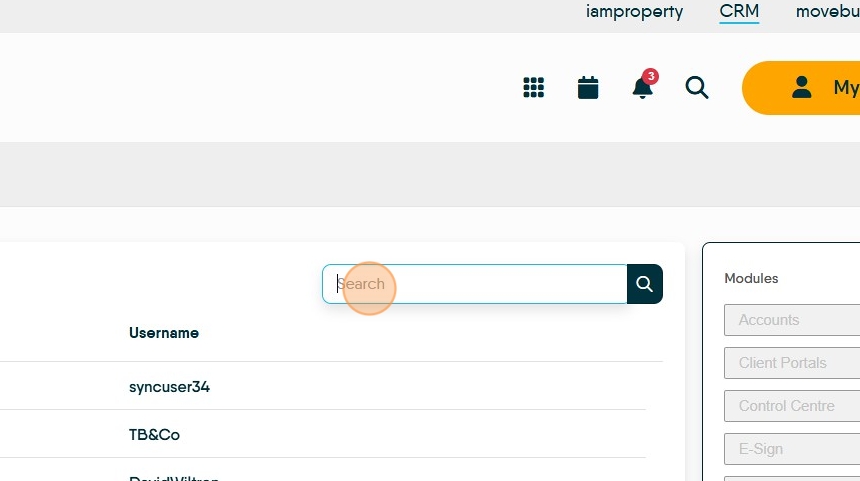
9. Tick the checkbox against the user you wish to give access to the Reporting Dashboard

10. Click "Reporting Dashboard" in the module list. It will change from Red to Green.

11. It's recommended the user logs out and back in before navigating to the Reporting Dashboard, here: https://crm.iamproperty.com/Reporting/Sales-Reporting/